 Free Practice Workbook
Page breaks in Microsoft Excel are essential for organizing and presenting data clearly in printed documents.
They allow you to control where your content splits across pages, ensuring a professional and structured layout.With options for both automatic and manual breaks, you can customize your printouts to suit your specific needs.
Getting Started with Page Breaks in Excel
Understanding the Role of Page Breaks
When it comes to keeping your data presentation clean and organized, page breaks in Excel are your best friend. Imagine neatly sectioning your extensive data into consumable chunks, each snugly fitting a printed page. Page breaks act like a traffic light for your data, directing it where to stop and where to start anew on a fresh page.
Automatic vs. Manual Page Breaks: The Key Differences
In the Excel universe, you’ll find two types of page breaks: automatic and manual. Automatic page breaks dance to the tune of Excel’s algorithm, popping up based on your sheet’s setup, including paper size, margins, and scaling. They’re like well-meaning fairies arranging your pages, marked by dotted blue lines for easy spotting.
Manual page breaks step in when you take the reins. They let you dictate exactly where to slice your data into a new page. You call the shots by inserting these breaks, which stand out as solid blue lines. Remember, while you can’t bid adieu to automatic page breaks, shifting them transforms them into manual ones, giving you the flexibility to customize your printout.
Think of them as guideposts: automatic page breaks are Excel’s best guess, but manual ones are your personal touch to ensure perfection in your printed documents.
Quick Guide to Inserting Page Breaks Manually
Step-by-Step Instructions for Adding Page Breaks
Ready to take control of your print layout in Excel? Adding page breaks is just a few clicks away:
STEP 1: Decide where you want to start a new page and click on the respective row or column.
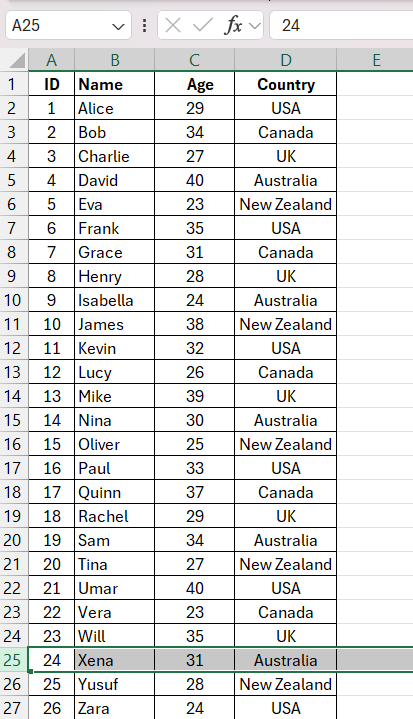
STEP 2: Head over to the “Page Layout” tab to find your toolkit for page management.

STEP 3: Look for the “Breaks” dropdown in the “Page Setup” group – this is your magic wand for page breaks and click on “Insert Page Break”.

STEP 4: Just like that, a dashed line appears, transforming your click into a command for a new page in print view.
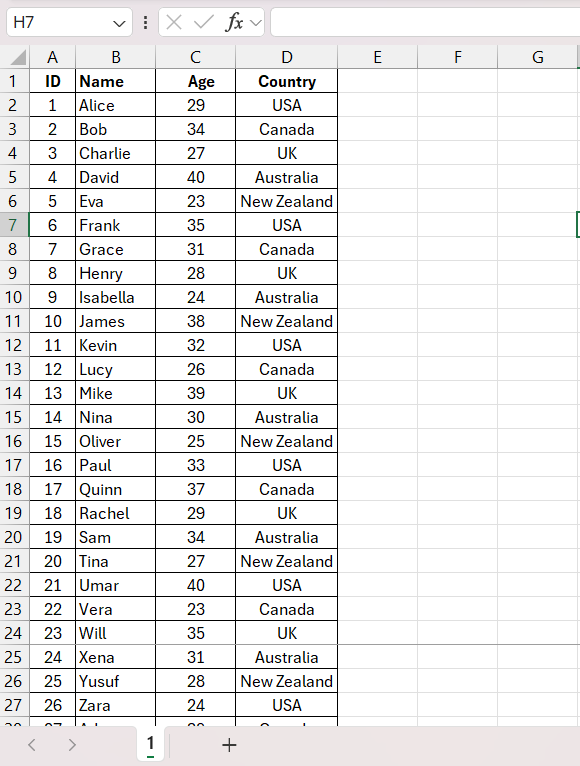
Short and sweet – Excel obeys and sections your data right where you want it. Now you’re in the driver’s seat, dictating where each page begins and ends.
Tips for Precise Page Break Placement
Precision is the name of the game when it comes to page break placement. Here’s how to ensure your page breaks are exactly where they need to be for that crisp, professional look:
- Zoom Out: Give yourself a bird’s eye view of your workbook in “Page Break Preview” to see how your data lines up and where to best position your page breaks.

- Adjust Layout Beforehand: Tweak column widths, row heights, and text alignment before setting your page breaks. It reduces the need for later adjustments.
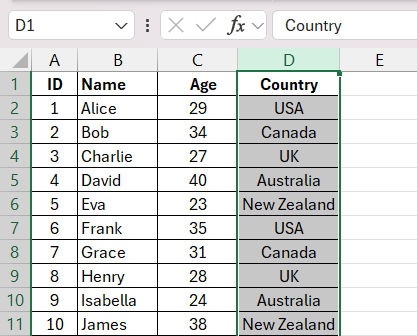
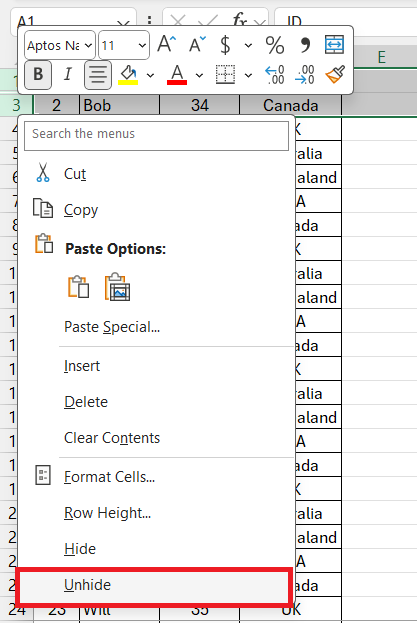
- Check for Hidden Rows/Columns: Unhide any concealed data to avoid surprises post-printing. Make sure everything is visible before defining your breaks.
- Use Print Preview: It’s your crystal ball into the outcome. Take a good look to spot any issues before you commit to print.

Remember, an ounce of prevention in page break placement is worth a pound of headache in reprints.
Streamlining Your Workflow: Shortcuts and Tricks
Keyboard Shortcuts for Faster Page Break Management
If you love saving time (and who doesn’t?), mastering keyboard shortcuts for managing page breaks in Excel will be a game-changer. Here are some nifty combinations to speed up the process:
- When you’re in Normal view and want to insert a page break, select the row or column where you wish the new page to start, and then hit ‘Alt’, ‘P’, ‘B’, and ‘I’ in quick succession. Voilà, a manual page break is added.
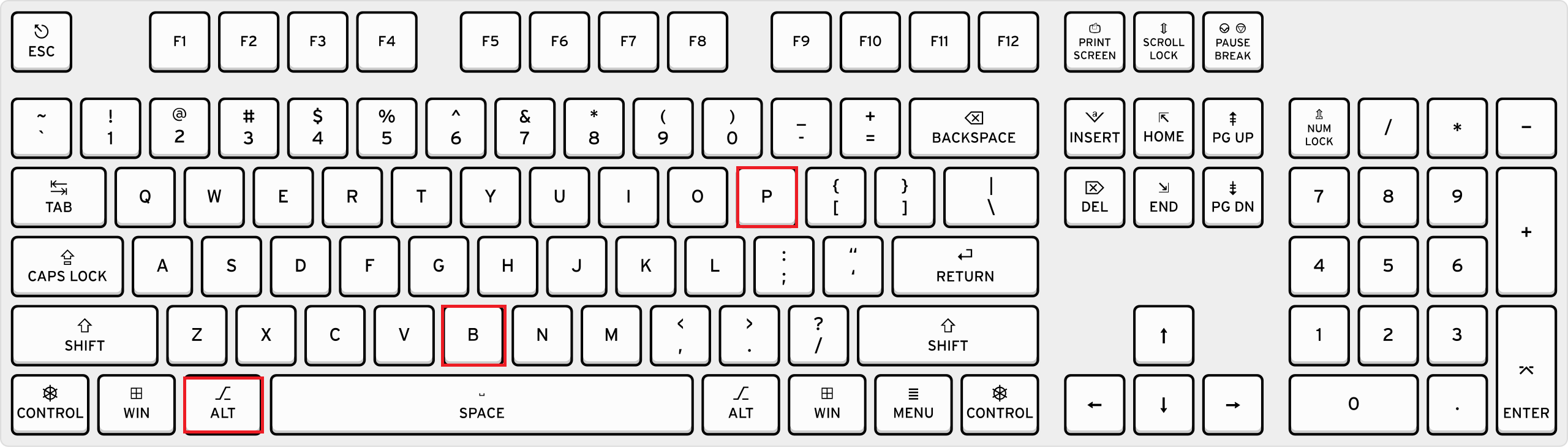
- To remove a manual page break, move your cursor to the cell immediately below or to the right of the break, and press ‘Alt’, ‘P’, ‘B’, and ‘R’. Just like that, the page break vanishes into thin air.
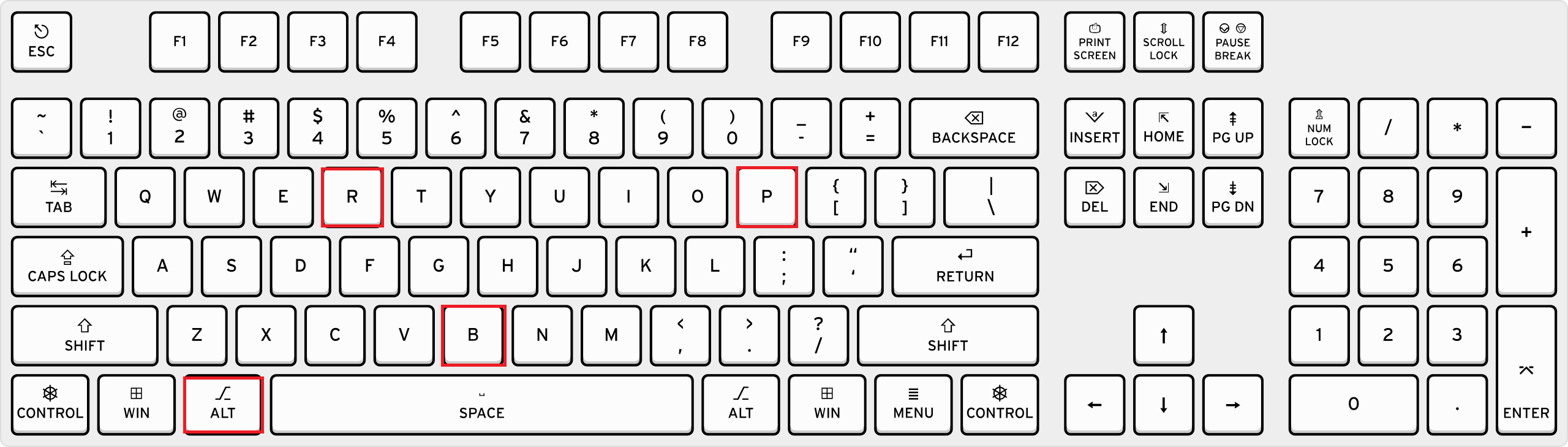
Insert Page Break in ExcelThese shortcuts are your express elevator to efficient page break management, whisking you through the process with a simple press of keys.
Fixing Common Page Break Problems
Troubleshooting Unwanted Page Breaks
Unwanted page breaks can creep into your Excel sheet like uninvited pests, but don’t fret! Here’s a quick plan to troubleshoot them:
- Start by switching to ‘Page Break Preview’ (View > Page Break Preview) to get a clear visual of where the breaks are placed.
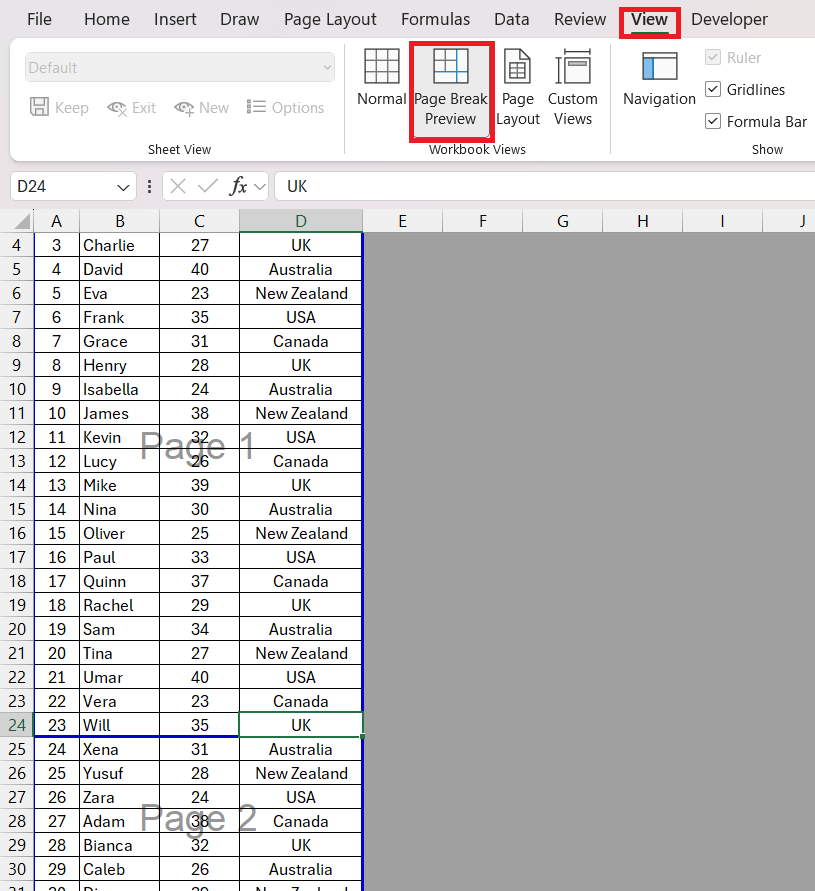
- Look out for rogue automatic breaks—these usually occur due to changed formatting, like adjusted column widths or altered font sizes. Restore the settings to their previous state to eliminate the unexpected breaks.
- For those stubborn manual breaks that need to go, head to the ‘Page Layout’ tab, select ‘Breaks’, then choose ‘Remove Page Break’. Voila, they’re history!
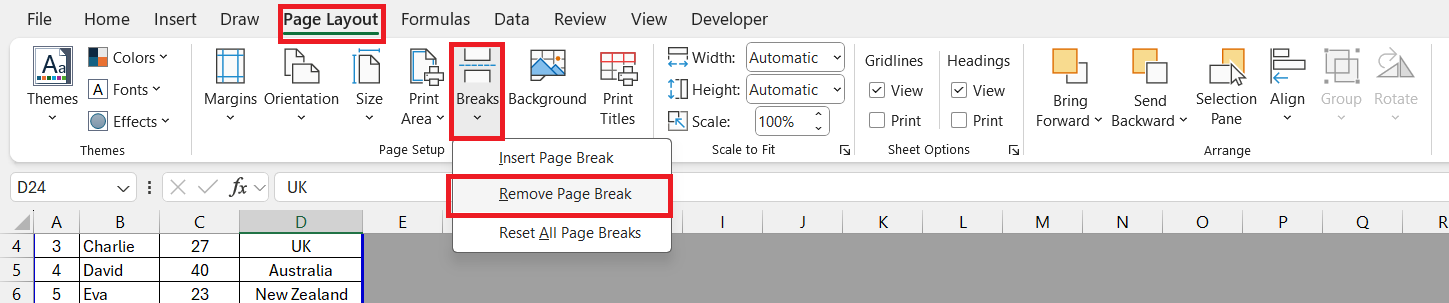
Sometimes, simply modifying the print area or scaling down the content (Page Layout > Scale to Fit) is a quick fix to page break pandemonium.
How to Reset Back to Normal View After Inserting Page Breaks
Once you’ve fine-tuned your page breaks and you’re ready to return to the usual grind, reverting back to Normal view is a breeze. Here’s how to reset your settings to flip back to the familiar Excel landscape:
- Direct your cursor to the ‘View’ tab and click on that trusty ‘Normal’ button. It’s the comforting home base of Excel views.
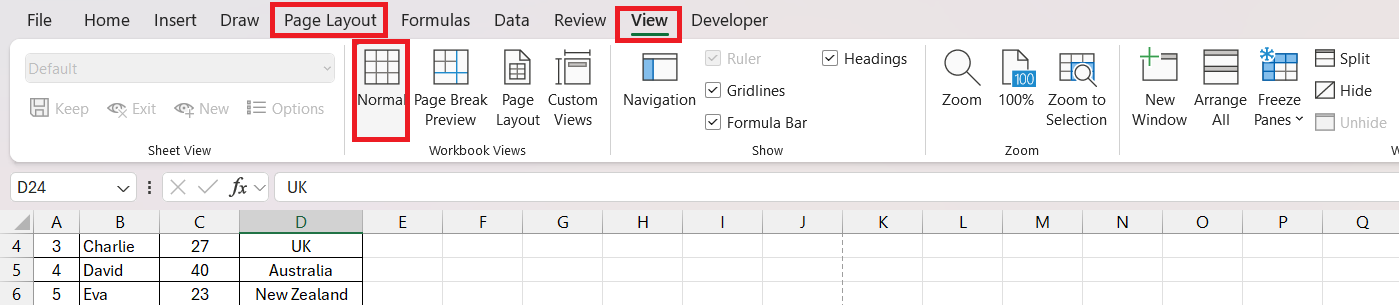
- Or, for the shortcut aficionados, simply click the ‘Normal’ button on the status bar. It’s a quick tap away for your convenience.

Remember, if you’re still seeing those pesky page break lines and prefer a clean slate, toggle them off by unchecking ‘Show page breaks’ under Excel Options > Advanced. Now, your worksheet is back to its original, unsegmented glory.
Advanced Page Break Strategies for Professionals
Mastering Conditional Page Breaks
Conditional page breaks are like having a helpful assistant in Excel who knows exactly where you want your data to start on a new page. Mastering them is straightforward once you know the tricks:
- Make sure your data is sorted based on the condition you want to trigger a page break, like after each change in ‘Class’ or ‘Department’.
- Go to the ‘Data’ tab and click on the ‘Subtotal’ command for a dialog that sets the stage for automation wizard going to do the heavy lifting.
- In the Subtotal dialog box, choose the column with your conditional values in ‘At each change in’, pick an inconsequential function like ‘Count’, and ensure ‘Page Breaks between groups’ is checked.
Once set up, Excel automatically inserts page breaks wherever the specified condition changes—like magic, creating clear divisions precisely where you need them.
FAQ: Navigating Page Break Insertion in Excel
How do you insert page break?
To insert a page break in Excel, select the cell where you want the new page to begin, go to the ‘Page Layout’ tab, click ‘Breaks’, and choose ‘Insert Page Break’. Your document will now print on separate pages at the point you specified.
How can I remove a manually-inserted page break?
To remove a manually inserted page break in Excel, select the row below or the column to the right of the page break, navigate to the ‘Page Layout’ tab, click ‘Breaks’, and select ‘Remove Page Break’. This action eliminates the targeted page break from your worksheet.
What are the differences between a manual and an automatic page break?
Manual page breaks are ones you insert yourself, giving you control over where your pages divide. Automatic page breaks, on the other hand, are placed by Excel based on your document’s layout and print settings. Manual breaks are indicated by solid lines, while automatic ones are dashed.
Can conditional page breaks be automated?
Yes, conditional page breaks can be automated in Excel by using the Subtotal feature or writing a macro. With Subtotal, Excel inserts page breaks based on changes in a specified column. Macros can set more complex conditions for automatic page break insertion.
Is there a way to view all page breaks at once in the Normal view?
In Normal view, you can view all page breaks by enabling the ‘Show page breaks’ option. Go to ‘File’ > ‘Options’ > ‘Advanced’, then under ‘Display options for this worksheet’, check ‘Show page breaks’. However, the ‘Page Break Preview’ is better for a comprehensive view.

John Michaloudis is a former accountant and finance analyst at General Electric, a Microsoft MVP since 2020, an Amazon #1 bestselling author of 4 Microsoft Excel books and teacher of Microsoft Excel & Office over at his flagship MyExcelOnline Academy Online Course.

 30 Days - Full Access









