 Free Practice Workbook
Table of Contents
Inverse of Log in Excel
Method 1 – Exponential Operator
You can easily calculate the antilog of a number in Excel using the exponential operator.
For example, if you want to know the antilog of a number in cell A2 with base 10, use the formula below:
=10^A2
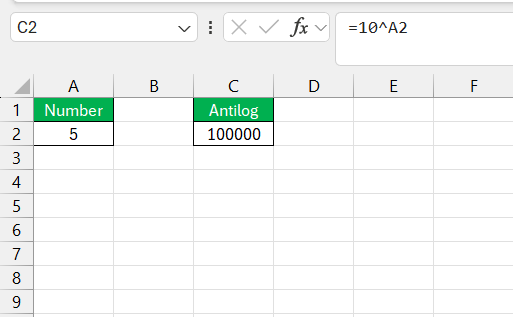
As soon as I hit Enter, the antilog appears.
This method is commonly used for base 10 antilog calculations as it is quick and easy.
Method 2 – POWER Function
To raise any number to a specified power, you can use the POWER function. It allows you to calculate antilog for any base, not limited to 10. The syntax of POWER function is:
=POWER(base, exponent)
where,
- base – base value
- exponent – logarithmic value
For example, to find the antilog of a log value, with a base value in A2, I input =POWER(A2,B2) and press Enter.
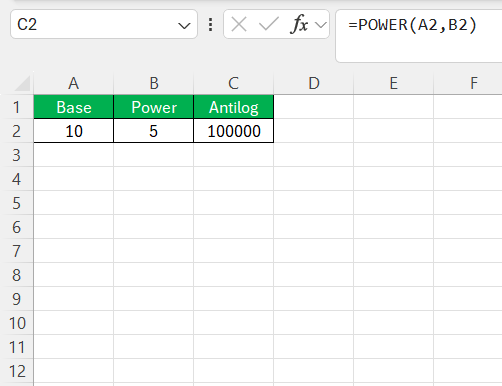
The POWER function can be used to calculate antilog for different bases, including 10,2, or e.
Tips & Tricks
Use Different Bases
When calculating antilog, the bases can be of different values, like 10, 2, or e.
You can use the EXP function to calculate the antilog for the base of e:
=EXP(A2)
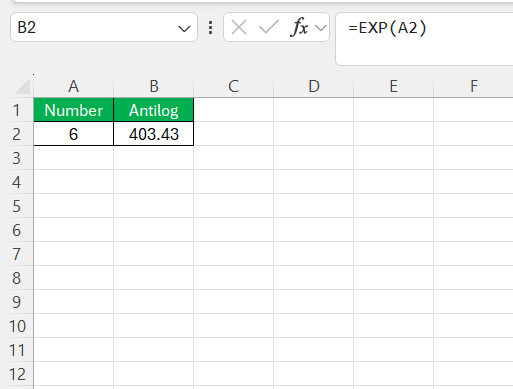
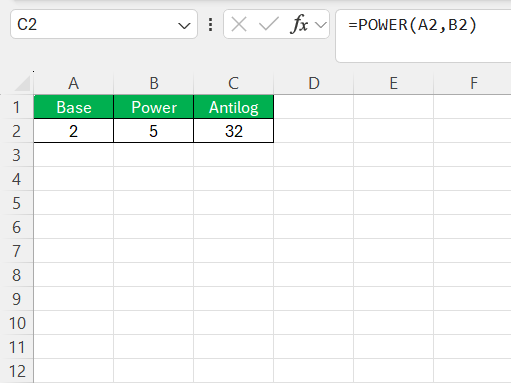
When calculating antilog for base 10 or e, you can use the POWER function. For example, if you have a base value in cell A2 and a logarithmic value in cell B2, the formula will be:
=POWER(A2,B2)
Fix Common Errors
While calculating antilogs in Excel, you may face some common errors. One frequent error is #VALUE!, which usually appears when the input is not numeric.
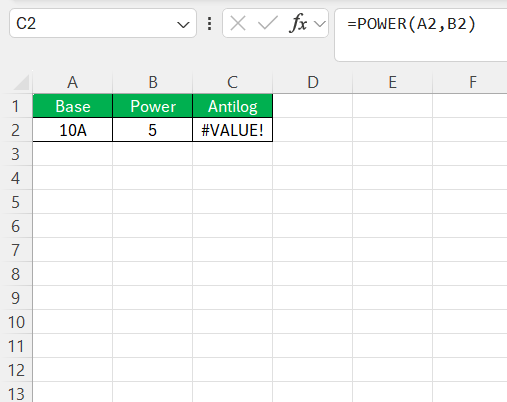
To resolve this, make sure there is no non-numeric data in the input cells.
Another error that may occur is #NUM! error. This error will appear if the input value is negative.
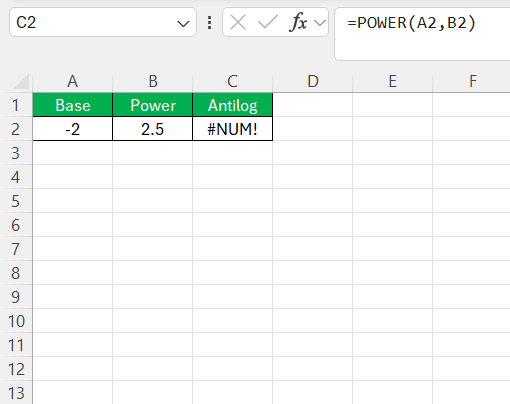
To resolve this, make sure that the cells do not contain any negative values.
FAQs
What is an antilog?
An antilog is the inverse function of a logarithm. It is used to determine the original number before it was transformed by the logarithmic function. If you take a logarithm of a number, the antilog of that result will bring you back to the original number. For instance, the antilog of log10(100) is 100 because 10 to the power of 2 is 100. They are two interdependent functions that essentially undo each other’s operations.
How to calculate antilogs for bases other than 10 in Excel?
You can use the POWER function to calculate antilog for bases other than 10. For natural base e, you can use the EXP function.
How to use antilog functions for real-world data analysis?
Antilog functions are really useful when working on data like earthquake measurements or financial growth data. This function makes calculations easy to understand and compare. It is a valuable tool for data analysis.
What are the limitations of calculating antilogs in Excel?
- Excel cannot calculate antilog for zero or negative values.
- Also, rounding off the inputs can lead to slightly inaccurate results.
- For a very large number, Excel may not be able to calculate antilog at all.

John Michaloudis is a former accountant and finance analyst at General Electric, a Microsoft MVP since 2020, an Amazon #1 bestselling author of 4 Microsoft Excel books and teacher of Microsoft Excel & Office over at his flagship MyExcelOnline Academy Online Course.

 30 Days - Full Access









