 Free Practice Workbook
Table of Contents
Comparison Operators in Excel
In Excel, the following comparison operators are commonly used:
- Less Than (<): Checks if one value is smaller than another.
- Greater Than (>): Checks if one value is greater than another.
- Less Than or Equal To (<=): Checks if one value is smaller than or equal to another.
- Greater Than or Equal To (>=): Checks if one value is larger than or equal to another.
- Not Equal To (<> ): Checks if two values are different.
Less Than and Greater Than Functions
You can combine < or > operator with other functions to create complex formulas:
- IF Statements: Use IF function with the > or < operators to evaulate multile critera.
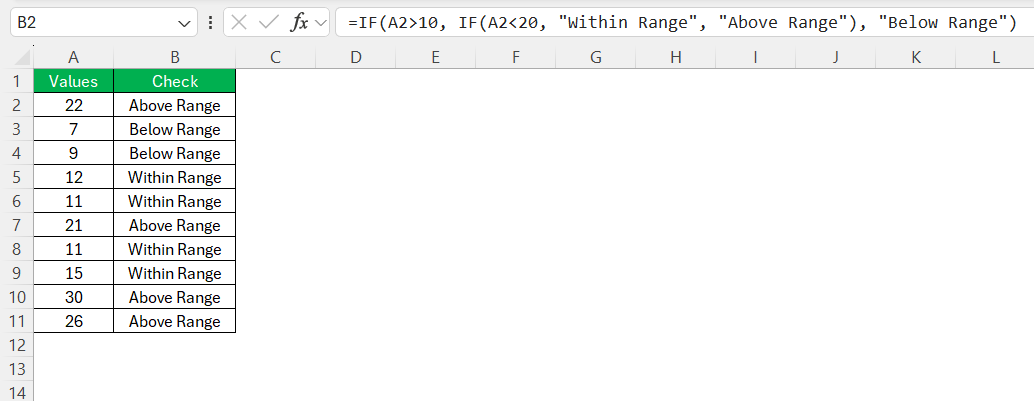
- AND/OR Function: Use AND and OR functions to check multiple criteria and improve your decision-making.
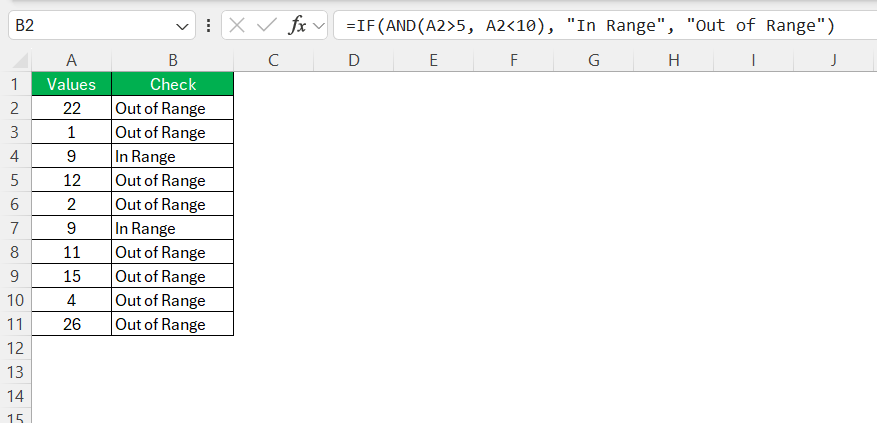
- SUMIF and AVGIF: Use the SUMIF or AVERAGEIF function to conditionally sum or average data.
- VLOOKUP: Use VLOOKUP to find the data from the range and then use greater than or less than operator to compare.
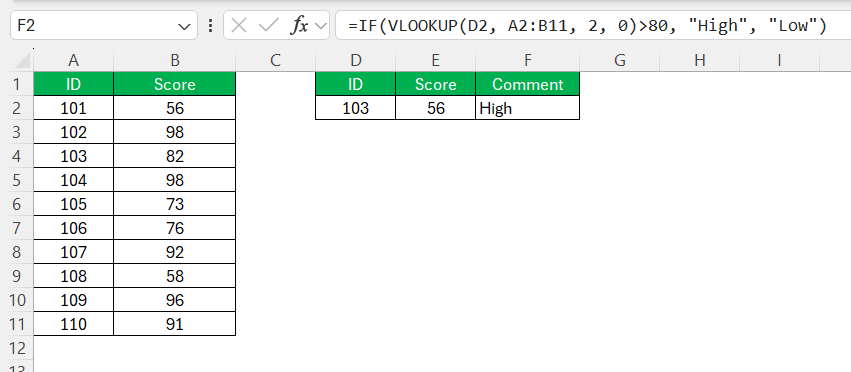
- OFFSET and MATCH: Use nested functions like OFFSET and MATCH to dynamically adjust ranges based on conditions.
- Conditional Formatting: Apply the >= operator in conditional formatting rules to visually emphasize data that exceeds certain benchmarks.
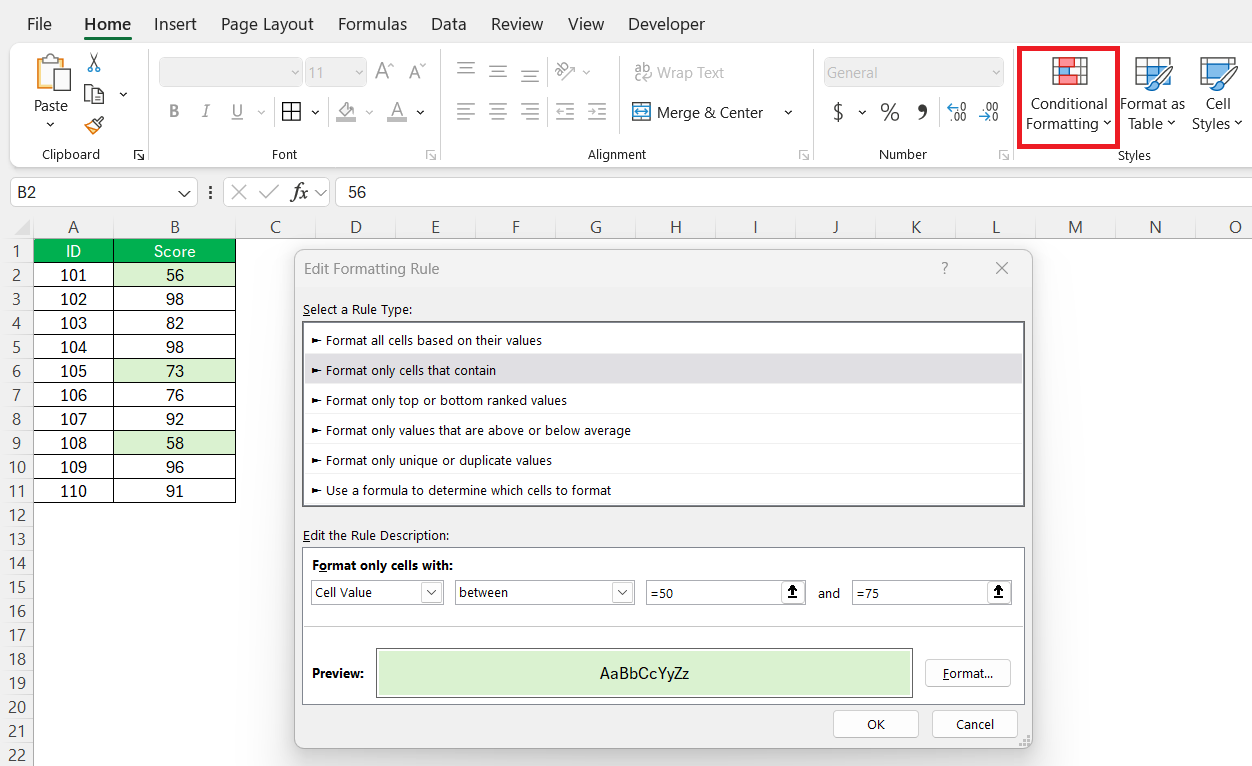
Tips & Tricks
Here are some tips to improve your proficiency:
- Make sure that the data you are comparing is consistent.
- The data should be formatted correctly to avoid errors in the results.
- Use parentheses to define the order of operations.
- Make dynamic reports by including functions like IF, SUMIF, or COUNTIF.
- Test the greater than or less than function separately to confirm that it is providing the expected results.
Troubleshoot Common Errors
Here are the common error messages that you may see when working on these calculations:
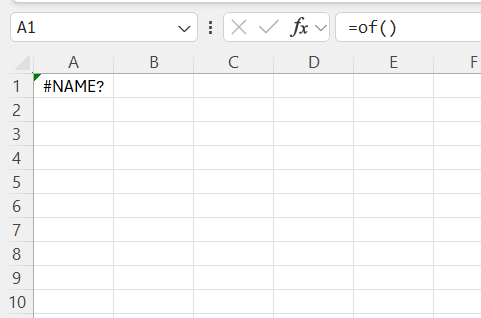
- #NAME? Error: This error occurs when Excel does not recognize the formula. It is because you may have mistyped the name of the formula.
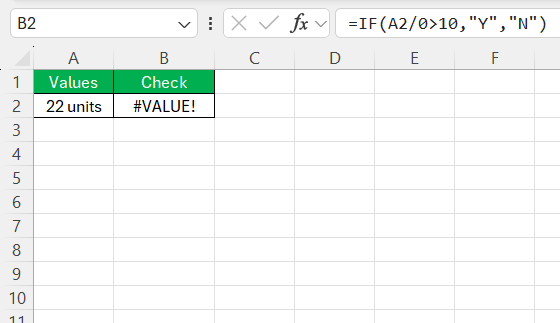
- #VALUE! Error: This occurs when there is a mismatch in data type. If you try to compare a text with a number or use an arithmetic operation on incompatible data.
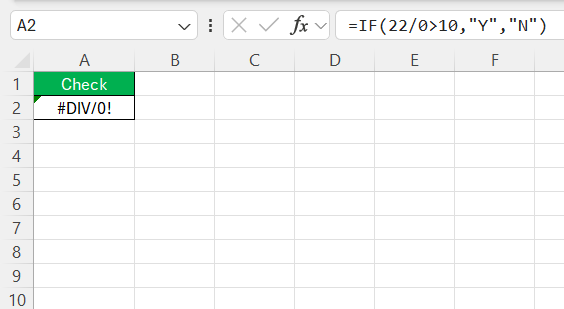
- #DIV/0! Error: This error can occur when you divide a value by 0.
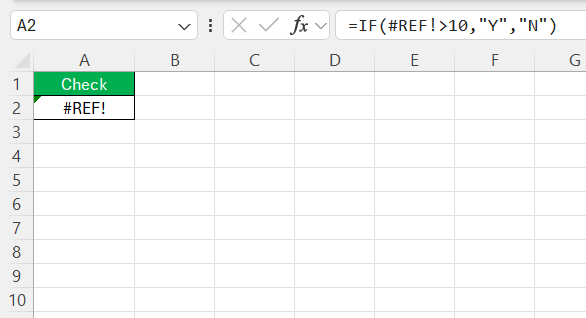
- #REF! Error: This error can occur when a formula refers to a cell that does not exist. The cell reference may have been deleted.
FAQs
How to check 2 conditions in an IF function?
You can check two conditions in Excel by combining the IF function with AND or OR functions.
- If you want both conditions to be met, use AND function.
- If you want at least one condition to be met, use OR function.
How to use the less than operator in Excel?
You can apply the < operator between the two values you are trying to compare.
= A1 < B1
Here, Excel will check if the value in cell A1 is less than the value in cell B1.
Can I combine these functions with AND/OR statements?
Yes, you can combine comparison functions like “less than” (<) and “greater than” (>) with AND/OR statements in Excel for complex logic tests. Using =IF(AND(A1>10, B1<20), "In Range", "Out of Range") evaluates whether both conditions are true. Similarly, =IF(OR(A1>50, B1>50), "Above Threshold", "Below Threshold") determines if at least one condition is met.
How to type >= in Excel?
To type the “greater than or equal to” operator in Excel, simply use the combination of the greater than symbol (>) followed by the equals sign (=) as >=. This operator can be used in formulas to compare two values, such as =A1>=B1, to check if the value in cell A1 is greater than or equal to the value in cell B1.

John Michaloudis is a former accountant and finance analyst at General Electric, a Microsoft MVP since 2020, an Amazon #1 bestselling author of 4 Microsoft Excel books and teacher of Microsoft Excel & Office over at his flagship MyExcelOnline Academy Online Course.

 30 Days - Full Access









