 Free Practice Workbook
When working with network-related data in Excel, you may encounter MAC addresses that need to be recorded, analyzed, or standardized. As unique identifiers assigned to network interfaces, MAC addresses have a specific format, which is essential to recognize when managing networked devices. In this guide, I’ll take you through what MAC addresses are, their structure, and the various ways you can MAC address format in Excel.
Key Takeaways:
- MAC addresses are unique identifiers for network devices and are essential for network management.
- Standard MAC address formats include colon-separated, hyphen-separated, and unformatted styles, each useful in different scenarios.
- Excel functions like
MID,LEFT,RIGHT, andSUBSTITUTEcan help MAC addresses format. - Conditional formatting can be used in Excel to validate MAC address formats.
- For safe data sharing, you should encrypt and back up your Excel files.
Table of Contents
How to format MAC Addresses
You can use the MID function to format MAC addresses by changing or adding delimiters between every two characters. For example, if the MAC address is aabbccddeeff and you want to change it to aa:bb:cc:dd:ee:ff. You can use the MID function to insert colons:
STEP 1: Type the existing MAC address in column A.
STEP 2: In the next column, you can use the MID function and & operator to add colons after every two characters –
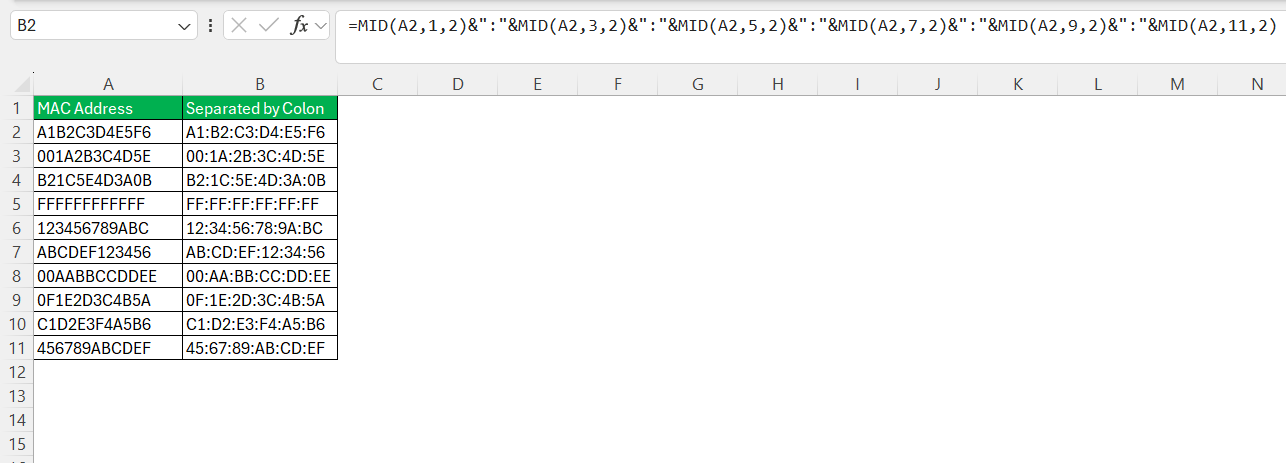
By using these functions in combination, you can quickly format rows of raw MAC addresses, maintaining a clean and usable dataset.
Tips & Tricks
Inconsistent Delimiter
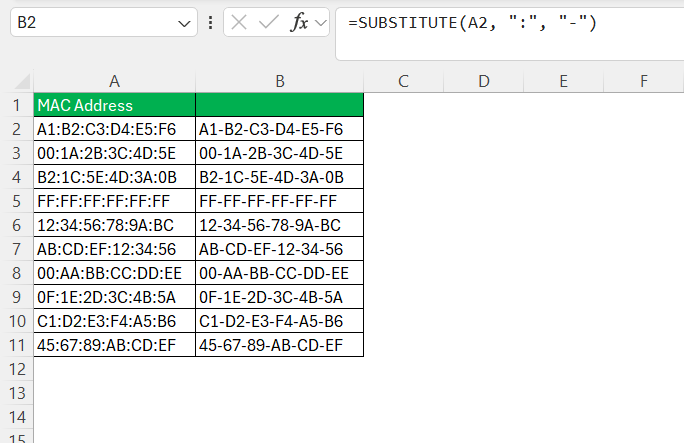
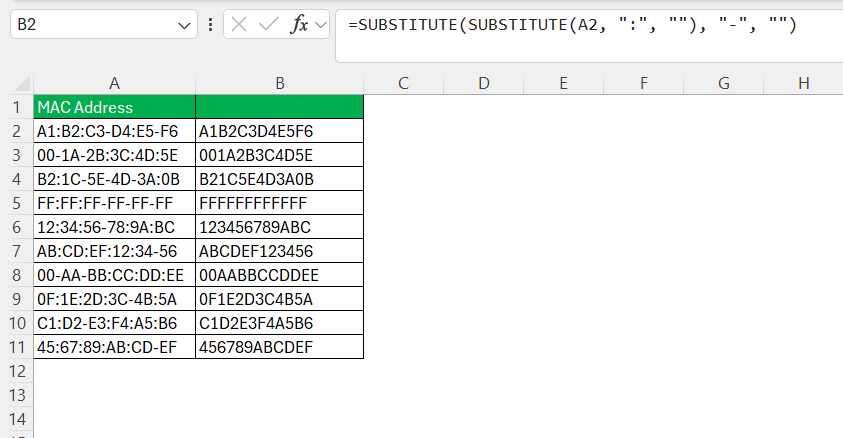
If mac address uses different delimiters (like colon, hyphen, spaces, etc), it may cause issues in sorting ot searching. It could confuse and provide errors while processing data. You can use the SUBSTITUTE function to replace the existing delimiters with a common delimiter.
- To replace colons with hyphens
- To remove all delimiters
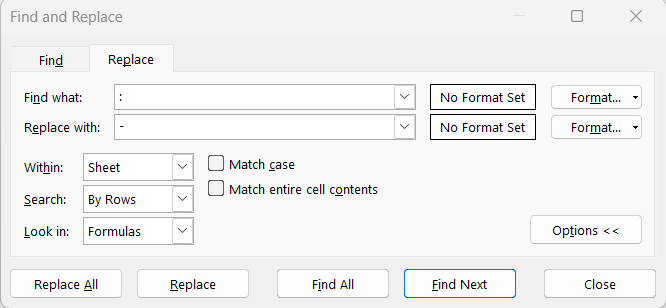
You can also use the Find and Replace feature to change the delimiter in the MAC addresses.
If the MAC addresses are consistent, it will be easier for you to export or import this data.
MAC Address Validation
You can use conditional formatting in Excel to check the format of the MAC addresses. Follow the steps below to check the formatting –
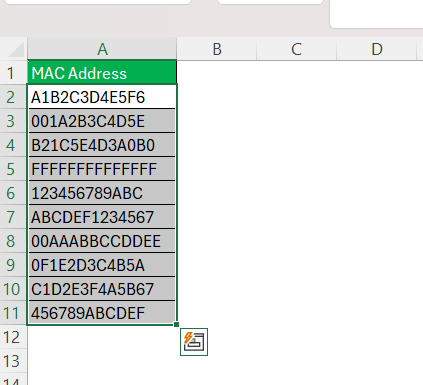
STEP 1: Select the range that you want to check.
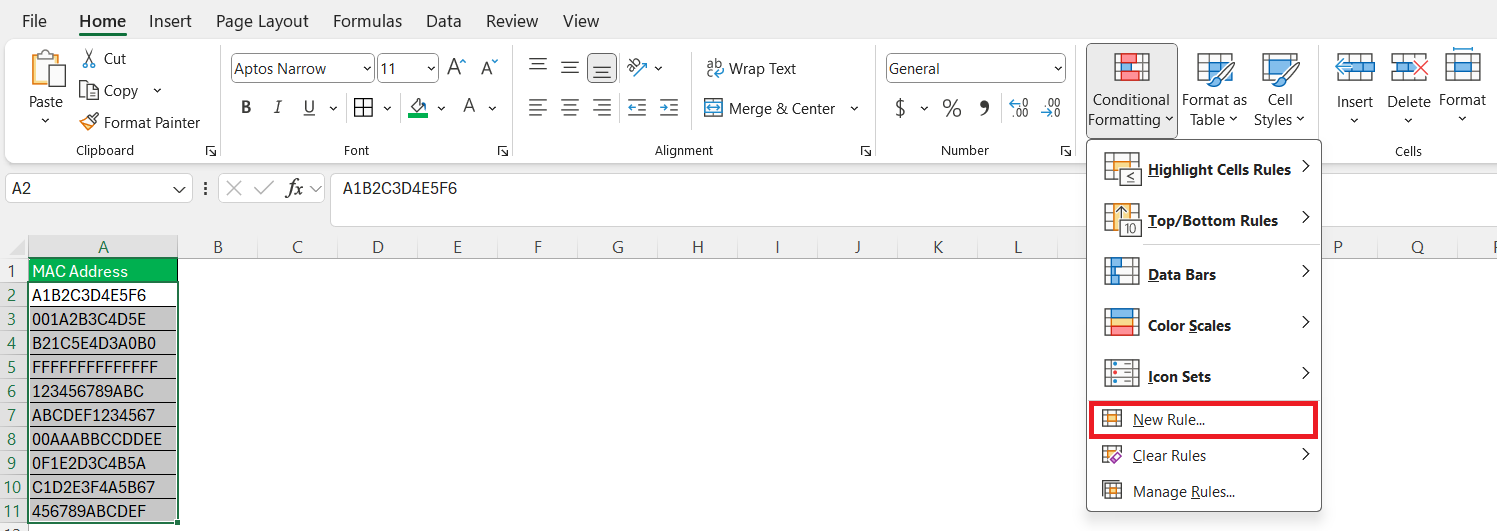
STEP 2: Go to Home > Conditional Formatting > New Rule.
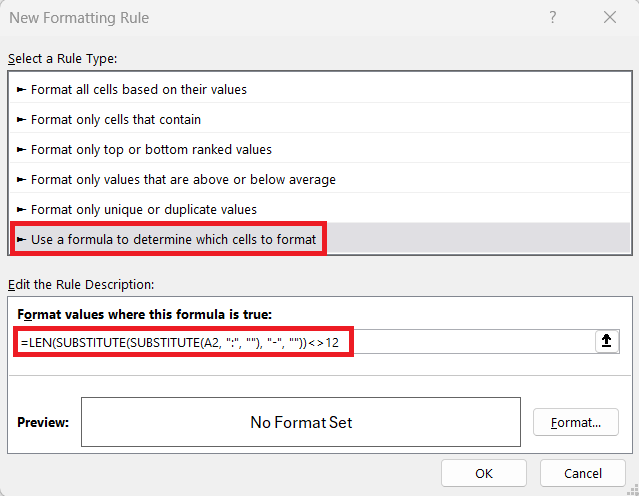
STEP 3: In the dialog box,
- Select rule type as ‘Use a formula to determine which cells to format’.
- Type this formula as Rule description –
=LEN(SUBSTITUTE(SUBSTITUTE(A2, “:”, “”), “-“, “”))<>12
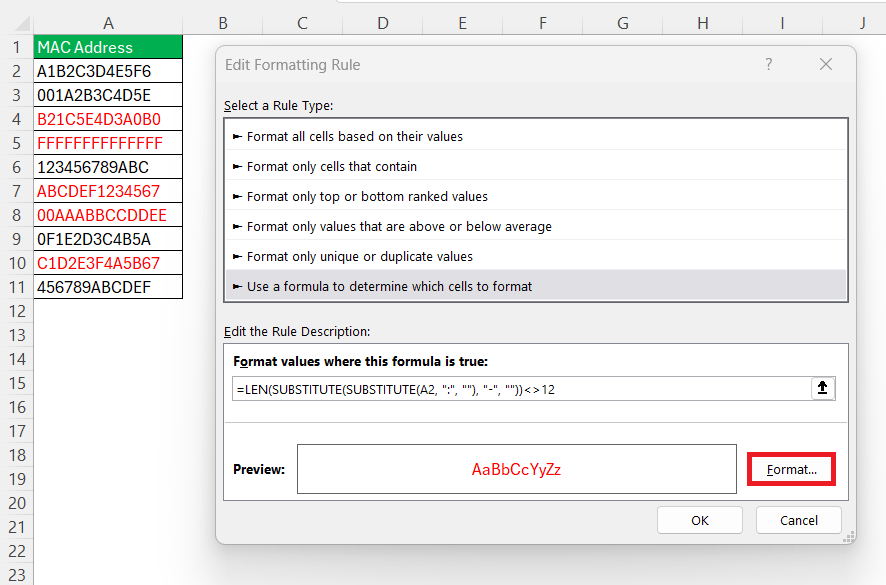
STEP 4: Set an appropriate format. Here, a red font has been used to easily spotan incorrect format.
Sharing Your Formatted Data
Export MAC Addresses
It is important to save the file containing the MAC address as a CSV. This will make sure that the formatting of the address remain unchanged.
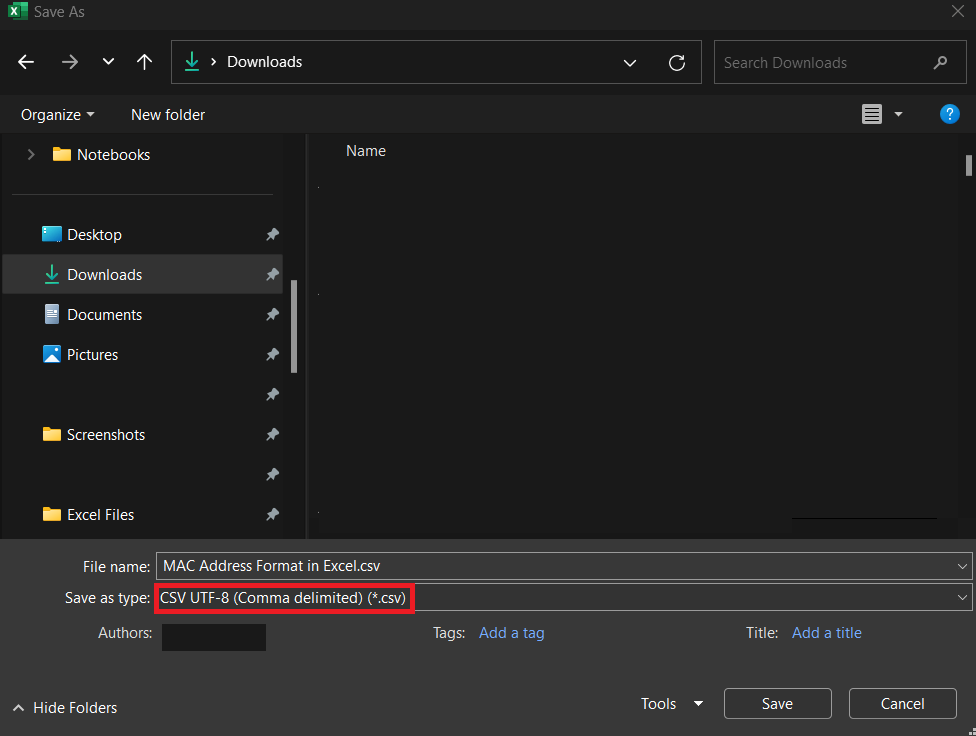
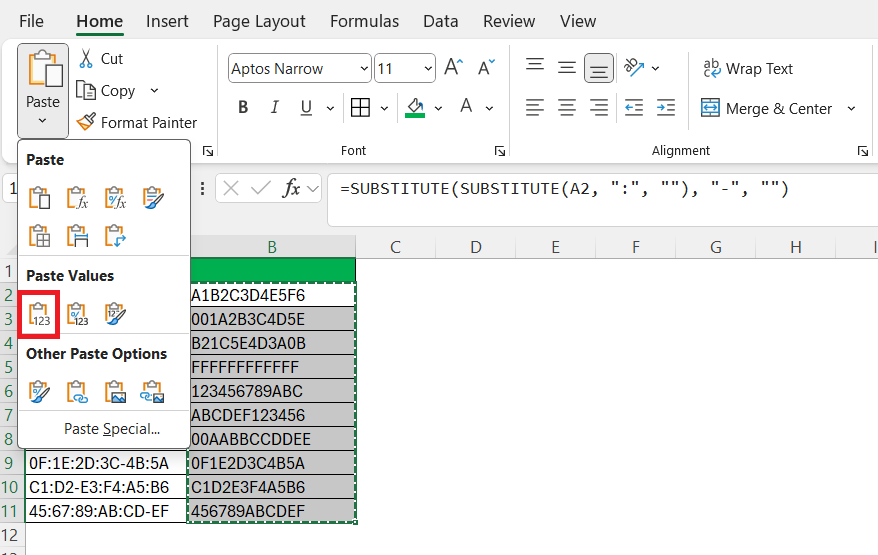
If you need to copy and paste these MAC adddress into another application, you can use the Paste Value option. This will make sure that only the data is pasted and any formula or references are removed.
You can choose the file format based on its usage. For example,
- If you want to keep the formatting, you should use .xlsx
- If you want plain text, use .csv
FAQs
How to format a MAC address?
You can use the MID function in Excel to add delimiters between every two characters. For example, to format aabbccddeeff as aa:bb:cc:dd:ee:ff, use the formula
=MID(A1,1,2)&”:”&MID(A1,3,2)&”:”&MID(A1,5,2)&”:”&MID(A1,7,2)&”:”&MID(A1,9,2)&”:”&MID(A1,11,2)
How to format different styles of MAC addresses?
Different styles of MAC addresses may require different formatting approaches. For instance, MAC addresses can be displayed with colons, hyphens, or dots as separators, and even without any separator. You would adjust your Excel formulas accordingly. For example, if you need to format a MAC address with hyphens instead of colons, replace the colon in the concatenation formula with a hyphen. Utilize the ‘SUBSTITUTE’ function to swap out delimiters if working with already semi-formatted data.
Can Excel auto-format MAC addresses as I type?
Excel can’t auto-format MAC addresses as you type by default, but you can set up a VBA (Visual Basic for Applications) macro to do so. By writing a small piece of code in the Excel VBA editor, you can trigger a formatting function whenever a cell value is changed, which would auto-format the MAC address. Remember to enable macros for this to work.
How do I format numbers in Excel for MAC?
To format numbers in Excel for Mac, you select the cells containing the numbers and then go to the ‘Format’ menu. Choose ‘Cells’, and in the dialog box, pick the ‘Number’ tab. Here, you have a variety of number formats to choose from, including ‘Number’, ‘Currency’, ‘Accounting’, ‘Date’, ‘Time’, ‘Percentage’, and ‘Custom’. For custom formats, such as a MAC address, you would use the ‘Custom’ option and define the format you need.
Is there a way to format addresses in Excel?
Yes, you can format physical addresses in Excel so that they are consistent and readable. It’s best to use separate columns for each part of the address—street, city, state, ZIP code, country—to facilitate sorting and searching. To combine these into one formatted address in another cell, use the CONCATENATE function or the ampersand (&) to join the different parts with commas and spaces as appropriate. For example, =A2 & ", " & B2 & ", " & C2 & " " & D2 & ", " & E2 would create a full address from individual columns.

John Michaloudis is a former accountant and finance analyst at General Electric, a Microsoft MVP since 2020, an Amazon #1 bestselling author of 4 Microsoft Excel books and teacher of Microsoft Excel & Office over at his flagship MyExcelOnline Academy Online Course.

 30 Days - Full Access









