 Free Practice Workbook
Merge and Center is a feature used to make the data look more organised and eye-catching. It is a useful tool to help align and merge cells. In this article, I will show how to merge and center content in Excel.
Key Takeaways:
- Merge and Center can merge cells and align content.
- Center Across Selection does not disrupt grid functionality.
- Press Alt+H+M+C to merge and center cells.
- Merge and center can be used for headers and titles to align them.
- Merged cells cannot be sorted or filtered.
Table of Contents
How To Merge and Center
Keyboard Shortcuts
One of the fastest methods for merging cells in Excel is to use keyboard shortcuts.
- Select the cells we want to merge
- Press Alt+H+M+C to merge and center the cells.
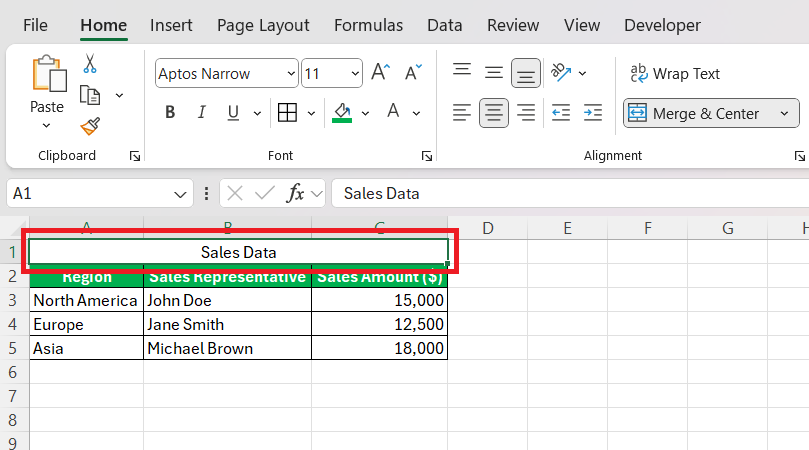
By incorporating these keyboard shortcuts, we become more proficient with Excel.
Merge and Center Feature
STEP 1: Select the range of cells we want to merge.
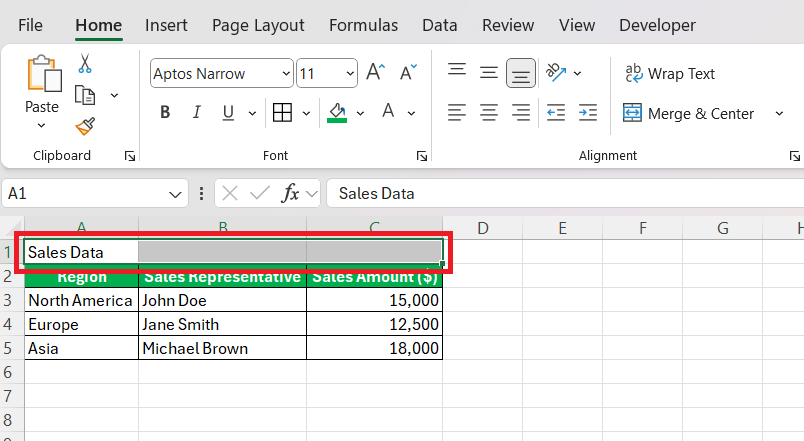
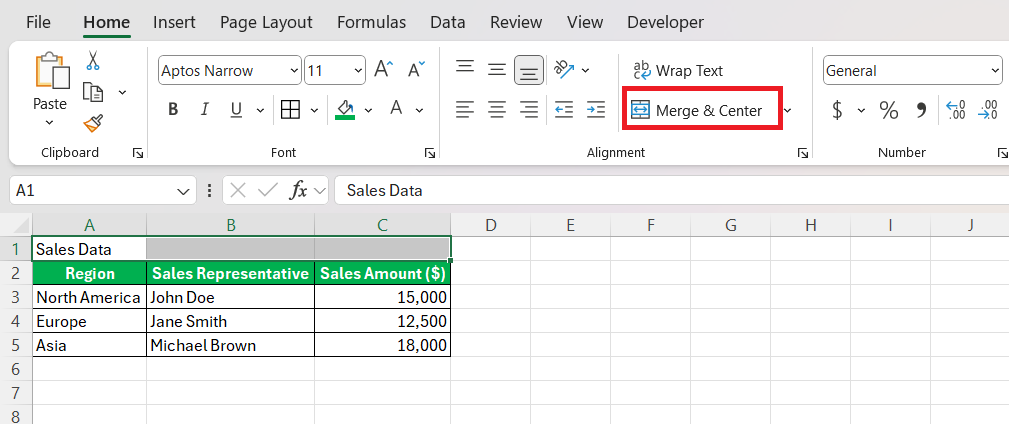
STEP 2: Go to the Home tab and click on Merge & Center button.
The cells combine into one larger cell, and the content is centered aligned.
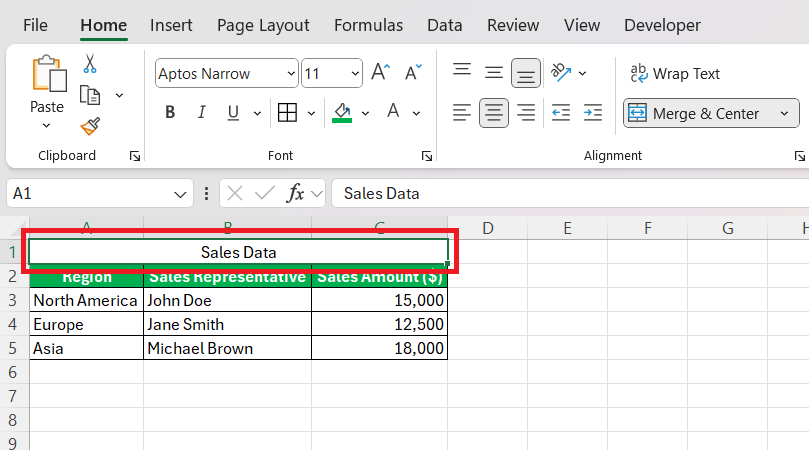
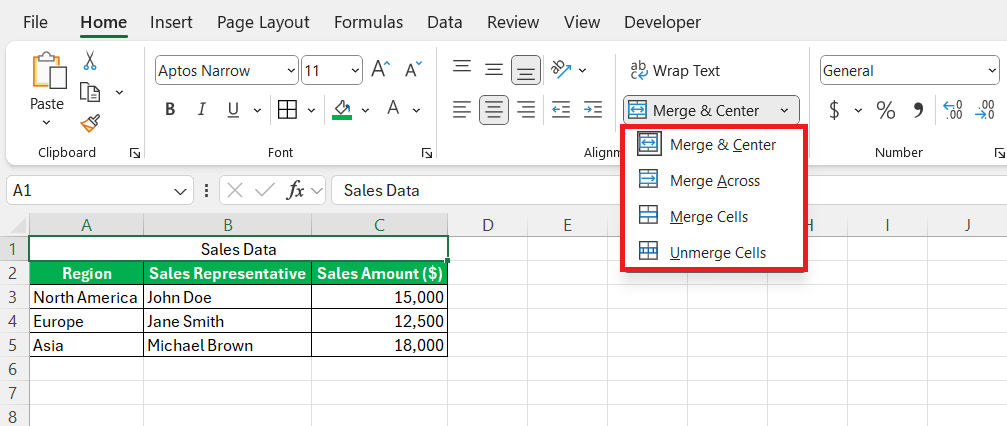
If we want to use a different type of merge, clicking the drop-down arrow next to Merge & Center. There are more options available:
- Merge Across
- Merge Cells
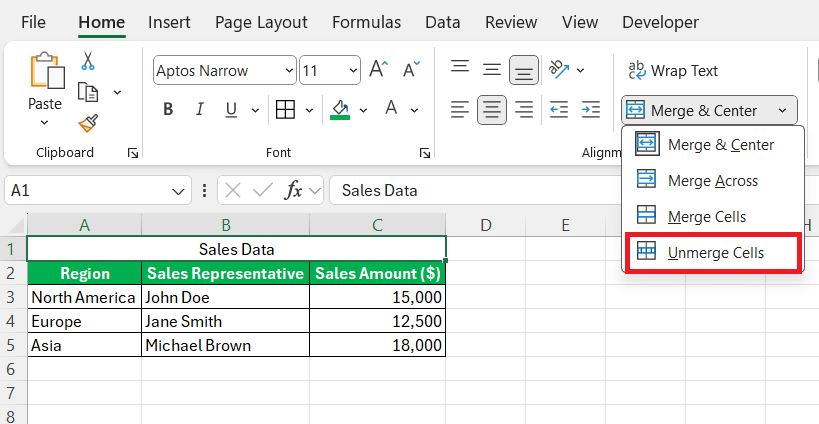
- Unmerge Cells
Center Across Selection
Center Across Selection is an alternative to Merge and Center. It offers centered text without actually merging cells. It is used when I need the visual unity of merged cells, but the grid integrity is just as important.
STEP 1: Select the cells.
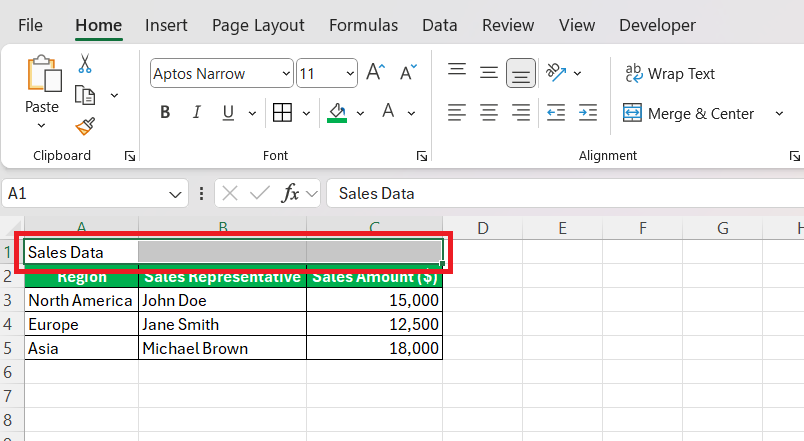
STEP 2: Go to the Home tab. Click on the small arrow in the Alignment group to open the Format Cells dialog box.

STEP 3: Under the Alignment tab, select Center Across Selection.
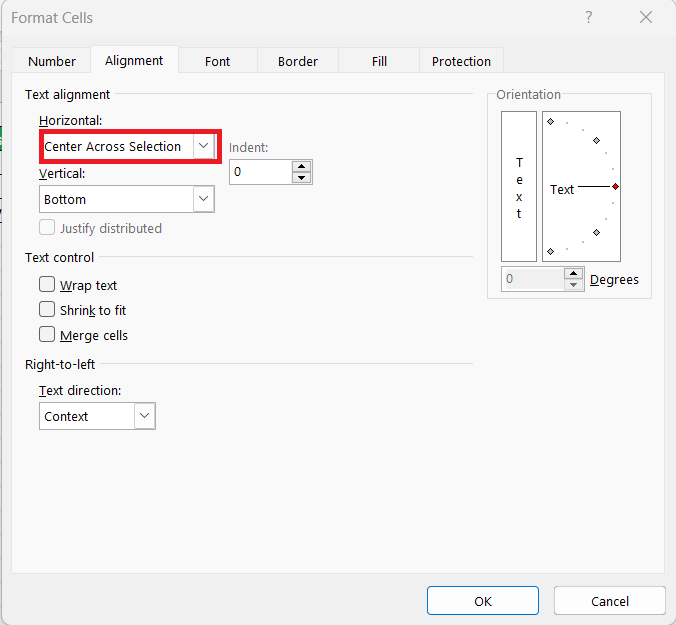
STEP 4: Click OK.
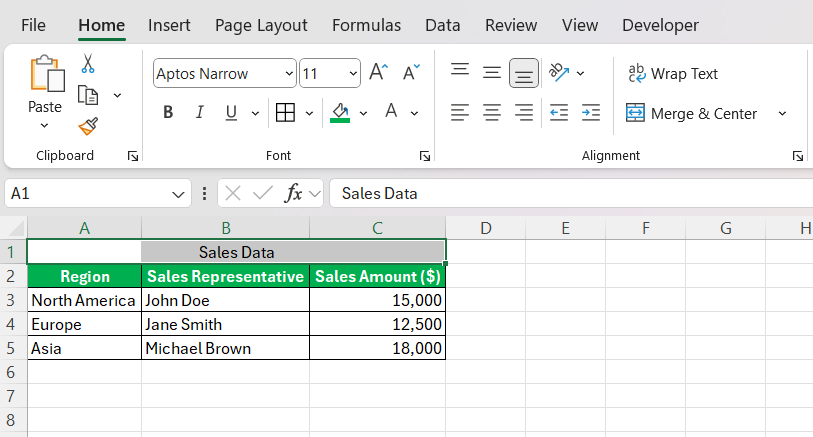
Overcome Challenges
Can’t Merge Cells
Here’s how we can troubleshoot some common reasons why cells may not merge:
- If actively editing a cell, Excel won’t merge. Hit Enter or click another cell to exit edit mode and then try merging again.
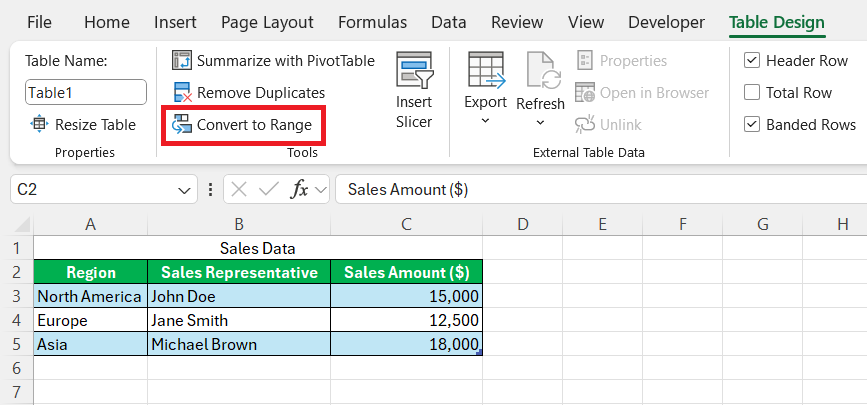
- Cells within a table cannot be merged. I must convert the table to a range before merging.
- For shared or protected workbooks, merge functions are often disabled. Make sure that you have the necessary permissions before attempting to merge.
Unmerging Cells
STEP 1: Click on the merged cell.
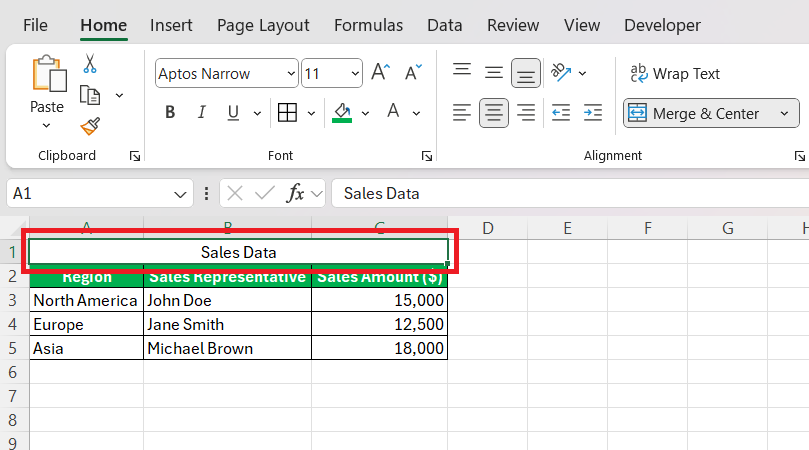
STEP 2: Go to the Home tab. Click the dropdown arrow beside Merge & Center and select Unmerge Cells.
Tips & Tricks
- Merging will only keep the upper-left cell content. So, back up any important data beforehand.
- Merging may seem like an isolated action, but it can impact filtering, sorting, and printing.
- Merging is great for titles and headers, but it can cause difficulties in data manipulation.
- Use Center Across Selection when the functionality of individual cells is as significant as the visual layout.
- If I merge in haste, I use Ctrl + Z to revert the actions.
FAQs
How to Merge Cells in Excel Without Losing Information?
To merge cells in Excel without losing information:
- Make sure that all important data is in the upper-left cell of the cells
- If the information is spread out, copy it manually into the upper-left cell
- Use the CONCATENATE function or & operator to combine data into one cell before merging.
- Always make a backup before merging cells.
What is the shortcut key for Merging Cells?
Use the shortcut key Alt+H, followed by M, and then again by C.
What is the alternative to merging cells?
The alternatives can be used for merging cells is Center Across Selection. It will align the text in the center but not merge it.
Why merge cells in Excel?
We merge cells in Excel to create a professional-looking spreadsheet. Merging is useful for making titles or headers span across multiple columns or rows.

John Michaloudis is a former accountant and finance analyst at General Electric, a Microsoft MVP since 2020, an Amazon #1 bestselling author of 4 Microsoft Excel books and teacher of Microsoft Excel & Office over at his flagship MyExcelOnline Academy Online Course.

 30 Days - Full Access









