Table of Contents
Types of OneNote Versions
Microsoft has released several versions of OneNote:
- OneNote for Windows
- OneNote for Windows 10
- OneNote for Mac
- OneNote Online (Web Version)
- OneNote Mobile (Android and iOS)
Each version has its own interface and way of displaying version details.
OneNote vs. OneNote for Windows 10
With OneNote, you can save a notebook either on a computer or in the cloud. It provides you with more flexibility. Whereas, OneNote for Windows 10 stores everything in OneDrive. It requires a stable internet connection. Another advantage of OneNote is its integration with Outlook. You can easily email pages directly. OneNote for Windows 10 doesn’t support this as smoothly. It pushes you to use apps like Windows Mail.
If you want more features and better integration, OneNote is the stronger option. If you prefer a simple and clean experience, OneNote for Windows 10 works well.
OneNote for Windows 10 showcases a brighter and more vibrant purple color scheme. This totally contrasts with the subdued hues of OneNote.
Additionally, the name in the title bar or the app list is a dead giveaway. If it reads ‘OneNote for Windows 10,’ it’s the app version, while ‘OneNote’ or ‘OneNote 2016’ refers to the desktop version, which might be pre-installed with the Microsoft Office package or downloaded separately.
How to Determine Your OneNote Version
On Desktop
STEP 1: Open OneNote.
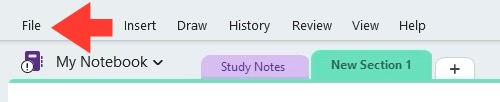
STEP 2: Click on File in the menu bar.
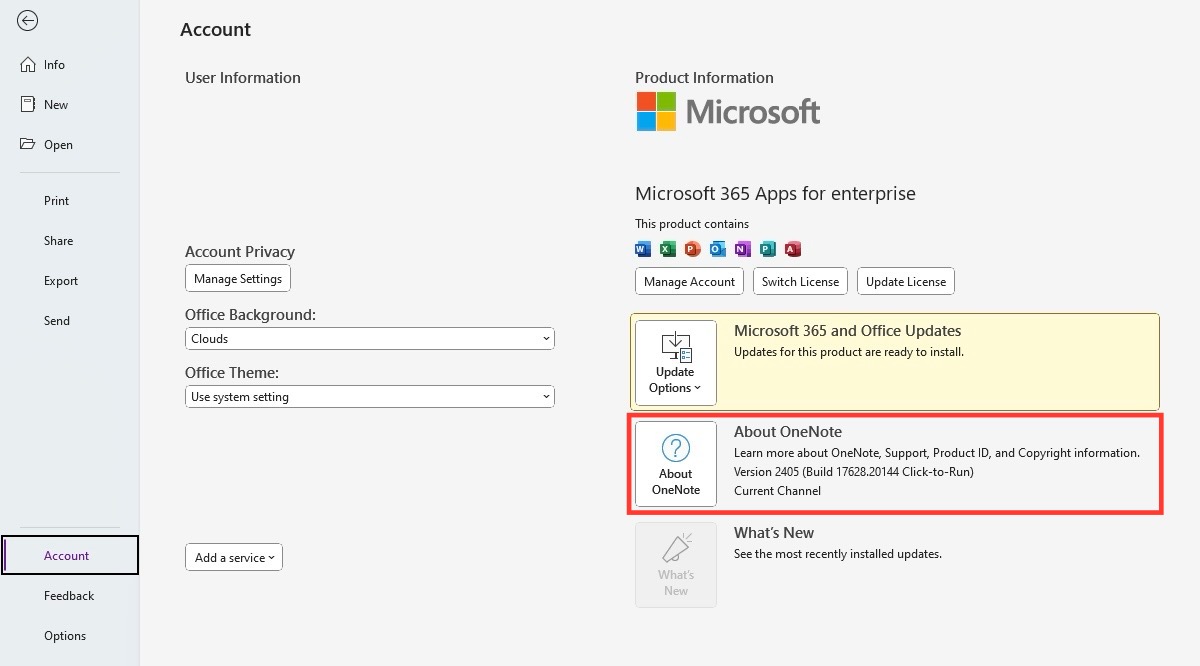
STEP 3: Select Account. Under product information, find the version of OneNote.
On Mac
STEP 1: Open OneNote in Mac.
STEP 2: Click on Help in the menu bar.
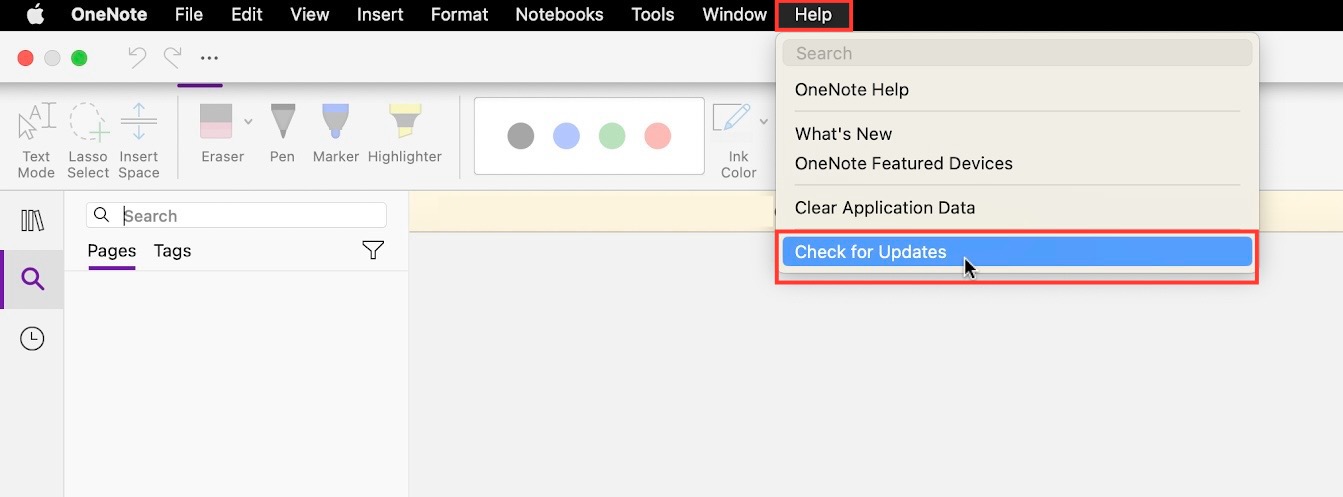
STEP 3: Search OneNote in the list.
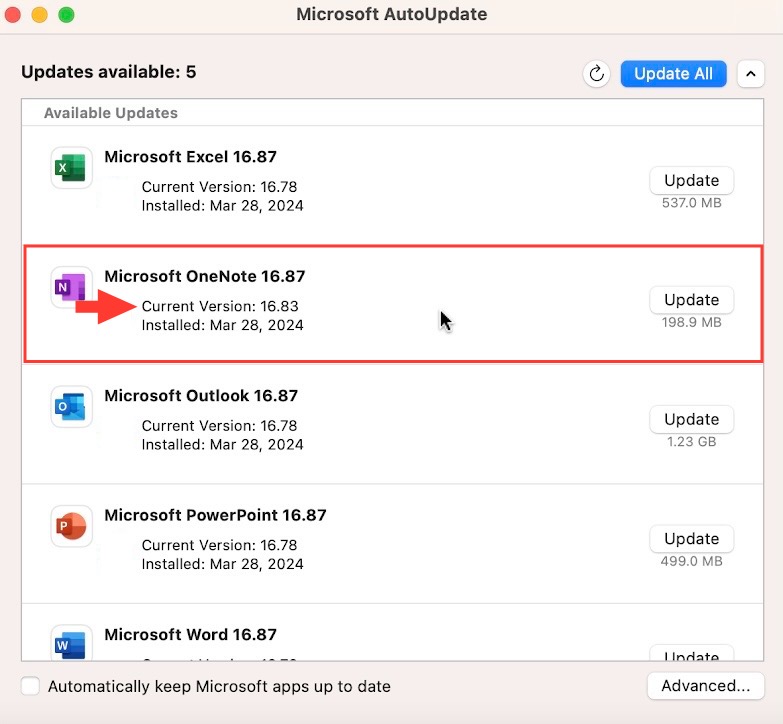
Find the current version and check if any updates are available.
On Mobile Devices
STEP 1: Open the App Store or the Google Play Store.
STEP 2: Go to My apps & games (Android) or your profile (iOS) to find your installed apps.
STEP 3: Locate OneNote in the list of apps.
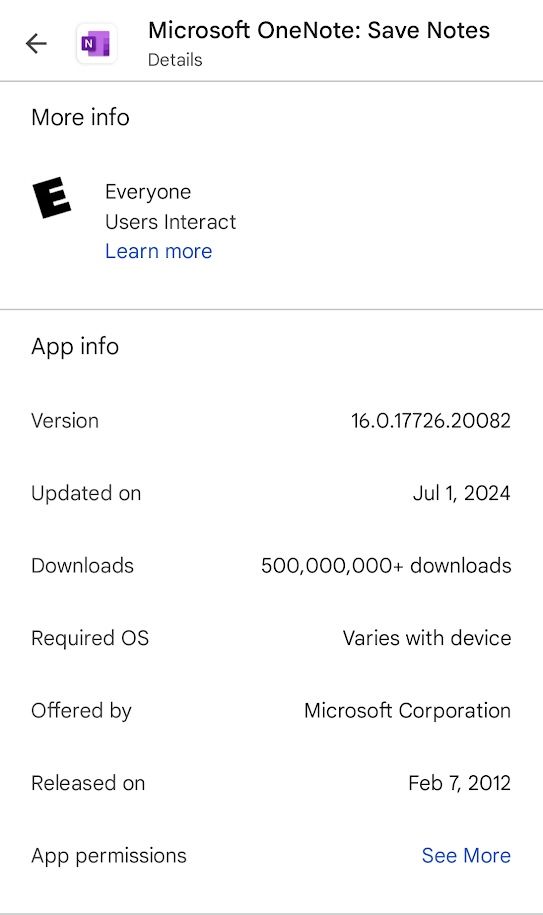
STEP 4: View the app details to find the current version number in the description.
FAQs
How to Tell If I Have OneNote or OneNote for Windows 10?
I can quickly tell if I have OneNote or OneNote for Windows 10 by checking the app name and color scheme. OneNote for Windows 10 usually has a brighter purple icon and is labeled as such, while the traditional OneNote, also known as OneNote 2016, has a more muted icon and lacks the “for Windows 10” tag.
Is There a Difference in Syncing Between OneNote Versions?
OneNote for Windows 10 uses cloud syncing with OneDrive. The desktop version of OneNote allows for both cloud and local notebook storage.
How to check my OneNote version on Windows?
To check the OneNote version on Windows:
- Open OneNote
- Go to File > Account.
- Check the version details.
How to find the OneNote version on Mac?
To check the OneNote version on Mac:
- Click OneNote in the top menu
- Select About OneNote.
- Check the version.

John Michaloudis is a former accountant and finance analyst at General Electric, a Microsoft MVP since 2020, an Amazon #1 bestselling author of 4 Microsoft Excel books and teacher of Microsoft Excel & Office over at his flagship MyExcelOnline Academy Online Course.

 30 Days - Full Access









