 Free Practice Workbook
Mirroring images in Microsoft Word can add a unique visual effect to your documents, whether for creative layouts, presentations, or visual appeal. Fortunately, Word has some tools that make this process easy and efficient. In this guide, I’ll show you step-by-step how to mirror images in Word.
Key Takeaways:
- Flipping images in Word can create artistic effects.
- It improves the layout of documents.
- Use the Flip Horizontal or Flip Vertical options for mirroring.
- Adjust image rotation by using custom rotation settings.
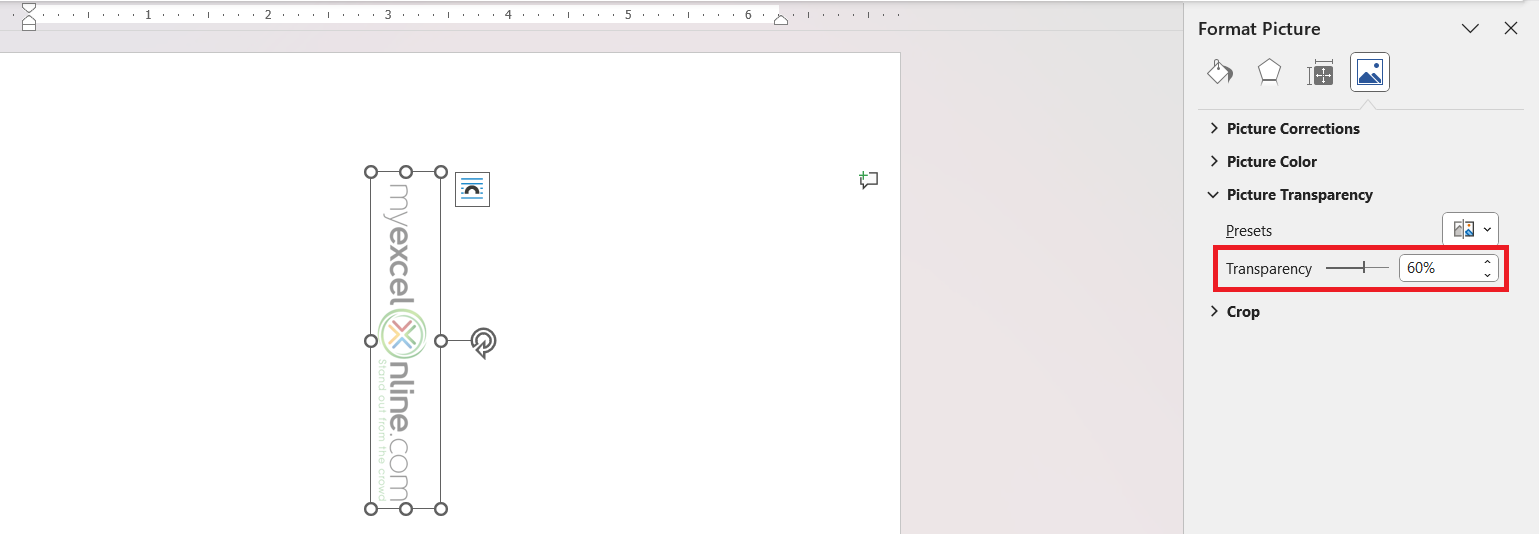
- Use borders, shadows, and transparency to make mirrored images blend seamlessly.
Table of Contents
Mirror Images in Word
Adding mirror images in Microsoft Word can open up a world of creativity. This feature is useful when:
- I want to present a reverse of a picture for artistic effect.
- Mimic a reflection as seen in calm waters.
- Give a document an innovative twist.
This technique can add a unique touch to materials.
Sometimes, flipping an image can help create visual balance, reflect text, or give your document a dynamic look. Mirroring can be especially helpful for graphics, shapes, or logos that may look better when facing a different direction.
How to Create Mirror Images
Add Image
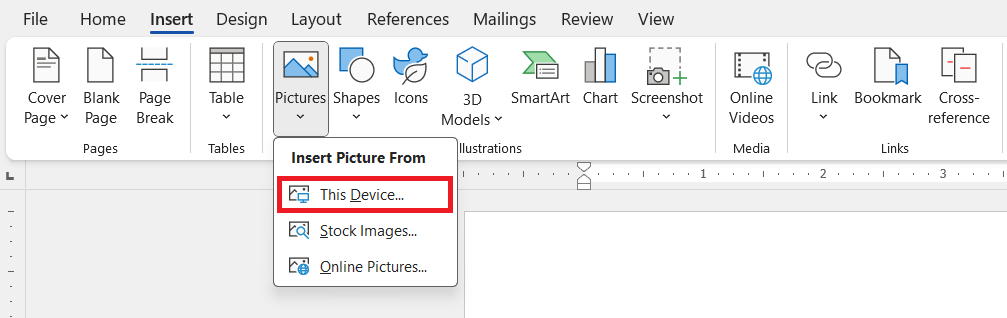
Go to the Insert tab and click on Pictures.

Select an option:
- ‘This Device’ for something saved locally
- “Stock Images’ for something more generic
- :Online Pictures’ if I’m looking for a specific image on the web.
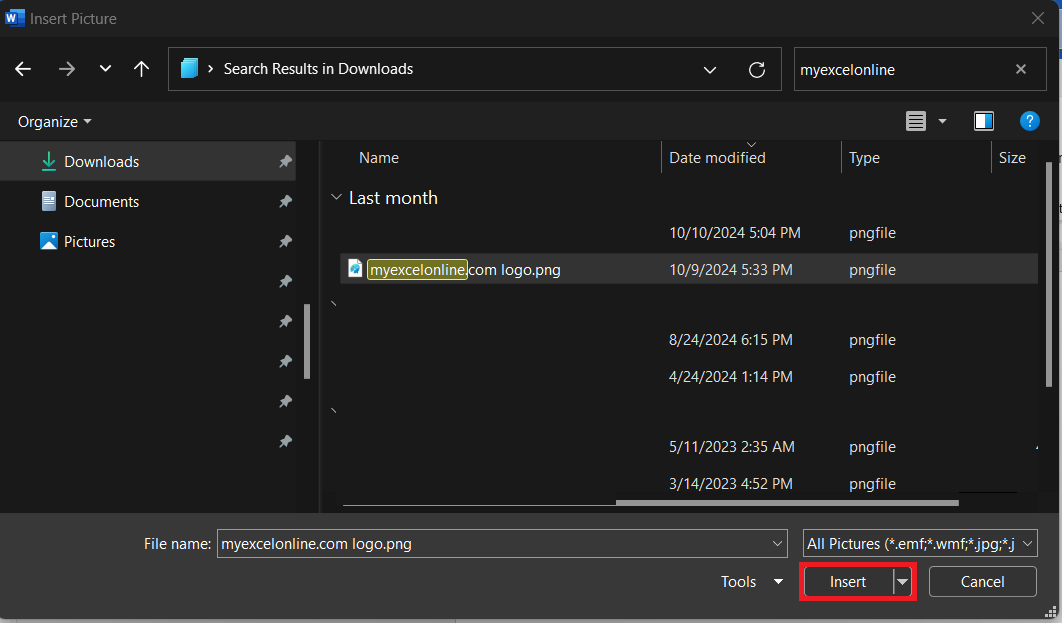
Select the image and click ‘Insert’.
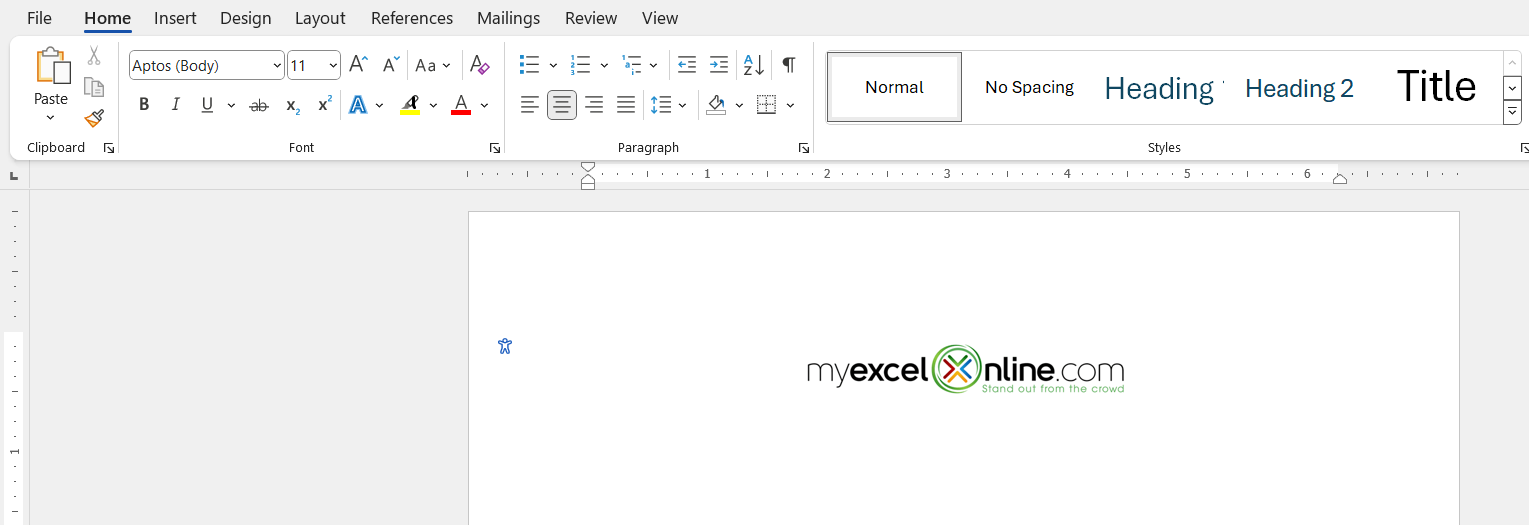
The image will appear on my document.
Create Mirror Effect
To achieve a mirrored effect in Word, follow the steps below:
Select the image.
Go to the ‘Picture Format’ tab.

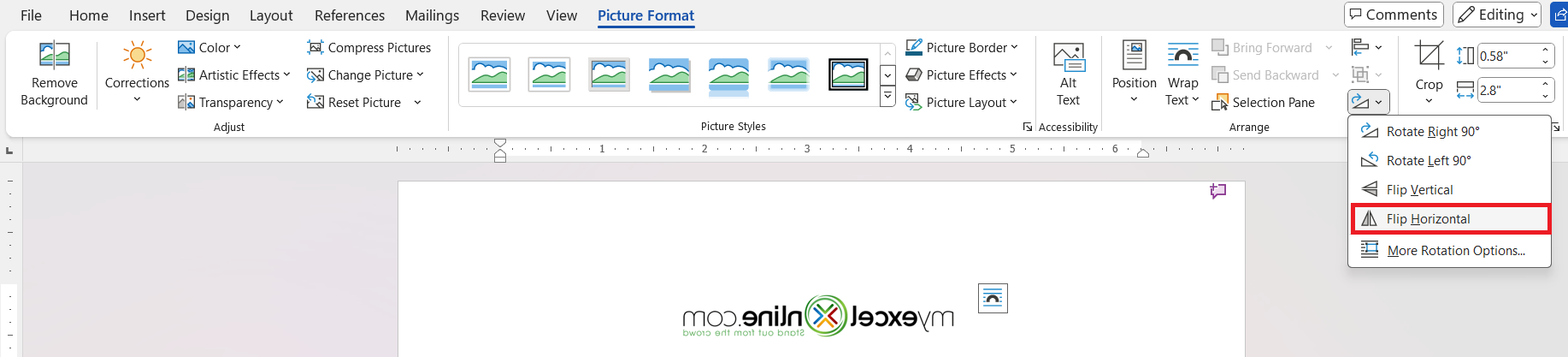
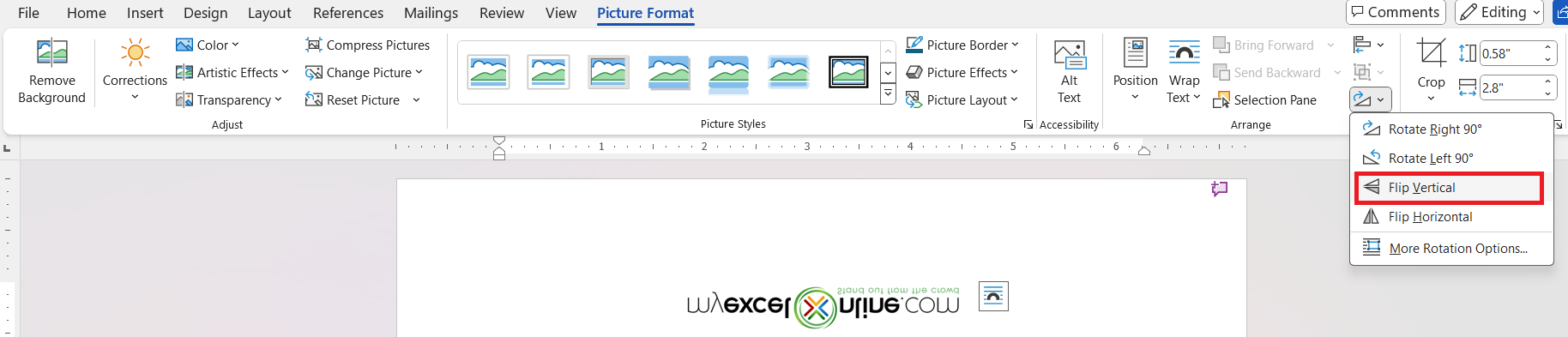
Click on ‘Rotate’ button in the ‘Arrange’ group.
Choose either ‘Flip Vertical’ or ‘Flip Horizontal’ depending on the desired mirror effect.
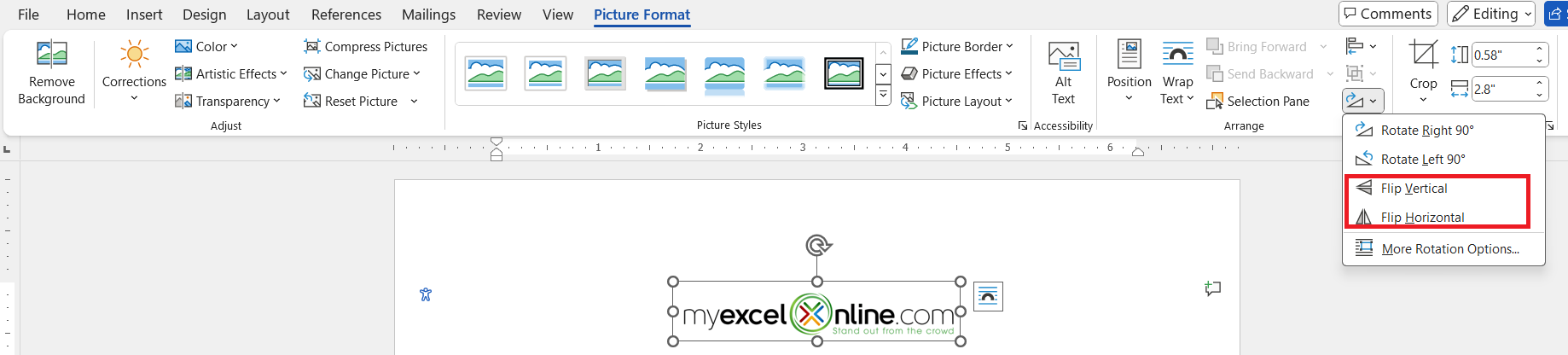
Flipping the image horizontally will mirror it as though it’s being reflected from left to right.
While a vertical flip mirrors it from top to bottom.
Rotate Images
Rotating images lets you interact with the text in my document.
Go to the ‘Picture Format’ tab.
Click on the ‘Rotate’ button for quick 90-degree turns.
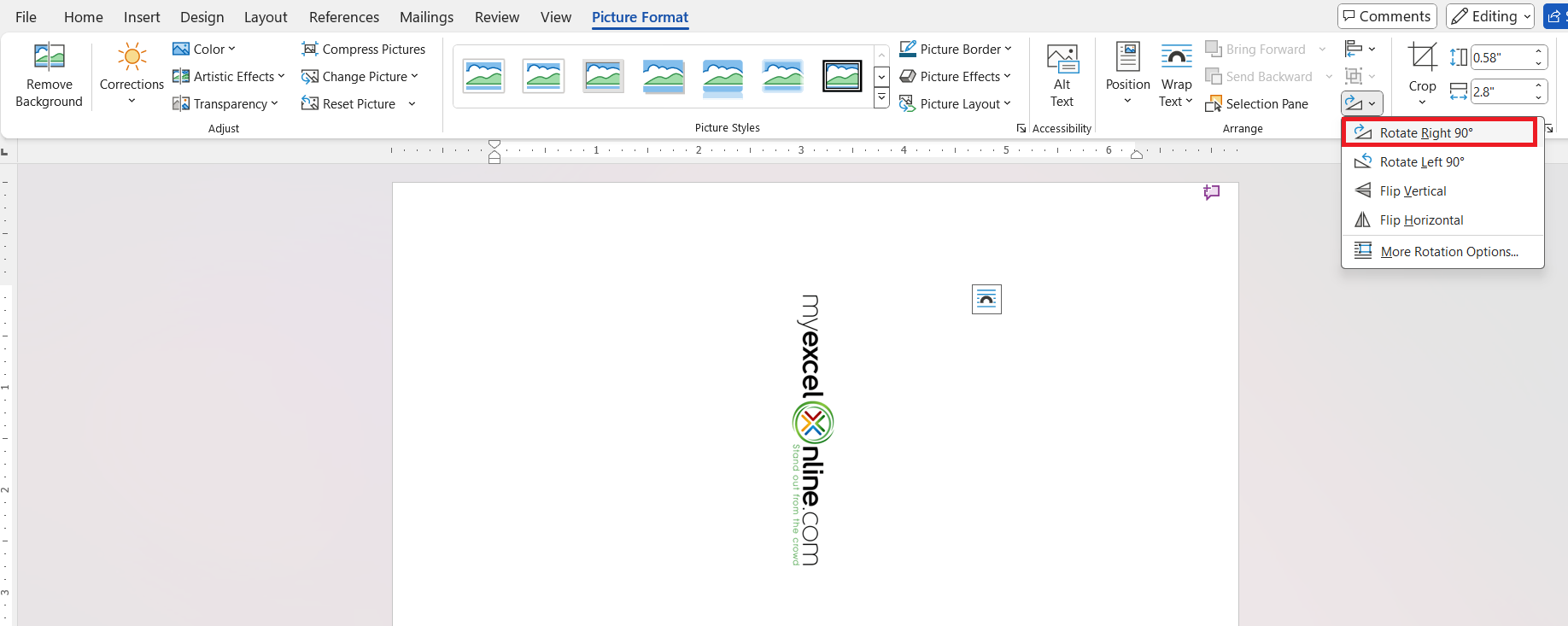
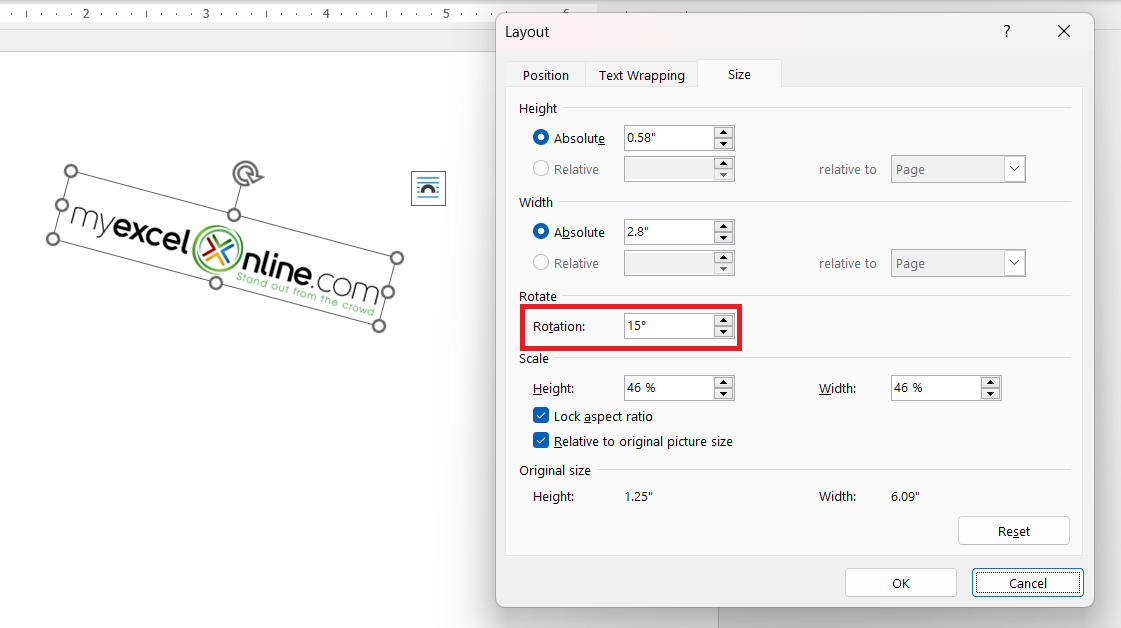
If I want more control, I select ‘More Rotation Options’.
In the dialog box, enter the exact degree of rotation needed.
- 15 degrees for a tilt
- 180 degrees for a flip for the mirror effect.
Tips for Mirroring Images in Word
Here are a few extra tips that might help you with mirroring images in Word:
- Combine Effects: Try applying additional effects, like borders or shadows, from the Picture Format tab to enhance your mirrored image.

- Use Transparency: Adjust the transparency so that the images blends properly.
FAQs
How to flip image?
To flip an image, follow the steps below:
- Insert the image
- Go to the Picture Format tab.
- Click on the ‘Rotate’ drop-down menu
- Choose either ‘Flip Vertical’ or ‘Flip Horizontal’
How to save a Word Document directly as a PDF?
Follow the steps below to save a Word document as a PDF:
- Go to ‘File’.
- Select ‘Save As’.
- Choose ‘PDF’ from the ‘Save as type’ drop-down menu.
How to mirror a page in Word?
Mirroring an entire page in Word isn’t a native feature, but a workaround is to place content in a text box, mirror it by selecting the text box, going to ‘Shape Format,’ clicking ‘Rotate,’ and selecting ‘Flip Horizontal.’ Repeat for all elements on the page.
Why isn’t the rotate option available?
If the rotate option is grayed out, the image may be part of a group or another element. Try selecting the image again or ungrouping it if necessary, to access the rotate functionality.

John Michaloudis is a former accountant and finance analyst at General Electric, a Microsoft MVP since 2020, an Amazon #1 bestselling author of 4 Microsoft Excel books and teacher of Microsoft Excel & Office over at his flagship MyExcelOnline Academy Online Course.

 30 Days - Full Access









