The Name Box is a powerful feature that is often ignored by users. It is used for quick navigation and helps you save time when you want to move across cells in your spreadsheet. In this article, you will learn what the Name Box is and how to use it in Excel.
Key Takeaways:
- A Name Box is a small box near the formula bar.
- It is used to quickly navigate to a cell.
- It shows the cell reference of the active cell.
- It makes the formula easy to read.
- A named range can also be created using the name box.
Table of Contents
Introduction to Name Box
A name box is a small box located to the left of the formula bar. It is used to display the active cell’s cell reference. For example, if you are currently on cell B2, the name box will show B2.
It can also be used to select a cell or a range of cells, quickly moving to them. It is a small box, but once you start using it, you will know how useful it is.
How to Use Name Box
You can use the name box feature to jump directly to a cell instead of scrolling through them.
Select a Cell
To go to a specific cell, follow the steps below:
STEP 1: Click inside the Name Box.
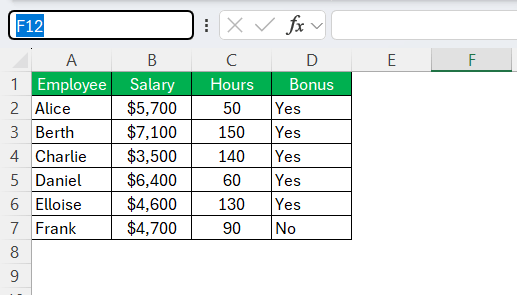
STEP 2: Type the cell reference (for example, D5).
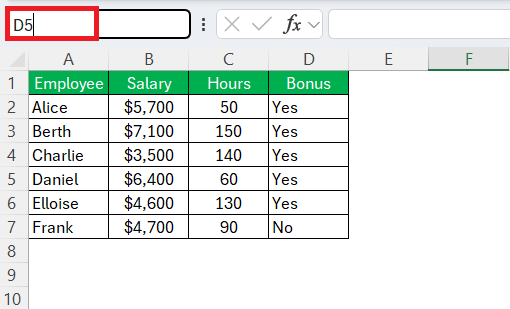
STEP 3: Press Enter.
Excel will instantly take you to cell D5.
Select a Range of Cells
You can also use the name box to select a range of cells.
STEP 1: Type A1:D7 in the Name Box.
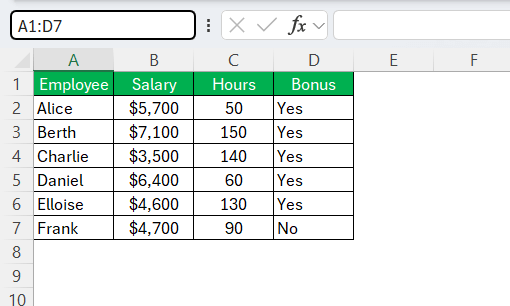
STEP 2: Press Enter.
Excel will select all cells from A1 to D7.
Create Named Ranges Using the Name Box
Step-by-Step Guide
A named range is a descriptive name that you can assign to a range of cells. This will be useful because instead of using cell references, you could use meaningful names. You can create a named range using the name box by following the steps below:
STEP 1: Select the range.
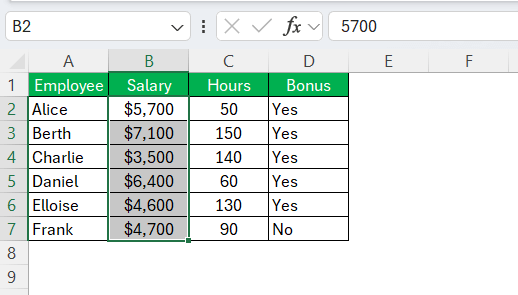
STEP 2: Click inside the Name Box.
STEP 3: Type a name.
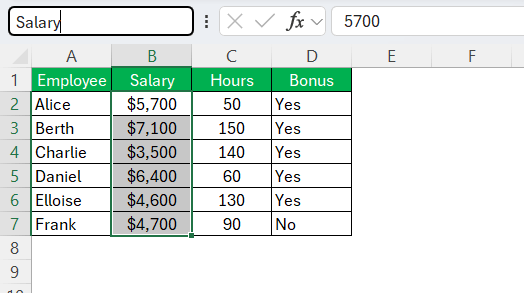
STEP 4: Press Enter.
When you type salary in the name box, Excel will take you to the range.
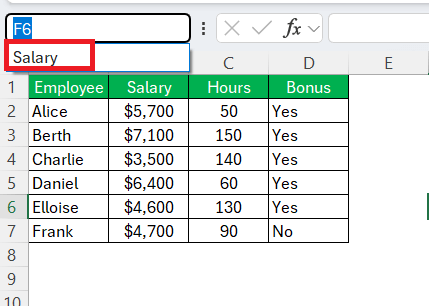
You can access the named range:
- Click on the arrow to the right of the name box.
- Select the named range.
Naming Convention
The following points should be considered when using a named range in Excel:
- There should not be any space in the name.
- The name cannot start with a number.
- Instead of space, you can use an underscore.
- The names should be unique.
FAQs
What is a Name Box?
A name box is a small box located to the left of the formula bar. It shows the cell reference of the active cell.
How to select a cell using the name box?
Follow the steps below to select a cell using the name box:
- Click inside the Name Box.
- Type the cell reference.
- Press Enter.
How to use the Name box to go to another sheet?
You need to mention the sheet name and the cell reference in the name box. If you need to go to cell A1 of Sheet1, the format will be:
Sheet1!A1
Is the Name Box case-sensitive?
No. Excel does not differentiate between uppercase and lowercase names.
How to edit a named range?
You can follow the steps below to edit a named range:
- Go to Formulas.
- Click on Name Manager.
- Select the name you want to edit
- Click on the Edit button.
- Type the new name
- Click OK.

John Michaloudis is a former accountant and finance analyst at General Electric, a Microsoft MVP since 2020, an Amazon #1 bestselling author of 4 Microsoft Excel books and teacher of Microsoft Excel & Office over at his flagship MyExcelOnline Academy Online Course.

 30 Days - Full Access









