Table of Contents
How to Use OneNote Templates
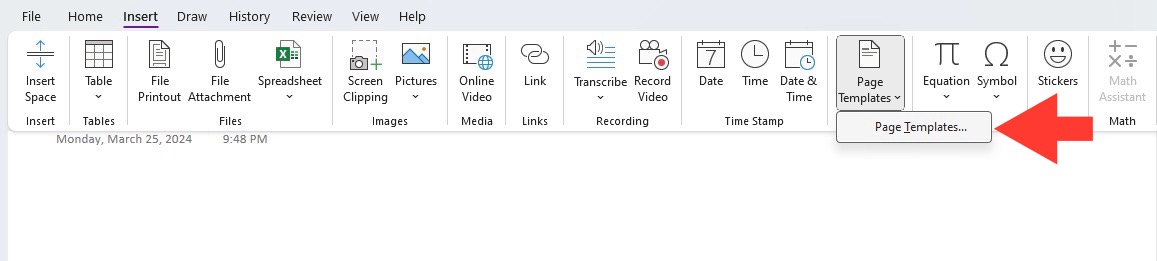
STEP 1: Go to the Insert tab and then select Page Templates.
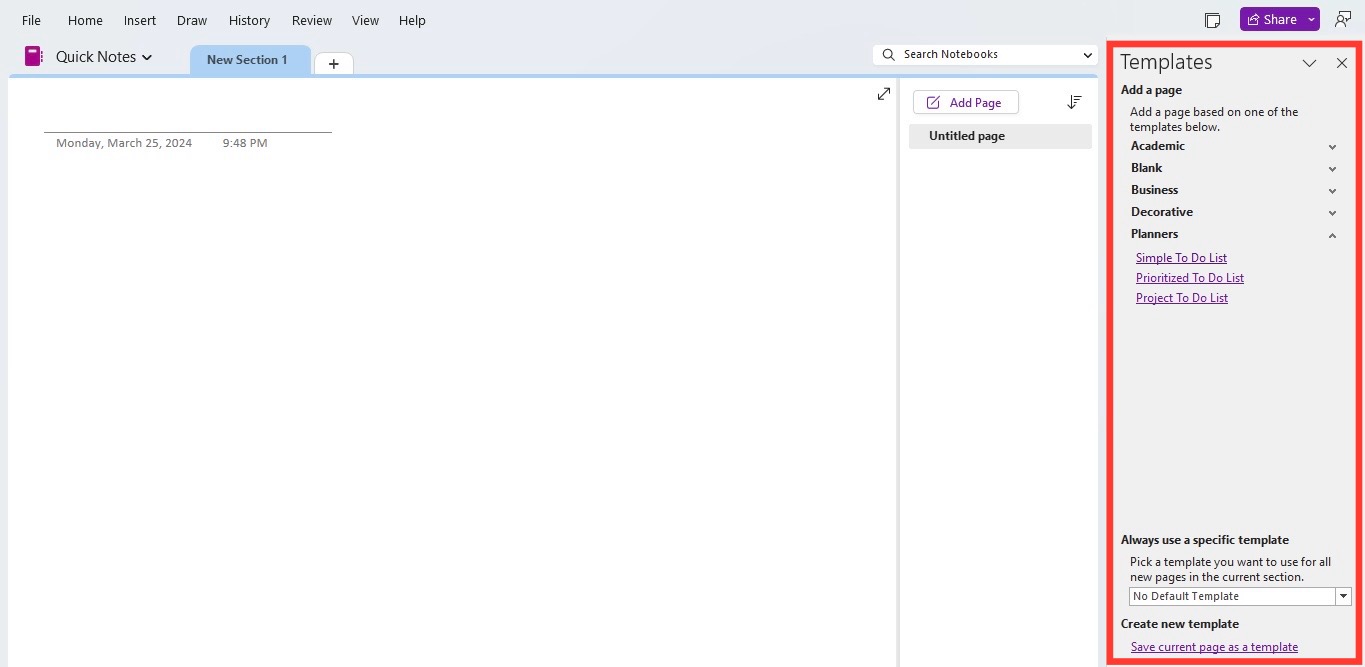
STEP 2: Choose a template that fits your needs.
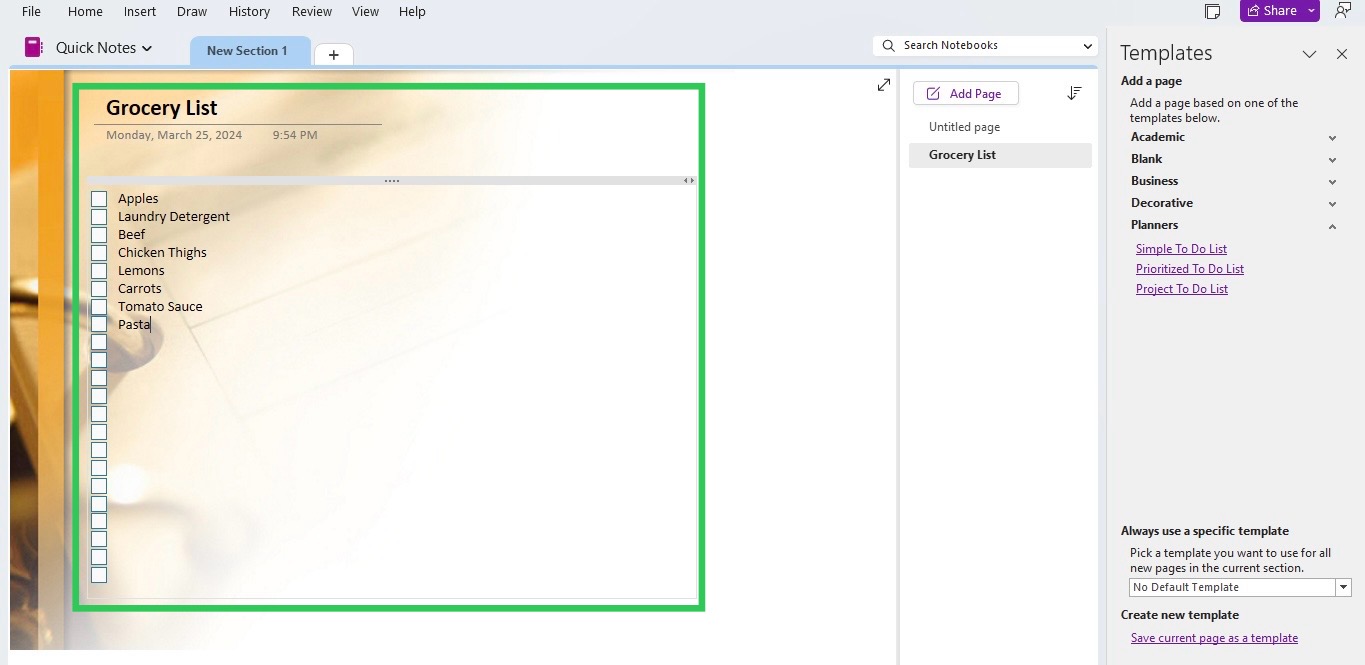
STEP 3: Edit the template.
Various Types of OneNote Meeting Templates
Traditional Meeting Minutes Templates
This template can be used to capture key points of any meetings. They have sections for date, attendees, agenda items, discussions, decisions, and action items. This makes sure that all relevant details are noted and nothing gets sidetracked. With these templates, you can easily share and edit the notes in real-time. 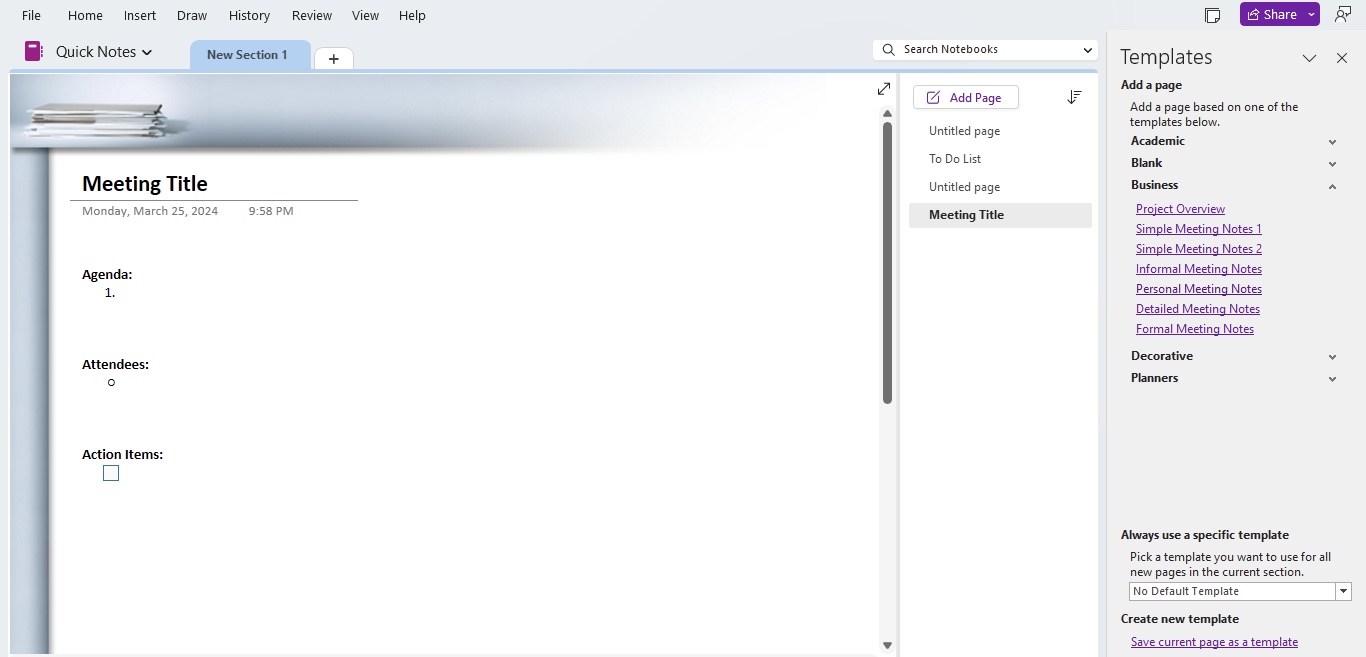
Integrating OneNote with Other Tools
Microsoft Outlook
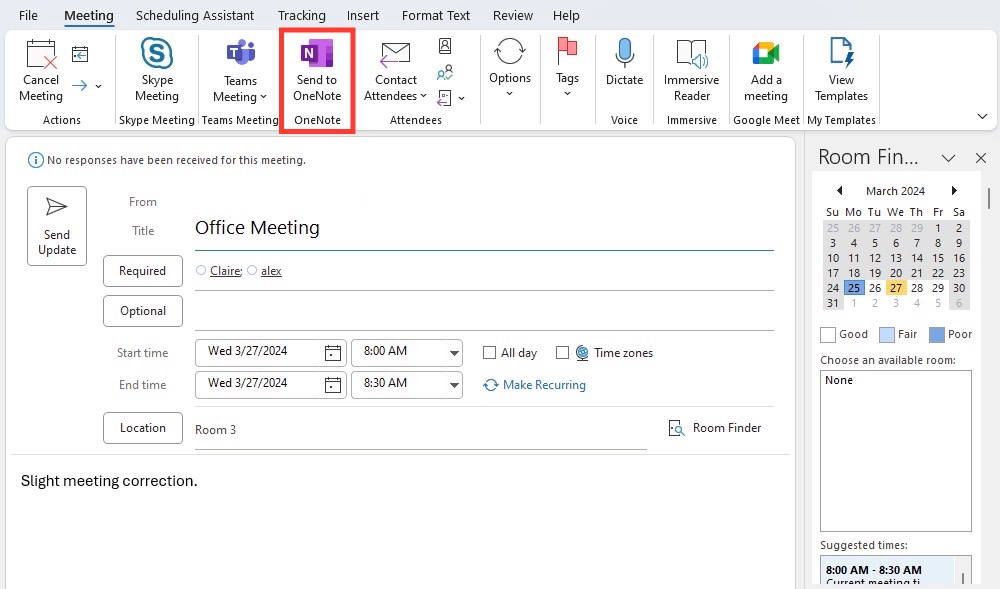
You can sync OneNote with Microsoft Outlook to improve your productivity. The Send to OneNote option allows you to save meeting details, emails, and other content directly to OneNote. You can directly start with note taking as the relevant details will already be in place.
Microsoft Teams
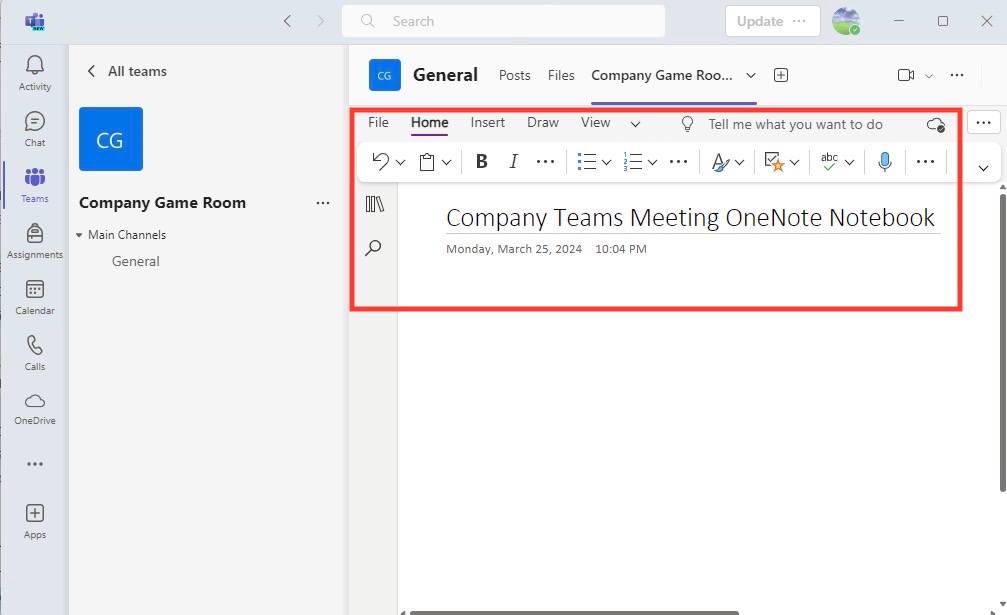
You can also integrate OneNote with Microsoft Teams by following the steps below:
- Add the OneNote app within Teams.
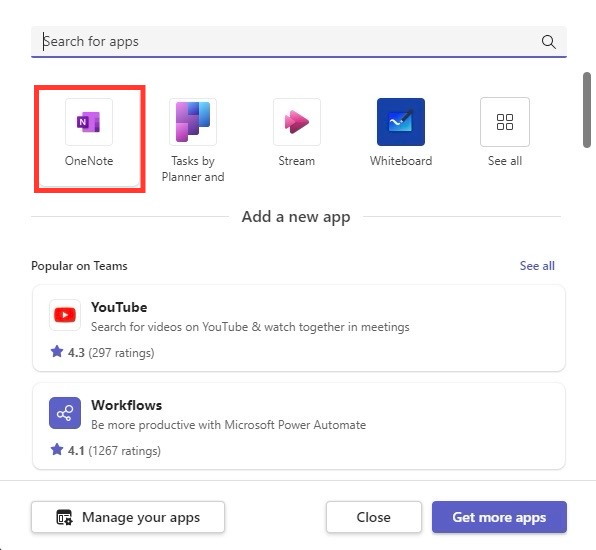
- Select the notebook you want the team to collaborate on.
- Members can now edit and share information on real time basis.
FAQs
Why use digital templates for meeting notes?
Digital templates streamline the note-taking process, making sure there is consistency, saving time, and improving the organization of meeting details for easy reference and follow-up. They enable collaborative real-time editing, which helps in keeping all participants on the same page. Furthermore, digital templates are eco-friendly and offer great accessibility across multiple devices.
Can OneNote meeting templates be customized for specific company needs?
Yes, OneNote meeting templates can be fully customized to align with specific company needs. From branding elements like logos and color schemes to custom sections for company-specific agenda items, OneNote allows full personalization to suit any organizational requirements.
How to share my OneNote meeting notes with a team?
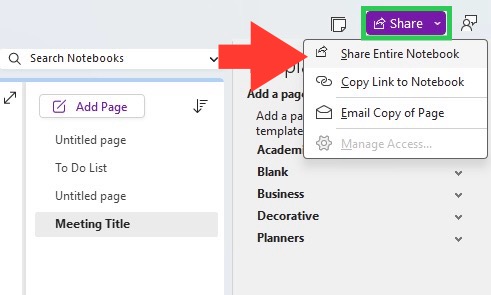
To share OneNote meeting notes with a team, go to the ‘Share’ option at the top of your OneNote page, choose ‘Share Entire Notebook,’ and send the link to your team members. Check if it’s uploaded to OneDrive for easy access and decide whether to allow editing or view-only permissions.

John Michaloudis is a former accountant and finance analyst at General Electric, a Microsoft MVP since 2020, an Amazon #1 bestselling author of 4 Microsoft Excel books and teacher of Microsoft Excel & Office over at his flagship MyExcelOnline Academy Online Course.

 30 Days - Full Access









