- Tap on the App Store on your iPad.
- Search for Microsoft OneNote.
- Click on the Get button.
The application will be downloaded.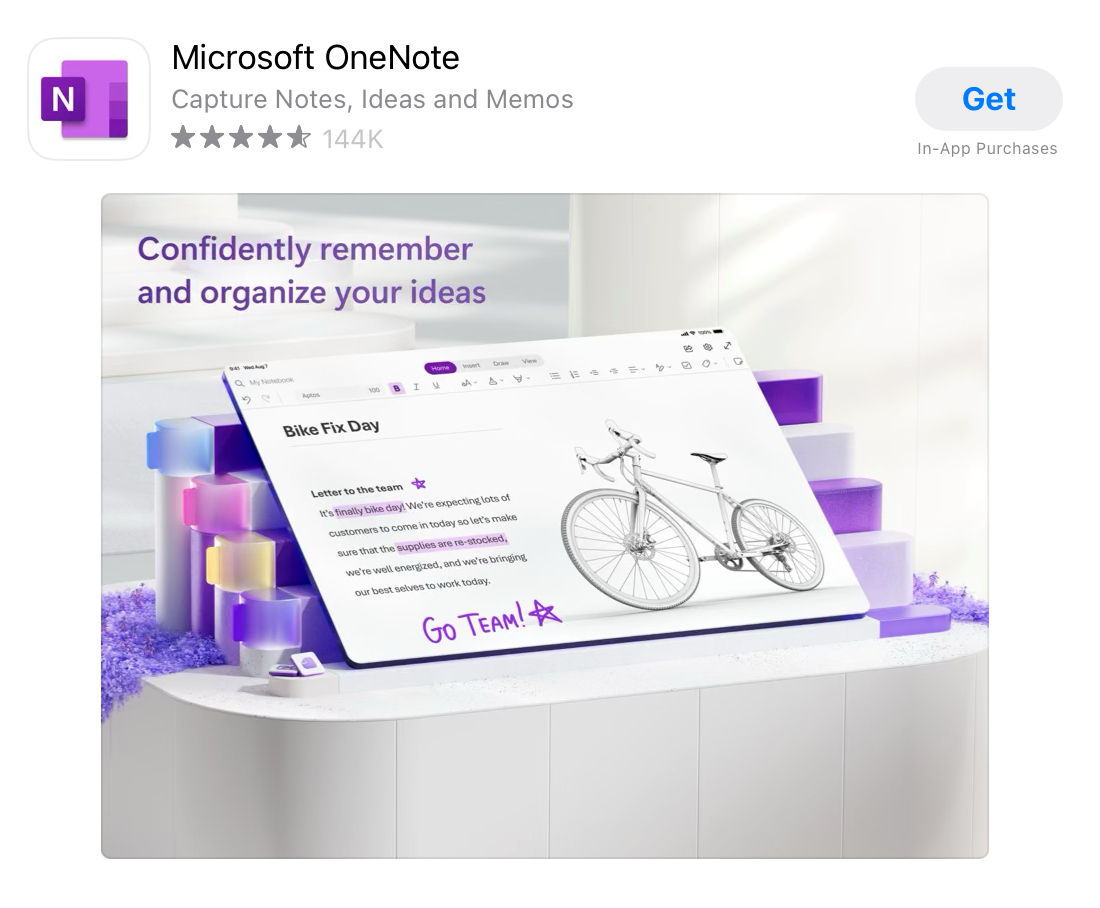
Once downloaded, you will be asked to sign in to your account. Simply enter the Microsoft account credentials, and you will be ready to use it.
You can view your existing notebooks, search for additional ones, or, if it’s the first time, create a new notebook to start your digital note-taking journey.
Create Notebook and Section
When it’s time to create my first Notebook on OneNote, I simply tap the “+” button. I’m prompted to give it a name – this could be anything from ‘Work Projects’ to ‘Personal Recipes’. Then, I choose where to save it, like on OneDrive or SharePoint, which allows for easy access across multiple devices, or opt to keep it local on the iPad if my focus is on privacy.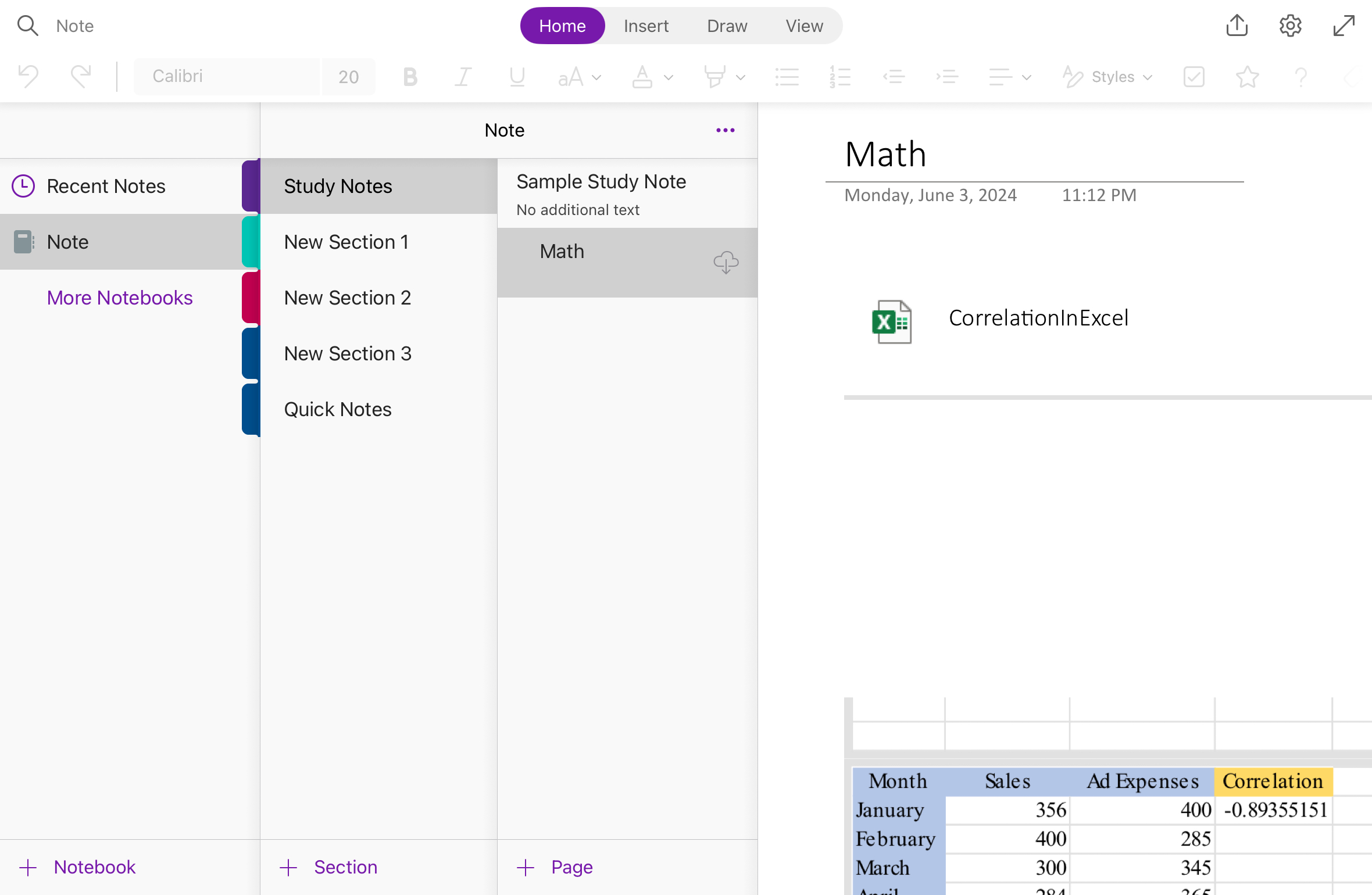
I proceed by adding a new section within my notebook. It’s akin to creating a chapter within a book, and I tap the “+” button in the section bar for this purpose. I could label it ‘Meetings’ within my ‘Work Projects’ notebook, for example, giving structure to my notes. Organizing my notebooks and sections right from the start will make sure there is a smooth and efficient note-taking process.
Table of Contents
Using OneNote Interface Like a Pro
Ribbon and Toolbar Features
The ribbon and toolbar within OneNote on my iPad act like a command center for all my note-taking activities. I see the ribbon as my primary navigation tool. It sits at the top, displaying tabs like ‘Home,’ ‘Insert,’ and ‘Draw’. Each tab reveals a set of features that allow me to format text, insert tables, images, or even audio recordings, and utilize drawing tools for sketches or handwritten notes.

As for the toolbar, I find it incredibly handy for quick access to my most-used features like the pen tool, highlighter, or eraser without having to dive into menus. Customization is a breeze too; I can personalize the toolbar to keep the functions I frequently rely on within easy reach. It’s especially useful when I’m in a rush to jot down information during meetings or when creativity strikes unexpectedly.
Pages, Sections, and Notebooks
OneNote can help you organize your notes by dividing them into different categories. Tap on the + icon at the bottom of the screen to add pages within each section.
You can add sections, which are more like chapters in a book. And in each chapter, there are pages where you can insert the actual notes.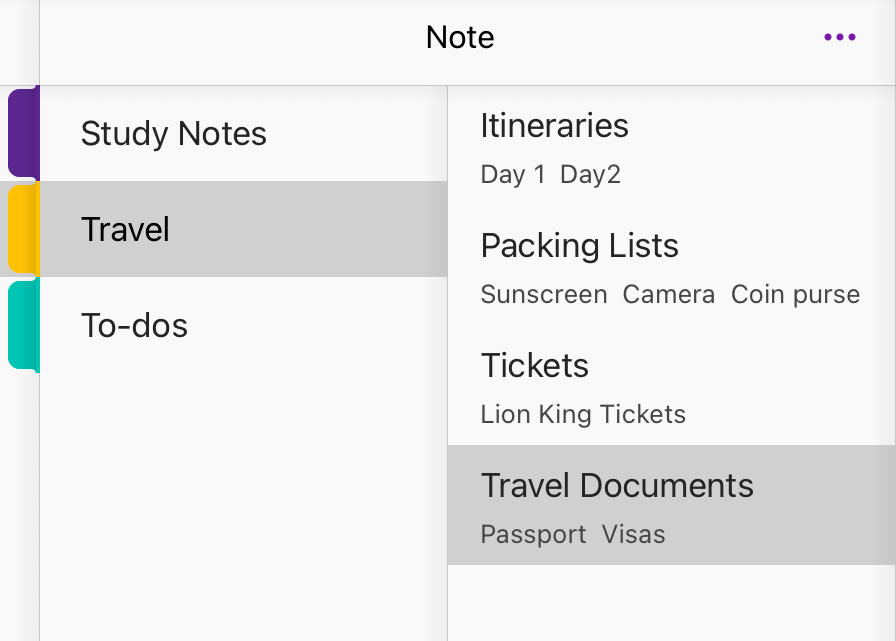
Advanced Techniques
Convert Handwriting to Text
One of the remarkable features of OneNote is the ability to convert handwritten notes to text. You can use the iPad’s touch feature and Apple Pencil to jot down notes by hand on ithe Pad.
This not only caters to the tactile feel of writing but also offers the neatness and versatility of digital text. I sometimes take notes in meetings by hand for speed and later convert them to text to finalize and share with colleagues. The conversion is quite accurate, even with my rushed handwriting.
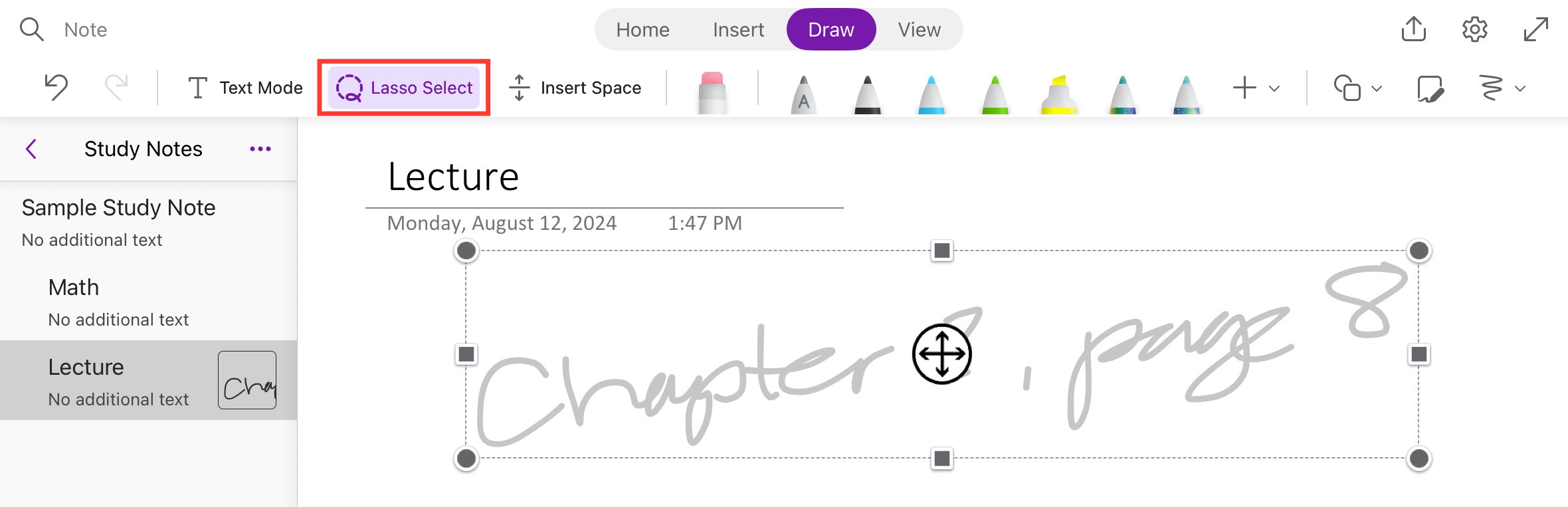
To use this feature, I simply write with my Apple Pencil and then select the ‘Lasso Select’ tool to circle my handwriting. Next, I tap the selected writing and choose ‘Ink to Text’ from the pop-up menu. It’s almost like magic watching my scrawls become crisp, typed text that’s perfect for professional documents or lengthy note sections. This feature has saved me tremendous amounts of time in transcribing notes.
Insert Multimedia Elements
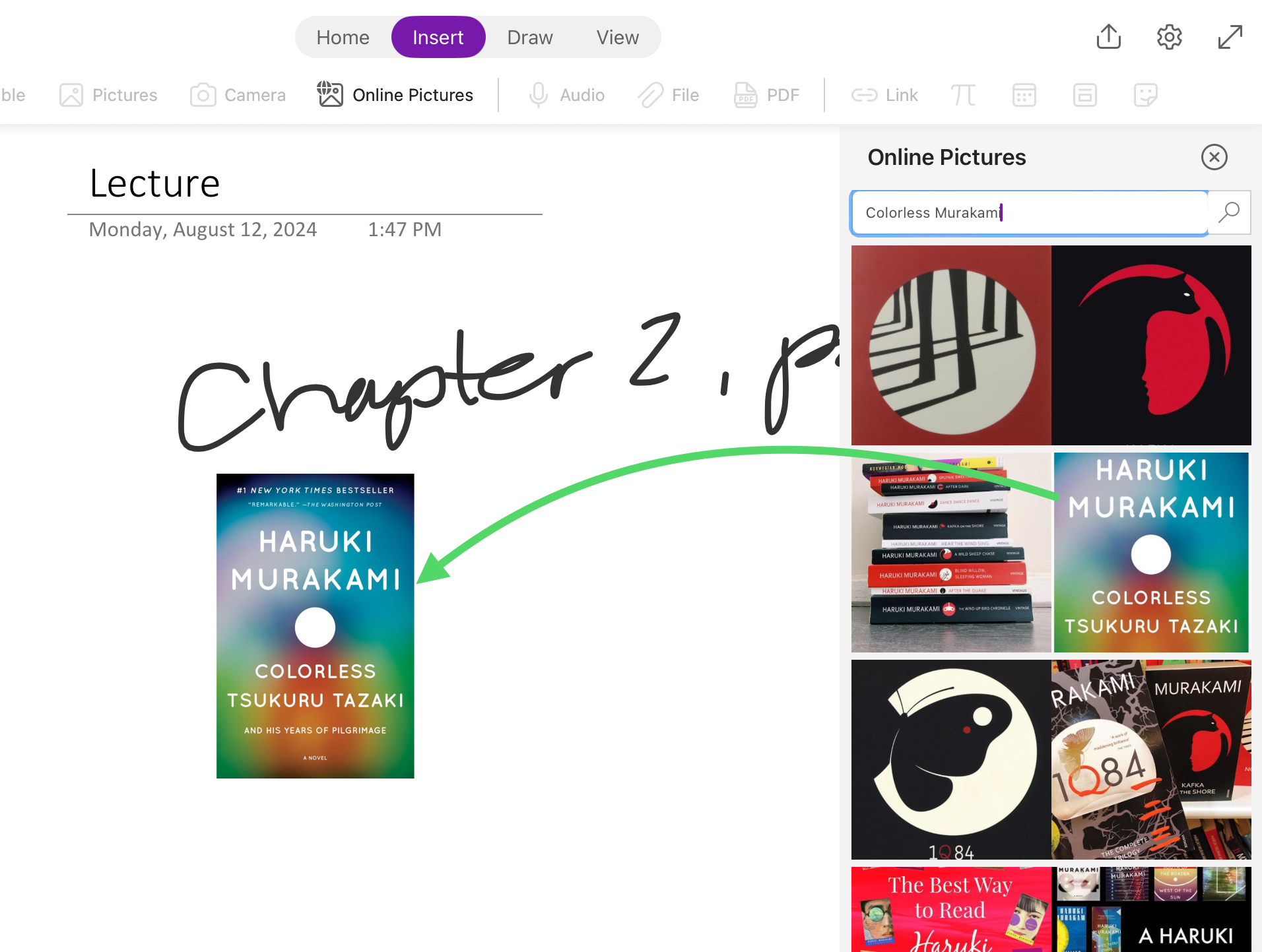
In my experience, OneNote on the iPad comes to life when I integrate multimedia elements into my notes. The capability to enrich text with images, audio recordings, and video clips transforms a simple page of notes into a dynamic information hub. I can drag and drop photos directly from my iPad’s gallery or use the ‘Insert’ tab to add Online Pictures.
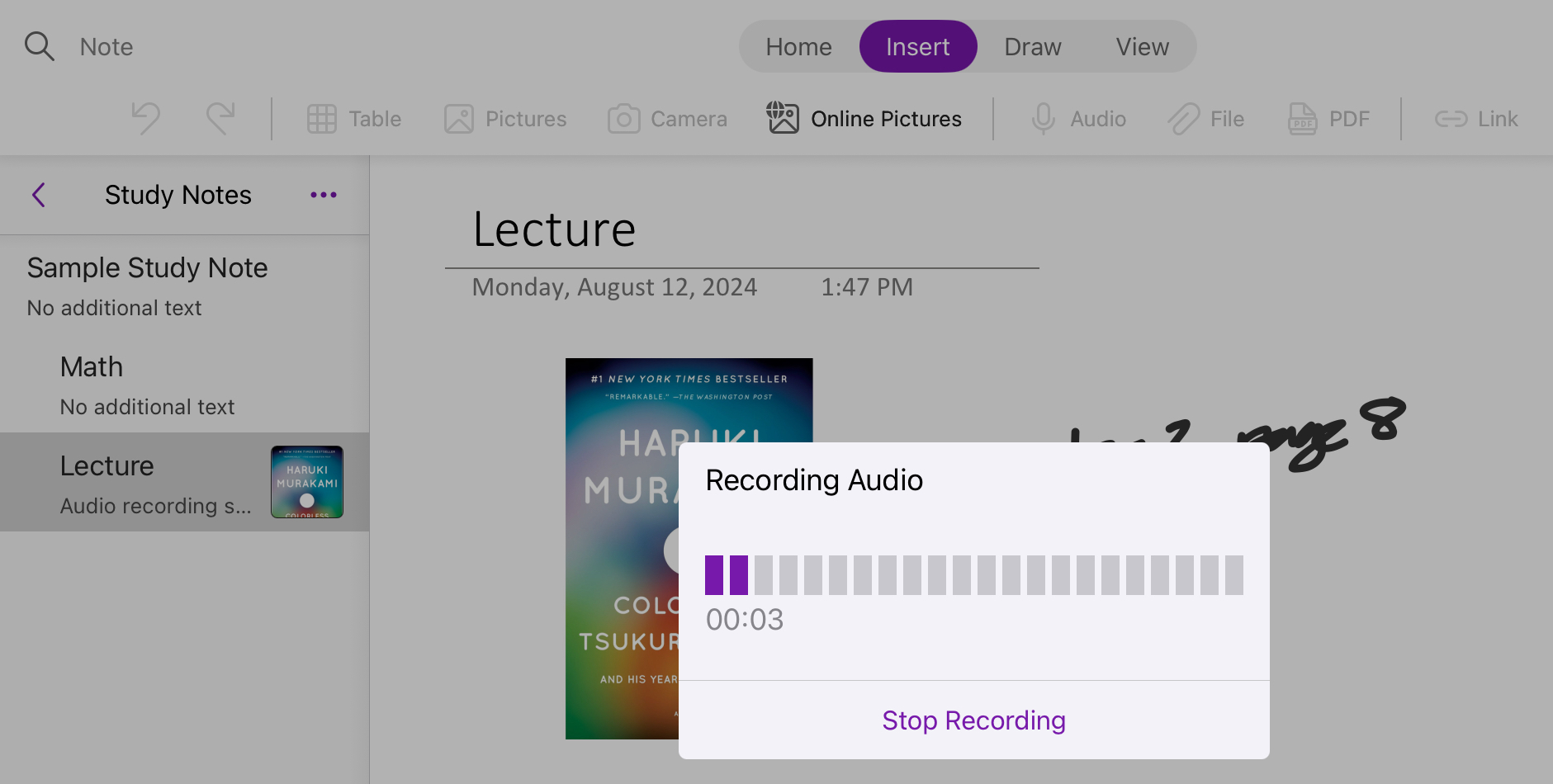
Furthermore, I can capture audio notes on-the-go, which is invaluable during interviews or lectures where I can record and take written notes simultaneously. This dual-note technique enables me to review material more thoroughly at a later time.
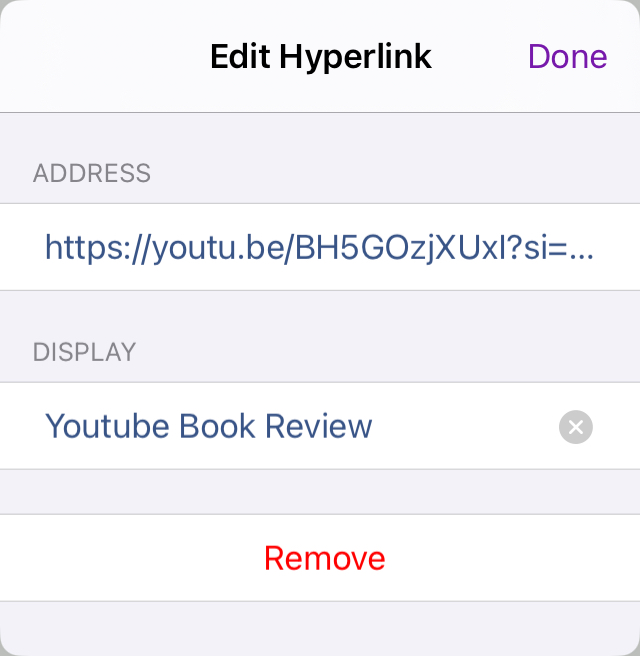
The ‘Insert’ tab is also where I find the option to add online videos. By embedding a video, I essentially anchor that resource into my notes – perfect for tutorials or presentation references. OneNote accepts a wealth of multimedia formats, ensuring that my notes aren’t just a plain text landscape but a rich, multi-layered canvas. The blend of text, visuals, and audio caters not only to various learning styles but also enhances recall and comprehensibility of the notes I take.
FAQs
How to Migrate from Other Apps to OneNote?
To efficiently migrate from another note-taking app to OneNote, follow the steps below:
- Export the notes from my current app in a compatible format like .pdf, .docx, or .html.
- Import the files into OneNote by using the ‘Insert’ function.
How to Access My OneNote Files Offline?
First, make sure that the notebooks are fully synced and set to available offline. You can now use the files and make changes. These changes will be reflected when you are connected to the internet.
What are the Best Practices for using OneNote?
The best practices for organizing notebooks in OneNote are:
- Use a clear and consistent naming convention
- Categorize notes by topic
- Break them into different sections and pages
- Regularly review and reorganize your notes.
- Use tags for easy search.
- Archive completed or outdated content.
- Use color coding to differentiate between notebooks and sections.

John Michaloudis is a former accountant and finance analyst at General Electric, a Microsoft MVP since 2020, an Amazon #1 bestselling author of 4 Microsoft Excel books and teacher of Microsoft Excel & Office over at his flagship MyExcelOnline Academy Online Course.

 30 Days - Full Access









