Google Calendar promotes collaboration, sharability, and, perhaps its standout feature, integration within the Google ecosystem. On the other hand, Outlook Calendar, part of the Microsoft 365 suite, offers comprehensive tools and works seamlessly with Windows applications and services.
Both platforms are web-based, with mobile apps that will make sure that we keep up with our schedules no matter where we are.
Table of Contents
Interface Showdown: Usability and Design
User Interface and User Experience (UI/UX) in Google Calendar
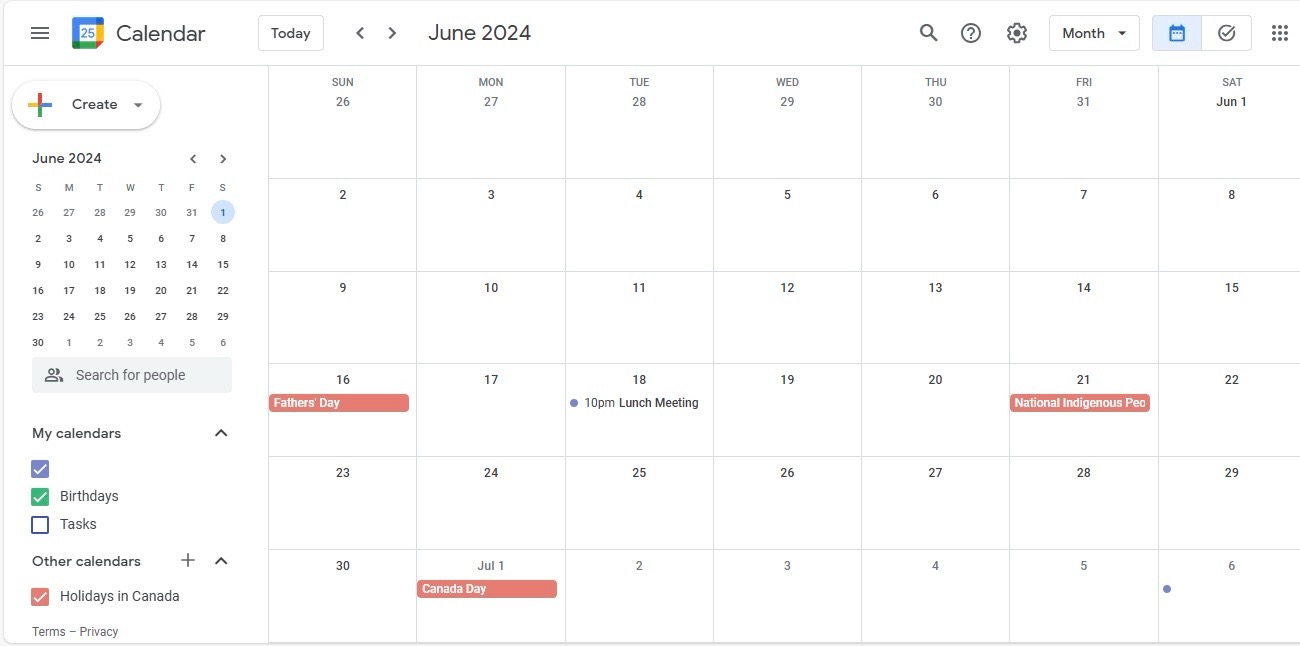
Navigating Google Calendar is a breeze, thanks to its clean and intuitive interface. With Google’s minimalist design approach, I find that even new users can quickly become acquainted with the platform. We can personalize our view with various formats such as daily, weekly, monthly, or even agenda-style overviews, which is a boon for our individual planning preferences. The ease of creating and modifying events, coupled with color-coding options, enhances the user experience significantly, making it an inviting space to manage our time.
Navigating Outlook Calendar’s User Environment
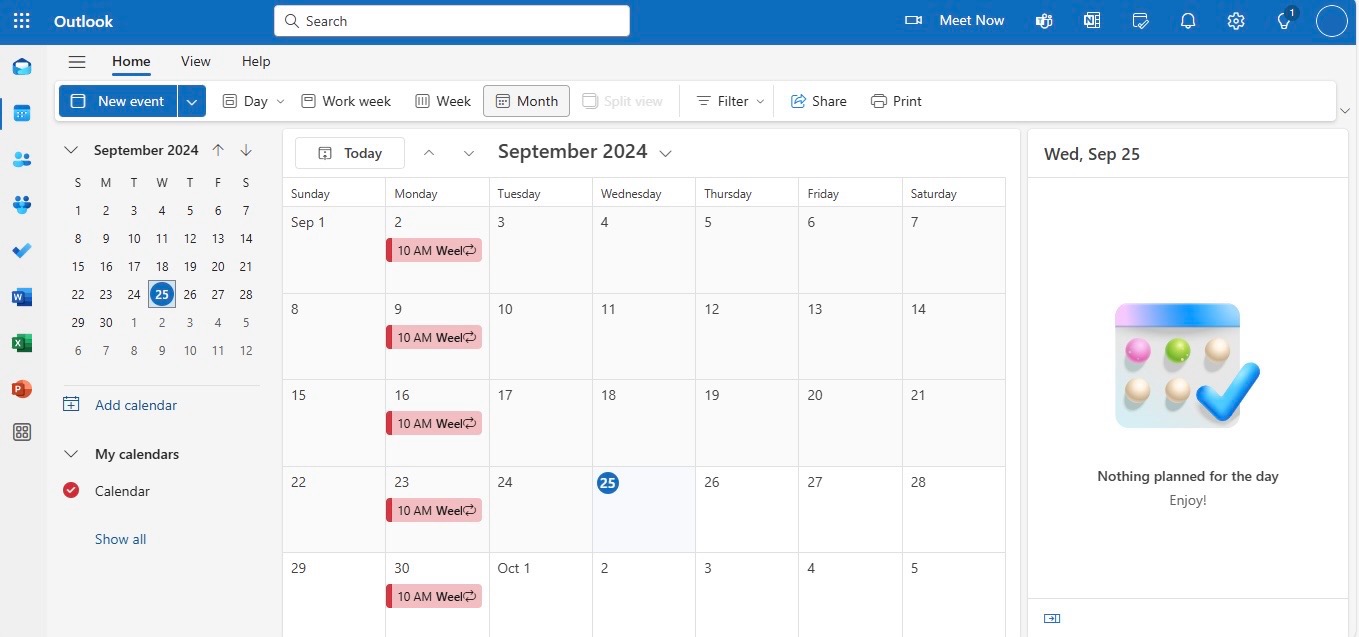
Outlook Calendar’s user environment carries the familiar Microsoft Office interface, which many business professionals are already versed in. We find ourselves in a robust platform, equipped for intricate scheduling demands. There are views tailored for work weeks, full weeks or months, and even a schedule view, each propelling our productivity in different scenarios. Although it might appear daunting at first, the integration with other Microsoft apps right within the interface bolsters our workflow manifold. Moreover, the navigation pane and the ability to peek at calendars without exiting the inbox are standout features that contribute to a seamless user journey.
Feature Face-off: What Each Platform Offers
Highlighting Google Calendar’s Versatile Features
Google Calendar stands out for its dependable versatility in features. We can quickly add events with “Quick Add” functionality or through voice commands with Google Assistant, which feels almost like magic. Recurring events set up is a snap, and working across time zones is enormously simplified with its world clock feature. Innovative use of AI provides us with smart suggestions for event titles, places, and people, saving us precious time. Moreover, the “Goals” feature, which schedules time automatically for personal objectives, truly showcases Google Calendar’s commitment to not just professional, but personal productivity as well.

Exploring the Functionalities of Outlook Calendar
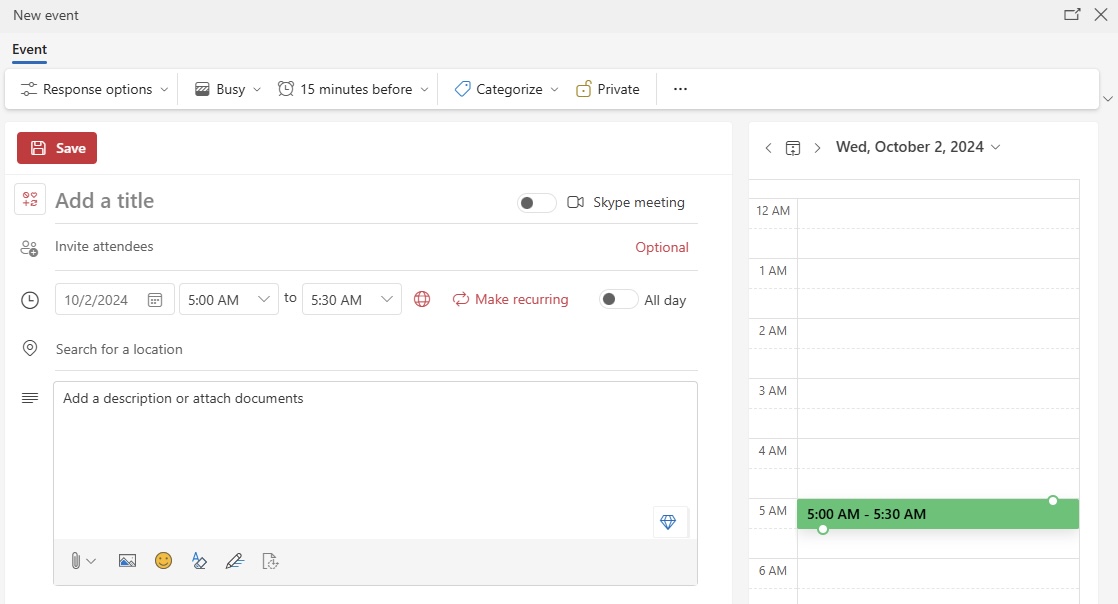
Outlook Calendar is a powerhouse when it comes to functionalities, tailored especially for those who thrive in the Microsoft ecosystem. Its integration with Exchange server is impeccable, making it a staple in environments where email and calendar synchronization are essential. I appreciate the depth of its scheduling features – from booking conference rooms to arranging complex recurring meetings. Task management is embedded within, transforming it into a two-in-one tool that helps streamline both your schedule and your to-do list. The option for offline access is another compelling feature, allowing us to stay on top of our schedules anytime, anywhere.
Scheduling and Collaboration
Meeting Coordination Tools in Google Calendar
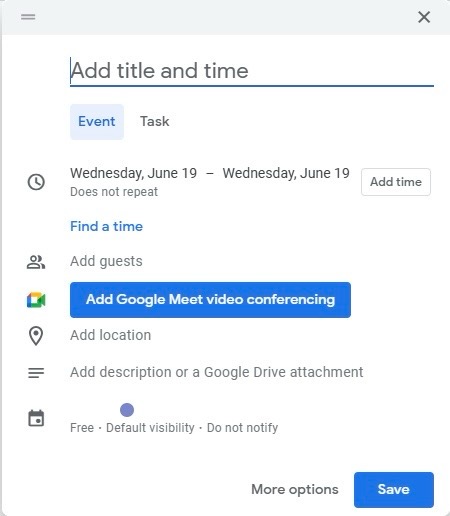
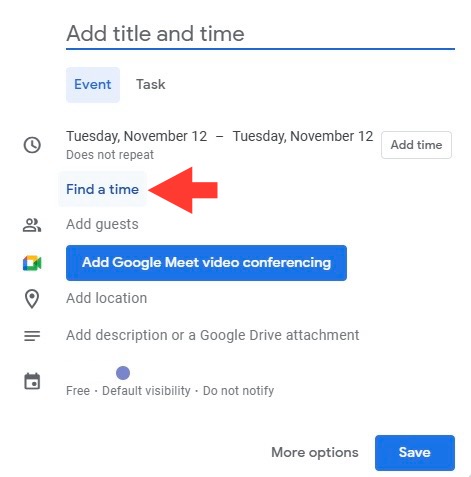
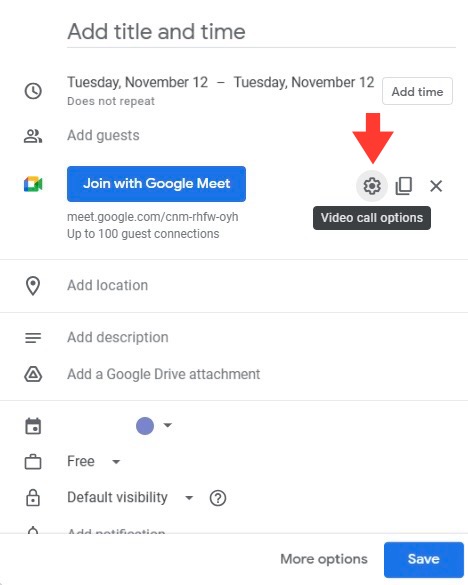
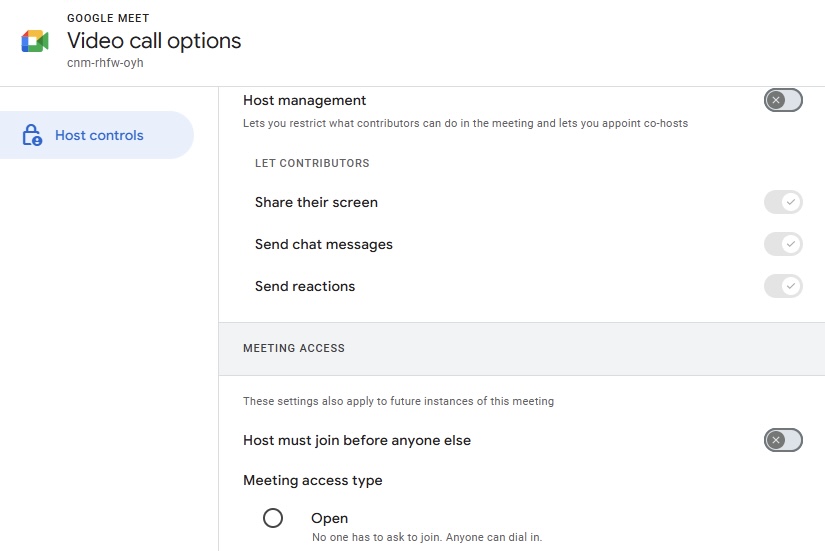
Google Calendar equips us with an impressive suite of meeting coordination tools. The ‘Find a Time’ feature is a godsend for scheduling meetings with multiple participants, as it suggests times when everyone is free. Coordinating with external parties is seamless too, thanks to ‘Calendar Sharing’ which can be set with varying permission levels. With one click, we can create a Google Meet for video conferencing and send out invitations embedded with all the necessary details. Real-time notifications keep everyone informed, and RSVP tracking gives a clear view of attendees.
Collaborative Capabilities of Outlook Calendar
Outlook Calendar’s collaborative capabilities shine in professional settings where coordination is key. The ability to share calendars makes it simple for team members to view each other’s schedules and find suitable meeting slots. What I find particularly useful is the integration with Microsoft Teams, facilitating virtual meetings directly from the calendar. Sharing meeting notes and files through Outlook becomes a unified communication experience. For larger organizations, features like delegate access allow assistants to manage calendars on behalf of others, reinforcing the collaborative power of this tool.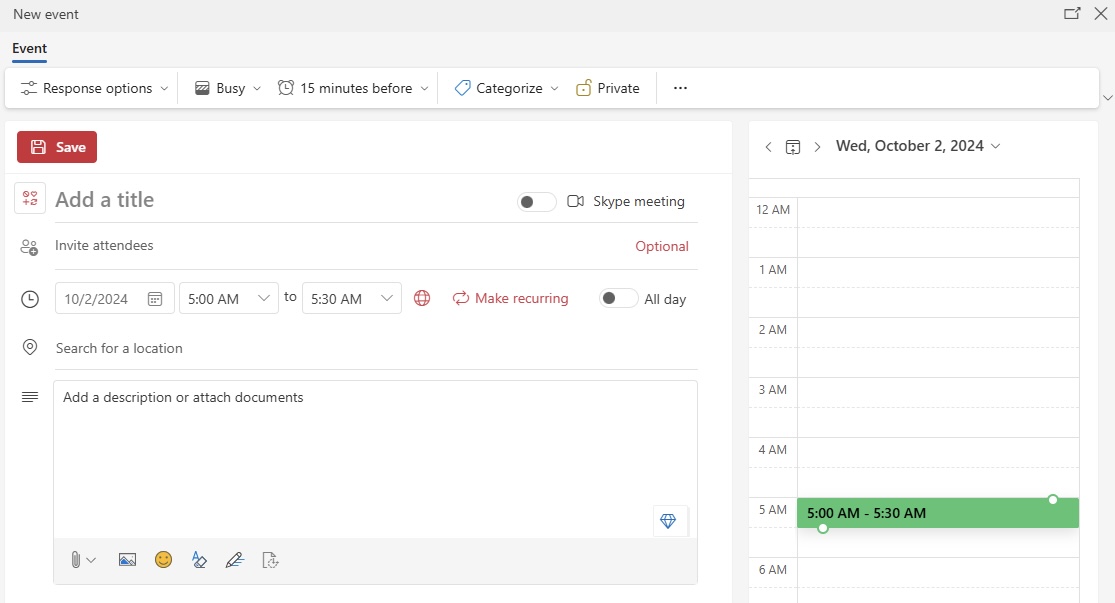
Which Service Protects Your Data Better?
Privacy Measures in Google Calendar
Google takes privacy seriously, particularly with Google Calendar. To safeguard our information, they employ strong encryption protocols for data in transit and at rest. We can rest easy knowing that our events, details, and personal schedules are shielded from prying eyes. Moreover, Google offers two-factor authentication to add an extra layer of security, ensuring that only we can access our calendars. Privacy settings in Google Calendar also allow us to control the visibility of our events and information, providing us the flexibility to keep certain details private or share them selectively with our network. It’s a proactive stance on privacy that places control firmly in our hands.
Security Protocols and Privacy in Outlook
Microsoft’s Outlook Calendar is fortified with sophisticated security protocols designed to protect our data. Multi-factor authentication is an available option, a notch above the standard two-factor, providing an enhanced safeguard for our accounts. Their commitment to privacy is evident through the strict privacy policy, and they assure us that our data is not sold to third parties. This extensive security framework is particularly advantageous in professional environments that handle sensitive information. When we use Outlook, we’re entrusting our schedules to a platform that prioritizes our data’s integrity and confidentiality.
Pricing Structures: Evaluate the Cost of Organization
Can You Get By with Google Calendar’s Free Plan?
Absolutely, many of us can get by quite well with Google Calendar’s free plan. It’s rich in features, such as event creation, reminders, invites, and color-coded calendars, which meet most personal and professional scheduling needs. Syncing across devices is a breeze, ensuring we’re always in the loop no matter where we are. Plus, its integration with other Google services like Gmail and Google Meet rounds out an efficient productivity package. Most users, unless requiring advanced enterprise features, find that the free version adequately meets their day-to-day planning needs.
Understanding Outlook Calendar’s Price Points
Understanding Outlook Calendar’s pricing involves recognizing it as part of the broader Microsoft 365 subscription. While there isn’t a standalone price for just the Outlook Calendar, the value is bundled with the wealth of other applications and services offered in Microsoft 365. Depending on the package you choose—from personal to business tiers—pricing can vary. We get what we pay for; advanced features, enterprise-grade security, and seamless integration with Microsoft’s suite are all part of the deal. For organizations and professionals that rely heavily on Microsoft tools, this cost is often viewed as a sensible investment in productivity.
Picking the Right Calendar for Your Needs
Weighing Overall Functionality Against Personal Preference
When deciding between Google Calendar and Outlook Calendar, we must weigh the overall functionality against personal preference and existing workflow alignment. Google Calendar offers simplicity and seamless Google Workspace integration, making it a great choice if we already use services like Gmail or Google Drive. It’s straightforward enough for personal use and sufficiently robust for business needs, especially in a collaborative context. In contrast, Outlook Calendar is a must if we’re looking for sophisticated features and deep integration within a corporate environment that relies on Microsoft’s suite. Ultimately, the best choice hinges on the ecosystem we’re already plugged into and the level of complexity our scheduling demands.
Considerations:
- Integration with preferred productivity tools and services
- Required level of scheduling sophistication
- Dependence on specific features (e.g., offline access, third-party app compatibility)
- Personal or business budget for software tools
Personal preference plays a significant role, as the tool we’re most comfortable with is likely the one we’ll use most effectively.
The Bottom Line: Google Calendar vs. Outlook Calendar
The bottom line in the Google Calendar vs. Outlook Calendar debate leans heavily on our specific needs and the digital environment we inhabit. Google Calendar is the go-to for user-friendly, collaborative scheduling within the Google ecosystem, especially for those of us who value simplicity and straightforward integration with other Google apps. Conversely, Outlook Calendar is a powerhouse of scheduling and task management that seamlessly melds within the Microsoft 365 suite, ideal for businesses that require advanced features and an emphasis on security.
Final thoughts:
- Google Calendar for ease and integration with Google services
- Outlook Calendar for advanced, professional scheduling within Microsoft’s ecosystem
No matter the choice, both calendars offer a formidable array of features designed to enhance our time management and productivity in an increasingly digital world. The decision is ours, resting on what we find most critical: the simplicity and ubiquity of Google or the professional, feature-rich environment that Microsoft provides.
FAQs

John Michaloudis is a former accountant and finance analyst at General Electric, a Microsoft MVP since 2020, an Amazon #1 bestselling author of 4 Microsoft Excel books and teacher of Microsoft Excel & Office over at his flagship MyExcelOnline Academy Online Course.

 30 Days - Full Access









