 Free Practice Workbook
In the world of Microsoft Excel, mastering percentage formatting is a crucial skill for anyone involved in data analysis. Whether you’re comparing sales figures, demographic statistics, or financial data, percentages offer a streamlined method for making meaningful comparisons across different scales.
Key Takeaways:
- Understand how percentages serve as the cornerstone of data analysis, providing a universal language for comparison and interpretation across diverse datasets.
- Learn the easy steps to apply percentage formatting in Excel, transforming raw numbers into easily understandable insights with just a few clicks.
- Discover shortcuts and techniques to format numbers as percentages as you type, enhancing your efficiency and workflow within Excel.
Table of Contents
Step-by-Step Guide to Format Numbers as Percentages
Applying the Percentage Format to Existing Values
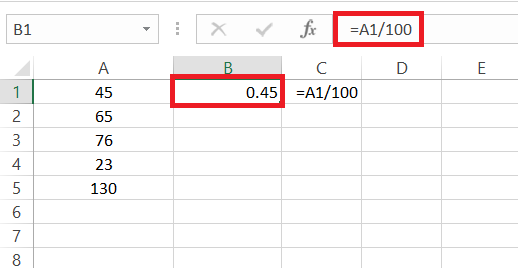
STEP 1: Imagine having your starting number in cell A1; in the next cell, just type =A1/100, then copy-paste this formula down the column.
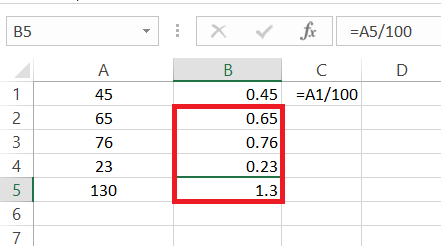
STEP 2: Now drag and drop the formula from cell B2 until B5.
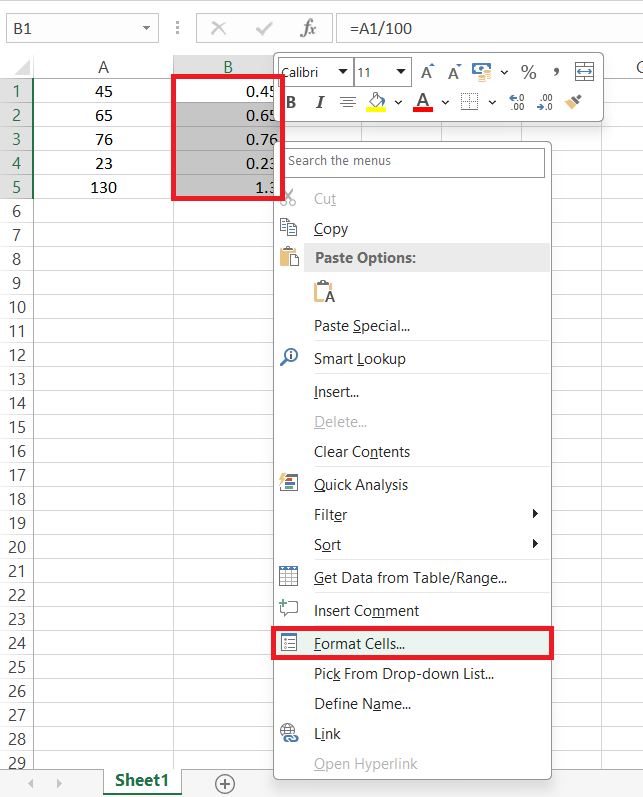
STEP 3: Once you’ve done that, you can format this new column with the percentage style, by selecting the cells then clicking right > choose “Format Cells”.
STEP 4: Select “Percentage” from the Format Cells dialog box. Lastly, hit “OK”.
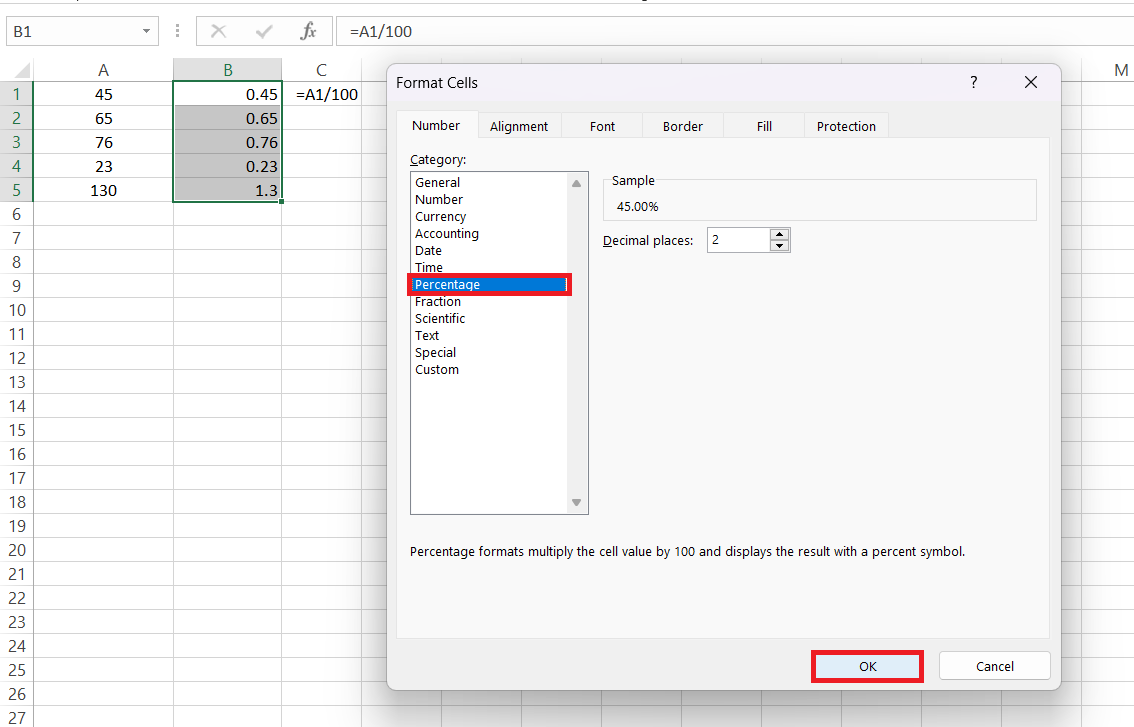
Boom—a perfect conversion to percentages.
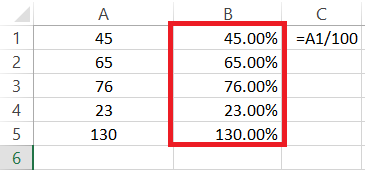
Additionally, once your numbers look how you want them to, you can convert these formulas to static values by copying and pasting them as ‘Values’.
Displaying Numbers as Percentages as You Type
STEP 1: Select the cells where you want to enter percentages, go to the ‘Home’ tab, and pick ‘Percentage’ from the ‘Number’ group.
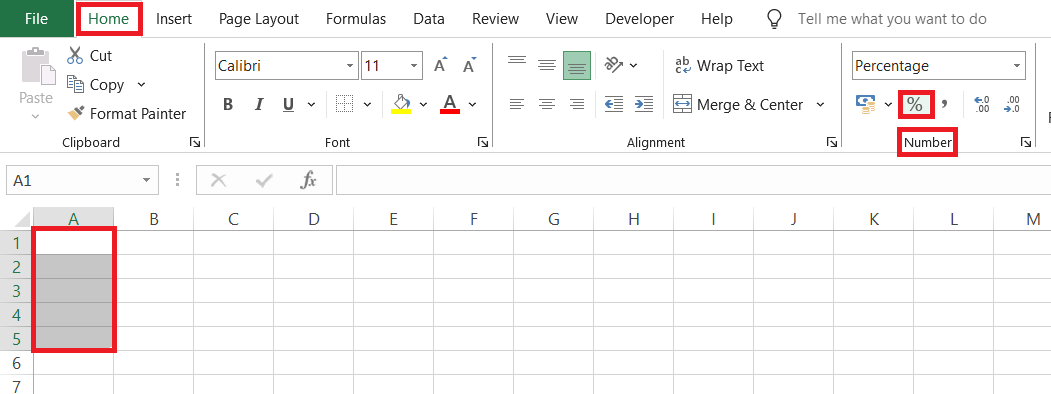
RESULT:
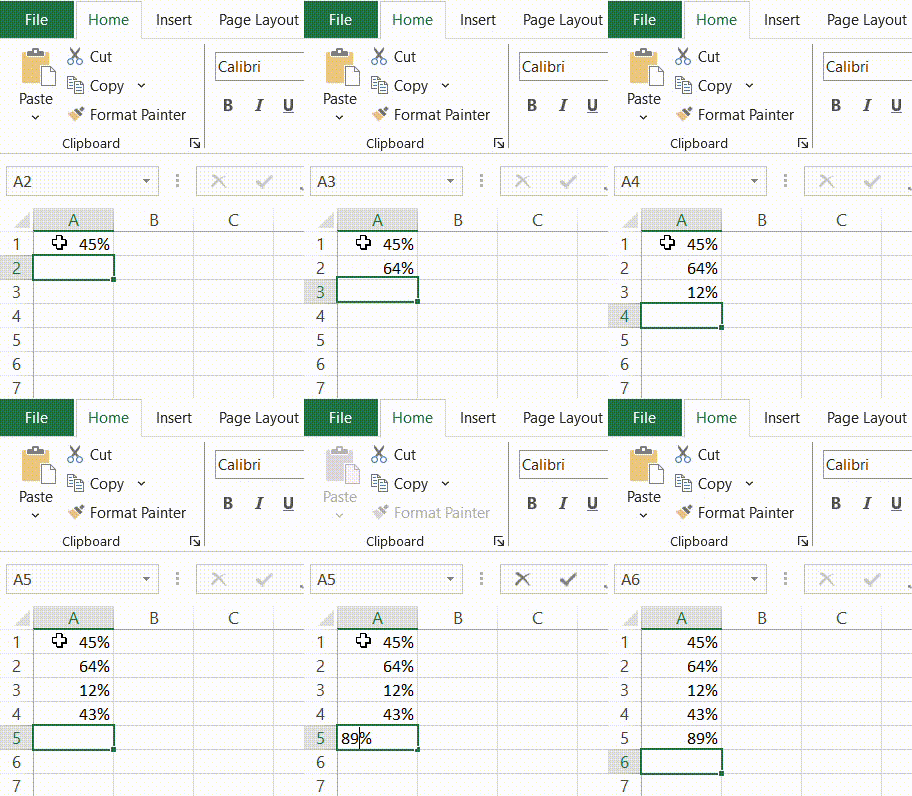
You can also use the shortcut “Ctrl+Shift+%” after selecting your cells. Type your numbers, press Enter.
Customizing Your Percentage Formatting
Adjusting Decimal Places for Precise Percentages
STEP 1: Highlight the cells containing your percentages.
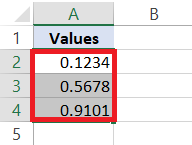
STEP 2: Press Ctrl + 1 or right-click and select “Format Cells.”
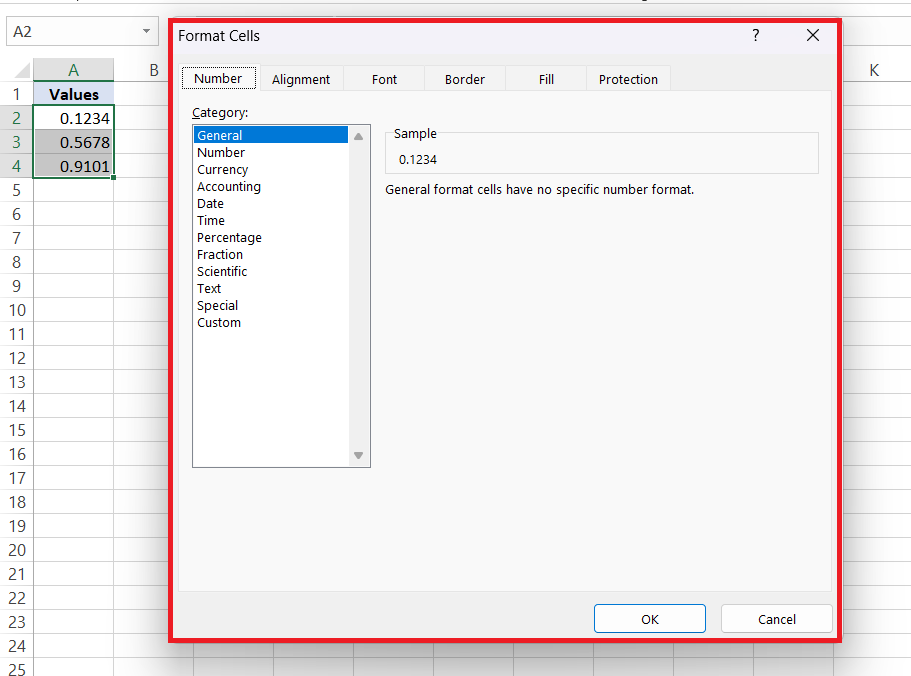
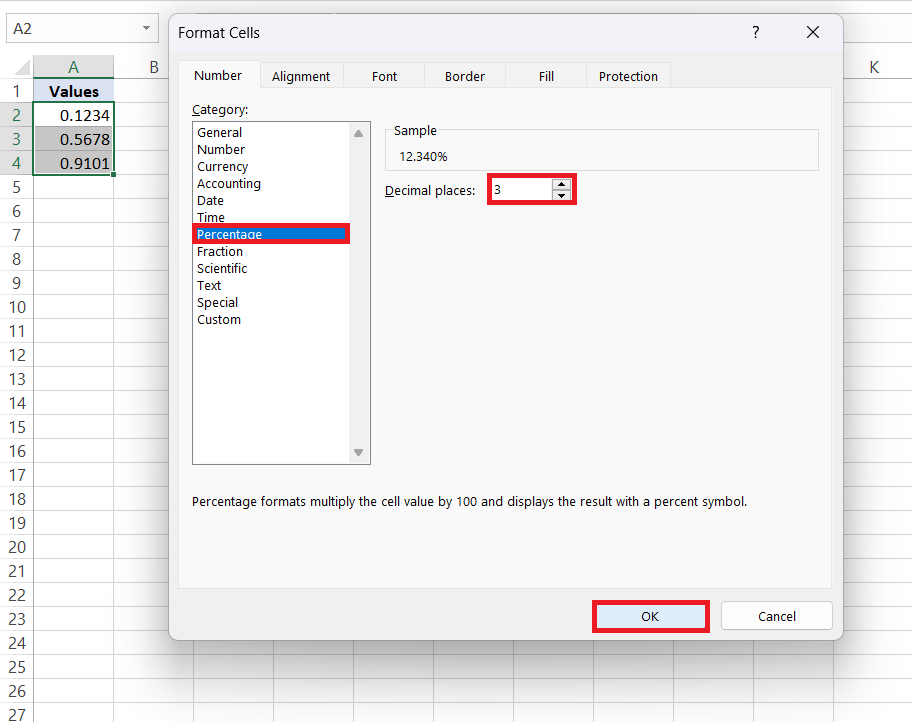
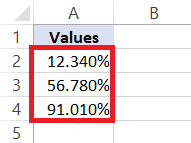
STEP 3: In the Format Cells dialog box, go to the “Number” tab and select “Percentage.” Adjust the decimal places as needed, such as here selecting “3” for two decimal places.
FAQ: Mastering Percentages in Excel
How do I add a sign in front of a percentage in Excel?
To add a sign (+/-) in front of a percentage in Excel, create a custom number format. First, select the cells with percentages, then press Ctrl + 1 to open the ‘Format Cells’ dialog. Go to ‘Custom’, and in the Type field, input +0.00%; -0.00%; 0.00%. This format adds a plus for positive, a minus for negative, and displays zero values with a percentage sign.
What is the shortcut for percentage in Excel?
The shortcut to apply percentage formatting in Excel is Ctrl+Shift+%. Select the cells you want to format and press these keys together, and Excel will instantly format your numbers as percentages. It’s a quick and handy way to switch to percentage view without the mouse!
How do I add a percentage symbol without changing the number value?
To add a percentage symbol without changing the number value in Excel, you’ll need a custom format. Select your numbers, press Ctrl + 1 to open the ‘Format Cells’ dialog, select ‘Custom’, and type 0"%" in the Type box. This way, you simply append the percentage symbol to your numbers without multiplying by 100, keeping the value intact.

John Michaloudis is a former accountant and finance analyst at General Electric, a Microsoft MVP since 2020, an Amazon #1 bestselling author of 4 Microsoft Excel books and teacher of Microsoft Excel & Office over at his flagship MyExcelOnline Academy Online Course.

 30 Days - Full Access









