 Free Practice Workbook
Table of Contents
How to Format Phone Numbers
Number Formats
Follow the steps below to use built-in formats to standardise the phone number format in Excel:
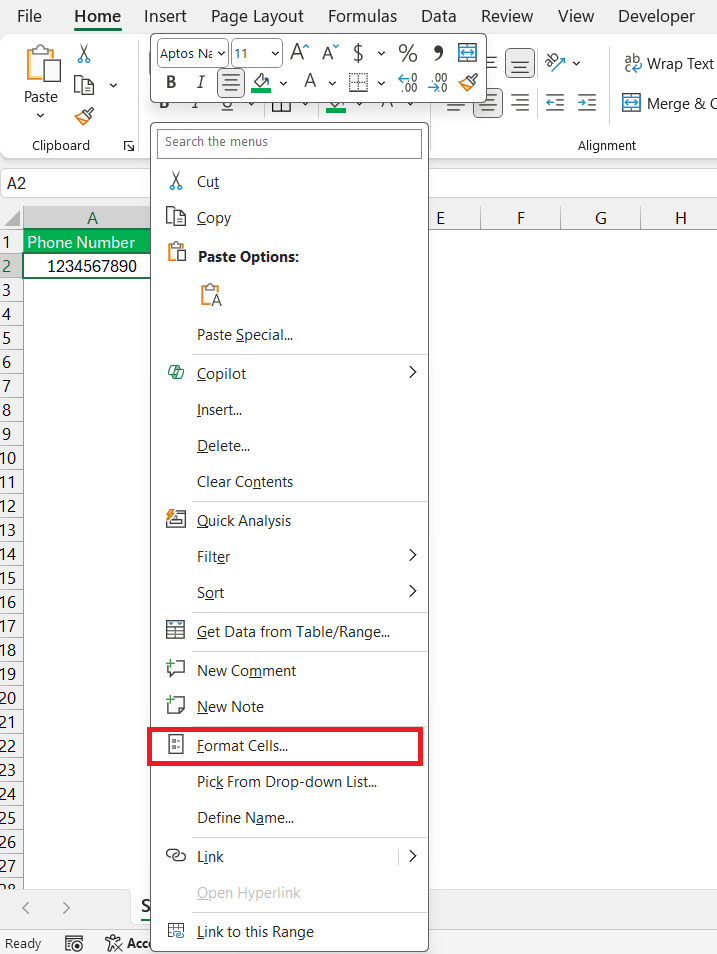
STEP 1: Select the range containing the phone numbers and then right-click and choose Format Cells.
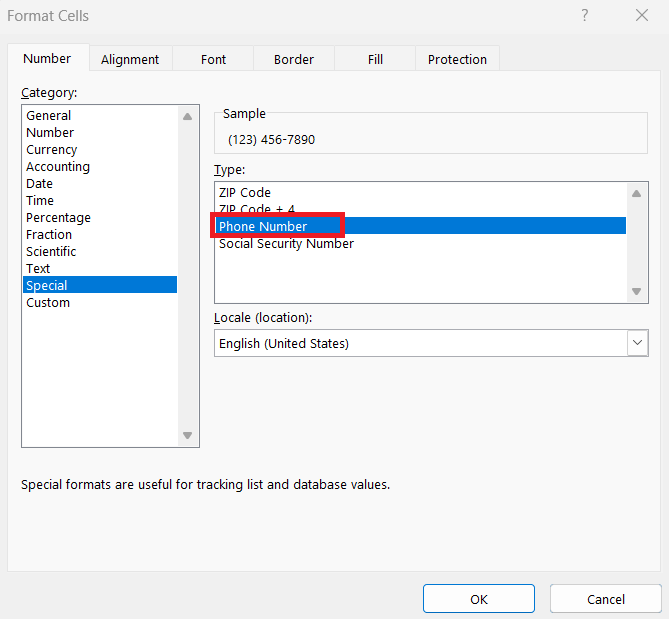
STEP 2: Navigate to ‘Special’ and select ‘Phone Number’.
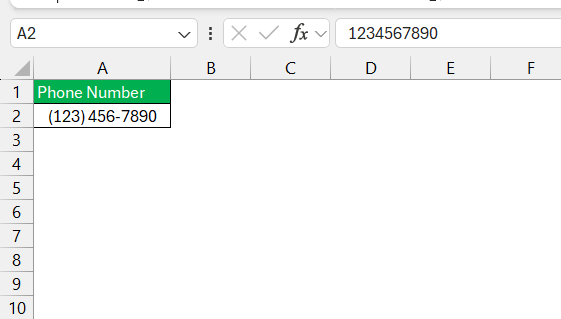
The selected phone number format will be displayed.
Custom Formats
When the built-in options don’t quite meet our needs, creating a custom phone number format in Excel allows for more distinctive styles to be applied. Starting this process means selecting the desired cells and accessing the ‘Format Cells’ dialog box. In the ‘Number’ tab, choosing ‘Custom’ from the category list opens up possibilities for a tailored approach.
A custom format can include spaces, dashes, parentheses, and even country codes. For example, to format a typical U.S. phone number, one might enter something like this [<=9999999]###-####;(###) ###-####.
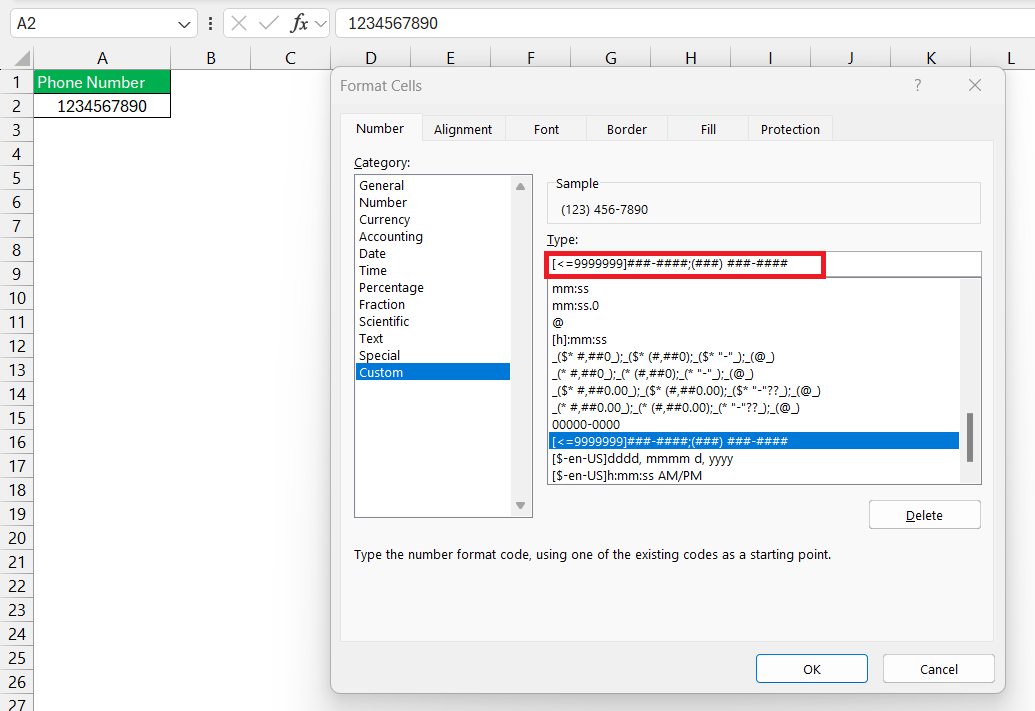
The custom format [<=9999999]###-####;(###) ###-#### in Excel displays numbers based on their length. Numbers with 7 digits or fewer are shown as 123-4567, while numbers greater than 7 digits are formatted as (123) 456-7890. This makes sure that the proper phone number styling is applied automatically.
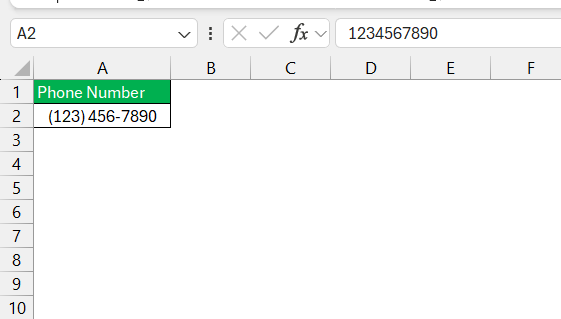
Use Excel Functions for Phone Number Management
TEXT Function
The TEXT function is used to convert values to text and then apply the format that you need. The syntax of this function is:
=TEXT(value, format_text)
To display a phone number in a custom format, use the formula:
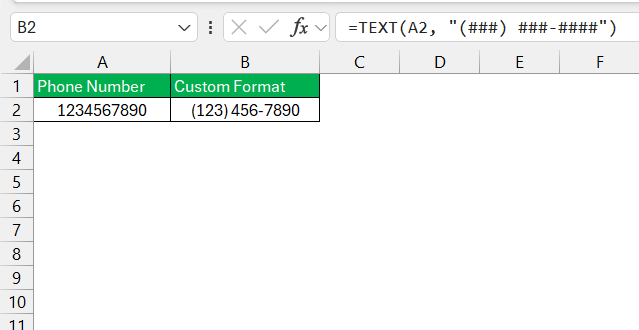
Once you apply this function, the phone number will be displayed in the exact pattern mentioned in the formula.
TEXTJOIN and SUBSTITUTE
The TEXTJOIN function is used to combine multiple text strings, similar to the CONCATENATE function. However, one additional benefit it provides is the ability to select a delimiter for these text strings.
When formatting a phone number, you can use this function to combine the area code, prefix and line number and then add a delimiter like a space.
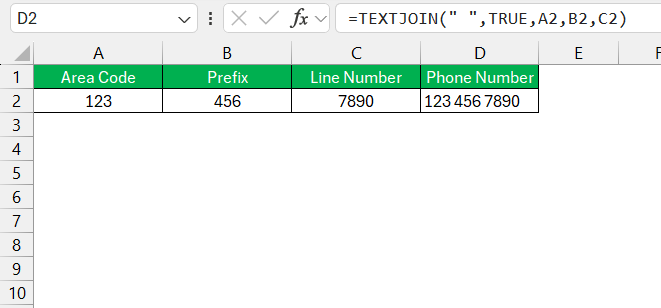
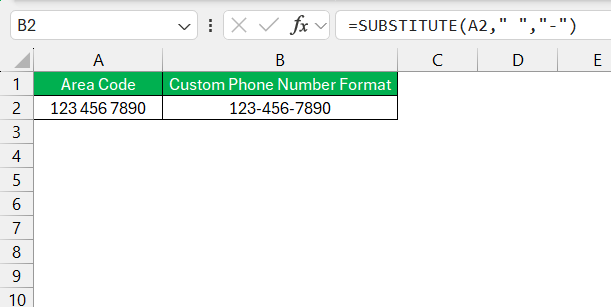
Now, you can use the SUBSTITUTE function to replace the space with a dash in the cell. This function is useful in cleaning up data when imported from various sources and creating a standard phone number format.
FAQs
How to keep the phone number format in multiple cells the same?
To apply a uniform phone number format to multiple cells in Excel, first select the range of cells you want to format. Then, right-click on the selection, choose ‘Format Cells’, and follow the same steps as formatting a single cell—either by choosing a special phone number format or by entering a custom format under the ‘Custom’ category. This will apply your chosen format to all selected cells at once.
Can Excel automatically recognise and format phone numbers upon entry?
Excel cannot automatically recognise and format phone numbers as they’re entered without setting up such a feature. However, you can create data entry rules using Data Validation or employ VBA macros to trigger formatting once a phone number is entered. Alternatively, formatting the column in advance with a custom phone number format can make sure that numbers entered adhere to that format, though this won’t work for every variation of phone number structures.
How to format a phone number in Excel without dashes?
To format a phone number in Excel without dashes, you can use a custom format that excludes them. Select the cells with phone numbers, right-click, and choose ‘Format Cells’. In the Custom category, you could enter a format like (000) 0000000, which would display the number as (123) 4567890. Alternatively, the TEXT formula with a similar custom format will also convert your phone numbers to the desired text format without including dashes.
How to change the current country code in Excel?
You can change the current country code in Excel by using the SUBSTITUTE function. This function will replace the existing country code with a new one. For example: To change the country code from UK to US, you can use the formula:
=SUBSTITUTE(A1, “+44”, “+1”)
The cuountry code of UK i.e. 44 will be replaced with the country code of US i.e. 1.

John Michaloudis is a former accountant and finance analyst at General Electric, a Microsoft MVP since 2020, an Amazon #1 bestselling author of 4 Microsoft Excel books and teacher of Microsoft Excel & Office over at his flagship MyExcelOnline Academy Online Course.

 30 Days - Full Access









