 Free Practice Workbook
Managing data in Microsoft Excel can often involve refining your worksheet by removing unnecessary columns. Whether you need to delete extra data to the right of a specific area or eliminate empty columns that clutter your spreadsheet, understanding how to efficiently delete columns is essential. This guide offers straightforward approaches to help you streamline your Excel workbooks by removing columns quickly and accurately.
Key Takeaways
- Spot unnecessary columns by checking for duplicates, outdated information, or blank cells.
- Use simple right-click options or keyboard shortcuts for swift column removal.
- Deleting columns can help you to keep data organized.
- Excel filters can help in identifying irrelevant columns.
Download the spreadsheet and follow along with the tutorial on How to remove column in Excel – Download excel workbookRemove-Column-in-Excel.xlsx
Table of Contents
Identify Columns for Deletion
Find Redundant or Unused Data
In Excel, you should look for columns that have these points:
- Columns have the data that is same data as another column. It is a duplicate column.
- The information is outdated and is not needed.
- Blank column that may be added by mistake.
By tidying up and removing these excess columns, you’ll streamline your dataset, just as you would declutter your living space.
Use Filters to Find Columns for Removal
Filtering in Excel is like turning on a powerful spotlight to illuminate the columns worthy of your attention and those that should take their final curtain call. You can utilize Excel’s filter options to sort through large datasets with ease, pinpointing the columns that are no longer relevant.
Here’s a simple guide to using filters for this task:
STEP 1: Select the entire sheet by clicking on the corner where rows and columns meet.

STEP 2: Head over to the “Data” tab and hit the “Filter” button.

STEP 3: Once the drop-down arrows appear, you can click on each to assess the data within that column.
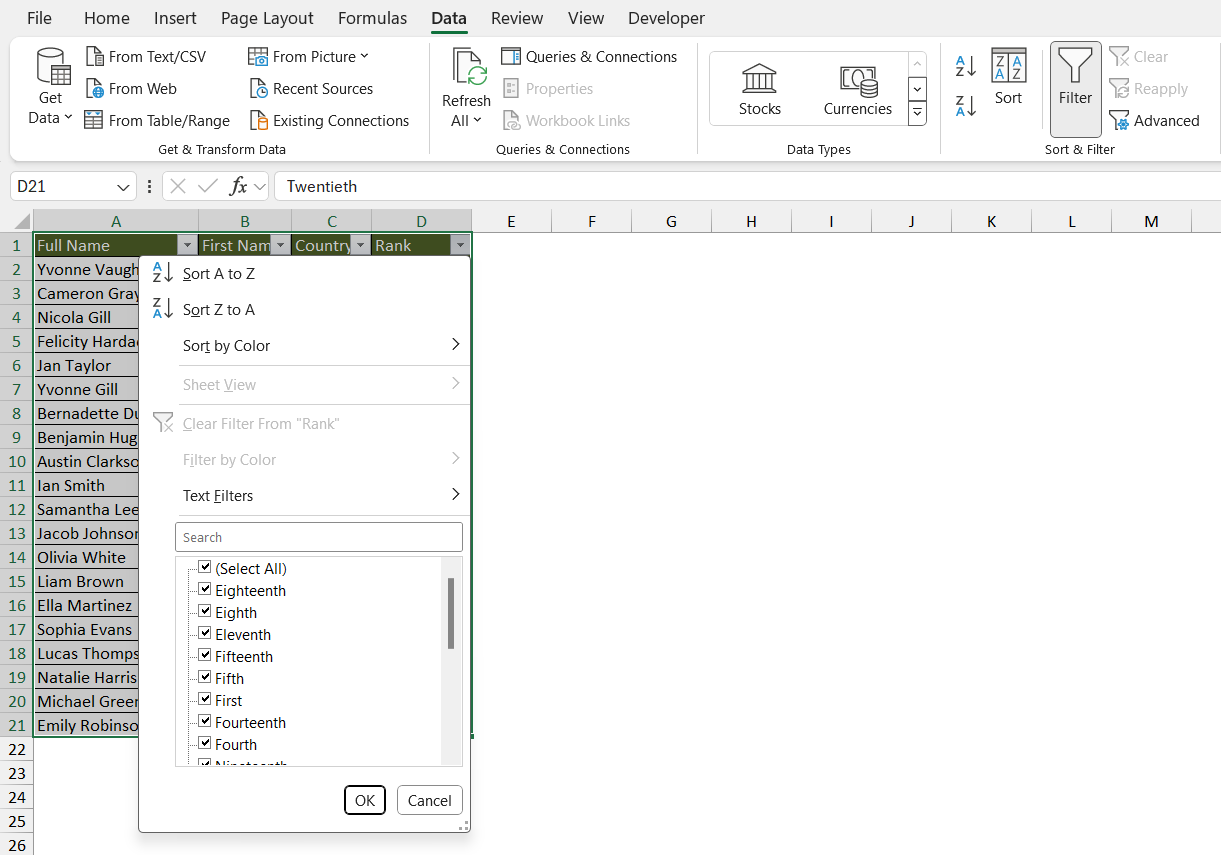
You should look for data that does not align with your current goal. They are the one that needs to be deleted.
How to Remove Columns in Excel
Method 1: Right Click
Deleting a column via the right-click method is a simple process. Let us look at the steps:
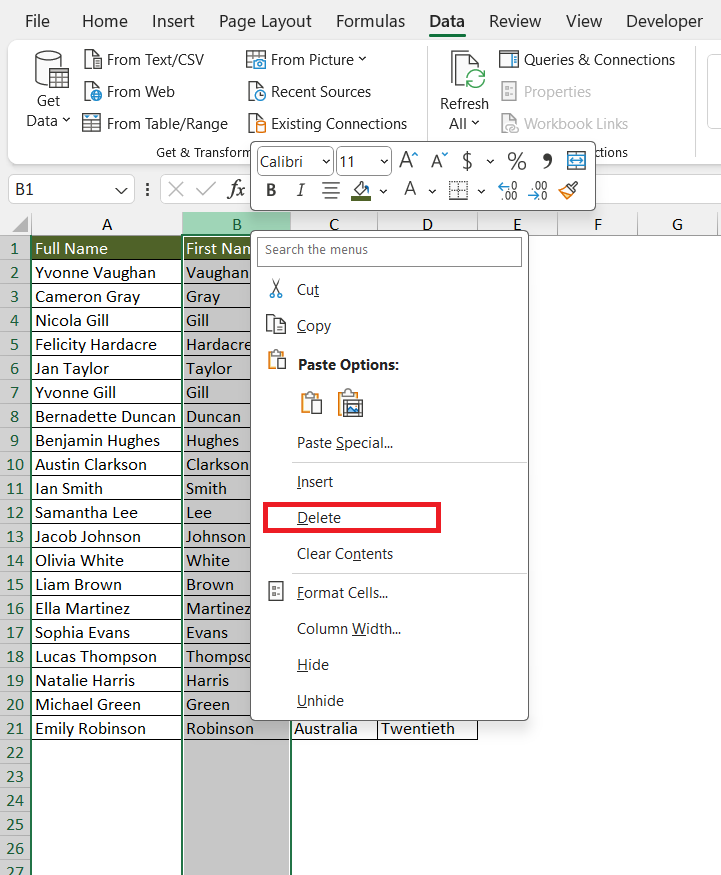
STEP 1: Click on the letter of the column that you want to remove.

STEP 2: Right-click on the column.
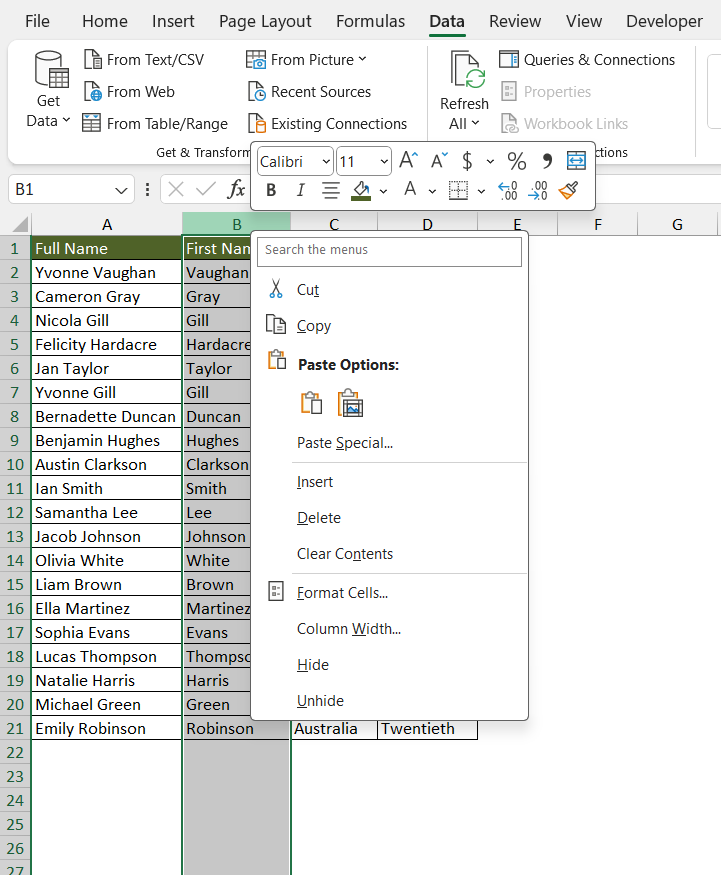
STEP 3: Select Delete.
Method 2: Keyboard Shortcuts
Follow the steps below to use keyboard shortcuts for column deletion in Excel:
STEP 1: Press CTRL + Spacebar to select the entire column.
STEP 2: Press CTRL and – (minus key).
This will quickly delete the selected column. You can use the Command and minus key in Mac to delete the column.
Best Practices
- Before you make any changes, save a copy of the worksheet. This will prevent data loss because of accidental deletion.
- Go through each column to verify that its removal is not sabotaging your data.
- Use trace dependents to check if your columns are referenced in a formula elsewhere.
Advanced Techniques for Bulk Column Removal
Deleting Multiple Adjacent and Non-Adjacent Columns
Removing multiple columns in Excel, whether they’re nestled together or scattered across the sheet, can be as smooth as orchestrating a well-practiced choir. Here’s how to conduct each scenario:
Go To Special Feature for Blank Columns
Excel’s ‘Go To Special’ feature is a hidden gem for those looking to streamline their spreadsheets by removing blank columns. Imagine it as a metal detector that swiftly locates the hidden ‘treasures’ of empty space amidst a beach of data. Here’s how to use it:
STEP 1: First, select the area of your spreadsheet where the blank columns reside, or simply select the entire sheet if you’re unsure.

STEP 2: Next, press Ctrl + G, or F5 to open the ‘Go To’ dialog box, then click the ‘Special…’ button.

STEP 3: In the ‘Go To Special’ dialog box, choose ‘Blanks’. This action highlights all the blank cells in your selection.

STEP 4: Press and hold CTRL and tap – (minus key) and select Entire Column in the dialog box.
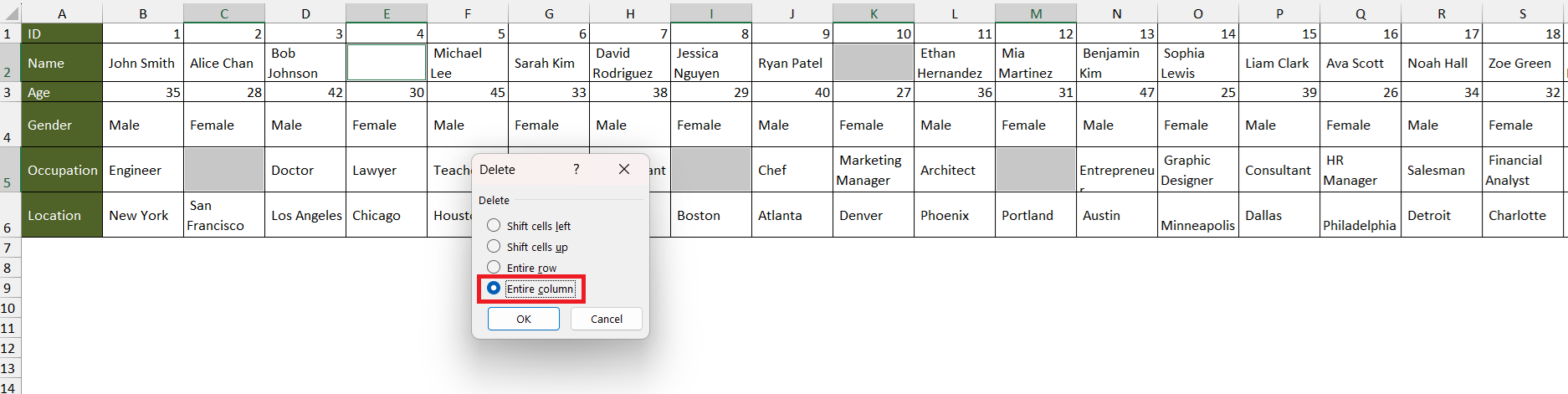
This will remove columns that contains blanks.

And like a master sculptor, you have chiseled away the excess, revealing a more refined and focused spreadsheet.
Common Mistake
Accidentally Deleting
- Make sure to check the importance of the data before deleting it.
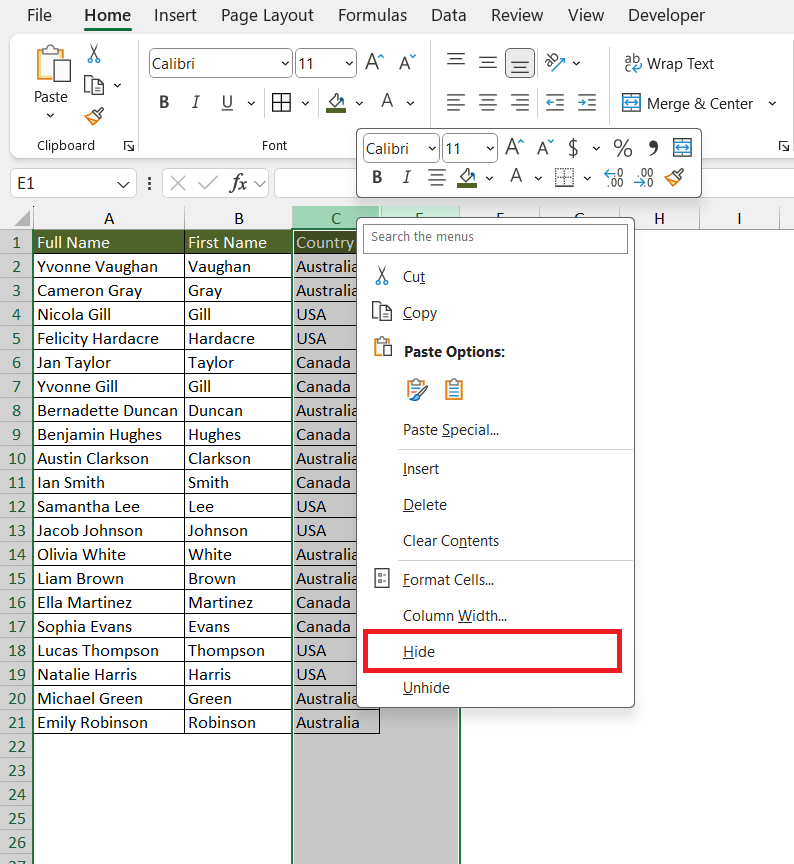
- Hide an unnecessary column instead of deleting it to keep that data intact.
- Add a protection on your worksheet or create data validation to make sure that you don’t accidentally make any changes to important cells.
Hidden and Filtered Columns
Follow the steps below to address the issues with hidden and filtered columns in Excel:
- To show hidden columns, select the columns and right-click to choose Unhide. This will make the hidden column reappear.
- To remove filter from a column, go to Data > Clear. This will remove all filters in your data.

- If you can’t find a column, it may be grouped. Expand the group to make them visible again.

How to Recover a Deleted Column
Undo Option
You can press Ctrl + Z to instantly roll back the deletion of the column. This feature is useful when the mistake is caught immediately. But if you close your workbook teh undo feature may not be operational.
Backup Versions
Should the ‘Undo’ feature fail you, all hope is not lost – Excel’s backup versions are akin to a time machine, allowing you to turn back the clock on your data. Here’s how to harness this power:
- Navigate to ‘File’ > ‘Info’ and look for ‘Manage Workbook’ or ‘Version History’, depending on your Excel version. This treasure trove stores historical snapshots of your spreadsheet.
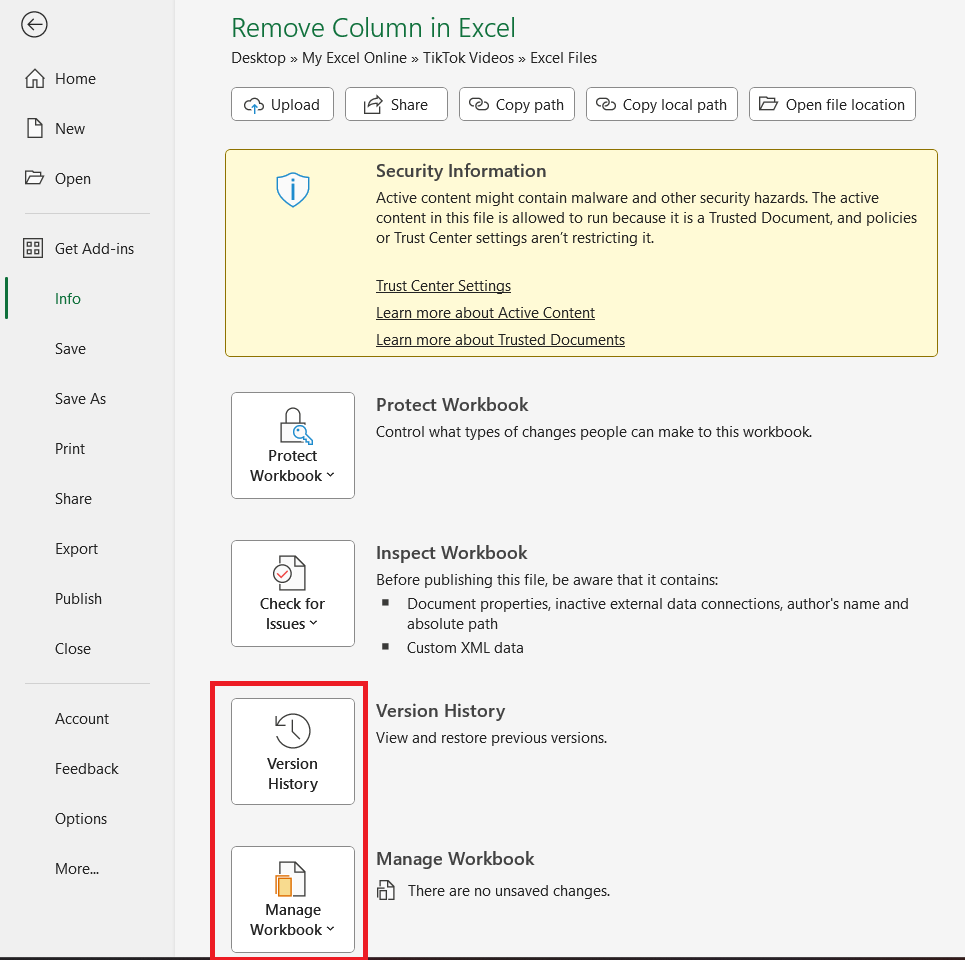
- Sift through these echoes of the past to find the version with your column still intact, and open it.
- You can then either work from this version or copy the essential columns back into your current worksheet.
This method is like having a safety net beneath your high-wire act of data management, offering peace of mind that a safety copy is but a few clicks away.
FAQs
How to Quickly Remove Multiple Columns in Excel?
To remove multiple columns quickly in Excel, follow the steps below:
- Select the first column
- Hold the Shift key
- Click on the last column you want to delete
- Rght-click
- Select Delete
This will remove all selected columns at once.
How to Delete All Empty Columns at Once?
To delete all empty columns at once, insert a helper row. This row should have a COUNTA formula that can identify blank columns. You can then select these blank columns and delete them in one go.
Can Deleted Columns in Excel Be Recovered After Saving?
Deleted columns can be recovered after saving by using the Version History option in Excel. This feature can help you restore previous versions of your Excel file.
How to delete extra columns that keeps going endlessly?
To remove columns in Excel that goes on forever, follow the steps below:
- Select the column immediately after your data ends
- Press
Ctrl + Shift + Right Arrowto highlight all remaining columns to the right. - Right-click on the highlighted columns
- Choose Delete
This will remove all the selected extra columns in one action.
What is the shortcut to remove column in Excel?
The shortcut to remove column in Excel is Ctrl + -.

John Michaloudis is a former accountant and finance analyst at General Electric, a Microsoft MVP since 2020, an Amazon #1 bestselling author of 4 Microsoft Excel books and teacher of Microsoft Excel & Office over at his flagship MyExcelOnline Academy Online Course.

 30 Days - Full Access









