 Free Practice Workbook
Microsoft Excel is widely used for organizing and analyzing data. When data is imported from systems, databases, or generated automatically, it contains both date and time. The time itself may not cause any harm, but it can affect sorting or filtering. In this article, you will learn simple ways to remove time from date.
Key Takeaways:
- Excel stores dates and times as numbers.
- The integer part of the number represents the date.
- The decimal part of the number represents the time.
- The INT and TRUNC functions can remove the time portion from a timestamp.
- Text to Columns, Flash Fill, and Power Query can also help quickly remove the time portion.
Table of Contents
Understand Date and Time
It is important to understand that Excel stores dates and times as numbers.
- The integer part of a number is stored as a date.
- The decimal part of a number is stored as time.
For example, if the cell shows a date as 1/1/2024 14:30, Excel actually stores it as 45292.60417. So, to remove the time portion, you need to remove the decimal from the number.
How to Remove Time from Date
Change the Format
One of the quickest ways to hide time is to change the format of the cell. Follow the steps below to know how:
STEP 1: Select the cells that contain the date and time.
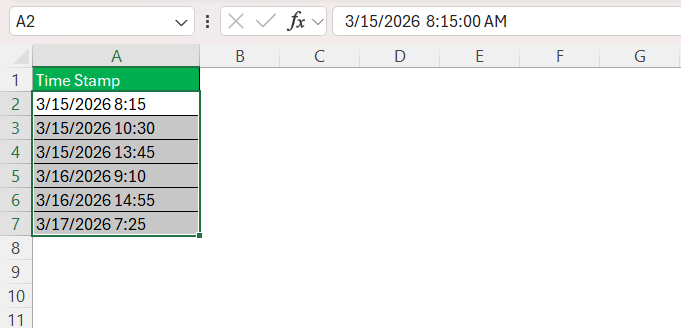
STEP 2: Right-click on the cell and click Format Cells.
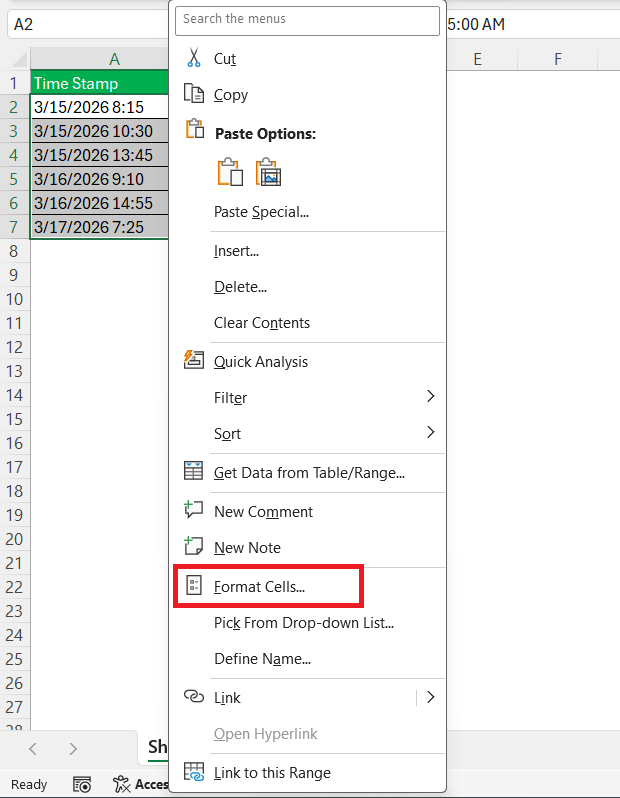
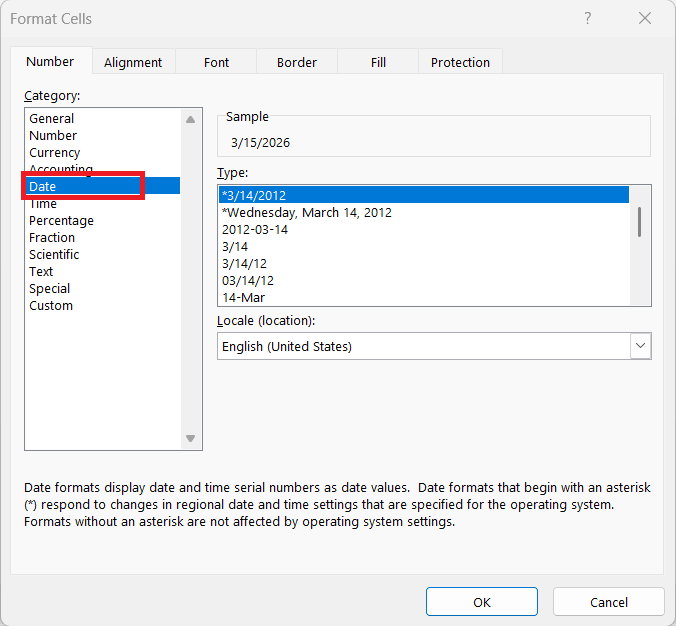
STEP 3: Go to the Number tab. Choose Date.
STEP 4: Select the desired date format. Click OK.
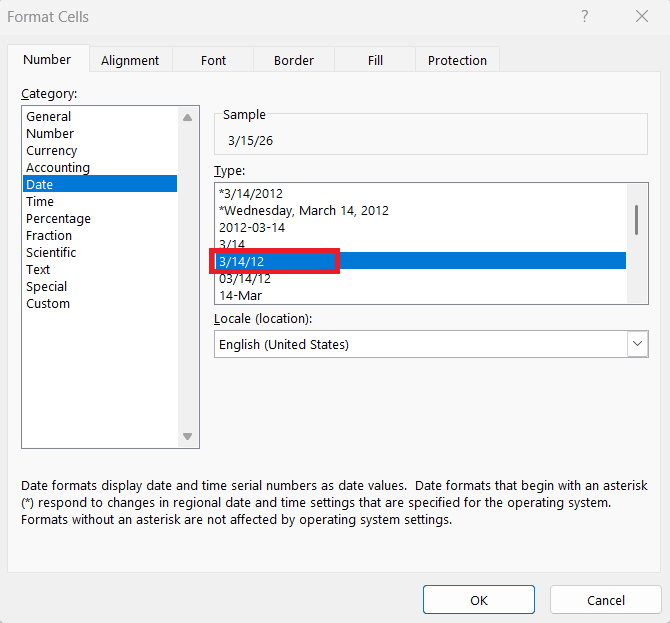
Now the cells will display only the date.
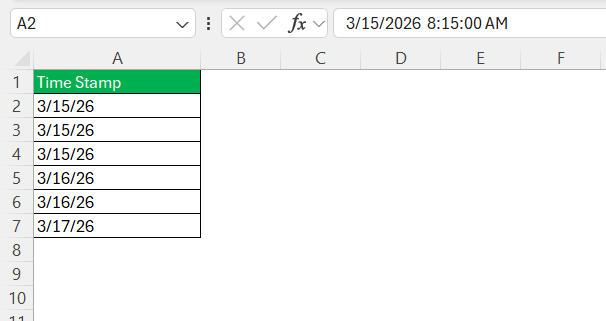
It is important to know that Excel only hides the time portion in this method. Excel may still consider them when performing calculations.
INT Function
The INT function removes the decimal portion of a number and keeps the integer part only.
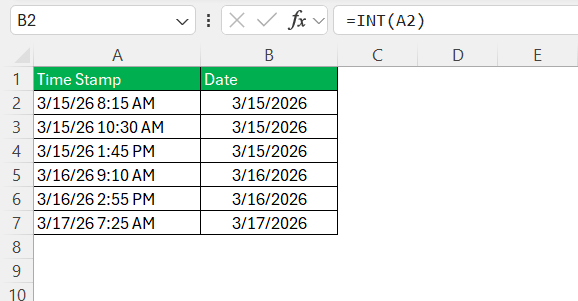
Make sure that you format the result as a date.
TRUNC Function
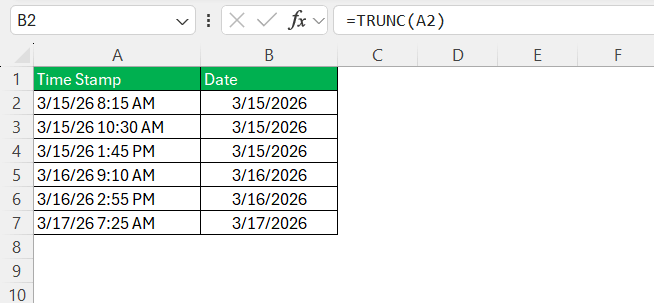
The TRUNC function can also be used to remove the decimal portion from the timestamp.
Text to Column
The Text to Column feature is used to remove the time portion without writing any formula.
STEP 1: Select the cells containing the date and time.
STEP 2: Go to the Data > Text to Columns.

STEP 3: Select Delimited and click Next.
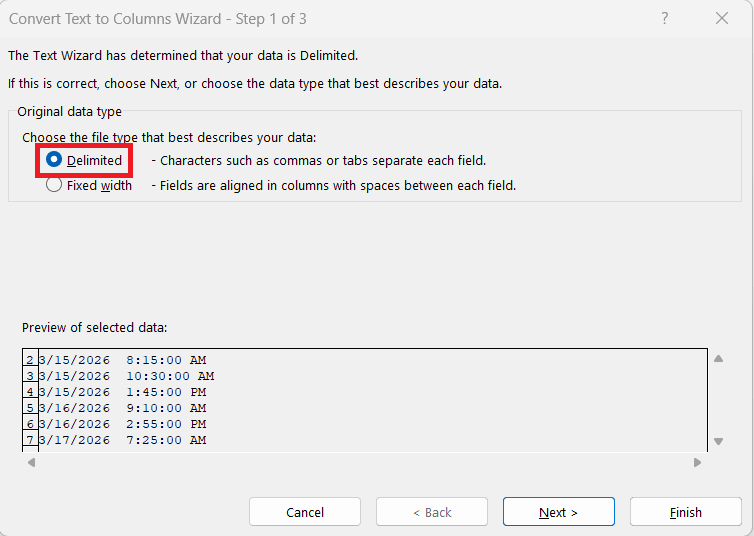
STEP 4: Select Space and click Next.
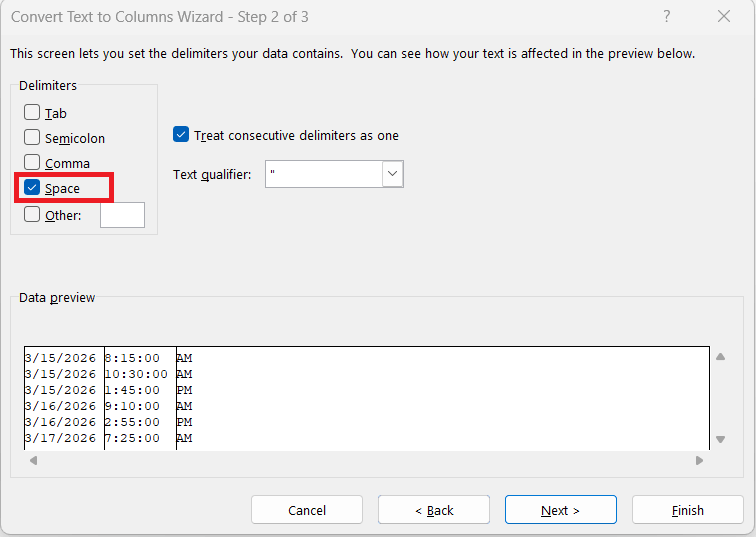
STEP 5: In the preview section, select the column containing the time portion and click Do not import column(skip).
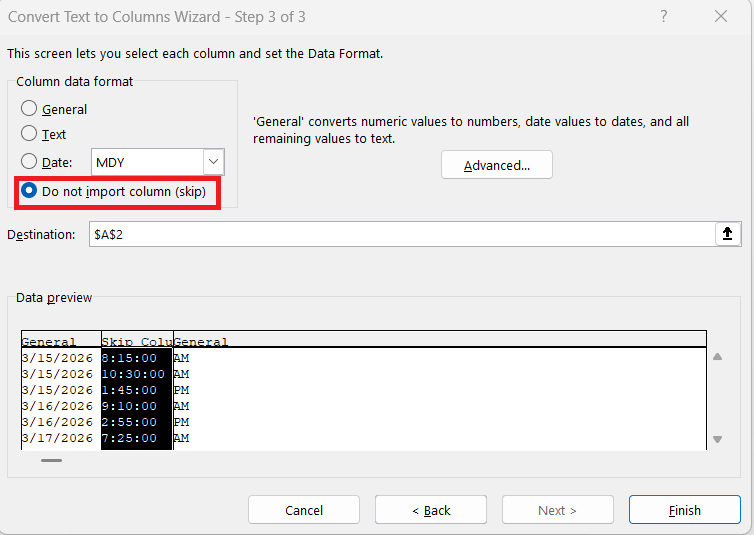
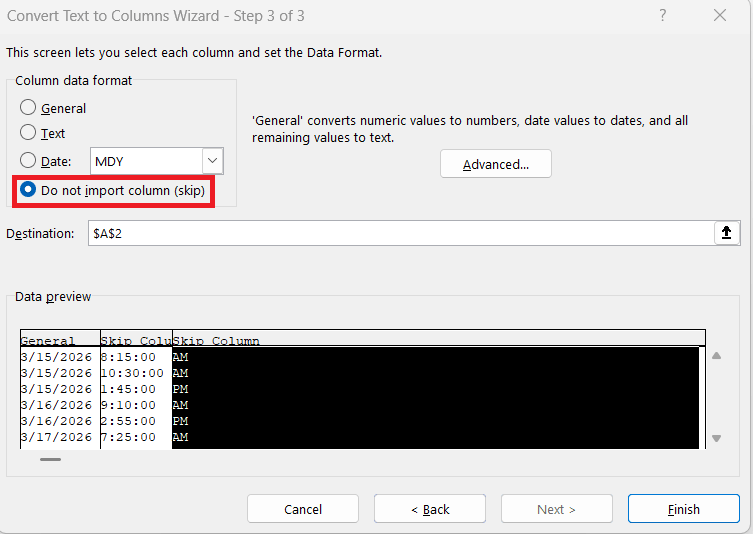
STEP 6: Repeat the same for the third column containing AM or PM. Click Finish.
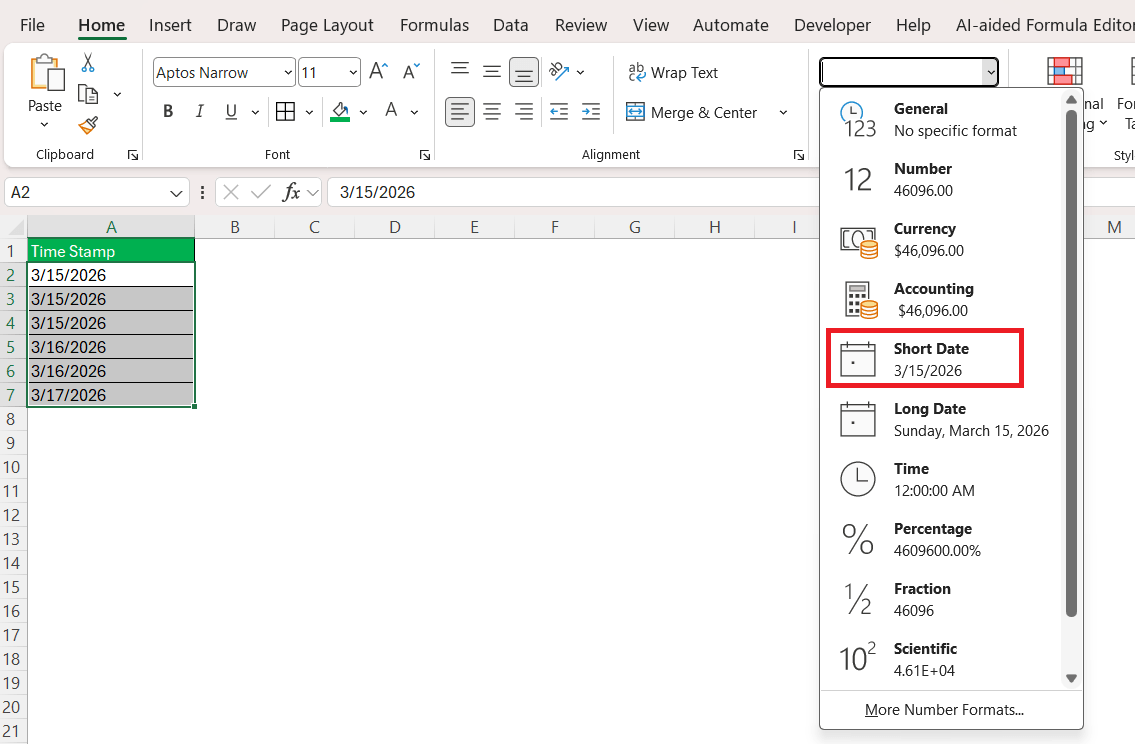
STEP 7: Format the result as a date.
Flash Fill
The Flash fill understands the pattern and repeats it from the remaining cells. Follow the steps below to use Flash Fill to remove time from a date:
STEP 1: Manually type the date as you want in the new column.
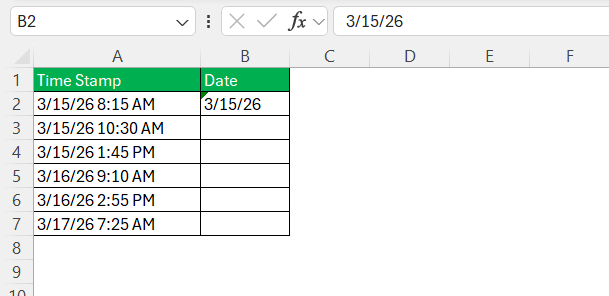
STEP 2: Do the same as another cell. Excel should show a grayed-out list of suggestions for the rest of the column.
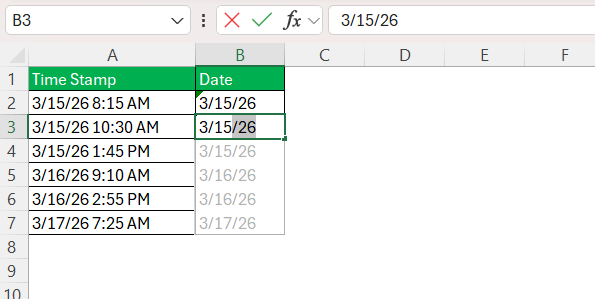
STEP 3: Press Enter.
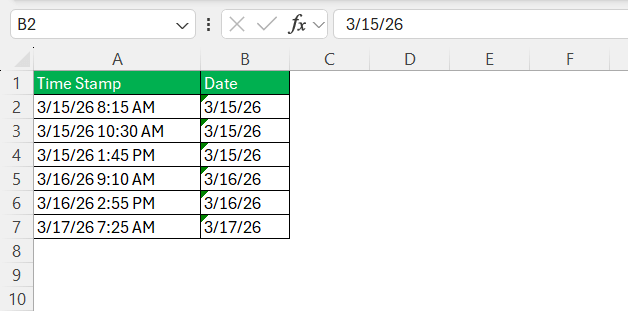
It is important to know that if the suggestion is not displayed, you can press Ctrl + E to use Flash Fill.
Power Query
If you have a large dataset and you need to frequently remove time from the date, you should use Power Query.
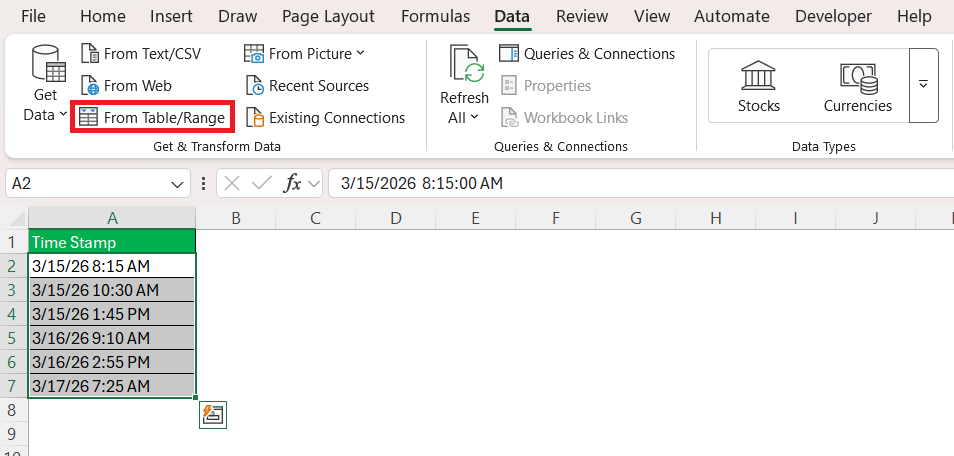
STEP 1: Select your data.
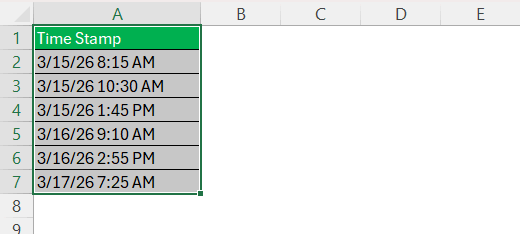
STEP 2: Go to the Data tab > From Table/Range.
STEP 3: In Power Query, select the column containing the date. Click Transform > Data Type > Date.
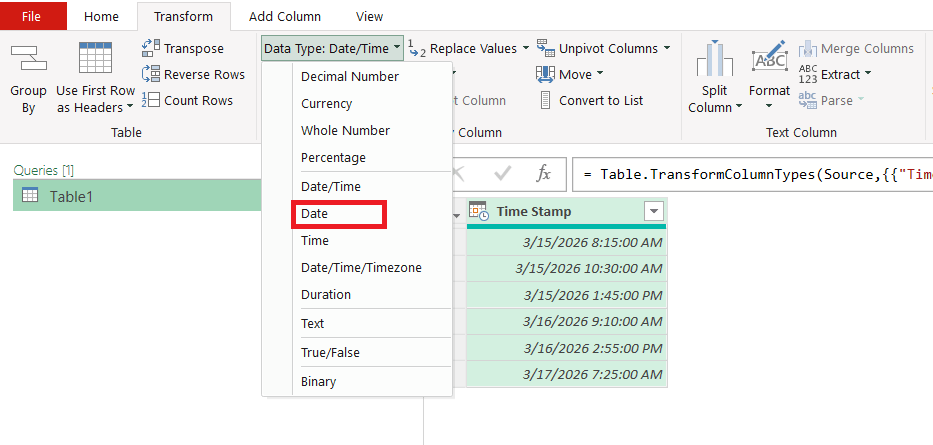
STEP 4: Click Close & Load.

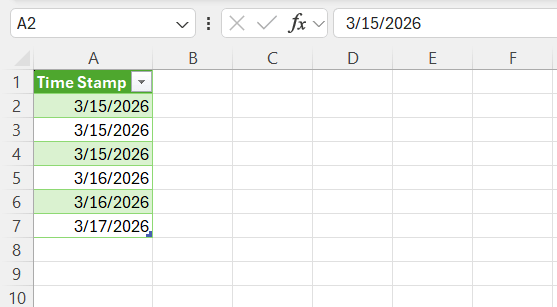
The dataset will return to Excel with the time portion removed.
Tips & Tricks
- Always format the result as a date after applying the formula.
- Power Query can be a useful method if you have a large dataset.
- If the date is stored as text, you can use the DATEVALUE function.
- To show a date as a number, multiply the date by 1.
- Use Ctrl + E to use Flash Fill in Excel.
- Check the formula bar to see if time still exists in the cell.
FAQs
1. Why does Excel show both date and time in one cell?
Excel stores both date and time in a single numeric value, so imported data may contain both.
2. What is the easiest way to remove time from a date?
You can use the INT function to remove the decimal portion that represents time.
3. Does changing the cell format remove the time permanently?
No. Formatting only hides the time but does not remove it from the value.
4. Can Flash Fill remove time from dates?
Yes. If you type the date format you want, Flash Fill can detect the pattern and apply it to other cells.
5. When should I use Power Query for this task?
Power Query is useful when working with large datasets or when cleaning imported data frequently.

John Michaloudis is a former accountant and finance analyst at General Electric, a Microsoft MVP since 2020, an Amazon #1 bestselling author of 4 Microsoft Excel books and teacher of Microsoft Excel & Office over at his flagship MyExcelOnline Academy Online Course.

 30 Days - Full Access









