 Free Practice Workbook
Power Query lets you perform a series of steps to transform your Excel data. There are times when we want to do things that are not built in the user interface. This is possible with Power Query’s formula language, which is called M. Unfortunately not all of Excel’s formulas can be used in M. For example, if we want to use the Excel’s FIND Function to find a specific character in text, it is not supported in M. Let me show you how I can replicate the FIND Function in M!
Key Takeaways
- M Language Alternative – Since Power Query does not have a direct
FINDfunction like Excel, you can useText.PositionOfto locate a substring within a text string. - Case Sensitivity Matters – Unlike Excel’s
FIND, which is case-sensitive,Text.PositionOfallows you to specify case sensitivity using optional parameters. - Handling Missing Values – If the substring is not found,
Text.PositionOfreturns-1, which must be handled properly to avoid errors in further transformations. - Multiple Occurrences – You can use
Text.PositionOfwith theOccurrence.Alloption to return all positions of a substring instead of just the first match. - Enhanced String Operations – Combining
Text.PositionOfwith other Power Query functions likeText.MiddleandText.Lengthallows for powerful text extraction.
How to Replicate Excel’s FIND Function with M in Power Query
Let’s go through the steps in detail:
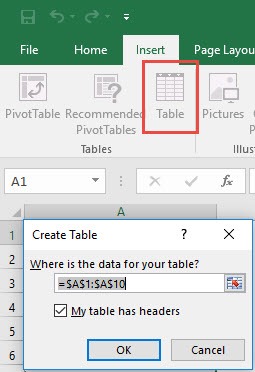
STEP 1: Select your data and turn it into an Excel Table by pressing the shortcut Ctrl + T or by going to Insert > Table
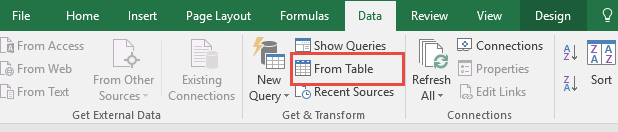
STEP 2: Go to Data > Get & Transform > From Table (Excel 2016) or Power Query > Excel Data > From Table (Excel 2013 & 2010)
Excel 2016:
Excel 2013 & 2010:

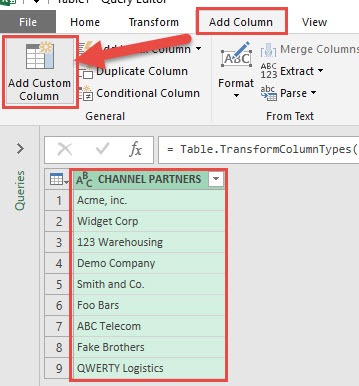
STEP 3: This will open up the Power Query Editor.
We want to get the position of the letter O of the Channel Partners, so we need to select the CHANNEL PARTNERS column.
Go to Add Column > Add Custom Column
STEP 4: Let us create a simple M expression to replicate the FIND function in Excel.
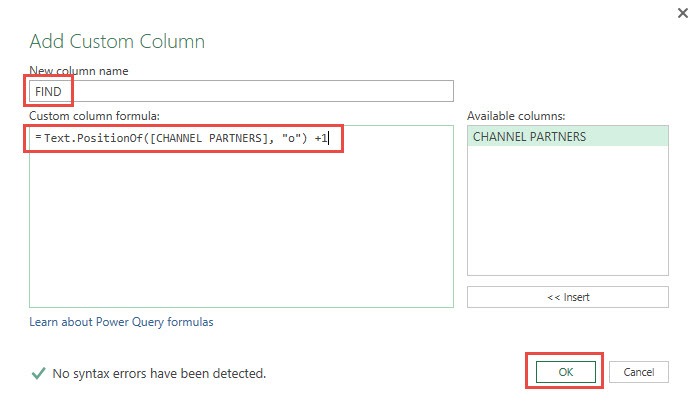
In the New column name text box, type FIND
In the Custom column formula, type in: Text.PositionOf(
From the Available columns choose CHANNEL PARTNERS and select Insert.
Then finish off the formula by entering “o”) + 1
We now have built the following formula:
Text.PositionOf([CHANNEL PARTNERS], “o”) + 1
So let us quickly break down what we just did:
- We are using the Text.PositionOf formula to get the find the letter “o” in the CHANNEL PARTNERS column
- We added 1 to it because the PositionOf formula starts counting at 0. That is different to the FIND formula in Excel which starts counting at 1 as the 1st character.
- So to replicate the FIND formula, we need to add 1 to our formula to make up for the difference.
- Click OK to confirm.
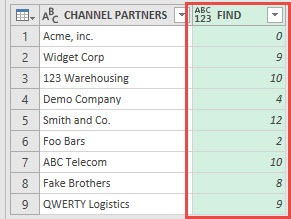
Now you will see your changes take place. For example, in “Widget Corp” the first “o” encountered is the 9th character in this text string.
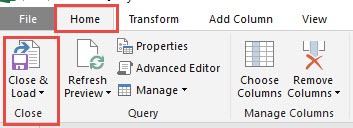
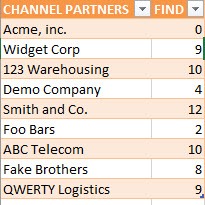
STEP 5: Click Close & Load from the Home tab and this will open up a brand new worksheet in your Excel workbook with the updated values.
Congratulations! You have used the M formula in Power Query to replicate Excel’s FIND function!
Frequently Asked Questions
What function in Power Query is similar to Excel’s FIND function?
Power Query’s Text.PositionOf function is the closest equivalent to Excel’s FIND, as it locates the position of a substring within a text string.
Does Text.PositionOf in Power Query work the same way as Excel’s FIND?
Mostly, but it has some differences. Text.PositionOf allows optional parameters to handle case sensitivity, whereas Excel’s FIND is always case-sensitive.
What happens if the substring is not found in Power Query?
If the substring is not found, Text.PositionOf returns -1. You may need to handle this result using conditional logic to prevent errors.
Can I find multiple occurrences of a substring in Power Query?
Yes, by using Text.PositionOf with the Occurrence.All parameter, you can return a list of all positions where the substring appears.

Bryan
Bryan Hong is an IT Software Developer for more than 10 years and has the following certifications: Microsoft Certified Professional Developer (MCPD): Web Developer, Microsoft Certified Technology Specialist (MCTS): Windows Applications, Microsoft Certified Systems Engineer (MCSE) and Microsoft Certified Systems Administrator (MCSA).
He is also an Amazon #1 bestselling author of 4 Microsoft Excel books and a teacher of Microsoft Excel & Office at the MyExecelOnline Academy Online Course.

 30 Days - Full Access









