 Free Practice Workbook
Run Time Error 1004 in Microsoft Excel interrupts workflow during VBA code execution or complex data manipulation, often due to improper references or document corruption.
Key Takeaways:
- Run Time Error 1004 typically arises from issues in VBA code, such as improperly referenced ranges or attempts to rename objects with duplicate names.
- Specific actions, like trying to select a range on an inactive sheet or referencing a non-existent object, often trigger this error.
- Regular updates, thorough debugging of VBA scripts, and maintaining clean data and add-ins can help prevent future occurrences of Run Time Error 1004.
Table of Contents
Why Does Run Time Error 1004 Occur?
Error 1: That Name is Already Taken. Try a Different One
Cause: This error occurs when you attempt to name a worksheet, range, or other object with a name that already exists in the workbook. Excel does not allow duplicate names for these objects.
Sub AddSheet()
Sheets.Add.Name = "Sheet1"
End Sub
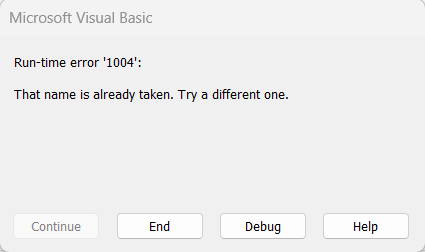
Solution: Before assigning a name, ensure it does not already exist.
Error 2: Method ‘Range’ of Object ‘_Global’ Failed
Cause: This can occur if the worksheet is not active or if the range is improperly referenced.
Sub CallObject()
Range("Table").Select
End Sub
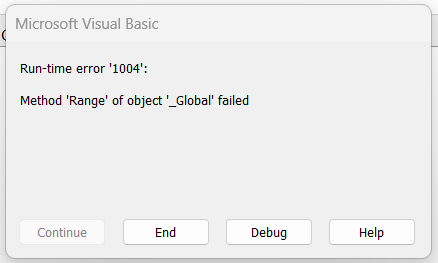
Solution: Always qualify your range references with the appropriate worksheet object.
Error 3: Select Method of Range Class Failed
Cause: This error occurs when selecting a range on a worksheet that is not active.
Sub SelectRange()
Sheets("Sheet2").Range("B2").Select
End Sub
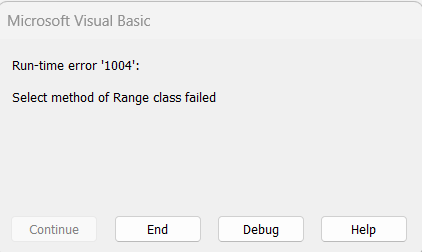
Solution: Activate the worksheet before selecting the range:
Error 4: Activate Method of Range Class Failed
Cause: This error is similar to the previous one and occurs when you try to activate a range that is on an inactive sheet.
Sub ActivateCell()
Sheets("Sheet2").Range("B2").Activate
End Sub
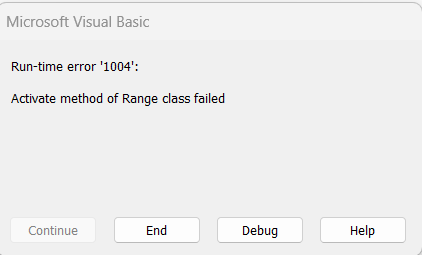
Solution: Ensure that the worksheet containing the range is active before activating the range:
Error 5: Sorry We Couldn’t Find
Cause: This error often occurs when trying to reference an object (such as a worksheet or range) that does not exist in the workbook.
Sub OpenWorkbook()
Workbooks.Open ("C:\Users\MyExcelOnline\Runtime_Error.xlsx")
End Sub
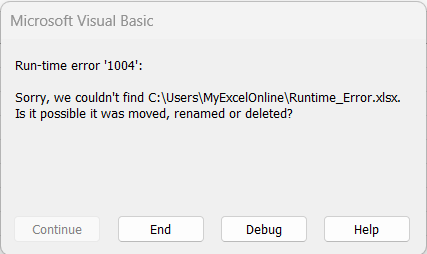
Solution: Verify the existence of the object before attempting to reference it.
Error 6: Method Open of Object Workbooks Failed
Cause: This error occurs when VBA fails to open a workbook, often due to an incorrect file path or name.
Sub ExtractData()
Dim wb As Workbook
Set wb = Workbooks.Open("\\Conditional.xlsx", ReadOnly:=True, CorruptLoad:=xlExtractData)
End Sub
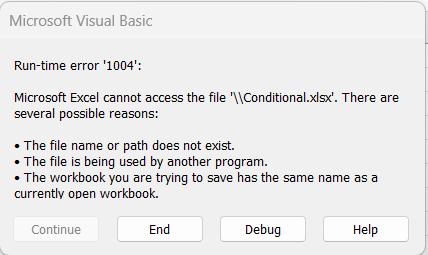
Solution: Ensure the file path and name are correct. You can also handle errors gracefully.
Removing Unnecessary Add-ins
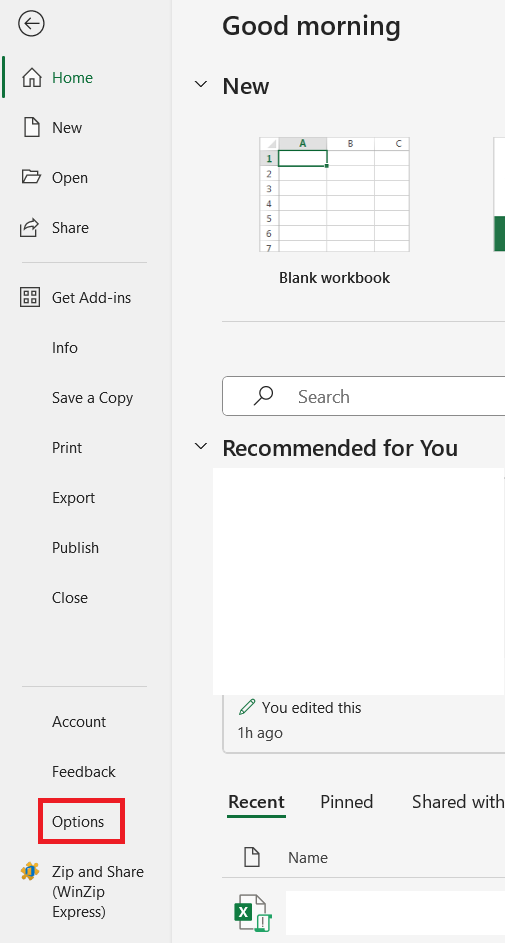
STEP 1: Open Excel and head on over to the ‘File’ tab.

STEP 2: Click ‘Options’
STEP 3: In the Excel Options dialog box, click on ‘Add-Ins’.
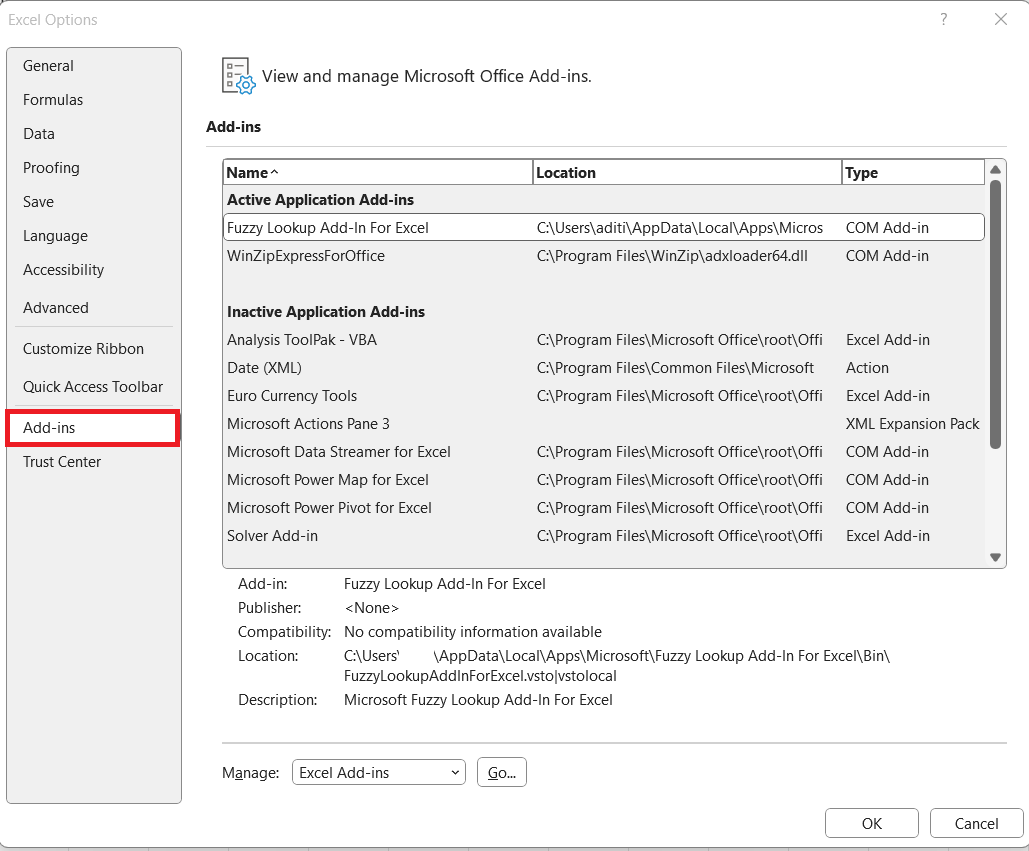
STEP 4: At the bottom, you’ll see a ‘Manage’ drop-down list. Select ‘Excel Add-ins‘ and click ‘Go….
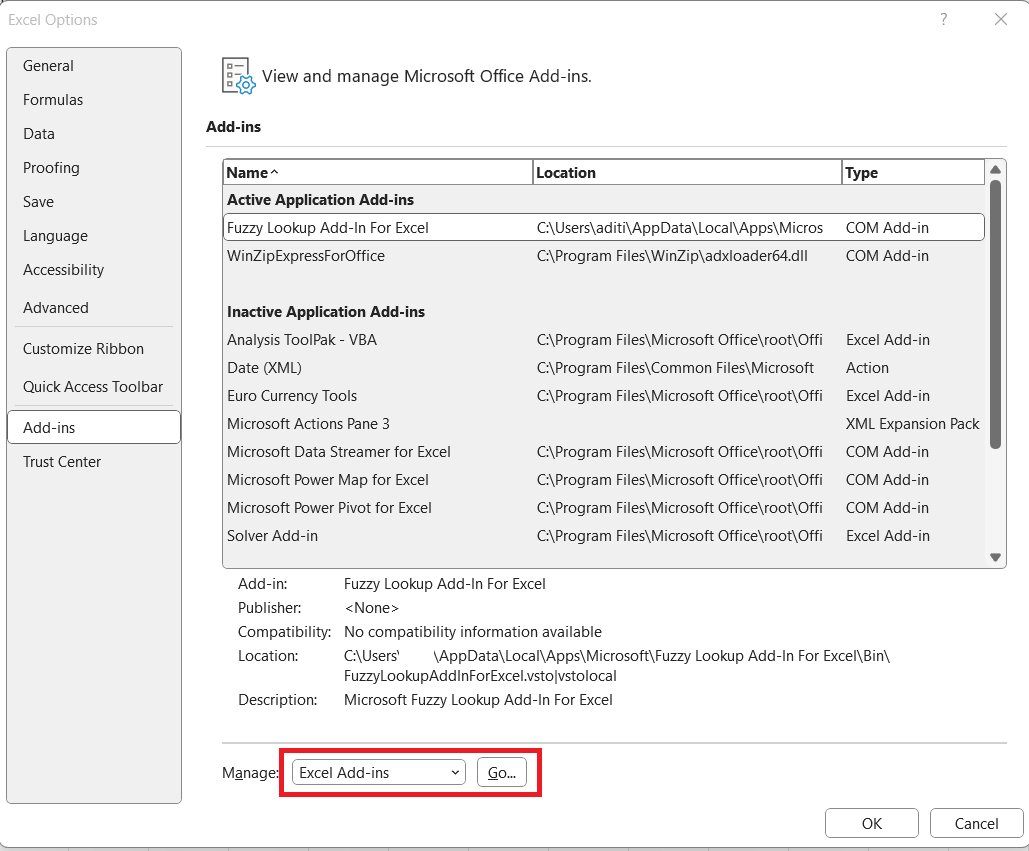
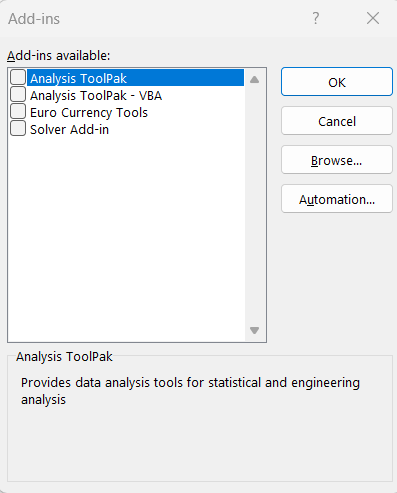
STEP 5: You’ll get a list of all the add-ins. Uncheck the ones that are unnecessary.
Frequently Asked Questions
What is run-time error 1004?
Run-time error 1004 is an issue in Excel that pops up when there’s a error with VBA code.
How can I identify if the error is due to a corrupt Excel file?
To identify if the error is due to a corrupt Excel file, look for signs like trouble opening the file, erratic behavior, or repeated errors. A file repair tool can diagnose this issue.

John Michaloudis is a former accountant and finance analyst at General Electric, a Microsoft MVP since 2020, an Amazon #1 bestselling author of 4 Microsoft Excel books and teacher of Microsoft Excel & Office over at his flagship MyExcelOnline Academy Online Course.

 30 Days - Full Access









