Free Practice Workbook
Copilot can create sample datasets from simple instructions. You just need to describe the data you need and mention the required columns and number of records. In this article, you will learn how to generate sample data with Copilot in Excel.
Key Takeaways:
- Copilot can generate realistic sample datasets using simple prompts.
- You can create sales, employee, product, and customer support data.
- Specify the required columns and number of records in your prompt.
- You can ask Copilot to include formulas and format data as an Excel table.
- Review the generated data for duplicate values and missing information.
Table of Contents
Introduction to Sample Data
Sample data are random datasets that may be required for several reasons, including:
- Testing Formulas
- Building a practice workbook
- Building a sample dashboard
Suppose you want to create a sales dataset with customer names, product details, order dates, quantities, and sales amounts. Instead of entering each record manually, you can ask Copilot to generate sample data for you.
You can describe the type of dataset you need and specify the columns, number of records, and other requirements. Copilot can then generate the data and add it to your worksheet.
How to Generate Sample Data with Copilot
STEP 1: Open a new workbook in Microsoft Excel.
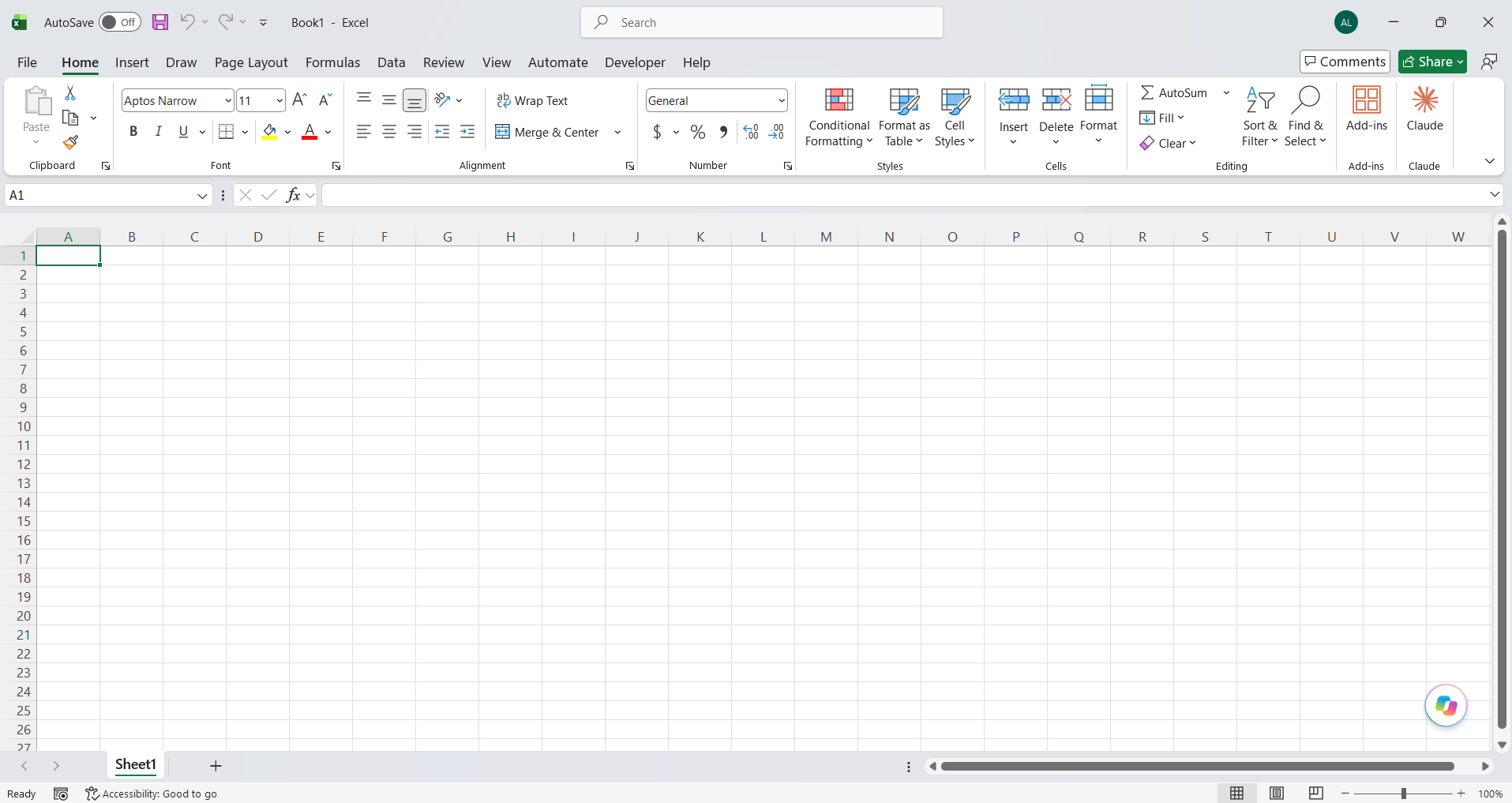
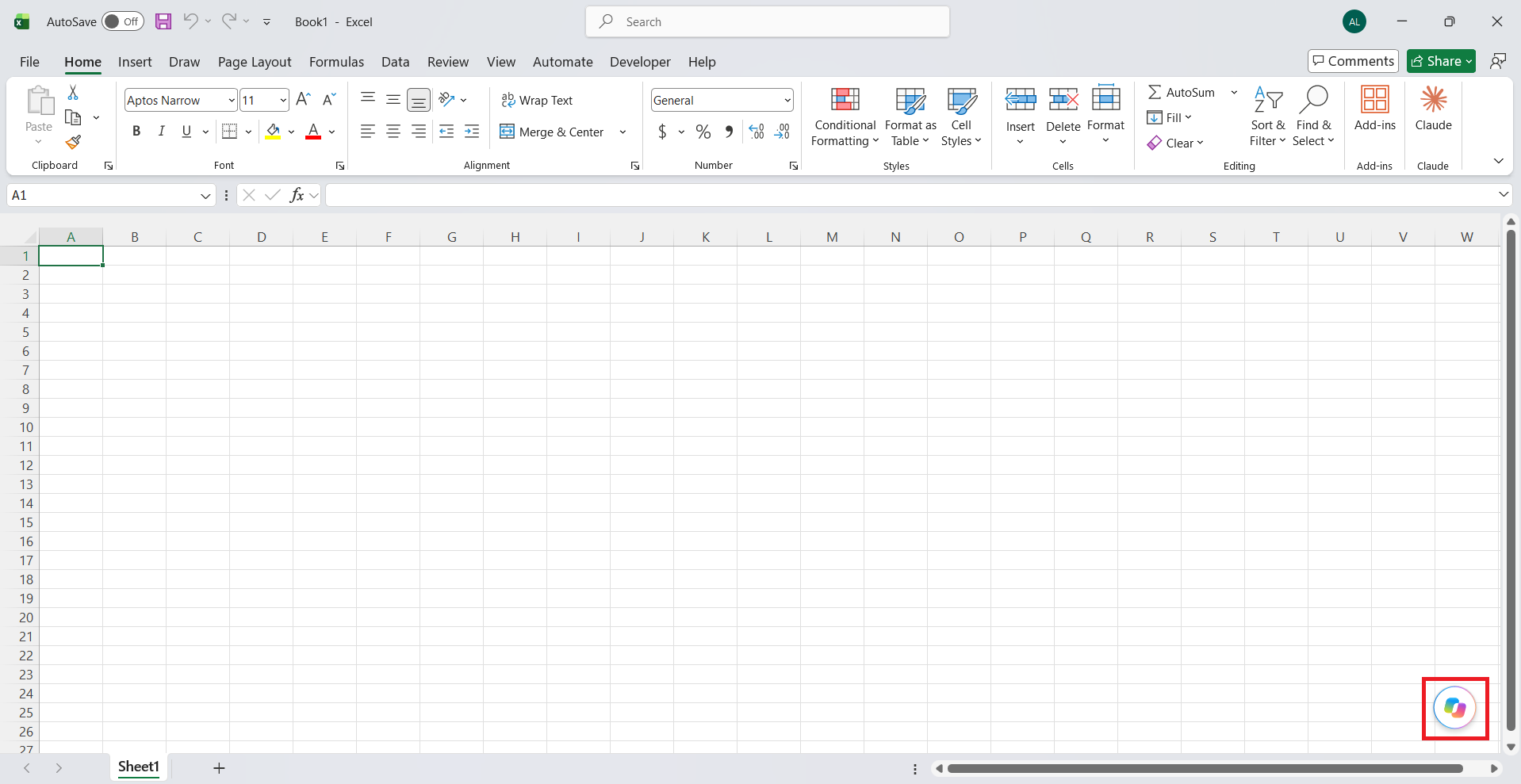
STEP 2: In the lower right corner of the workbook, select the Copilot icon.
STEP 3: In the Copilot pane, enter the prompt below to generate sample data:
Generate a sample sales dataset with 50 records. Include the following columns: Order ID, Customer Name, Product, Region, Order Date, Quantity, Unit Price, and Total Sales. Use different customer names, products, and regions. Generate realistic sample values and format the data as an Excel table.
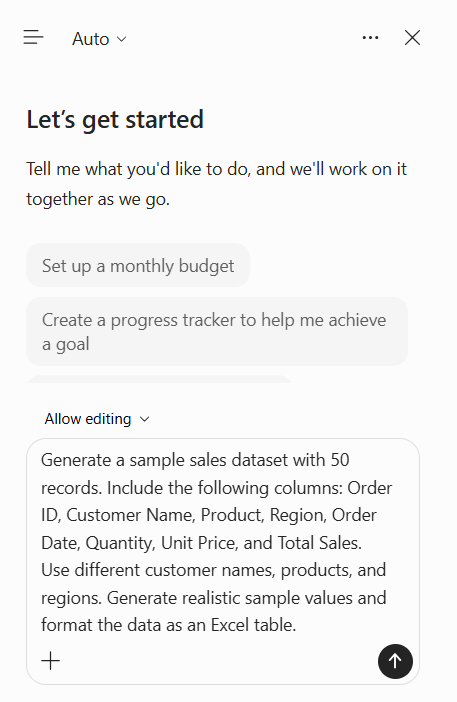
STEP 4: Press Enter to submit the prompt.
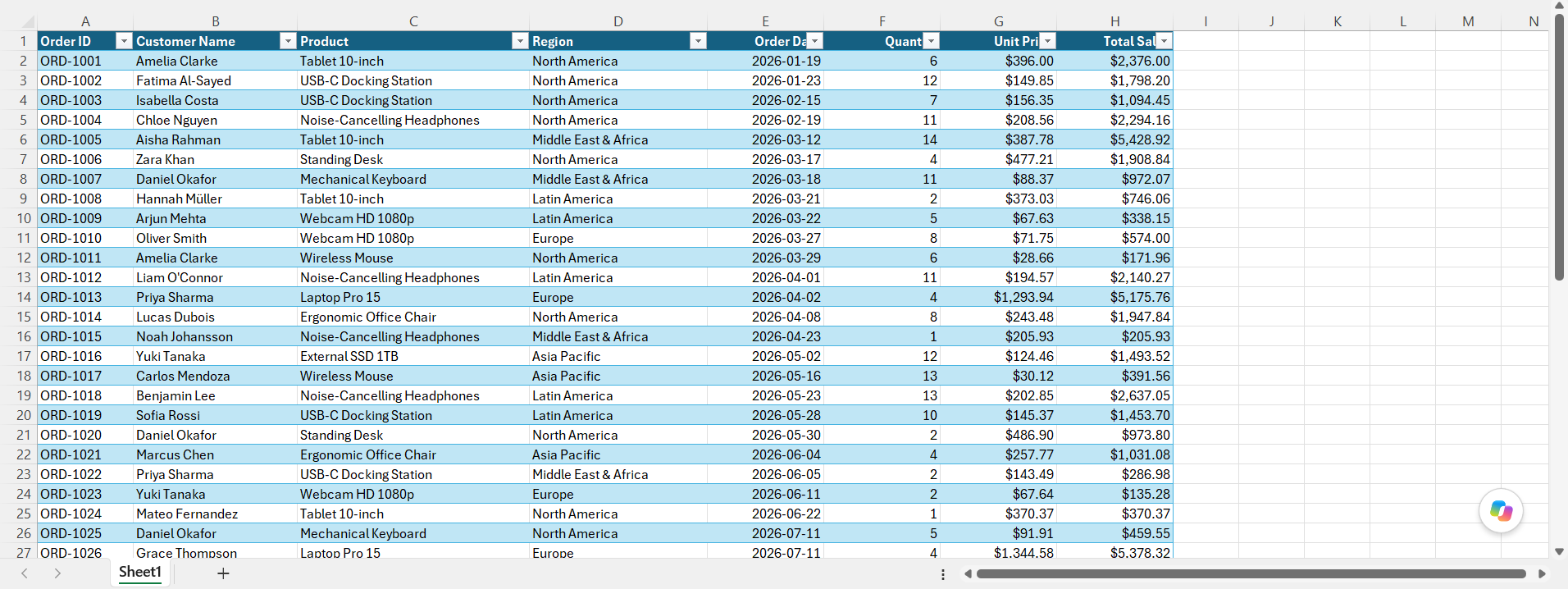
Review the data generated by Copilot and make changes if required.
More Prompts to Generate Sample Data
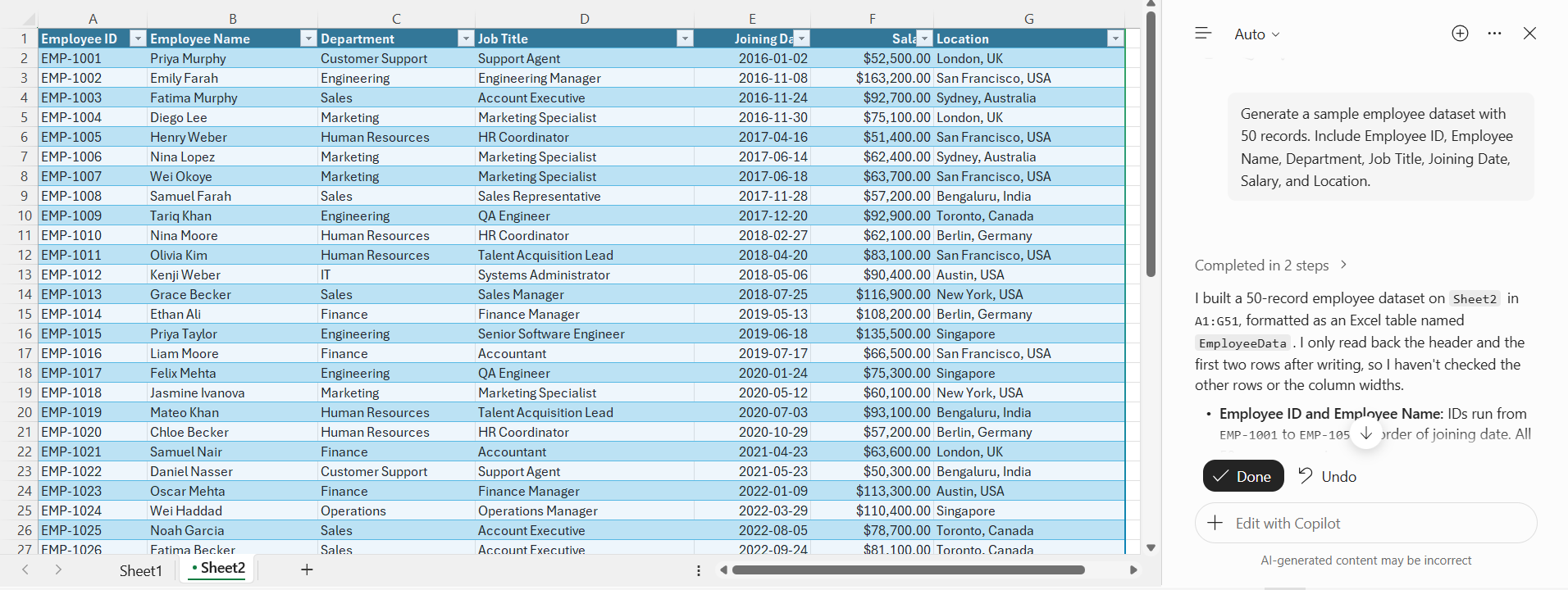
Employee Data
Generate a sample employee dataset with 50 records. Include Employee ID, Employee Name, Department, Job Title, Joining Date, Salary, and Location.
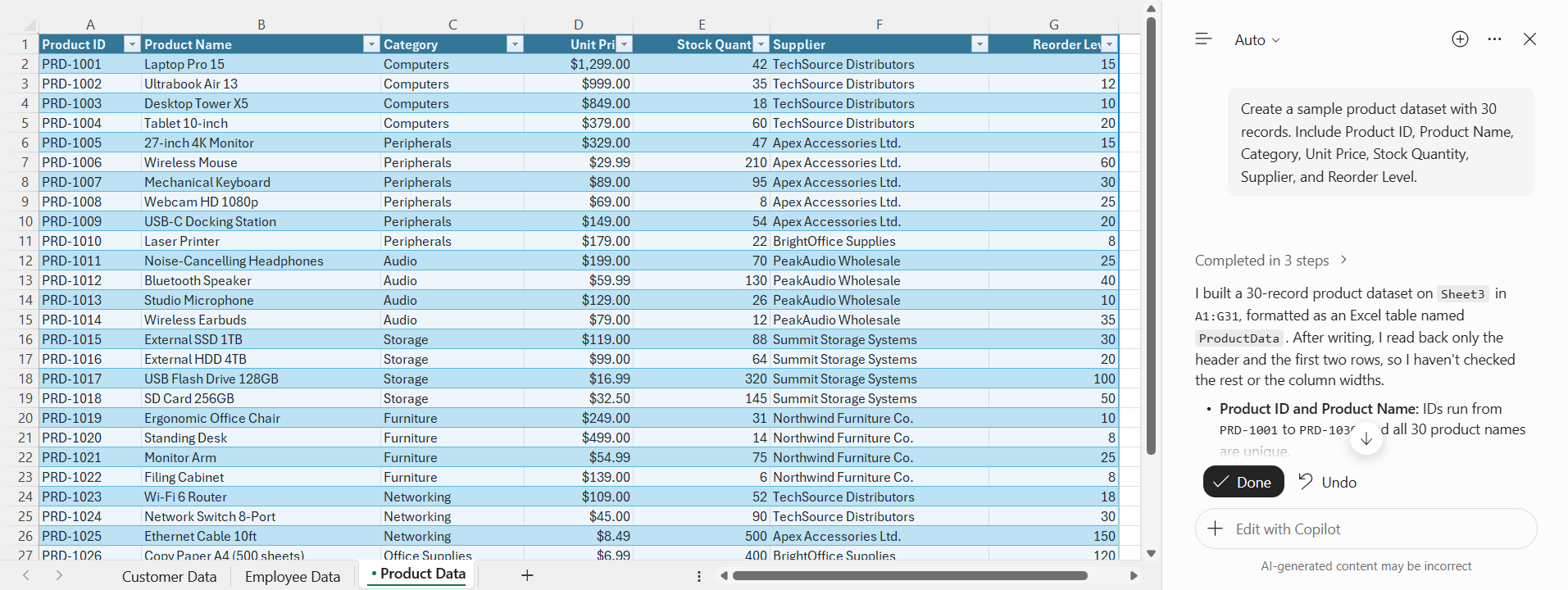
Product Data
Create a sample product dataset with 30 records. Include Product ID, Product Name, Category, Unit Price, Stock Quantity, Supplier, and Reorder Level.
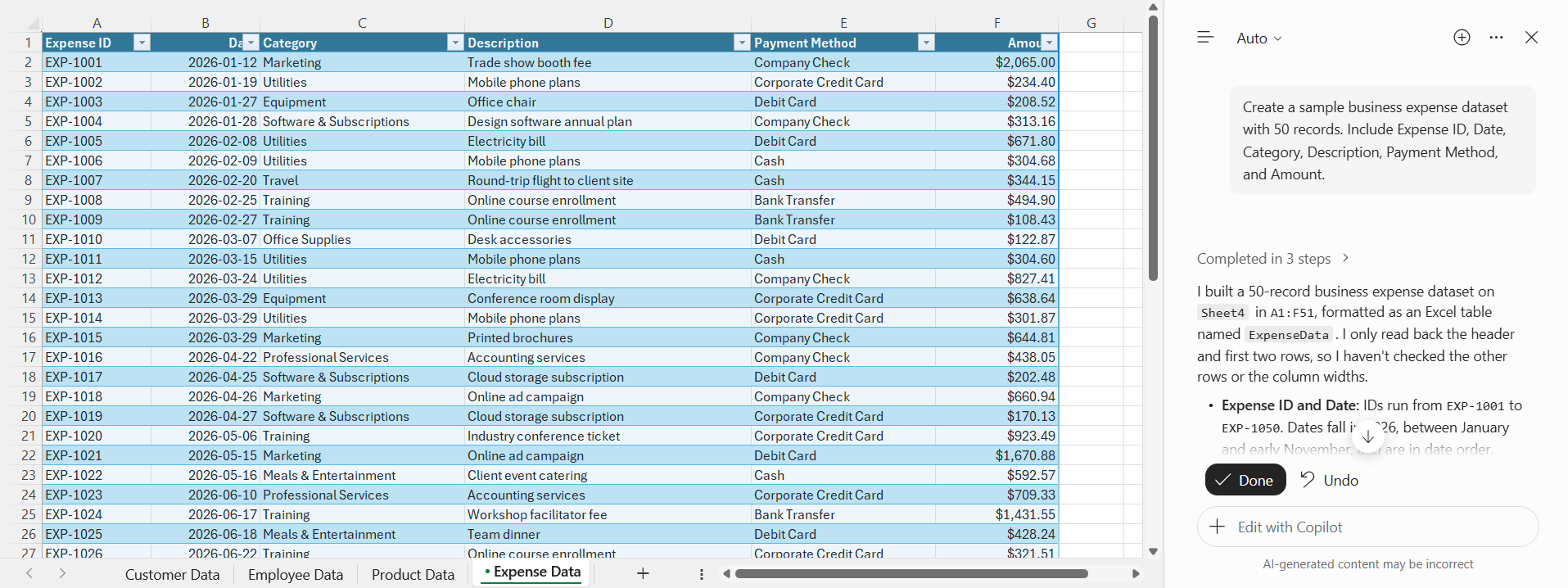
Expense Data
Create a sample business expense dataset with 50 records. Include Expense ID, Date, Category, Description, Payment Method, and Amount.
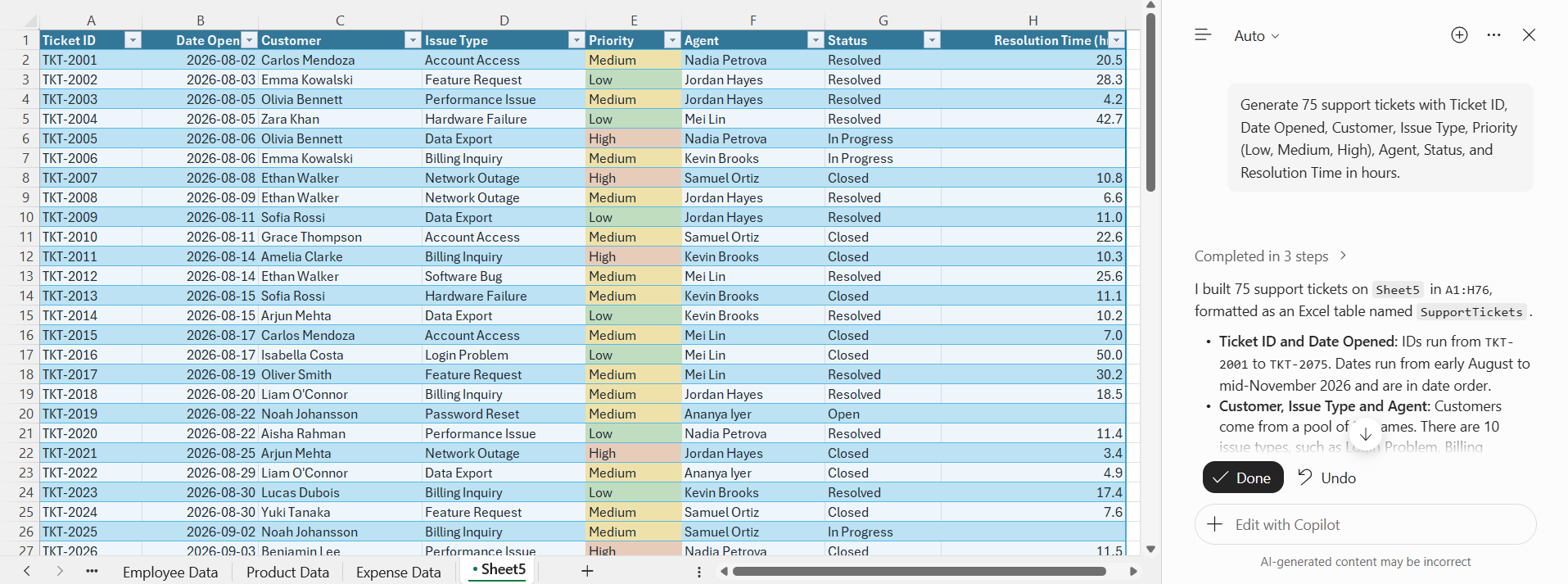
Customer Support
Generate 75 support tickets with Ticket ID, Date Opened, Customer, Issue Type, Priority (Low, Medium, High), Agent, Status, and Resolution Time in hours.
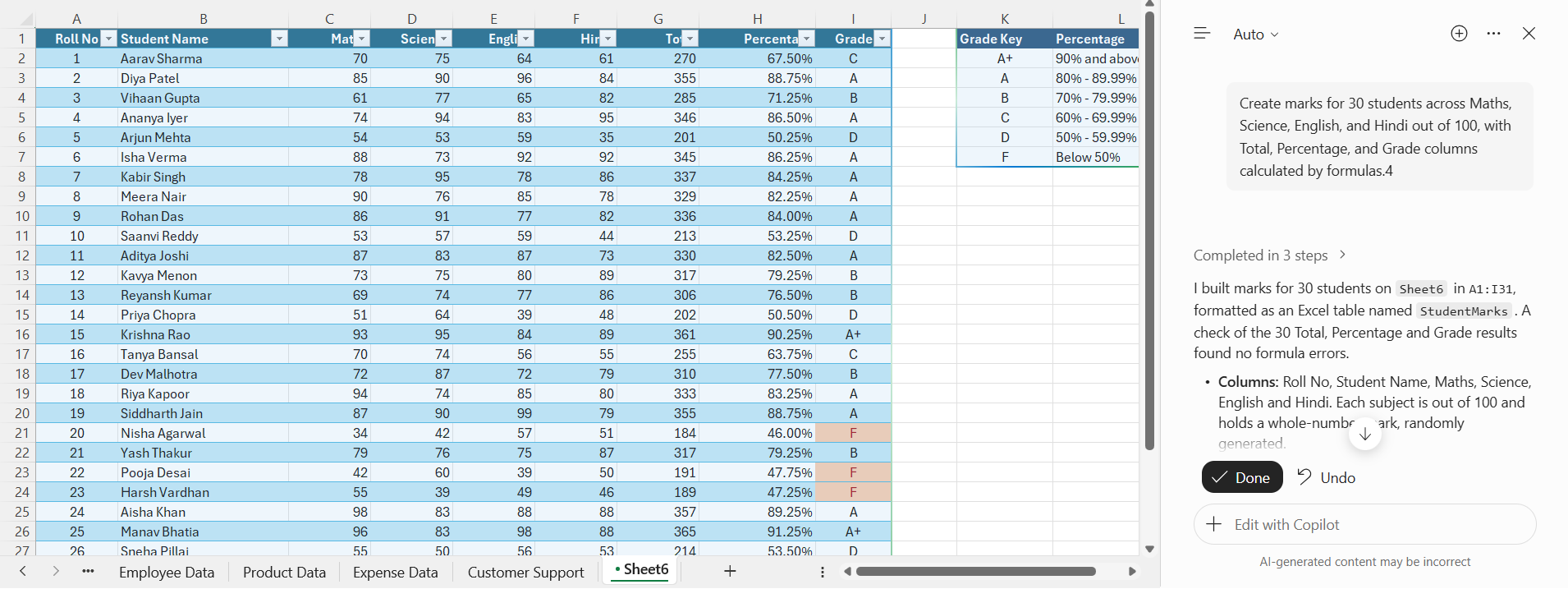
Education
Create marks for 30 students across Maths, Science, English, and Hindi out of 100, with Total, Percentage, and Grade columns calculated by formulas.
Project report
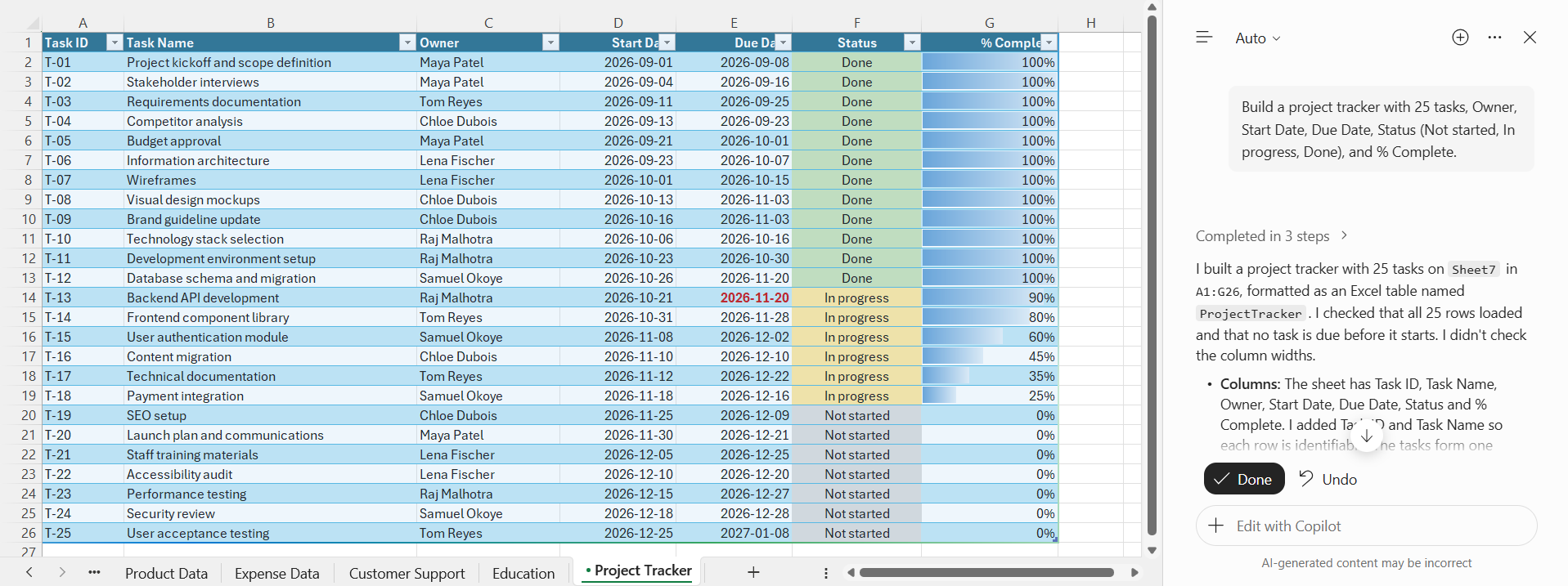
Build a project tracker with 25 tasks, Owner, Start Date, Due Date, Status (Not started, In progress, Done), and % Complete.
Tips & Tricks
- Make sure to mention the number of records that you need in the prompt.
- Define the names of the columns that you need in the dataset.
- Specify date, currency, percentage, or number formats.
- Ask Copilot to generate realistic data, not random values.
- Check the generated records for duplicate values or missing information.
- Mention the starting cell or sheet name where you want the sample data to be displayed.
- Ask Copilot to format the data as a table so that you can easily perform calculations with the data.
FAQs
1. What types of sample data can Copilot generate in Excel?
Copilot can generate sales, employee, customer, product, expense, and project datasets.
2. How many rows of sample data can Copilot generate?
You can specify the required number of records in your prompt, such as 50, 100, or 500 rows.
3. Can Copilot generate fake customer data in Excel?
Copilot can create fictional customer names, email addresses, phone numbers, locations, and other details.
4. Can Copilot generate sample data for Excel dashboards?
You can ask Copilot to create sales, financial, and other datasets for building and testing Excel dashboards.
5. Can Copilot include formulas in sample data?
You can ask Copilot to include calculated columns with formulas for totals, percentages, grades, and other values.

John Michaloudis is a former accountant and finance analyst at General Electric, a Microsoft MVP since 2020, an Amazon #1 bestselling author of 4 Microsoft Excel books and teacher of Microsoft Excel & Office over at his flagship MyExcelOnline Academy Online Course.

 30 Days - Full Access