Microsoft introduced the COPILOT function in Excel to help users perform tasks directly within spreadsheet cells. However, Microsoft retired this function on September 14, 2026. In this article, you will learn about the best alternatives to COPILOT function and how to use them.
Key Takeaways:
- Microsoft retired the Excel COPILOT function on September 14, 2026.
- Copilot in Excel is an alternative for AI-powered tasks.
- Excel formulas can replace many tasks performed by the COPILOT function.
- Python in Excel helps perform advanced calculations and data analysis.
- Power Query is useful for cleaning and combining data.
Table of Contents
What is COPILOT Function?
The COPILOT function was introduced by Microsoft as a preview feature for Insider users. It is a text function where you can provide Excel with instructions inside a formula and use selected cells as context. The syntax of this function is:
=COPILOT(“Summarize these comments”, A2:A20)
- COPILOT → the Excel function
- “Summarize these comments” → your instruction
- A2:A20 → the data the function should use
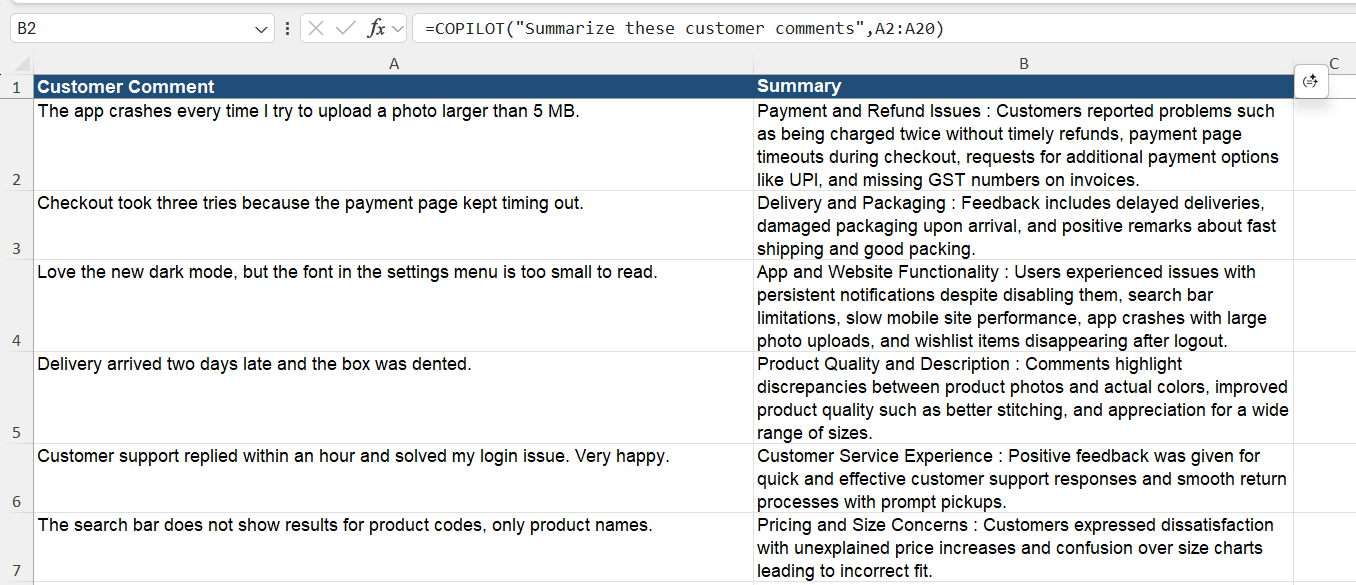
This function can be used to do tasks like summarize text, highlight information, categorize data, generate lists, etc.
Alternatives to COPILOT function in Excel
1. Copilot in Excel
Instead of writing the AI function in a cell, you can open the Copilot pane in Excel with natural-language instructions. For example, you could ask:
“Summarize the customer feedback in column A and highlight the three most common complaints”
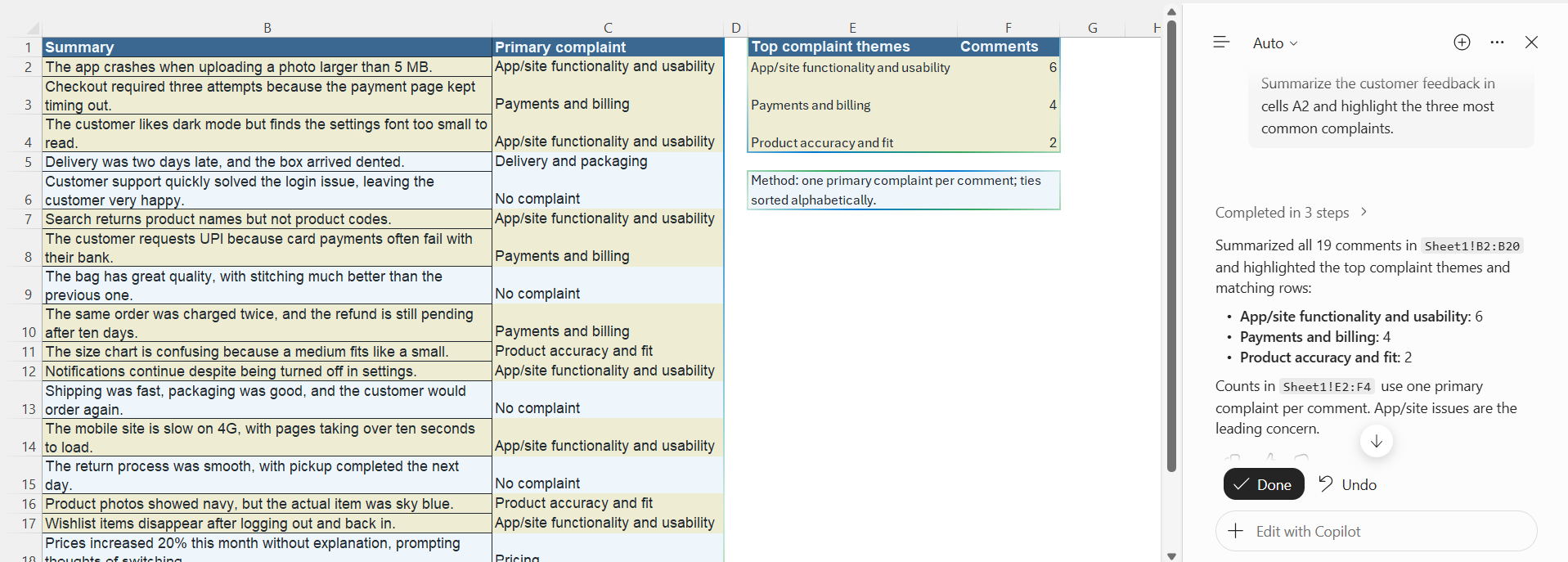
To access Copilot in Excel, follow the steps below:
STEP 1: Open your Excel workbook.
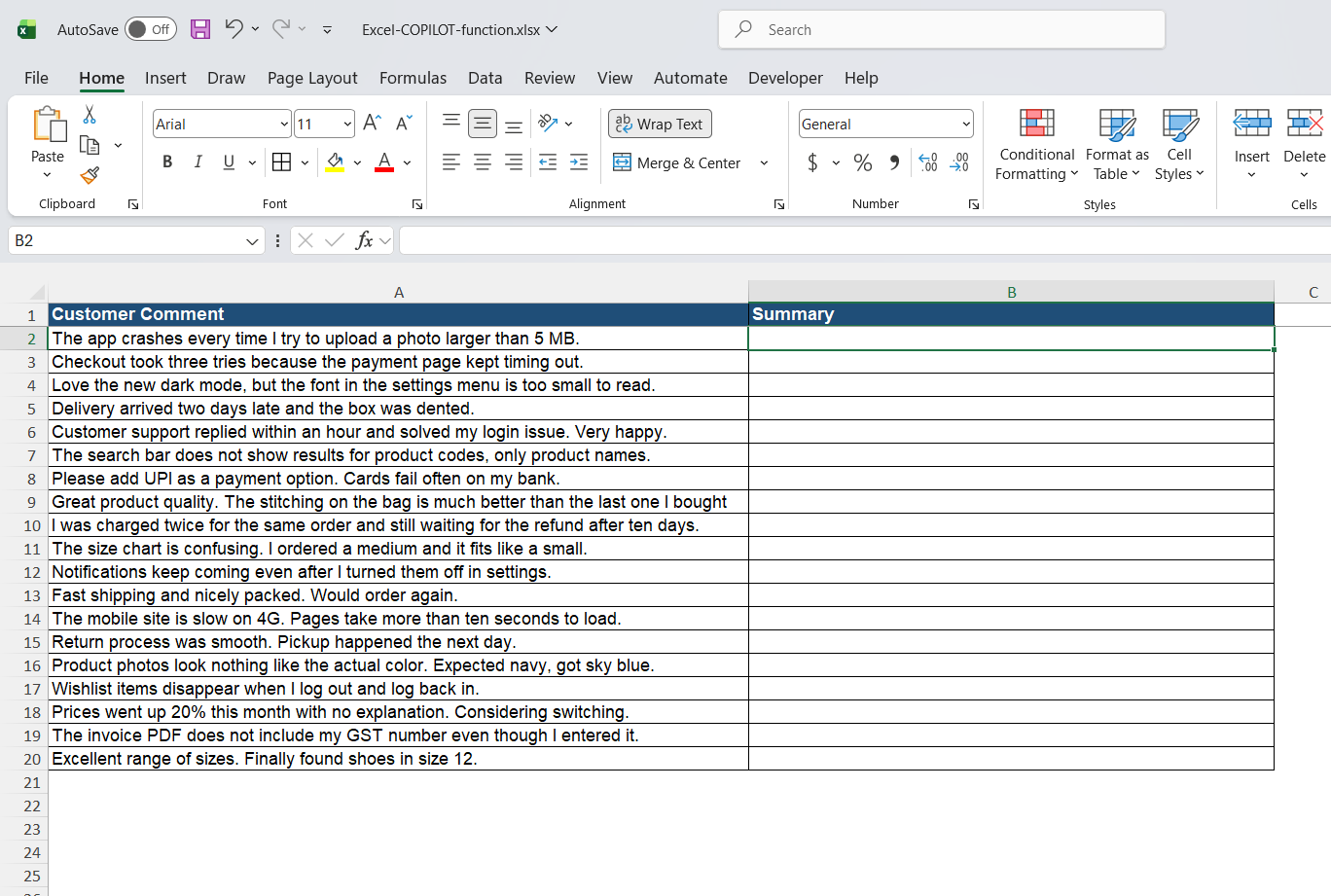
STEP 2: Select the Copilot icon in the lower-right corner of Excel.
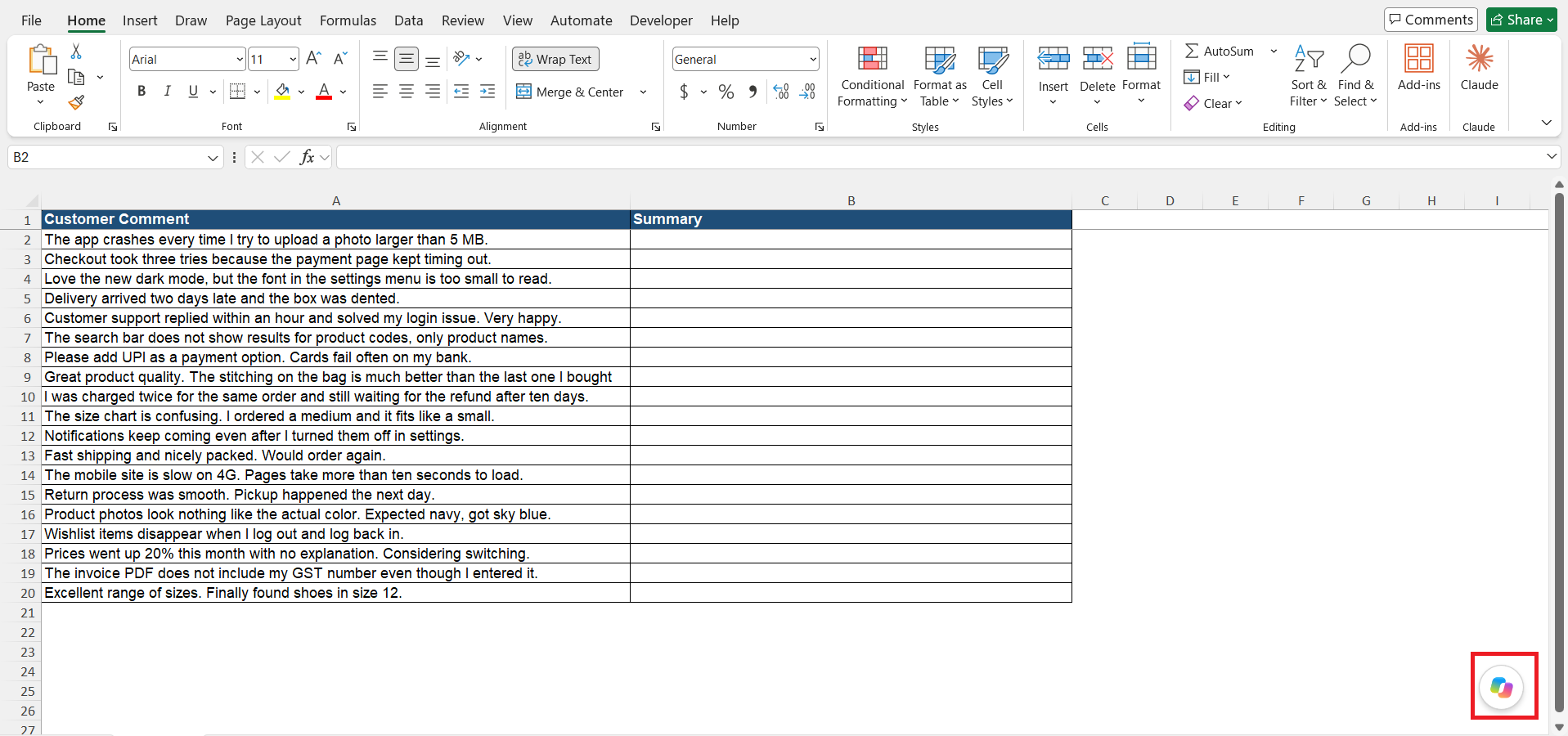
STEP 3: Enter your prompt in the Copilot chat box.

STEP 4: Review the response and ask Copilot to make changes if required.
2. Excel Formulas
You do not always need an AI tool to replace the COPILOT function. Many tasks can be completed using Excel’s built-in formulas. These functions are useful when you need consistent results from structured data.
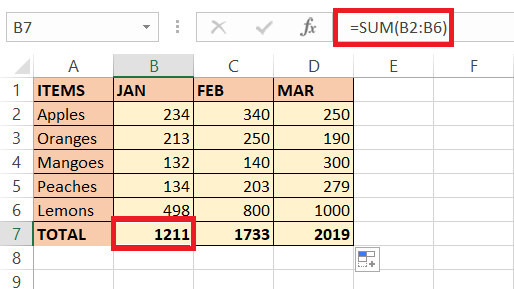
- SUM: Adds numbers in a range.
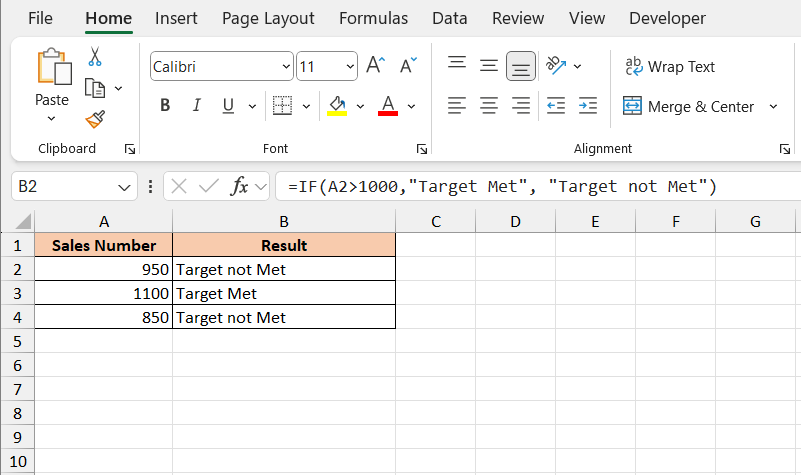
- IF: Returns results based on a condition.
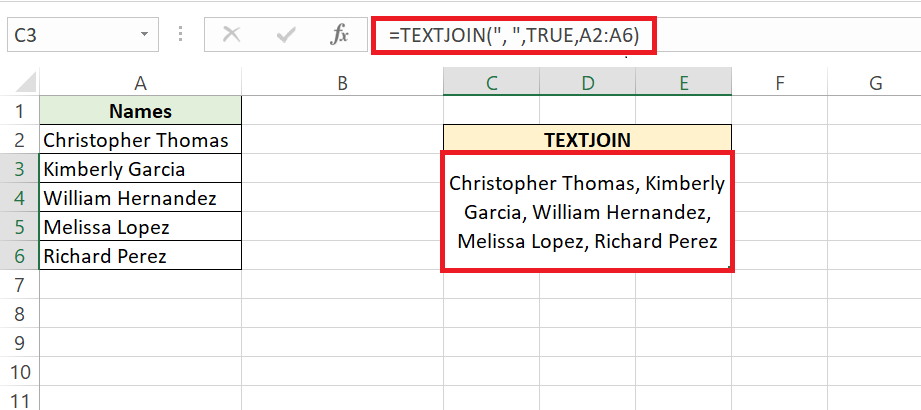
- TEXTJOIN: Combines text from multiple cells.
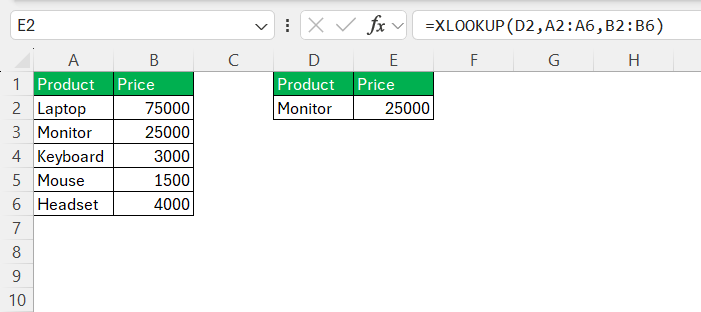
- XLOOKUP: Searches for a value and returns matching information.
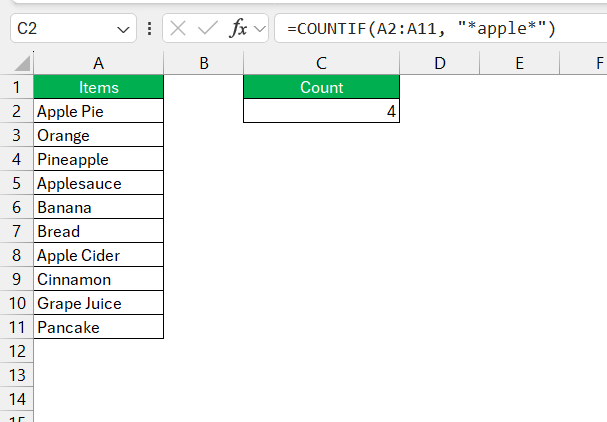
- COUNTIF: Counts cells that meet a specific condition.
3. Analysis ToolPak in Excel
Analysis ToolPak is a built-in Excel feature that helps you understand your data without writing complex formulas. To use the Analysis ToolPak, follow the steps below:
STEP 1: Click on the File tab and select Options.

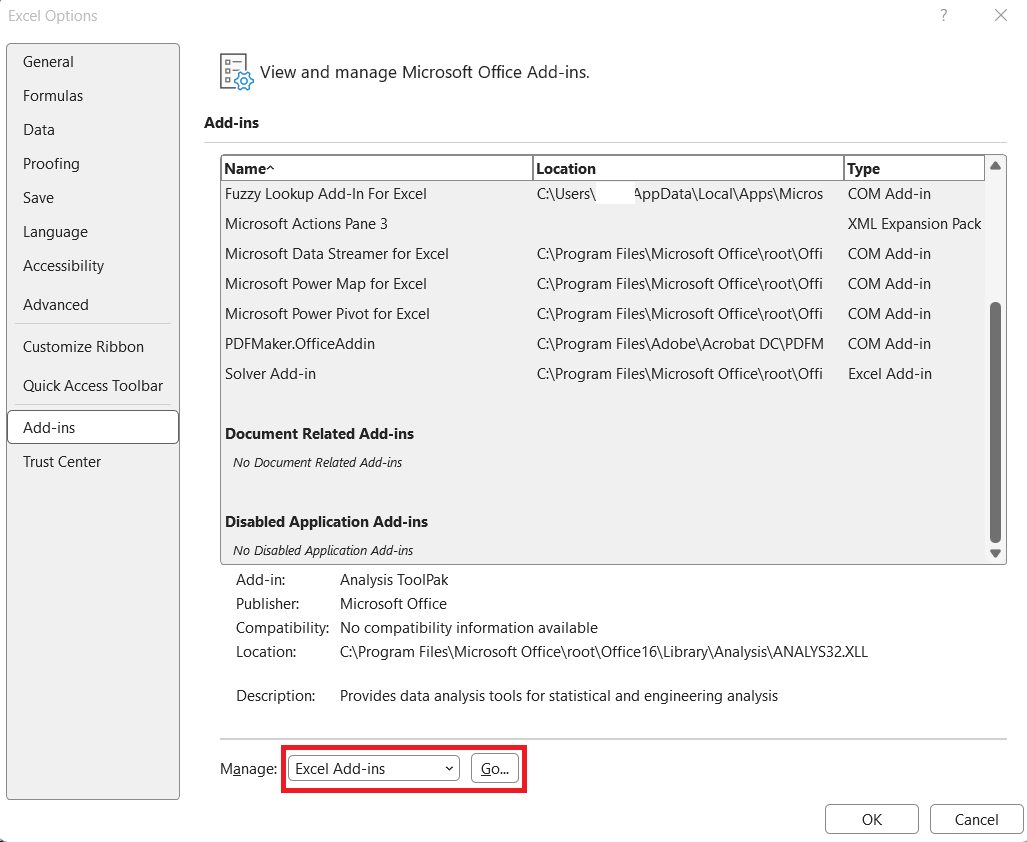
STEP 2: Under Add-ins, select Analysis ToolPak and click on the Go button.
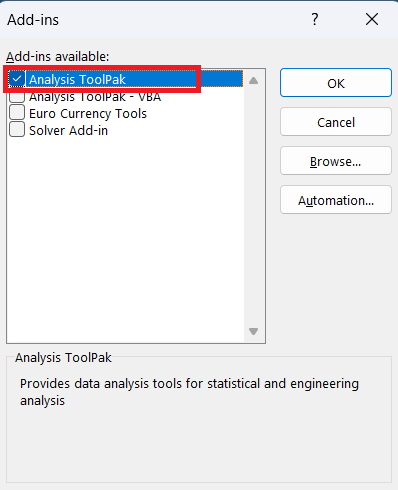
STEP 3: Check Analysis ToolPak and click OK.
STEP 4: On the Data tab, in the Analysis group, click on Data Analysis.

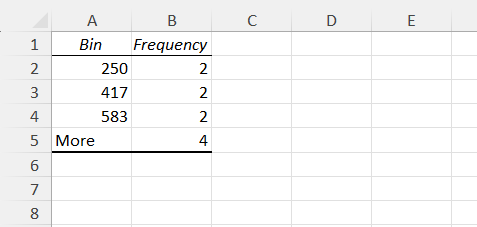
STEP 5: For example, select Histogram and click OK to create a Histogram in Excel.
4. Python in Excel
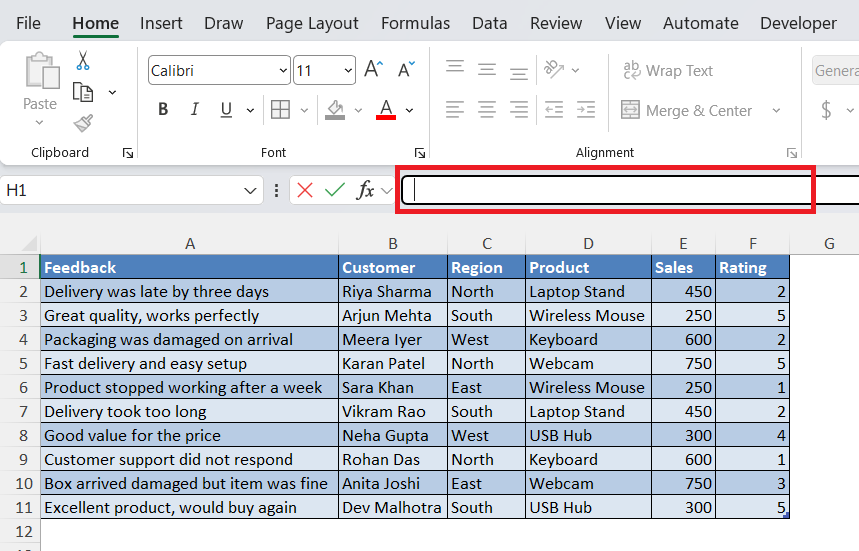
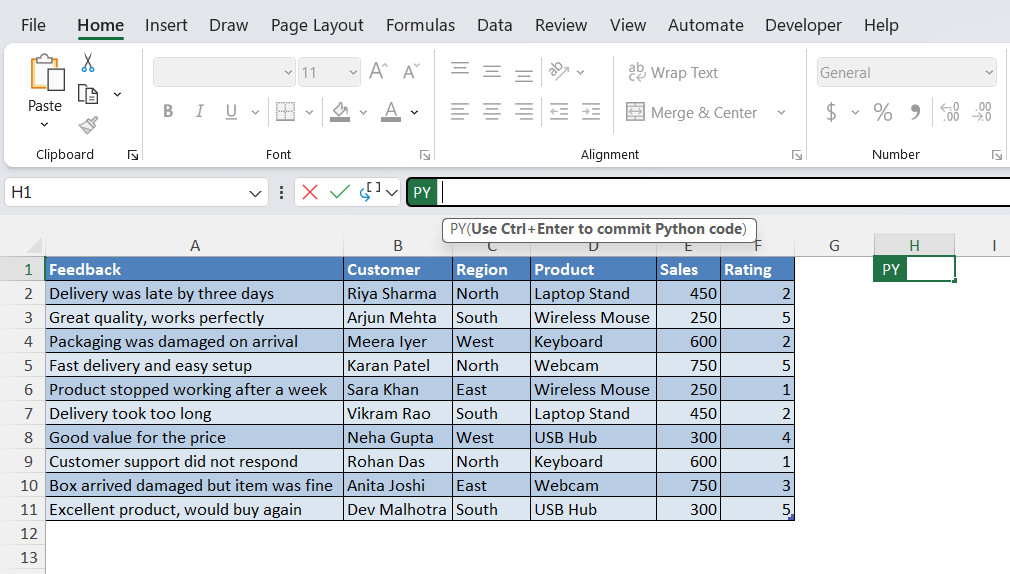
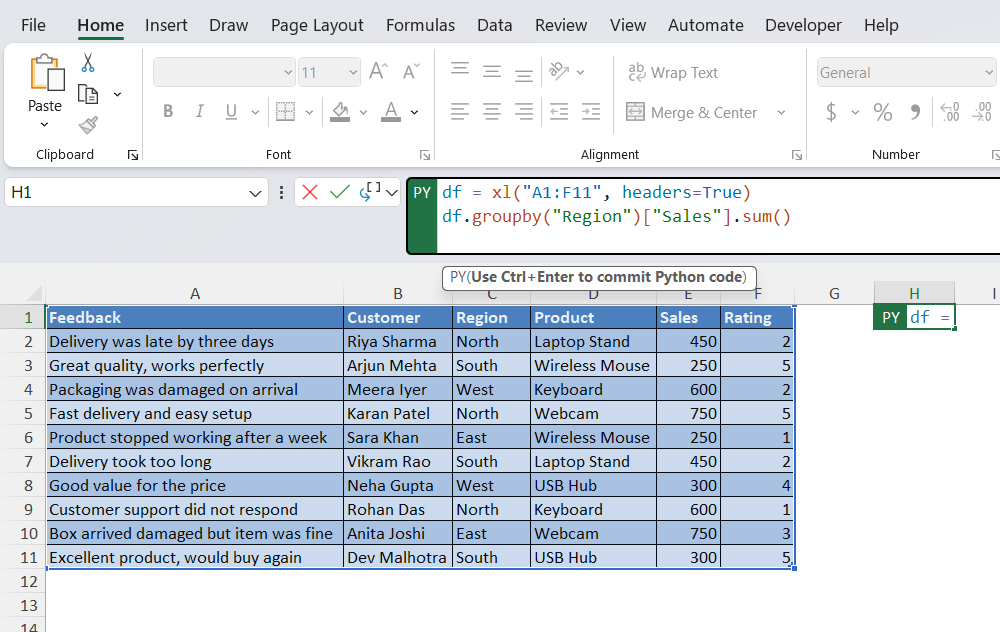
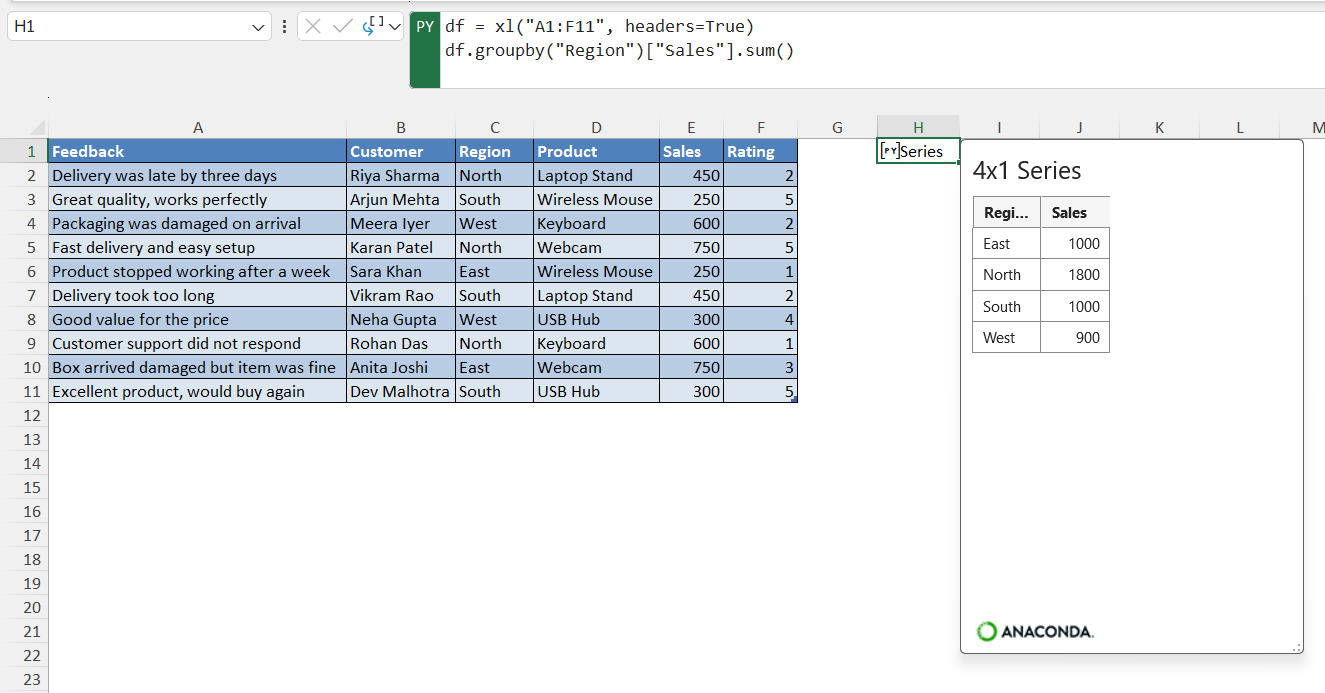
Python in Excel refers to the integration of the Python programming language within Microsoft Excel. It allows users to perform Python calculations and create visualizations directly in Excel worksheets. To use Python in Excel,
- Go to the Formula bar.
- Type = PY( in an Excel cell.
- Then, write the Python code.
- Once you finish writing the code, press Ctrl + Enter to run it.
5. Power Query
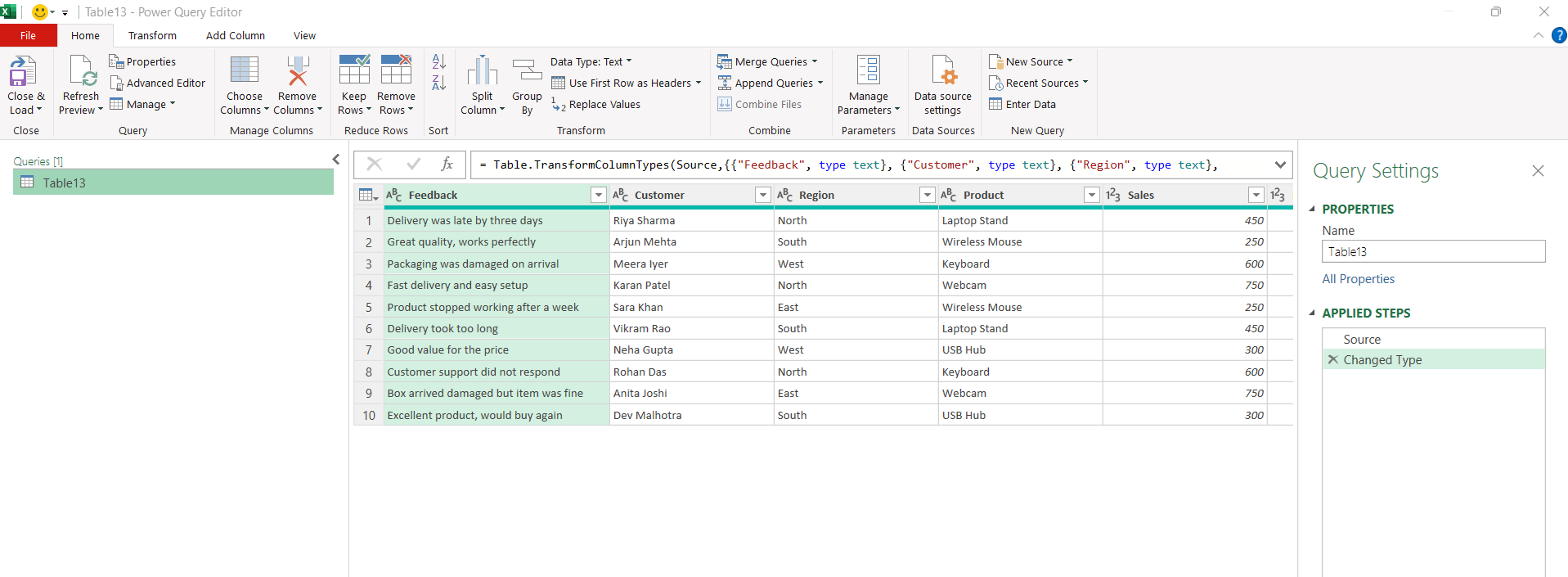
Power Query is another alternative for tasks involving data cleaning and transformation. It allows you to import data from different sources, remove duplicates, replace values, split columns, merge tables, and combine multiple files. For example, suppose you receive monthly sales reports in separate Excel files. You can use Power Query to combine these files into one dataset.
FAQs
1. Why was the COPILOT function retired in Excel?
Microsoft retired the COPILOT function on September 14, 2026.
2. What is the best alternative to the COPILOT function?
Copilot in Excel is the closest alternative to the retired function.
3. Can Power Query replace the COPILOT function?
Yes. Power Query can clean, transform, and combine data from different sources.
4. Can Excel formulas replace the COPILOT function?
Yes. Functions such as SUM, IF, TEXTJOIN, and XLOOKUP can perform many similar tasks.
5. Can I use Python in Excel instead of the COPILOT function?
Yes. Python in Excel can help with advanced calculations, data analysis, and visualizations.

John Michaloudis is a former accountant and finance analyst at General Electric, a Microsoft MVP since 2020, an Amazon #1 bestselling author of 4 Microsoft Excel books and teacher of Microsoft Excel & Office over at his flagship MyExcelOnline Academy Online Course.

 30 Days - Full Access