Free Practice Workbook
In 2025, Microsoft launched a new function called COPILOT. It allowed users to perform AI-powered tasks directly within spreadsheet cells. However, Microsoft retired this function on September 14, 2026. In this article, you will learn why the Excel COPILOT function retired and what you can use instead.
Key Takeaways:
- Microsoft retired the COPILOT function on September 14, 2026.
- The function allowed users to perform AI tasks inside Excel cells.
- Existing formulas will return a #NAME? error when refreshed.
- You can use the Copilot pane for similar AI-powered tasks.
- Regular Excel formulas are useful for calculations and data processing.
Table of Contents
Introduction to the COPILOT function
What is COPILOT function?
The COPILOT function was introduced by Microsoft as a preview feature for Insider users. It is a text function where you can provide Excel with instructions inside a formula and use selected cells as context. The syntax of this function is:
=COPILOT(“Summarize these comments”, A2:A20)
- COPILOT → the Excel function
- “Summarize these comments” → your instruction
- A2:A20 → the data the function should use
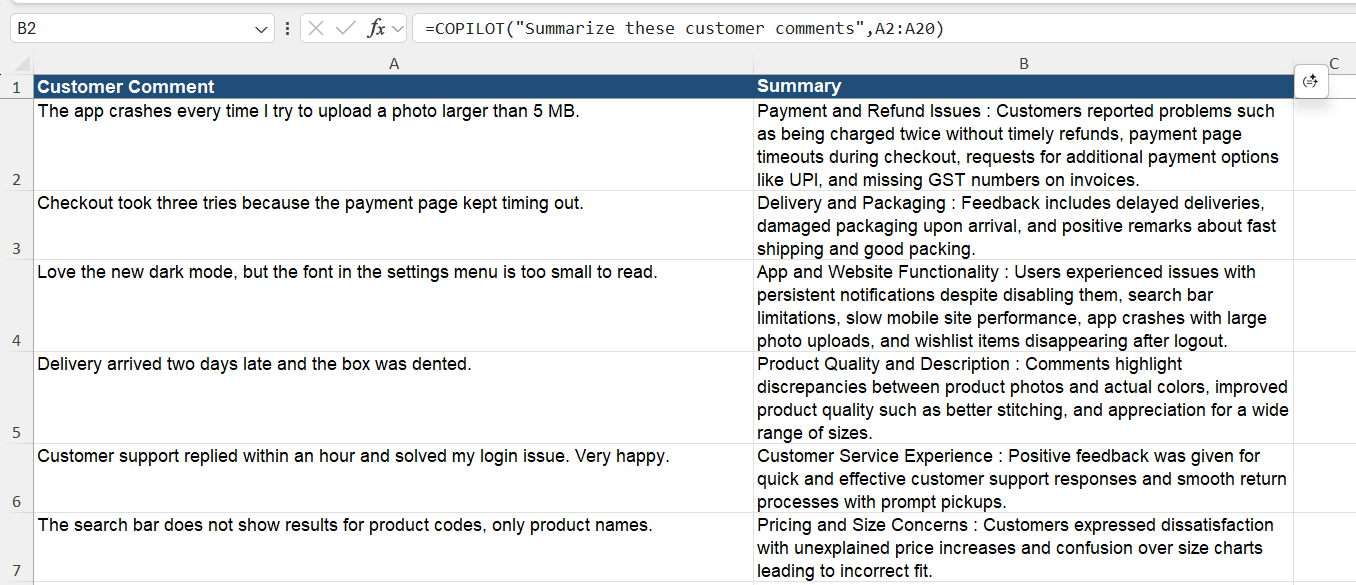
This function can be used to do tasks like summarize text, highlight information, categorize data, generate lists, etc.
Why was the COPILOT Function Retired?
Microsoft found some limitations with the COPILOT function. Here are a few reasons why it was retired:
- The same prompt could provide different answers.
- When the model was updated, the same formula provided different results.
- It could not read the web or your company’s documents.
- The Copilot pane in Excel already does the same job and provides better results.
- It has a low limit. You could run it only 100 times every 10 minutes, and 300 times an hour.
What will happen to the old workbook?
If you have an old workbook that contains the COPILOT function, there can be two situations:
- If the file is not refreshed, it may show the results saved in the cache memory.
- If the file is refreshed, the cell may return the #NAME? error. This can happen because the function no longer exists.
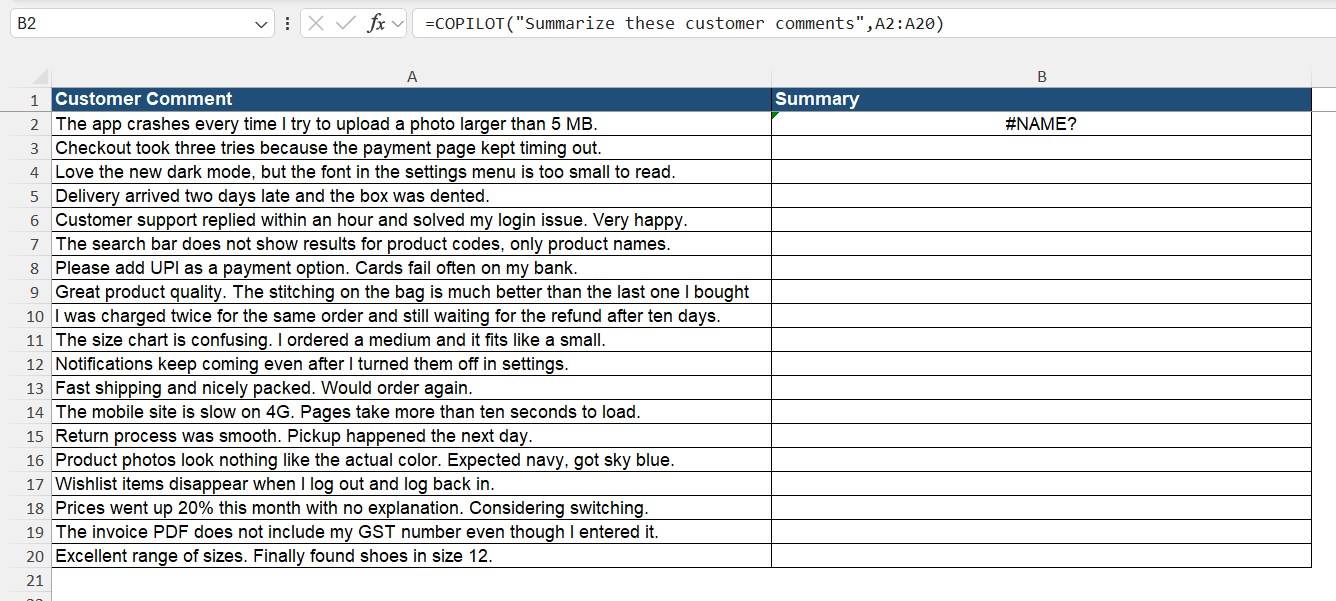
The best option would be to copy the result and save it as a value before refreshing the file.
What to Use Instead of the COPILOT Function?
Use Copilot in Excel
You can now perform similar tasks using the Copilot pane. Simply enter your instructions in the chat box instead of writing a formula.
=COPILOT("Summarize this feedback", A2:A20)
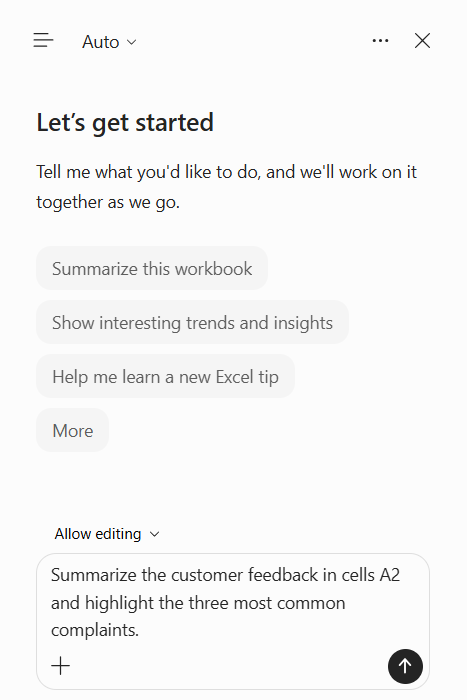
Open the Copilot pane and enter:
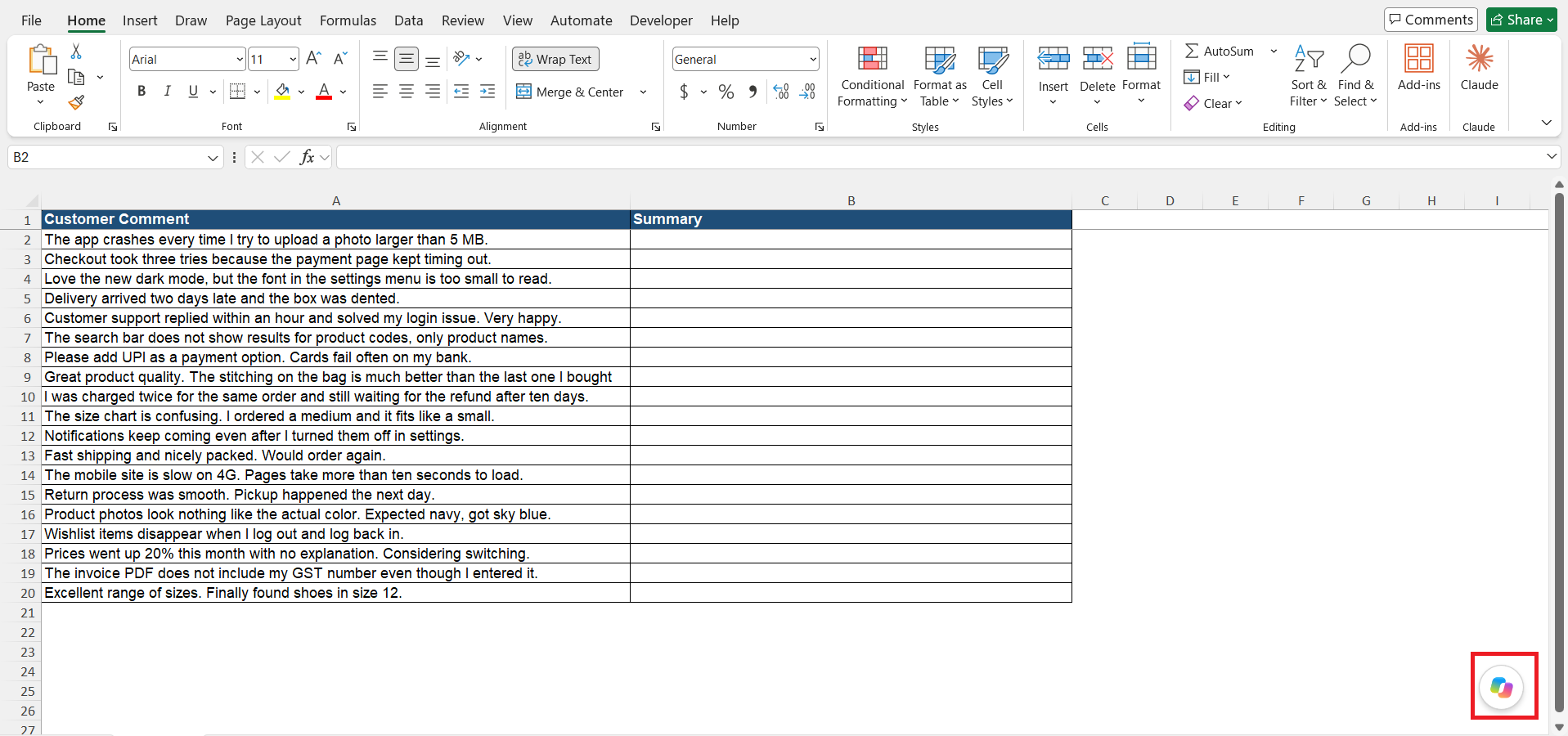
“Summarize the customer feedback in cells A2:A20 and highlight the three most common complaints.”
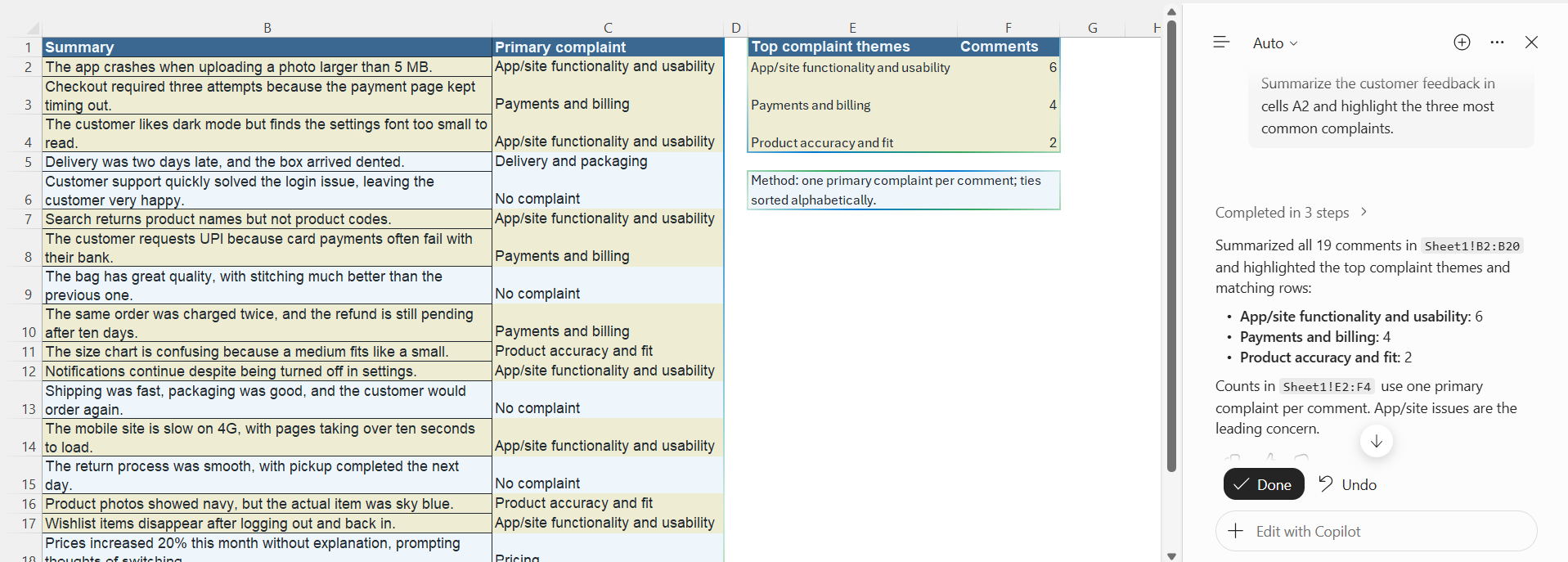
To access Copilot in Excel, follow the steps below:
STEP 1: Open your Excel workbook.
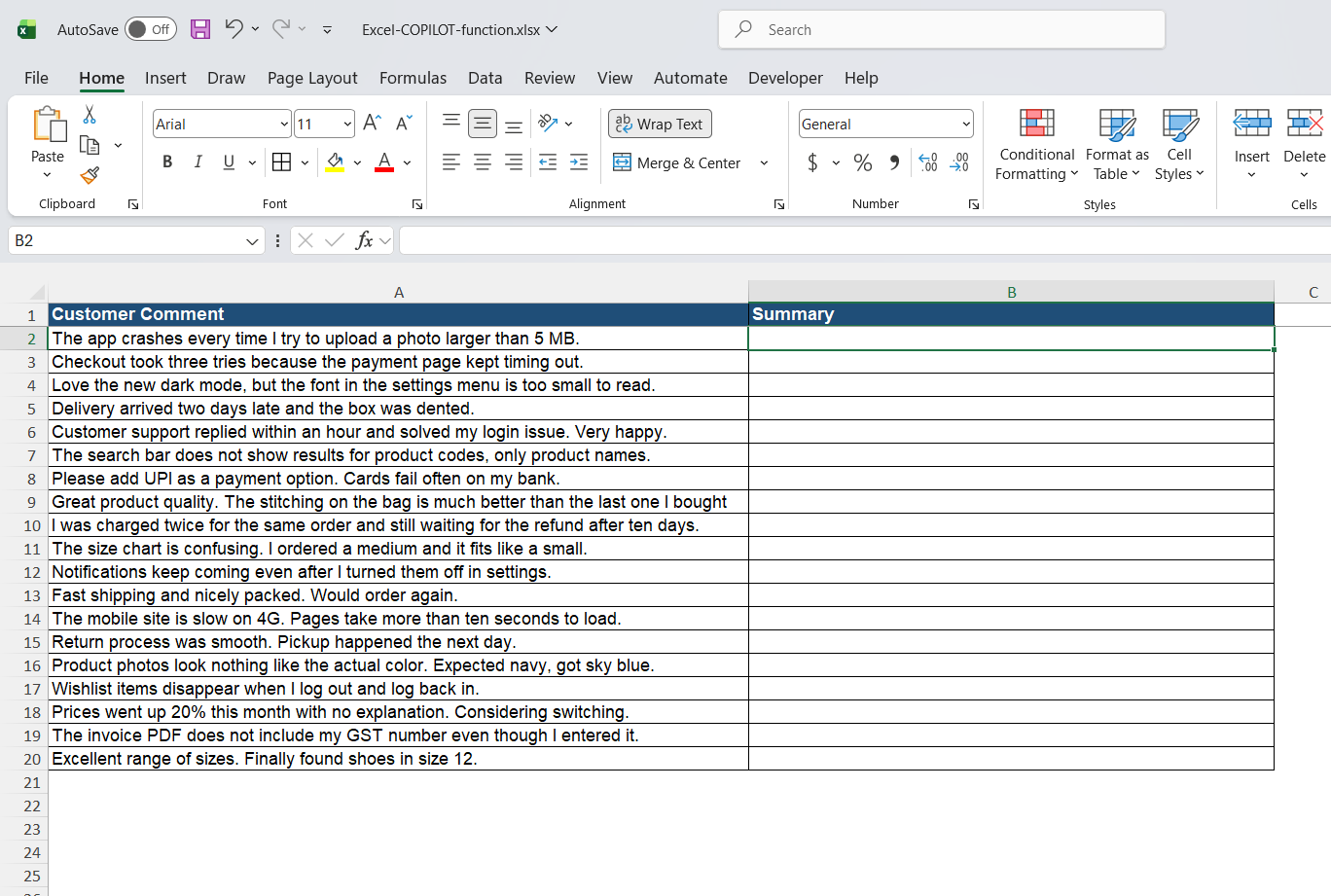
STEP 2: Select the Copilot icon in the lower-right corner of Excel.
STEP 3: Enter your prompt in the Copilot chat box.
STEP 4: Review the response and ask Copilot to make changes if required.
Use Regular Excel Formulas
Instead of relying on AI, you can use the built-in formulas available in Excel.
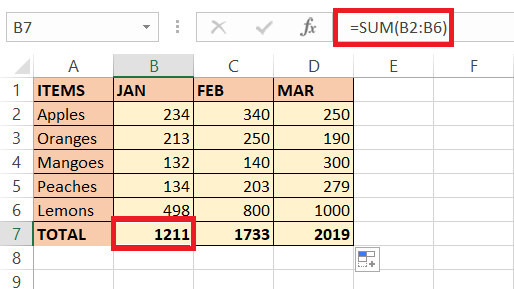
- SUM: Adds numbers in a range.
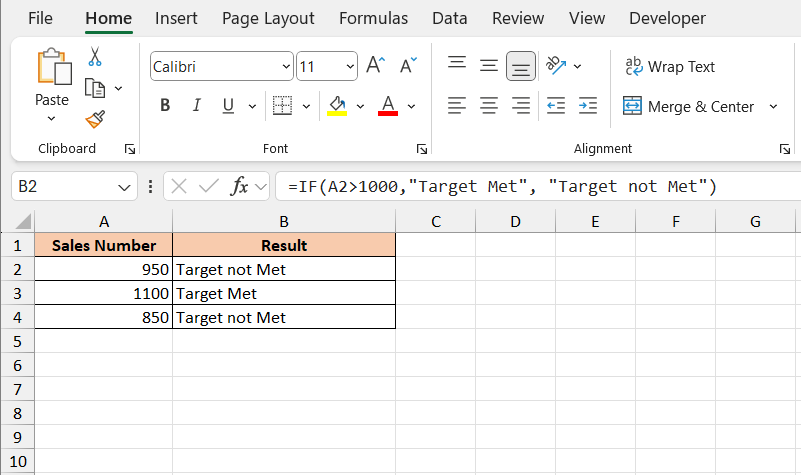
- IF: Returns results based on a condition.
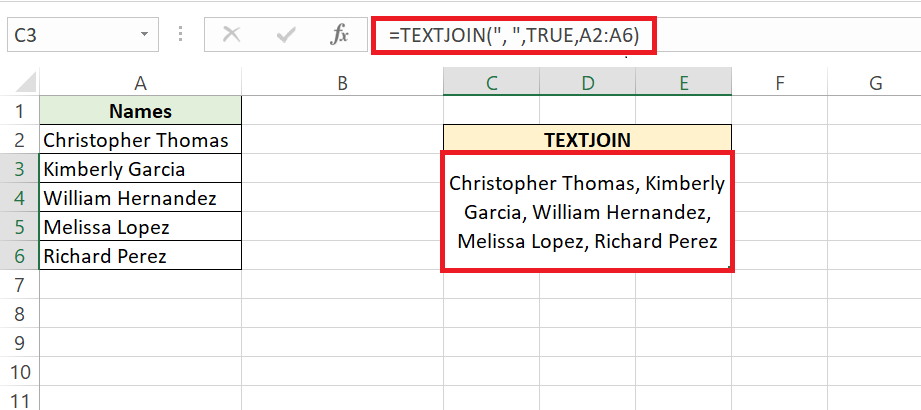
- TEXTJOIN: Combines text from multiple cells.
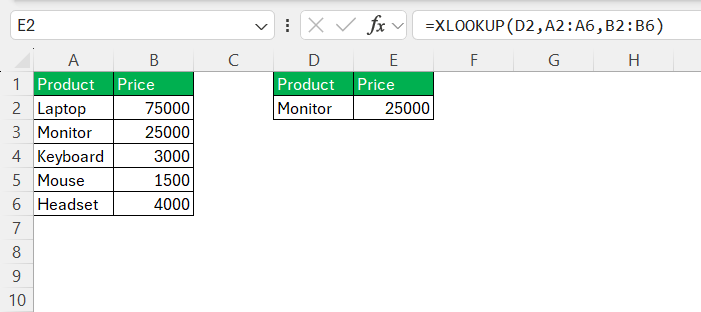
- XLOOKUP: Searches for a value and returns matching information.
- COUNTIF: Counts cells that meet a specific condition.

FAQs
1. Why was the COPILOT function retired?
The COPILOT function retired because Microsoft decided to move AI-powered tasks to the Copilot pane.
2. Can I still use the COPILOT function in Excel?
No. Microsoft retired the function on September 14, 2026.
3. What happens to existing COPILOT formulas?
They may show cached results or return a #NAME? error when recalculated.
4. What is the best alternative to the COPILOT function?
Many alternatives are available for the COPILOT function:
- Copilot pane for AI-powered tasks
- Regular Excel formulas for calculations
- Power Query for data transformation.
5. Can I use regular Excel formulas instead of COPILOT?
Yes. You can use formulas like SUM, IF, and XLOOKUP for regular tasks.

John Michaloudis is a former accountant and finance analyst at General Electric, a Microsoft MVP since 2020, an Amazon #1 bestselling author of 4 Microsoft Excel books and teacher of Microsoft Excel & Office over at his flagship MyExcelOnline Academy Online Course.

 30 Days - Full Access