Copilot can be used to analyse data, write formulas, spot trends, and complete tasks in Excel. Even though it is a very useful tool, many users may not want to use the AI features. If you prefer working with Excel without Copilot, you can turn it off in the app settings. In this article, you will learn how to turn off Copilot in Excel.
Key Takeaways:
- You can turn off Copilot in supported versions of Excel
- Privacy settings can affect Copilot features.
- You can customize the ribbon to remove supported buttons or groups.
- Hiding the Copilot button does not disable its features.
- Existing Excel formulas continue to work when Copilot is disabled.
Table of Contents
Introduction to Copilot
What is Copilot?
Microsoft Copilot in Excel is an AI-powered tool that helps users analyze data, create formulas, spot trends, summarize information, and complete spreadsheet tasks. It can help users work with data without performing every step manually.
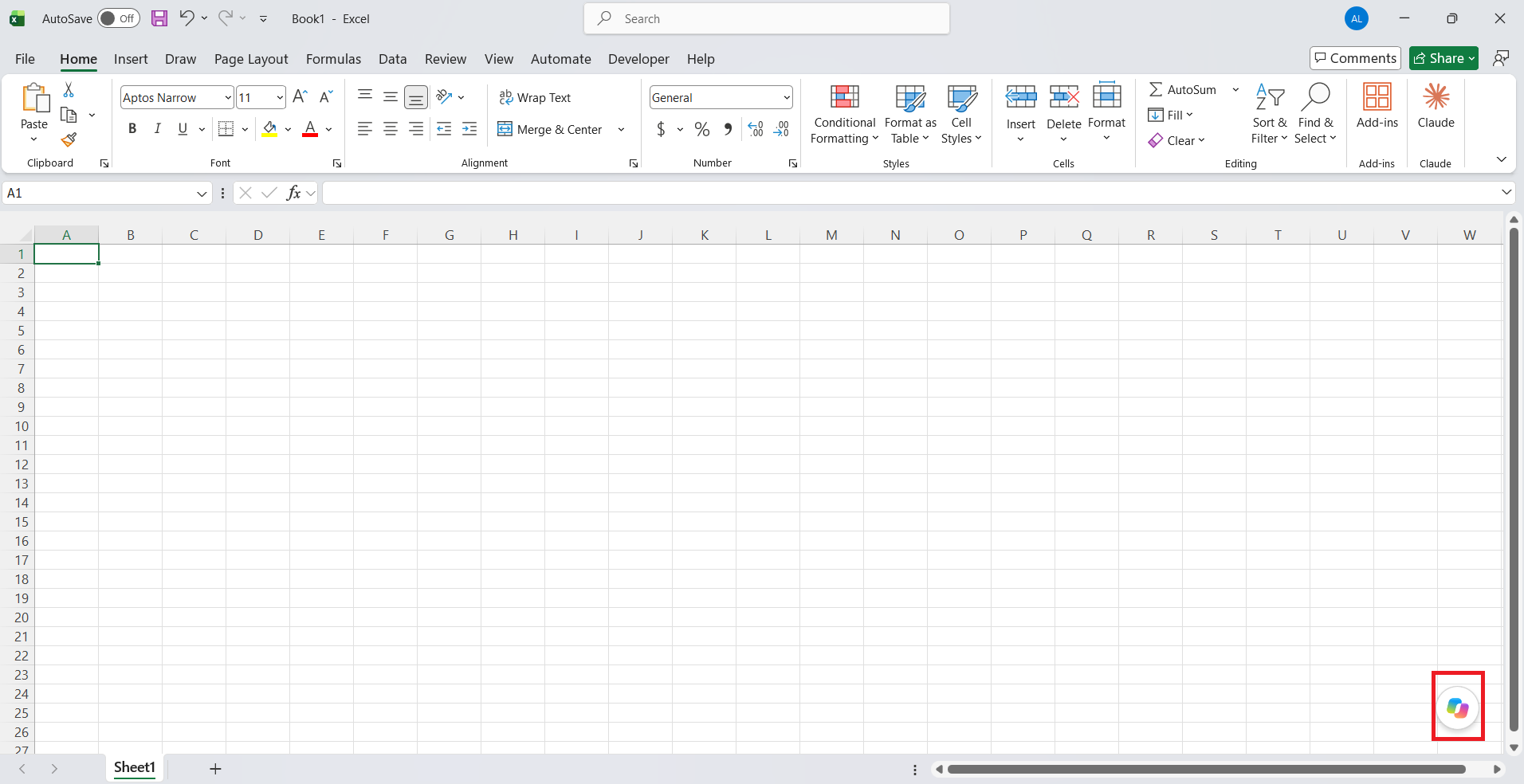
Where Copilot shows up in Excel
You will usually spot Copilot in two places:
- The Copilot button on the right side of the Home tab.

- A floating Copilot button that can appear near the bottom-right corner of the sheet.
Why Do Users Want to Turn Off Copilot in Excel?
- Some users may not want to use Copilot if they are working with sensitive data.
- Some users may prefer working with formulas manually.
- Users who do not need AI features may prefer to keep Excel simple.
- They may have work policies that restrict them from using it.
How to Turn Off Copilot
Turn Off Copilot in Excel on Windows
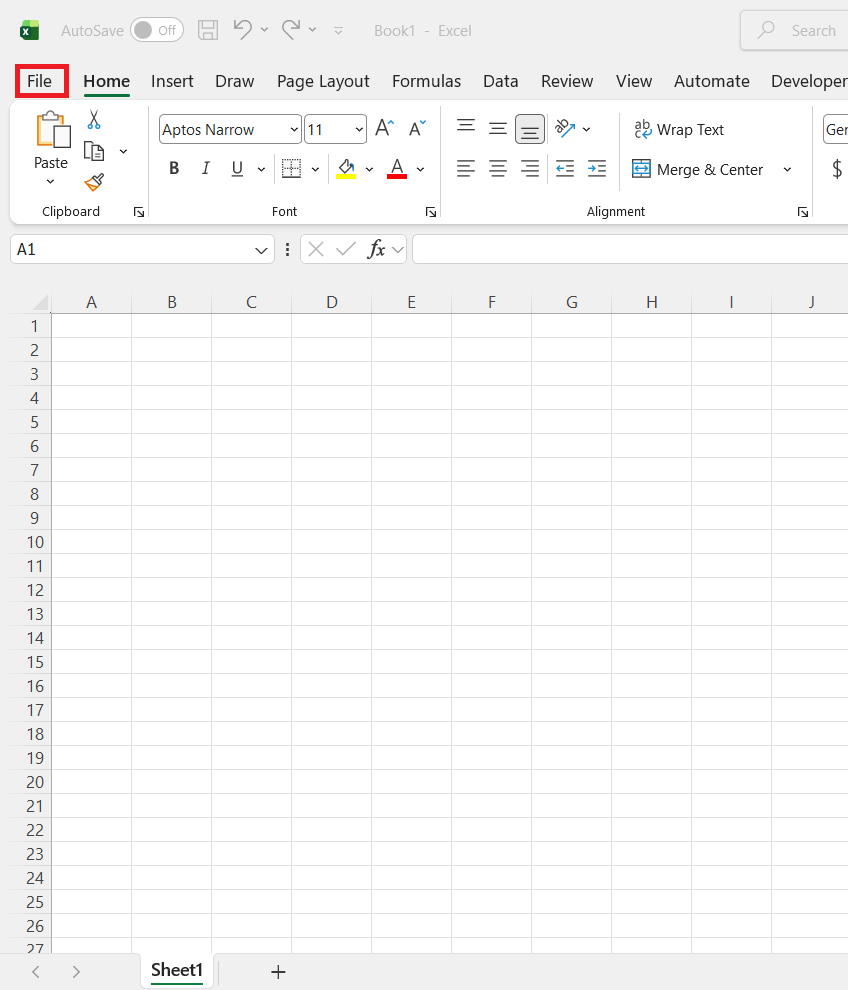
STEP 1: Open Microsoft Excel on your computer. Click File in the top-left corner.
STEP 2: Select Options to open the Excel Options window.

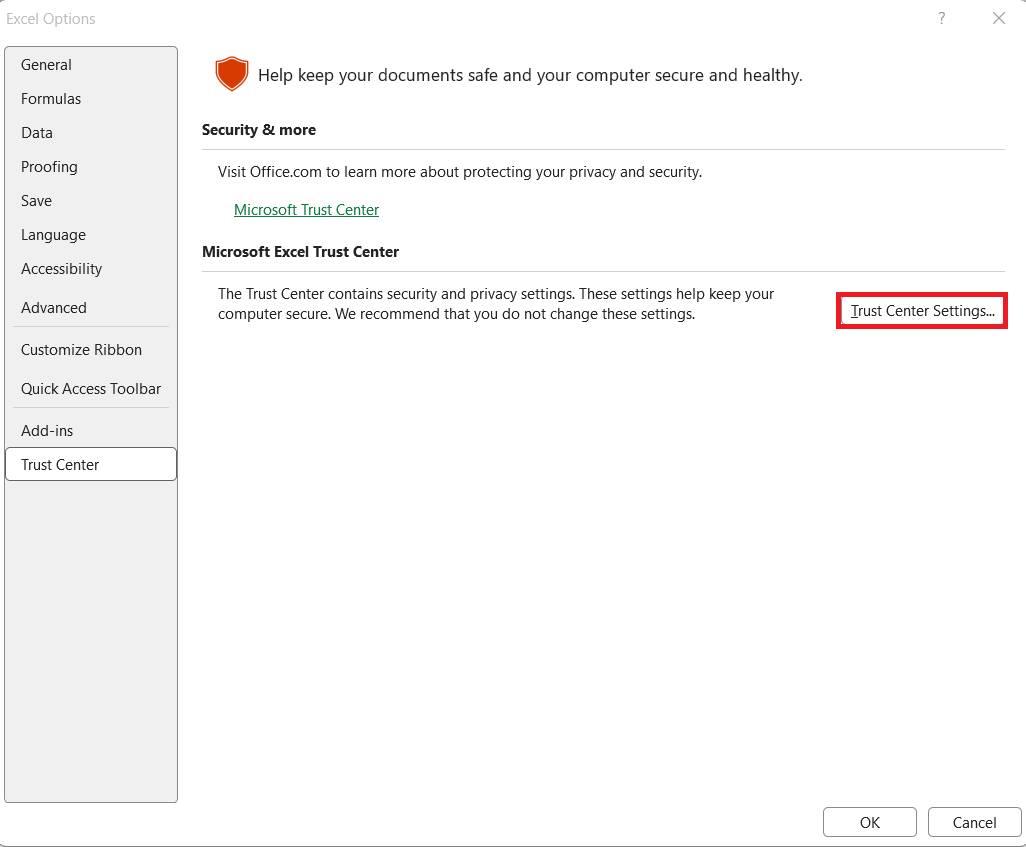
STEP 3: In the dialog box, select Trust Center and then click the Trust Center Settings button.
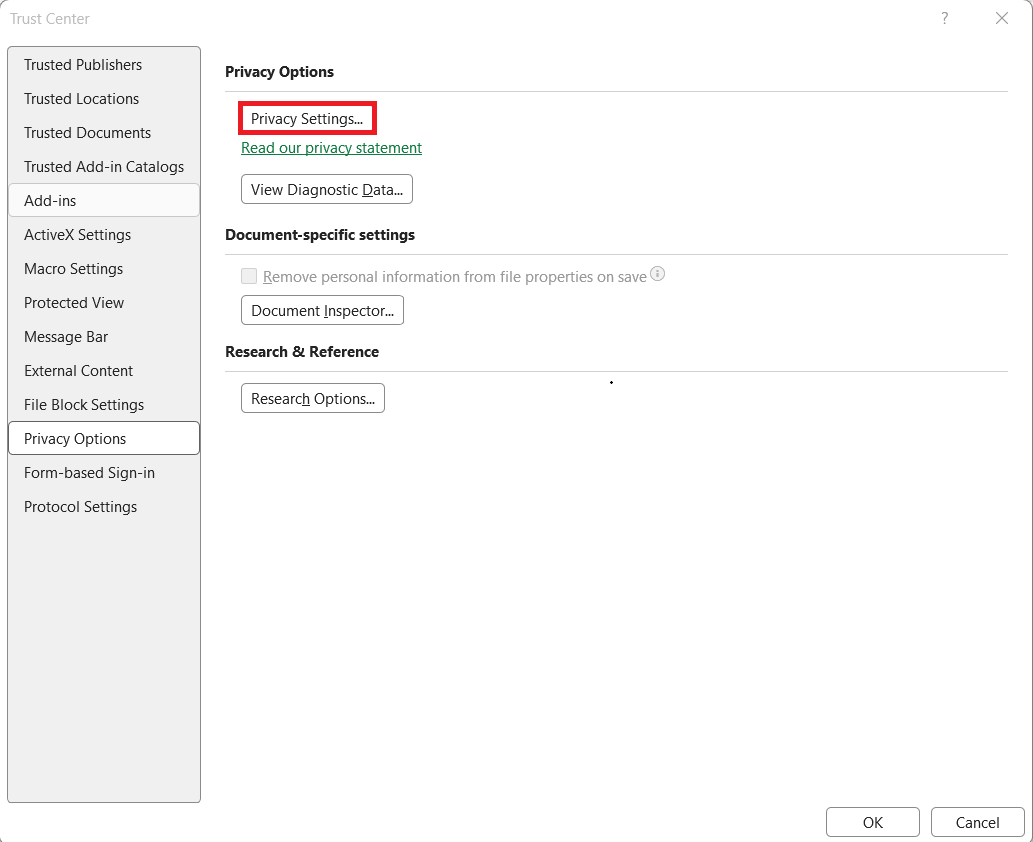
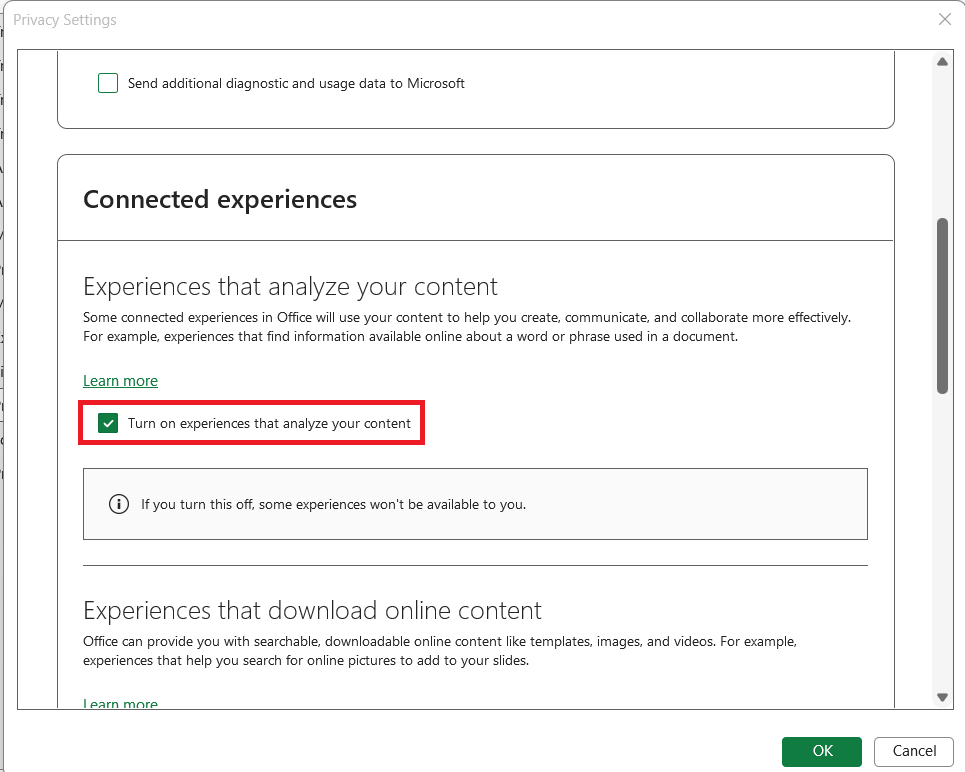
STEP 4: Click on Privacy Options > Privacy Settings.
STEP 5: Under the Connected Experience section, enable the checkbox. Click OK to save your changes.
STEP 6: Close Excel and restart the application.
The Copilot button on the ribbon will also be disabled, and you will not be able to use its features in that app.

Turn Off Copilot in Excel on Mac
STEP 1: Open Excel on your Mac.
STEP 2: Click the Excel menu in the menu bar.
STEP 3: Select Preferences.
STEP 4: Open Authoring and Proofing Tools, then select Copilot.
STEP 5: Clear the Enable Copilot checkbox.
STEP 6: Close Excel and restart the application.
Copilot will be disabled in Excel on your Mac.
Remove the Copilot Button
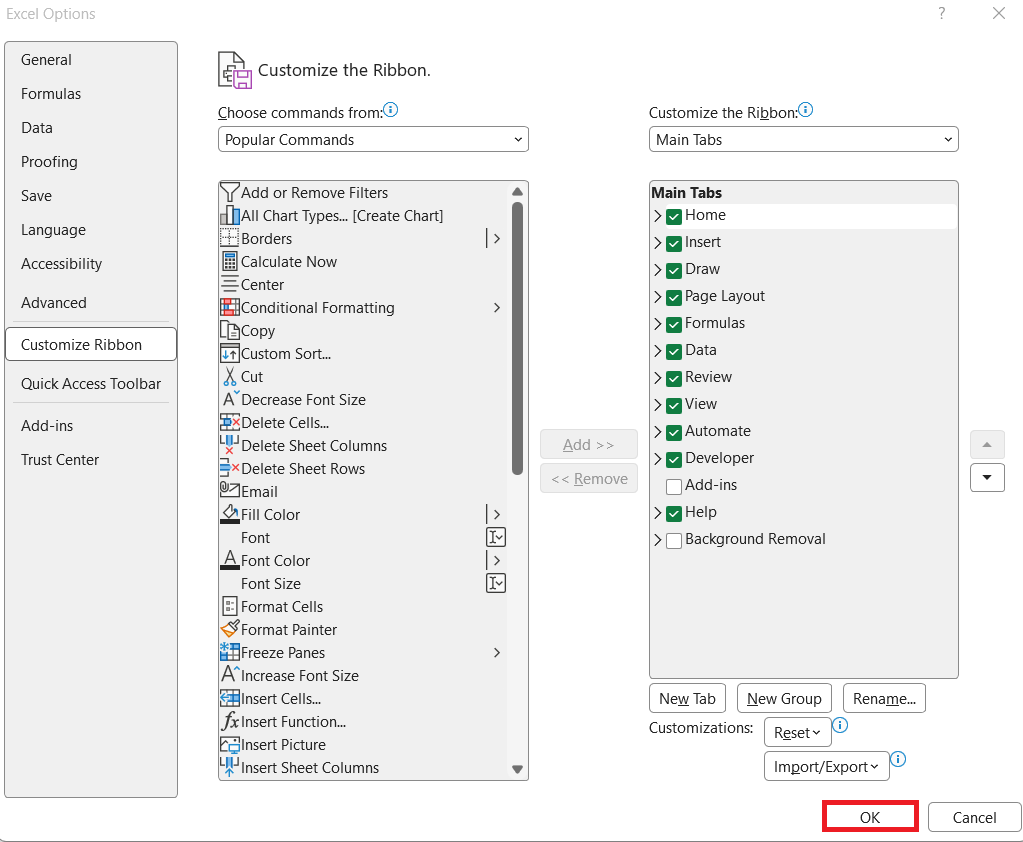
If you only want to remove the Copilot button from the ribbon, you can customize the ribbon instead of disabling Copilot.
STEP 1: Open Excel on your Windows computer.
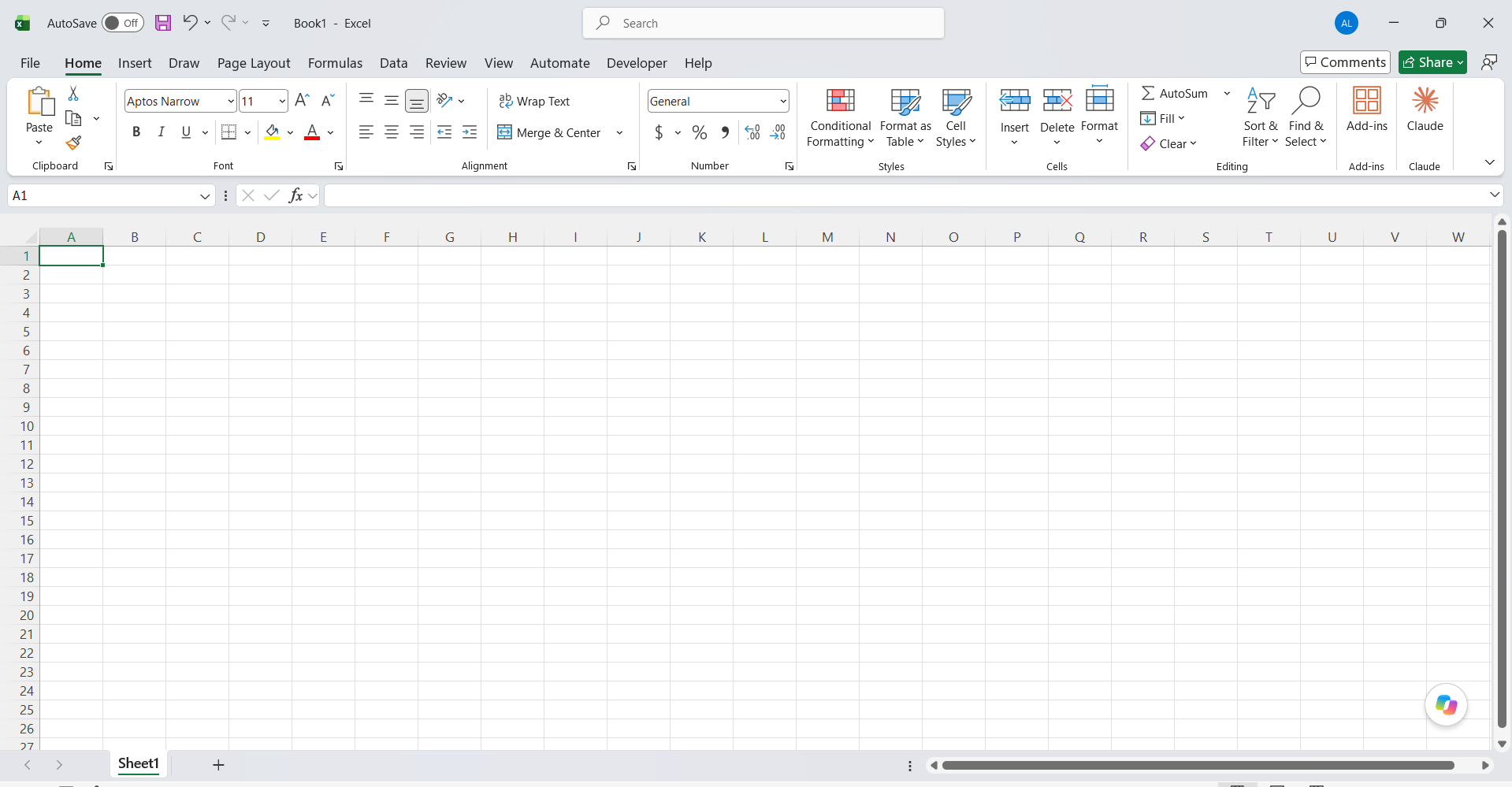
STEP 2: Right-click on the ribbon and select Customize the Ribbon.

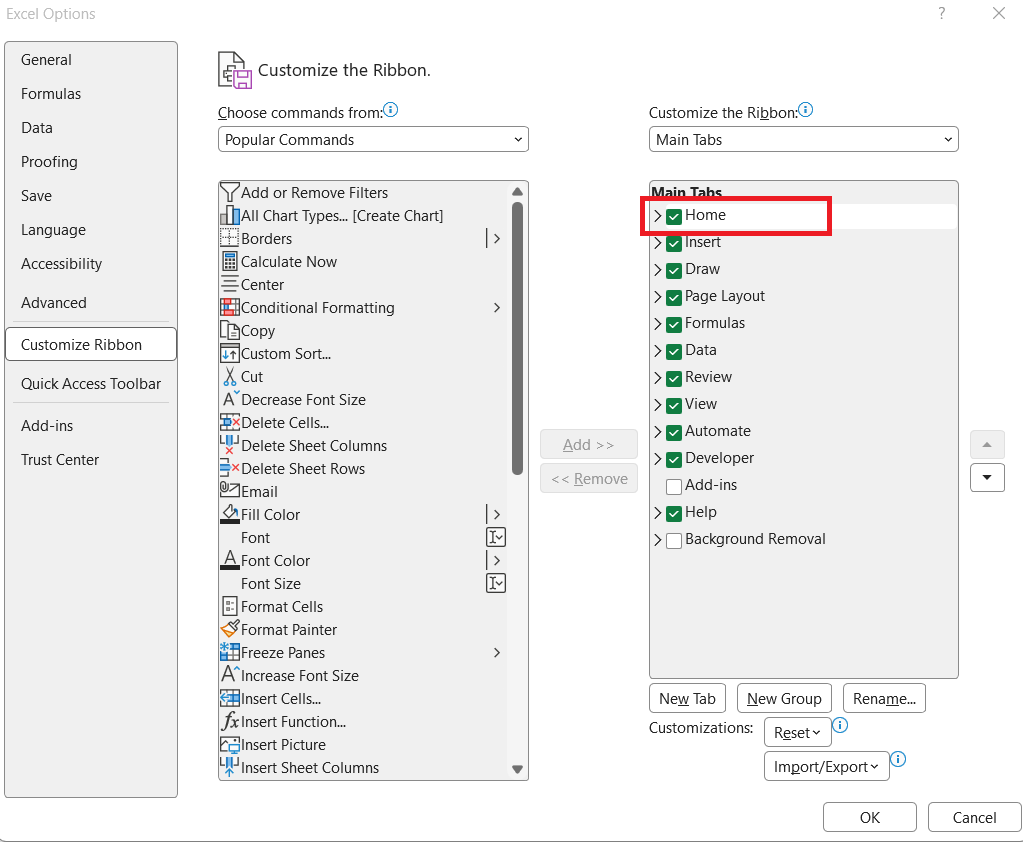
STEP 3: In the right-hand panel, expand Home under Main Tabs.
STEP 4: Look for Assistance, select it, and click Remove.
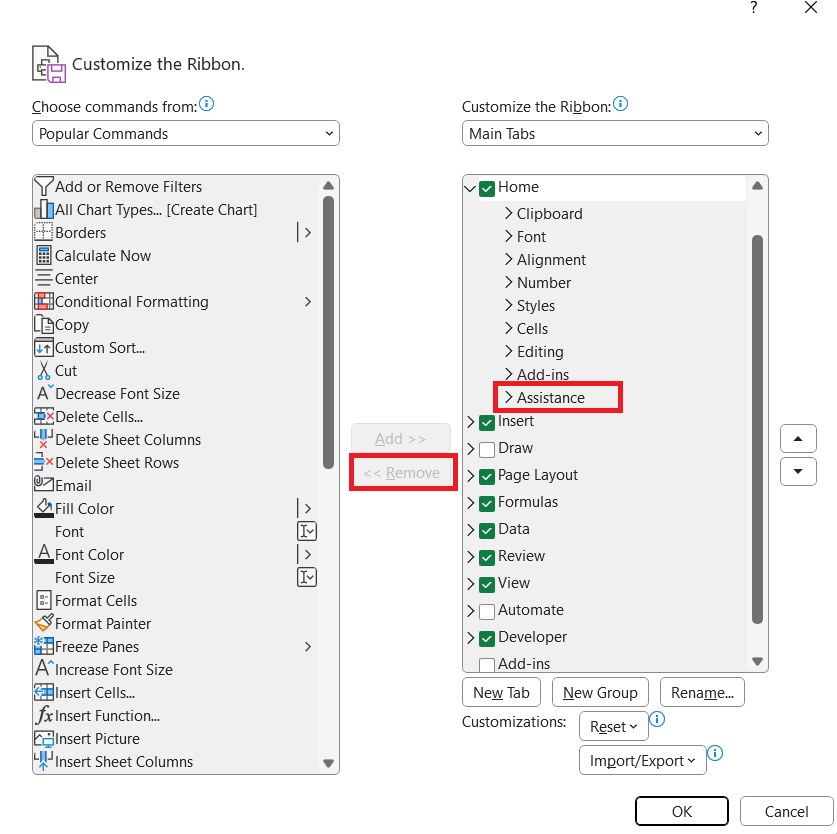
STEP 5: Click OK to save your changes.
Common Problems When Turning Off Copilot in Excel
The Copilot option is missing
Sometimes the Copilot option does not appear in the Excel Options dialog box. This usually means your version of Excel is out of date. To update it, go to File > Account > Update Options > Update Now.
Copilot is active on other computers
The Enable Copilot setting only applies to the computer where you change it. It does not sync with your Microsoft account. To turn off Copilot everywhere, repeat the steps on your laptop, desktop, and any other computer where you use Excel.
Copilot is active in Word and Outlook
Turning off Copilot in Excel does not turn it off in other Microsoft apps like Word, PowerPoint, Teams, or Outlook. You need to turn off Copilot in each app separately.
You only hid the Copilot button
Hiding the Copilot button with Customize the Ribbon does not turn Copilot off. Copilot stays active, and you can still open it from the right-click menu. To disable it fully, clear the Enable Copilot checkbox instead.
FAQs
1. How do I turn off Copilot in Excel?
Go to File > Options > Copilot and clear the Enable Copilot checkbox, if available.
2. Can I remove the Copilot button from the ribbon?
Yes. You can customize the ribbon to remove supported buttons or groups.
3. Will turning off Copilot affect my Excel formulas?
No. Your existing formulas and Excel functions will continue to work.
4. Can I turn off Copilot in Excel for the web?
You can disable supported formula suggestions through Copilot Settings.
5. Can I enable Copilot again?
Yes. You can turn it back on through the relevant Excel settings.

John Michaloudis is a former accountant and finance analyst at General Electric, a Microsoft MVP since 2020, an Amazon #1 bestselling author of 4 Microsoft Excel books and teacher of Microsoft Excel & Office over at his flagship MyExcelOnline Academy Online Course.

 30 Days - Full Access