Free Practice Workbook
Copilot can help you analyse data, write formulas, highlight data, and spot trends in Excel. Using keyboard shortcuts in Copilot can make your work faster. Instead of using Copilot with the mouse, you can use keyboard shortcuts to enter prompts, switch modes, review responses, accept changes, etc. In this article, you will learn how to use Copilot in Excel Keyboard Shortcuts.
Key Takeaways:
- Copilot helps you analyse data and write formulas in Excel.
- You can use Alt + C to open Copilot on Windows.
- Press Enter to send a prompt to Copilot.
- Use Ctrl + Shift + M to switch between Copilot modes.
- Keyboard shortcuts help you work faster in Excel.
Table of Contents
What is Copilot in Excel?
Copilot in Excel is built into Excel to help you work with your workbook using natural-language prompts. You can ask Copilot to generate formulas, update worksheets, create charts and PivotTables, summarize data, and spot trends or outliers.
For example, you could ask:
“Analyze this sales data and show the main trends.”
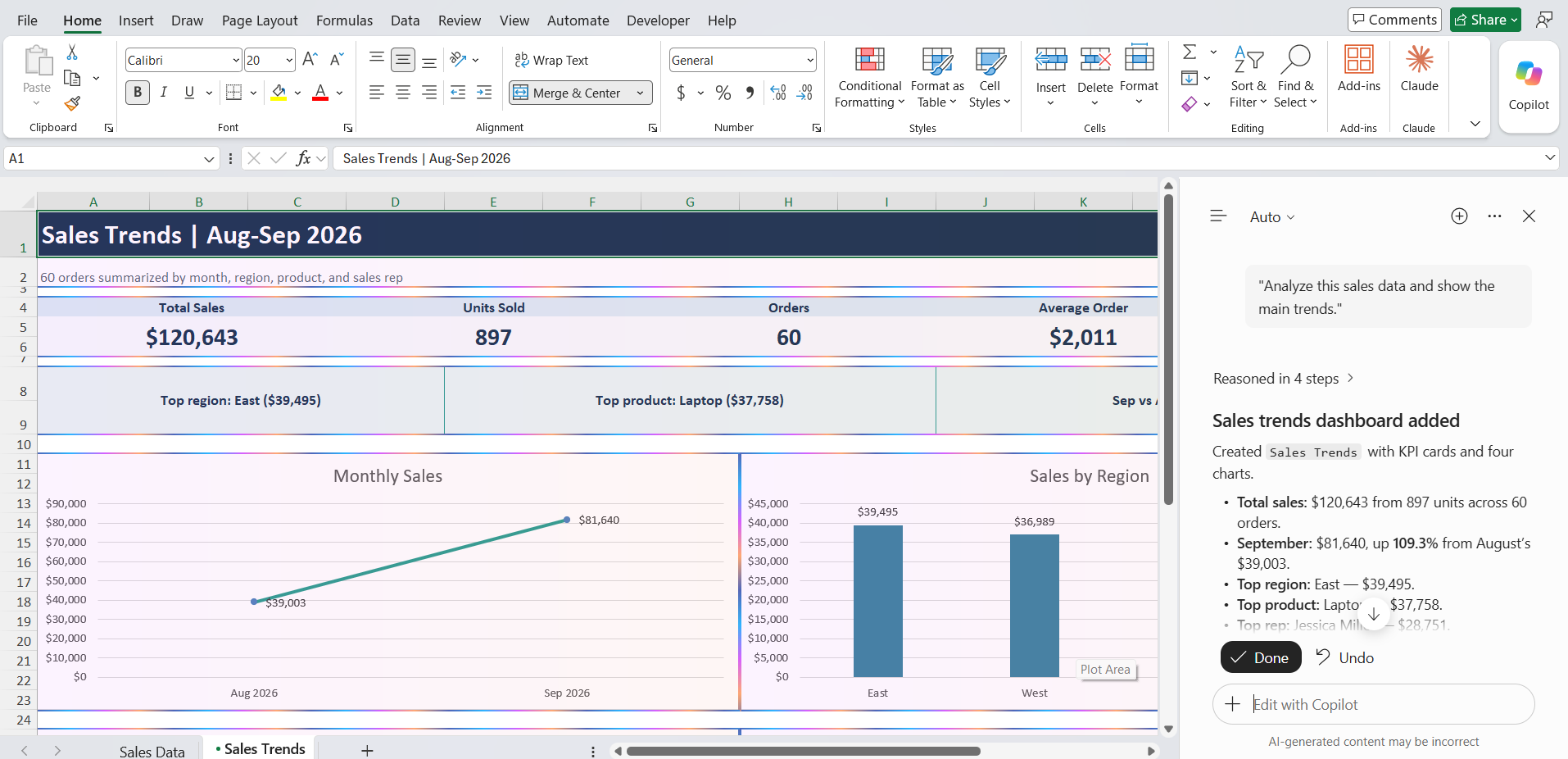
Keyboard shortcuts make it easier to move through these features without constantly reaching for the mouse.
Copilot in Excel Keyboard Shortcuts for Windows
1. Open Copilot in Excel
You can select the data and press Alt + C to open Copilot instead of searching for the Copilot button.
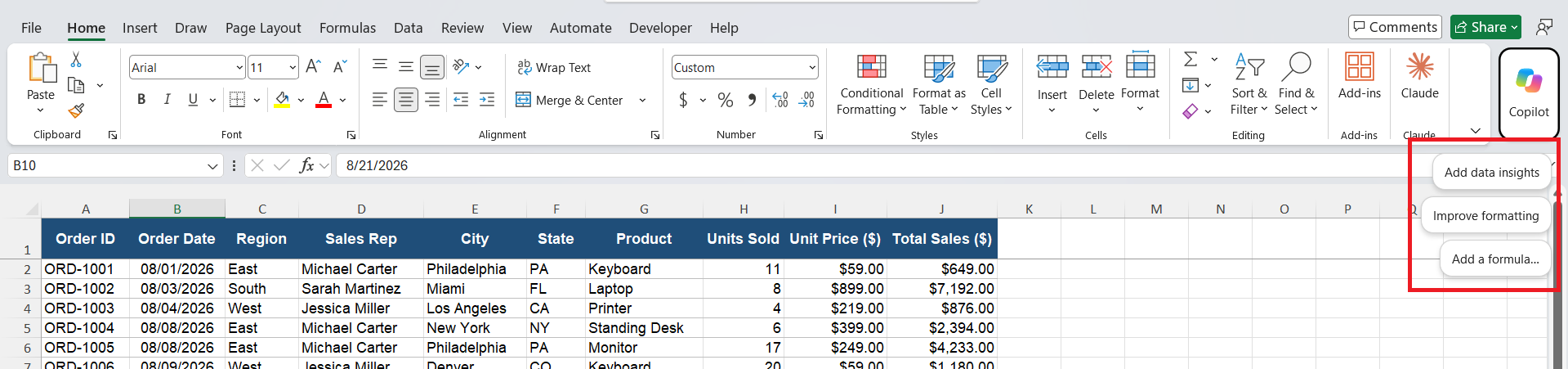
It allows you to quickly open Copilot with options for analyzing data, improving formatting, or adding formulas.
2. Send a Prompt in Copilot
You can use the Enter key to send a prompt to Copilot in Excel on Windows.
- Open the Copilot pane.
- Enter your prompt in the text box.
- Press Enter to submit the request.
3. Stop a Copilot Request
You can press Esc to cancel a Copilot request that is no longer needed.
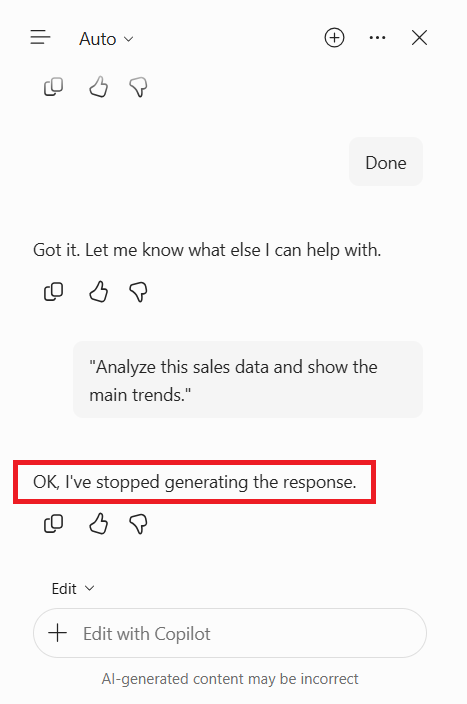
4. Accept Changes Made by Copilot
When Copilot provides suggestions, you can press Ctrl + Enter to directly make the changes in the spreadsheet.
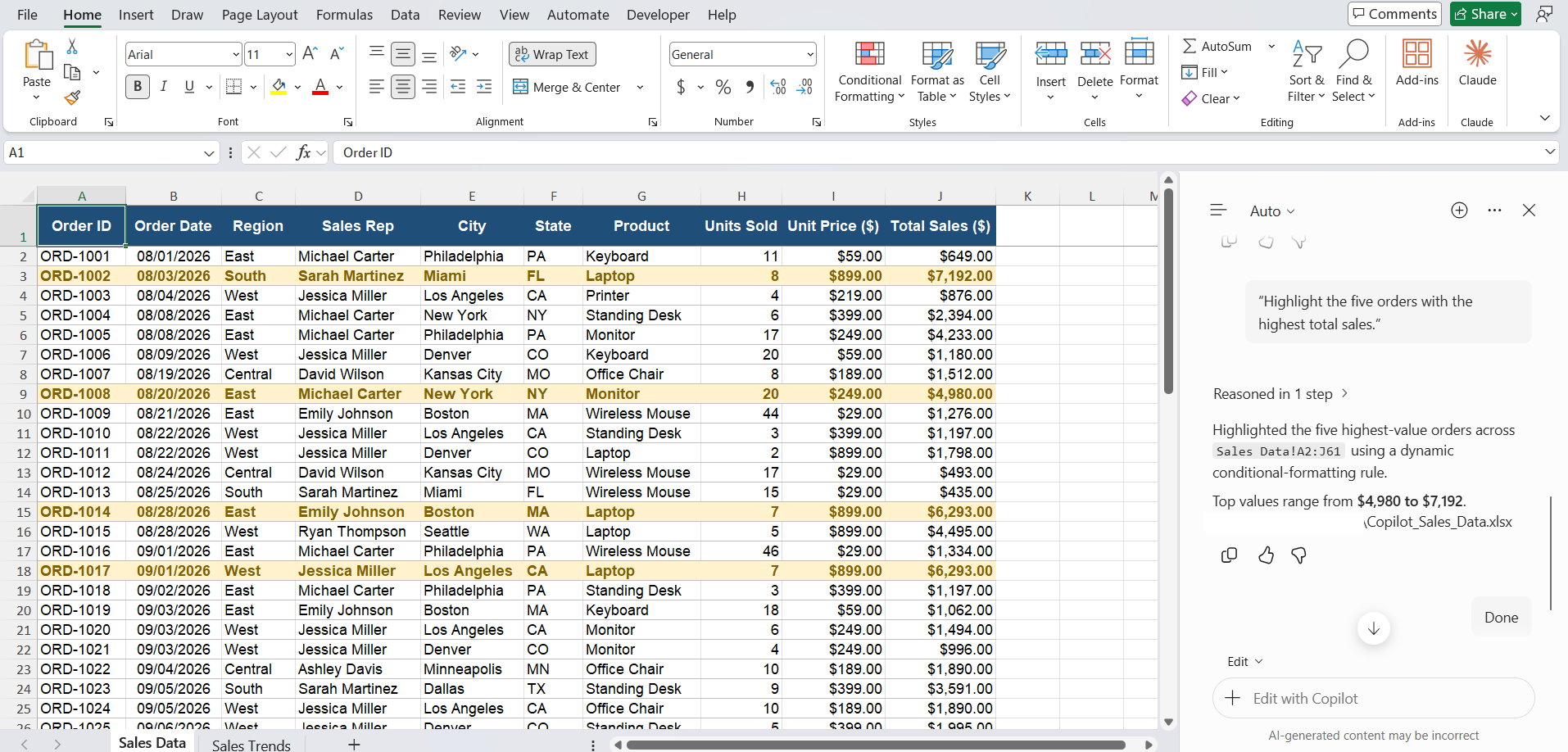
This shortcut is useful when you have reviewed the suggested changes and want to proceed.
5. Switch Between Copilot Modes
There are three modes in Excel:
- Edit Mode: Make changes to your workbook.
- Chat Mode: Ask questions about your data.
- Plan Mode: Plan complex Excel tasks.
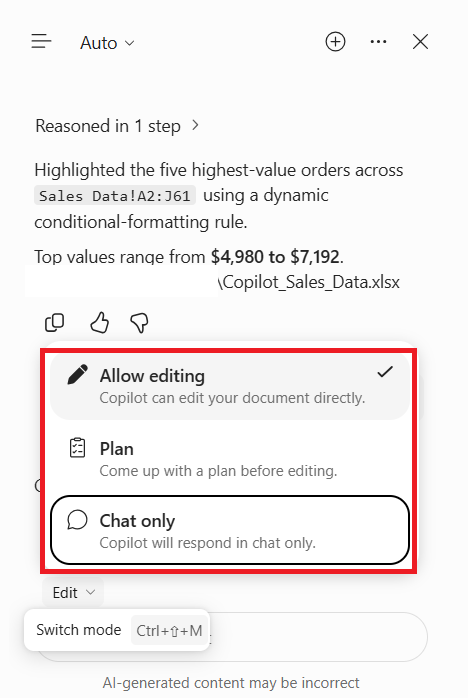
You can use the Ctrl + Shift + M keyboard shortcut to quickly switch between these three modes in Copilot.
6. Switch Between Excel and Copilot
If you need to switch between Excel and Copilot continuously, using a mouse can be time-consuming. You can press F6 to move focus between the Excel grid and Copilot task pane.
7. Start Dictation
If you prefer speaking the prompt instead of typing it in the Copilot pane, you can use:
Alt + Shift + H
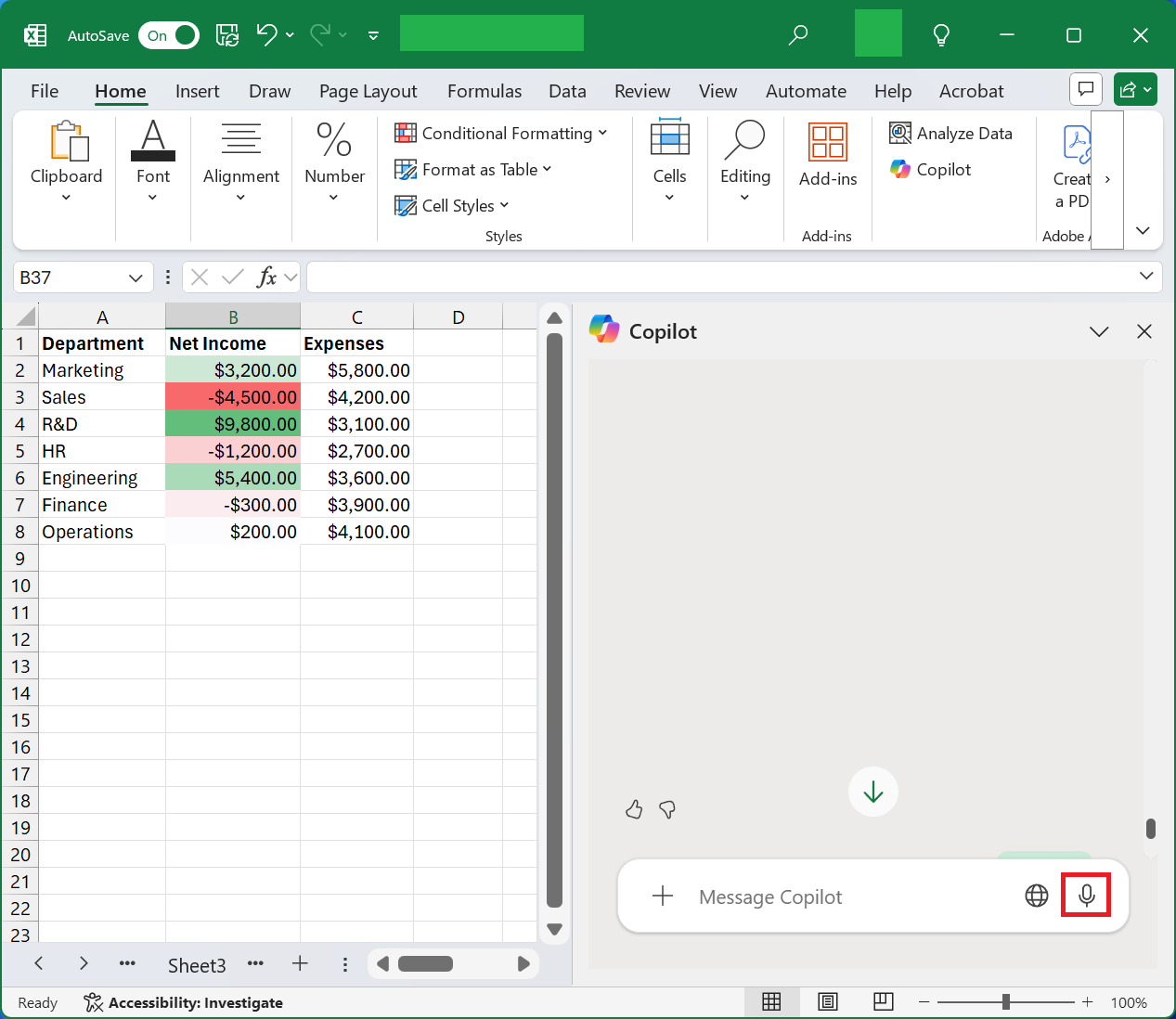
This will start dictation in the Copilot pane.
Copilot in Excel Keyboard Shortcuts for Mac
If you use Excel on a Mac, you can use the following keyboard shortcuts to interact with Copilot.
| Action | Keyboard Shortcut |
|---|---|
| Open the Copilot task pane | Cmd + Ctrl + I |
| Send a prompt to Copilot | Return |
| Stop or cancel a Copilot request | Esc |
| Accept changes made by Copilot | Cmd + Return |
| Switch between Edit, Chat, and Plan modes | Cmd + Shift + M |
| Navigate between chat responses | Option + C |
| Confirm the use of selected files | Cmd + J |
| Start dictation in Copilot | Option + Shift + H |
| Move focus between Excel and Copilot | Shift + F6 |
FAQs
1. What is the shortcut to open Copilot in Excel?
Press Alt + C on Windows to open Copilot.
2. How do I send a prompt to Copilot?
Enter your prompt and press Enter to submit it.
3. How do I stop a Copilot request?
Press Esc to cancel a Copilot request.
4. How do I switch between Copilot modes?
Press Ctrl + Shift + M to switch between Edit, Chat, and Plan modes.
5. Can I use Copilot keyboard shortcuts on Mac?
Yes. Excel on Mac supports shortcuts such as Cmd + Ctrl + I to open Copilot and Cmd + Return to accept changes.

John Michaloudis is a former accountant and finance analyst at General Electric, a Microsoft MVP since 2020, an Amazon #1 bestselling author of 4 Microsoft Excel books and teacher of Microsoft Excel & Office over at his flagship MyExcelOnline Academy Online Course.

 30 Days - Full Access