 Free Practice Workbook
Microsoft Copilot is an AI assistant available inside Microsoft Excel to execute tasks. There have been several updates to Microsoft Copilot for Excel in the year of 2026. In this article, you will learn what is new in Copilot for Excel.
Key Takeaways:
- Copilot can now make changes directly to Excel workbooks.
- Plan Mode helps create a plan before making workbook changes.
- Copilot can use Python for advanced data analysis.
- You can quickly navigate to changes made by Copilot.
- Show Changes helps identify edits made by Copilot.
What’s New in Copilot for Excel 2026
1. Edit with Copilot
Initially, Copilot used to just answer your question or provide you with a formula suggestion. Now, Microsoft introduced this experience as the evolution of Agent Mode. It allows Copilot to make changes directly to an Excel workbook based on your instructions.
For example, you can ask Copilot to:
- Create a new worksheet.
- Add or modify data.
- Create formulas.
- Format a table.
- Apply conditional formatting.
- Build charts.
- Create PivotTables.
- Reshape or merge data.
For example:
Create a sales summary by region and add a chart showing monthly sales.
2. Plan Mode vs. Edit Mode
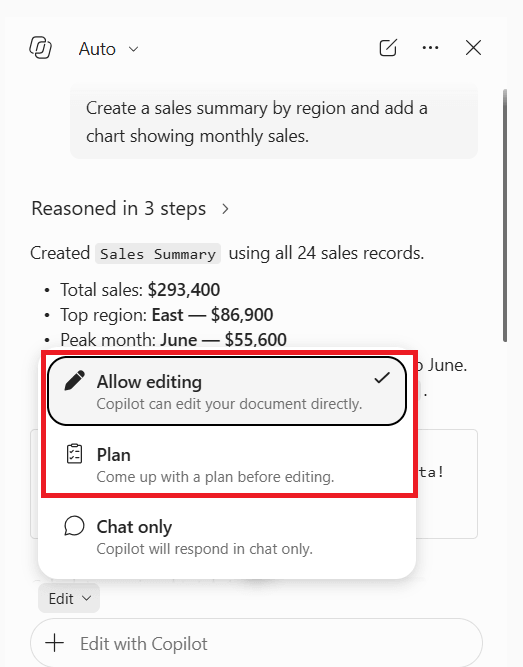
Copilot now has two interfaces: Edit mode and Plan mode, sitting inside the prompt box.
- Edit mode allows Copilot to make changes directly to the workbook.
- Plan mode helps you create a structured plan before Copilot makes changes.
3. Python in Edit with Copilot
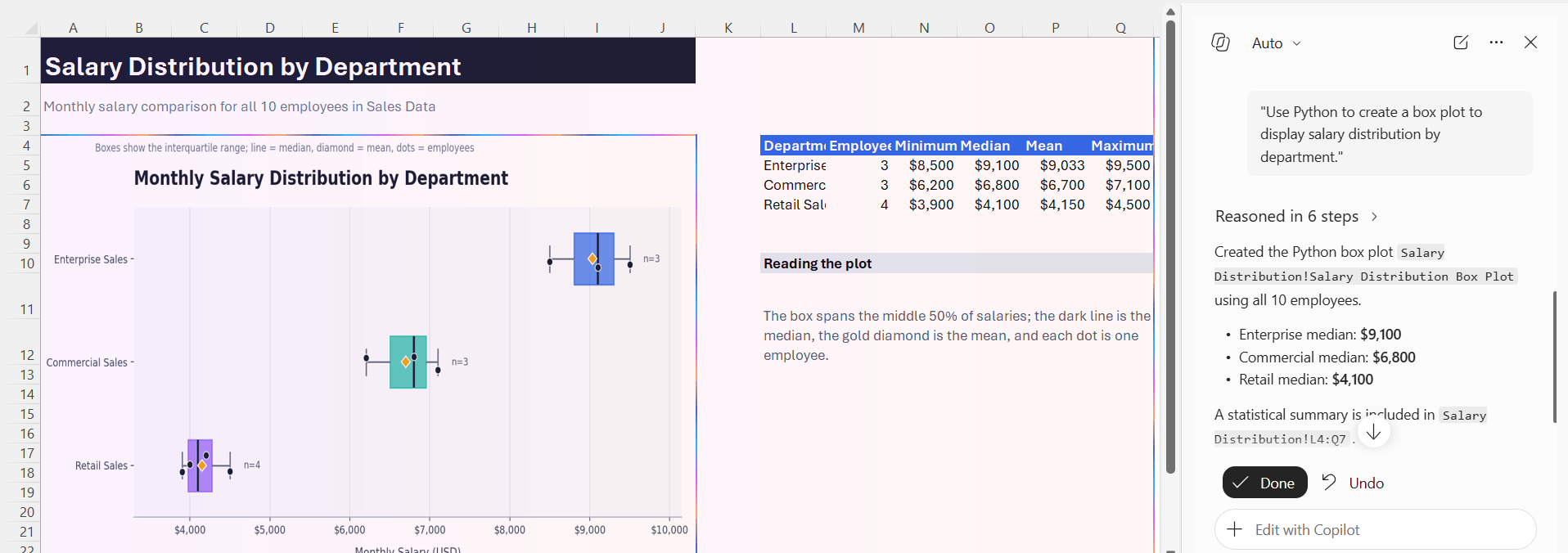
You can now use Python directly when editing with Copilot. Microsoft added Python support to Edit with Copilot for advanced analysis, automation, data transformation, statistics, simulations, and visualizations.
For example, you can ask:
“Use Python to create a box plot to display salary distribution by department.”
4. Navigate Directly to Copilot Changes
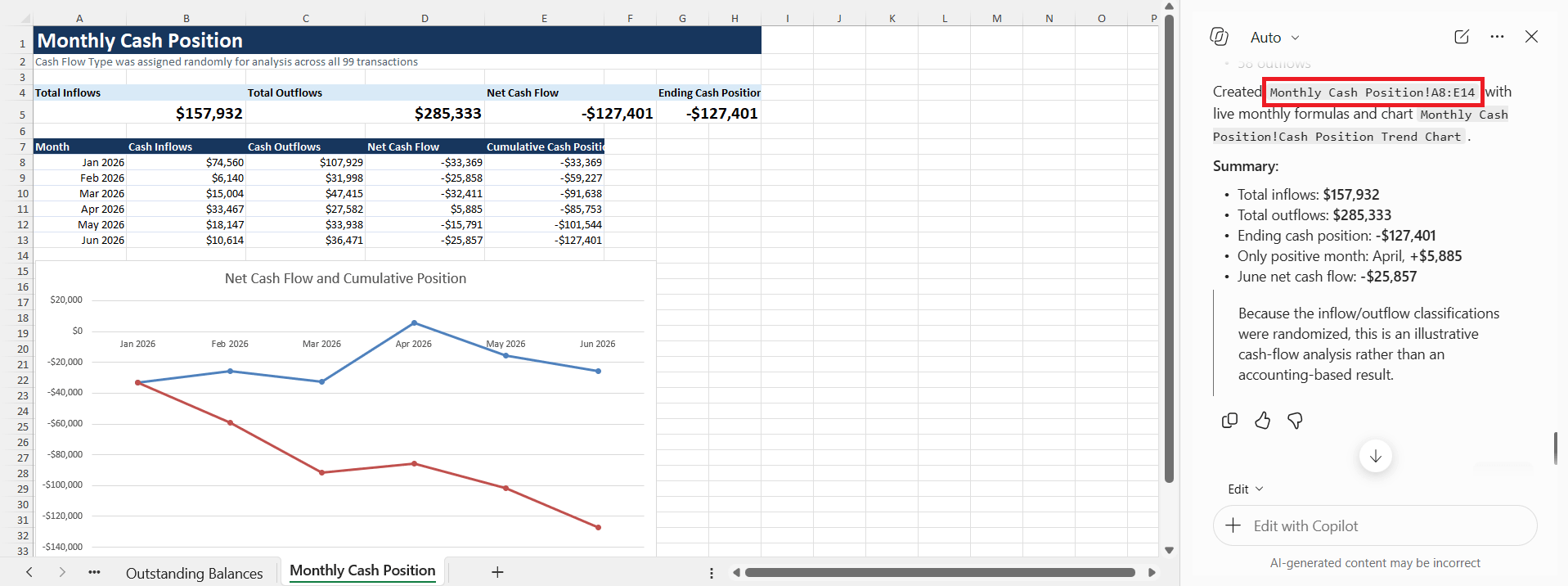
Previously, when you made any change to the existing workbook, you had to manually search through the workbook to find the change. Now, the response created by Copilot will contain links that take you directly to the affected sheets, tables, ranges, charts, or other objects.
You can click the relevant link in the Copilot response and jump directly to the location.
5. Integrated Brand Kit & Theme Design Skills
Copilot can now use Brand Kit and Theme Design skills to improve the look of Excel workbooks. You can ask Copilot to apply company colors, fonts, logos, and themes to your reports.
For example:
“Format this sheet using our brand color and font.”
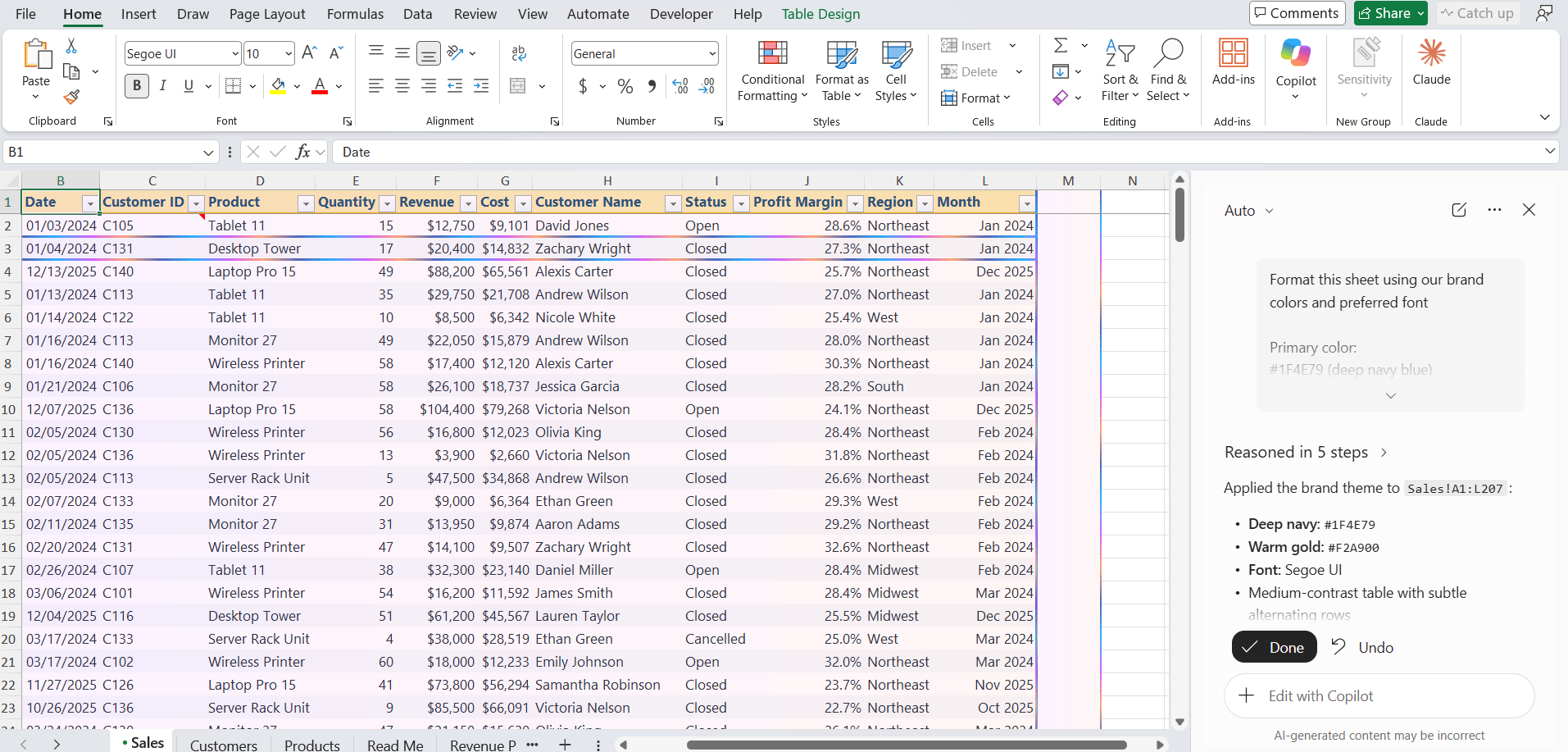
This helps create professional and consistent Excel reports with less manual formatting.
6. Show Changes
Excel’s Show Changes pane now identifies edits made by Copilot.
Users can see which updates came from AI and which were made manually. This additional transparency helps teams review workbooks with greater confidence and improves accountability when multiple people collaborate on a file.

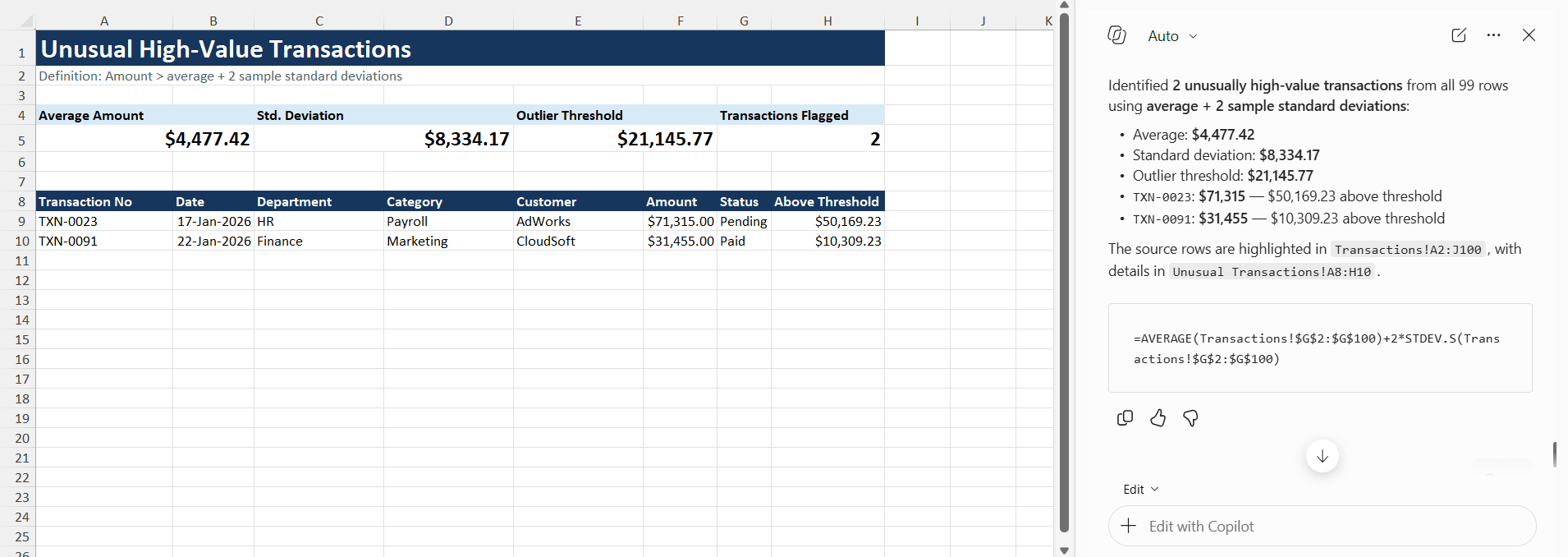
7. More Advanced Data Analysis
The combination of Edit with Copilot and Python makes Copilot more useful for advanced data analysis.
You can use it for tasks such as:
- Detecting unusual values.
- Spotting trends.
- Creating statistical summaries.
- Running simulations.
- Creating advanced visualizations.
- Transforming data.
- Comparing groups.
Python support is particularly useful when you need analysis that goes beyond standard Excel formulas and charts
FAQs
1. What is new in Copilot for Excel in 2026?
Copilot can now edit workbooks and perform more advanced tasks.
2. Can Copilot use Python in Excel?
Yes, Copilot can use Python for advanced data analysis and visualizations.
3. What is the difference between Plan Mode and Edit Mode?
Plan Mode creates a plan, while Edit Mode makes changes to the workbook.
4. Can I find changes made by Copilot?
Yes, you can use direct links and Show Changes to find Copilot edits.
5. Can Copilot perform advanced data analysis?
Yes, Copilot can analyze trends, detect unusual values, create summaries, and run simulations.

John Michaloudis is a former accountant and finance analyst at General Electric, a Microsoft MVP since 2020, an Amazon #1 bestselling author of 4 Microsoft Excel books and teacher of Microsoft Excel & Office over at his flagship MyExcelOnline Academy Online Course.

 30 Days - Full Access









