 Free Practice Workbook
In 2026, Microsoft Copilot in Excel makes working with data much easier by using artificial intelligence. It allows you to clean and analyse data, write formulas, and build charts by typing the command in plain English. There is no need to memorize the functions. In this article, you will learn how to use Copilot in Excel.
Key Takeaways:
- Copilot lets you use Excel with simple English commands.
- It can create formulas, charts, and summaries automatically.
- Keep your data organized for better AI results.
- Review Copilot’s suggestions before applying them.
- You need a supported Microsoft 365 subscription to use Copilot.
Table of Contents
Introduction to Copilot in Excel
What is Copilot in Excel?
Copilot is an AI assistant built into Microsoft Excel. It is like a helper that knows the syntax so that you don’t have to. Instead of writing a nested IF formula yourself, you describe the result you want. Copilot writes the formula and shows you what it did before applying it.
You can type simple commands like:
- Calculate total sales of the product by region.
- Create a chart that shows the monthly revenue.
- Highlight duplicate customers in the data.
- Highlight the top 10 highest values.
Requirements to Use Copilot in Excel
- Microsoft Excel (Microsoft 365 version)
- A Microsoft account
- A subscription that includes Copilot features
- An internet connection
- The latest version of Excel
How to Use Copilot in Excel
Step-by-Step Guide
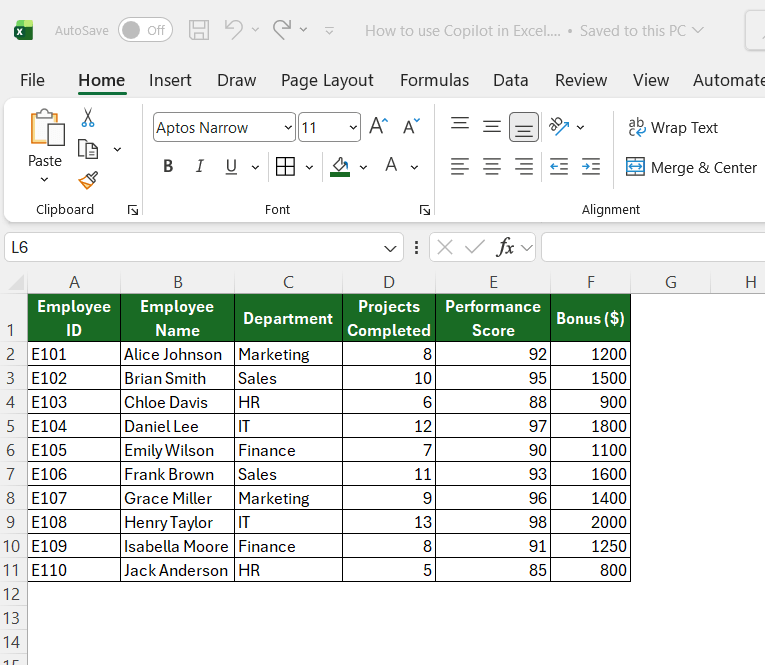
STEP 1: Open an Excel Workbook and organize your data in rows and columns with proper headers.
STEP 2: Click on the Copilot button.
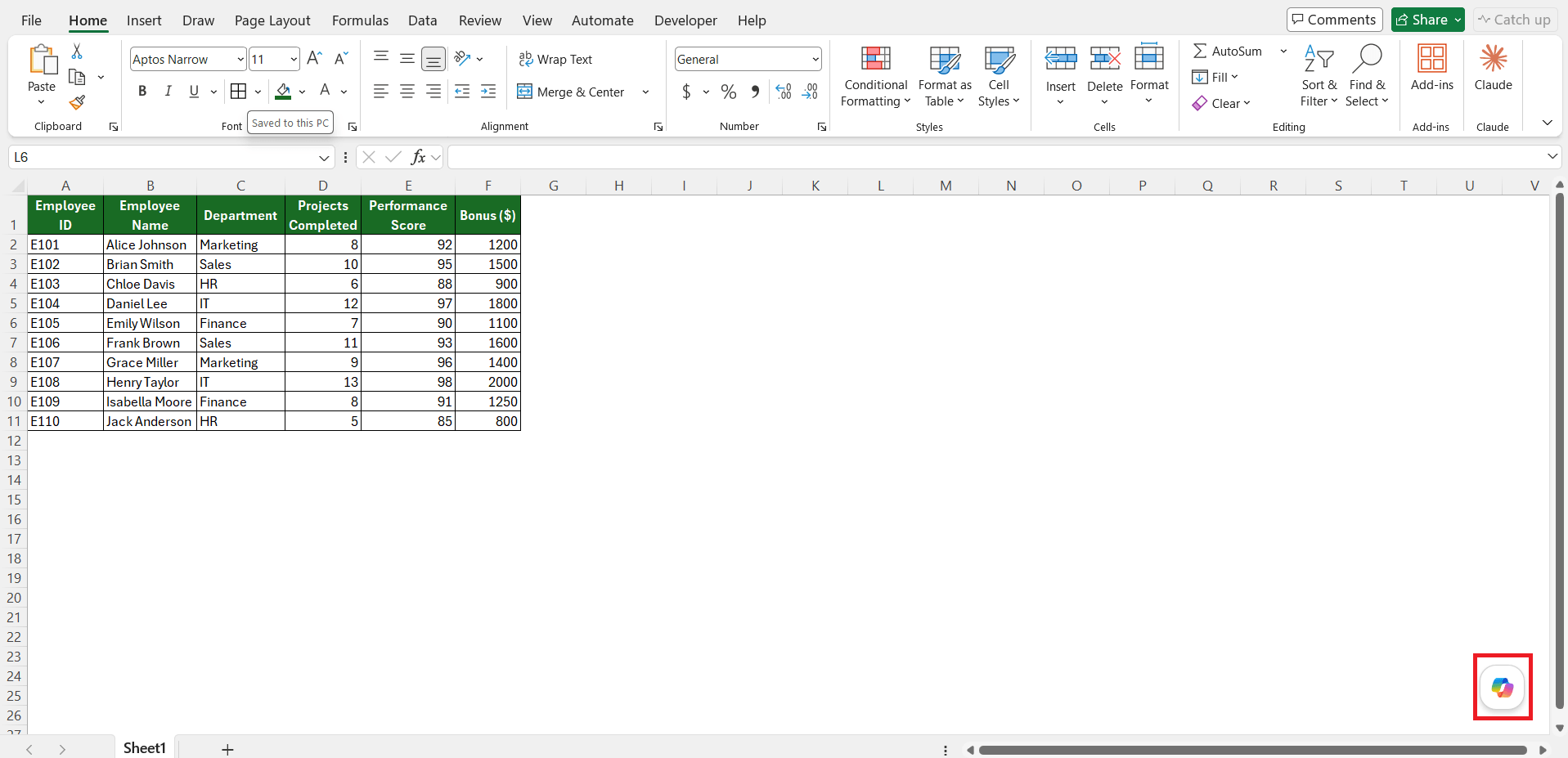
A chat panel will open on the right side.
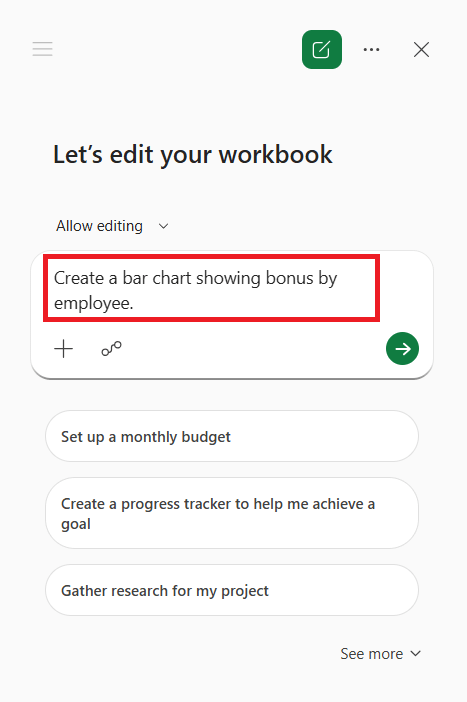
STEP 3: Type your request in plain English. Press Enter.
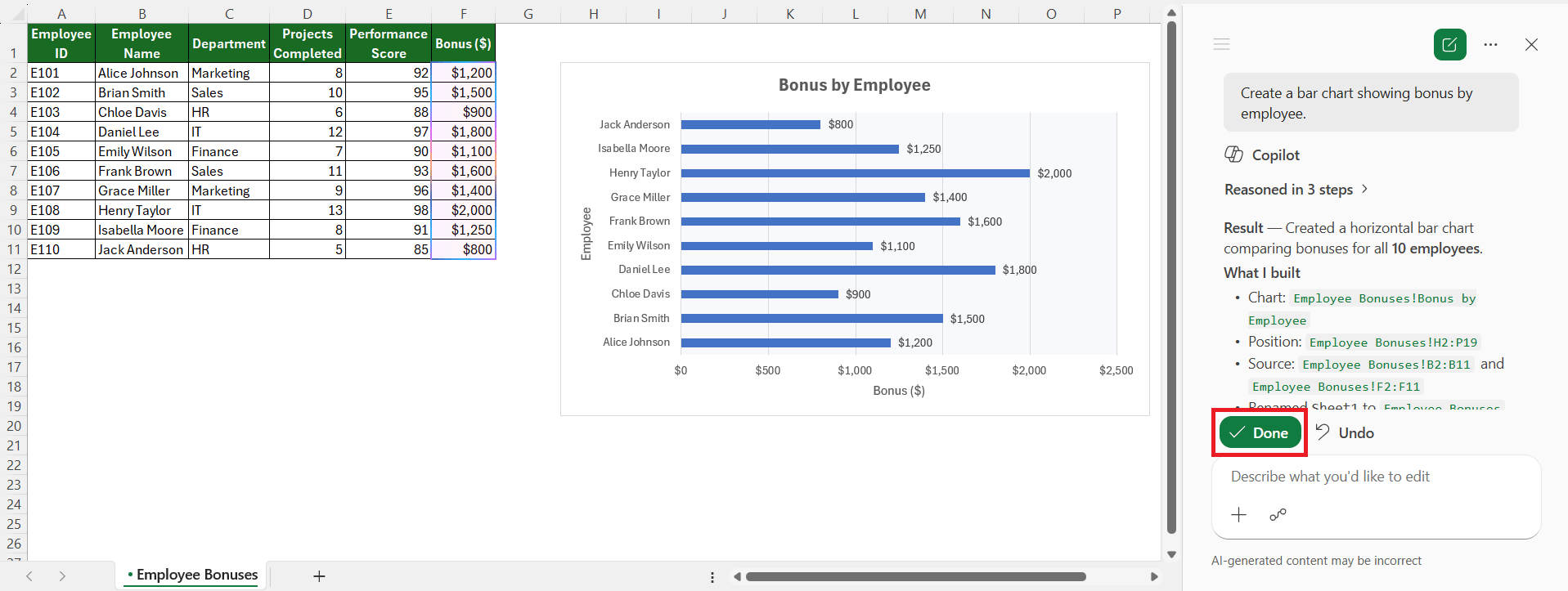
STEP 4: If the suggestion looks okay to you, press Done.
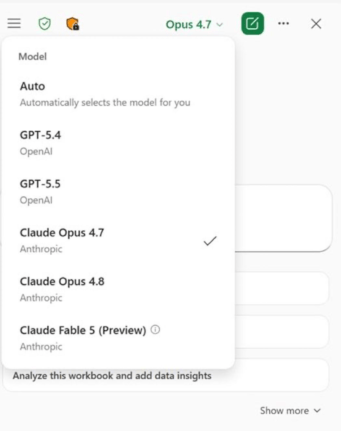
Choose AI model
Copilot in Excel lets you choose among AI models, including OpenAI’s GPT and Anthropic’s Claude Opus. GPT is used for multi-step reasoning, while Claude Opus 5 is used for higher-quality modeling and complex workbooks.
You can switch models directly from the Copilot pane.
Common Ways to Use Copilot
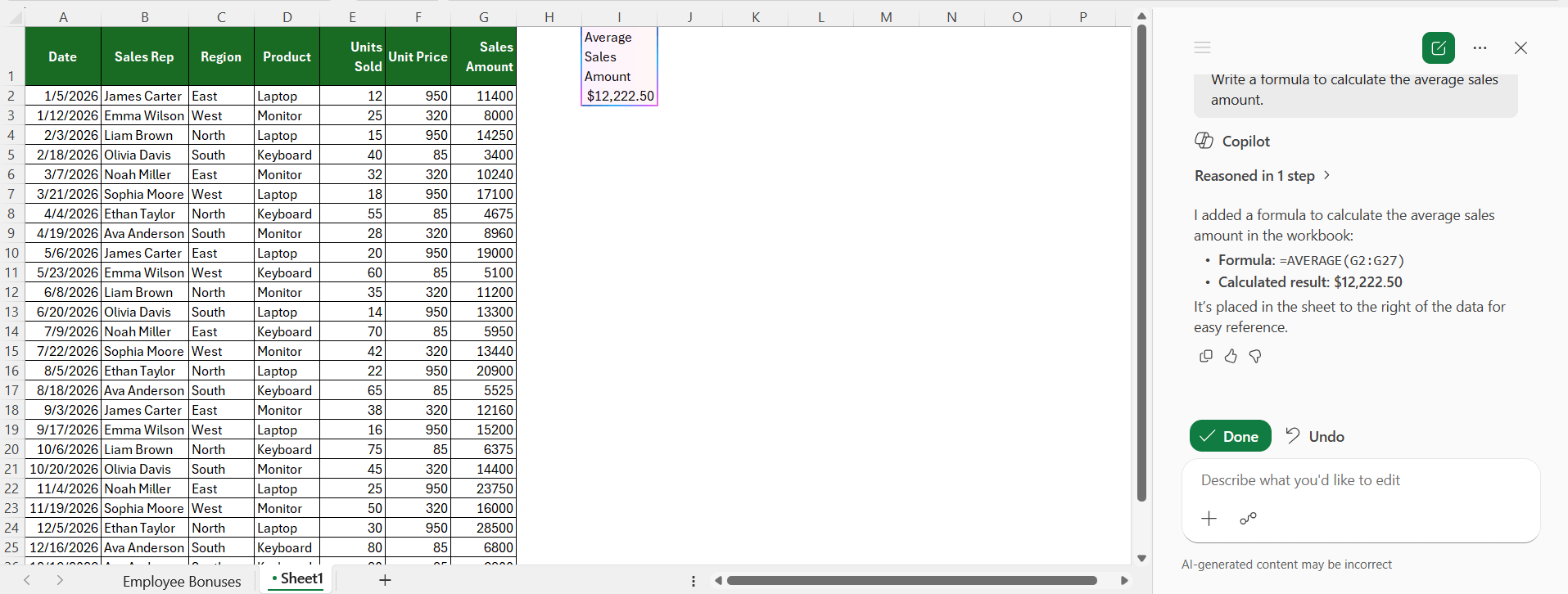
- Generate formulas: Create formulas for calculations like totals, averages, or percentages.
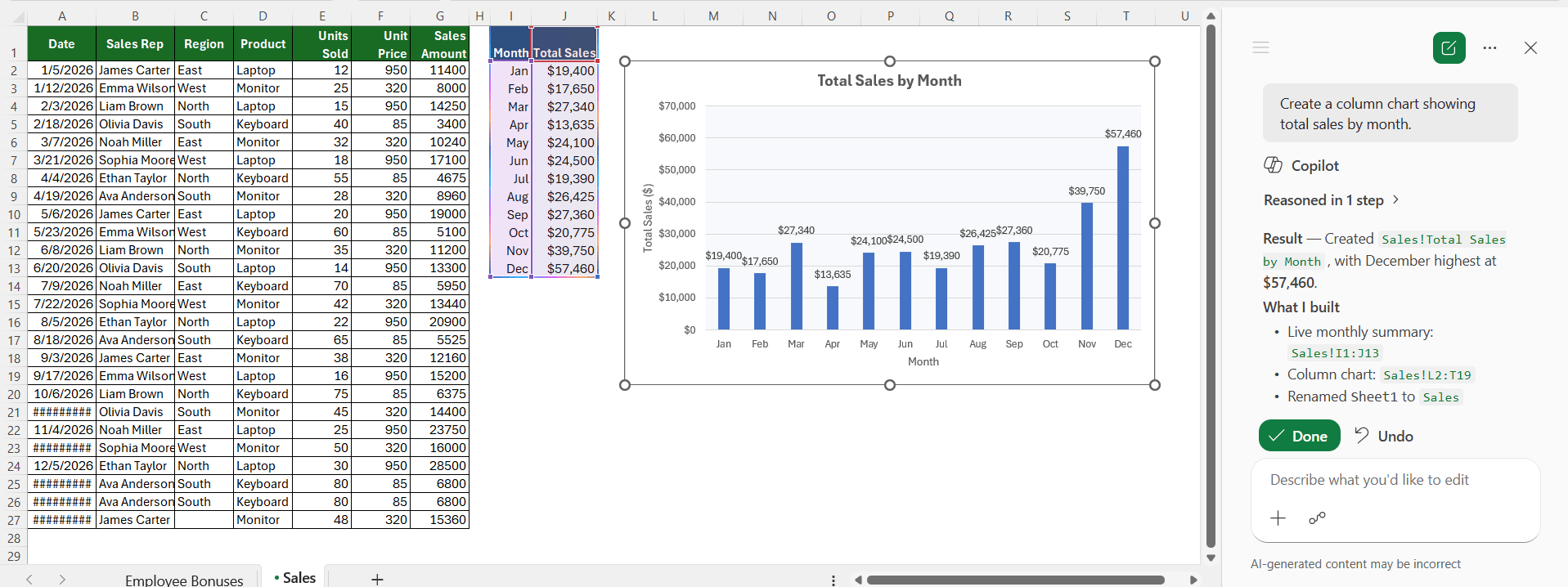
- Create charts: Generate bar, line, pie, or other charts with a simple prompt.
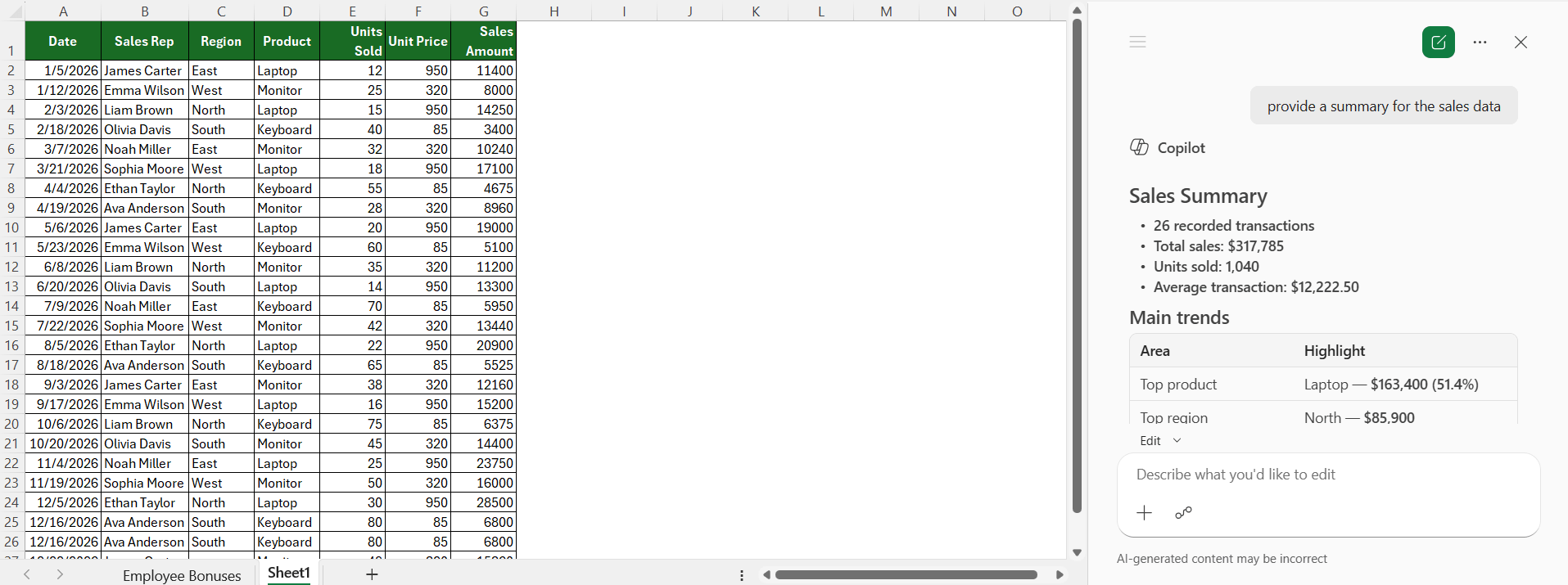
- Summarize information: Get a quick overview of large tables and datasets.
- Clean data: Remove duplicates, find missing values, and standardize formatting.
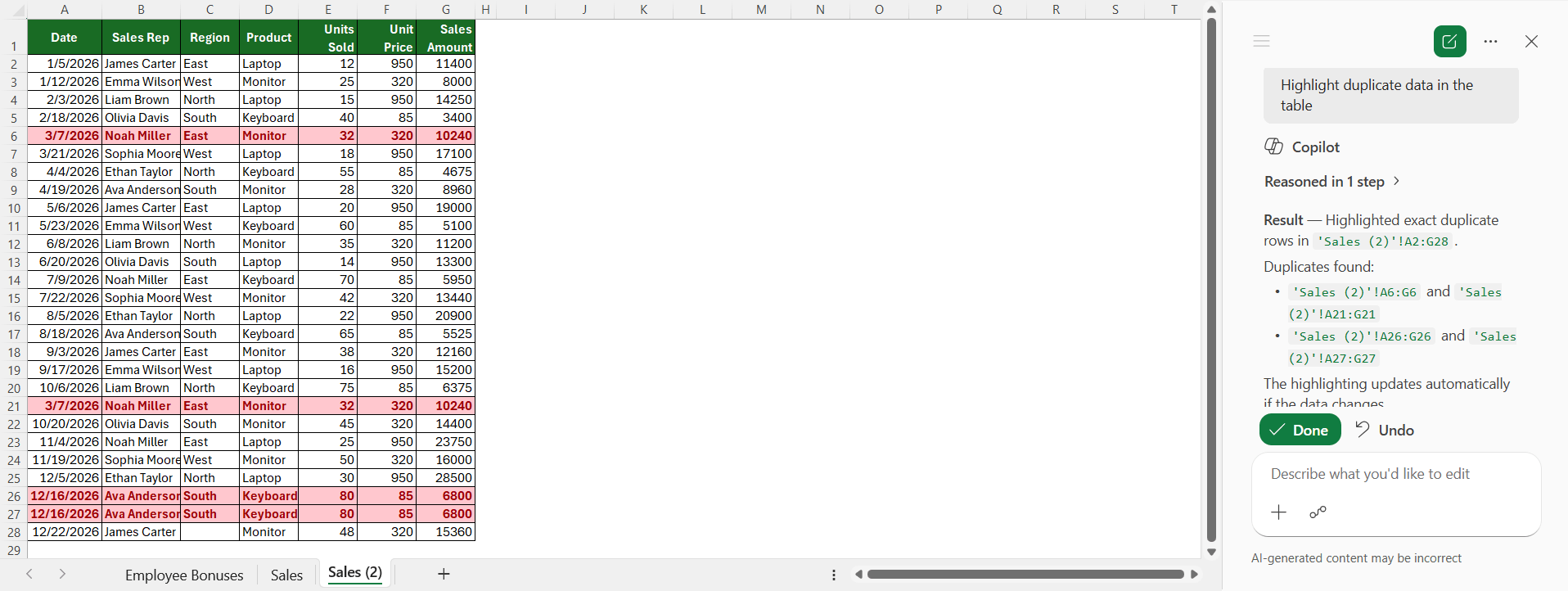
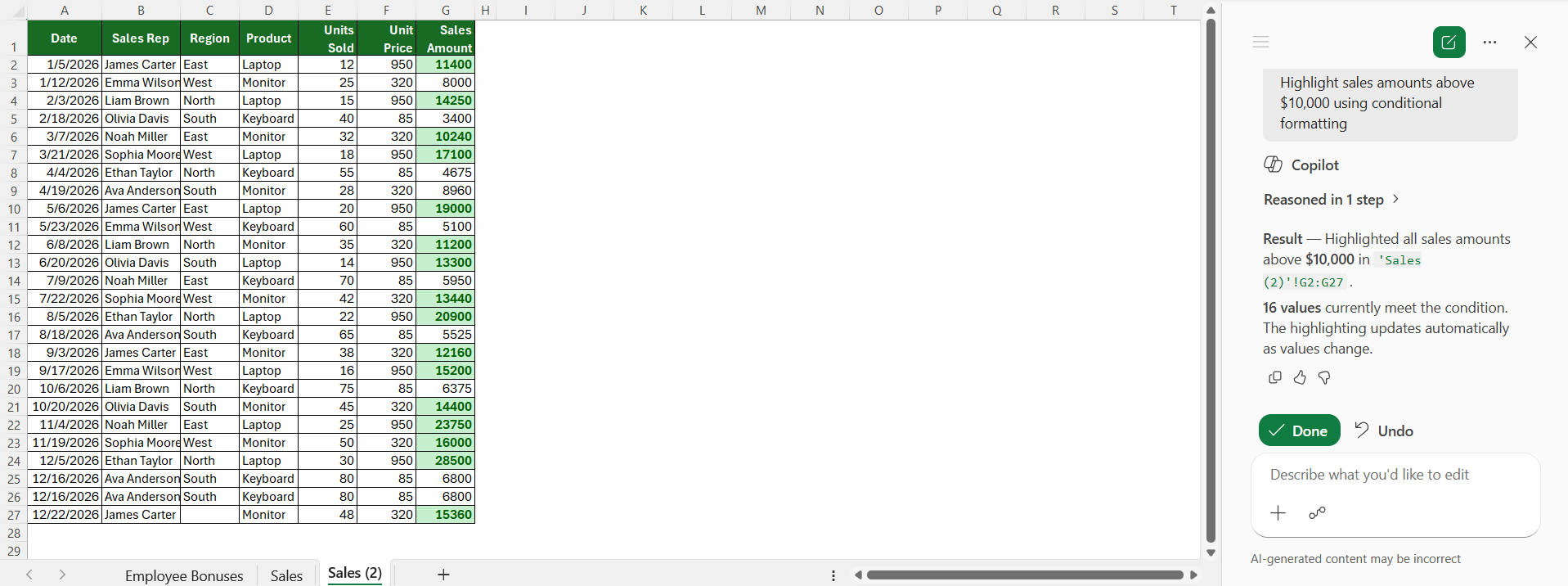
- Highlight important data: Apply conditional formatting to emphasize key values.
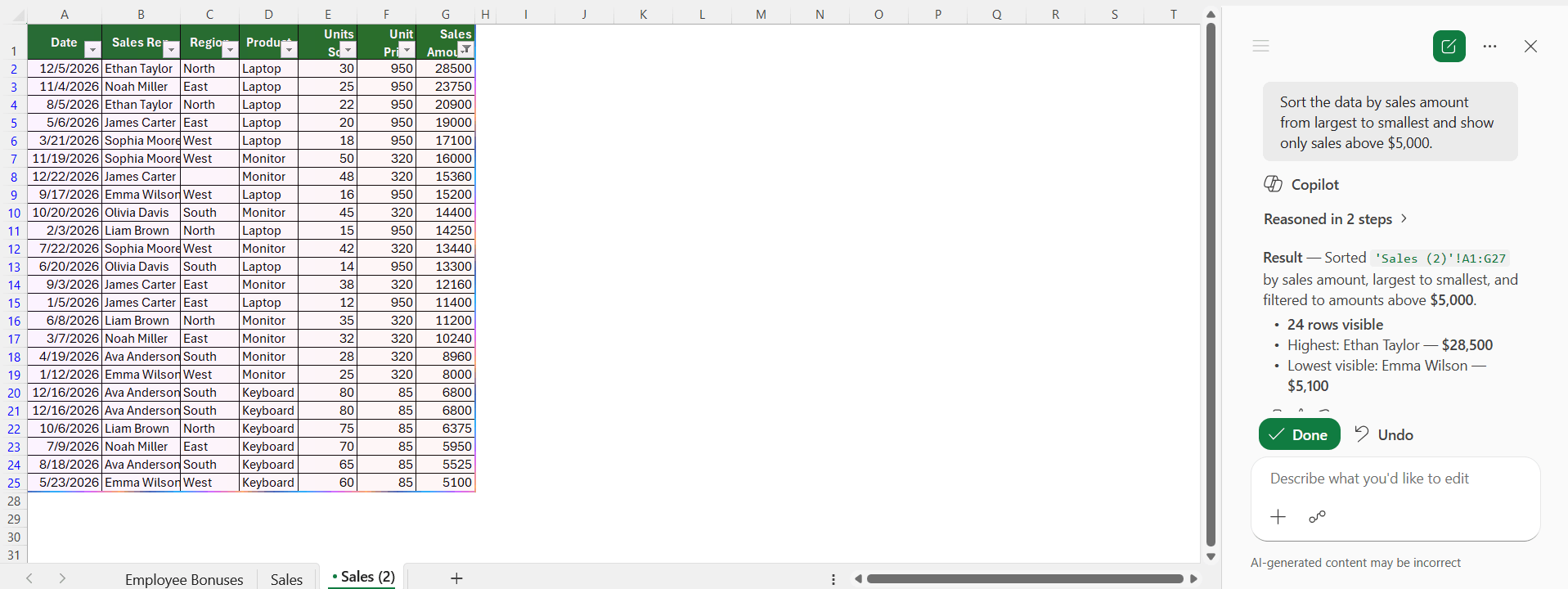
- Sort and filter data: Organize information based on your requirements.
Tips & Tricks
- You should use clear and descriptive column headers in the dataset.
- Organize your data in a structured table.
- Provide clear instructions instead of vague prompts.
- Review the formulas generated by AI before using them.
- Save your workbook before making major changes.
FAQs
1. Is Copilot in Excel free?
No, Copilot is a paid feature in Excel. You need an eligible Microsoft 365 subscription that includes Copilot.
2. Can Copilot write Excel formulas?
Yes, Copilot allows you to write Excel formulas by typing the task in simple English.
3. Can Copilot create charts automatically?
Yes, Copilot can create charts from your data using simple prompts.
4. Does Copilot work offline?
No. To be able to use Copilot, you will need a stable internet connection.
5. Is Copilot suitable for beginners?
Yes. It helps beginners perform Excel tasks without learning complex formulas.

John Michaloudis is a former accountant and finance analyst at General Electric, a Microsoft MVP since 2020, an Amazon #1 bestselling author of 4 Microsoft Excel books and teacher of Microsoft Excel & Office over at his flagship MyExcelOnline Academy Online Course.

 30 Days - Full Access









