 Free Practice Workbook
Copilot in PowerPoint is an AI assistant built into PowerPoint. You can create a presentation by writing simple prompts using Copilot. You can add slides and summarize slide content. It can save time by helping you with some of the tasks that you normally have to do manually. In this article, you will learn how to use Copilot in PowerPoint.
Key Takeaways:
Table of Contents
Introduction to Copilot in PowerPoint
What Is Copilot in PowerPoint?
Copilot in PowerPoint is Microsoft’s AI assistant built into PowerPoint. It helps you create and edit presentations using natural-language instructions. Instead of manually creating every slide, you can tell Copilot what you want.
For example, you can ask Copilot to create a presentation about a specific topic and provide the main points you want to cover. This can give you a starting point that you can edit and customize.
It can create a new presentation or edit an existing presentation. It is important to check the information and formatting before presenting. Copilot may not always create the presentation exactly as you want. You can make changes to the text, images, layouts, and other elements after Copilot creates the draft.
Requirements for using a Copilot
- A Microsoft 365 Copilot licence
- An updated PowerPoint
- An internet connection
How to Use Copilot in PowerPoint
How to Open Copilot
To open Copilot:
- Open Microsoft PowerPoint.
- Create a new presentation or open an existing presentation.
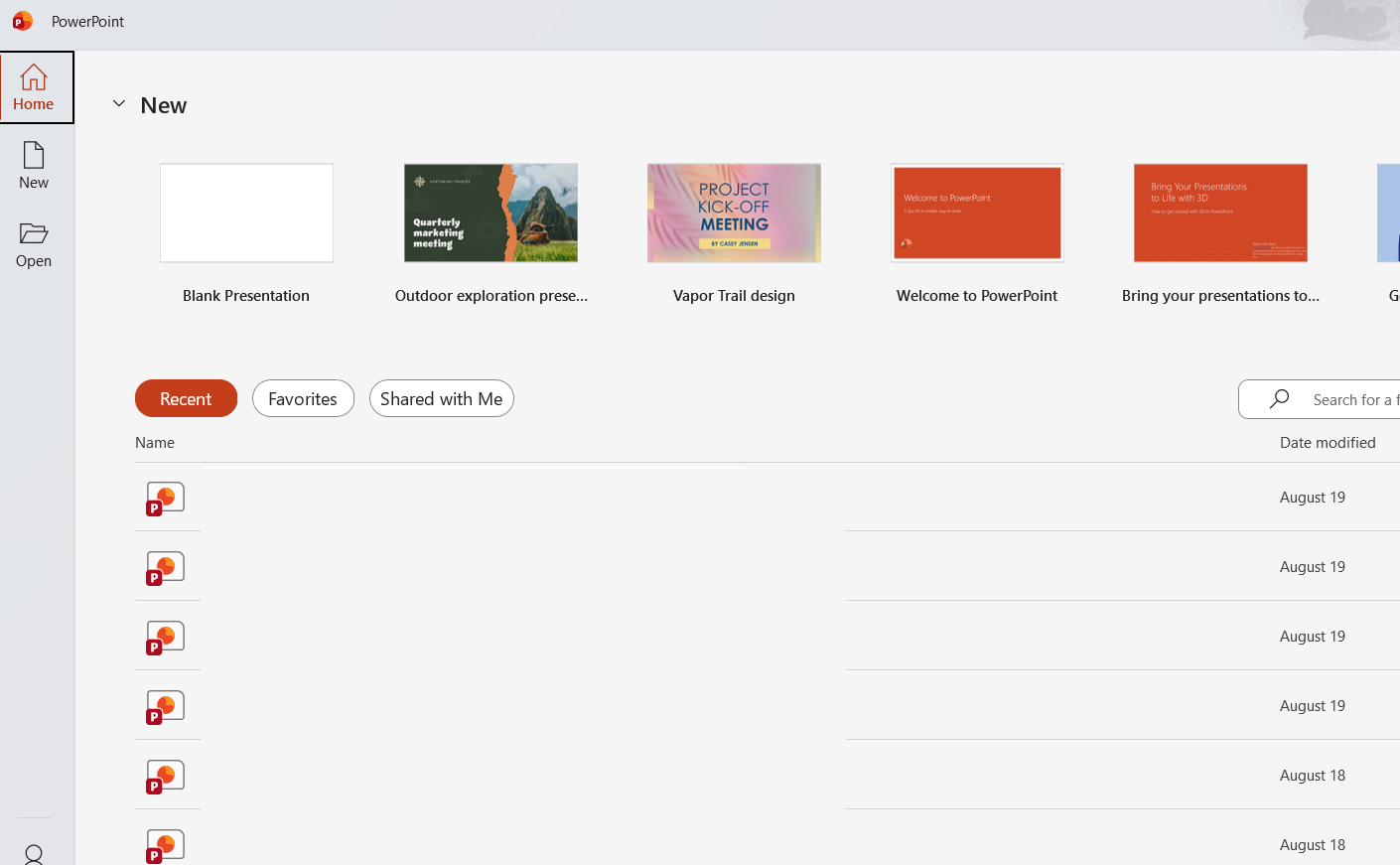
- Go to the Home tab.
- Click on Design Suggestions under Copilot.

This will open different design options in the right panel.
How to use Copilot
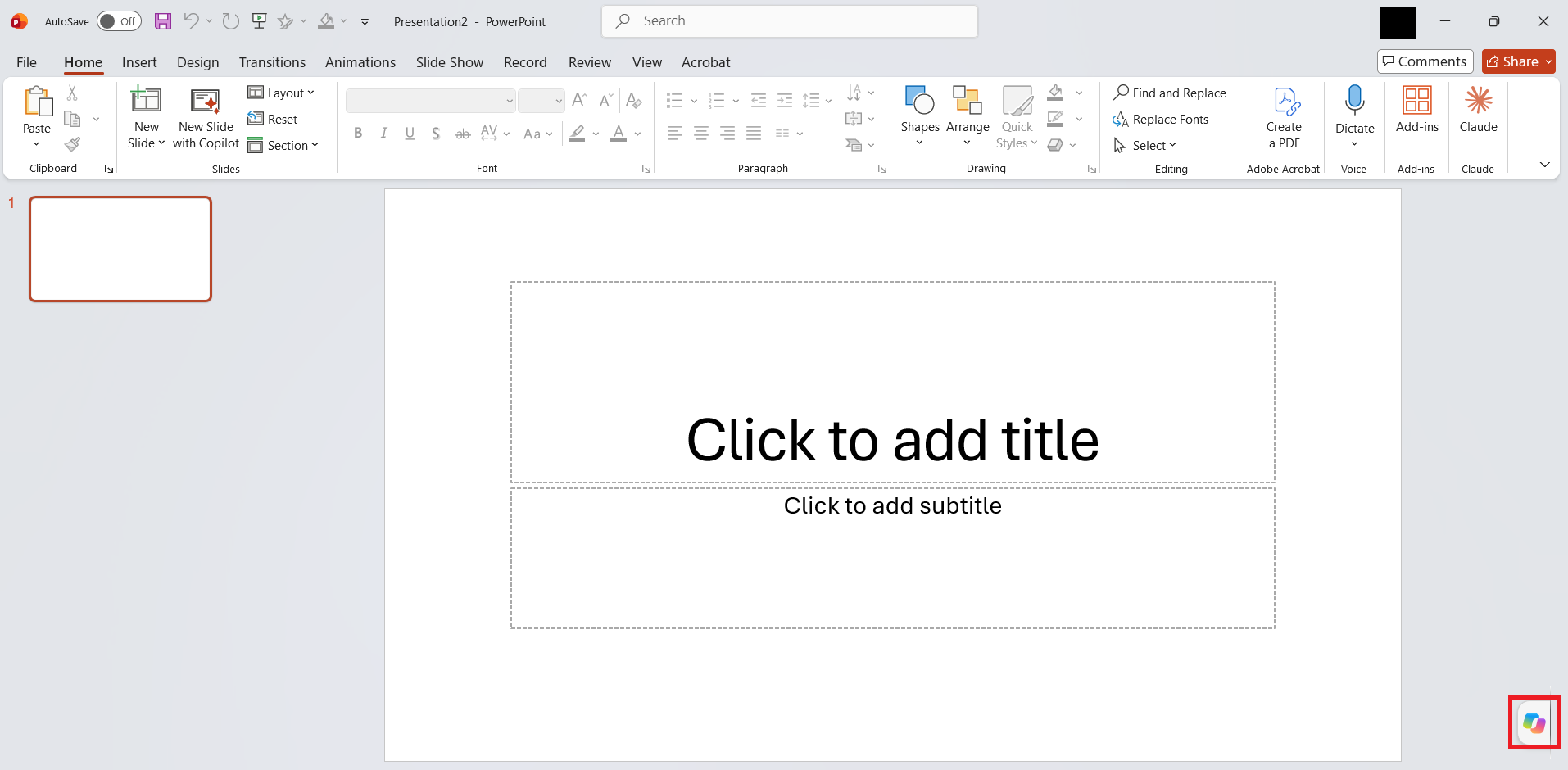
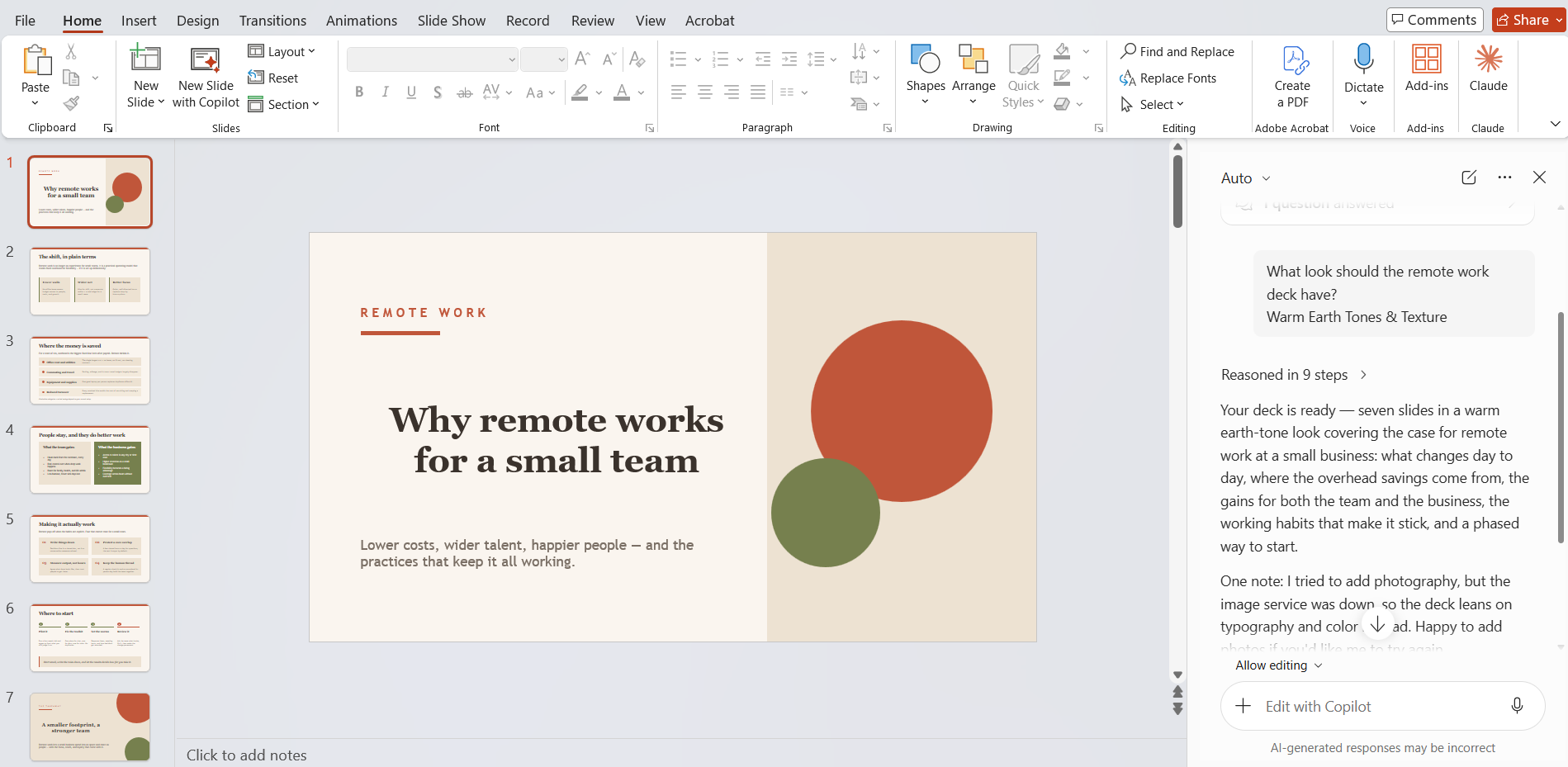
STEP 1: Open a PowerPoint presentation and click on the Copilot button.
STEP 2: In the Copilot panel, type a prompt:
“Create a presentation about the benefits of remote work for a small business team.”
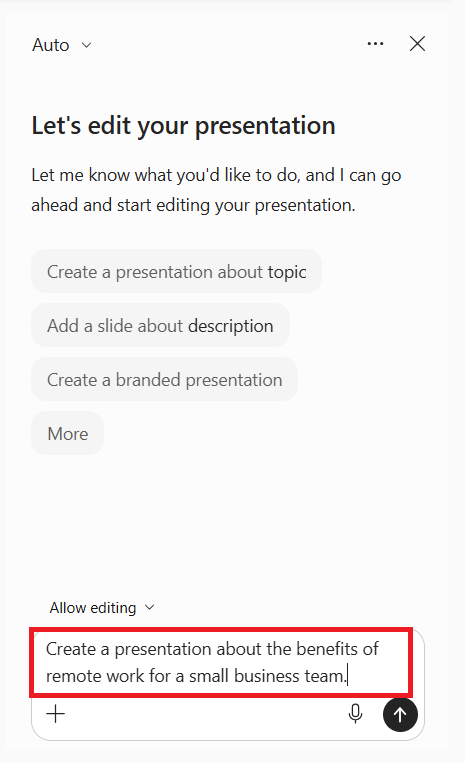
STEP 3: Press Enter.
STEP 4: Review the options created by Copilot. Select one and press Confirm.
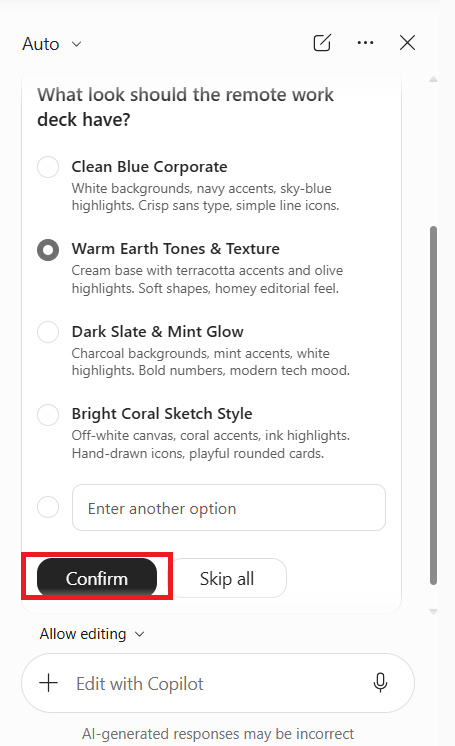
Copilot will create the slides as per your instructions.
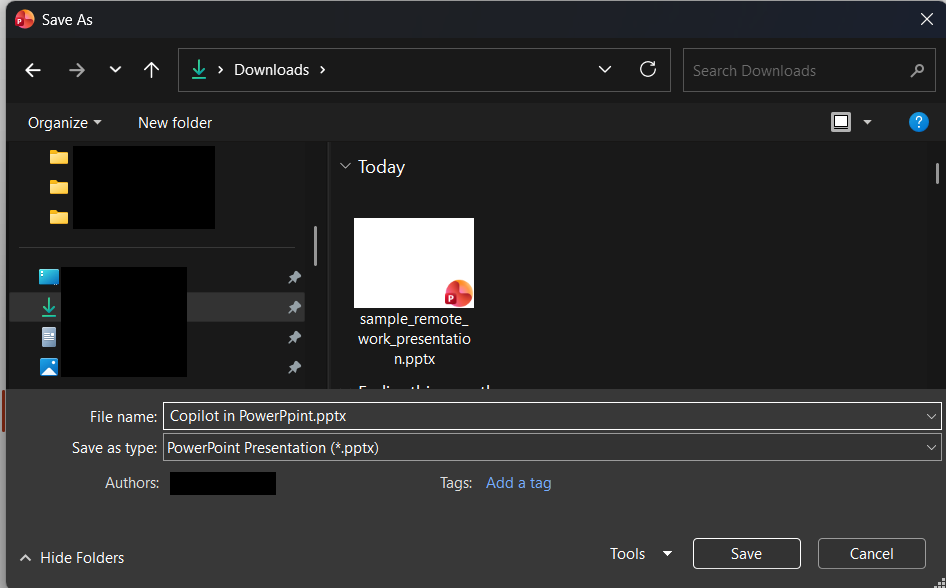
STEP 5: Press Ctrl + S to save the presentation.
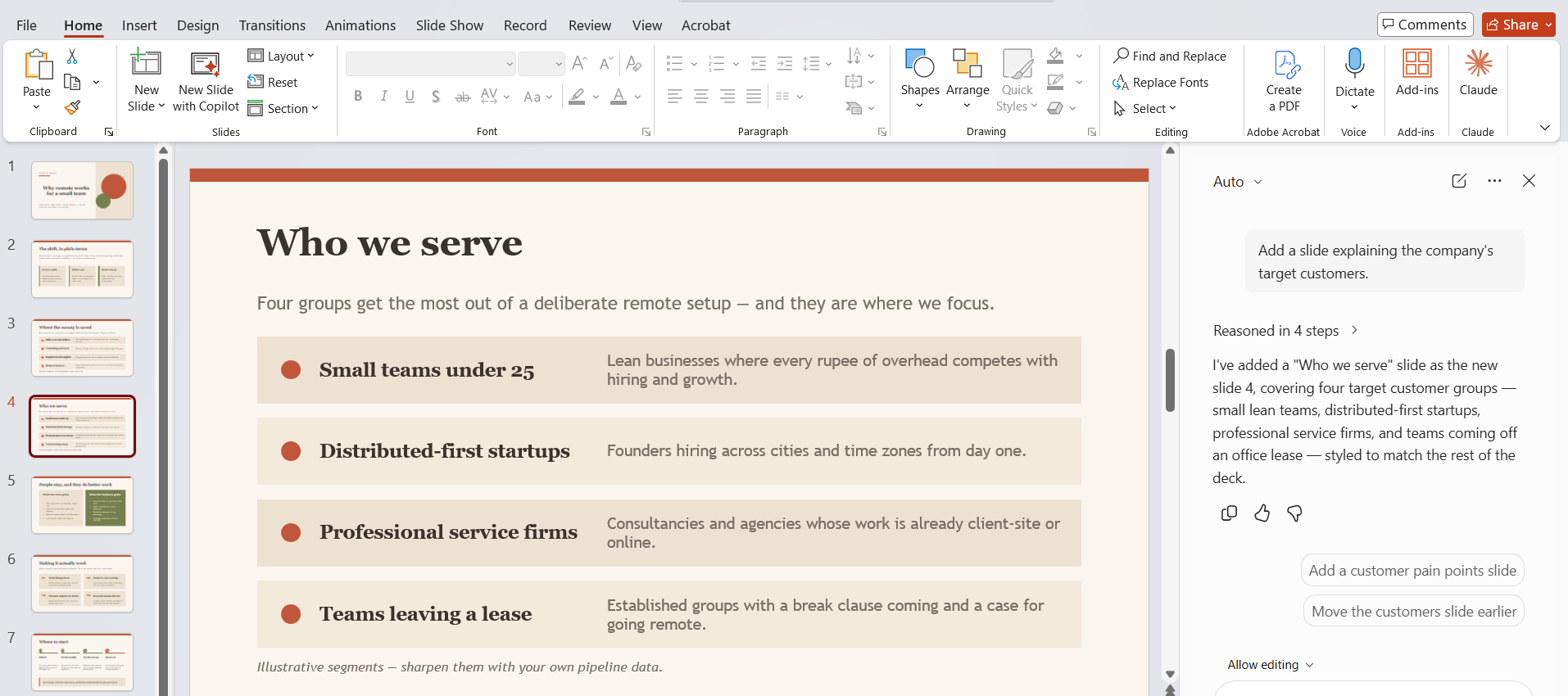
You can then make any changes you need. For example, you can remove unnecessary slides, change the wording, add your own information, or adjust the design to match your requirements.
When to Use Copilot in PowerPoint
You can use Copilot:
- To create a presentation from scratch – Create a presentation about the benefits of remote work for a small business team.
- To add a new slide – Add a slide explaining the company’s target customers.
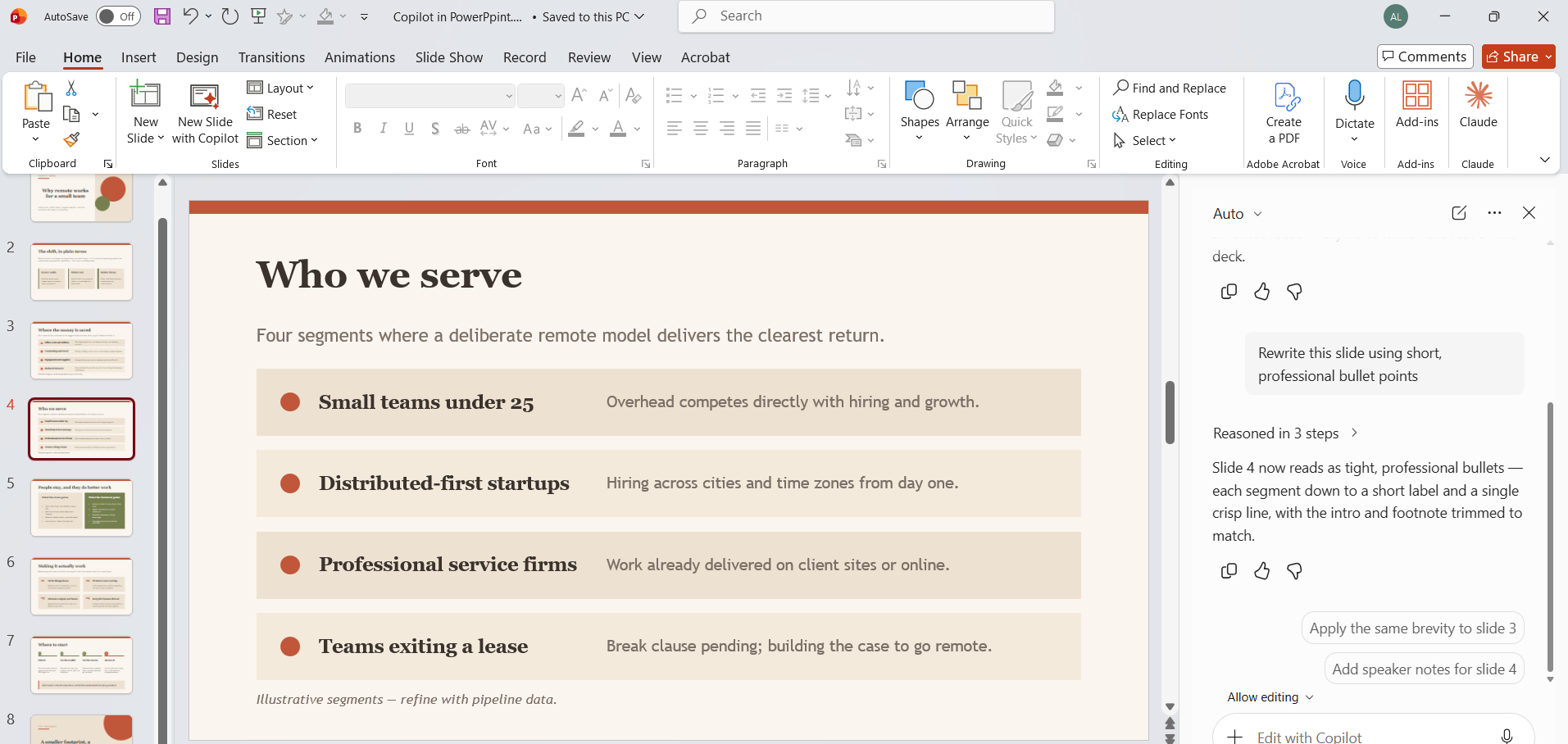
- To edit content of an existing slide – Rewrite this slide using short, professional bullet points.
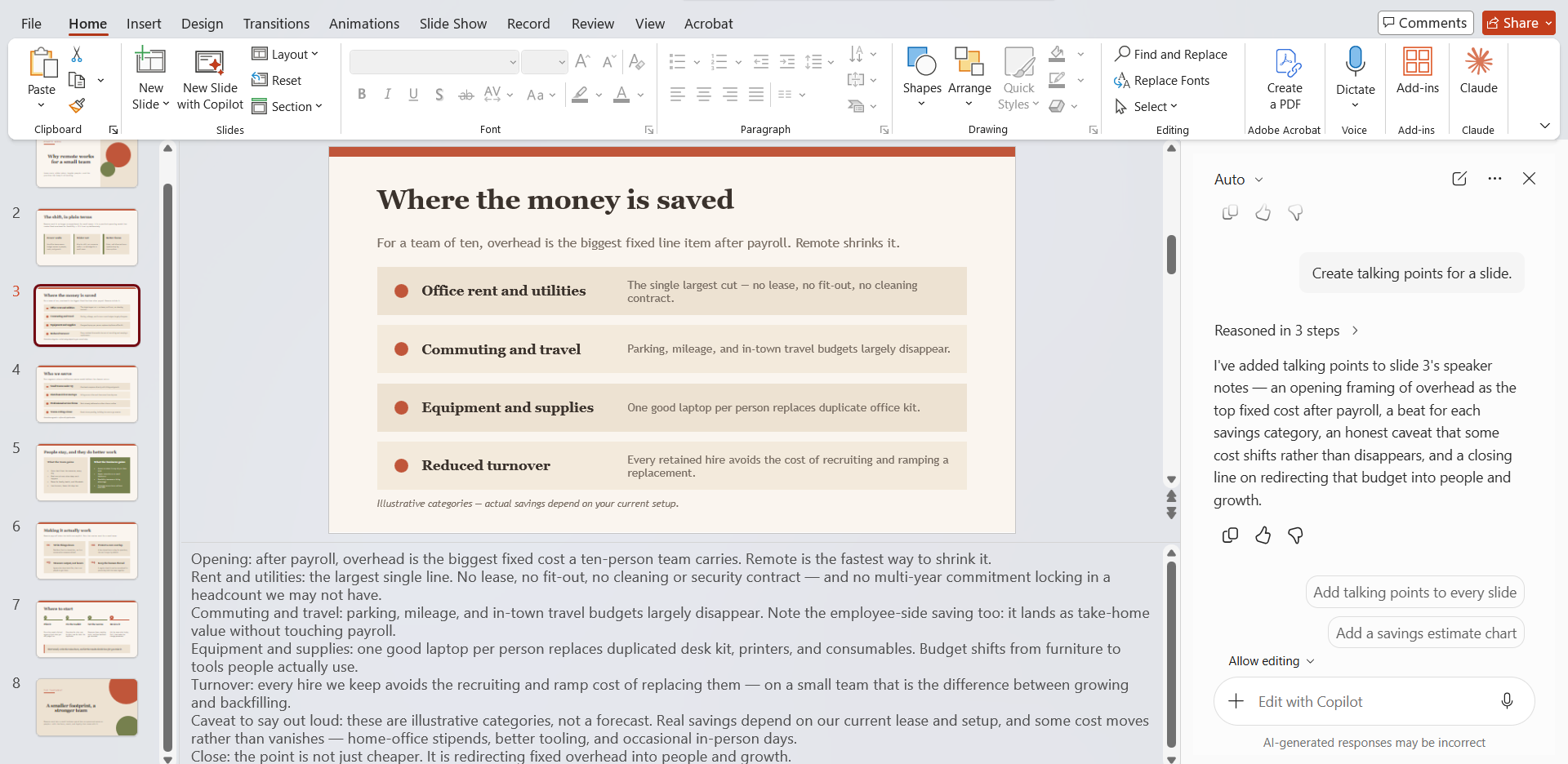
- To write speaker notes – Create talking points for a slide.
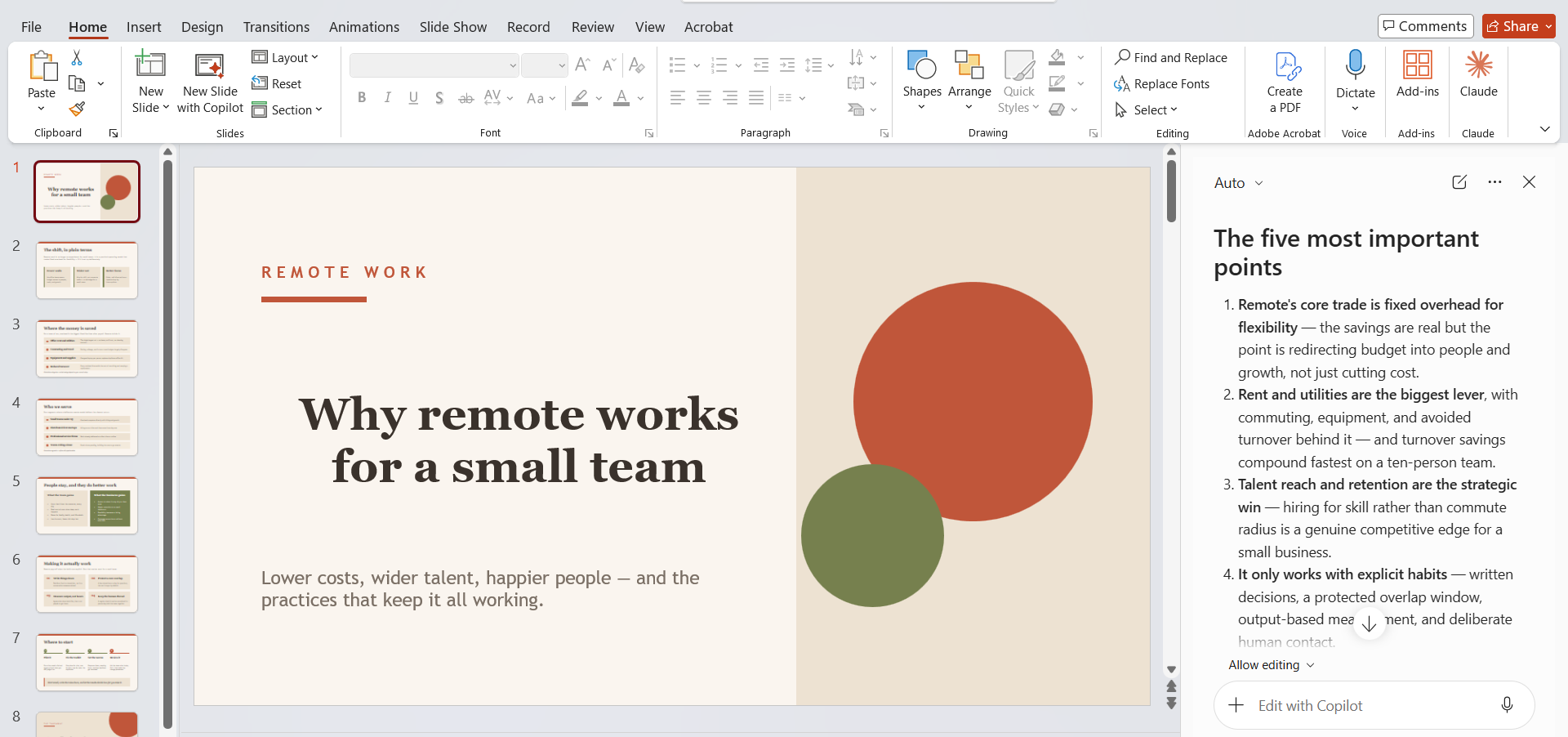
- To summarize the presentation – Summarize this presentation and give me the five most important points.
FAQs
1. What is Copilot in PowerPoint?
Copilot in PowerPoint is Microsoft’s AI assistant that helps you create and edit presentations using natural-language prompts.
2. How do I open Copilot in PowerPoint?
Open PowerPoint, create or open a presentation, go to the Home tab, and click the Copilot button to open the Copilot panel.
3. Can Copilot create a PowerPoint presentation?
Yes. You can give Copilot a simple prompt describing the presentation you want, and it can create a draft presentation based on your instructions.
4. What can I use Copilot for in PowerPoint?
You can use Copilot to create presentations, add slides, edit slide content, write speaker notes, summarize presentations, and add visuals.
5. What are the requirements for using Copilot in PowerPoint?
You generally need an eligible Microsoft 365 Copilot license, an updated version of PowerPoint, and an internet connection.

John Michaloudis is a former accountant and finance analyst at General Electric, a Microsoft MVP since 2020, an Amazon #1 bestselling author of 4 Microsoft Excel books and teacher of Microsoft Excel & Office over at his flagship MyExcelOnline Academy Online Course.

 30 Days - Full Access









