Free Practice Workbook
Microsoft Copilot is a great tool used to analyze data, create formulas, generate charts, and format worksheets in Excel. However, finding its location can be a bit tricky. In this article, you will learn where is Copilot in Excel and how to fix it if it is missing.
Key Takeaways:
- Copilot helps analyze data and create formulas in Excel.
- You can find Copilot in the ribbon or lower-right corner.
- Inline suggestions may appear while working in a worksheet.
- An eligible Microsoft 365 subscription is required for Copilot access.
- Check your account and Excel version if Copilot is missing.
Table of Contents
What is Copilot?
Copilot is an AI assistant built into Microsoft Excel. It is like a helper that knows the syntax so that you don’t have to. Instead of writing a nested IF formula yourself, you describe the result you want. Copilot writes the formula and shows you what it did before applying it.
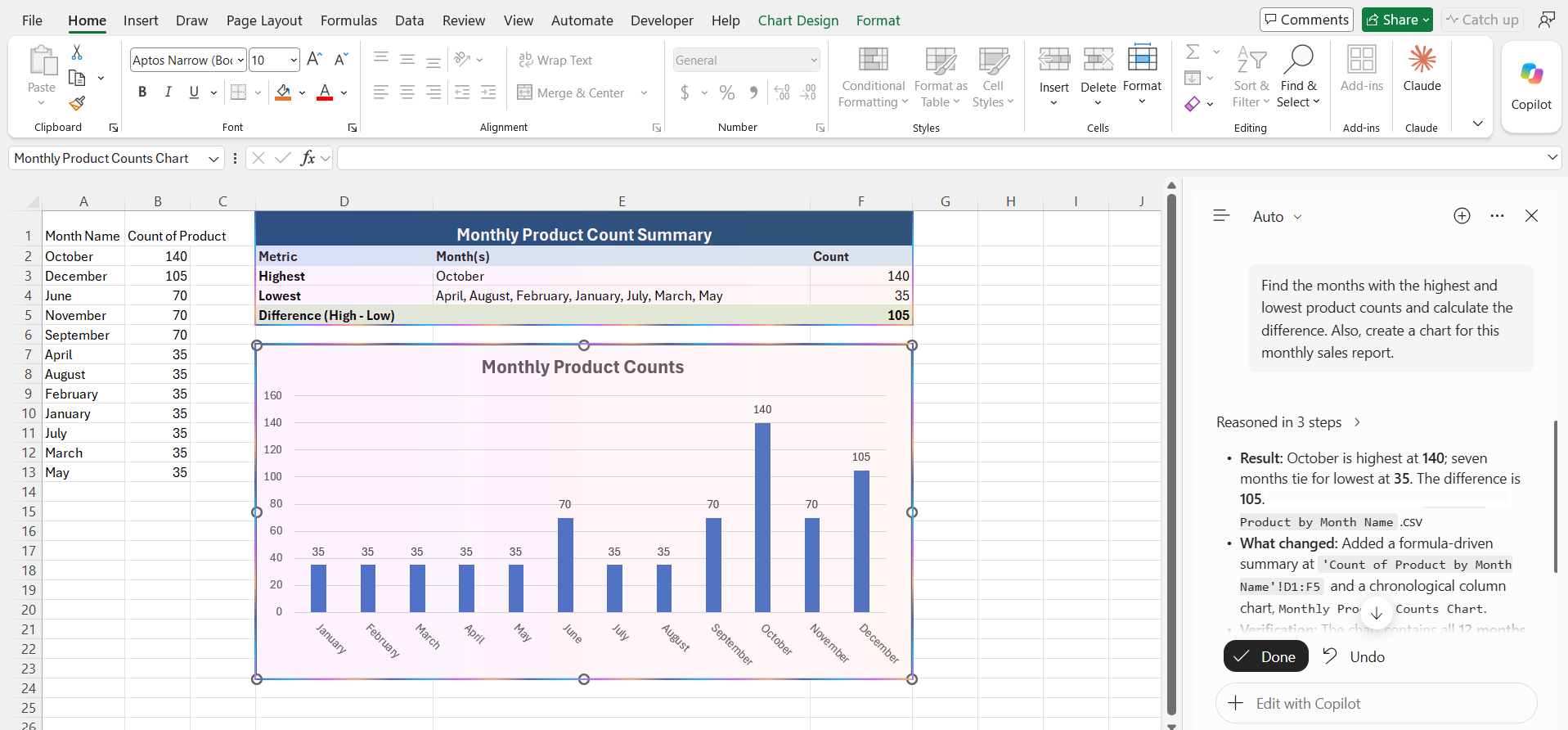
Where is Copilot in Excel?
There are three main places where you may see Copilot in Excel: the ribbon, the lower-right corner, and inline suggestions. Its location depends on the Excel version that you are using and the available features.
1. The Ribbon
You can find Copilot in the ribbon at the top of the window. When you open an Excel workbook, look for the Copilot button on the ribbon. You can click on the button to open the Copilot chat panel and type the prompt in it.

2. The Lower-Right Corner
In some versions of Excel, the Copilot button appears in the lower-right corner of the workbook window.
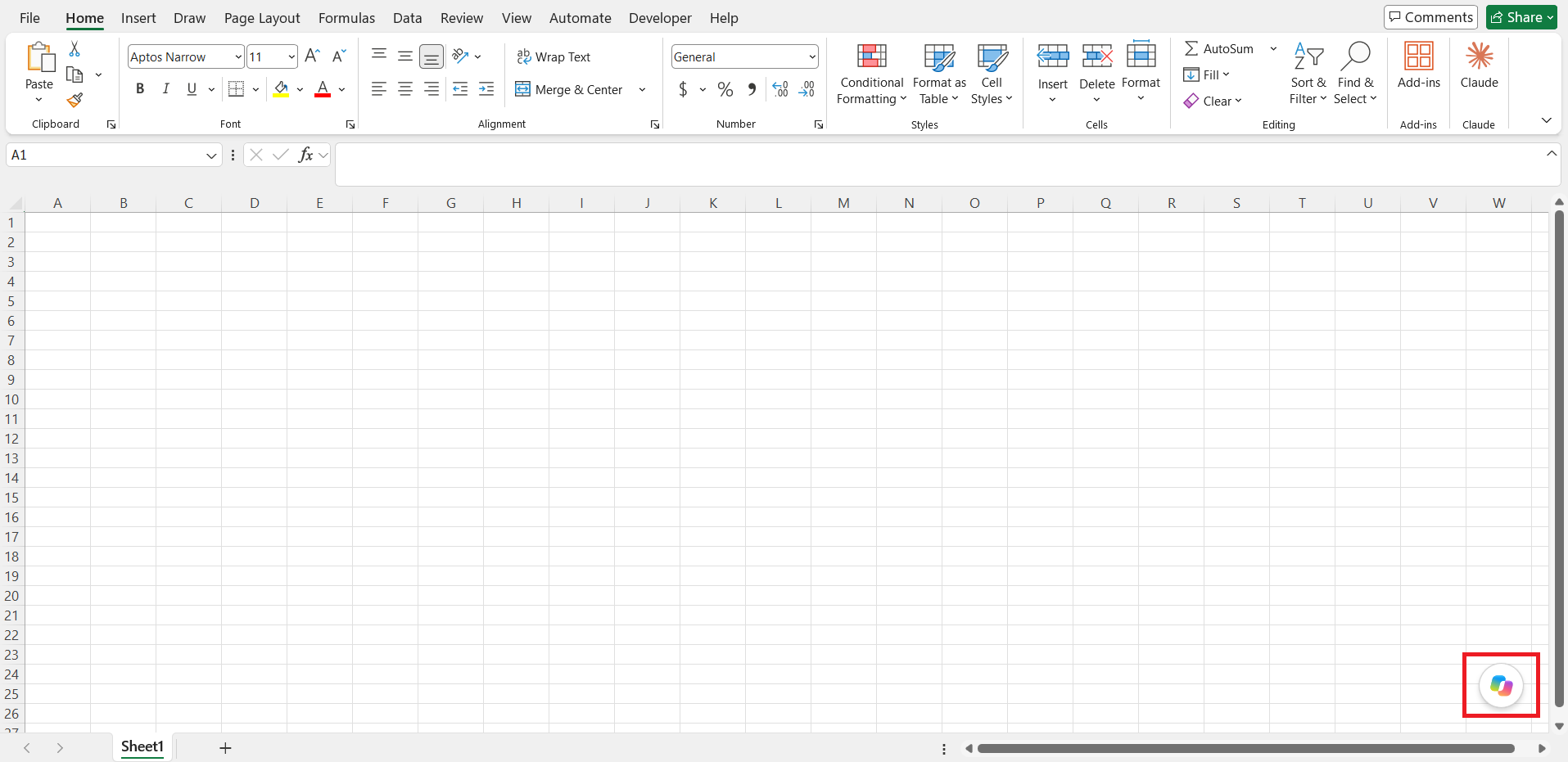
Click the Copilot icon to open the Copilot pane. You can then enter a prompt to analyze your data.
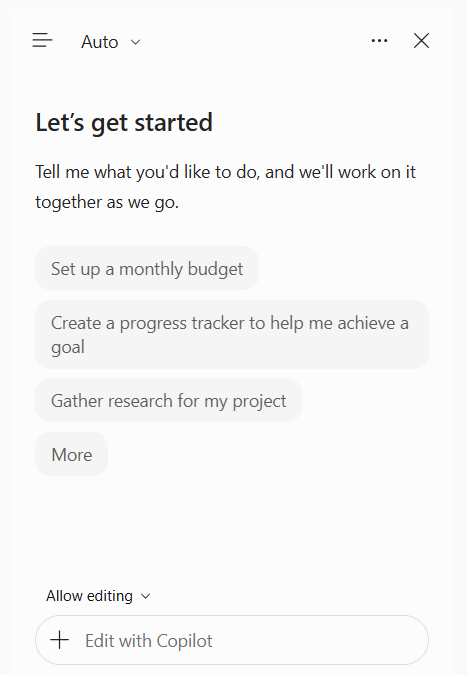
If you wish to move the button to the ribbon, follow the steps below:
STEP 1: Click on the Copilot button.
STEP 2: If the Move to top option is available, select it.
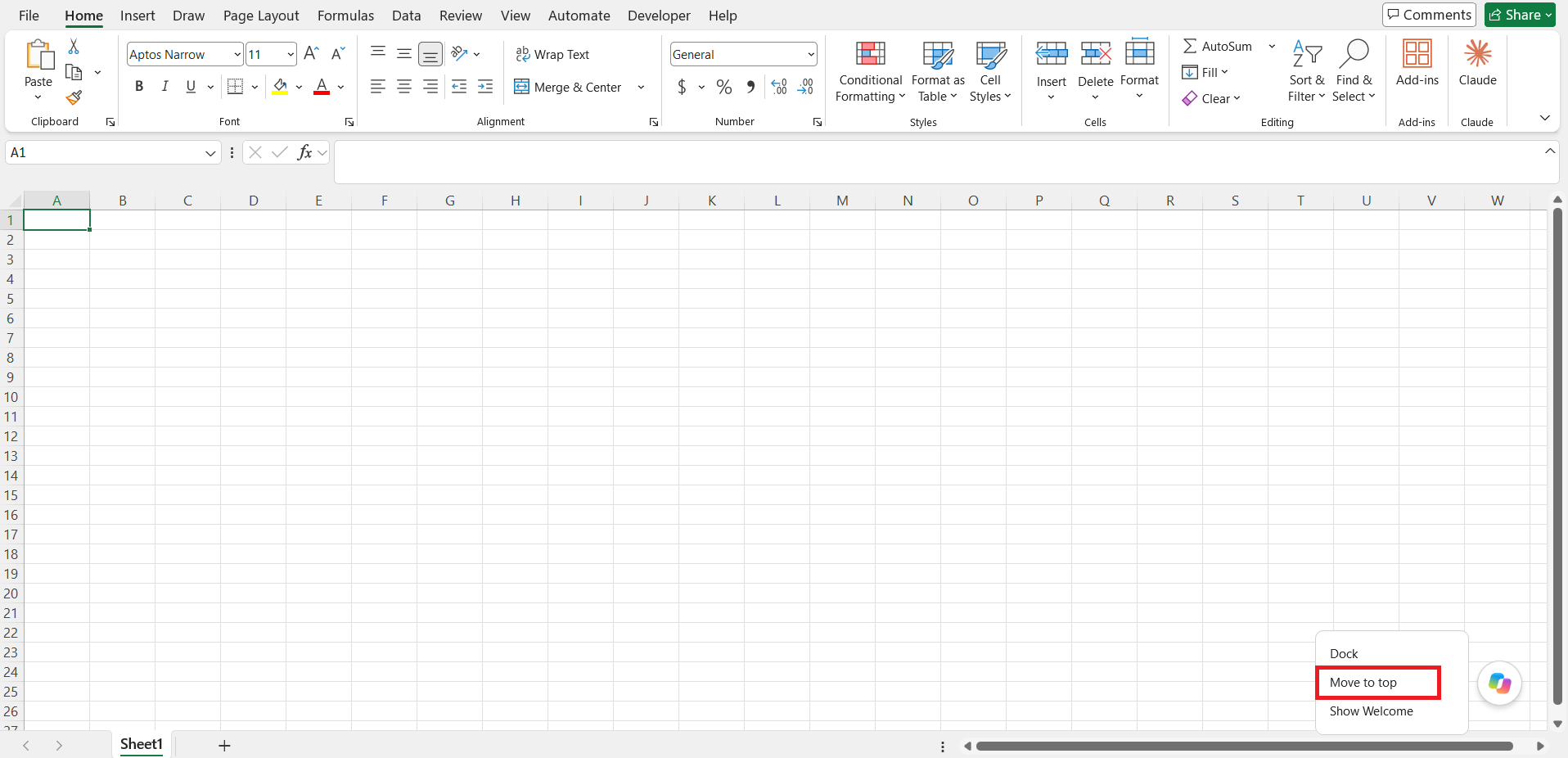
STEP 3: Look for the Copilot button in the ribbon.
3. Inline Suggestions
Copilot may show related suggestions directed in the workbook. Suppose you are typing a formula; Copilot may display the next suggested steps.
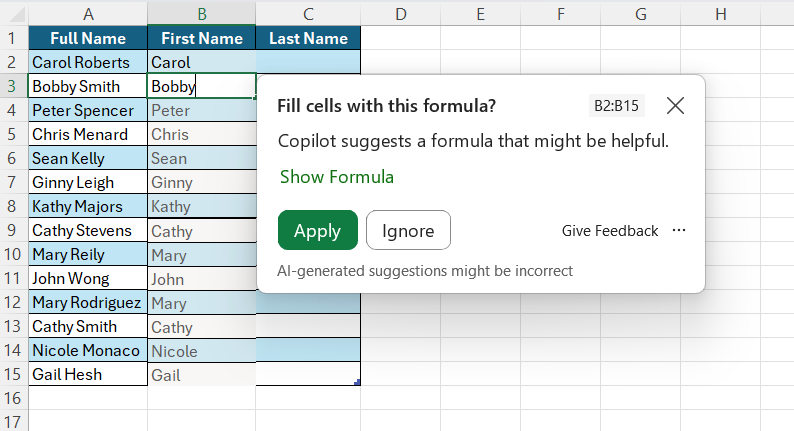
These suggestions can be useful, as you will not have to open the full Copilot pane.
Why is Copilot Missing in Excel?
If you cannot find Copilot at the above-mentioned places, check the following settings:
- Check Microsoft 365 Subscription
- Check if your account has Copilot access
- Check if the version of Excel is updated or not
- Check if you need to update your license
- Review Your Privacy Settings
- If Copilot is missing from the desktop app, check whether it is available in Excel for the web.
FAQs
1. Where is Copilot in Excel?
Copilot may appear in the ribbon or the lower-right corner of Excel.
2. Why is Copilot missing in Excel?
If Copilot is missing in Excel, it can be because of several reasons:
- You do not have an eligible subscription
- Excel may need an update
3. Can I move Copilot to the ribbon?
You can move the location of the Copilot button to the ribbon by following these steps:
- Right-click on the Copilot button
- Select Move to ribbon
4. Can I use Copilot to create Excel formulas?
Yes. You can describe what you want, and Copilot can help create the formula.
5. Is Copilot available in Excel for the web?
Yes. Users with eligible subscriptions can access Copilot in Excel for the web.

John Michaloudis is a former accountant and finance analyst at General Electric, a Microsoft MVP since 2020, an Amazon #1 bestselling author of 4 Microsoft Excel books and teacher of Microsoft Excel & Office over at his flagship MyExcelOnline Academy Online Course.

 30 Days - Full Access