 Free Practice Workbook
Sales data contains a large row of data on revenue, customer behavior, product performance, and business growth. Microsoft Copilot in Excel can help analyze sales data, spot trends, compare results, and create useful reports. In this article, you will learn the top 11 Copilot Prompts for Sales Analysis.
Key Takeaways:
- Copilot can find the highest-selling products.
- You can compare sales across different regions.
- Copilot can identify sales trends and changes.
- You can find low-performing products and sales anomalies.
- Copilot can create sales summaries and charts.
Table of Contents
Top 11 Copilot Prompts for Sales Analysis
1. Find the Highest-Selling Products
You can ask Copilot to find the 10 highest-selling products in the sales data by typing this prompt:
“Which are the top 10 products by total sales? Show the product name, total sales, and sales percentage.”
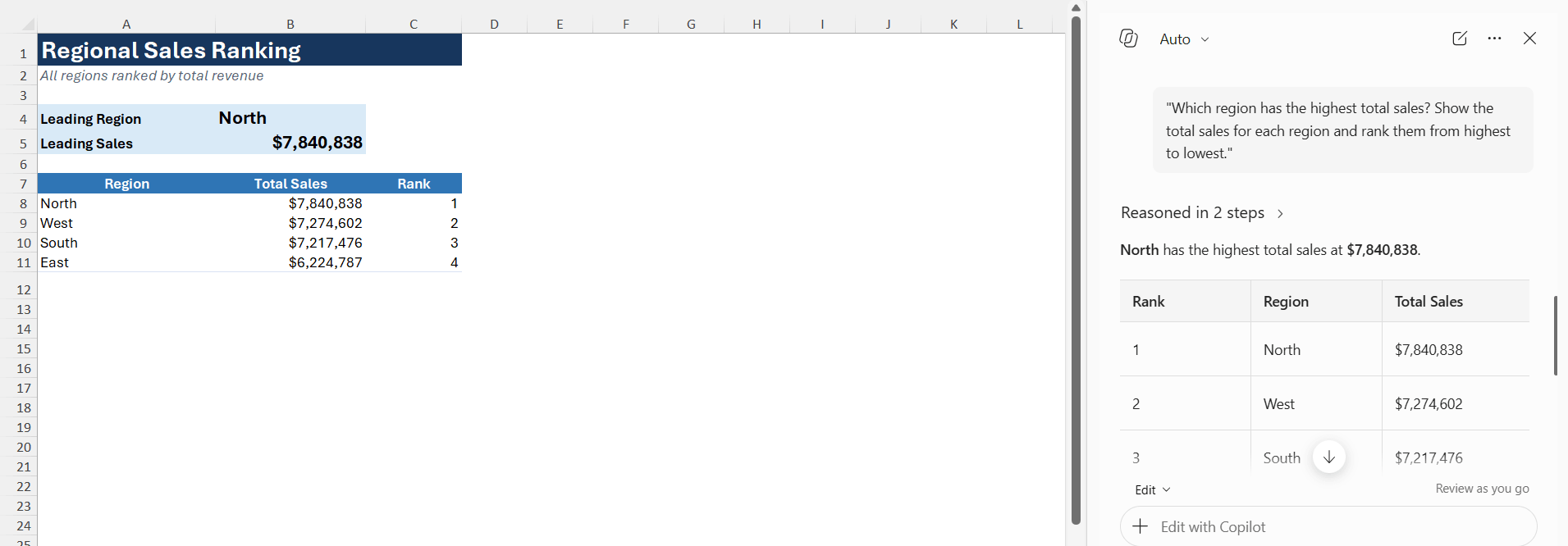
2. Find the Best-Performing Region
Copilot can be used to compare sales based on different regions and display the best-performing region.
“Which region has the highest total sales? Show the total sales for each region and rank them from highest to lowest.”
3. Analyze Monthly Sales Trends
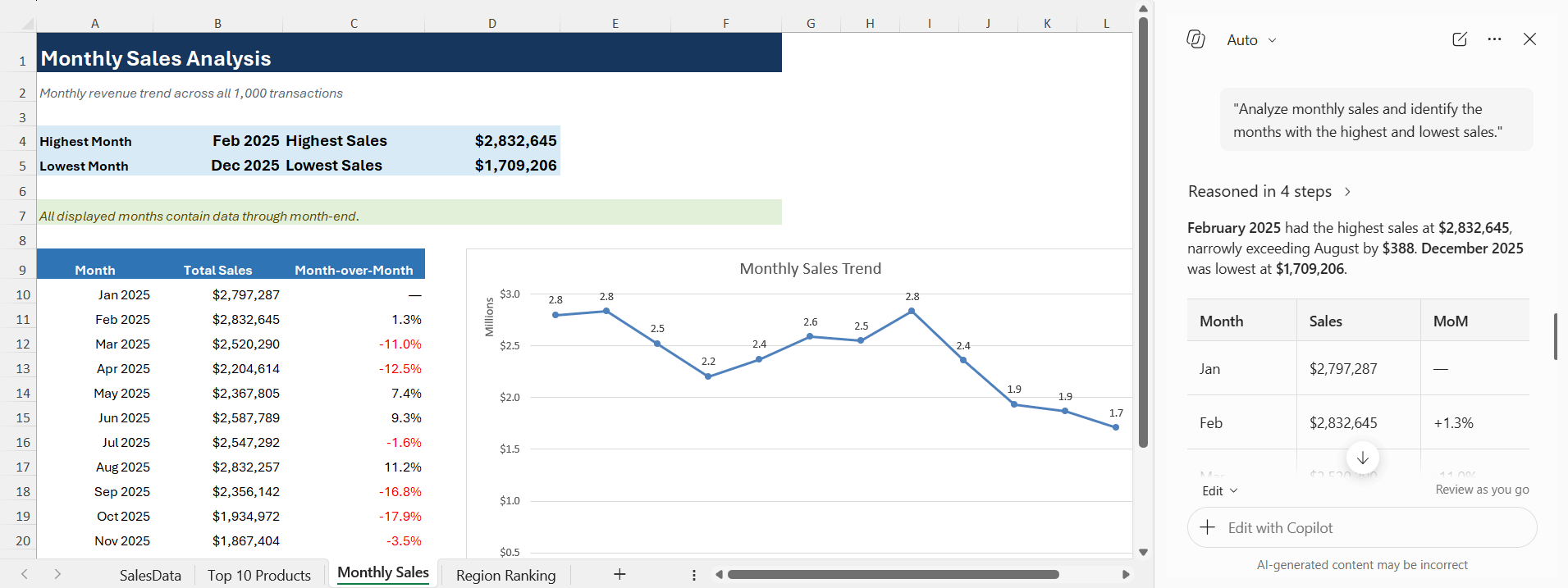
Monthly sales data can help you understand how sales are changing over time.
“Analyze monthly sales and identify the months with the highest and lowest sales.”
4. Compare Actual Sales With Target
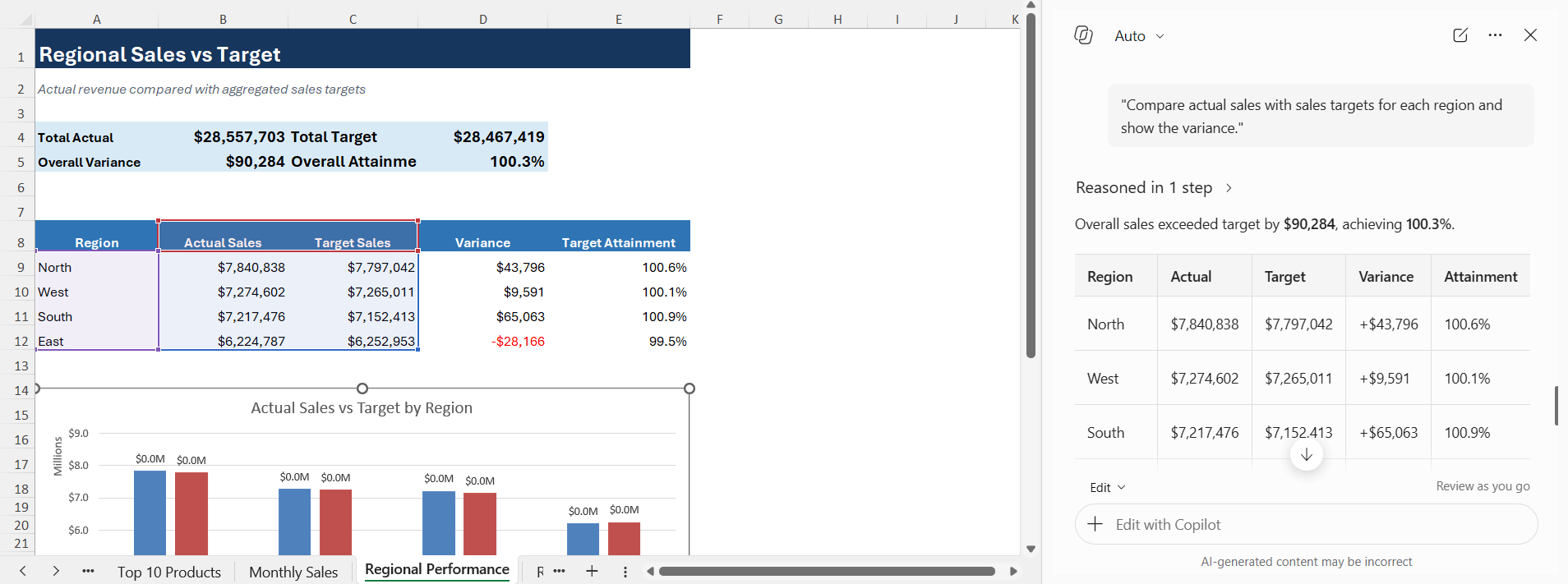
If you have a column containing target sales, you can use Copilot to compare it with the actual sales.
“Compare actual sales with sales targets for each region and show the variance.”
5. Find Products With Declining Sales
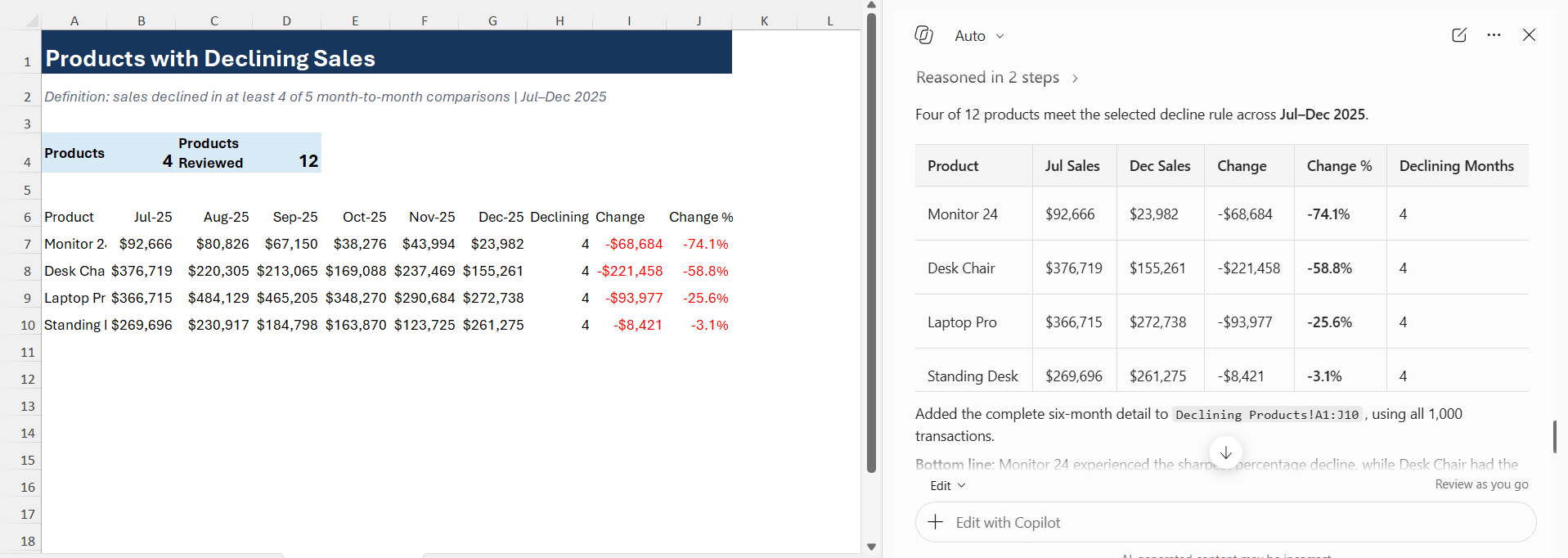
Copilot can be used to identify the products whose sales have declined over the last six months.
“Identify products with declining sales over the last six months and summarize the change.”
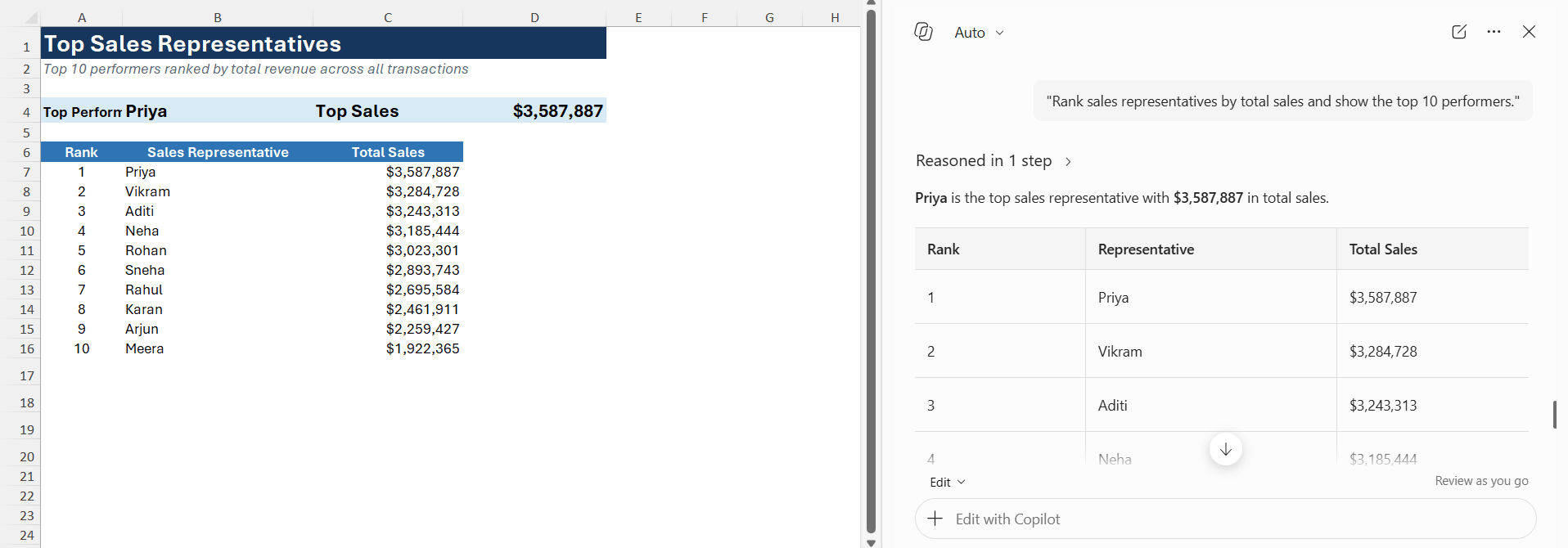
6. Find the Top Sales Representatives
You can use the sales representative data to rank their performance using Copilot.
“Rank sales representatives by total sales and show the top 10 performers.”
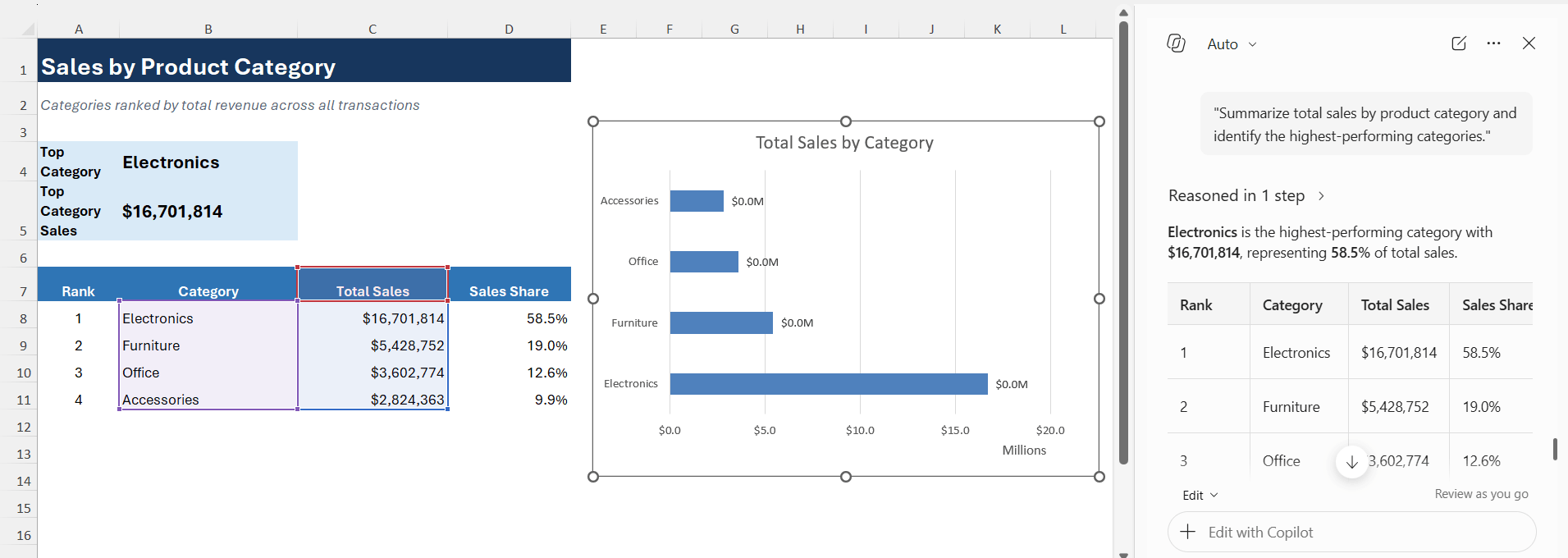
7. Analyze Sales by Product Category
You can use Copilot to analyse sales based on different product categories by using this prompt:
“Summarize total sales by product category and identify the highest-performing categories.”
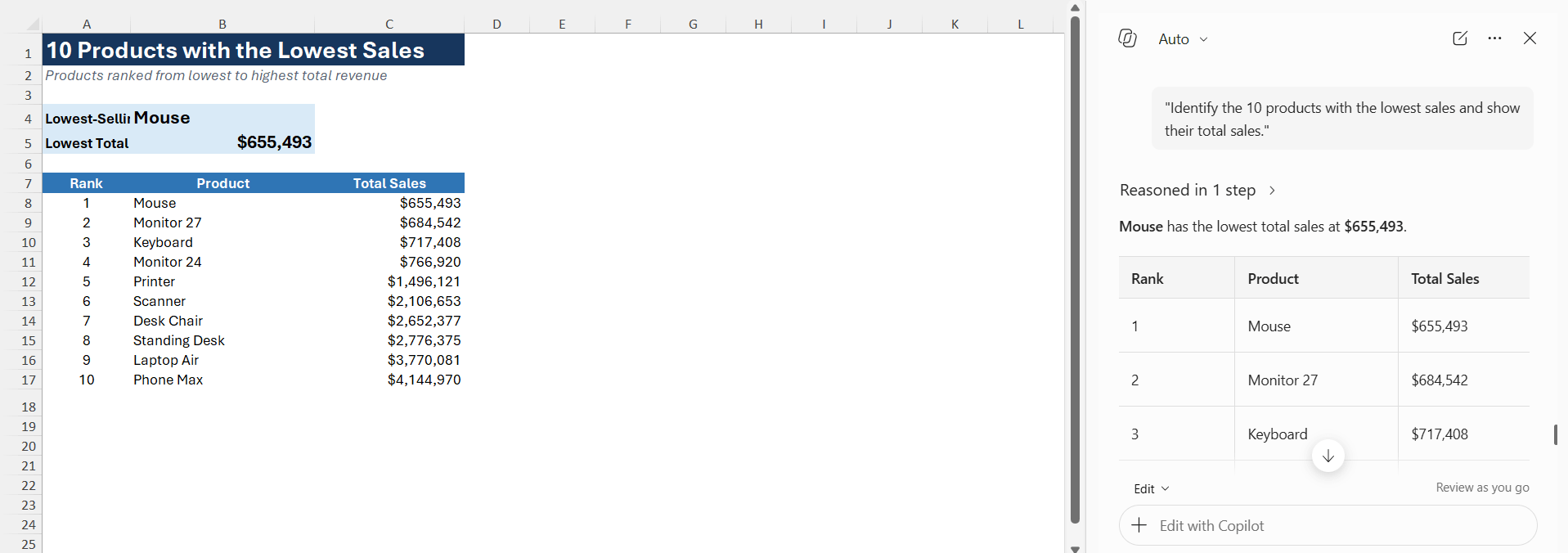
8. Identify Low-Performing Products
Not every product contributes equally to total sales. Copilot can be used to find the low-performing products by using this prompt:
“Identify the 10 products with the lowest sales and show their total sales.”
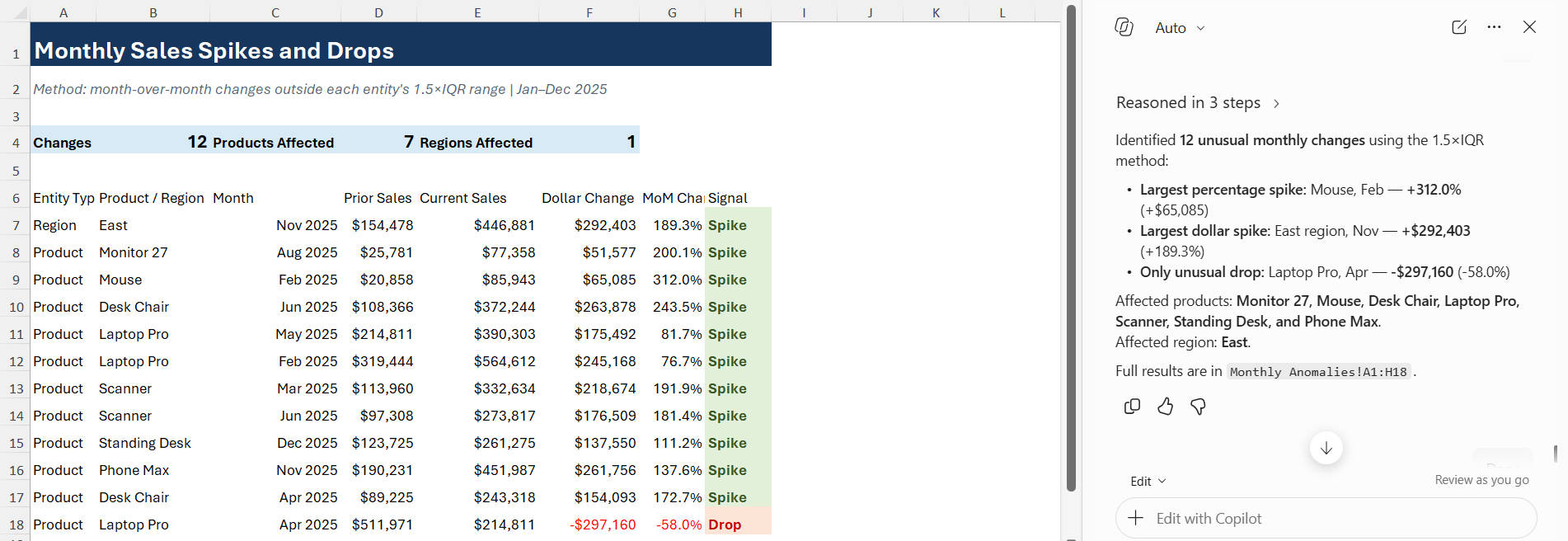
9. Find Sales Anomalies
Unusual increases or decreases in sales may require further investigation.
“Identify unusual changes or anomalies in sales and explain which products or regions are affected.”
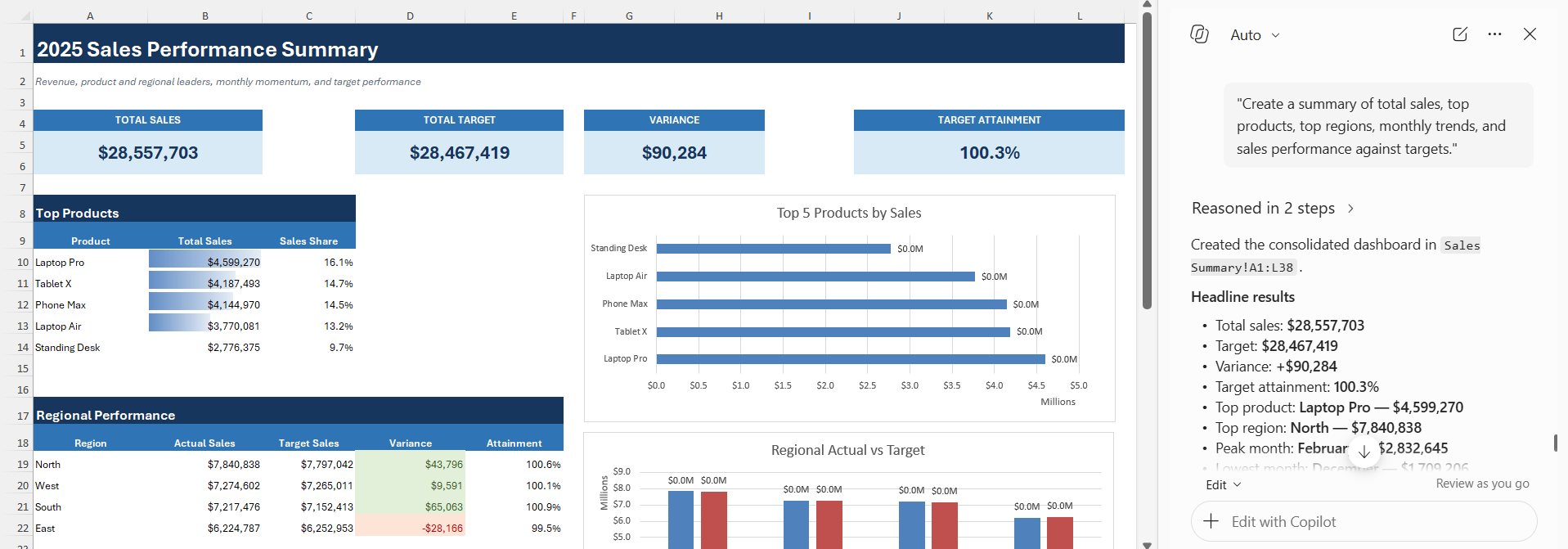
10. Create a Sales Summary
You can ask Copilot to create a simple summary of your sales data.
“Create a summary of total sales, top products, top regions, monthly trends, and sales performance against targets.”
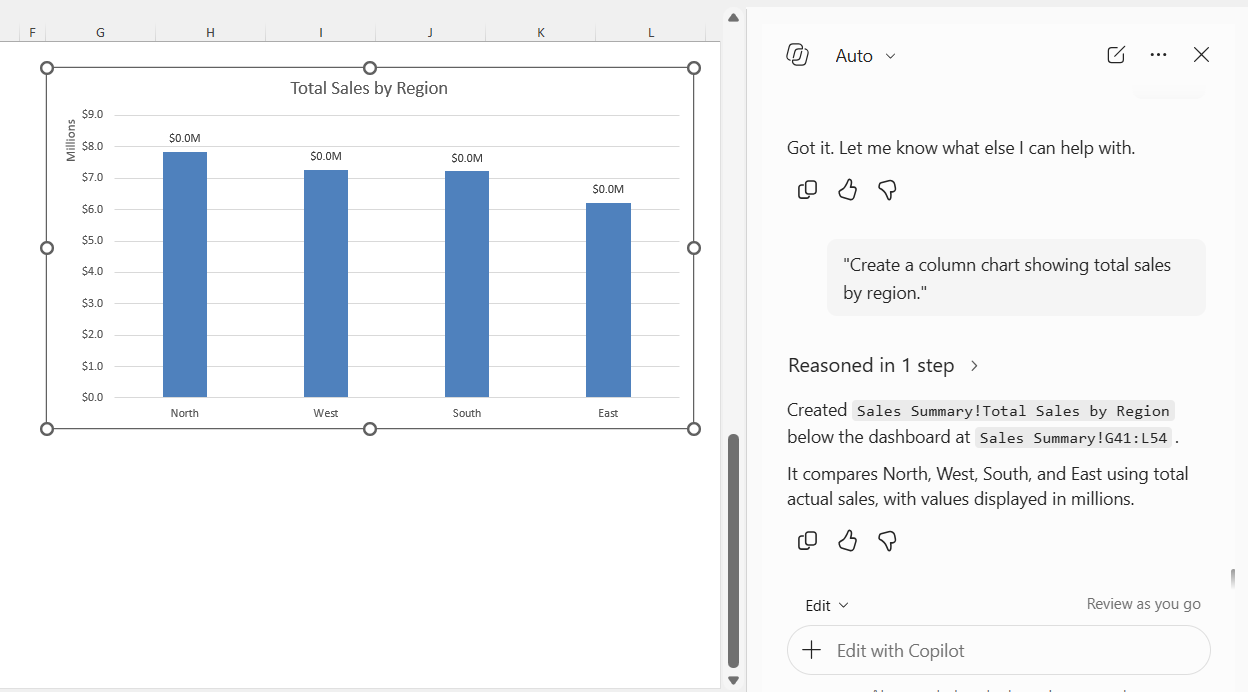
11. Create a Sales Chart
Copilot can also help you visualize sales data by using this prompt:
“Create a column chart showing total sales by region.”
Tips & Tricks
- Keep your sales data properly organized.
- Use clear column headers such as Sales, Product, Region, and Date.
- Convert your sales data into an Excel Table.
- Be specific about what you want Copilot to analyze.
- Mention the time period when analyzing sales trends.
- Use follow-up prompts to explore the results further.
- Check Copilot’s calculations before using the results.
- Review the results before making business decisions.
FAQs
1. Can Copilot analyze sales data in Excel?
Yes, Copilot can analyze sales data and find useful insights.
2. Can Copilot find the best-selling products?
Yes, you can ask Copilot to rank products by total sales.
3. Can Copilot compare sales by region?
Yes, Copilot can compare sales across different regions.
4. Can Copilot identify declining sales?
Yes, Copilot can find products with declining sales over a specific period.
5. Can Copilot create sales charts?
Yes, Copilot can create charts based on your sales data.

John Michaloudis is a former accountant and finance analyst at General Electric, a Microsoft MVP since 2020, an Amazon #1 bestselling author of 4 Microsoft Excel books and teacher of Microsoft Excel & Office over at his flagship MyExcelOnline Academy Online Course.

 30 Days - Full Access









