 Free Practice Workbook
Excel templates are very useful when you need a reusable structure for everyday common tasks. With the help of Copilot, you can create professional templates by describing what you need in plain language. You can also modify the template after it is created to match your specific requirements. This can save time when you regularly work with similar data. In this article, you will learn how to create an Excel template with Copilot.
Key Takeaways:
- Copilot can help create reusable Excel templates.
- You can create templates using simple prompts.
- Copilot can add formulas and formatting.
- You can add drop-down lists and charts to templates.
- Make sure to check the template before using it.
Table of Contents
What is an Excel Template?
An Excel template is an Excel workbook that you can reuse for similar tasks. It can contain headings, formulas, tables, formatting, charts, and other elements. It removes the need to create the same workbook from scratch every time. It also makes data entry consistent and easy to manage.
An Excel template can be used to create:
- Monthly budgets
- Sales reports
- Expense tracking
- Project management
- Inventory tracking
- Financial reports
- Employee schedules
You can create a template so that you do not have to build a new workbook each time.
How to Create an Excel Template with Copilot
Build a Template
STEP 1: Open Excel and create a new blank workbook.
STEP 2: Select the Copilot button to open the Copilot pane.
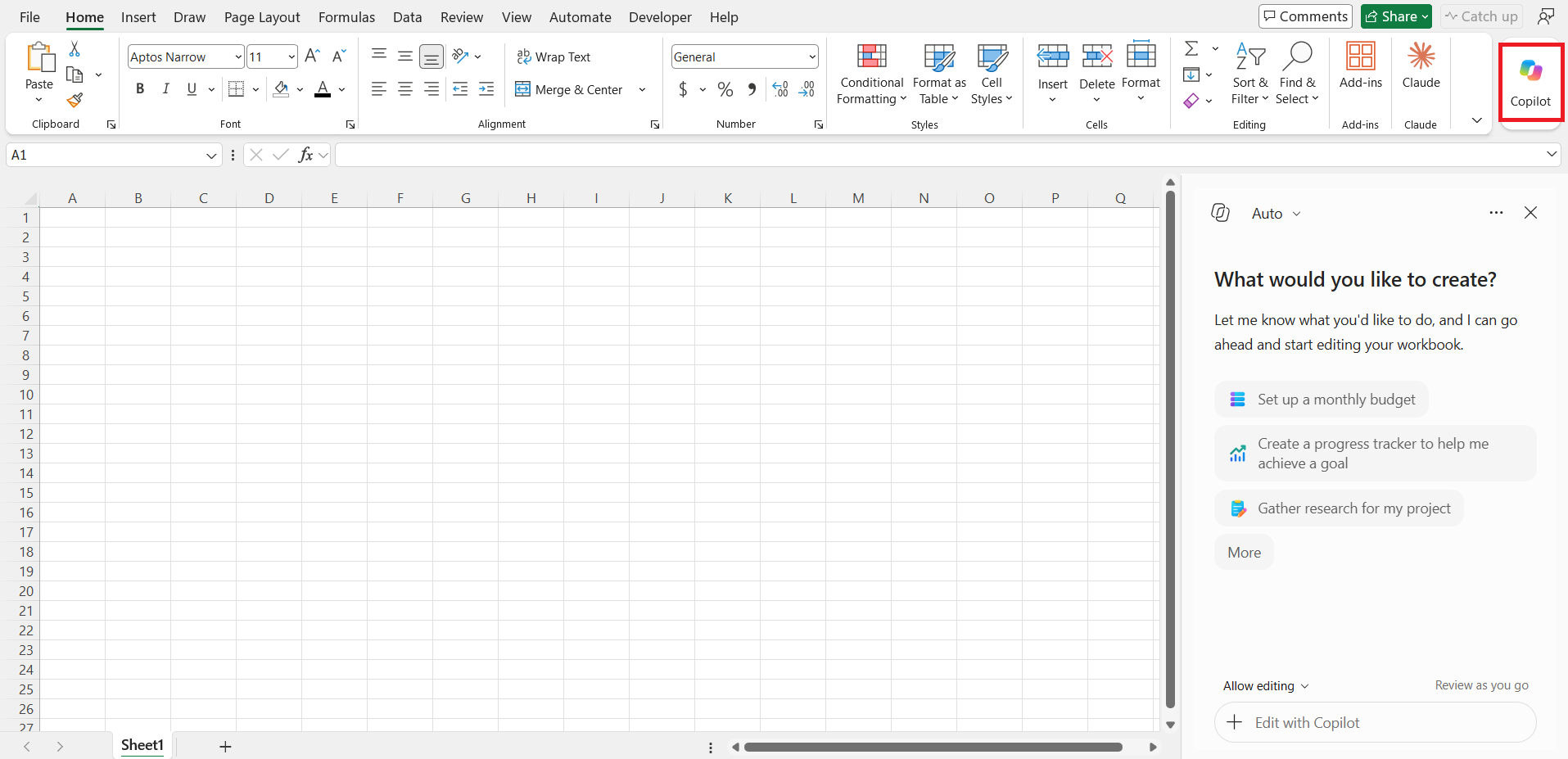
STEP 3: Type this prompt to describe the template that you want.
“Create a monthly budget template with Income, Fixed Expenses, Variable Expenses, Savings, Total Income, Total Expenses, and Remaining Balance.”
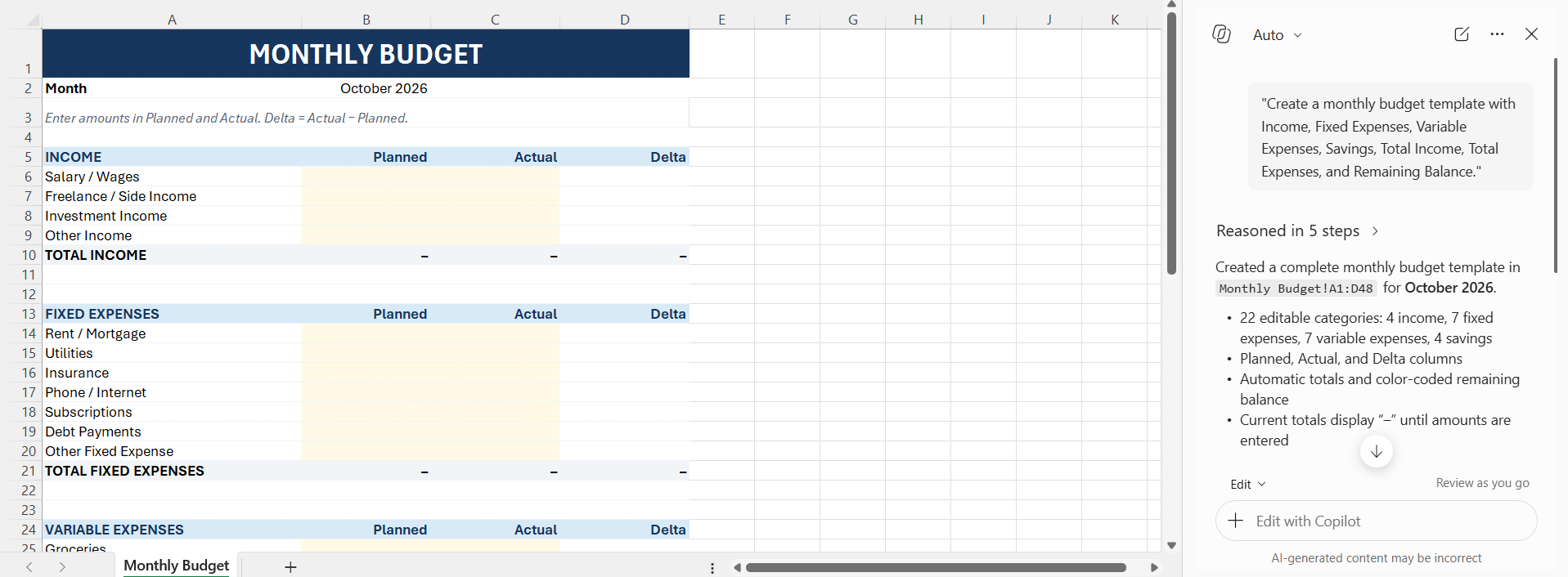
Copilot generates the worksheet structure with appropriate columns and sections.
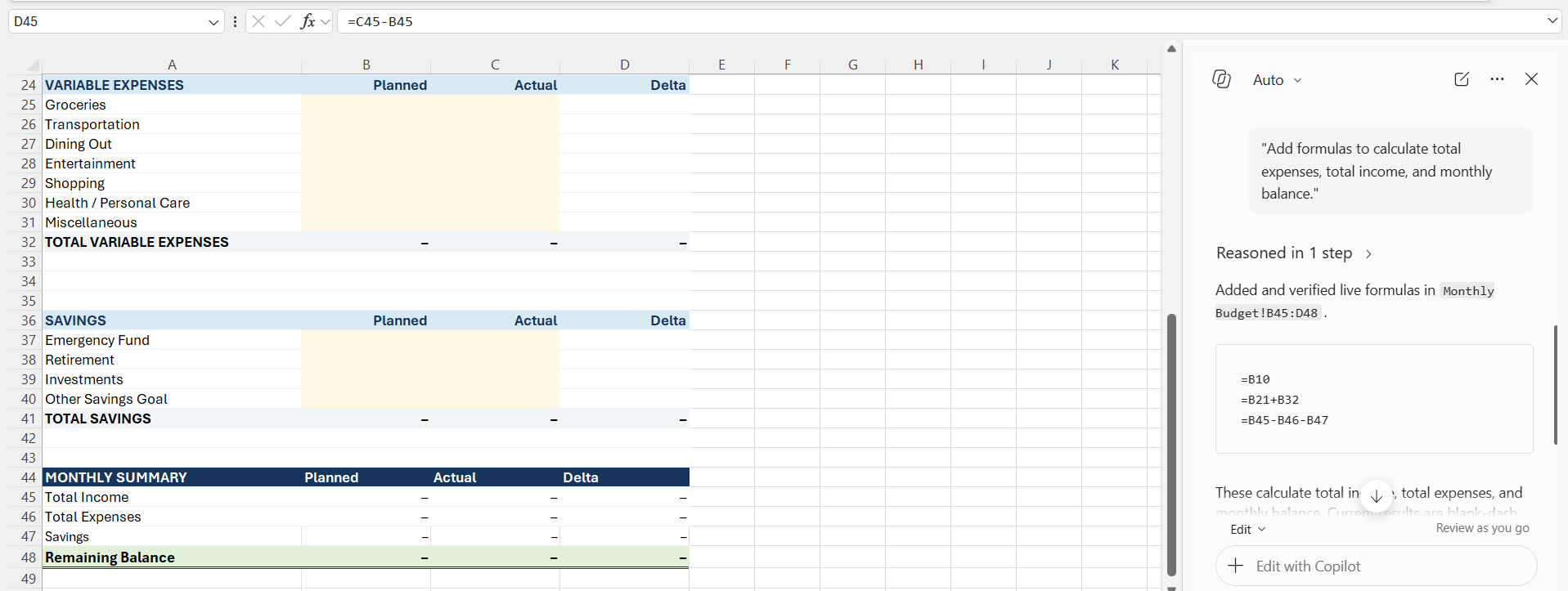
STEP 4: You can use this prompt to add formulas automatically.
“Add formulas to calculate total expenses, total income, and monthly balance.”
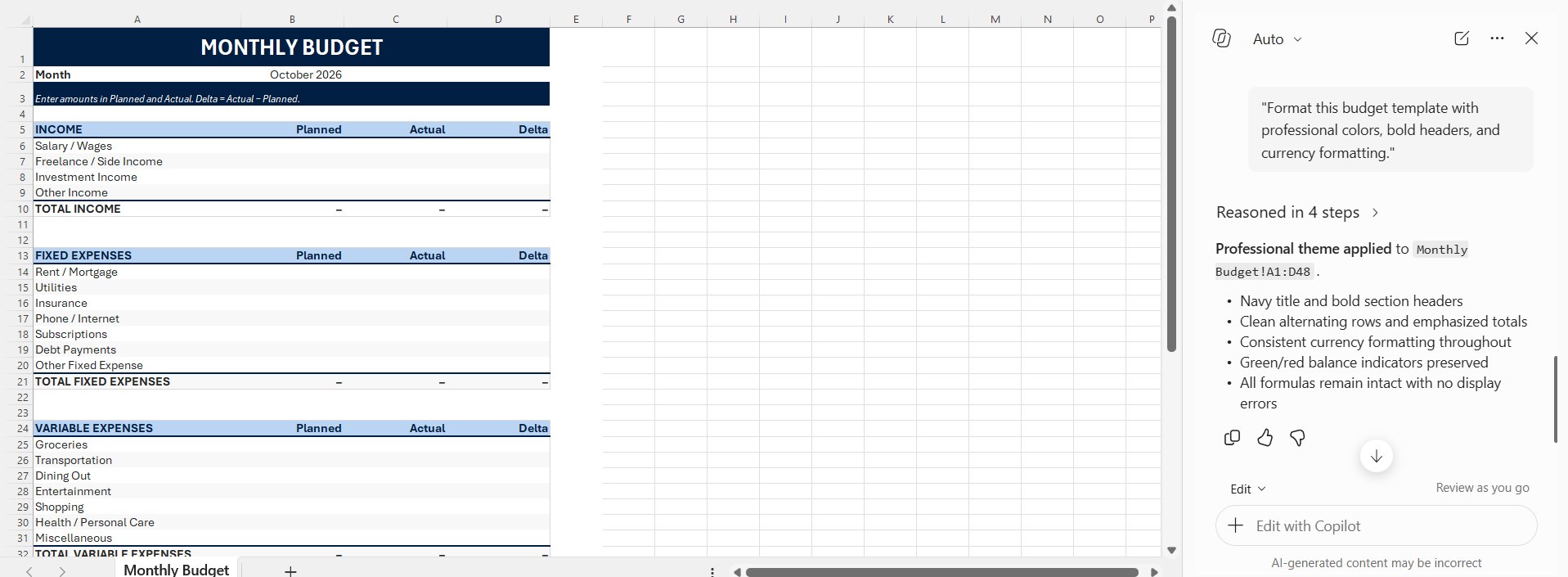
STEP 5: You can apply formatting to make the templates look better.
“Format this budget template with professional colors, bold headers, and currency formatting.”
STEP 6: You can add drop-down lists to avoid any manual data entry errors.
“Add a drop-down list for expense categories including Housing, Transportation, Food, Utilities, and Entertainment.”
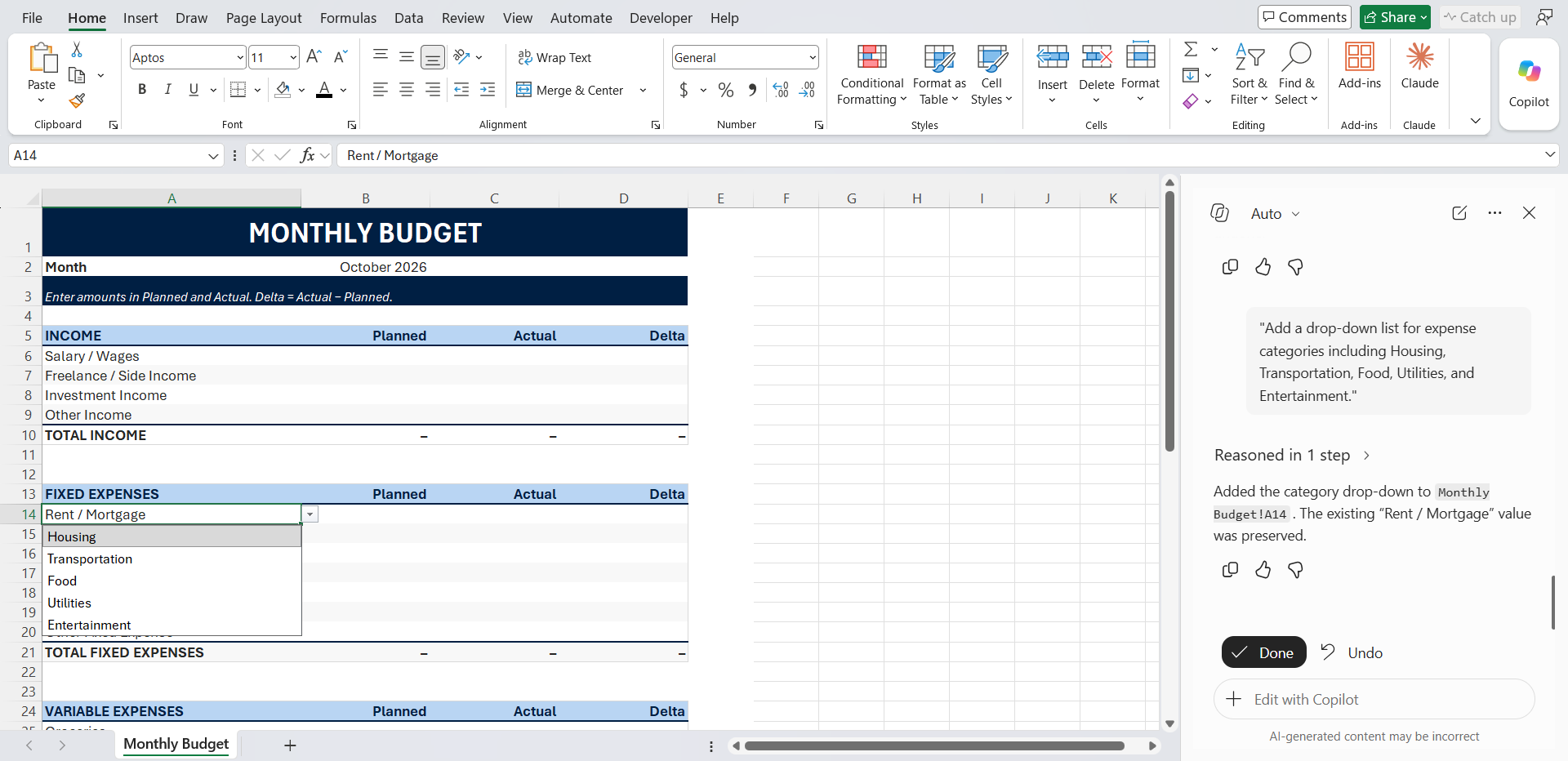
STEP 7: Add charts to your template to make the summary visually better.
“Insert a chart that shows expenses by category.”
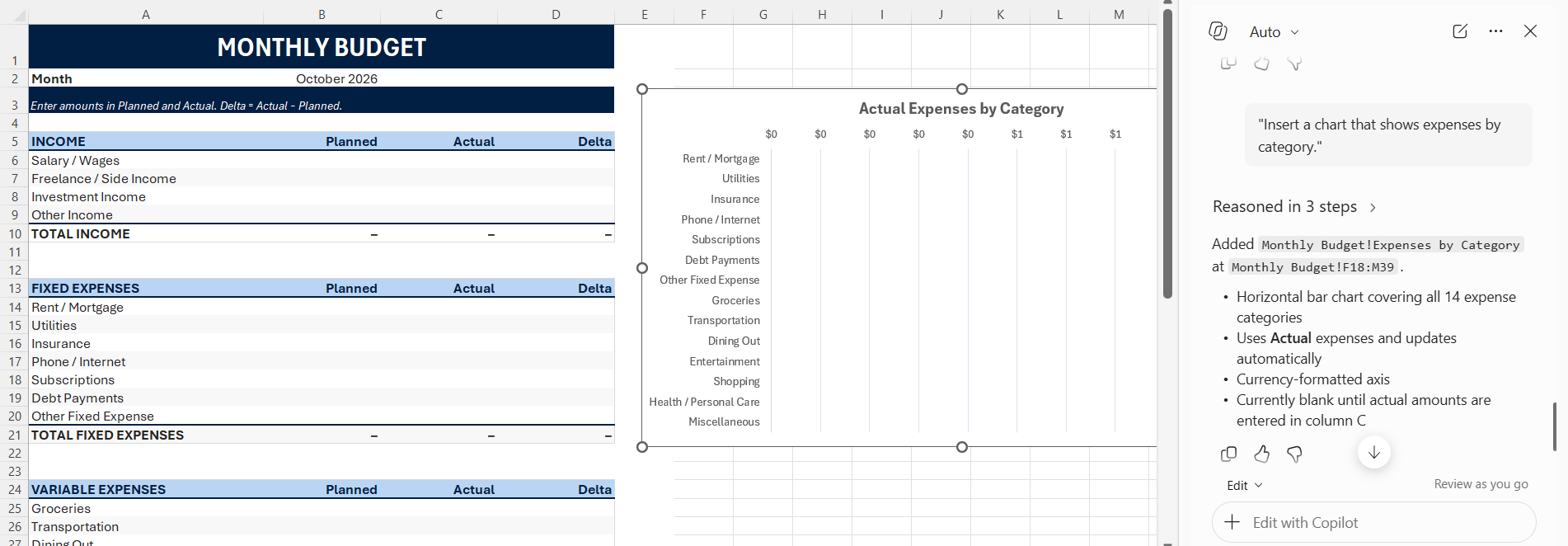
You can customize the template by using Copilot until it contains all the sections and calculations you need.
Save the Workbook as a Template
Once the template is ready, follow the steps below to save the workbook as a template.
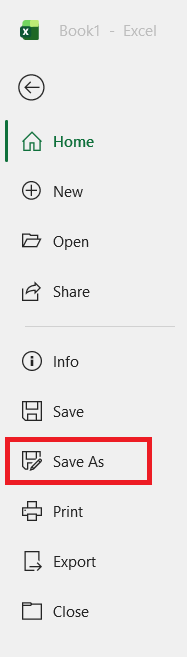
STEP 1: Click File.

STEP 2: Select Save As.
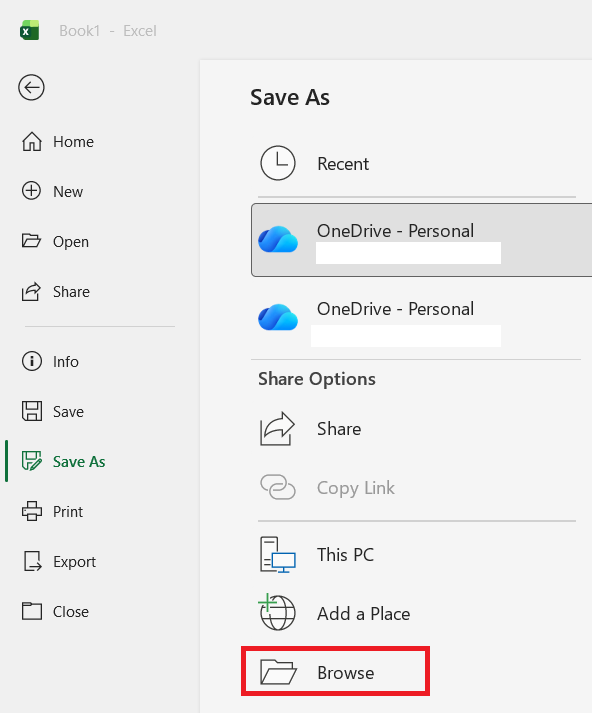
STEP 3: Choose a location by clicking on the Browse option.
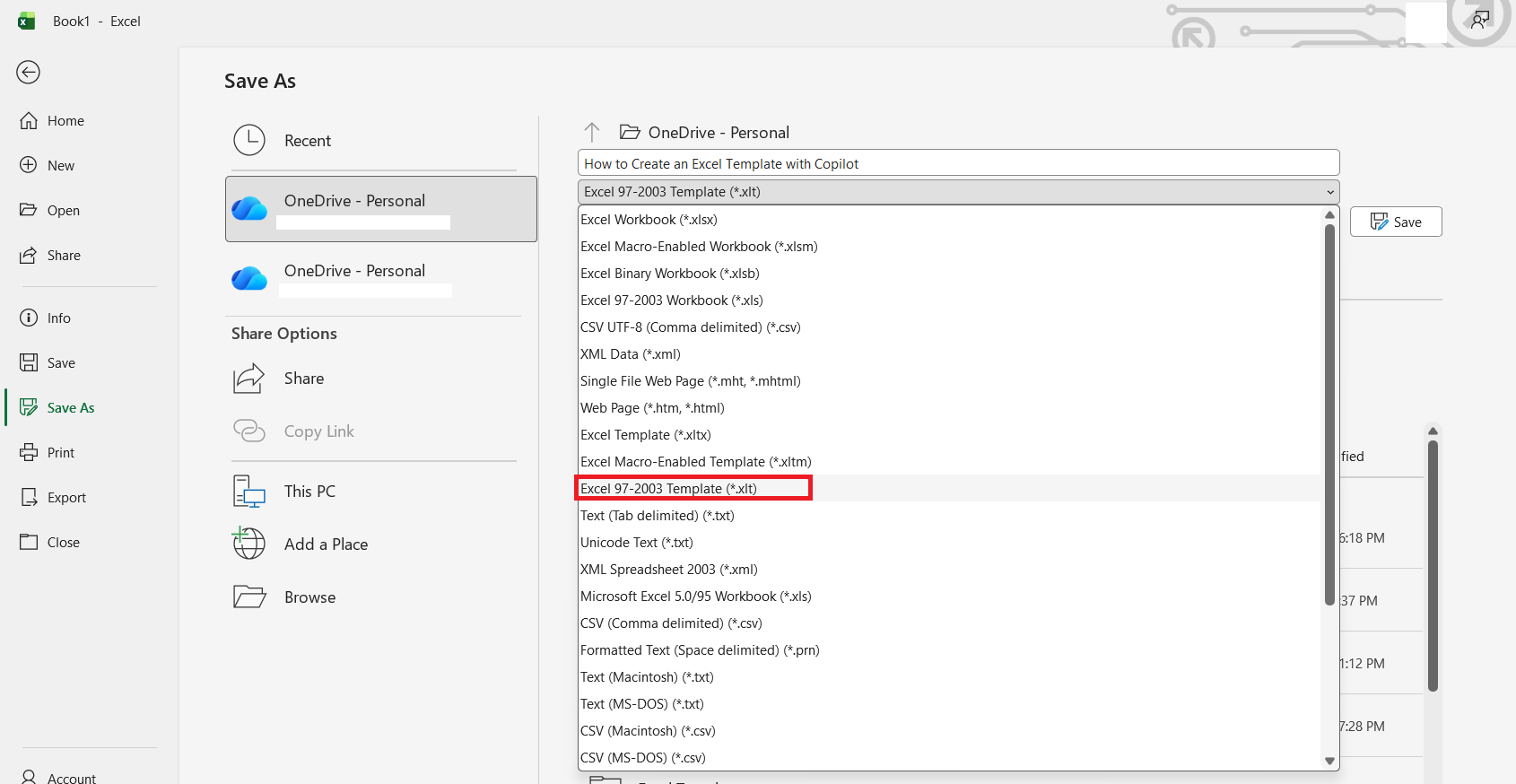
STEP 4: Select Excel Template (*.xltx) as the file type.
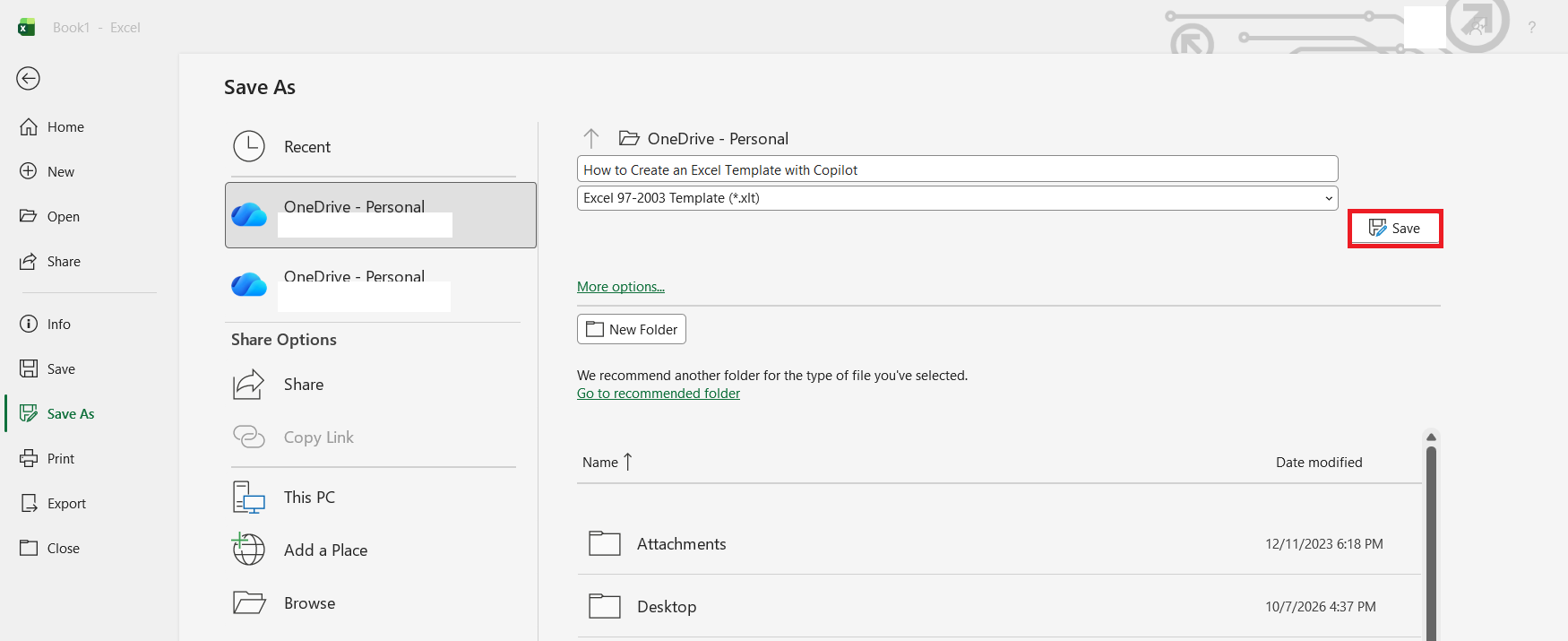
STEP 5: Click on the Save button.
Best Practices for Excel Template with Copilot
- Make sure to keep layouts simple and easy.
- You should use clear column and section names.
- There should be formulas added where possible.
- Add instructions for users when necessary.
- Use consistent formatting throughout the workbook.
- Test the template before sharing it with others.
FAQs
Can we create an Excel template with Copilot?
Copilot can be used to create Excel templates. It can form the structure of the template, add formulas, and formatting. You can customize it as per your requirements.
What templates can be created using Copilot?
Copilot can be used to create templates for budgets, sales, expenses, inventory, and many more.
Can Copilot add formulas to a template?
Yes. You can ask Copilot to add formulas for calculations such as totals, averages, variances, and profit.
Can Copilot format an Excel template?
Yes. You can ask Copilot to format tables, headers, numbers, and other parts of the workbook.
Do you need to review the Excel template with Copilot?
Yes, a template created by Copilot needs to be reviewed, as it is AI-generated and can contain errors.

John Michaloudis is a former accountant and finance analyst at General Electric, a Microsoft MVP since 2020, an Amazon #1 bestselling author of 4 Microsoft Excel books and teacher of Microsoft Excel & Office over at his flagship MyExcelOnline Academy Online Course.

 30 Days - Full Access









