 Free Practice Workbook
Spreadsheets have various AI options that can be used to help users work with Excel data. Two popular choices are Microsoft Copilot for Excel and Claude. Copilot is designed to work directly within Excel, while Claude can help you with Excel-related tasks through a chat interface. In this article, you will learn about Microsoft Copilot vs Claude for Excel.
Key Takeaways:
- Copilot works directly within Microsoft Excel.
- Claude can analyze uploaded Excel files through chat.
- Both tools can generate and explain Excel formulas.
- Copilot can help create charts and analyze workbook data.
- Claude can provide detailed explanations and data insights.
Table of Contents
Understand Microsoft Copilot and Claude
What is Microsoft Copilot?
Microsoft Copilot is Microsoft’s AI assistant integrated with Microsoft 365 applications, including Excel. It can work with workbook data and help users perform common Excel tasks using natural-language prompts. You can use Copilot to analyze data, spot trends, summarize information, create charts, and help with formulas.
What is Claude?
Claude is an AI assistant developed by Anthropic. It can help users analyze spreadsheet data, explain formulas, create calculations, and summarize information. Claude can review the available data and provide an analysis based on your prompt.
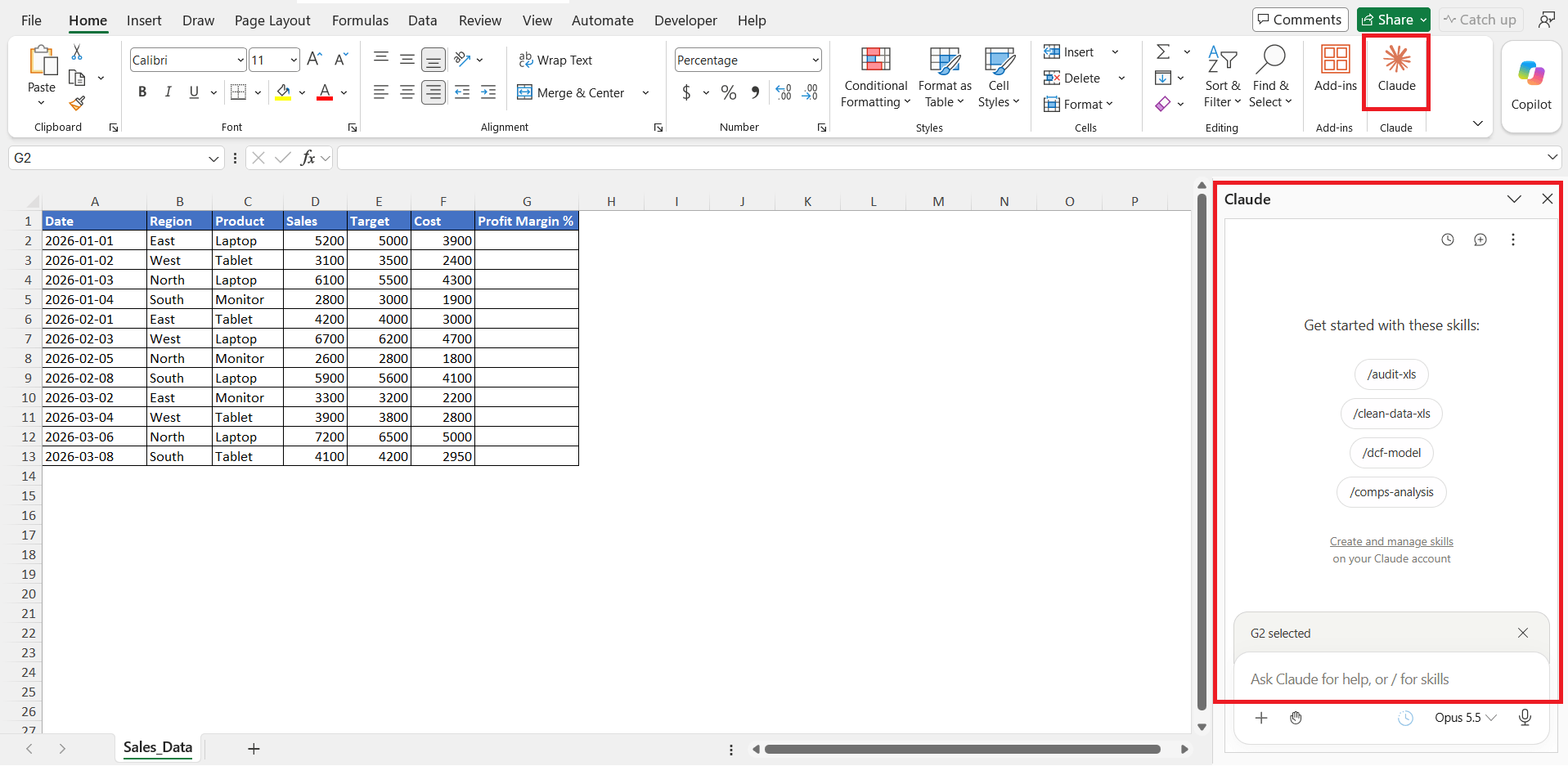
Microsoft Copilot vs Claude for Excel: Prompts
Excel Formulas
Both tools can be used to create formulas by writing prompts like this:
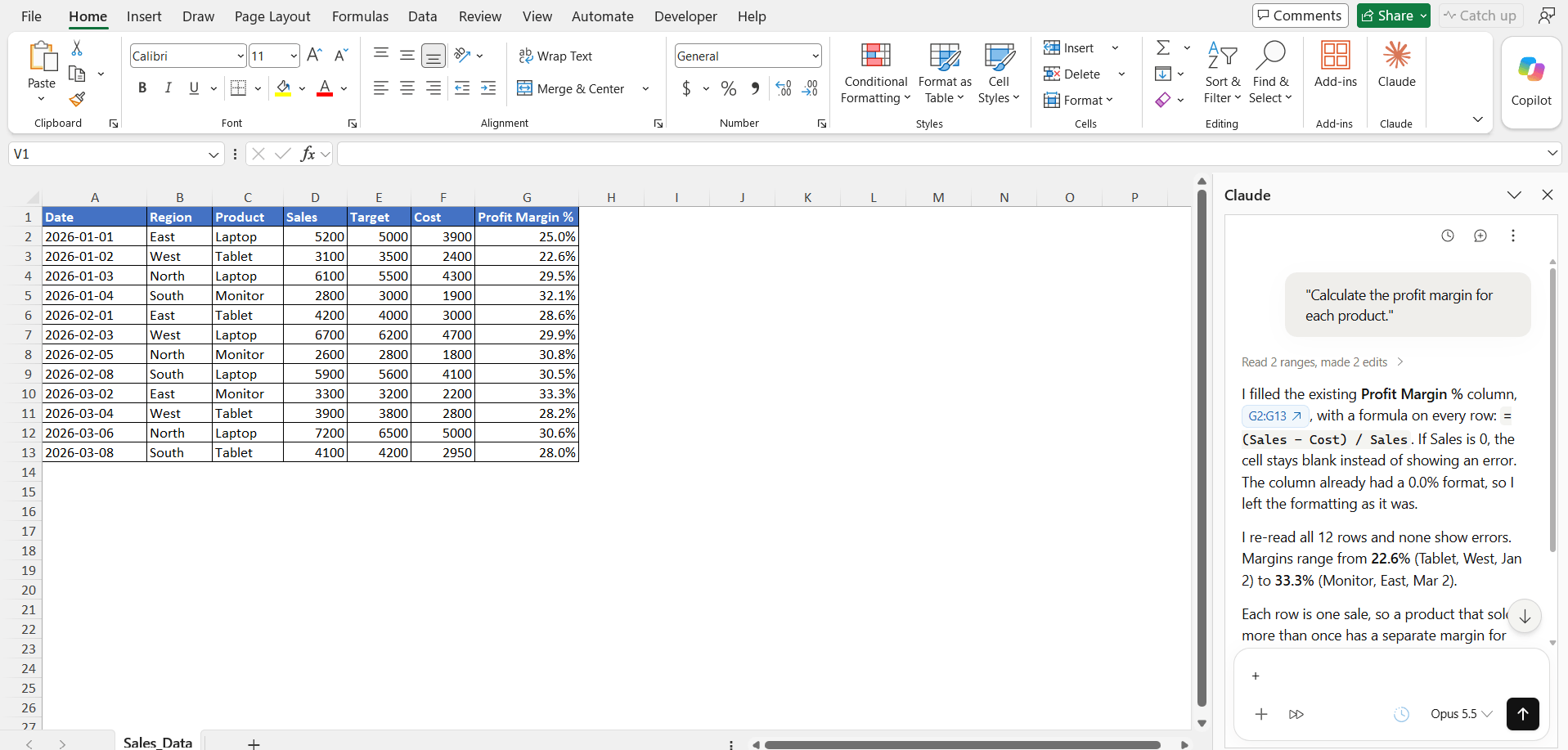
“Calculate the profit margin for each product.”
- Copilot can generate or insert the required formula within the Excel workbook.
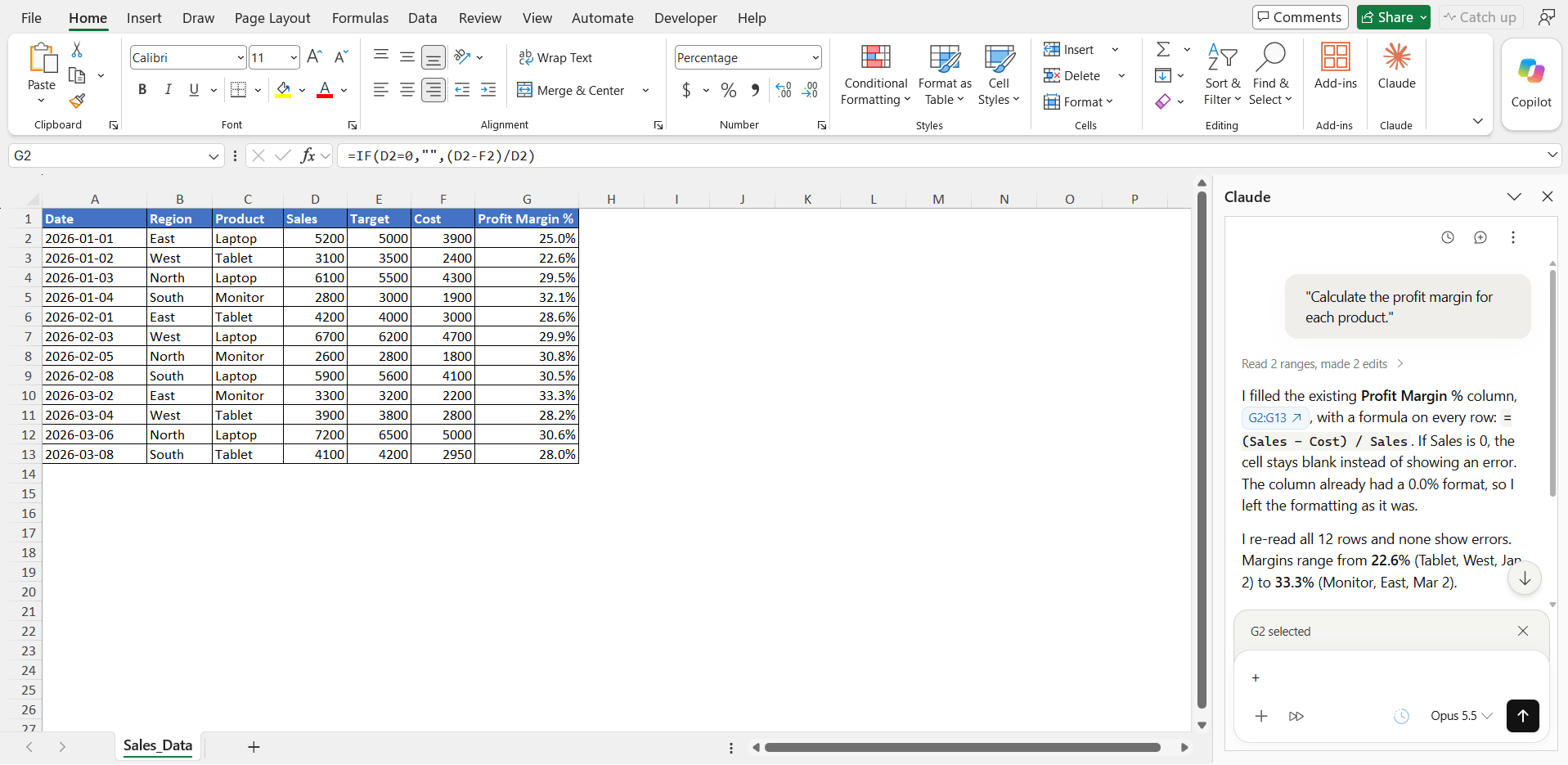
- Claude can also generate the formula. However, you generally need to copy the formula from Claude and paste it into Excel.
Data Analysis
With Copilot, you can ask questions about the data directly from Excel. For example:
“Which region had the highest sales?”
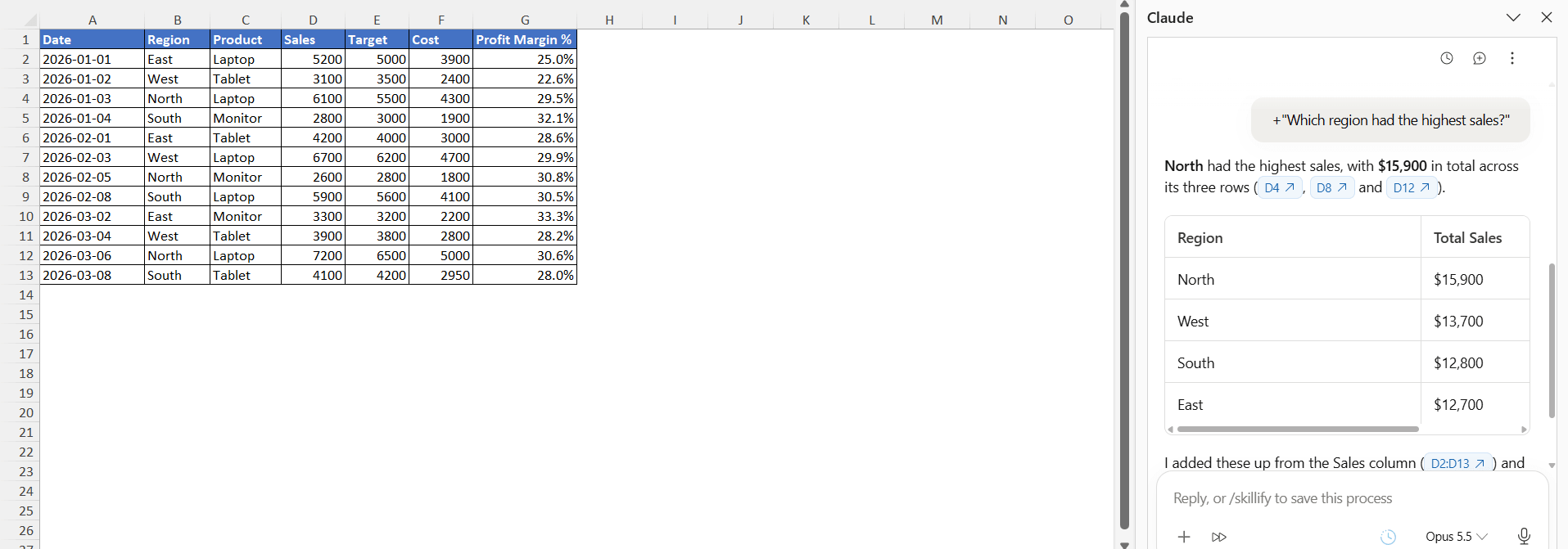
With Claude, you can also ask this question, and it will provide you with the answer.
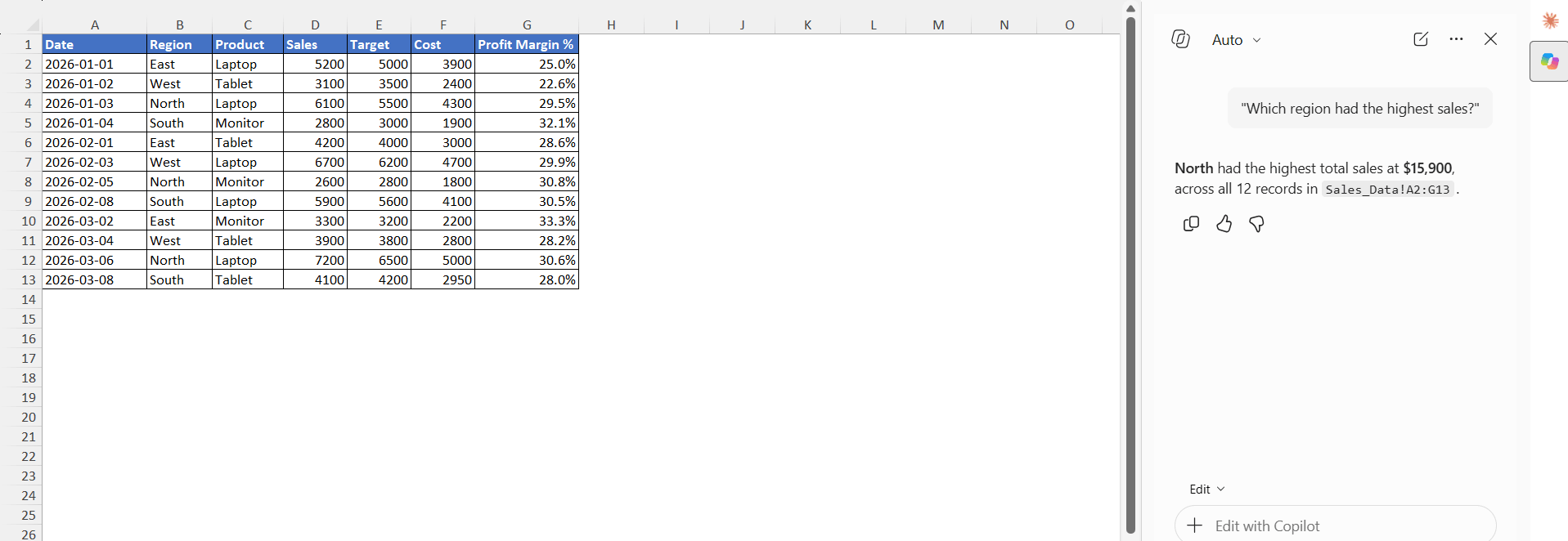
Claude will help explain patterns, summarize large datasets, and suggest additional analysis.
Excel Charts
Copilot can help create charts based on Excel data.
For example, you can ask:
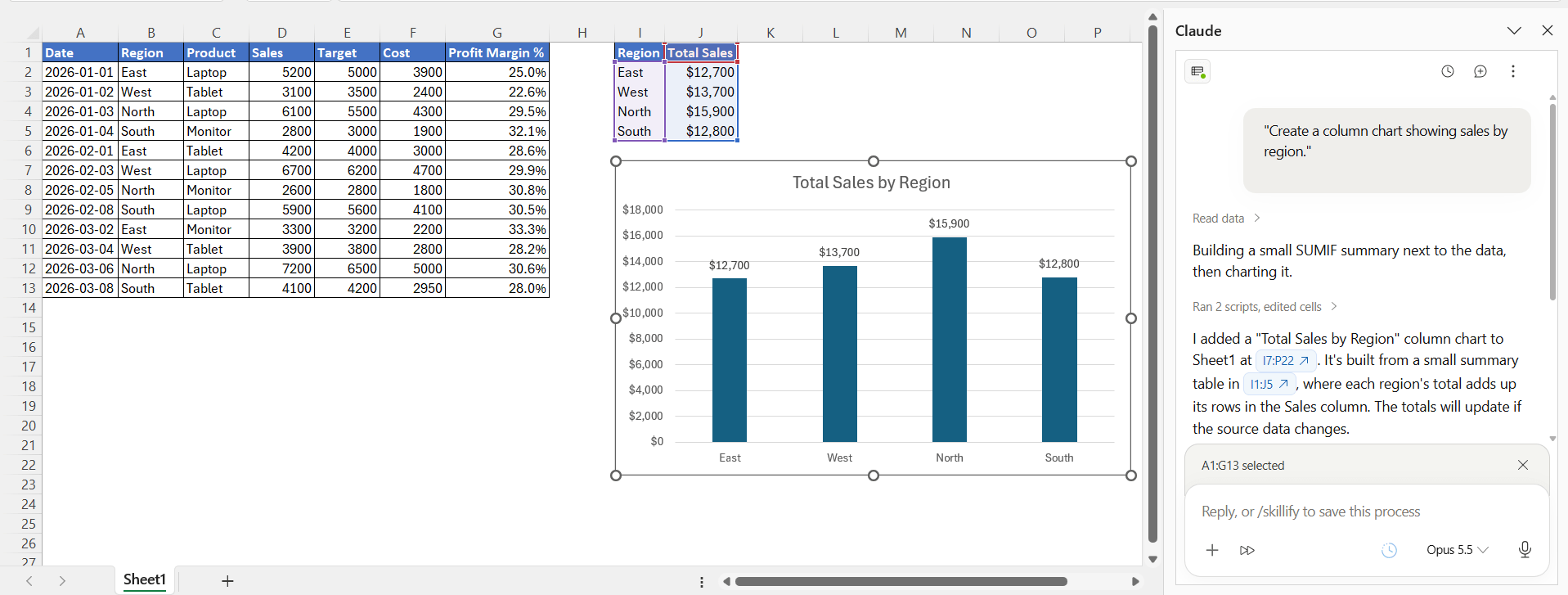
“Create a column chart showing sales by region.”
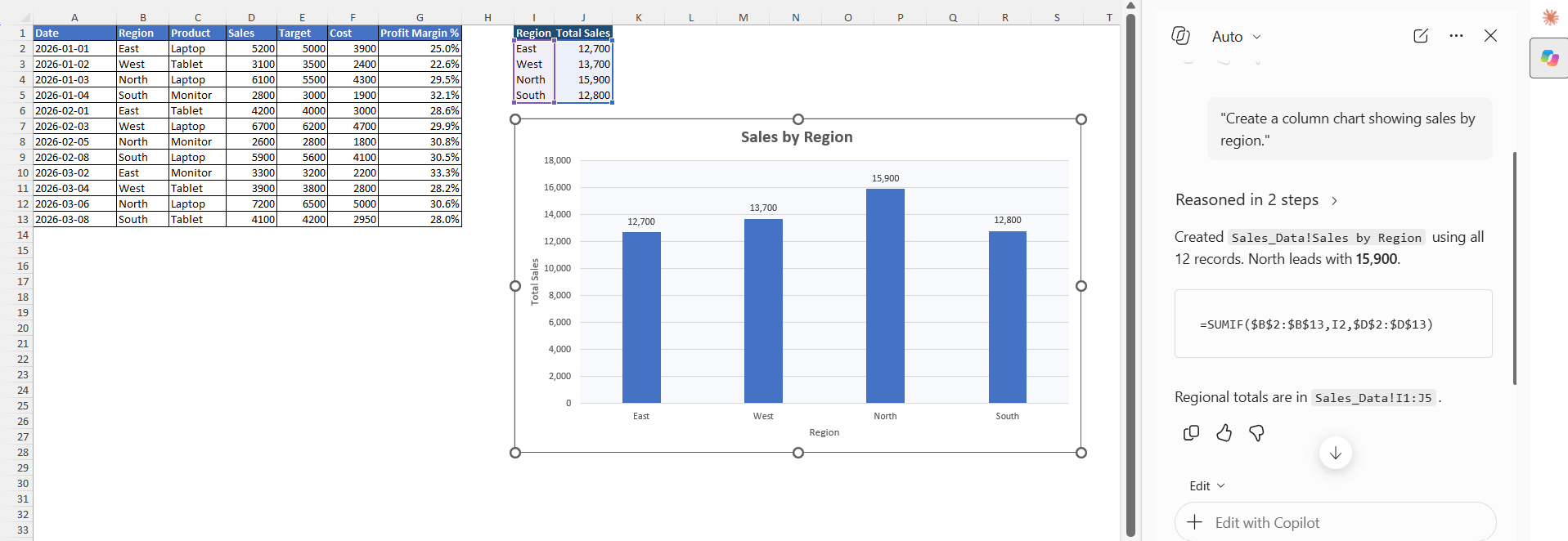
Copilot can help create the chart within Excel.
Claude can also help create a chart based on the prompt provided.
Excel Automation
Copilot can be useful when working with Excel features and workflows. Depending on the available Microsoft 365 Copilot features, it can assist with tasks such as formulas, data analysis, formatting, charts, and other workbook operations.
Claude can help generate Excel formulas, VBA code, Office Scripts, and other instructions for automation. You can then take the generated output and use it in Excel.
Microsoft Copilot vs Claude: Key Differences
| Feature | Microsoft Copilot for Excel | Claude |
|---|---|---|
| Excel Integration | Built directly into Excel | Works outside Excel |
| Access to Workbook Data | Direct access to workbook content | Requires file upload or pasted data |
| Formula Creation | Generates formulas inside Excel | Suggests formulas in chat |
| Chart Creation | Can create charts directly | Recommends chart types |
| Data Analysis | Works on workbook data instantly | Analyzes uploaded data |
| Automation | Can perform Excel actions | Provides instructions |
| Collaboration | Works with Microsoft 365 files | Limited to uploaded documents |
| Learning Curve | Familiar Excel experience | Chat-based workflow |
Which AI tool to use?
Choose Microsoft Copilot if:
- You work primarily in Excel.
- You want AI built into your spreadsheet.
- You need quick analysis and chart creation.
- You want formulas generated directly in workbooks.
- You frequently work with Microsoft 365 data.
Choose Claude if:
- You need detailed explanations and reports.
- You want to discuss data in a conversational way.
- You analyze files from multiple sources.
- You need help brainstorming interpretations and recommendations.
FAQs
1. What is the main difference between Microsoft Copilot and Claude for Excel?
Copilot is integrated directly into Excel, while Claude works through a separate chat interface and can analyze uploaded spreadsheet files.
2. Can both Copilot and Claude create Excel formulas?
Yes. Both tools can generate Excel formulas based on your instructions. Copilot can work with the formula directly in Excel, while Claude provides the formula in its chat response.
3. Can Copilot and Claude analyze Excel data?
Yes. Copilot can analyze data directly in an Excel workbook, while Claude can analyze data from an uploaded Excel file.
4. Can Microsoft Copilot create charts in Excel?
Yes. Copilot can help create charts based on data in an Excel workbook using natural-language prompts.
5. Which is better for Excel, Copilot or Claude?
Both tools are used for different purposes. Copilot is used when you want to work directly with Excel, whereas Claude is used for file analysis or explanation.

John Michaloudis is a former accountant and finance analyst at General Electric, a Microsoft MVP since 2020, an Amazon #1 bestselling author of 4 Microsoft Excel books and teacher of Microsoft Excel & Office over at his flagship MyExcelOnline Academy Online Course.

 30 Days - Full Access









