 Free Practice Workbook
Microsoft Excel and Google spreadsheet can evolve and become smarter by providing a built-in AI assistant. Microsoft offers Copilot in Excel, while Google provides Gemini in Google Sheets. Both tools are used to help users analyze data, generate formulas, etc. In this article, you will learn all about Copilot in Excel vs Gemini in Google Sheets.
Key Takeaways:
- Copilot is built into Microsoft Excel.
- Gemini is built into Google Sheets.
- Both tools can generate formulas and analyze data.
- Copilot supports advanced Excel features such as Power Query and Python.
- Gemini is useful for Google Workspace.
Table of Contents
Understand Copilot and Gemini
What is Copilot?
Microsoft Copilot in Excel is an AI assistant that can be used to create or edit workbooks. You can describe the task in simple language instead of manually performing every step. For example, you can ask:
“Find the region with the highest sales and create a chart.”
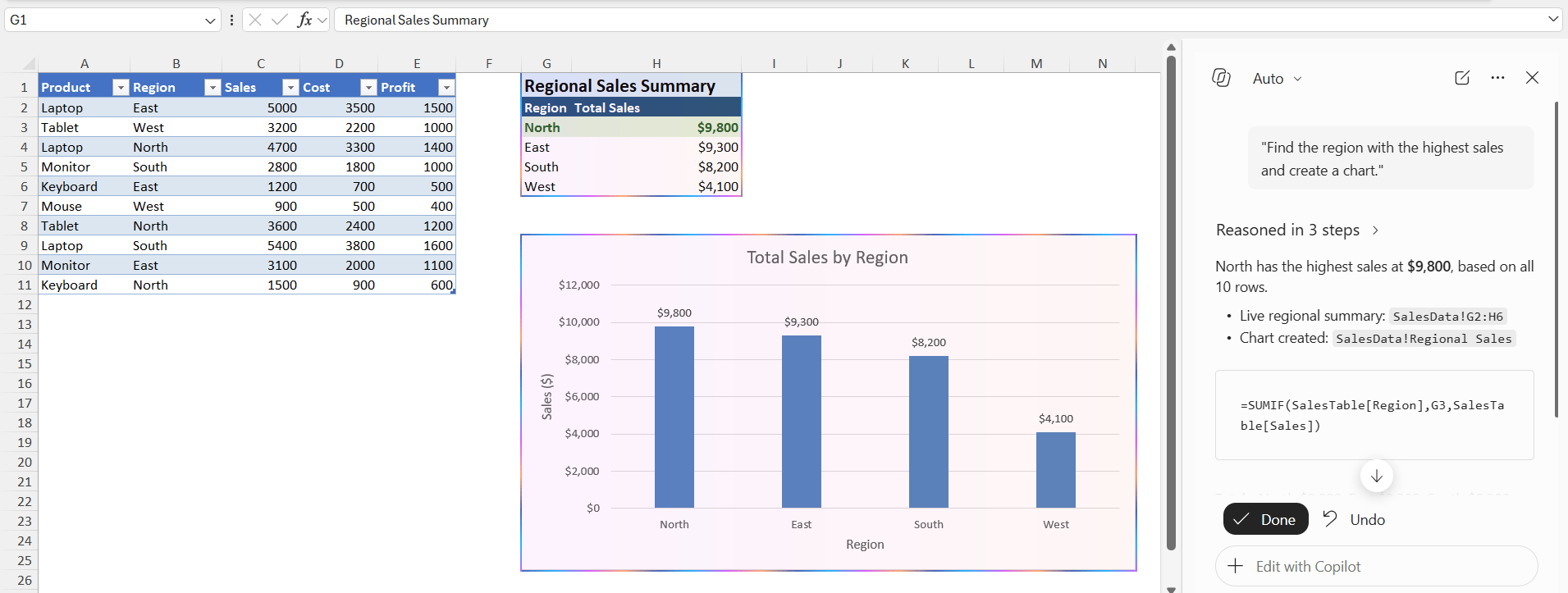
Copilot can analyze the workbook and provide the requested result.
What is Gemini in Google Sheets?
Google Sheets uses Gemini as an AI assistant to execute tasks. It can help users create tables, formulas, charts, and data analysis directly in Google Sheets. For example, you can ask:
“Create a formula to calculate profit margin for each product.”
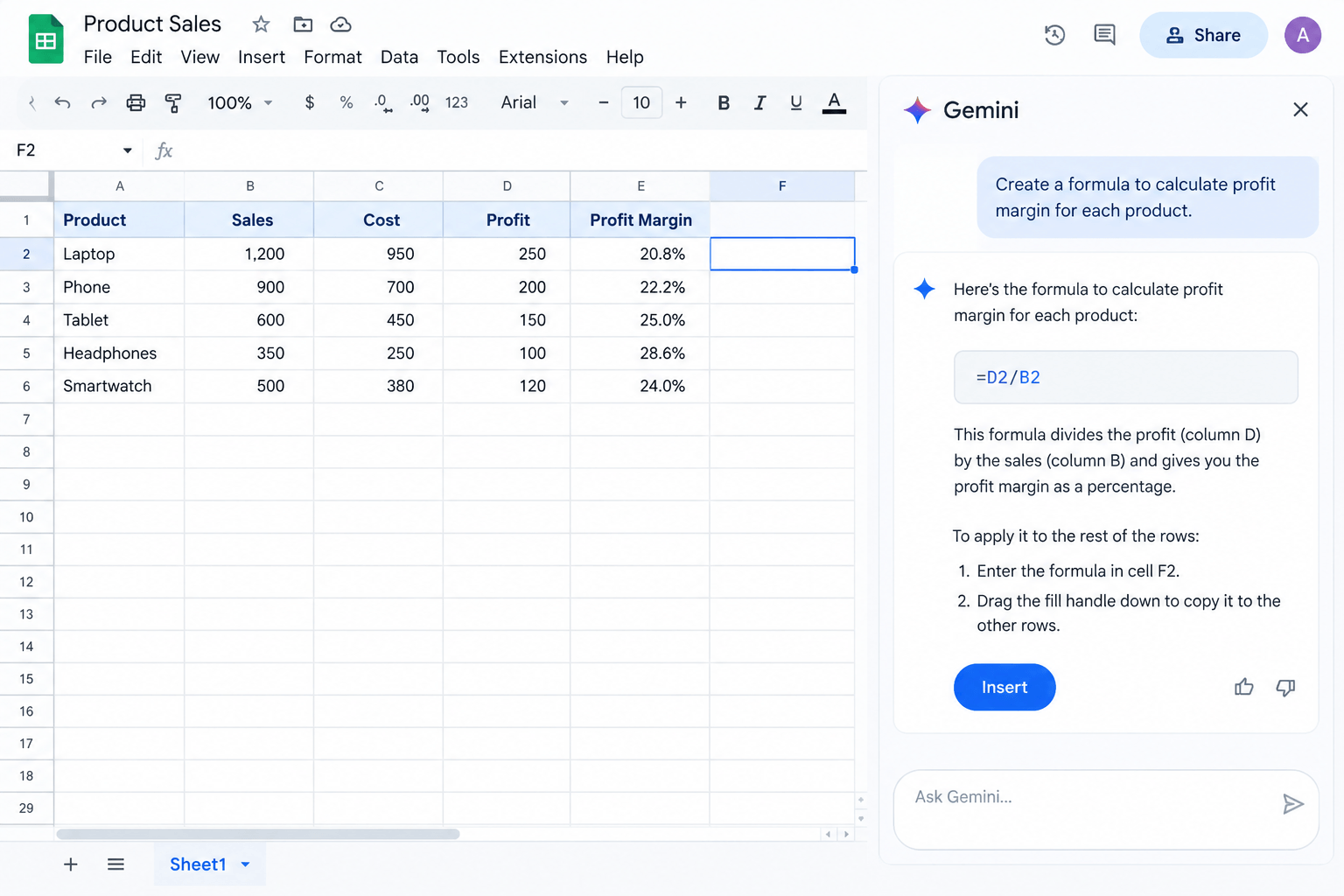
Gemini can generate the formula based on the data in your sheet.
Feature Comparison Table
| Feature | Copilot in Excel | Gemini in Google Sheets |
|---|---|---|
| Formula Generation | ✅ | ✅ |
| Data Analysis | ✅ Advanced | ✅ Basic to Advanced |
| Chart Creation | ✅ | ✅ |
| Large Dataset Support | ✅ Strong | ⚠️ Moderate |
| Real-Time Collaboration | ✅ | ✅ Excellent |
| PivotTables | ✅ | Limited |
| Power Query Integration | ✅ | ❌ |
| Python Support | ✅ | ❌ |
| Microsoft 365 Integration | ✅ | ❌ |
| Google Workspace Integration | ❌ | ✅ |
Copilot in Excel vs Gemini in Google Sheets
Choose Copilot if you:
- Work with large datasets.
- Use advanced Excel features.
- Build financial models and reports.
- Use Microsoft 365 regularly.
- Need Power Query or Python in Excel.
Choose Gemini if you:
- primarily use Google Workspace.
- need to quickly collaborate online.
- have to work on shared spreadsheets.
- want to use a browser-based application.
Tips for Using Copilot and Gemini
- Make sure that the data is organized before using AI.
- Use clear column headings.
- Write specific prompts.
- Mention the result you want.
- Always check the formula generated by AI before you use it.
- Keep your data in a structured table when possible.
- Use follow-up prompts to improve the result.
FAQs
1. What is the main difference between Copilot and Gemini?
Copilot is designed for Microsoft Excel, while Gemini is designed for Google Sheets.
2. Can Copilot and Gemini create formulas?
Yes. Both tools can generate formulas from natural-language instructions.
3. Can Copilot and Gemini analyze spreadsheet data?
Yes. Both can analyze data, spot patterns, summarize information, and help create charts.
4. Which tool supports Power Query?
Power Query is a Microsoft Excel feature and can be used as part of Excel workflows. Google Sheets does not have Power Query.
5. Can I use both Copilot and Gemini?
Yes. You can use Copilot with Excel and Gemini with Google Sheets. The better option for a particular task depends on the spreadsheet platform and features you use.

John Michaloudis is a former accountant and finance analyst at General Electric, a Microsoft MVP since 2020, an Amazon #1 bestselling author of 4 Microsoft Excel books and teacher of Microsoft Excel & Office over at his flagship MyExcelOnline Academy Online Course.

 30 Days - Full Access









