 Free Practice Workbook
Microsoft Copilot offers different modes to interact with your workbook. It is important to know which mode serves what purpose in order to get better results. In this article, you will learn all about Excel Copilot Edit, Plan, and Chat modes.
Key Takeaways:
- Edit mode can make changes directly to your workbook.
- Plan mode helps you create a step-by-step plan.
- Chat mode is useful for asking questions about your data.
- You can use different modes for different Excel tasks.
- Always review Copilot’s suggestions before applying changes.
Table of Contents
What is Copilot in Excel?
Copilot in Excel is an AI assistant built into Microsoft Excel. You can use natural-language prompts to ask questions about your workbook and get help with tasks. It can add formula columns, sort and filter, highlight cells, summarise data, and create charts and PivotTables. It can also answer questions about your data.
The mode you choose can affect how Copilot responds to your prompt. Choosing the right mode can make it easier to complete a task and review the result.
To open Copilot in Excel:
- Go to the Home tab.

- Click on the Copilot button.

- A chat panel will open on the right side of the screen.
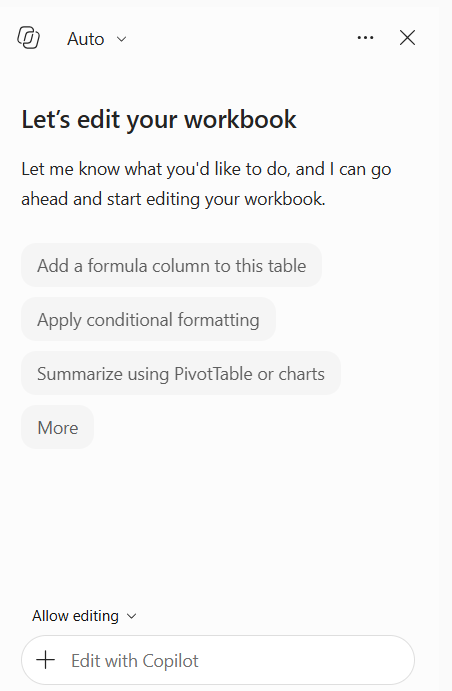
- Type the prompt here.
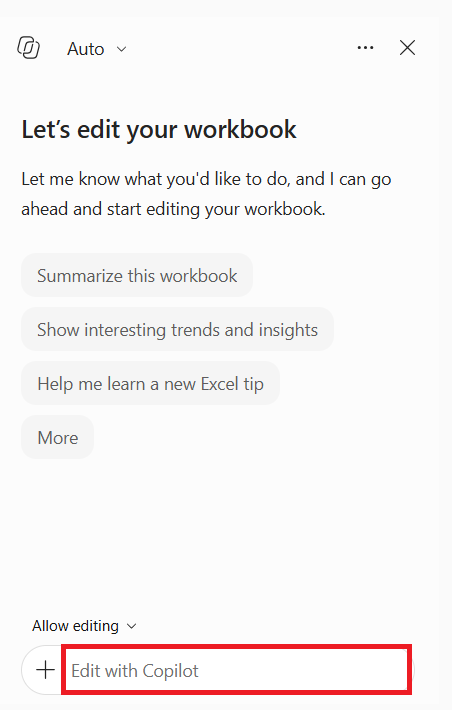
- Review the result.
Copilot Modes
Copilot Edit Mode
The edit mode is used when you want to make changes to your workbook. You can describe what you want to change using natural language like:
“Add a Profit Margin column and calculate profit margin for each product.”
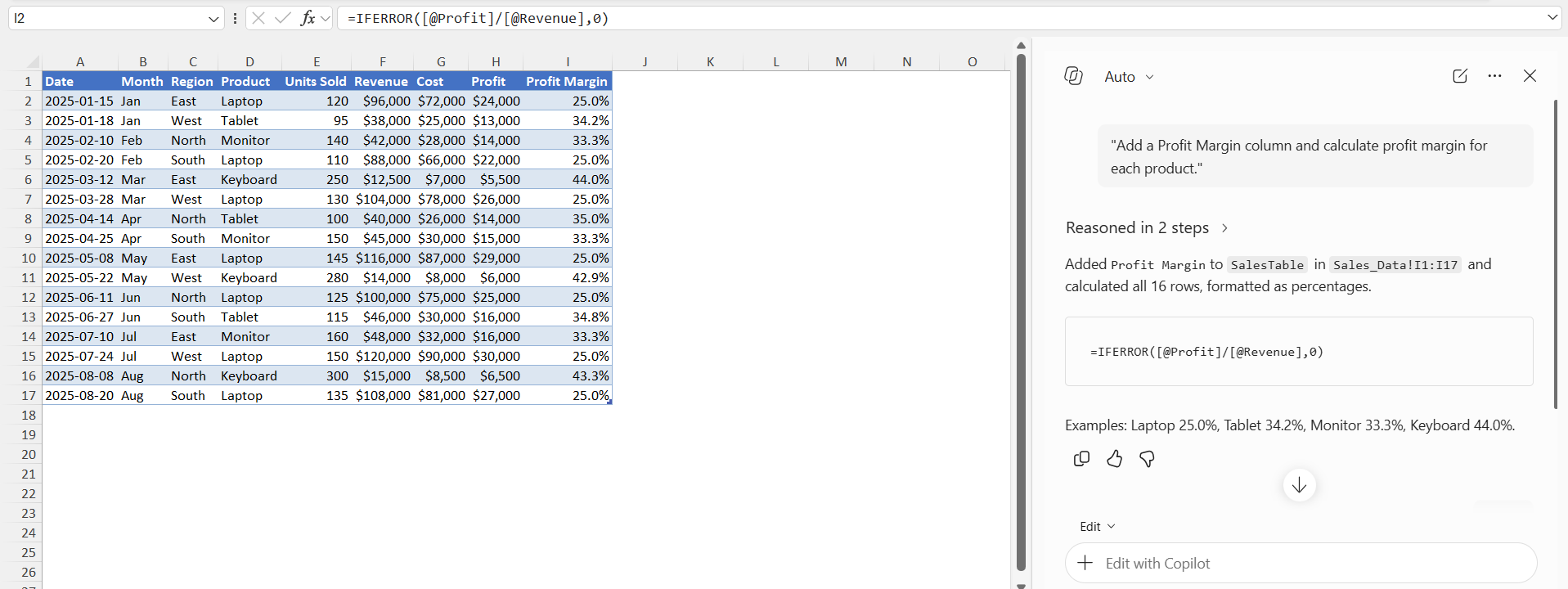
Copilot will create the new formula and add it to your workbook.
Copilot Chat Mode
The chat mode is useful when you want to ask questions related to the workbook. It lets you explore your data without making any changes to the workbook. For example, you can ask:
“Which product had the highest revenue last year?”
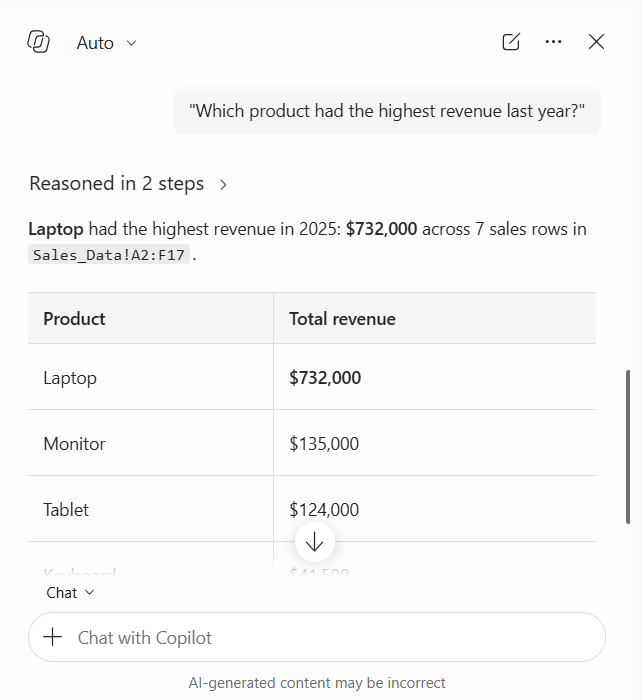
Chat mode is useful when you are exploring data or need an explanation before making changes.
Copilot Plan Mode
Plan mode helps you plan a larger or more complex task before making changes. Instead of immediately modifying the workbook, Copilot can break the task into steps. For example, you can enter:
“Create a sales dashboard with monthly sales, regional performance, top products, and a sales trend chart.”
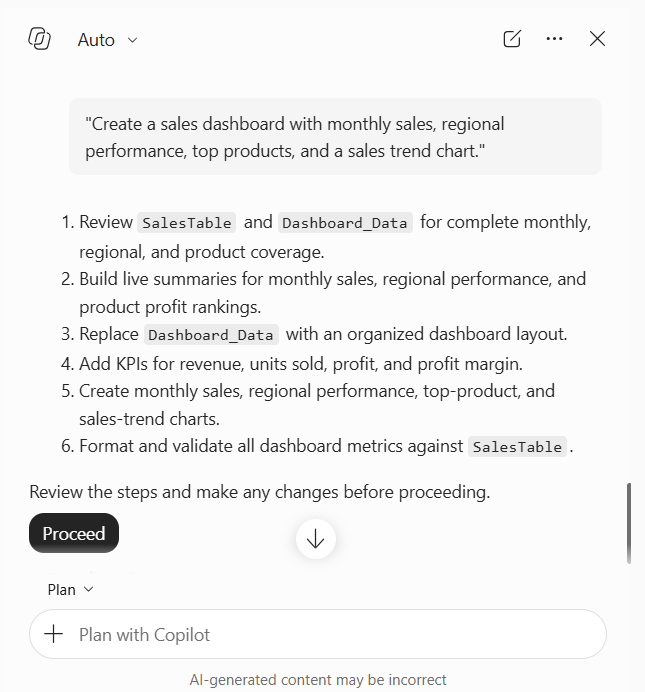
Copilot can help create a plan for completing the task. You can review the proposed steps before moving forward.
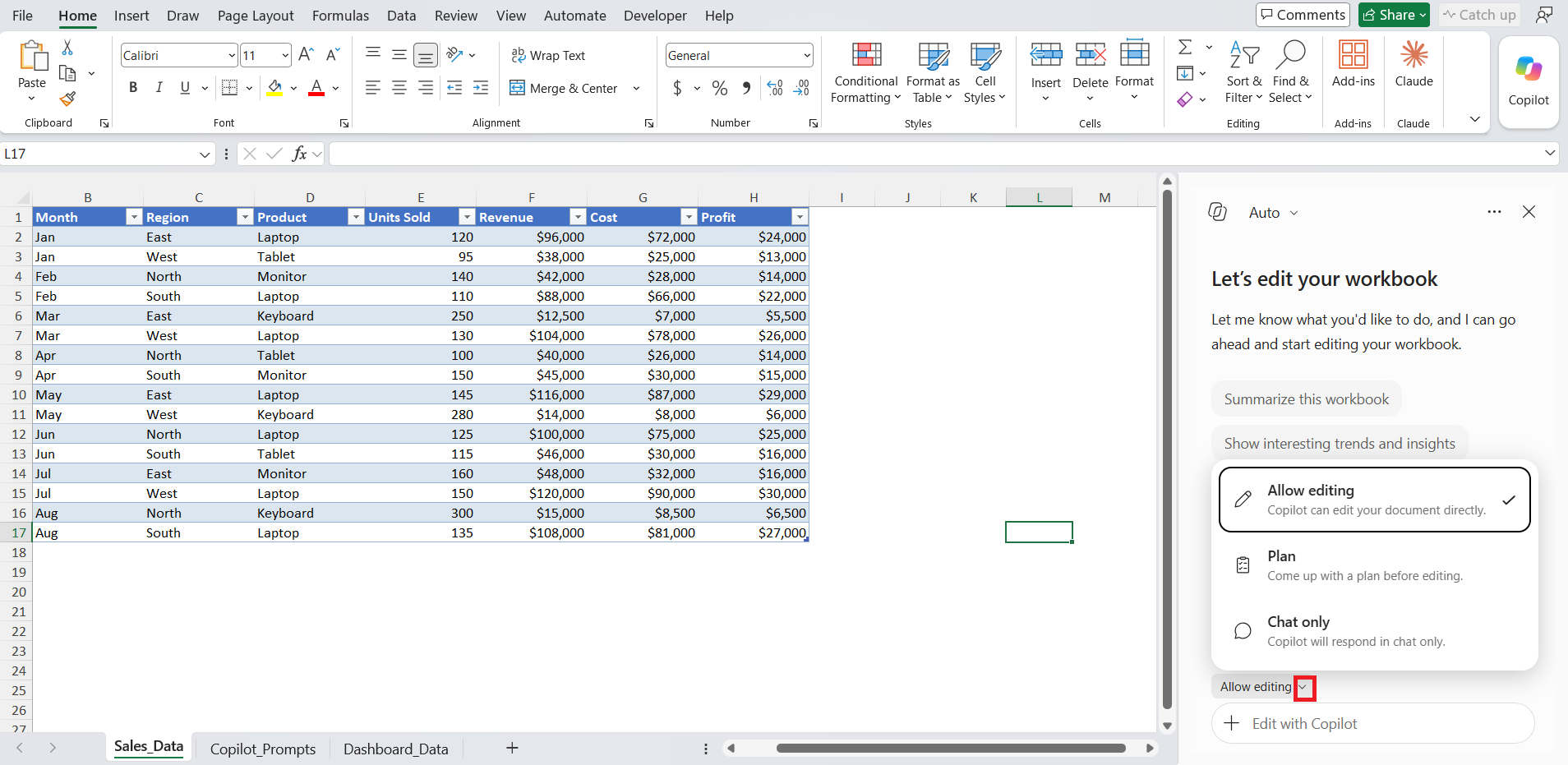
You can easily select whichever mode you want by clicking on the arrow at the bottom left of the Copilot chat pane.
Edit vs Plan vs Chat: Key Differences
| Feature | Edit Mode | Plan Mode | Chat Mode |
|---|---|---|---|
| Makes workbook changes | Yes | No | No |
| Creates action plans | No | Yes | Limited |
| Answers questions | Limited | Limited | Yes |
| Data analysis | Yes | Yes | Yes |
| Best for execution | Yes | No | No |
| Best for learning | No | Yes | Yes |
| Ideal for complex projects | Moderate | Excellent | Good |
The three modes can be used at different stages of the same Excel task. You do not always need to use only one mode.
Best Practices
- Start with Chat mode when exploring unfamiliar data.
- Use Plan mode for large or complex projects.
- Switch to Edit mode when you’re ready to implement changes.
- Review Copilot’s suggestions before applying them.
- Combine all three modes for the best results.
FAQs
1. What is Copilot Edit mode in Excel?
Copilot Edit mode allows you to make supported changes directly to your Excel workbook based on your instructions.
2. What is Plan mode in Excel Copilot?
Plan mode helps you organize a complex Excel task into steps before making changes to the workbook.
3. What is Chat mode in Excel Copilot?
Chat mode allows you to ask questions, analyze information, and get explanations about your workbook and data.
4. Which Copilot mode should I use for complex Excel tasks?
Plan mode can help organize complex tasks before you start making changes. You can then use Edit mode to implement the planned changes.
5. Can I use all three Copilot modes?
Yes. You can use Chat, Plan, and Edit modes at different stages of the same Excel project.

John Michaloudis is a former accountant and finance analyst at General Electric, a Microsoft MVP since 2020, an Amazon #1 bestselling author of 4 Microsoft Excel books and teacher of Microsoft Excel & Office over at his flagship MyExcelOnline Academy Online Course.

 30 Days - Full Access









