 Free Practice Workbook
Microsoft Copilot helps you work with data by typing the prompt in simple language. There is no need to memorize steps or syntax of complex formulas. In this article, I will show you 20 Copilot examples in Excel that you can actually use for everyday Excel work.
Key Takeaways:
- Copilot helps you work with Excel data using simple prompts.
- It can create and explain formulas.
- Copilot can clean, sort, and filter data.
- You can use it to create PivotTables and charts.
- Always review Copilot’s results before using them.
Table of Contents
What is Copilot in Excel?
Copilot in Excel is an AI assistant built into Microsoft Excel. You can use natural-language prompts to ask questions about your workbook and get help with tasks. It can add formula columns, sort and filter, highlight cells, summarise data, and create charts and PivotTables. It can also answer questions about your data.
To open Copilot in Excel:
- Go to the Home tab.
- Click on the Copilot button.
- A chat panel will open on the right side of the screen.
- Type the prompt here.
- Review the result.
20 Copilot Examples in Excel
1. Add a calculated column
Prompt: Create a column for the formula of profit margin and shown as a percentage.
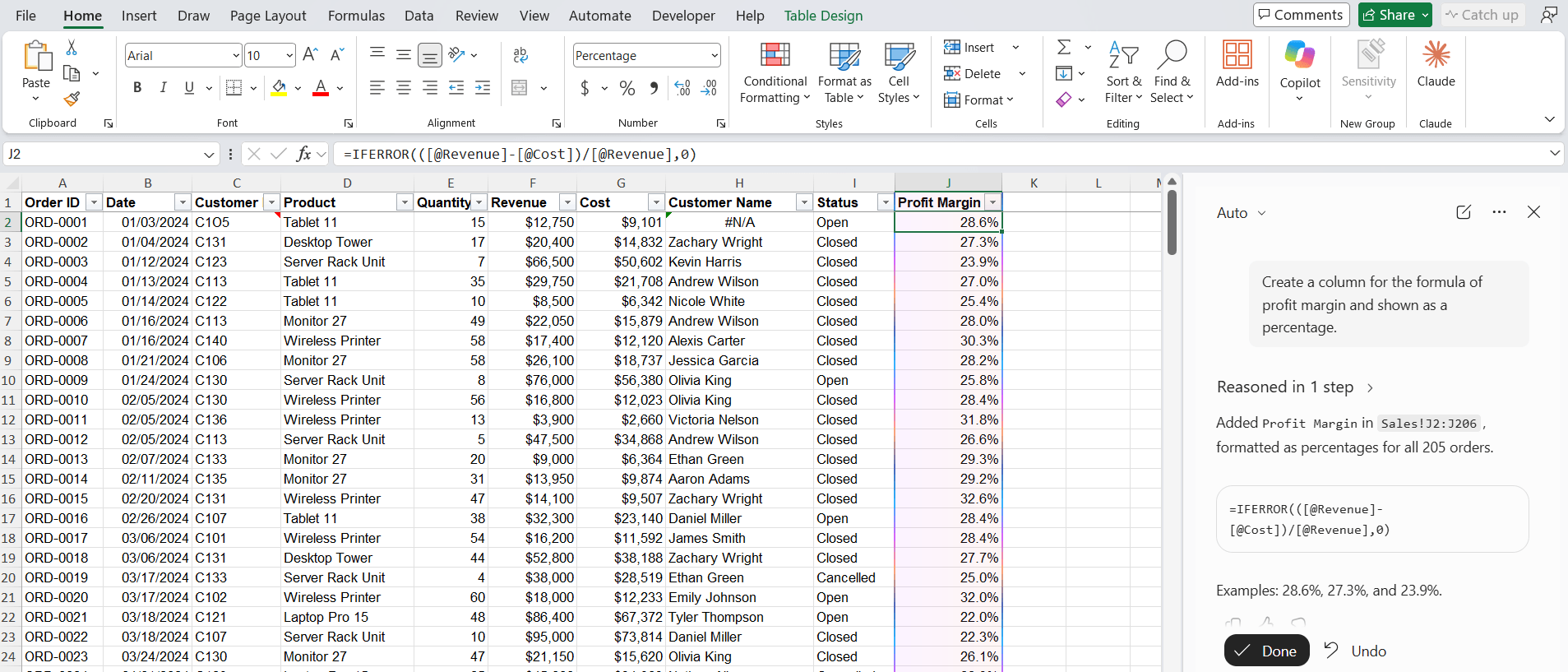
Copilot will write the profit margin formula and fill it down. The formula will be added, and it will update when your data changes.
2. Write a lookup formula
Prompt: Create a column that shows the region for each customer ID. You can get the data from the Customers sheet.
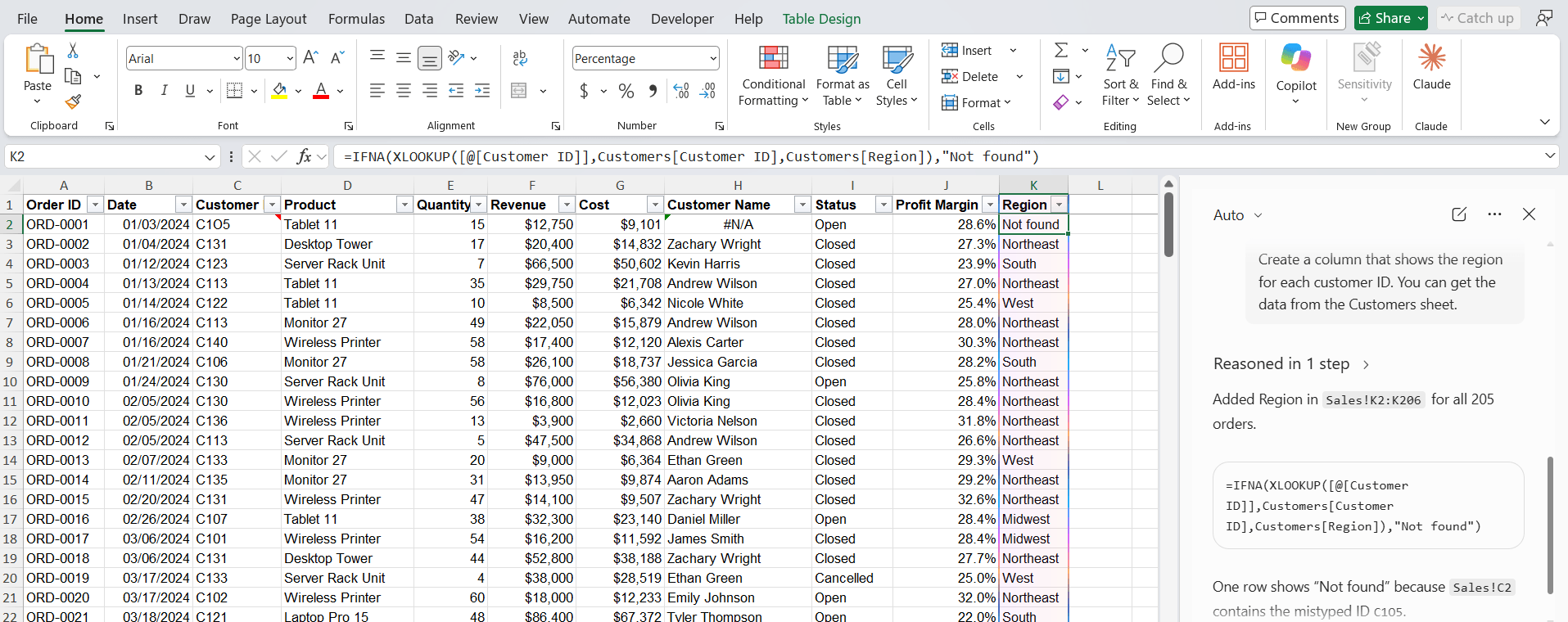
Copilot will use a lookup function and get the data from the Customers sheet.
3. Explain a formula you did not write
Prompt: Explain what the formula in cell F4 does, step by step.
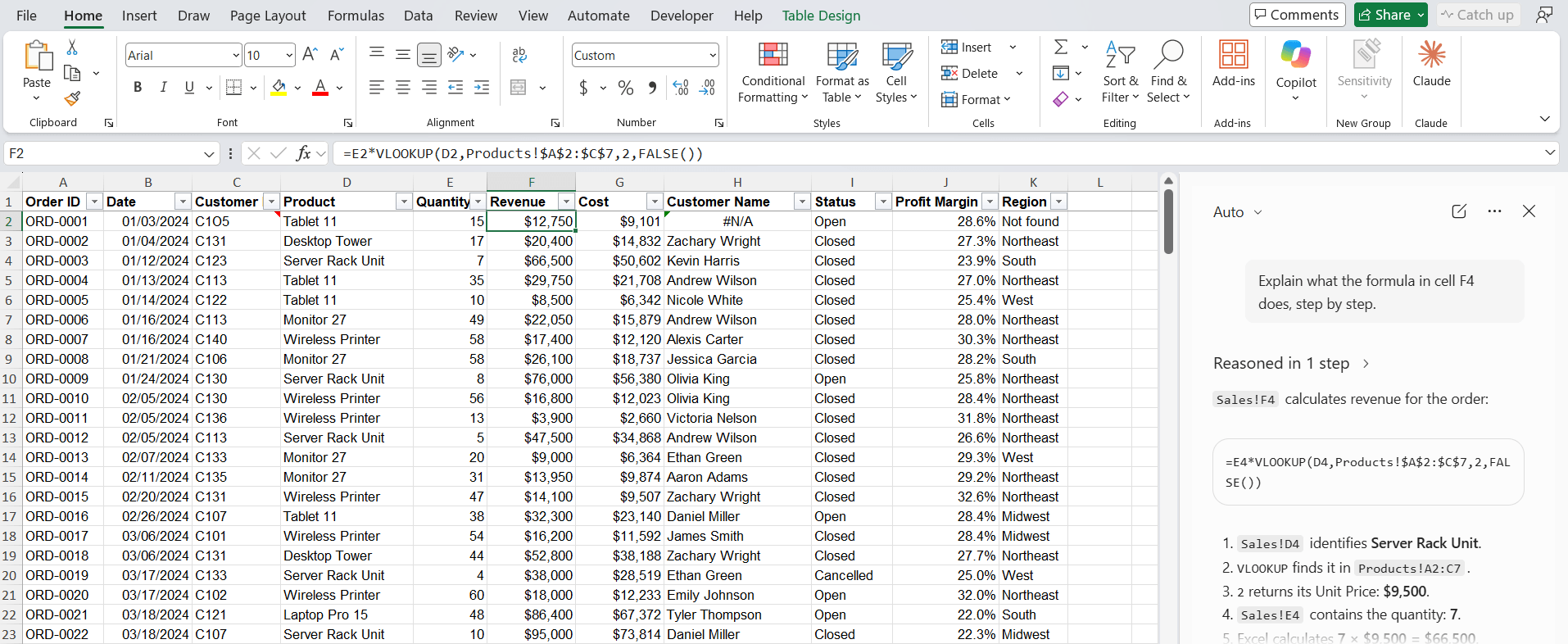
Handy when you inherit someone else’s workbook. Copilot breaks the formula into plain English.
4. Fix a broken formula
Prompt: The formula in H2 returns #N/A. Can you explain the reason and fix it?
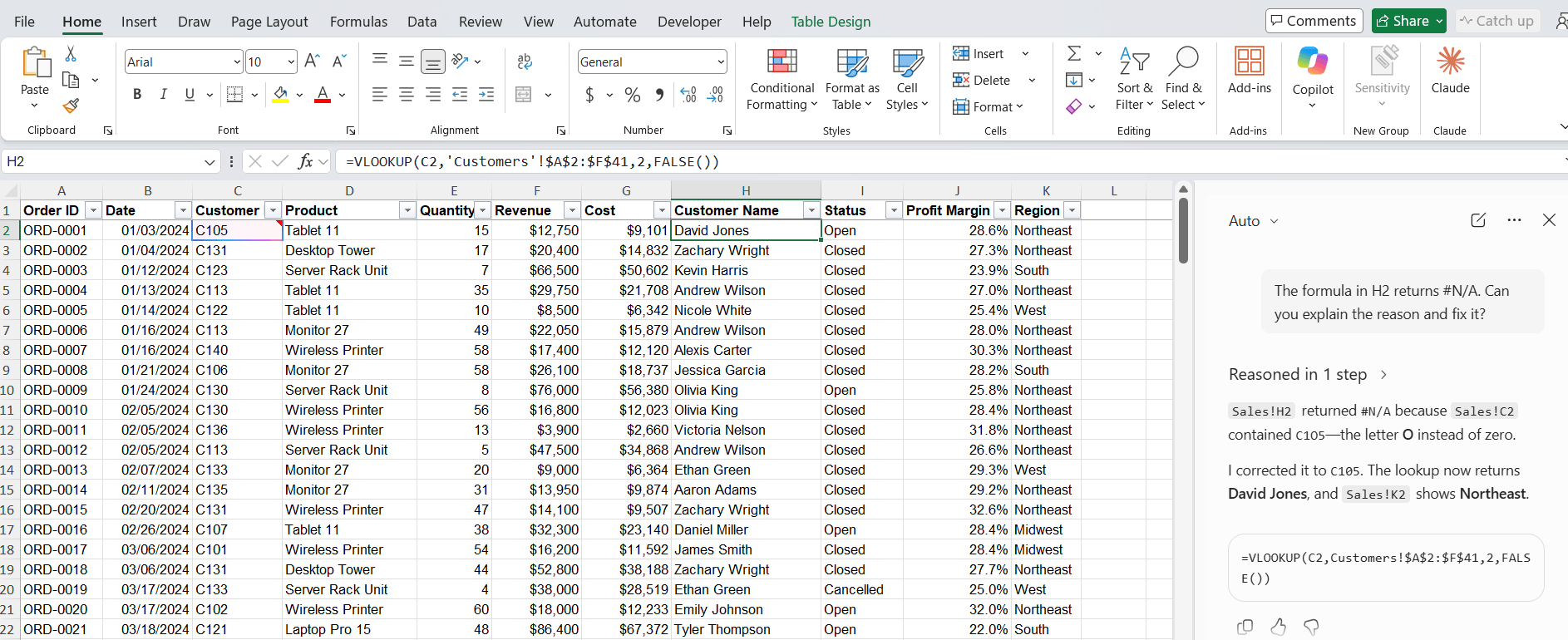
Copilot reads the formula and provides the reason for the error. It will also suggest a fix.
5. Build a conditional total
Prompt: Add a row at the bottom that totals Sales only where Status is “Closed”.
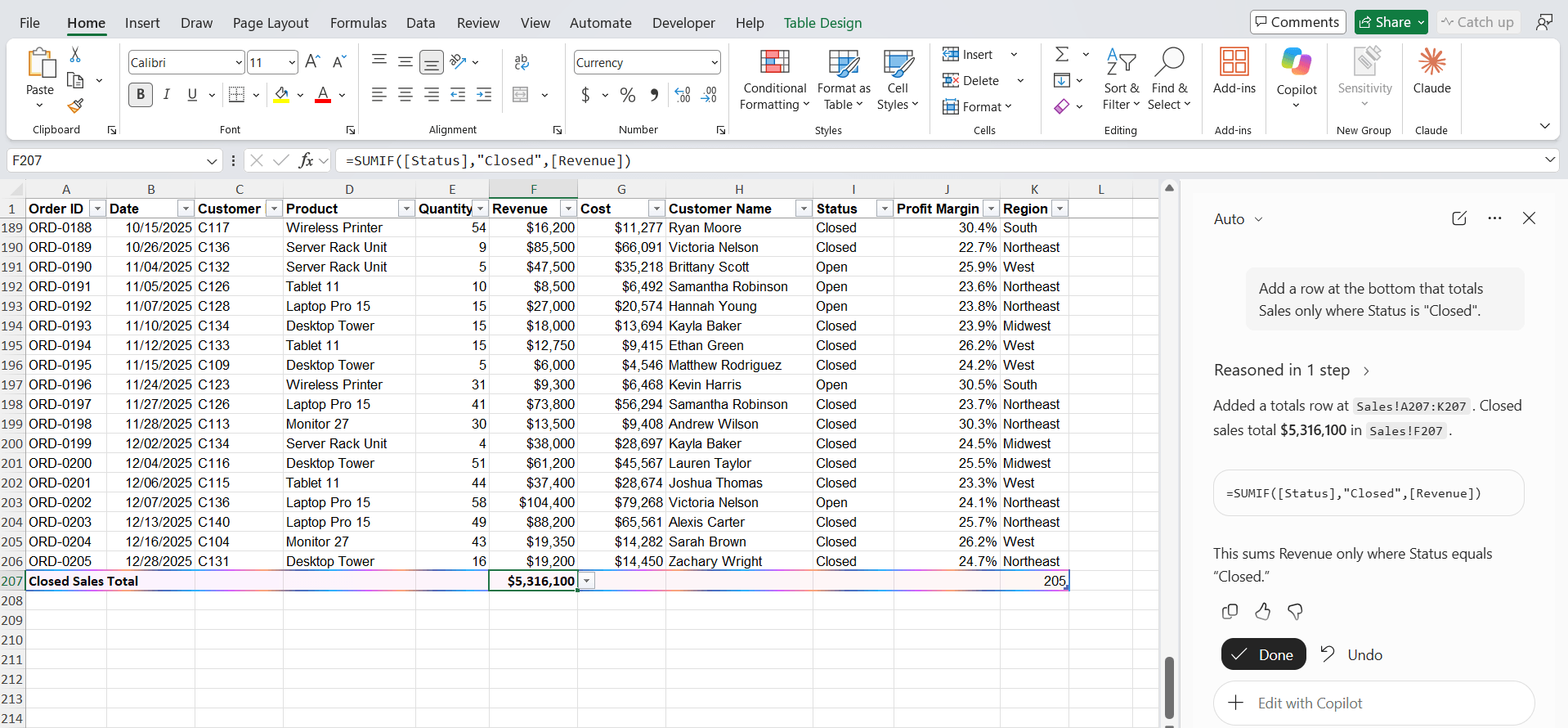
You get a SUMIFS without having to remember the argument order.
6. Split a column
Prompt: Split the Full Name column into First Name and Last Name.
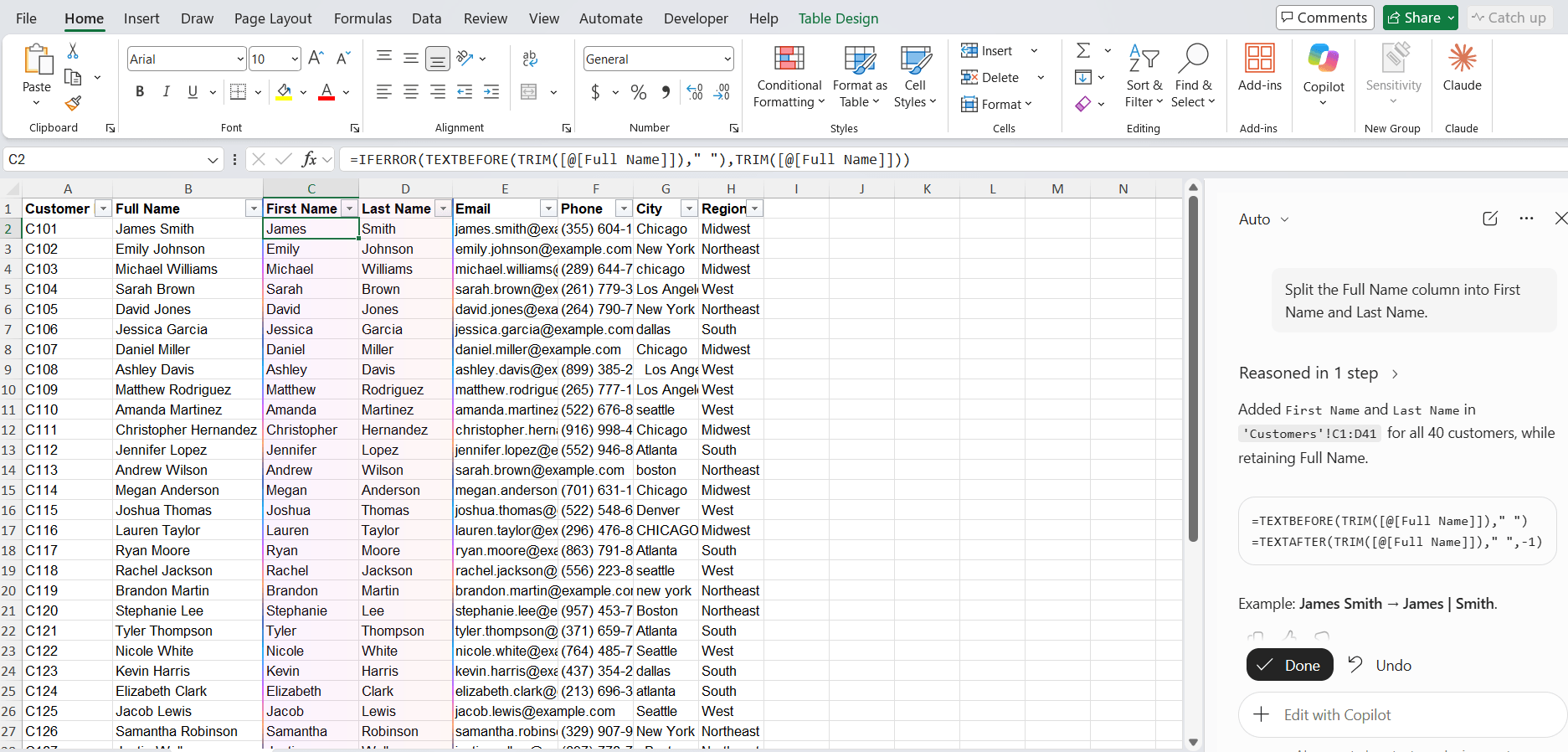
Copilot adds two new columns with TEXTBEFORE and TEXTAFTER formulas.
7. Standardise messy text
Prompt: Clean up the City column: fix capitalisation and remove extra spaces.
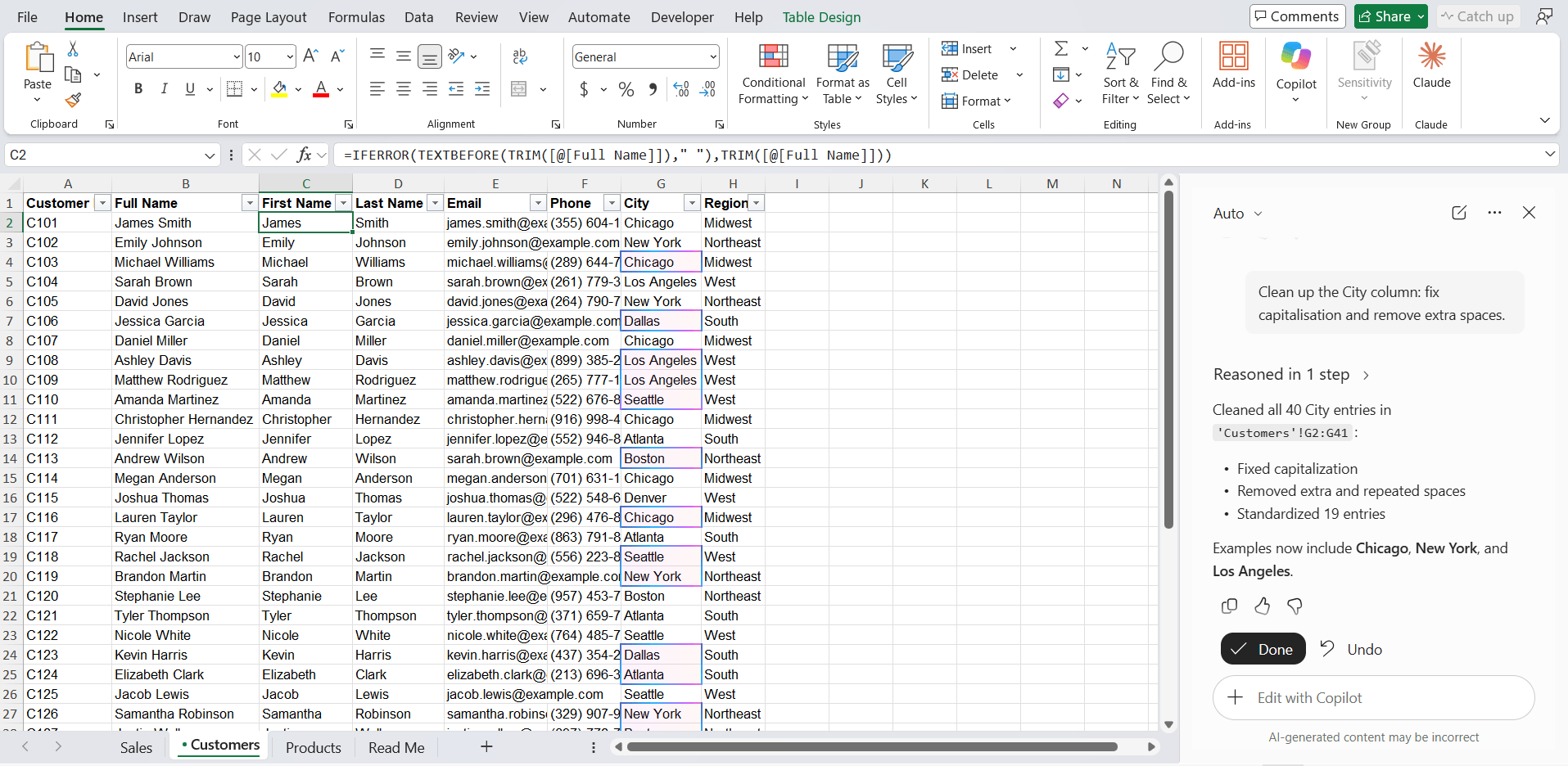
Copilot adds a column using PROPER and TRIM. You can then paste values back over the original.
8. Find duplicates
Prompt: Highlight rows where the Email address appears more than once.
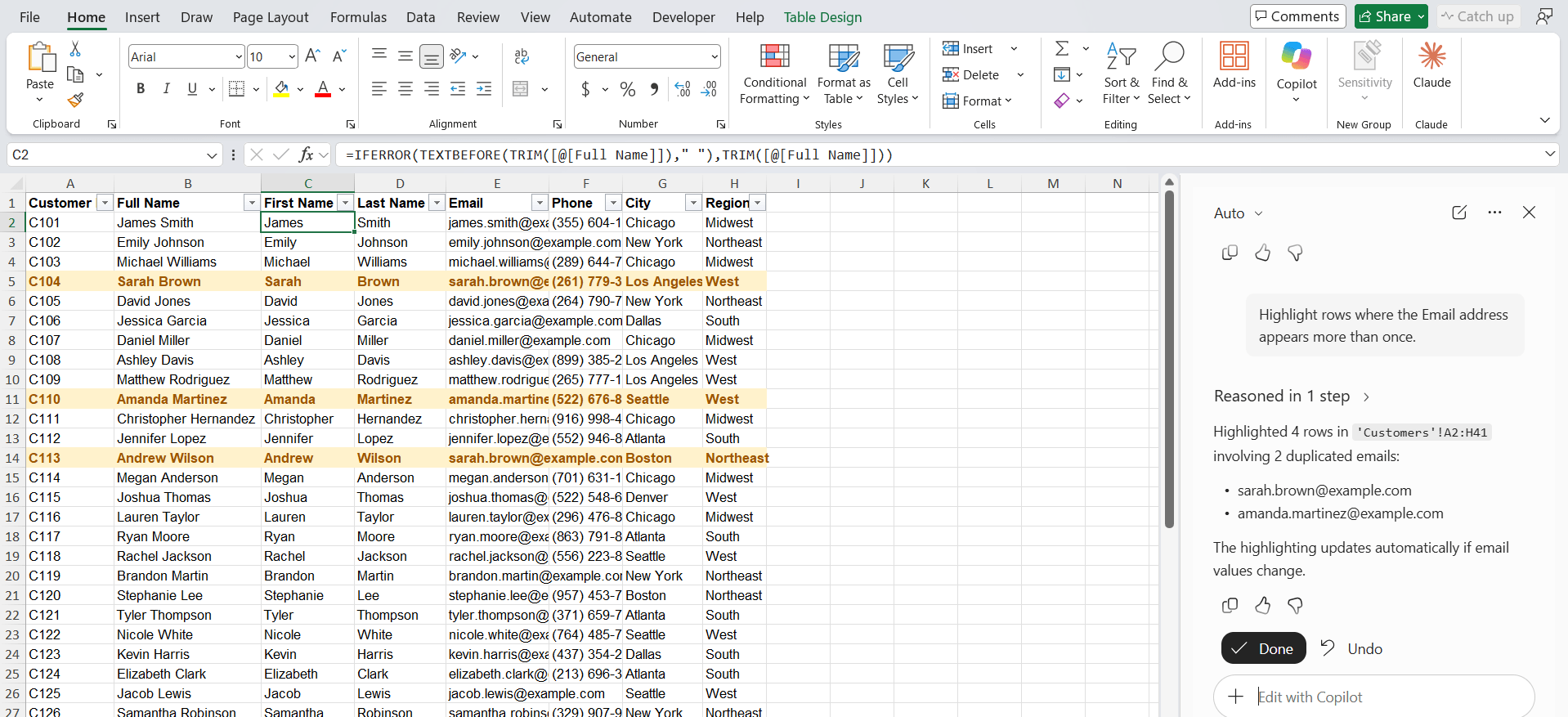
Copilot applies conditional formatting. You can then sort by colour to review them.
9. Sort and filter in one go
Prompt: Filter to rows where Amount is over 50,000 and sort by Date, newest first.
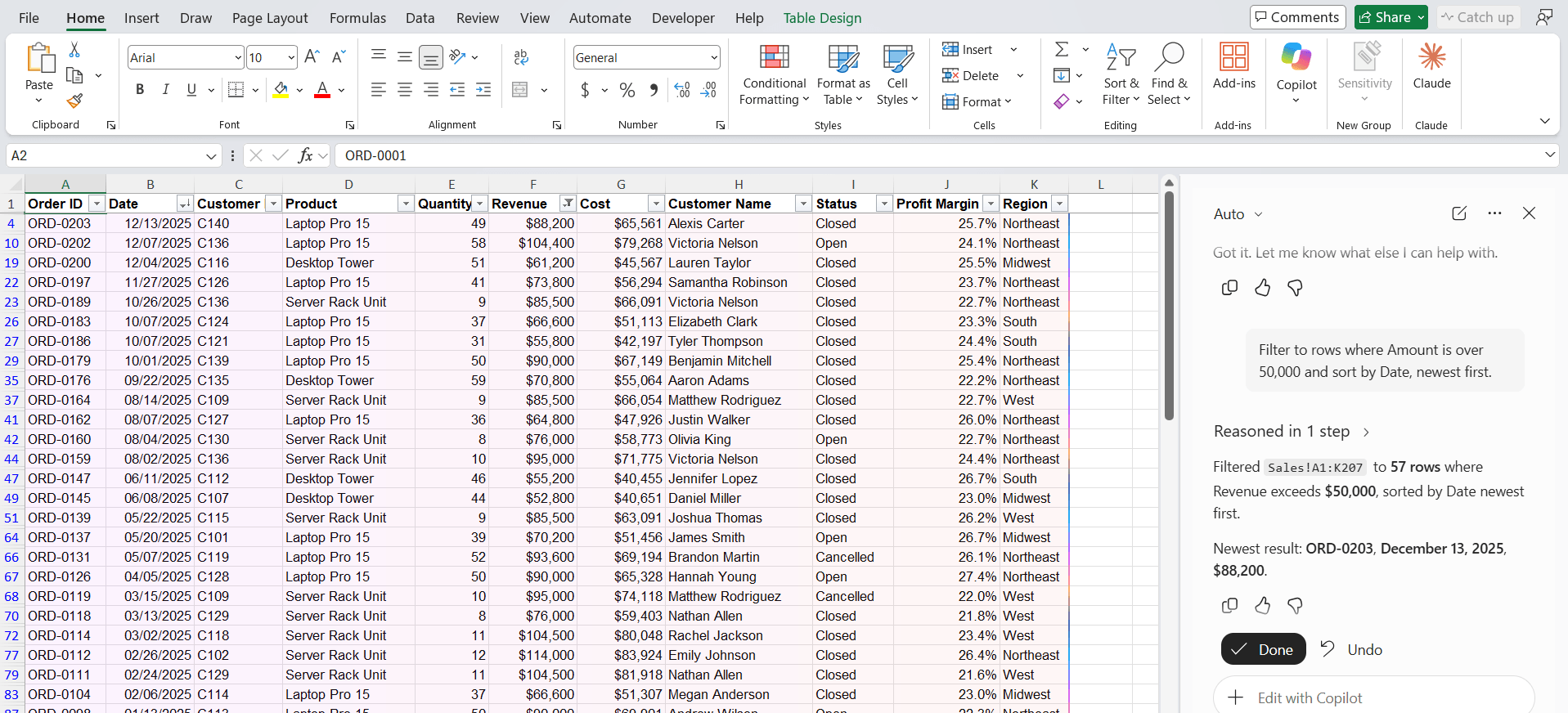
Faster than clicking through two filter menus.
10. Flag missing data
Prompt: Highlight blank cells in the Phone column in red color.
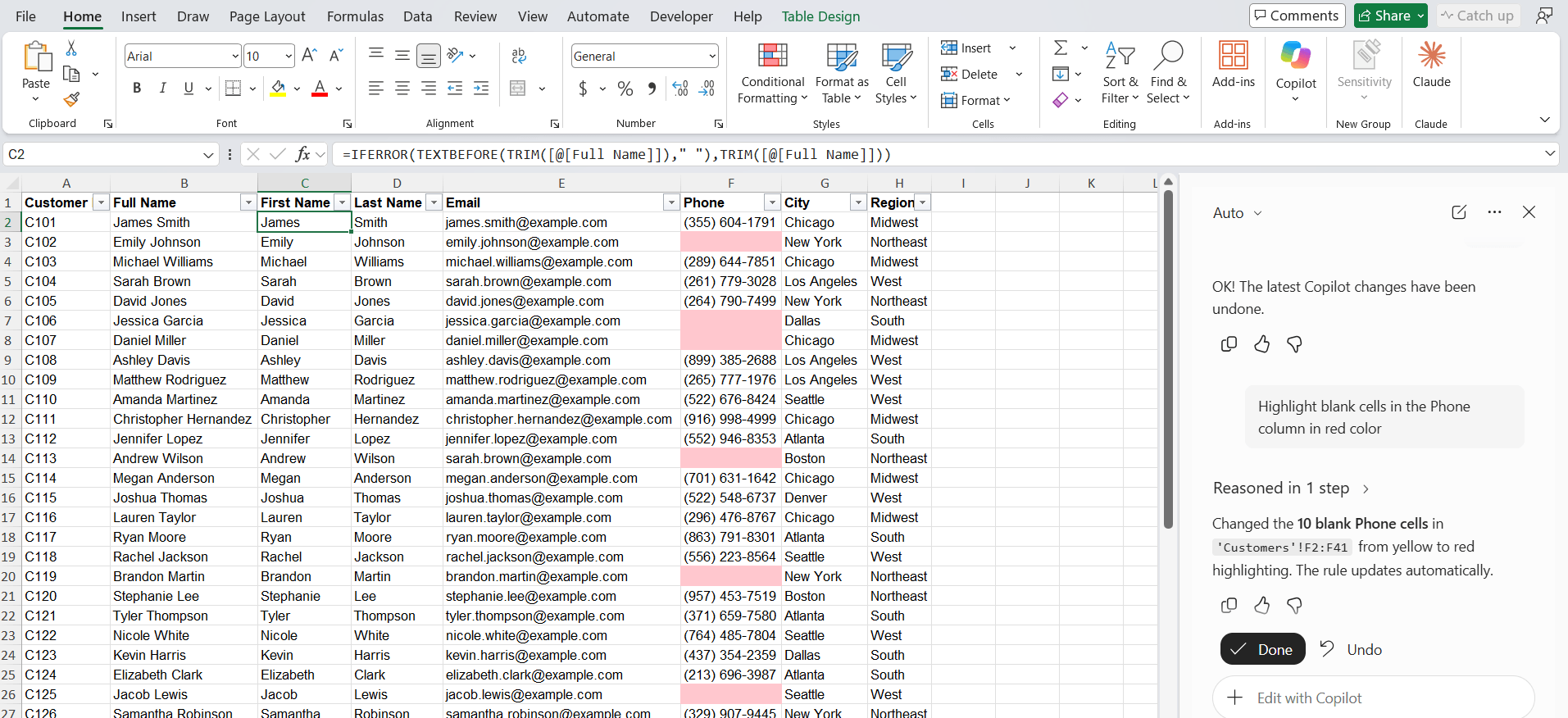
This is useful as it allows you to flag missing data.
11. Summarise a dataset
Prompt: Give me a summary of this data. What are the main trends?
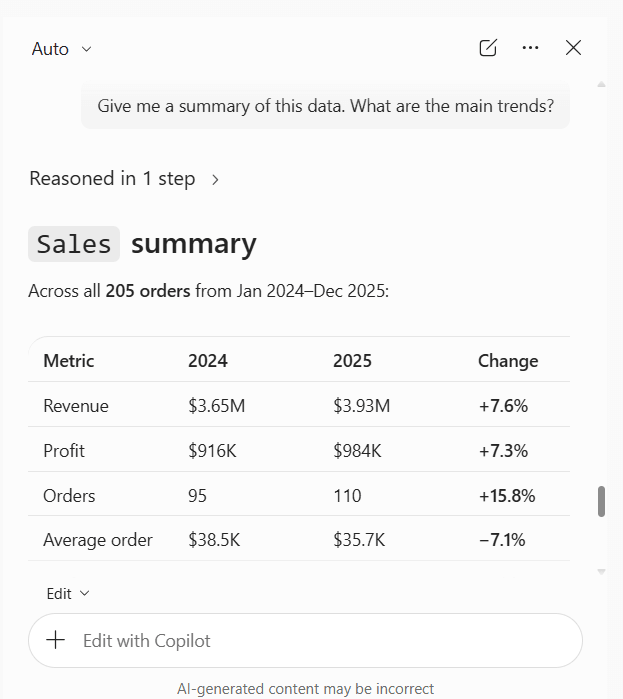
Copilot looks at the whole table and lists what stands out. Treat it as a starting point, not the final word.
12. Answer a question about your data
Prompt: Which product had the biggest drop in sales between Q1 and Q2?
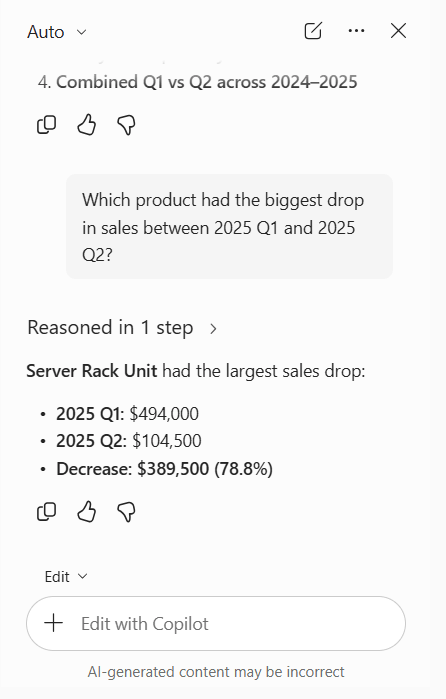
Copilot calculates the answer and shows its working. Since July 2026 it adds inline citations, so you can see which cells it used.
13. Build a PivotTable
Prompt: Create a PivotTable showing total Revenue by Region and Month.
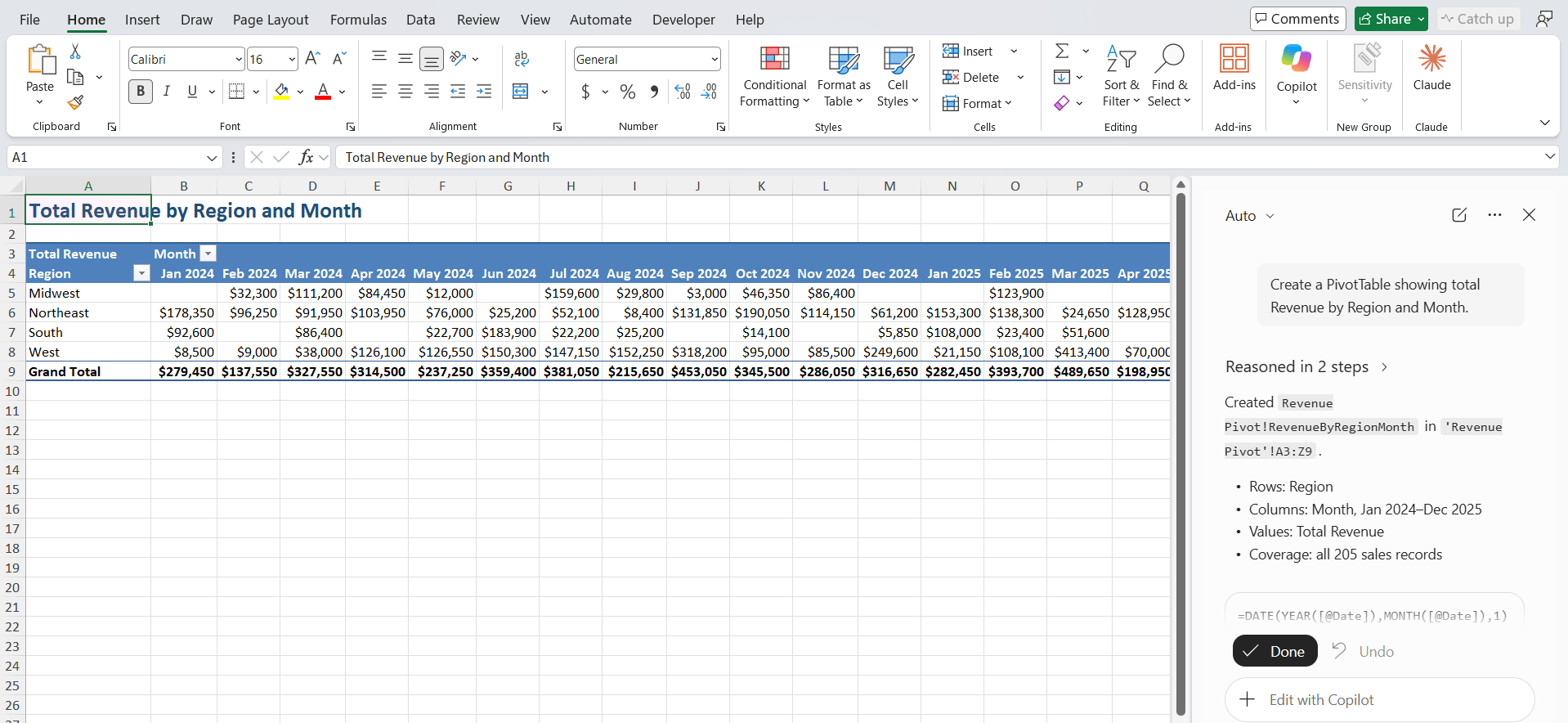
Copilot inserts the PivotTable on a new sheet. Ask it to add a filter or change the layout after.
14. Compare two periods
Prompt: Add a column showing the percentage change in Sales versus the same month last year.
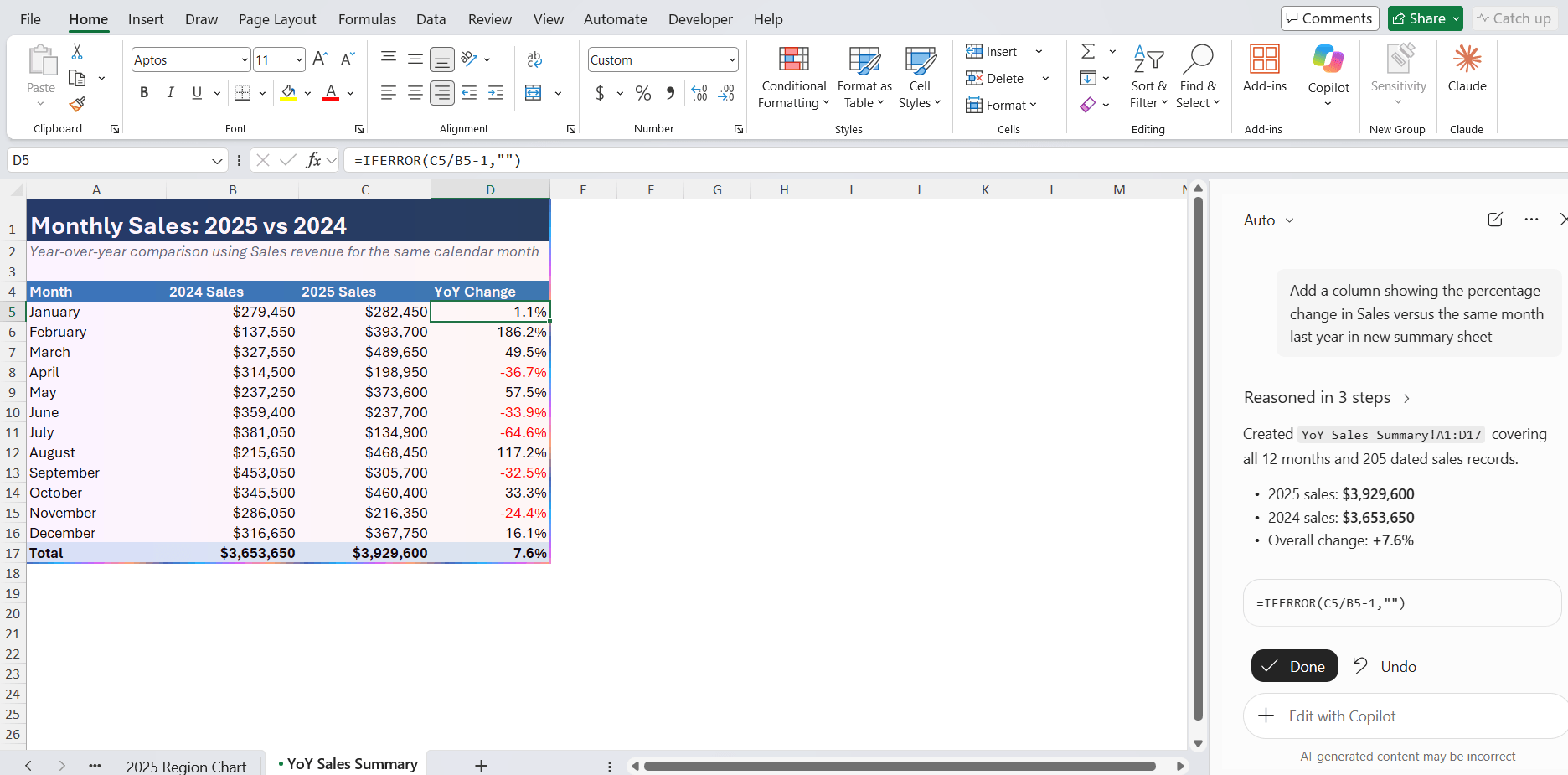
Copilot handles the offset logic. Check the first year, which should be blank or show a sensible error.
15. Run a quick what-if
Prompt: Create a sensitivity table by increasing the prices by 5% across the board. Show its effect on total revenue.
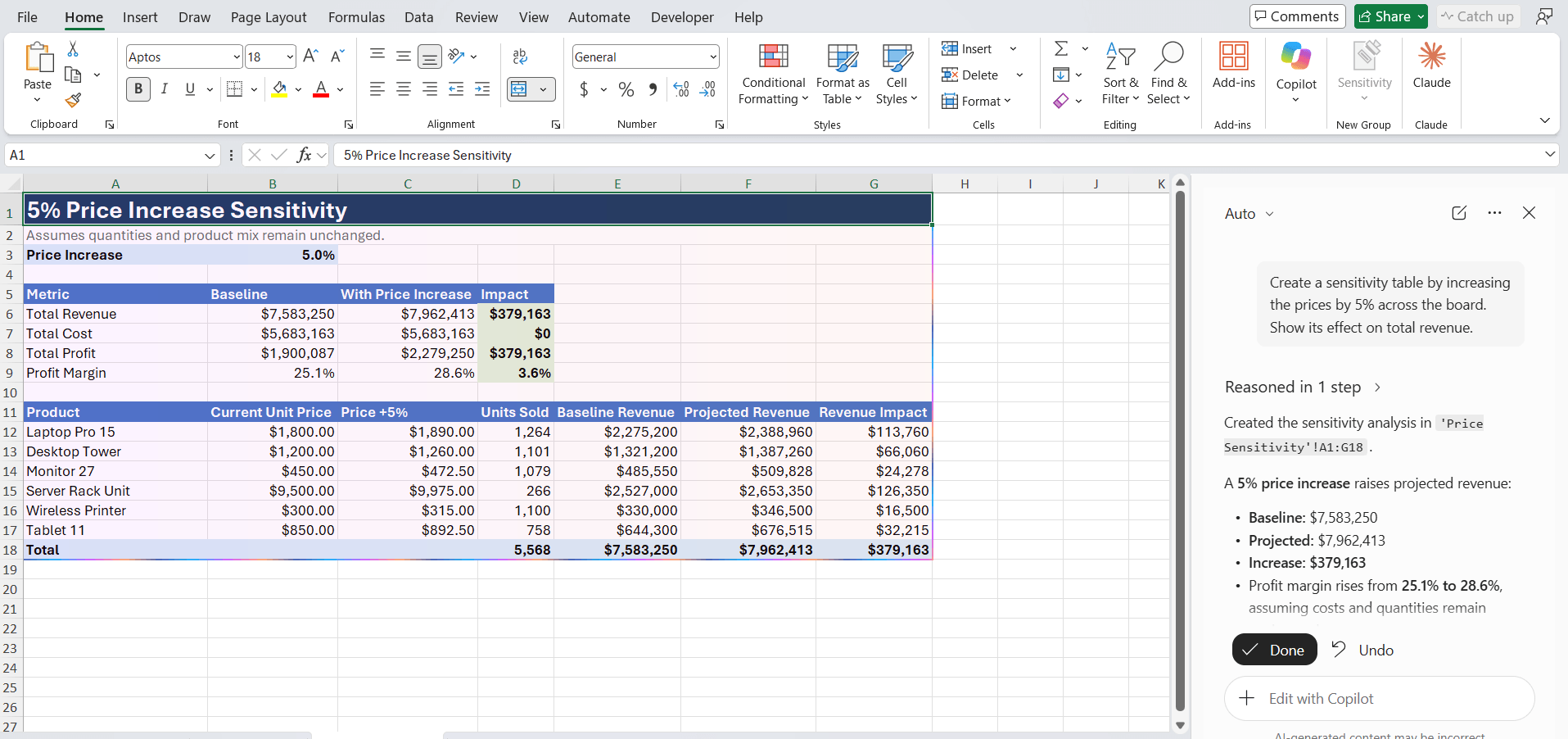
Copilot calculates the scenario and builds a sensitivity table.
16. Make a chart
Prompt: Create a clustered column chart of Sales by Region for 2025.
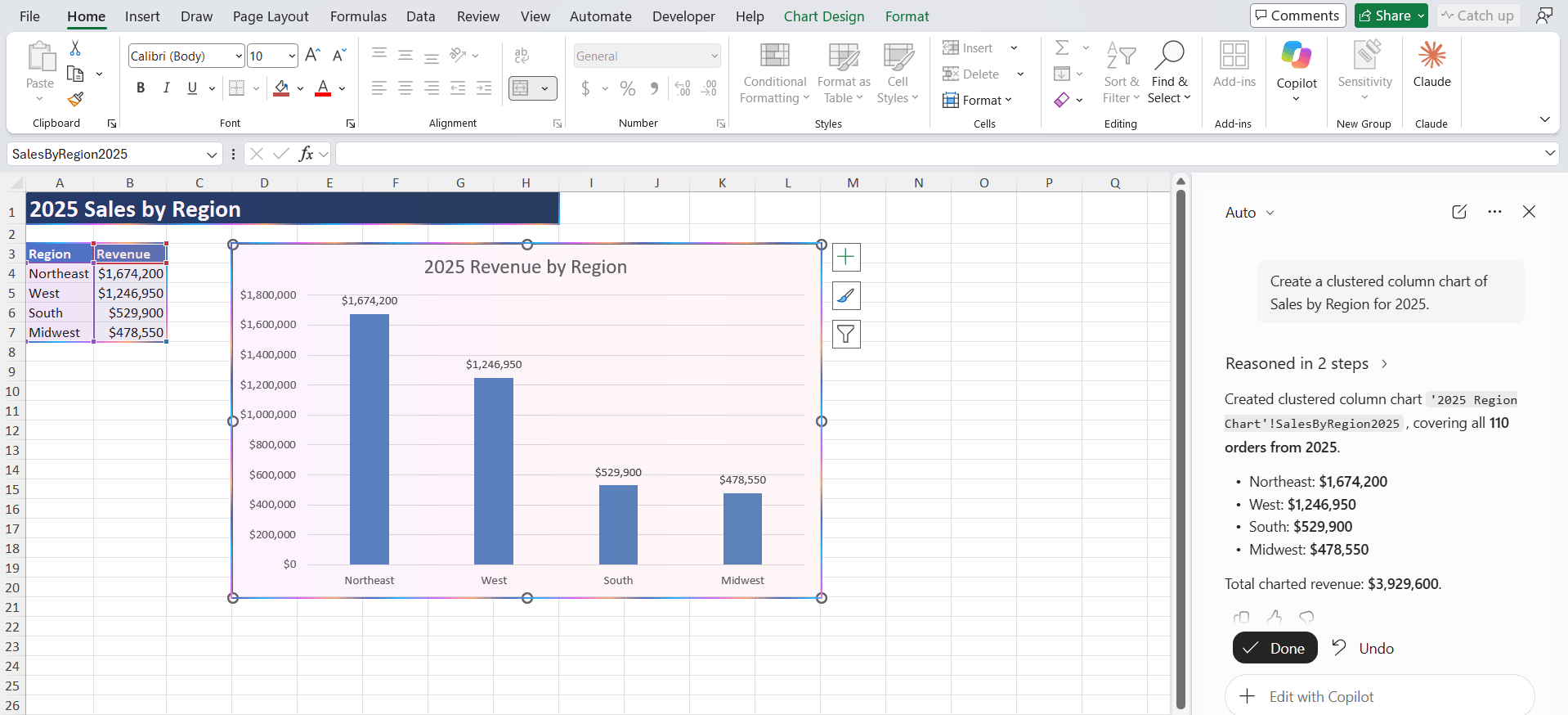
Copilot inserts the chart. Since August 2026, there is a dedicated chart-design skill. Type @chart-design in the prompt to get better-looking output.
17. Apply company formatting
Prompt: Format this sheet using our brand color and font.
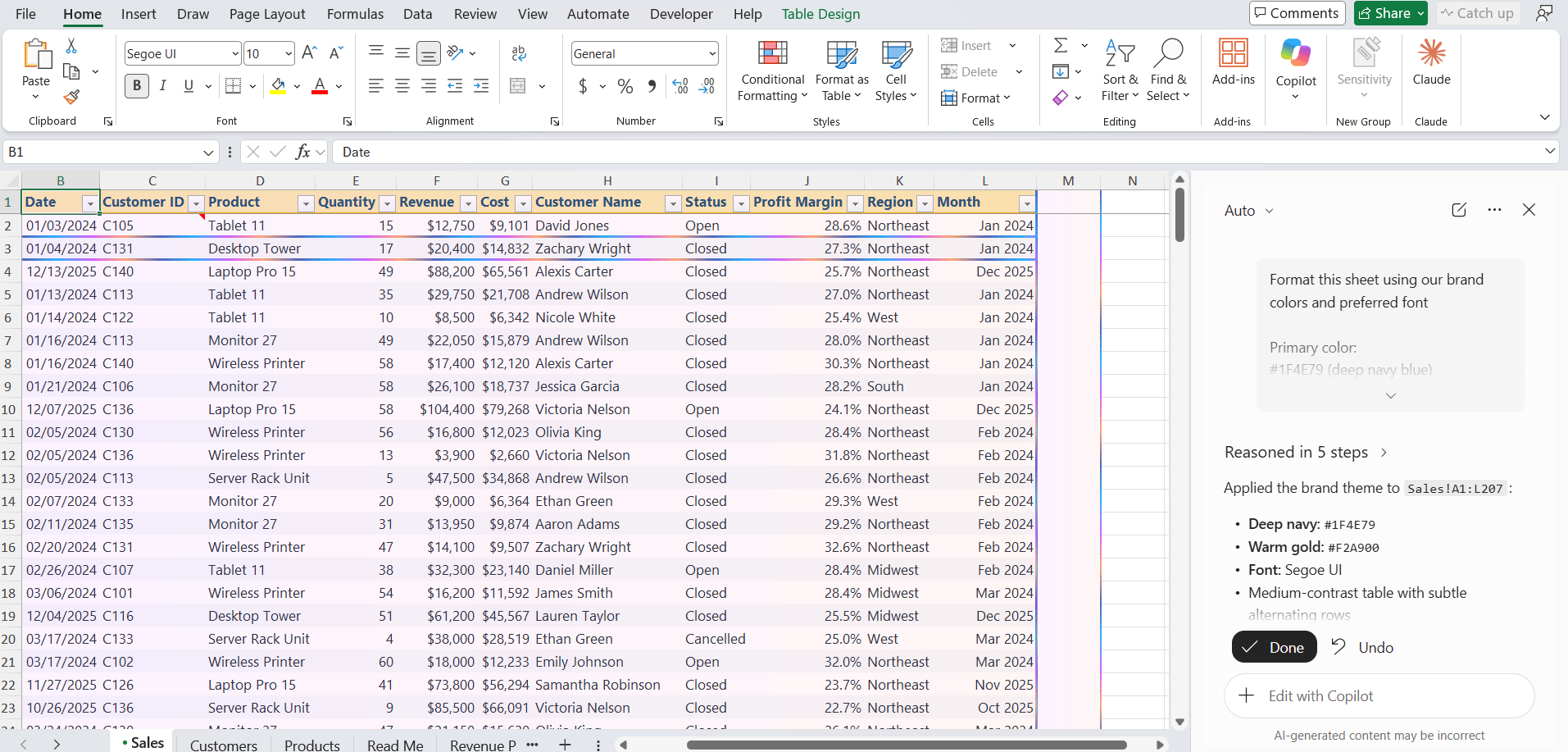
If your organisation has set up a brand kit in the Microsoft 365 Brand Center, Copilot applies the colours and fonts. Otherwise, ask for a specific style like “blue headers or borders on the table”.
18. Review recent changes
Prompt: Summarise what has changed in this workbook this week and who changed it.
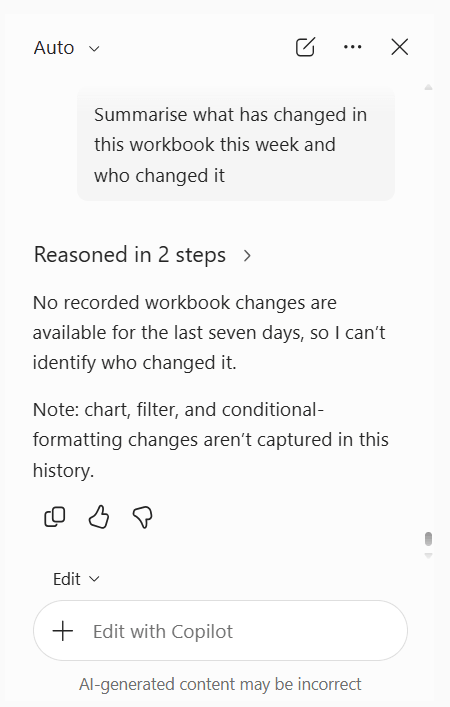
This uses the change history skill added in August 2026. It also lets you undo a specific edit.
19. Save a repeatable workflow as a skill
Prompt: Save this as a skill called “Monthly close”: refresh the data and rebuild the Revenue by Region PivotTable. Then, format totals in bold.
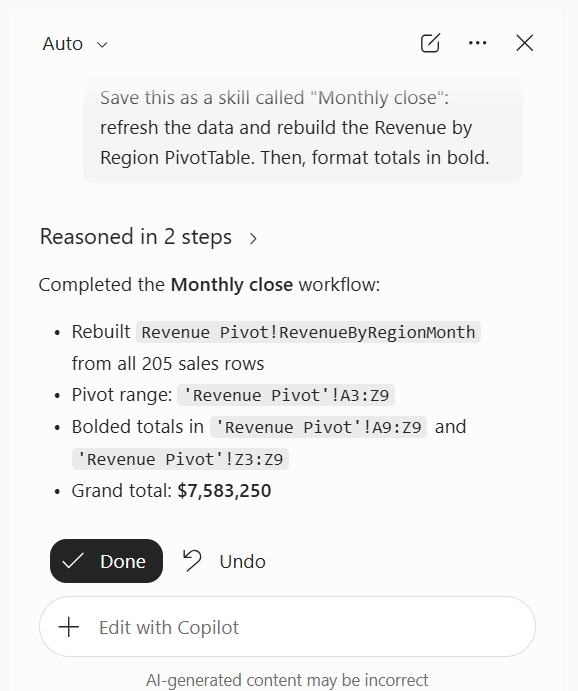
Skills were added in June 2026. Once saved, you can run the same steps next month with one prompt instead of typing them all out again.
20. Set standing preferences
Prompt: Remember that the currency should always be USD and the date format should be MM-DD-YYYY.
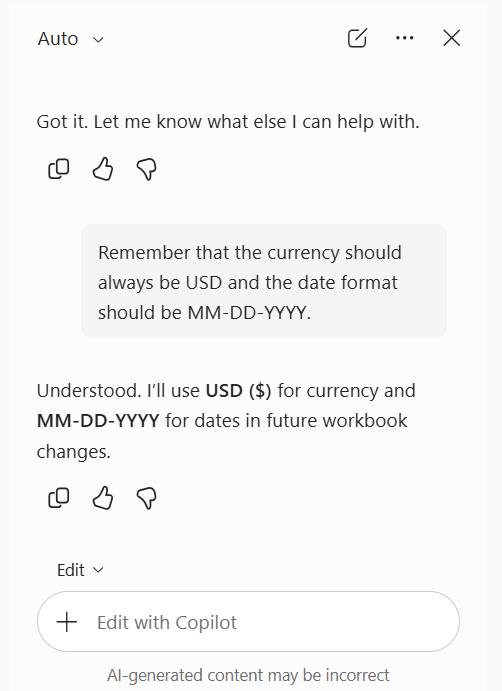
Copilot will save this setting and apply it across your workbooks.
When to Use Copilot in Excel
- You can use Copilot when you cannot remember the syntax of the formula.
- You have to clean a messy data report.
- You need to build a PivotTable or chart, and you do not want to follow the complicated steps.
- You have to understand the report that was built by someone else.
FAQs
Is Copilot in Excel free?
No. You need a Microsoft 365 subscription and a Microsoft 365 Copilot license.
Does Copilot see my data?
Yes, Copilot can read the data in your workbook.
Can I use Copilot on a local Excel file?
Not completely. The file needs to be saved in OneDrive or SharePoint for Copilot to work in Excel.
Can Copilot write VBA or Python?
Copilot can help write Python formulas in Excel. Copilot can write or explain code, but you need to add it to the VBA editor.
Which AI model does Copilot use?
The available models can vary. Copilot may offer different AI models that you can select from the Copilot pane.

John Michaloudis is a former accountant and finance analyst at General Electric, a Microsoft MVP since 2020, an Amazon #1 bestselling author of 4 Microsoft Excel books and teacher of Microsoft Excel & Office over at his flagship MyExcelOnline Academy Online Course.

 30 Days - Full Access









