In Microsoft Outlook, there can be long conversations, crowded inboxes, and frequent replies that can make managing emails cumbersome. Microsoft Copilot in Outlook helps simplify these tasks. You can use it to summarize email conversations, draft messages, improve your writing, manage email, and work with your calendar. In this article, you will learn how to use Copilot in Outlook.
Key Takeaways:
- Copilot can draft emails based on your instructions.
- It can summarize long email conversations.
- You can rewrite emails and improve their tone.
- Copilot can help you prepare for meetings.
- Available features depend on your account and subscription.
Table of Contents
Introduction to Copilot in Outlook
What is Copilot in Outlook?
Microsoft Copilot is an AI assistant available in Microsoft Outlook. It can help you manage email-related tasks using simple instructions. Instead of writing every email from scratch, you can ask Copilot to create a draft. You can also use it to:
- Summarize long email threads
- Find important points
- Adjust the tone of a message
How to Use Copilot in Outlook
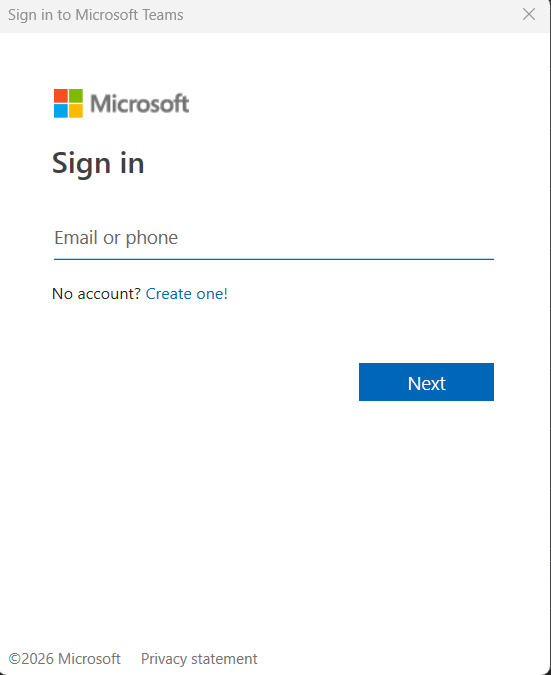
STEP 1: Sign in to your Microsoft Outlook.
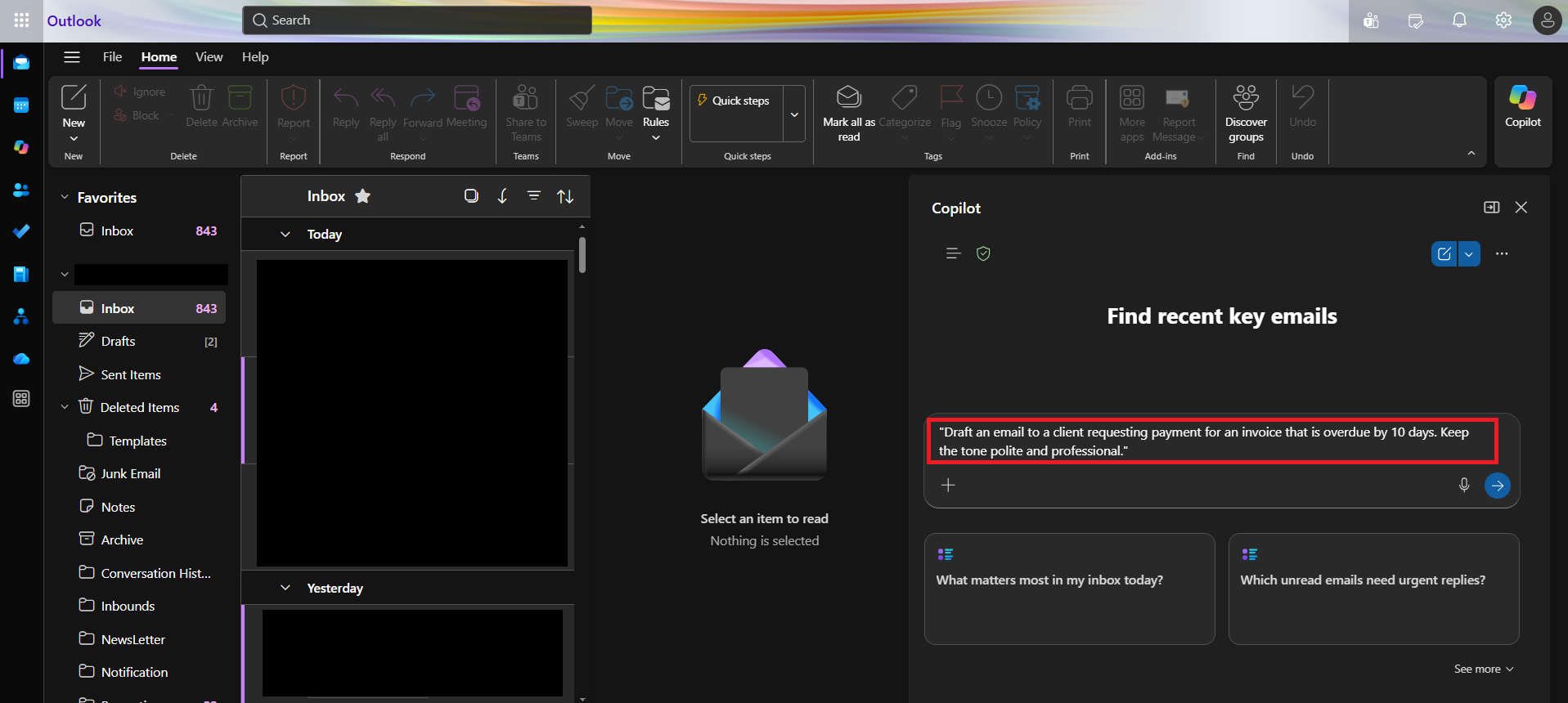
STEP 2: Go to the Home tab and select the Copilot button.

STEP 3: In the Copilot panel, type this prompt to ask Copilot to draft an email:
“Draft an email to a client requesting payment for an invoice that is overdue by 10 days. Keep the tone polite and professional.”
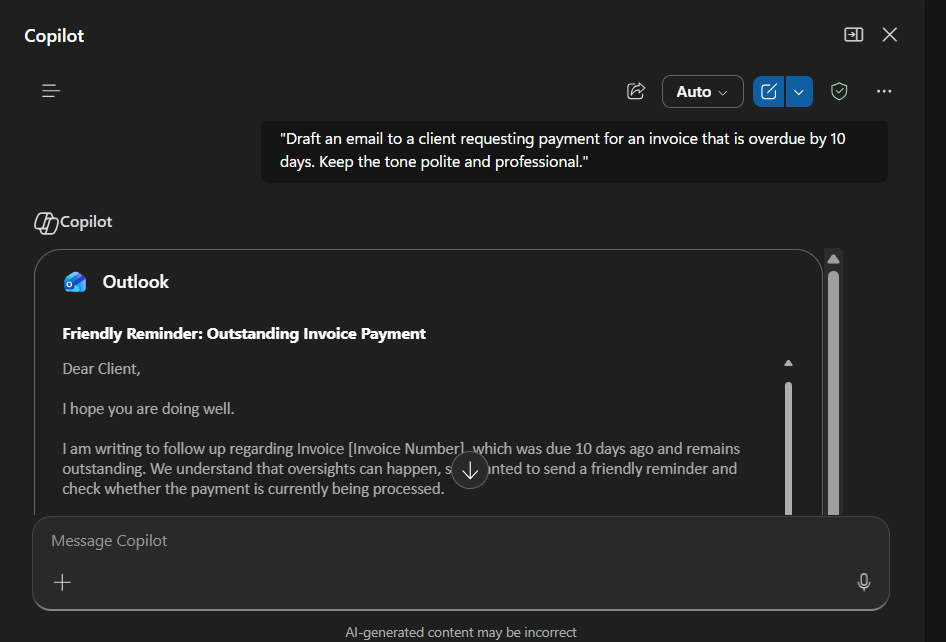
STEP 4: You should review the draft generated by Copilot.
Main Features of Copilot in Outlook
1. Draft Emails
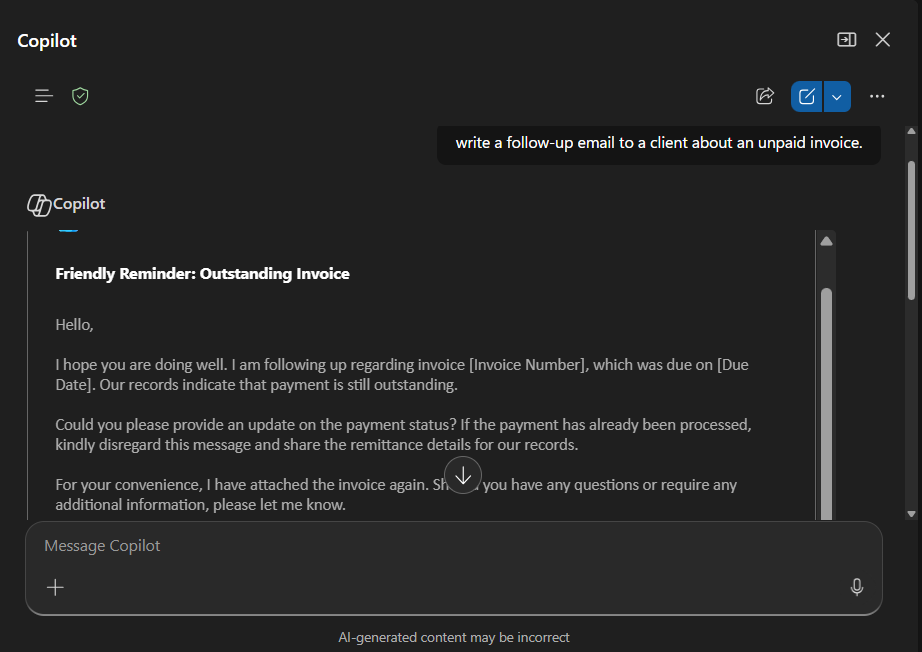
Copilot can write an email based on a short description of what you want to communicate. You can provide details about the recipient and purpose. For example, you can ask Copilot to write a follow-up email to a client about an unpaid invoice.
2. Summarize Email Threads
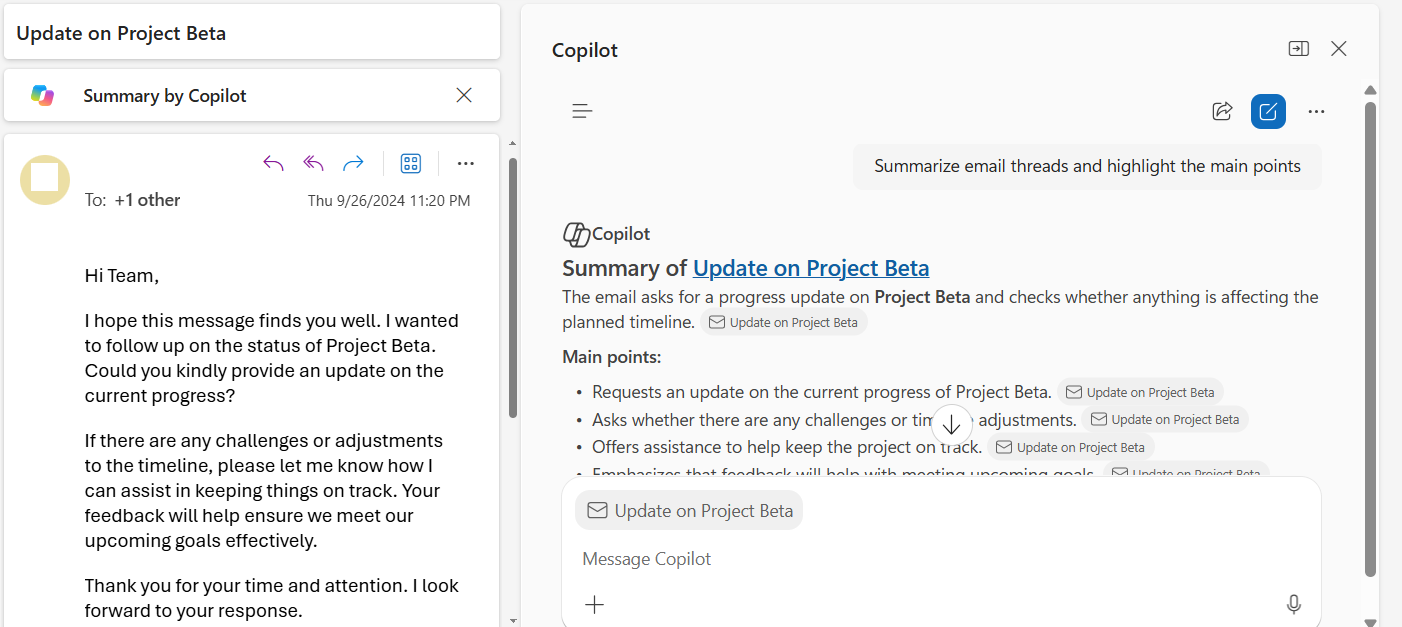
Reading long email conversations can be time-consuming. You can ask Copilot to summarize email threads and highlight the main points.
3. Rewrite Emails
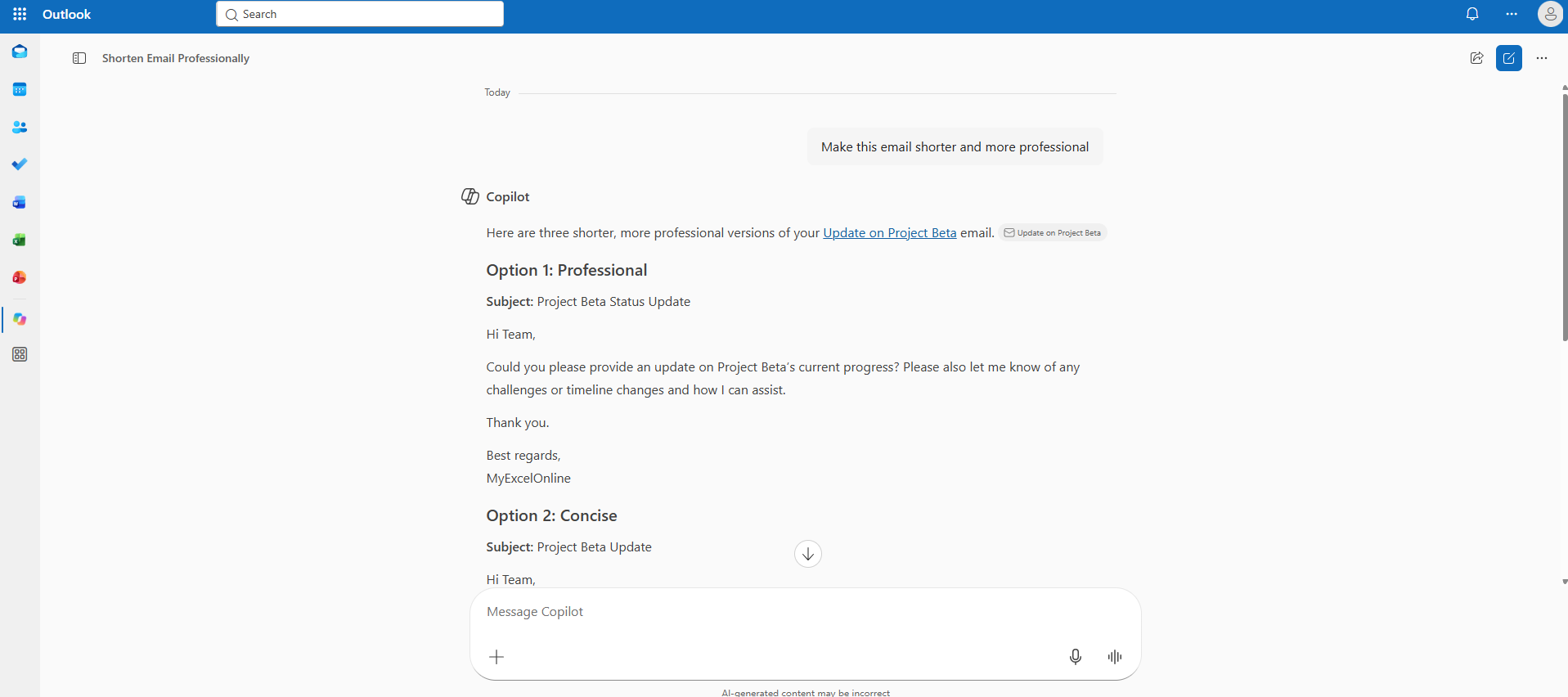
You can use Copilot to improve an existing email. It can help make your message shorter or more professional.
4. Prepare for Meetings
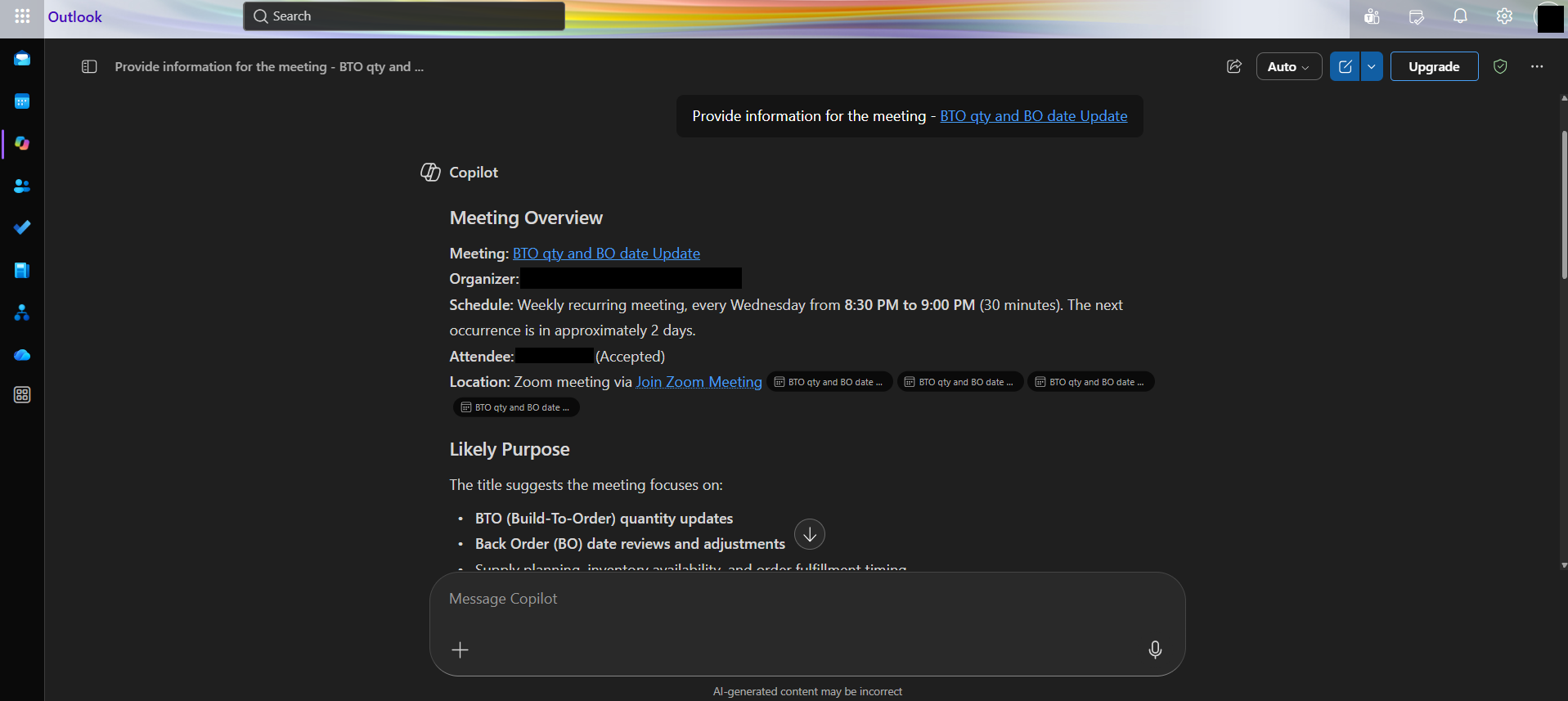
Copilot can help you organize information related to meetings. It can help you review relevant emails or prepare a meeting agenda.
Benefits of Using Copilot in Outlook
- It can help prepare drafts and summarize long conversations.
- It can suggest clearer wording and more suitable tones.
- You can generate common emails without starting from scratch.
- Summaries can help you make decisions.
- It helps you prepare messages for clients and managers.
FAQs
1. What is Copilot in Outlook?
Copilot in Outlook is a Microsoft assistant that helps you work with emails. You can use it to draft messages or summarize email threads.
2. Can Copilot write emails in Outlook?
Yes, you can ask Copilot to draft an email for you based on the instructions provided.
3. Can Copilot summarize long email conversations?
Yes. Copilot can summarize an email thread and find the important points mentioned in the email. This can save time, as you do not need to go through those long conversations.
4. Can Copilot improve an email I have already written?
Yes, you can ask Copilot to improve the email written by you. You can ask it to improve the tone and clarity of a draft.
5. Do I need to review emails created by Copilot?
Yes. It is good practice to review the draft generated by Copilot before sending it.

John Michaloudis is a former accountant and finance analyst at General Electric, a Microsoft MVP since 2020, an Amazon #1 bestselling author of 4 Microsoft Excel books and teacher of Microsoft Excel & Office over at his flagship MyExcelOnline Academy Online Course.

 30 Days - Full Access