 Free Practice Workbook
Financial Modelling is the process of building an Excel report used to forecast a business’s future financial performance. Instead of building one from scratch, you can use Copilot prompts to create a new model or edit an existing one. In this article, you will learn how to do financial modeling with Copilot in Excel.
Key Takeaways:
- Copilot can help create and update financial models in Excel.
- You can use prompts to calculate financial metrics.
- Copilot can create cash flow and scenario models.
- What-if analysis can show the impact of changing assumptions.
- Always review Copilot’s formulas and financial calculations.
Table of Contents
What is Financial Modeling?
Financial modeling is the process of creating a model to represent the financial performance of a business. An Excel financial model can include:
- Revenue
- Expenses
- Profit and loss
- Cash flow
- Assets and liabilities
- Financial forecasts
- Budget and actual results
- Financial ratios
- Scenario analysis
A financial model usually connects these numbers with formulas and assumptions.
How to Create Financial Modeling with Copilot
Analyze Gross Margin
Gross margin can be calculated by subtracting cost of goods sold from revenue, and Gross margin can be calculated by dividing gross profit by revenue.
Gross profit = Revenue – COGS
Gross margin = Gross Profit/Revenue
You can ask Copilot to:
“Calculate gross profit and gross margin for each year.”
Create a Cash Flow Model
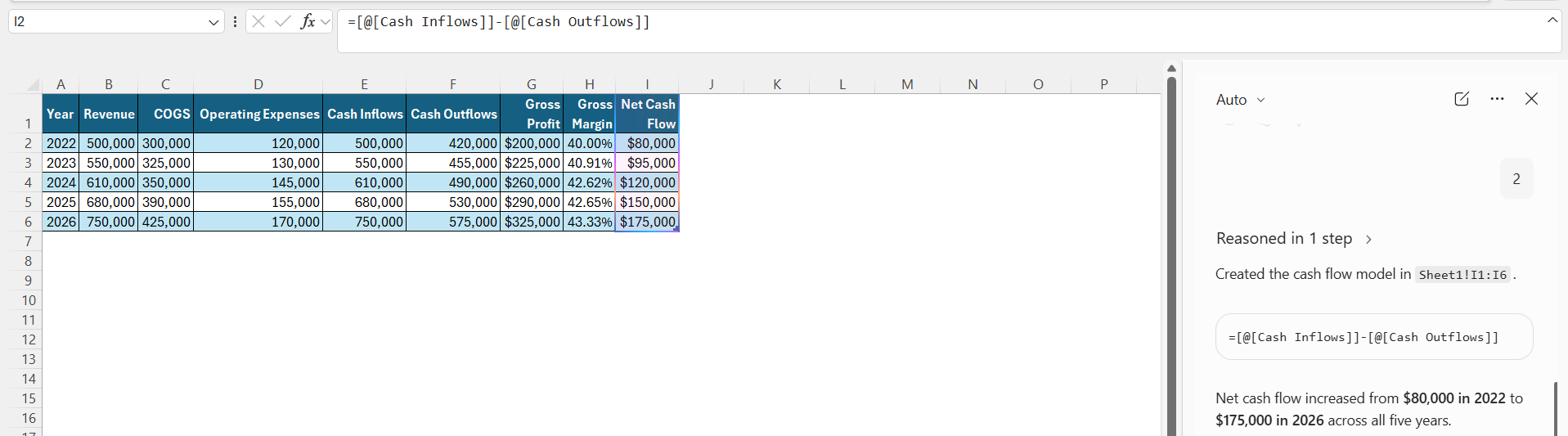
The net cash flow is calculated by subtracting cash outflows from cash inflows.
You can ask Copilot to create a cash flow model by typing this:
“Create a simple cash flow model using the revenue, expenses, and cash balance data in this worksheet.”
Perform Scenario Analysis
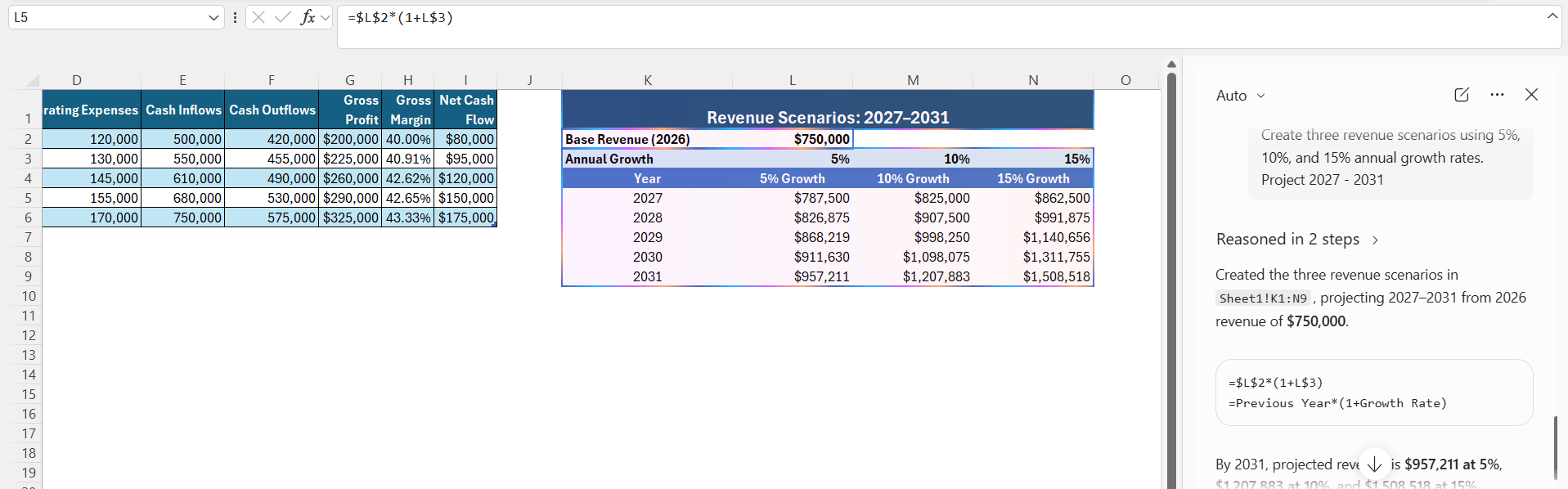
Scenario analysis allows you to see how changes in assumptions affect financial results. For example, you may want to compare:
- Base case
- Best case
- Worst case
You can ask Copilot:
“Create three revenue scenarios using 5%, 10%, and 15% annual growth rates.”
Analyze What-If Changes
You can also ask Copilot to analyze changes to important assumptions.
For example:
“Show how a 10% increase in operating expenses would affect projected profit.”
Another example:
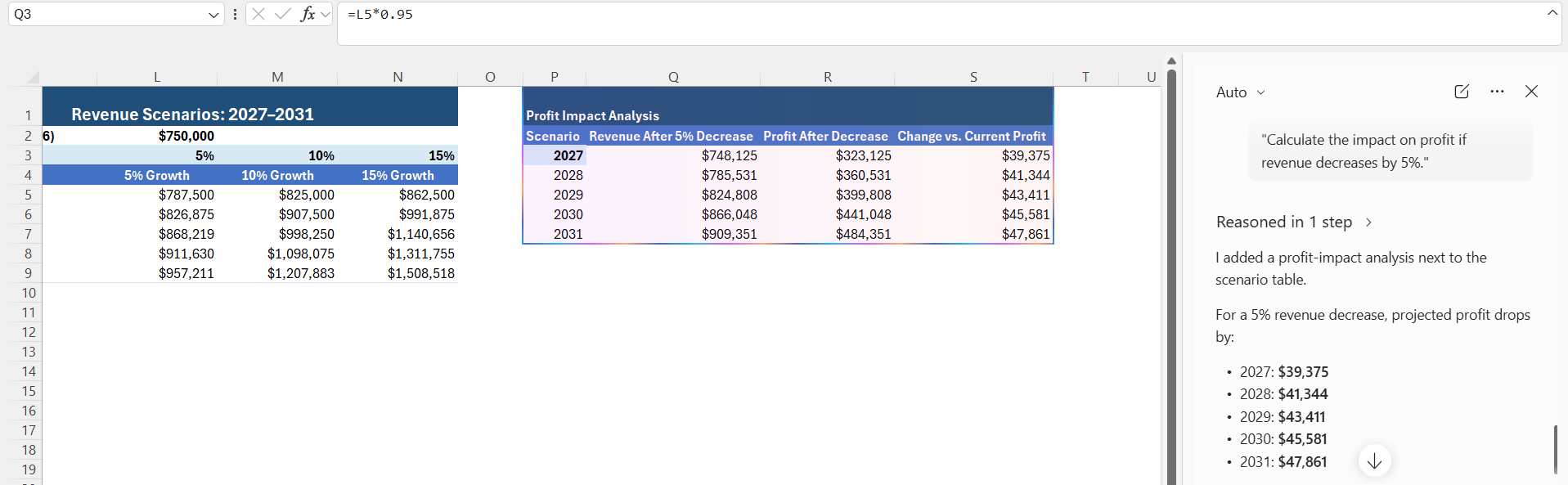
“Calculate the impact on profit if revenue decreases by 5%.”
Create Financial Ratios
Financial models often use ratios to analyze business performance.
Some common ratios include:
- Profit margin
- Gross margin
- Current ratio
- Debt-to-equity ratio
- Return on sales
- Asset turnover
Prompt:
“Calculate the key financial ratios from this financial data and explain what each ratio shows.”
Financial Model Summary
Once your model is complete, you can ask Copilot to summarize the key figures.
Prompt:
“Summarize the financial model and highlight the main changes in revenue, expenses, profit, and cash flow.
Tips & Tricks
- Use clear and specific prompts.
- Keep revenue, expenses, and assumptions organized.
- Use consistent headings for financial data.
- Check formulas before using the results.
- Review different scenarios before making decisions.
- Update assumptions when new data is available.
- Use Excel Tables to keep your data organized.
- Ask Copilot to explain complex formulas.
- Compare actual results with forecasts.
- Keep a backup of your original model.
FAQs
1. Can Copilot create a financial model in Excel?
Yes. Microsoft Copilot can help create financial models based on the data and instructions you provide. You can ask it to create formulas, calculations, forecasts, and financial analysis.
2. Can Copilot create a cash flow model?
Yes. You can ask Copilot to create a cash flow model using revenue, expenses, cash inflows, and cash outflows from your worksheet.
3. Can Copilot perform scenario analysis?
Yes. Copilot can help create different scenarios based on growth rates or other assumptions. You can compare base, best, and worst-case scenarios.
4. Can Copilot calculate financial ratios?
Yes. You can ask Copilot to calculate ratios such as gross margin, profit margin, current ratio, debt-to-equity ratio, and asset turnover.
5. Should I verify a financial model created by Copilot?
Yes. Always check the formulas, assumptions, and results before using the model for financial reporting or business decisions.

John Michaloudis is a former accountant and finance analyst at General Electric, a Microsoft MVP since 2020, an Amazon #1 bestselling author of 4 Microsoft Excel books and teacher of Microsoft Excel & Office over at his flagship MyExcelOnline Academy Online Course.

 30 Days - Full Access









