 Free Practice Workbook
Forecasting is an important skill required in any business to help plan, budget, and make smart business decisions. But doing it manually can take a lot of time. Using Copilot, you can generate forecasts and analyze trends without writing complex formulas yourself. In this article, you will learn how to forecast sales in Excel with Copilot.
Key Takeaways:
- Copilot helps you forecast sales quickly without complex formulas.
- Clear prompts give better and more accurate results.
- Clean and organized sales data improves the forecast.
- Copilot can create charts and explain trends for you.
- Always check Copilot’s output before using it for decisions.
Table of Contents
What is Copilot?
Copilot is an AI assistant available inside Microsoft Excel that can help execute tasks for you. You need to explain what you want in simple language, and the rest will be taken care of. Before you start, make sure you have:
- Microsoft 365 Copilot license
- Sales dataset with proper headers
- Workbook saved in OneDrive or SharePoint
- AutoSave turned on
What is Sales Forecasting?
Sales forecasting is the process of estimating future sales based on past sales data. It can help you plan inventory, set sales targets, and make business decisions. Excel can use historical sales data to find trends and estimate future values. Copilot can help you prepare the data, create formulas, and analyze the forecast.
How to Forecast Sales in Excel with Copilot
Sales Forecast
STEP 1: Open the workbook and click the Copilot button.
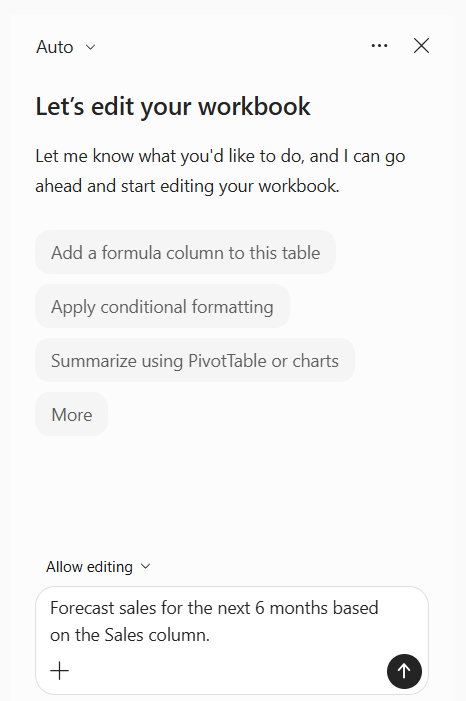
STEP 2: In the Copilot pane, enter a prompt such as:
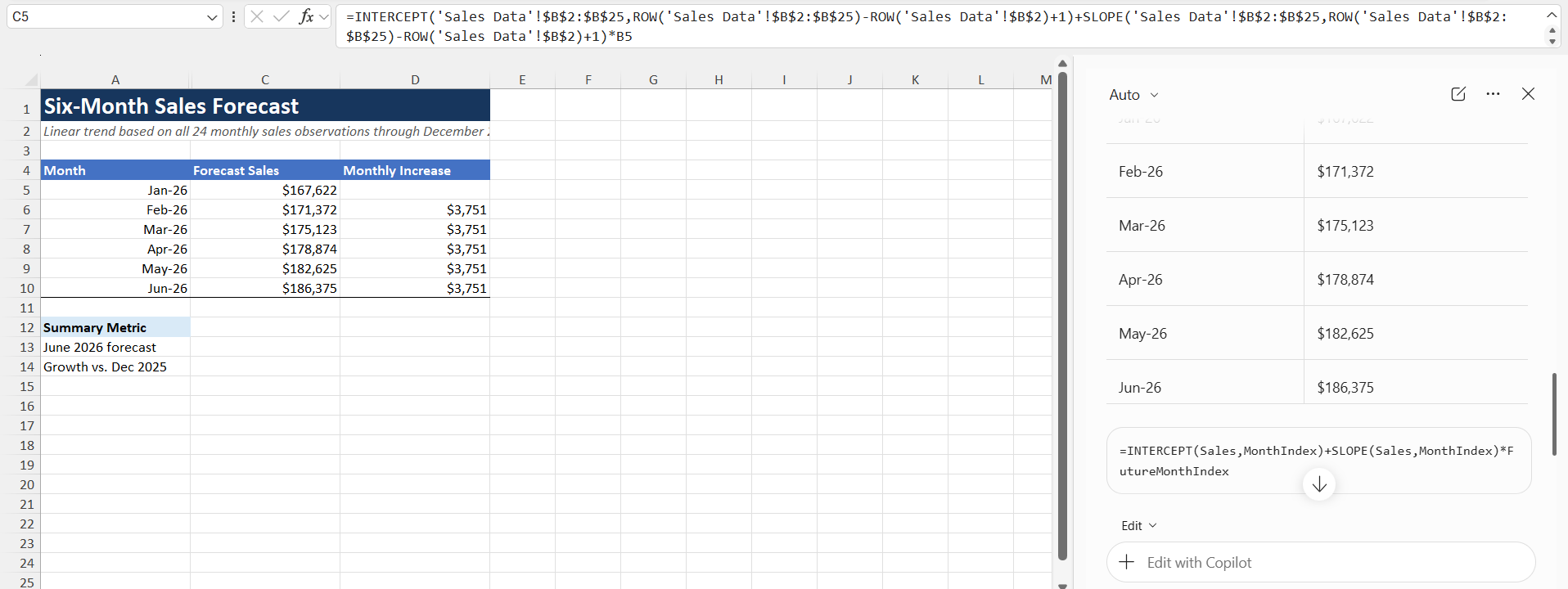
Forecast sales for the next 6 months based on the Sales column.
Copilot will insert the INTERCEPT and SLOPE formulas to project the sales value for the next 6 months.
Forecast Chart
Copilot can also visualize your forecast.
STEP 1: Highlight your sales data.
STEP 2: Open Copilot.
STEP 3: Enter a prompt like:
Create a line chart showing actual sales and forecasted sales.
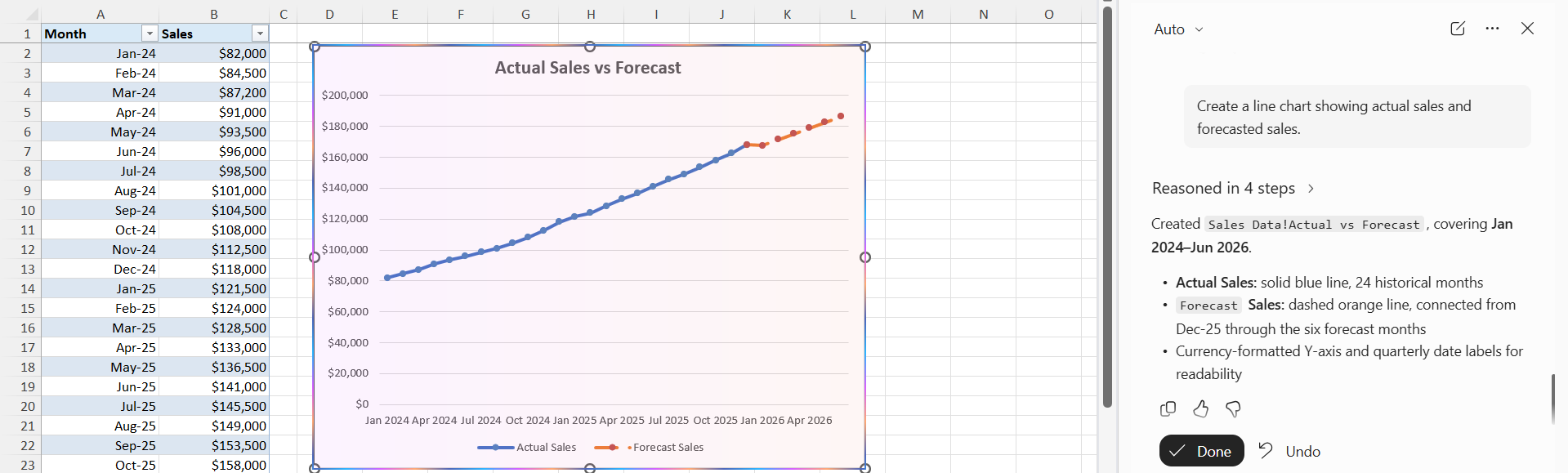
The forecast chart will be inserted.
Analyze Trends
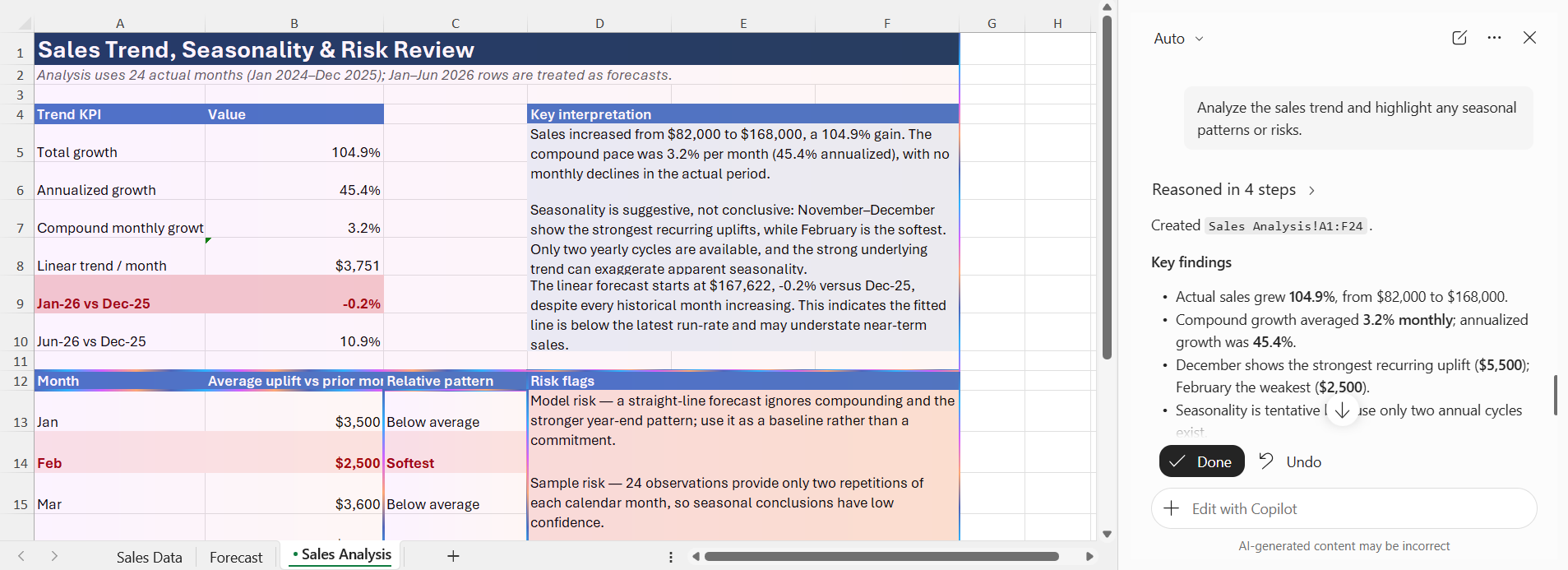
Copilot can explain patterns in your data, helping you understand what the forecast means.
Try a prompt such as:
Analyze the sales trend and highlight any seasonal patterns or risks.
Advanced Forecasting Formulas
You can use Copilot to generate forecasts using different forecasting methods.
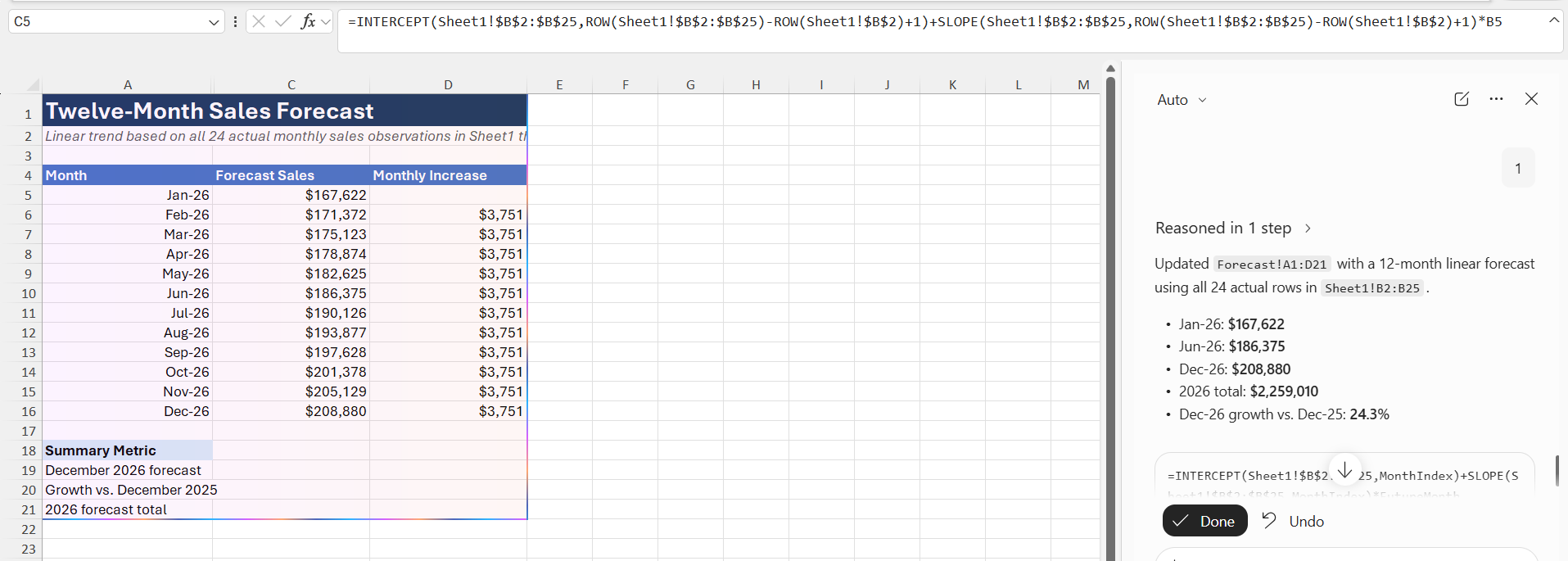
- Linear forecast: Create a linear forecast for the next 12 months using the Sales column.
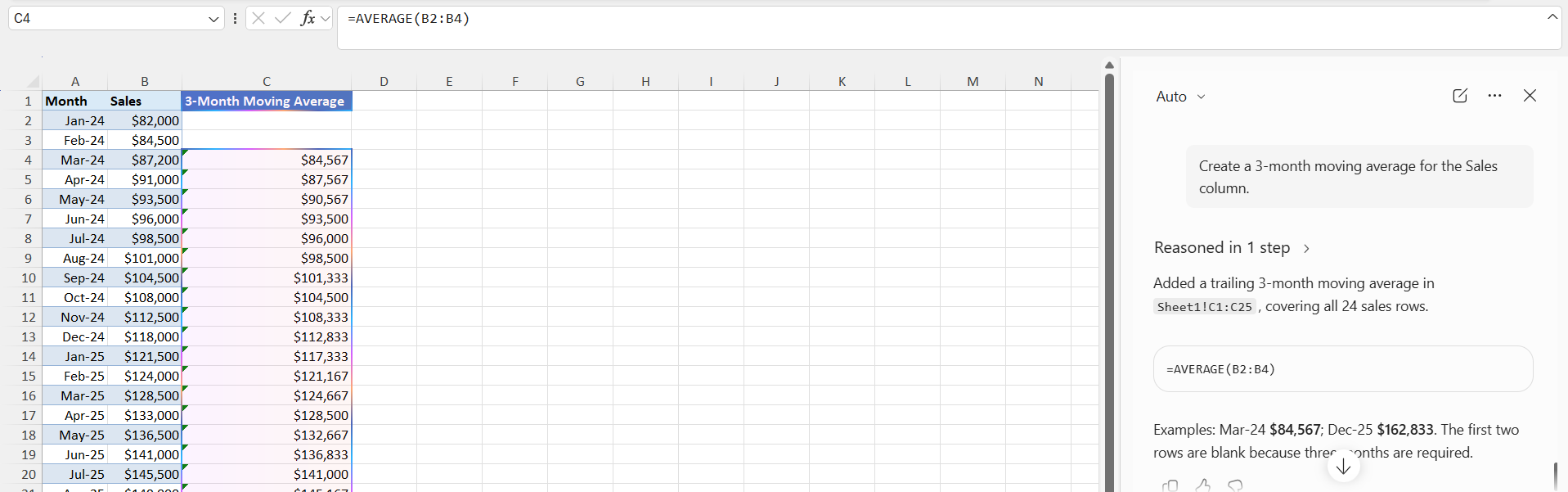
- Moving average: Create a 3‑month moving average for the Sales column.
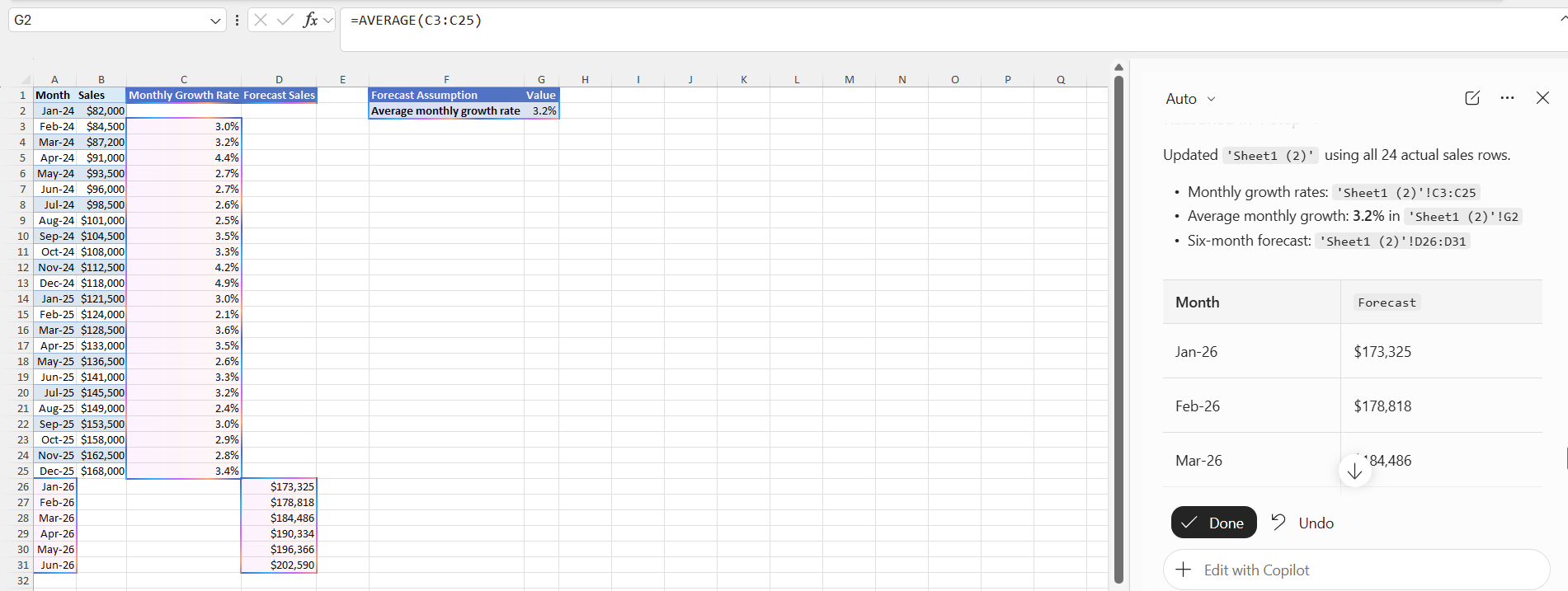
- Growth rate projection: Calculate the monthly growth rate and forecast the next 6 months.
FAQs
1. Can Copilot create sales forecasts automatically?
Copilot can generate forecasts based on your historical sales data by writing the prompt.
2. Does Copilot support different forecasting techniques?
Yes. Copilot can create linear forecasts, moving averages, growth rate projections, and other forecasting formulas depending on your prompt.
3. Do I need to save my workbook online to use Copilot?
Some Copilot features require your workbook to be saved in OneDrive or SharePoint with AutoSave turned on.
4. Can Copilot build charts for my forecast?
Yes. You can ask Copilot to create line charts or comparison charts using your actual and forecasted sales data.
5. Should I verify the forecast Copilot generates?
Always check the results generated by Copilot before using them.

John Michaloudis is a former accountant and finance analyst at General Electric, a Microsoft MVP since 2020, an Amazon #1 bestselling author of 4 Microsoft Excel books and teacher of Microsoft Excel & Office over at his flagship MyExcelOnline Academy Online Course.

 30 Days - Full Access









