Reading long email conversations can take up a lot of your time. You may have to go through several replies and questions that may involve several people. It is important to summarize long email threads and highlight the main points. In this article, you will learn how to summarize email threads with Copilot in Outlook.
Key Takeaways:
- Copilot can summarize long email threads in Outlook.
- Email threads group related emails and replies in one conversation.
- You can use prompts to find decisions and pending tasks.
- Follow-up prompts can help you get specific information.
- Always check important details in the original emails.
Table of Contents
Introduction to Email Thread
What is Email Thread?
An email thread in Outlook is a group of related emails displayed together as one conversation. It includes the original email and the replies sent by different people. For example:
- You write an email asking about the price of a product.
- Someone replies to your email
- You ask a follow-up question
- Another person replies to it
Microsoft Outlook groups these emails together to form an email thread.
Why is Email thread useful?
- It keeps all conversations related to a topic in one place.
- You can follow the conversation without having to search each email individually
- You can track updates, decisions, and pending questions.
How to Summarize Email Threads with Copilot in Outlook
Step-by-Step Guide
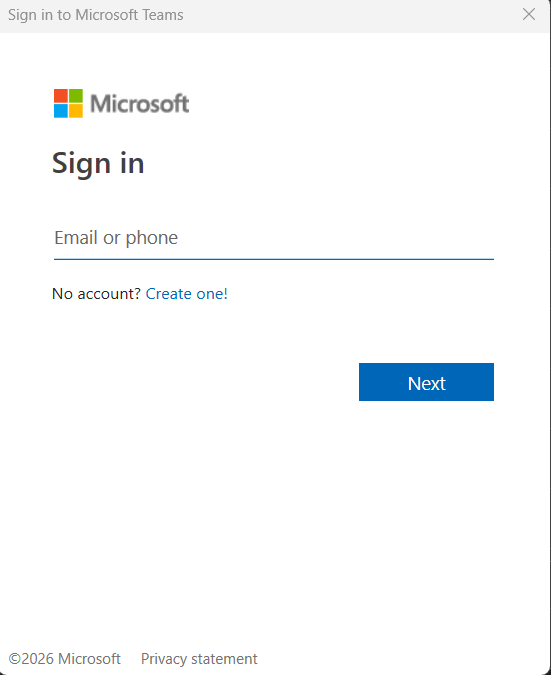
STEP 1: Open Outlook and sign in with your Microsoft 365 account.
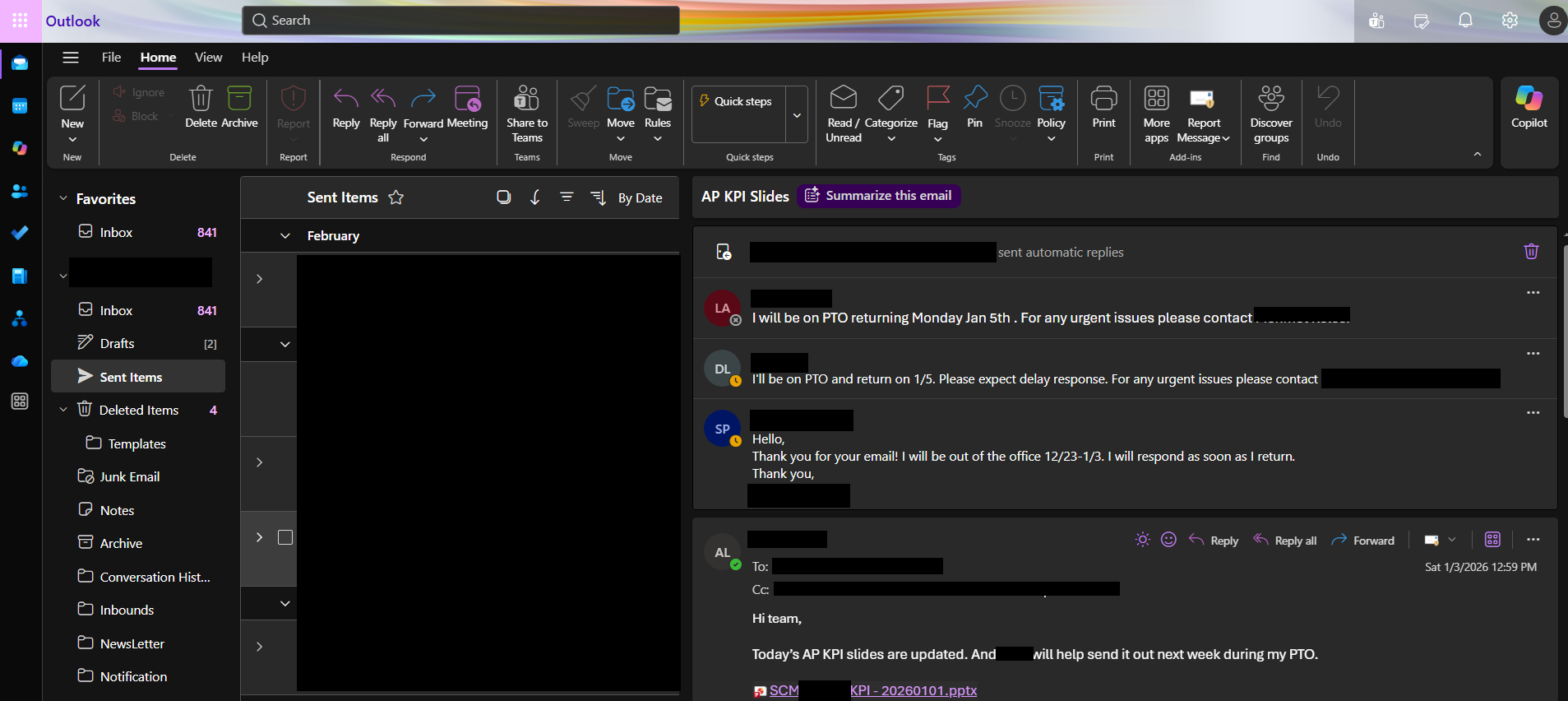
STEP 2: Open the email thread you want to summarize.
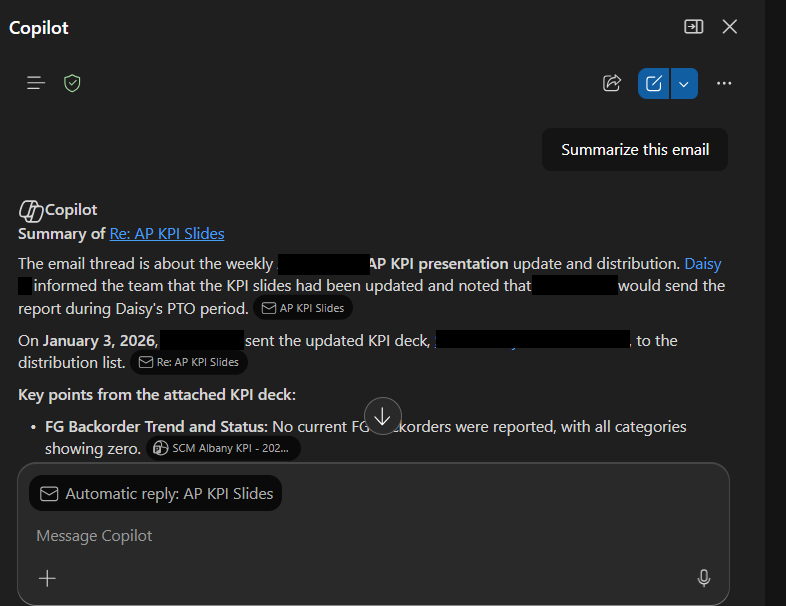
STEP 3: Click the ‘Summarize this email’ option at the top of the email conversation.
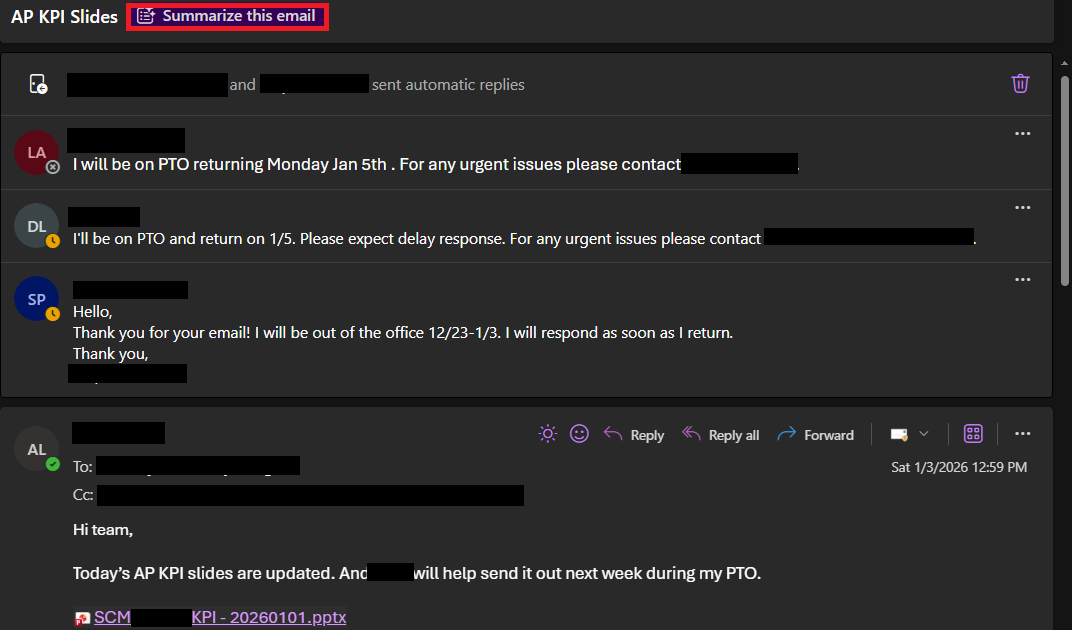
STEP 4: Review the summary created by Copilot. If you need more information, review the original messages or ask Copilot a follow-up question.
Examples of Prompts
- Write a brief overview of the entire conversation in this email thread.
- Mention the main decisions that have been made in the emails.
- Write a list of tasks that need to be completed.
- Write a summary of the latest updates in this thread.
- Arrange the main points discussed in the email in chronological order.
Tips & Tricks
- In the prompt, you should ask Copilot to include decisions, deadlines, and other important information, rather than requesting a general summary.
- If there is names or dates mentioned in the conversation, make sure to match them against the original email.
- You can add additional questions if you need clarification on a particular point.
- When making important business decisions, you should refer to the original conversation.
FAQs
1. How to summarize an email thread in Outlook?
- Sign in to Outlook
- Open the email conversation
- Click on the Summary by Copilot button
2. What is an email thread in Outlook?
An email thread is a group of related emails displayed as one conversation.
3. Can Copilot identify pending tasks in email threads?
Yes. Copilot can help identify action items and pending tasks from email conversations.
4. Can I use prompts to summarize email threads with Copilot?
Yes. You can ask Copilot to summarize conversations, list decisions, or identify unanswered questions.
5. Why is the Summary by Copilot option missing in Outlook?
The option may be unavailable due to your Microsoft 365 license, account settings, or Outlook version.

John Michaloudis is a former accountant and finance analyst at General Electric, a Microsoft MVP since 2020, an Amazon #1 bestselling author of 4 Microsoft Excel books and teacher of Microsoft Excel & Office over at his flagship MyExcelOnline Academy Online Course.

 30 Days - Full Access