Free Practice Workbook
If you use the same Copilot prompt repeatedly in Excel, you can use a custom skill to make the process easier. These skills can help you repeat a process without writing the same instructions every time. In this article, you will learn how to create custom Copilot skills for Excel.
Key Takeaways:
- Custom Copilot skills help simplify repeated Excel tasks.
- Skills provide reusable instructions for specific tasks.
- You can select a skill from the Copilot prompt box.
- You can type a skill name directly when supported.
- Review the results to ensure they meet your requirements.
Table of Contents
Introduction to Custom Skill
Prerequisites for Custom Copilot Skills
- You need to have a Microsoft 365 subscription with the Copilot feature.
- Make sure that the data has clear headers and a consistent data format.
- Save your workbook in a supported location, such as OneDrive or SharePoint.
What are Custom Skills in Copilot?
A custom skill is a set of instructions that you provide to Copilot so that it can use it to perform the same task repeatedly. It is a great way to save time when you use the same prompt multiple times. It allows you to use the saved skill to follow a process, instead of typing it again and again.
For example, you can use the following skills if you analyze monthly sales on a regular basis:
- Find top-performing products
- Comparing regional sales
Why use Custom Skills?
- It helps you save time, as you can reuse the skills for different tasks.
- It reduces the need to type the same prompt. You can select the skill you want to use instead of typing it.
- It improves consistency.
- It allows you to apply suitable chart designs to present data clearly.
How to Create Custom Copilot Skills for Excel
Follow the steps below to create a custom skill to format a chart in Excel:
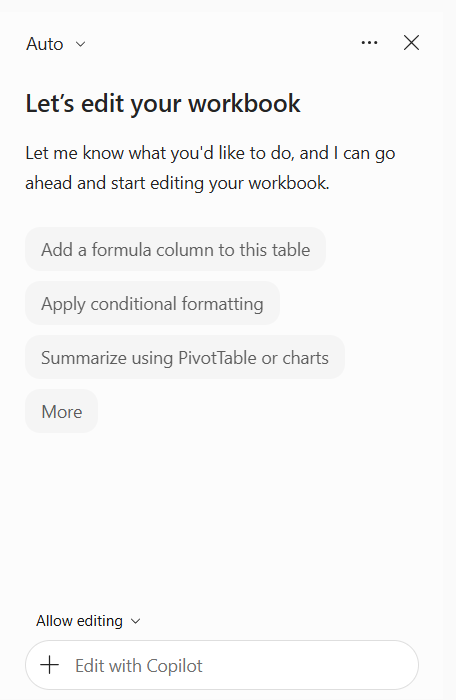
STEP 1: Open the Copilot pane.
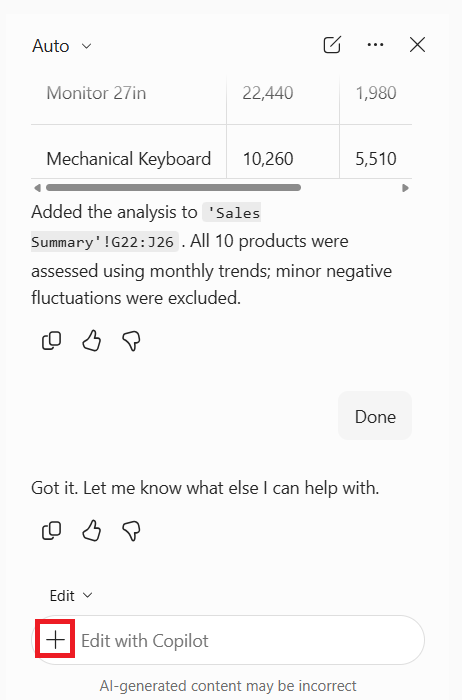
STEP 2: Click the + sign in the prompt box and select Choose skills.
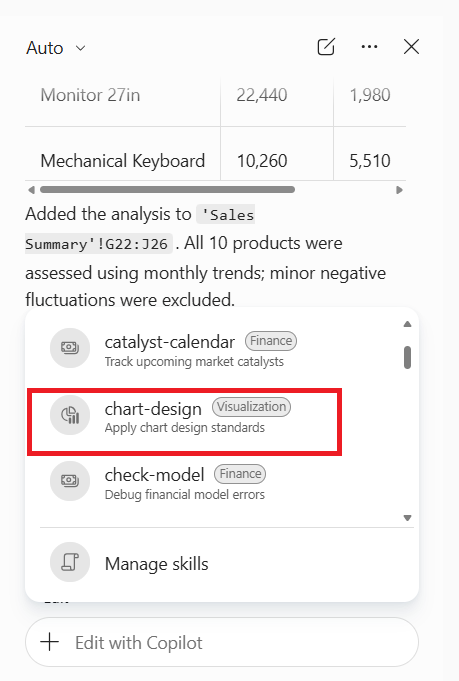
STEP 3: Pick a skill from the list.
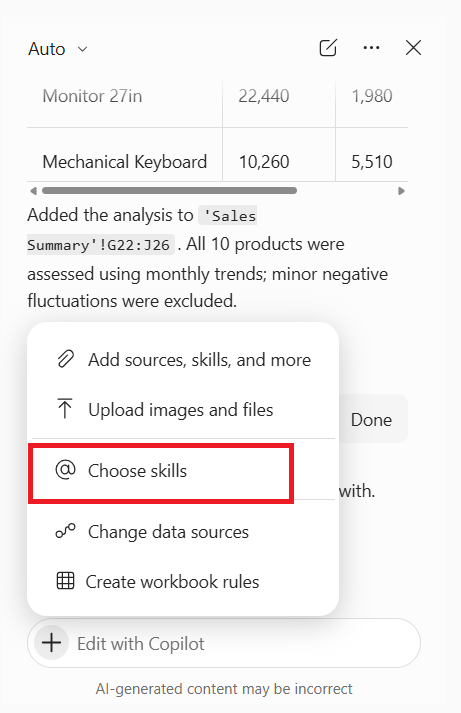
STEP 4: Type the rest of your request and press Enter.
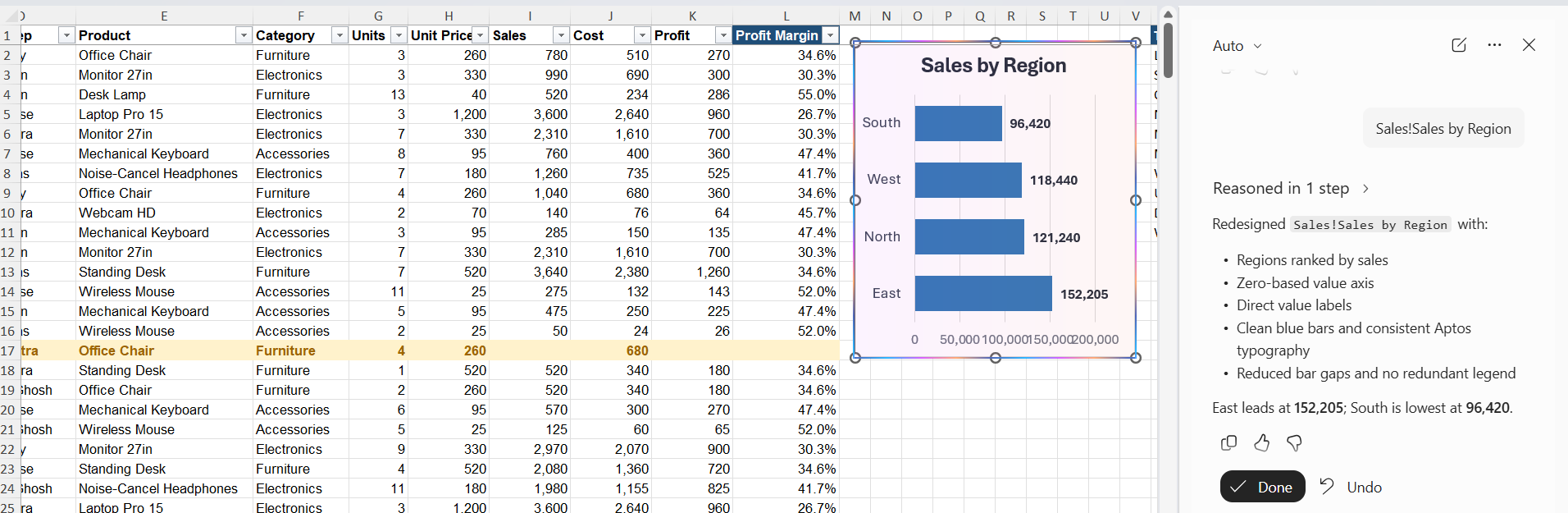
The chart will be redesigned.
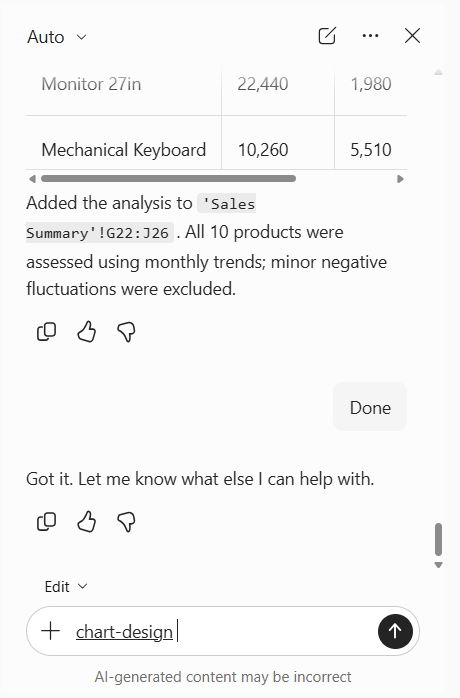
STEP 5: You can also type the skill name directly. For example:
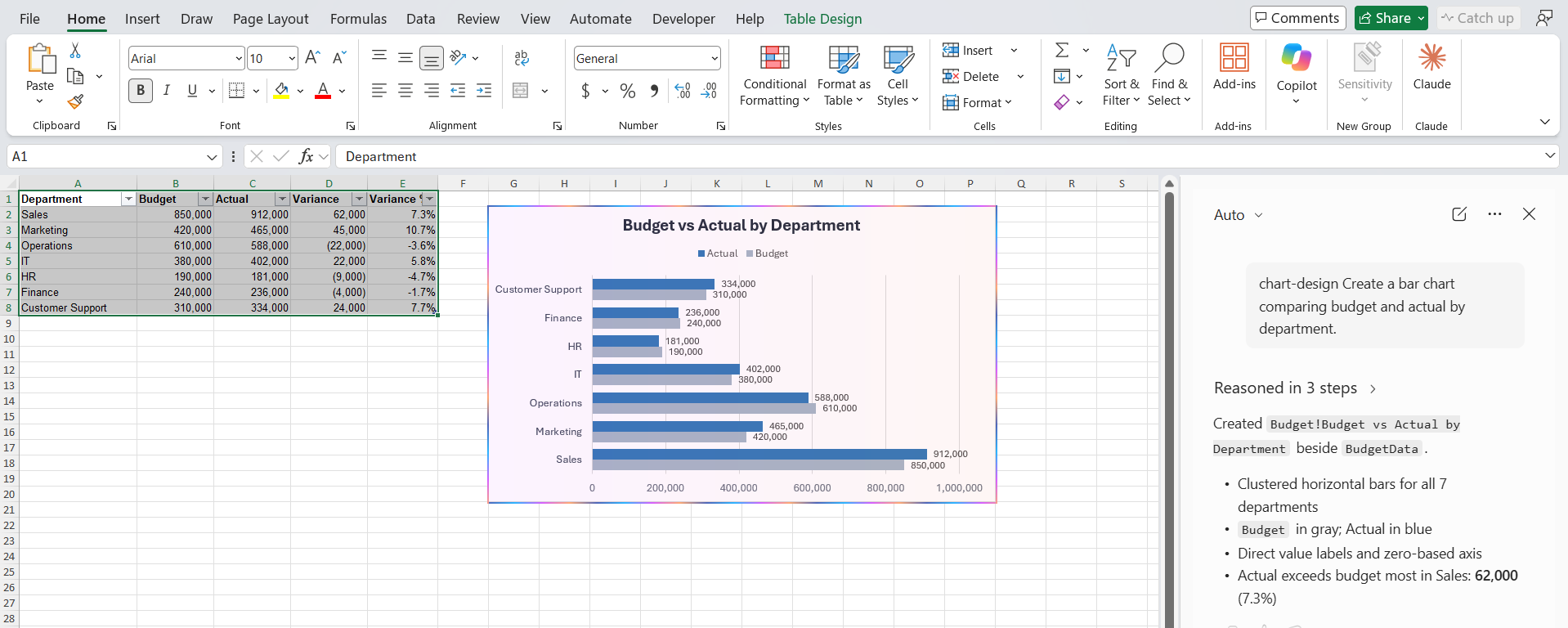
@chart-design Create a bar chart comparing budget and actual by department.
The newly designed chart will be added to the workbook.
FAQs
1. What are custom Copilot skills in Excel?
Custom skills are reusable instructions that help Copilot perform specific tasks.
2. How do I select a skill in Excel?
To select a skill in Excel,
- Open the Excel workbook where you want to use the skill.
- Click on the Copilot button
- In the Copilot panel, click the plus sign in the prompt box
- Select ‘Choose skills’.
3. Can I use a skill by typing its name?
If the skill feature is supported in the Excel version you are using, you can easily use the skill by typing its name. For example, you can type @chart-design followed by your request to format a chart.
4. Can custom skills help format Excel charts?
Yes, a suitable chart-design skill can help improve charts based on the instructions provided by you.
5. Why can’t I see custom skills in Copilot for Excel?
If you are unable to see the custom skills option in Copilot, it can be because of the account type you are using or the feature access provided. It can also happen if that particular skill is not available in your personal account.

John Michaloudis is a former accountant and finance analyst at General Electric, a Microsoft MVP since 2020, an Amazon #1 bestselling author of 4 Microsoft Excel books and teacher of Microsoft Excel & Office over at his flagship MyExcelOnline Academy Online Course.

 30 Days - Full Access