 Free Practice Workbook
Power BI is designed to generate reports and monitor sales, finances, operations, and customer performance. Microsoft Copilot in Excel can be used to perform deeper analysis, compare metrics, and answer specific business questions. With Copilot in Excel, you can analyze Power BI data using natural language prompts instead of manually creating formulas, pivot tables, or charts. In this article, you will learn how to analyze Power BI data with Copilot.
Key Takeaways:
- Power BI data can be analyzed in Excel using Copilot.
- Export Power BI data to Excel before using Copilot.
- Copilot can spot trends and compare metrics.
- You can use prompts to create charts and summaries.
- Exported data may not include the complete Power BI model.
Table of Contents
Introduction to Power BI
What is Power BI?
Power BI is Microsoft’s business intelligence (BI) and data visualization platform. It helps organizations collect, analyze, and visualize data from multiple sources so they can make better business decisions. With Power BI, you can transform raw data into:
- Interactive dashboards
- Reports and charts
- KPI scorecards
- Trend analyses
- Business insights
Why Use Excel with Power BI Reports?
Power BI is excellent for dashboards and visual reporting. However, Excel offers greater flexibility for ad hoc analysis and custom calculations.
By connecting Power BI datasets to Excel, users can:
- Explore report data in detail
- Create custom analyses
- Ask questions using Copilot
- Build additional charts and summaries
- Investigate trends and outliers
Copilot makes this process even faster by turning natural language requests into useful information.
How to Analyze Power BI data with Copilot in Excel
Step-by-Step Guide
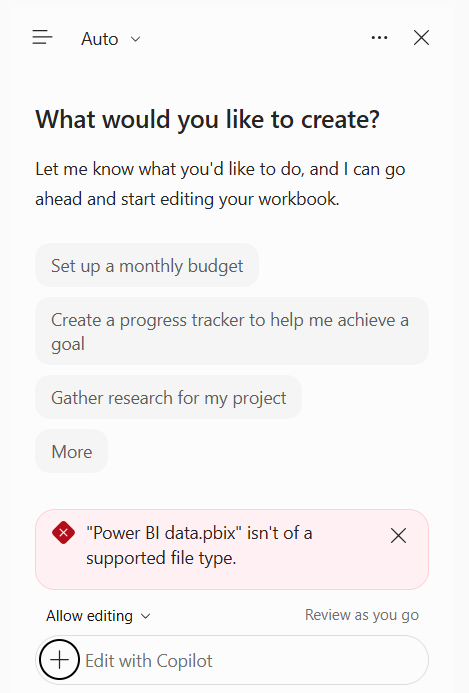
You cannot directly upload a .pbix file into Excel Copilot for analysis. You have to export the data from Power BI, open it in Excel, and then use Copilot. Follow the steps below to analyze Power BI data with Copilot in Excel:
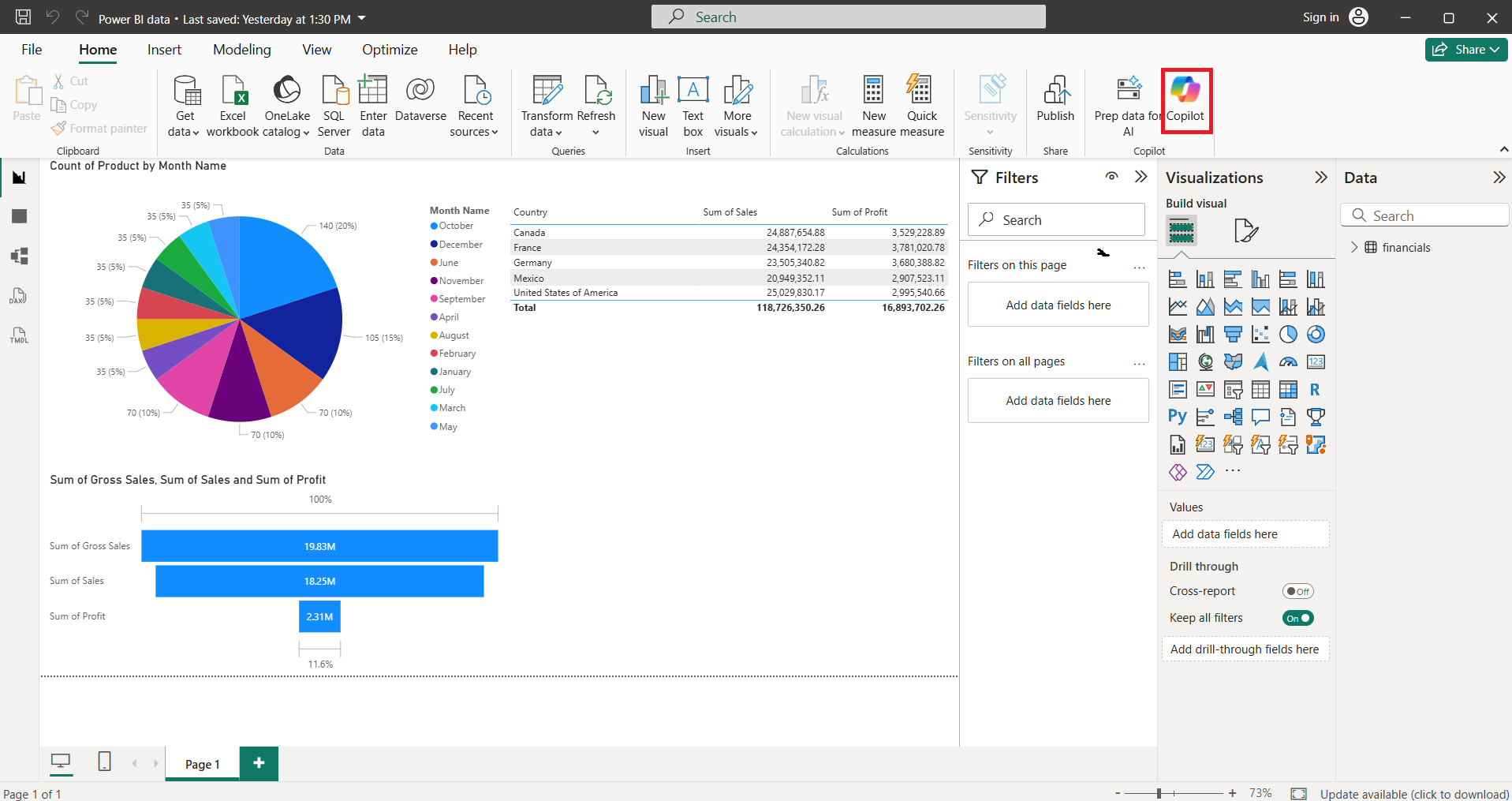
STEP 1: Open the Power BI report.
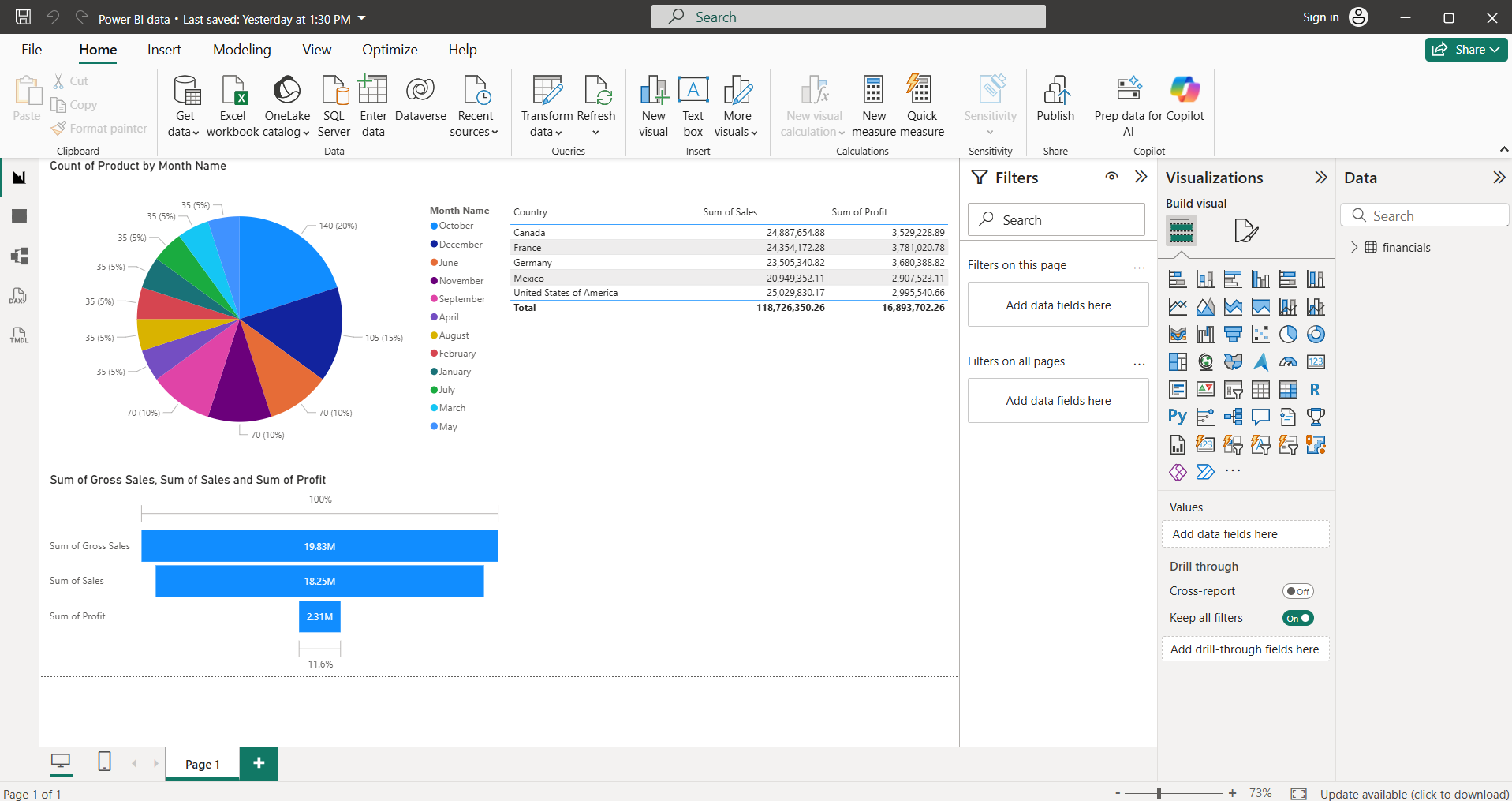
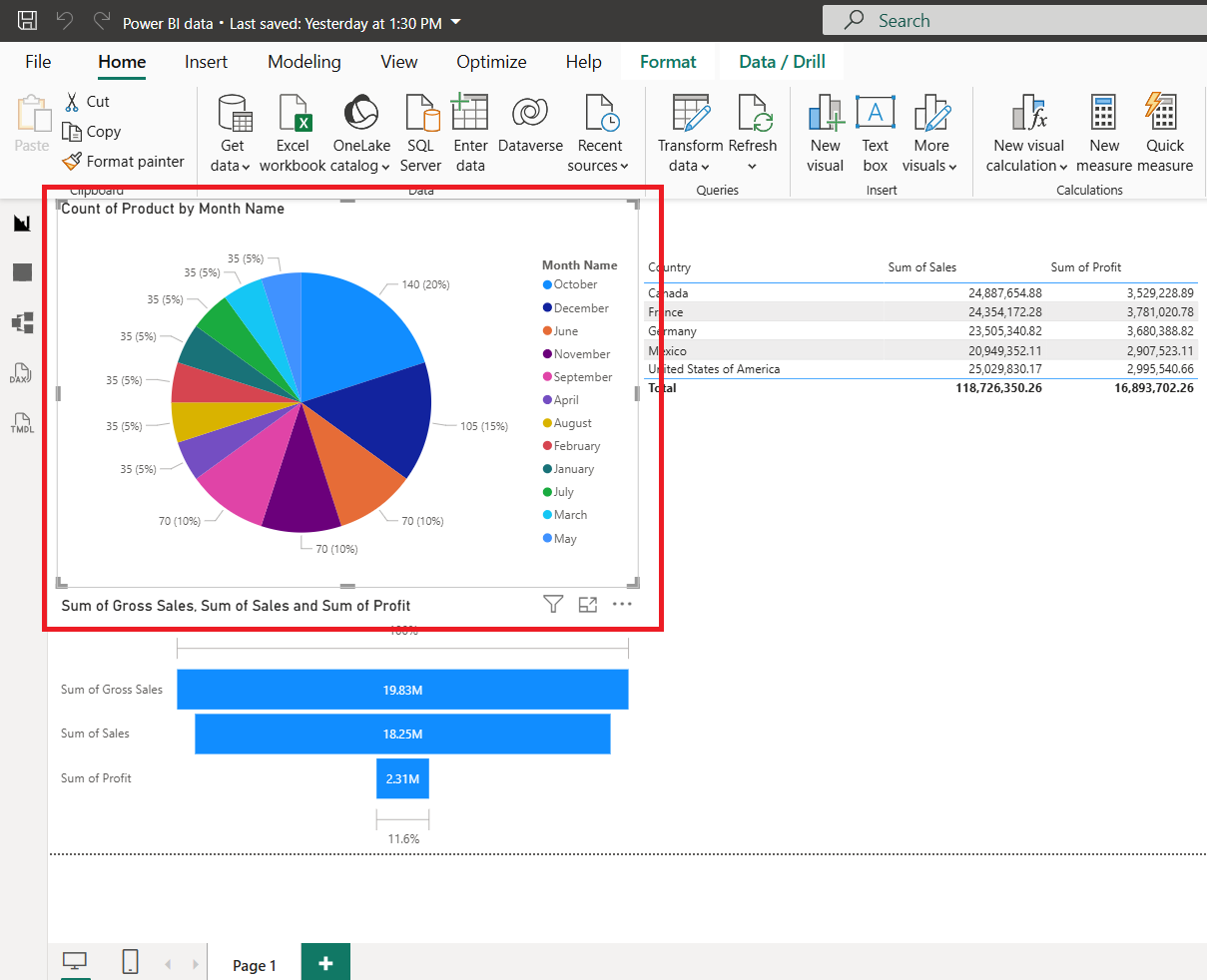
STEP 2: Select the visual that you want to analyse.
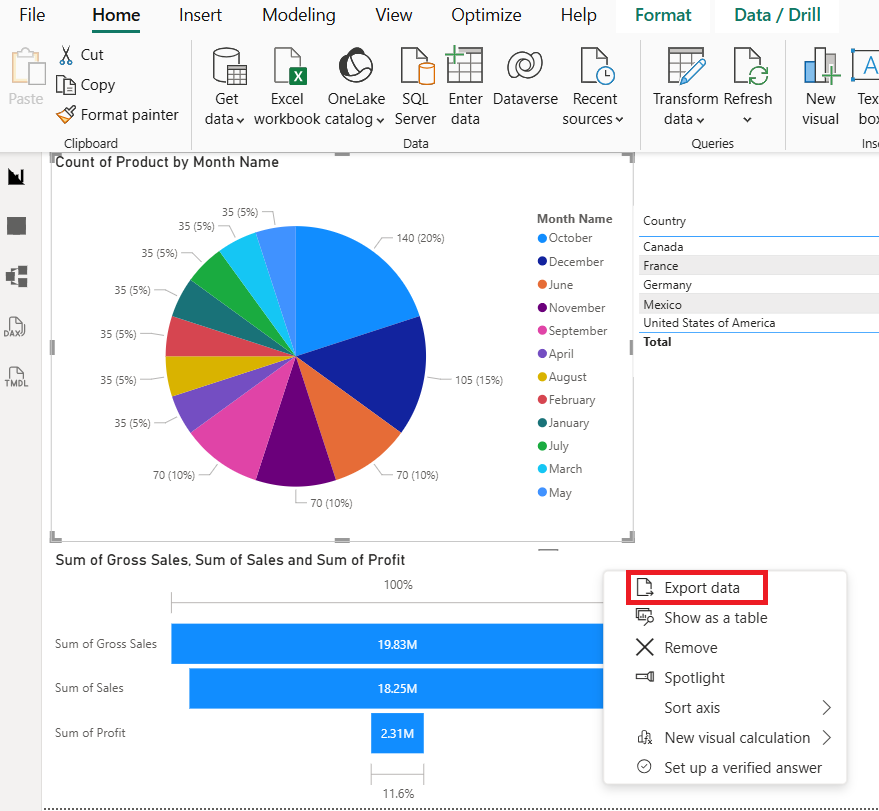
STEP 3: Click on the three dots, then select the Export data option.
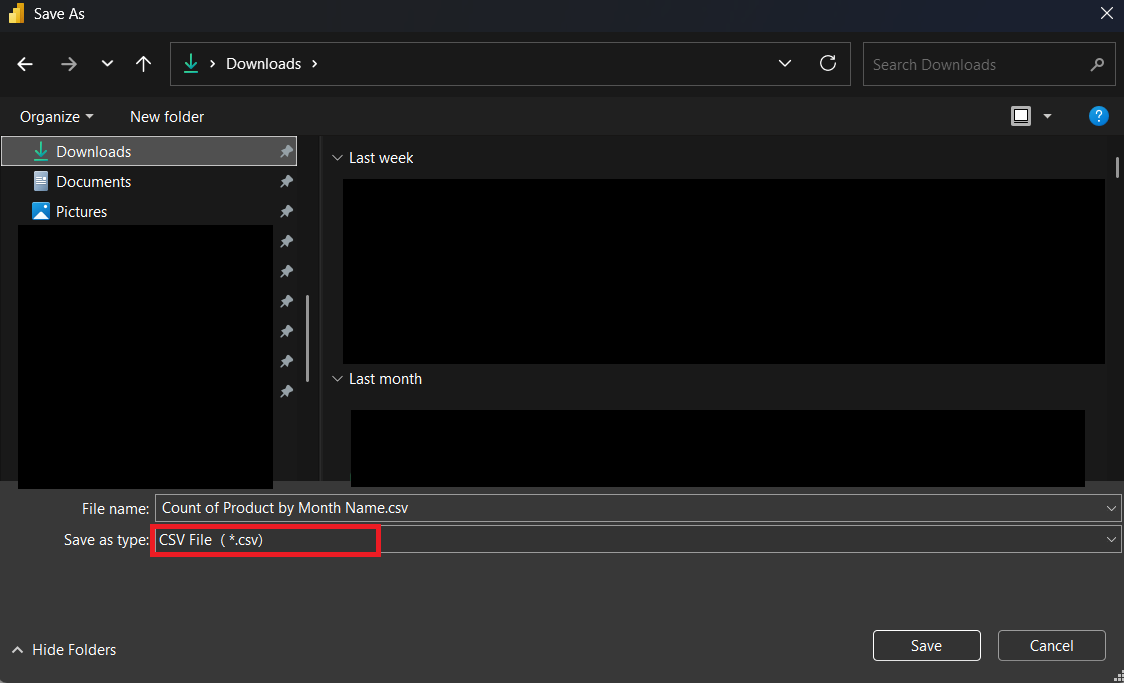
STEP 4: Save the file as .csv or .xlsx
STEP 5: Open the exported file in Microsoft Excel.
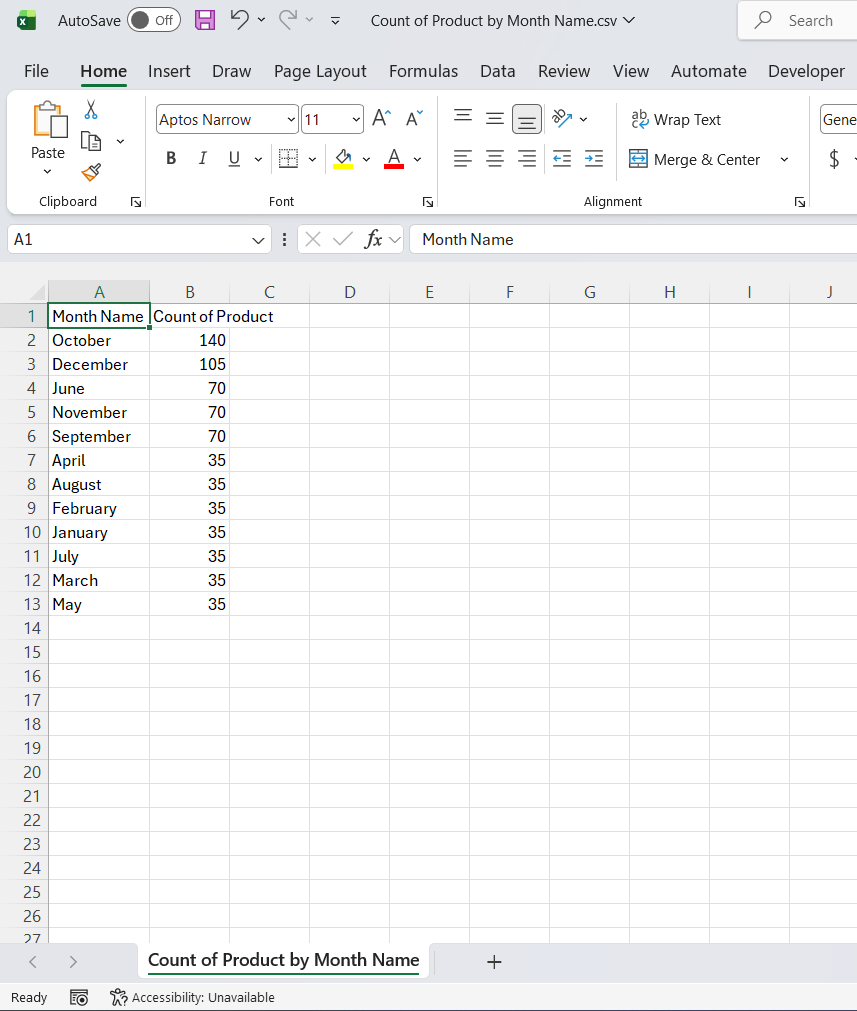
STEP 6: Select the Copilot button on the Home tab to open the Copilot pane.
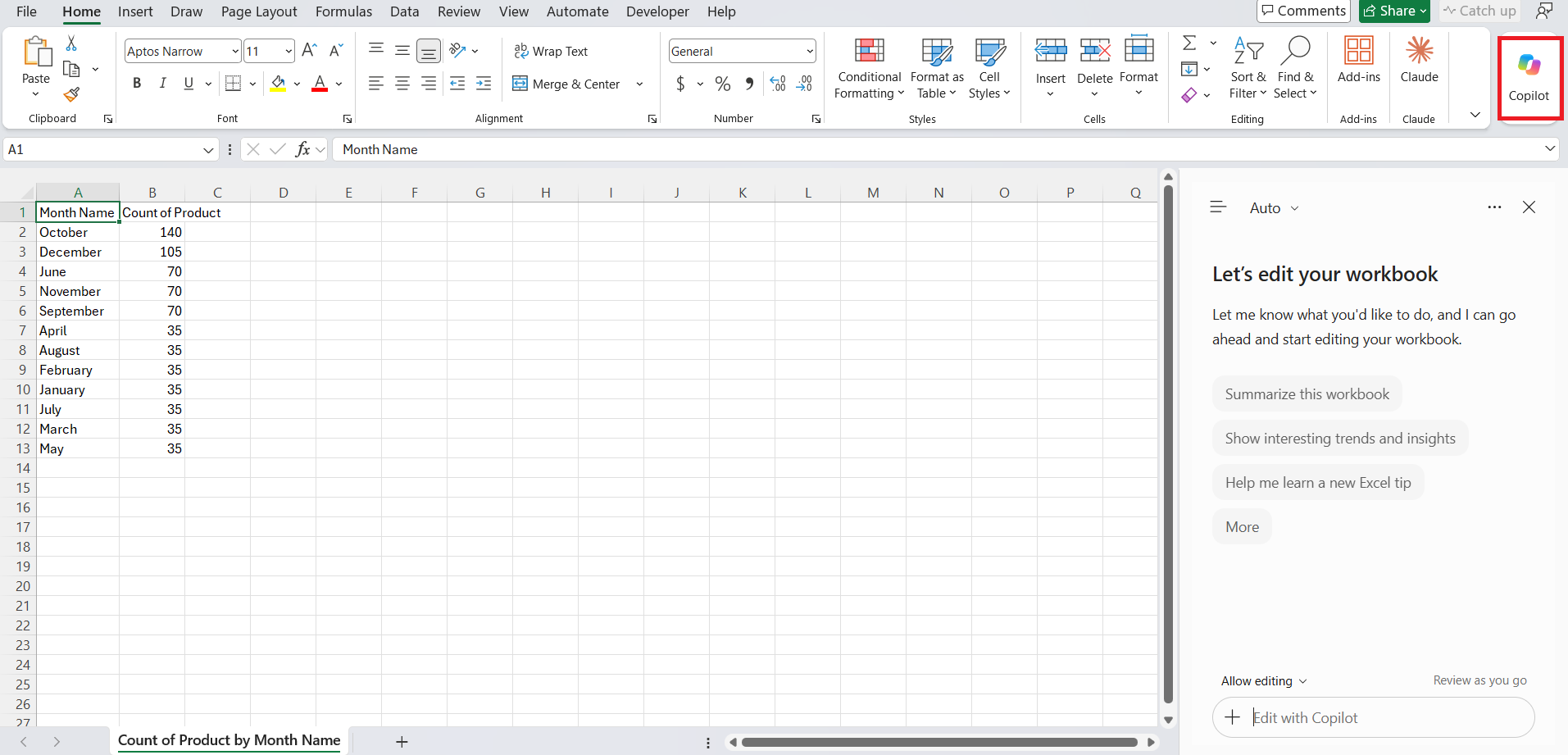
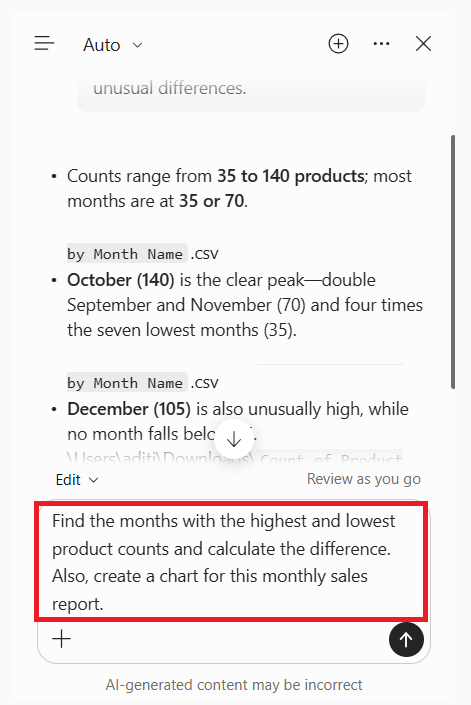
STEP 7: Enter a prompt describing the analysis you need.
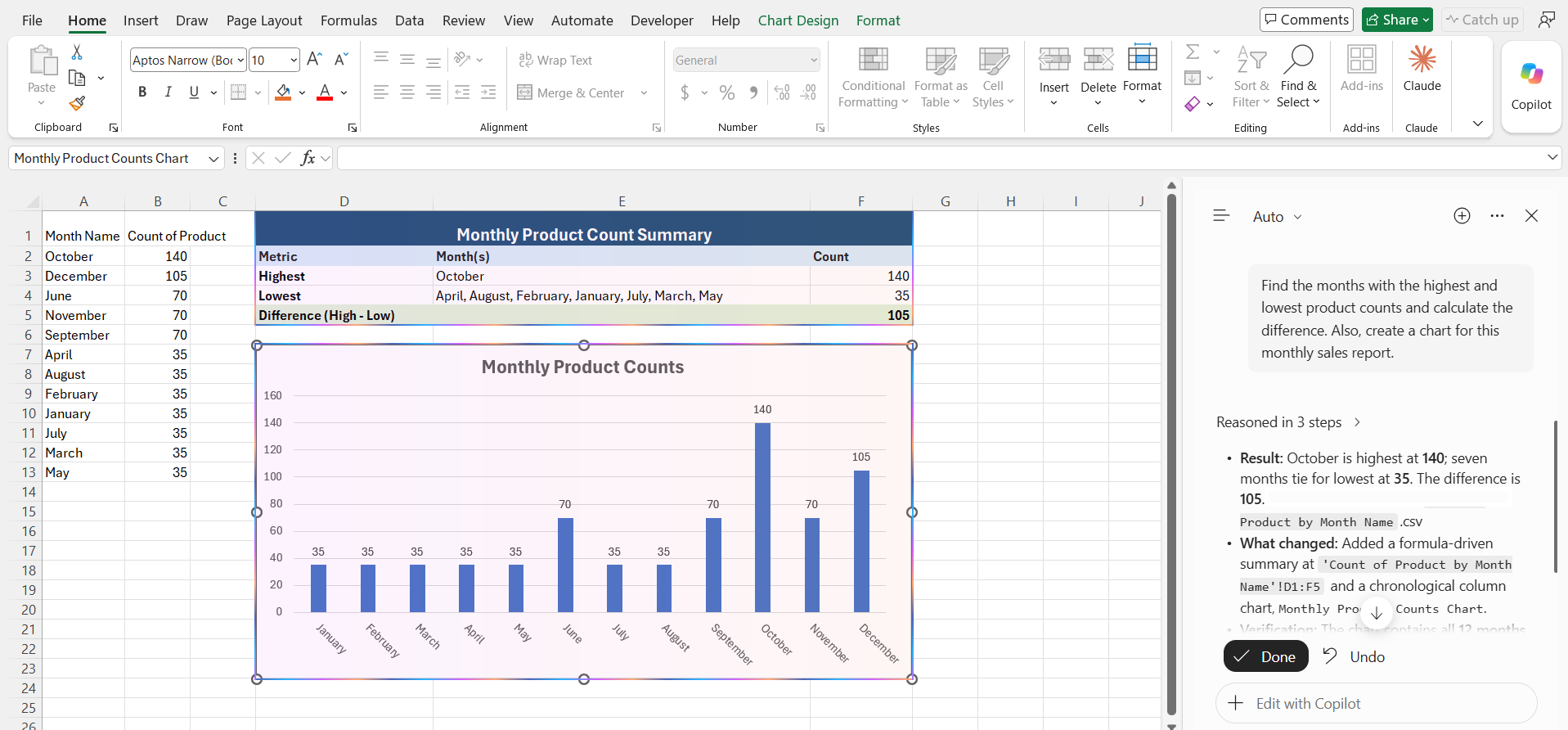
Copilot will perform the analysis as per the prompt given.
Limitations
Copilot can analyse the exported data from Power BI, but there are some limitations:
- You cannot upload a .pbix file as an attachment to be analysed in Copilot.
- When you are exporting a visual, you will be able to analyse the data associated ot that visual only.
- You cannot transfer relationships or DAX measures from Power BI to Excel.
- Copilot availability depends on your Microsoft 365 license, Excel version, and organizational settings.
To analyse the complete Power BI model, you have to use the Copilot feature available directly inside Power BI.
FAQs
1. Can I use Copilot in Excel to analyze Power BI data?
Yes, you can analyze exported Power BI data using Copilot in Excel.
2. Can I upload a PBIX file directly to Excel Copilot?
No, Excel Copilot does not support direct analysis of PBIX files.
3. How to Analyze Power BI data with Copilot?
Follow the steps below to import Power BI into Excel:
- Open the Power BI report and select the visual that you want to import.
- Click on the three dots and select Export data.
- Save the file as CSV or .xlsx
- Open the exported files as an Excel workbook.
- Click on the Copilot button.
- Enter the prompt.
- Copilot will analyze the data.
4. What can Copilot do with Power BI data in Excel?
Copilot can spot trends, compare metrics, summarize results, and create charts.
5. Does exported Power BI data include the complete data model?
No, exporting data may not include relationships, DAX measures, or report interactions.

John Michaloudis is a former accountant and finance analyst at General Electric, a Microsoft MVP since 2020, an Amazon #1 bestselling author of 4 Microsoft Excel books and teacher of Microsoft Excel & Office over at his flagship MyExcelOnline Academy Online Course.

 30 Days - Full Access









