Microsoft Copilot can help you create a PowerPoint presentation using the contents of a Word document. It can turn the contents of your document into slides with headings, summaries, and key points. In this article, you will learn how to create a PowerPoint from Word using Copilot.
Key Takeaways:
- Copilot can create a PowerPoint presentation from a Word document.
- A well-structured Word document helps organize slide content.
- You can use prompts to customize the presentation.
- Copilot can summarize long paragraphs into key points.
- Always review the generated slides for accuracy and formatting.
Table of Contents
Introduction to Copilot in Excel
What is Copilot in Excel?
Copilot is an AI assistant built into Microsoft Excel. It is like a helper that knows the syntax so that you don’t have to. Instead of writing a nested IF formula yourself, you describe the result you want. Copilot writes the formula and shows you what it did before applying it.
You can type simple commands like:
- Calculate total sales of the product by region.
- Create a chart that shows the monthly revenue.
- Highlight duplicate customers in the data.
- Highlight the top 10 highest values.
Requirements to Use Copilot in Excel
- Microsoft Excel (Microsoft 365 version)
- A Microsoft account
- A subscription that includes Copilot features
- An internet connection
- The latest version of Excel
How to Create a PowerPoint From Word Using Copilot
Follow these steps to create a PowerPoint presentation from an existing Word document.
STEP 1: Open the Word document that you want to convert into a PowerPoint presentation.
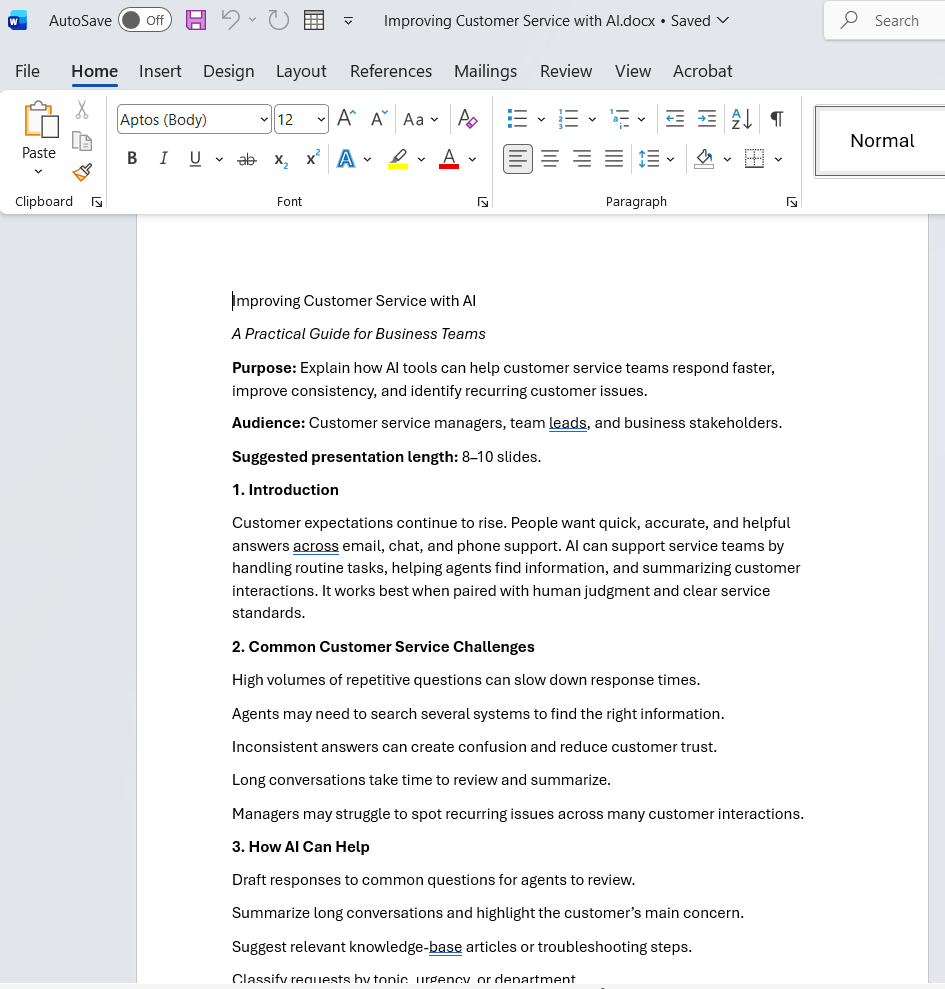
Make sure that the document contains all the information, remove unnecessary content, and check for all spelling errors.
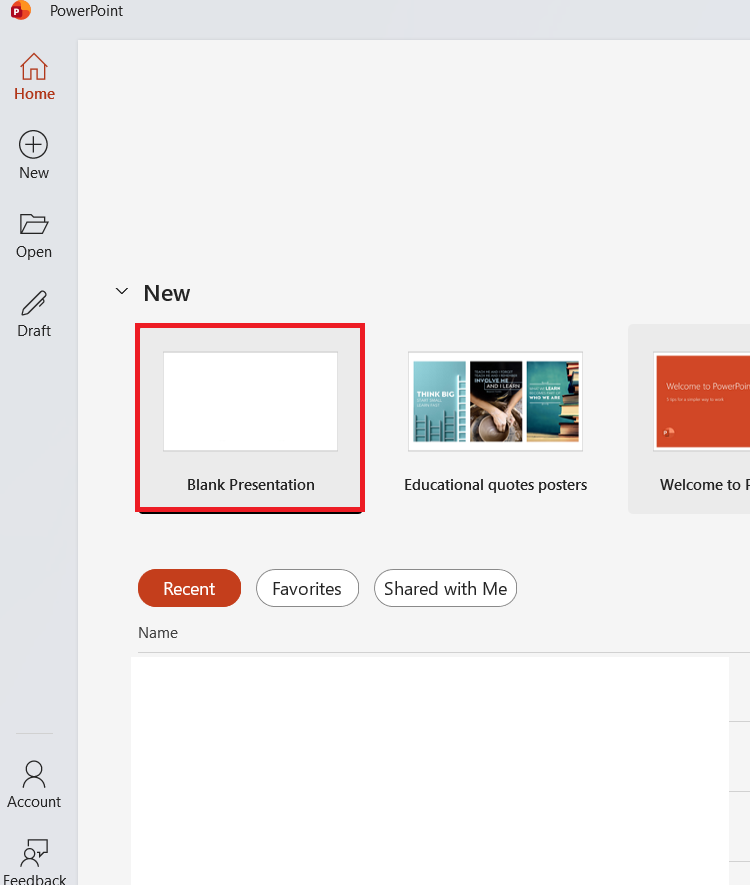
STEP 2: Open Microsoft PowerPoint and create a new presentation.
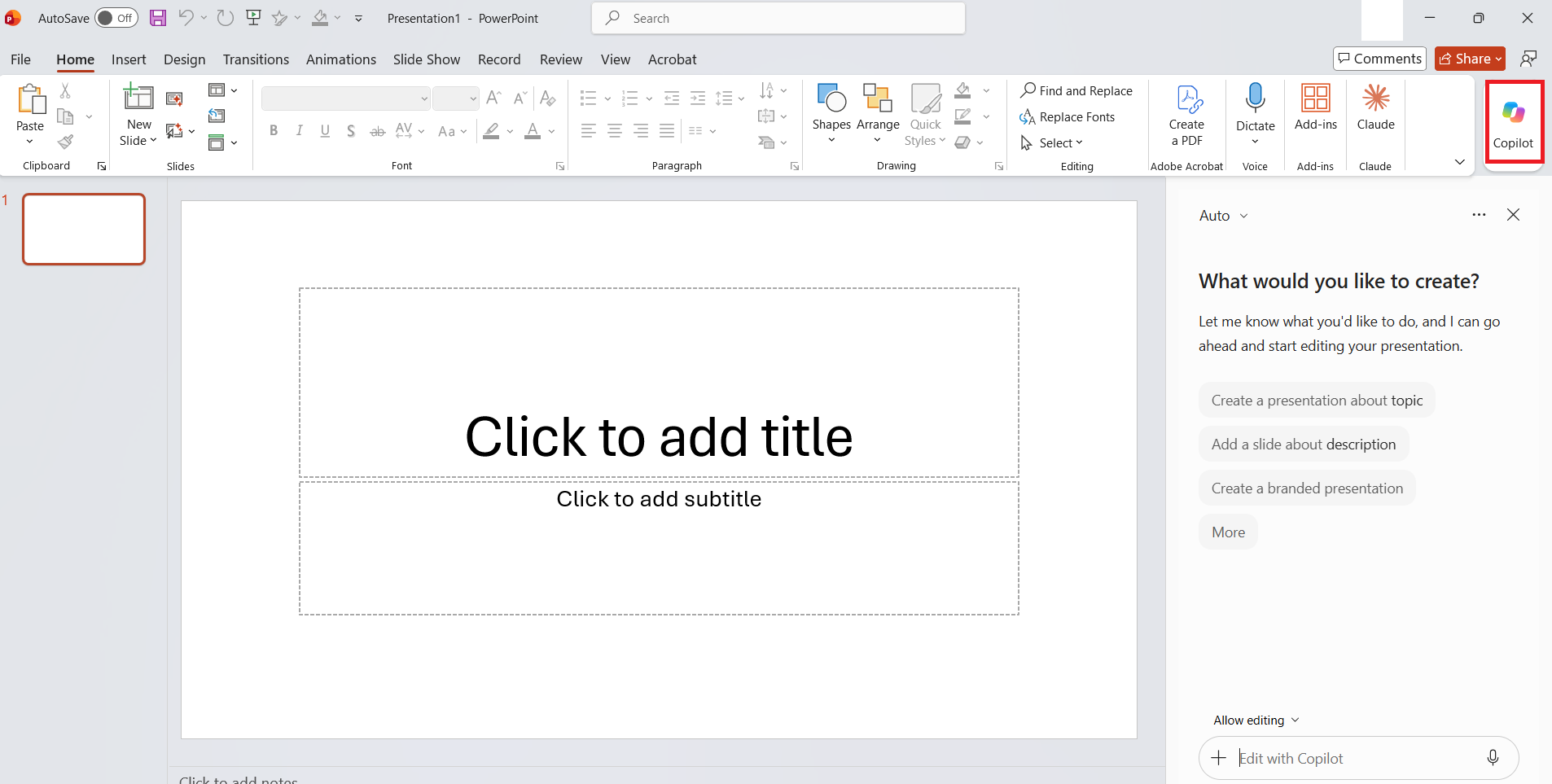
STEP 3: Click on the Copilot button to open the Copilot pane.
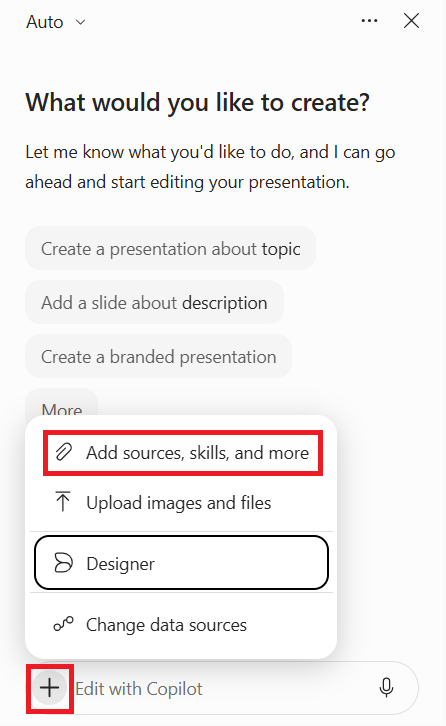
STEP 4: Click on the “+” button at the bottom-left corner of the Copilot pane and select “Add sources, skills and more”.
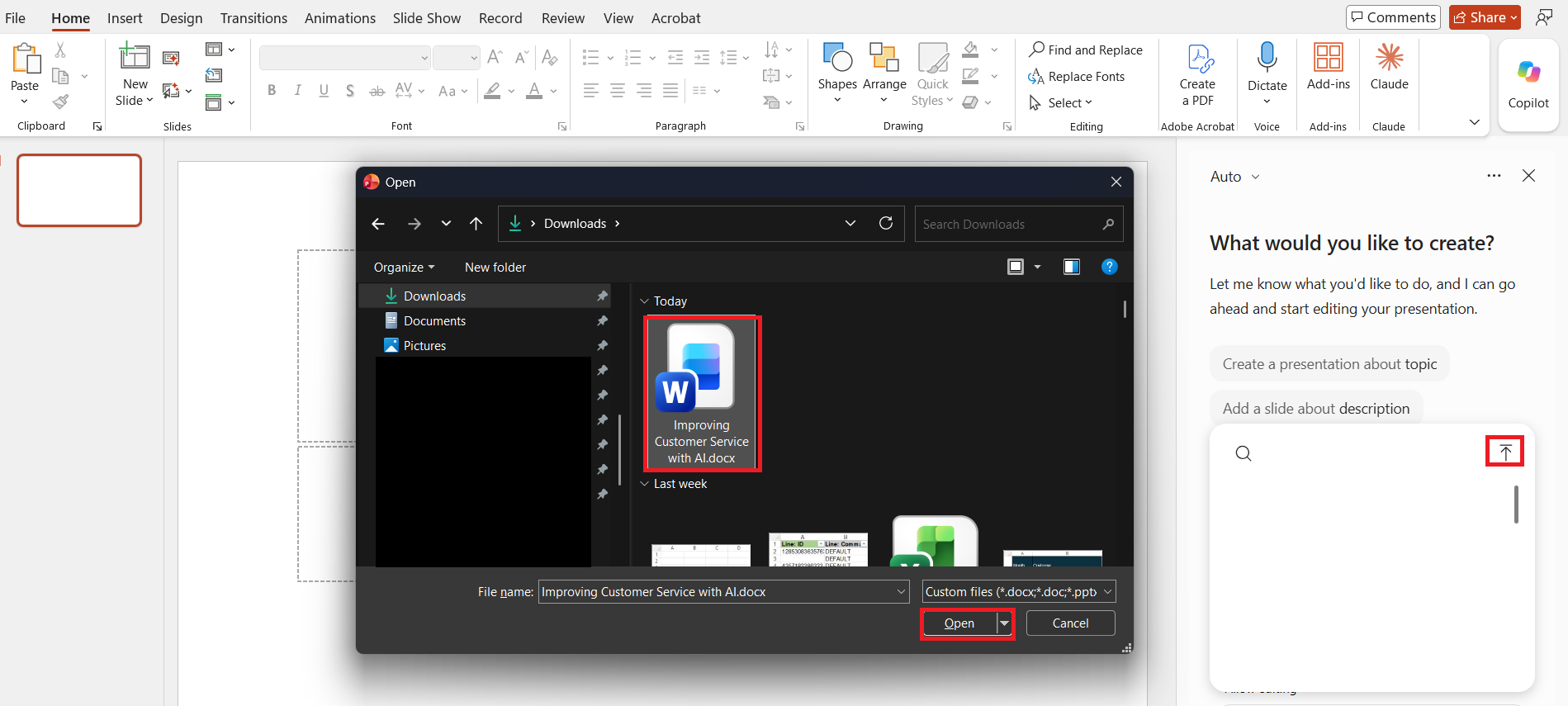
STEP 5: Click on the Upload button and select the Word document.
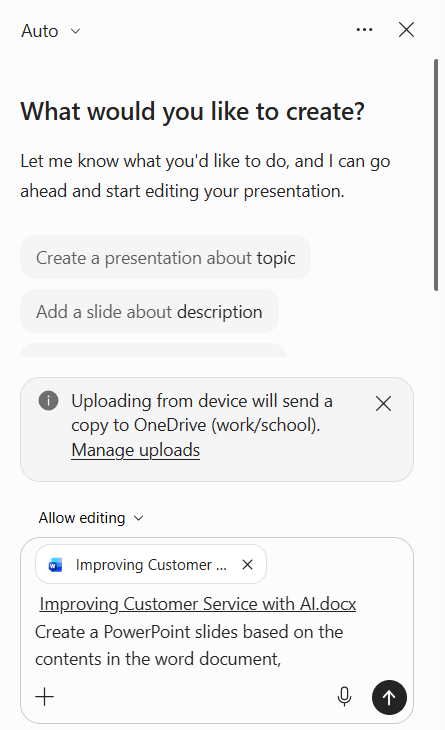
STEP 6: Enter the prompt to create a PowerPoint from Word document using Copilot.
The PowerPoint presentation will be created using the contents of the Word document.
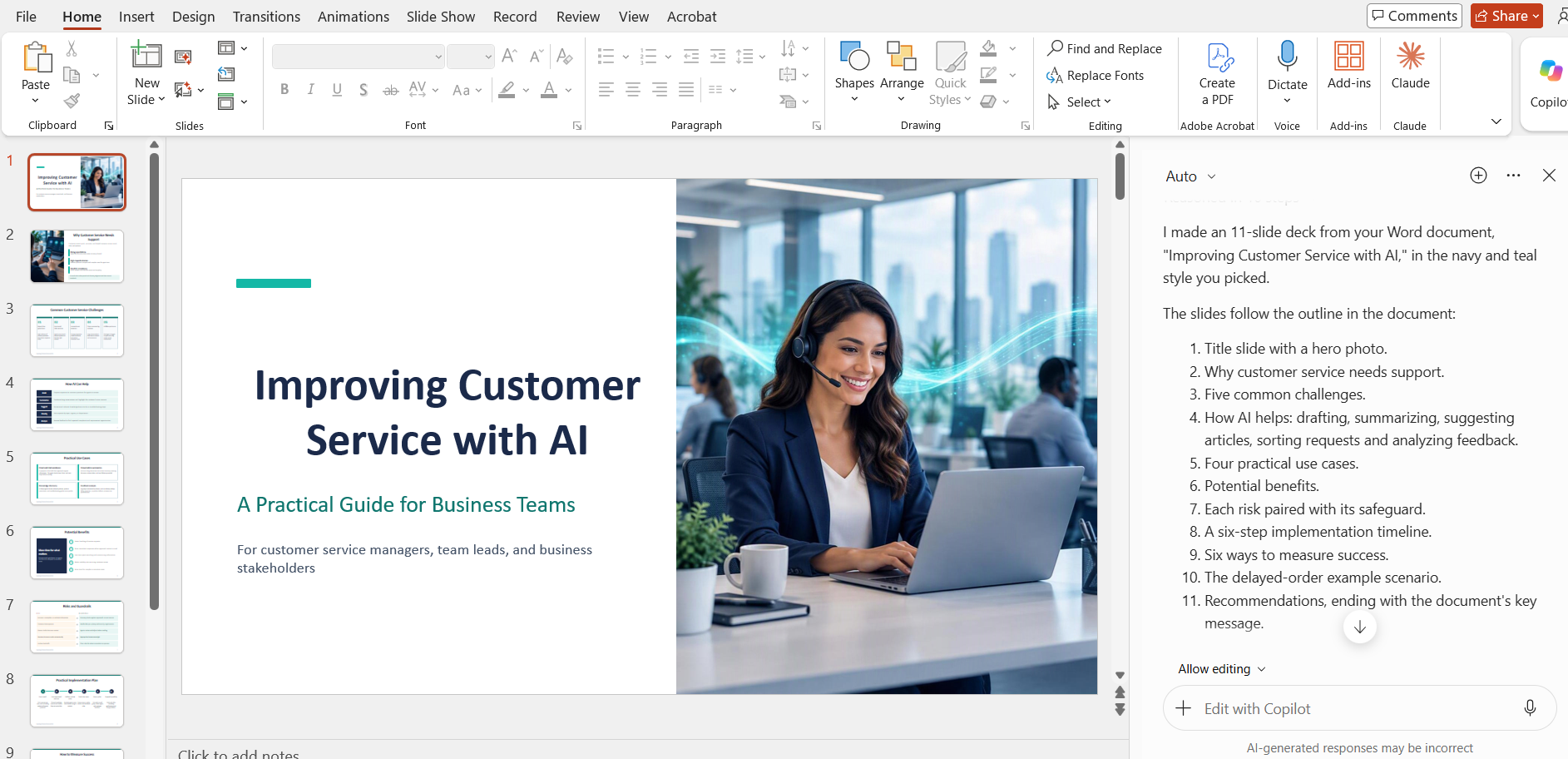
Check whether the presentation includes the main points from your Word document. Make sure the headings, summaries, numbers, and other details are accurate.
Tips & Tricks
- You should use clear headings and sections to help Copilot organize the presentation.
- In the prompt, mention the audience, purpose, and preferred presentation length of the presentation. Be more specific.
- You can ask Copilot to summarise long passages into short bullet points.
- It is important to match the dates, names, and other important data in the PowerPoint.
- Make sure the text and images are suitable for your audience.
FAQs
1. Can Copilot create a PowerPoint from a Word document?
Yes, you can use Copilot to convert the content of a Word document into a PowerPoint presentation.
2. Do I need Microsoft 365 to use Copilot in PowerPoint?
You need access to the relevant Copilot features to be able to use it in PowerPoint.
3. Can I customize the PowerPoint presentation created by Copilot?
Yes. You can use prompts to specify the audience, presentation length, structure, and design preferences. You can also edit the slides manually.
4. Can Copilot summarize a long Word document?
Yes. You can ask Copilot to find the main points and organize them into slides. Make sure that the presentation includes important information.
5. What to do if Copilot is unable to create a presentation from Word document?
If Copilot is unable to create a presentation from a Word document, look at the following points:
- Check whether the Copilot feature is available.
- Check if you have permission to access the Word document.
- Check if the file is located in a supported location.
- Try uploading the document again.

John Michaloudis is a former accountant and finance analyst at General Electric, a Microsoft MVP since 2020, an Amazon #1 bestselling author of 4 Microsoft Excel books and teacher of Microsoft Excel & Office over at his flagship MyExcelOnline Academy Online Course.

 30 Days - Full Access









