Microsoft Teams is a widely used application for calls, meetings, chats, and other teamwork. But managing all the messages and meetings can sometimes be difficult. Copilot in Microsoft Teams can make your tasks easier and quicker. In this article, you will learn how to use Copilot in Teams.
Key Takeaways:
- Copilot can summarize meetings and Teams conversations.
- You can use prompts to find important information.
- It can identify decisions, pending tasks, and unanswered questions.
- Copilot helps you catch up on missed discussions.
- Copilot’s availability depends on your Microsoft 365 license and organization settings.
Table of Contents
Introduction to Microsoft Teams
What is Microsoft Teams?
Microsoft Teams is a communication application developed by Microsoft. It allows users to chat, attend meetings, make calls, or share files with teammates and clients. It is used in offices and schools to manage daily work and communicate with others.
It is used to:
- Organise conversations based on different departments or projects.
- Schedule meetings
- Work on documents with others
What is Copilot in Teams?
Copilot is an AI assistant available in Microsoft Teams. It can help you answer questions related to information shared in conversations and meetings. Instead of manually searching through long conversations, you can ask Copilot a question in simple language.
For example, you can ask Copilot to summarize a project meeting, list the main decisions, or find tasks assigned to team members or catch up on conversations.
How to Use Copilot in Microsoft Teams
During the Meeting
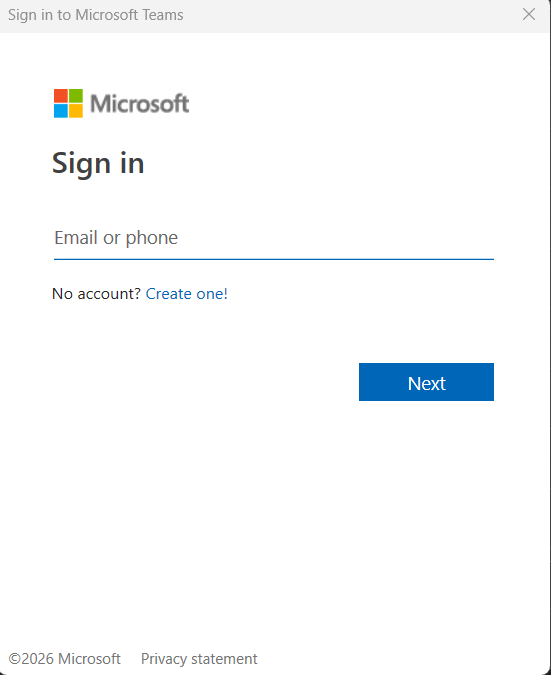
STEP 1: Open Microsoft Teams and sign in to your account.
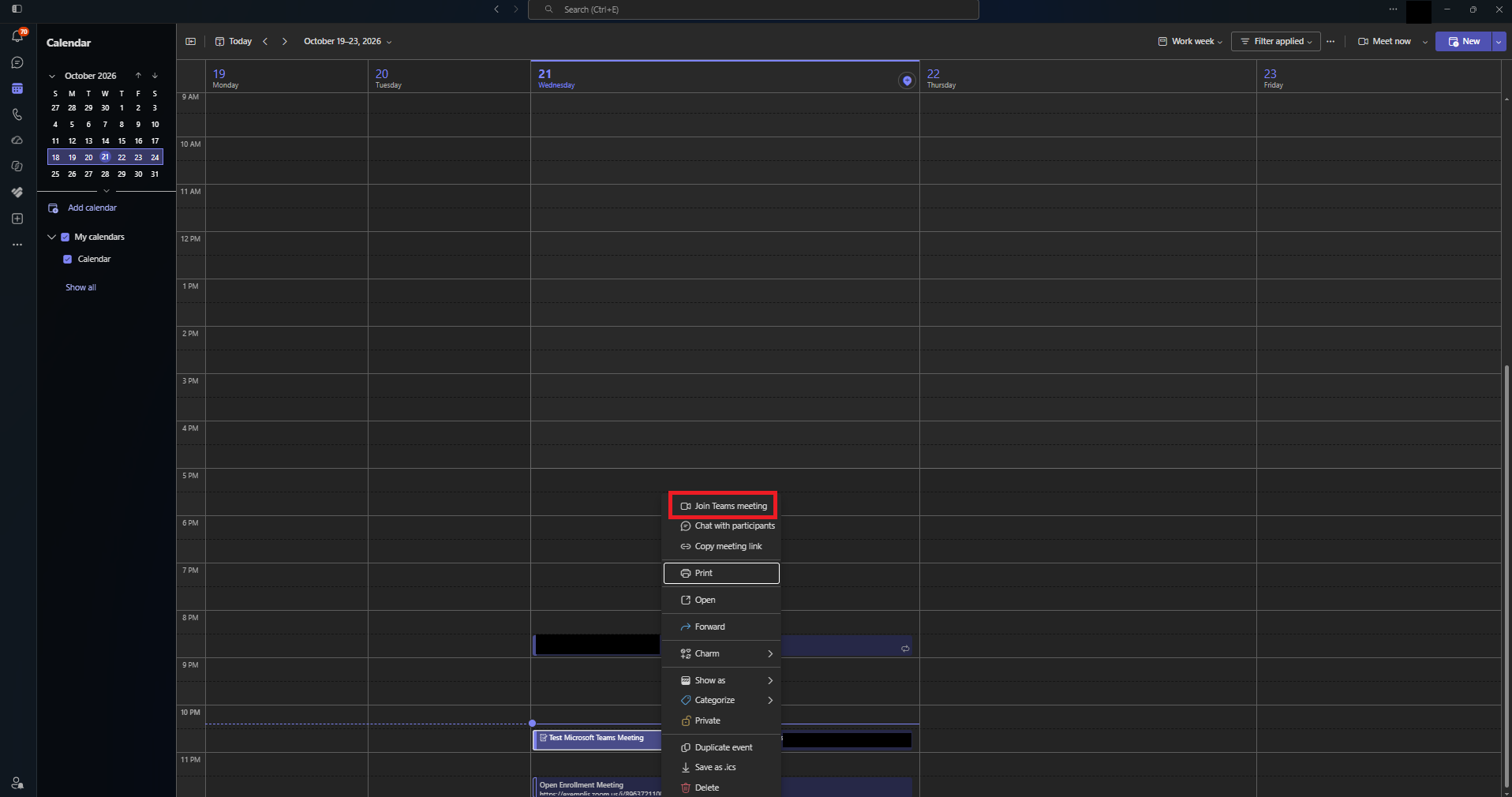
STEP 2: Join the meeting where you want to use Copilot.
STEP 3: Select the Copilot button.

STEP 4: In the prompt box, enter the prompt or question that you want to ask. For example, in a meeting about a new product launch, you can ask Copilot to create a table with product timelines based on the discussion in the meeting.
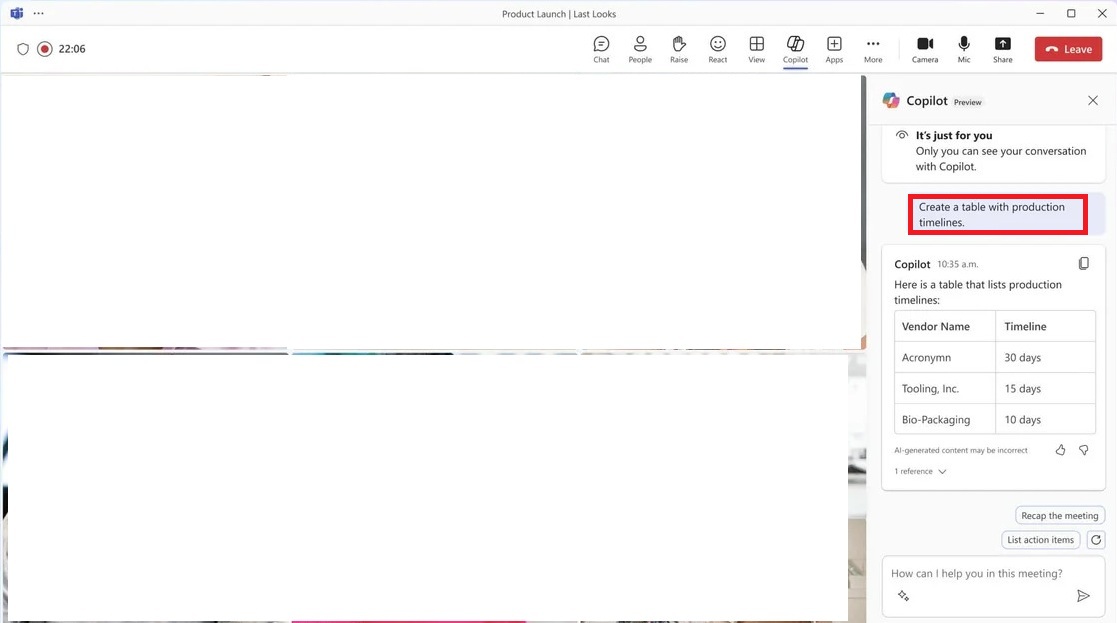
STEP 5: Review the response and ask follow-up questions if required.
After the Meeting
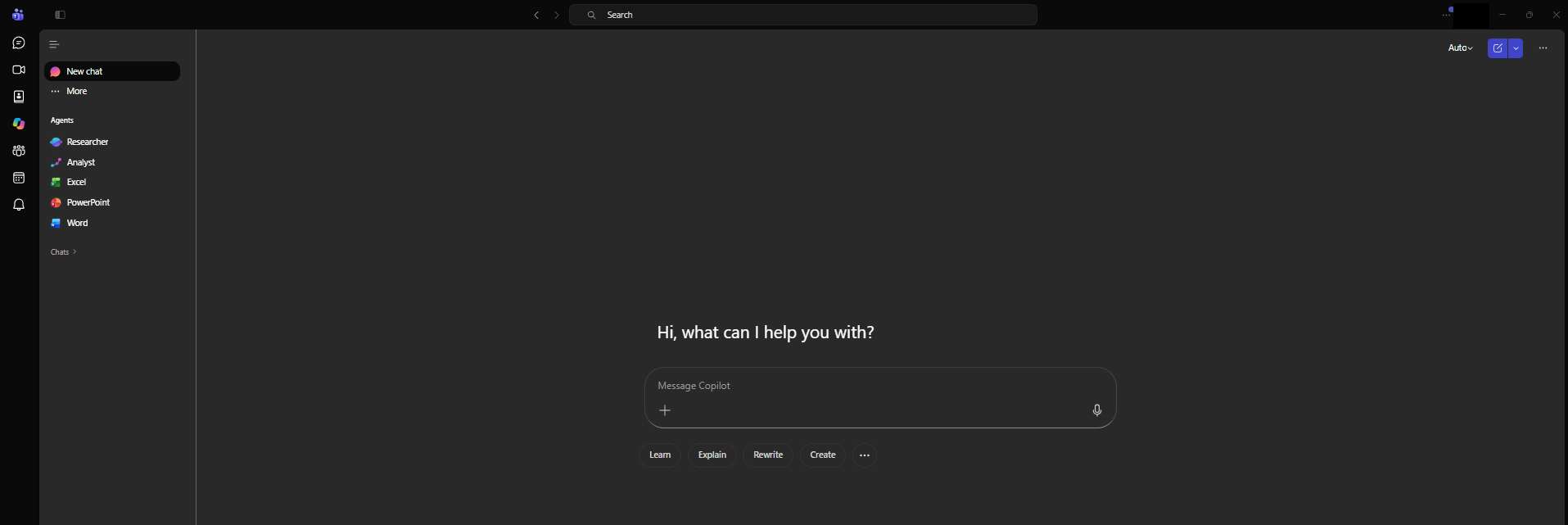
STEP 1: In the left panel, select Copilot.
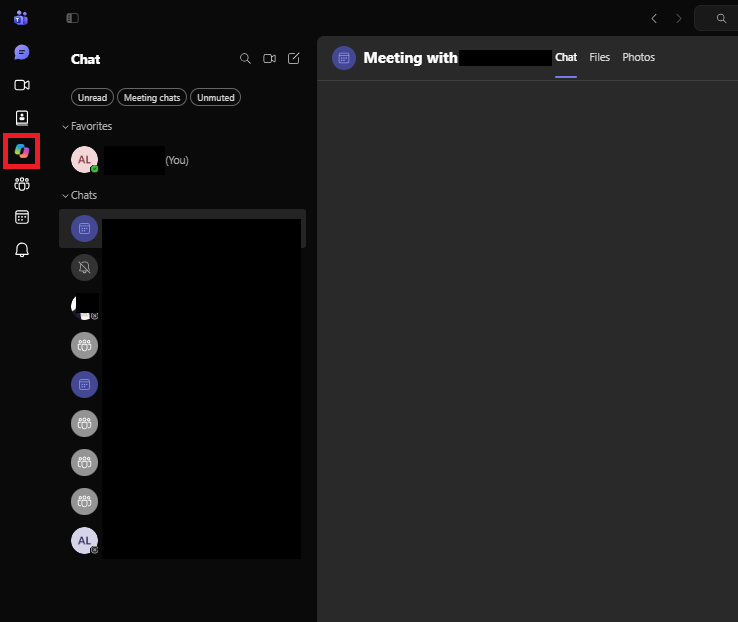
STEP 3: A Copilot panel will open, and you can type your question here.
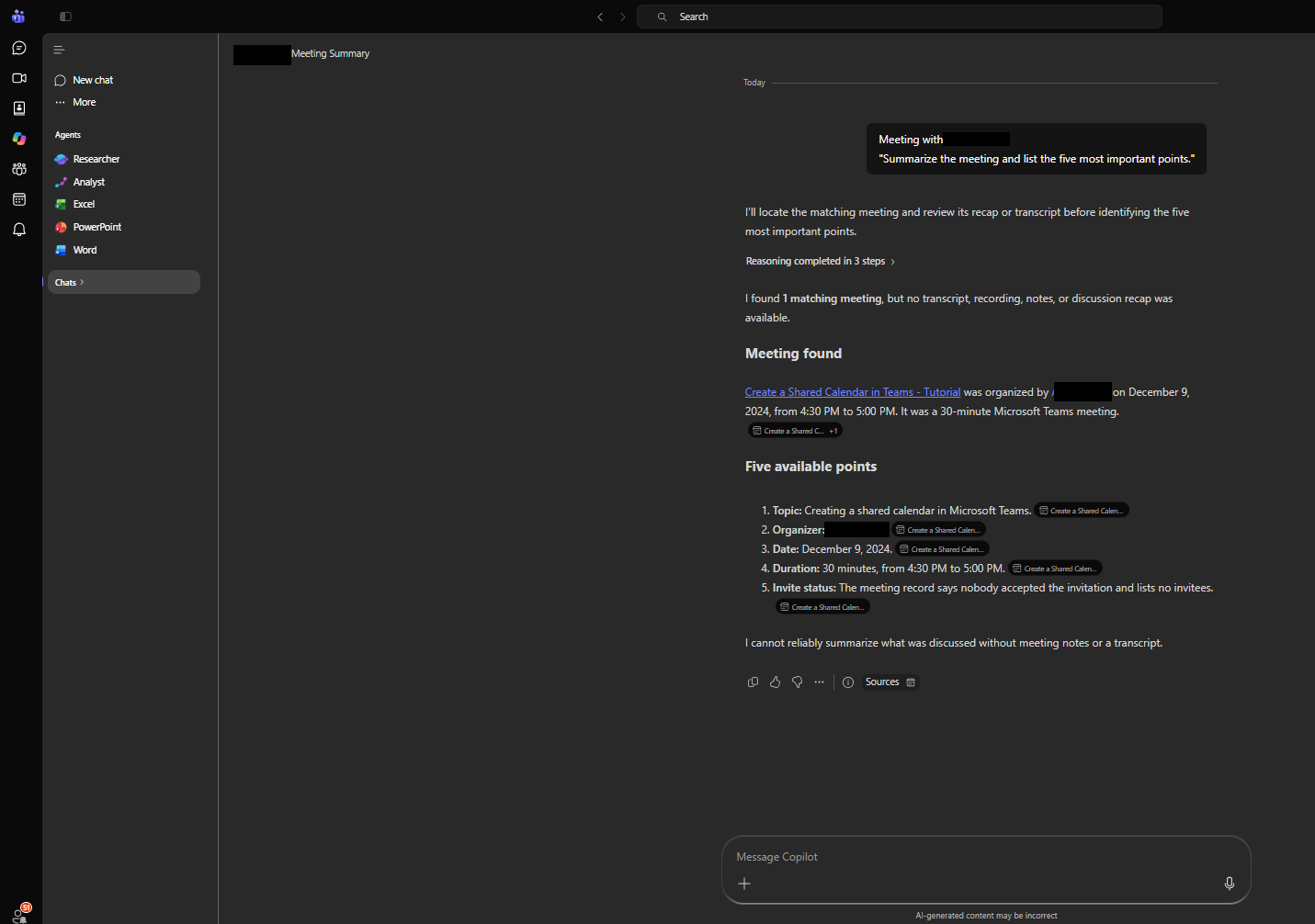
“Summarize this meeting in five bullet points.”
STEP 4: Review the response and verify important details against the meeting discussion.
Need for Transcription for Copilot
Transcription requirements depend on how Copilot is configured for the meeting.
- During and after the meeting: Transcription is required. Copilot becomes available when transcription starts.
- Only during the meeting: Copilot can use speech-to-text data during the meeting. Information that was not transcribed may not be available after the meeting.
- Off: Copilot is disabled for the meeting.
Tips & Tricks
- Ask direct questions about the meeting or conversation.
- Ask additional questions when you need more details.
- Check names, dates, decisions, and action items for accuracy.
- Make sure that your account has all necessary licenses and permissions to use Copilot.
FAQs
1. Is Copilot available in Microsoft Teams?
The availability of Copilot in Teams is dependent on your Microsoft 365 license and organization settings.
2. Can Copilot summarize Teams meetings?
Yes. You can use Copilot to summarize meeting discussions and list action items in supported meetings.
3. Can I use Copilot in Teams chat?
Yes. Copilot can help summarize supported chats and find important information. You need to make sure that this feature is available for your account.
4. Why is Copilot not showing in Microsoft Teams?
Sometimes, you may not be able to find Copilot in Microsoft Teams. It can happen because of:
- Your license
- Teams settings
- Administrator policies, or
- meeting configuration.
Check with your IT administrator if the option is unavailable.
5. Can Copilot identify action items in Teams?
Yes. You can ask Copilot to identify tasks, pending questions, and responsible team members based on the available conversation information. Always verify the results before using them.

John Michaloudis is a former accountant and finance analyst at General Electric, a Microsoft MVP since 2020, an Amazon #1 bestselling author of 4 Microsoft Excel books and teacher of Microsoft Excel & Office over at his flagship MyExcelOnline Academy Online Course.

 30 Days - Full Access









