 Free Practice Workbook
If you come across an Excel workbook with complex or error-filled formulas, it may be difficult to understand. Manually checking each formula can be cumbersome and time-consuming. Copilot can help you explain formulas and identify possible problems. In this article, you will learn how to fix and explain Excel formulas with Copilot using simple prompts and practical examples.
Key Takeaways:
- Copilot can explain complex Excel formulas.
- You can use Copilot to find possible formula errors.
- Copilot can help fix #VALUE!, #DIV/0!, and #N/A errors.
- You can ask Copilot to suggest corrected formulas.
- Always check and test Copilot’s suggested formula before using it.
Table of Contents
What is Copilot?
Copilot in Excel is an AI assistant that can help you work with workbook data and formulas. You can ask questions about your data or request help with Excel tasks using natural language. There is no need to know the name of the function or memorize the syntax of a function. You can describe what you want in plain English.
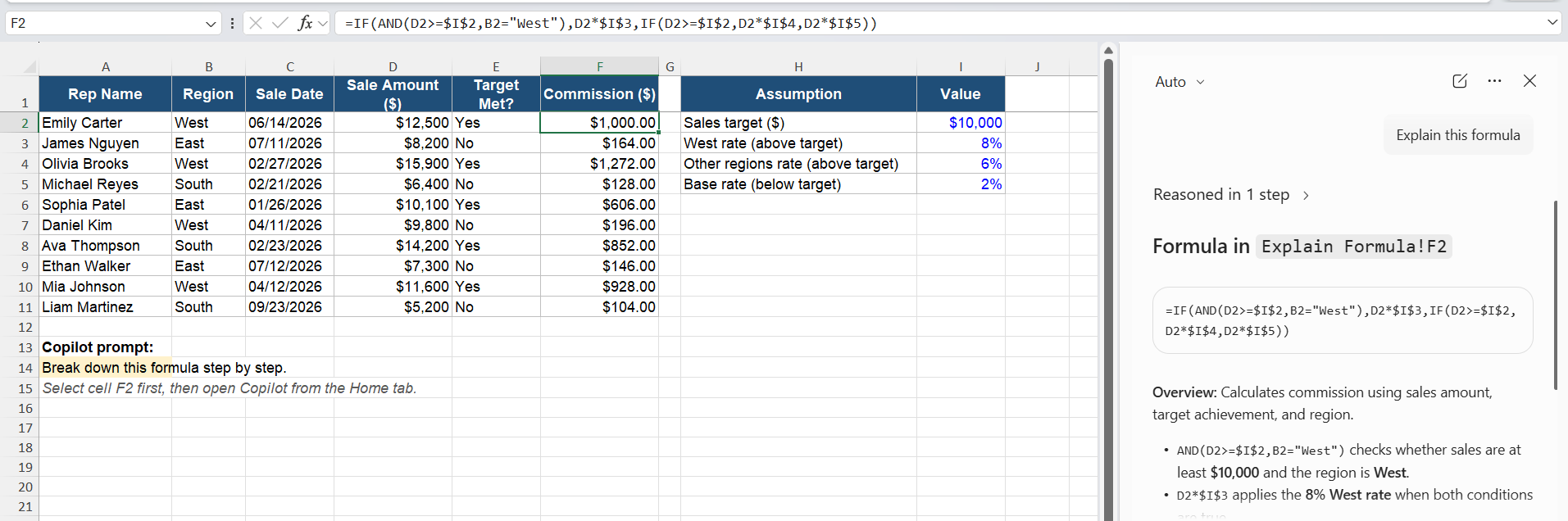
For example, you can ask Copilot:
Explain this formula.
Or:
Find the error in this formula and suggest a fix.
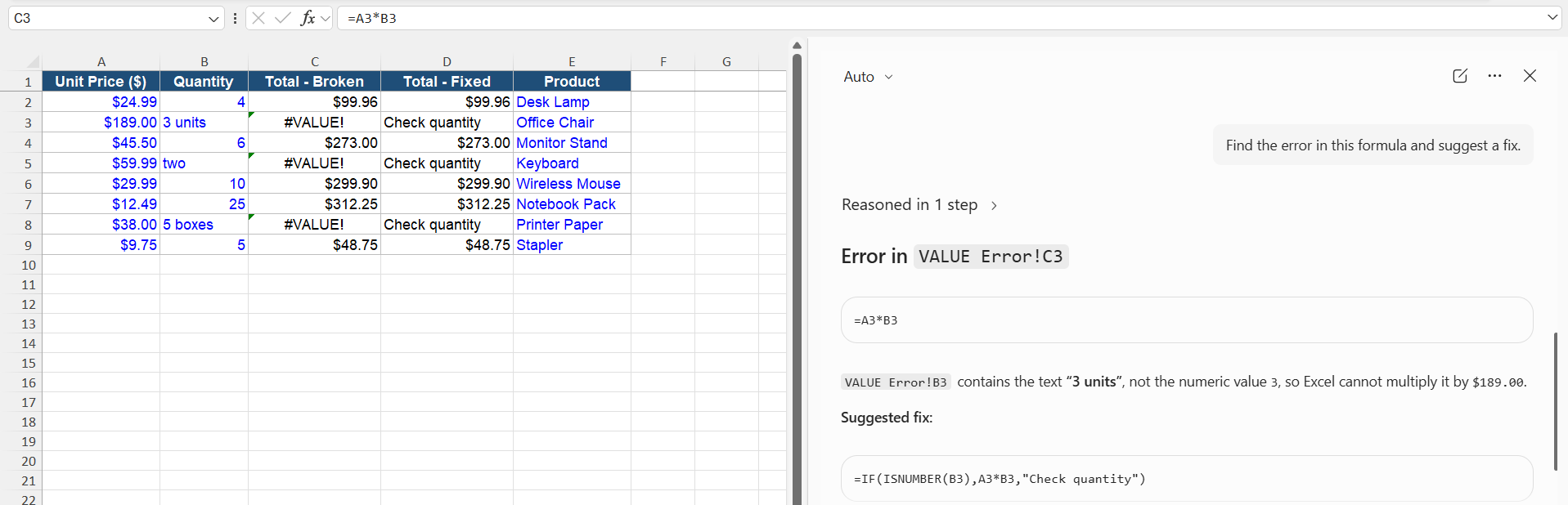
Copilot can review the formula and explain its logic.
Explain Excel Formulas with Copilot
Suppose there is a nested and complex formula in your workbook that you are unable to understand. You can use Copilot to explain each formula properly instead of manually breaking down the formula. Follow the steps below:
STEP 1: Open the workbook and select the cell containing the formula.
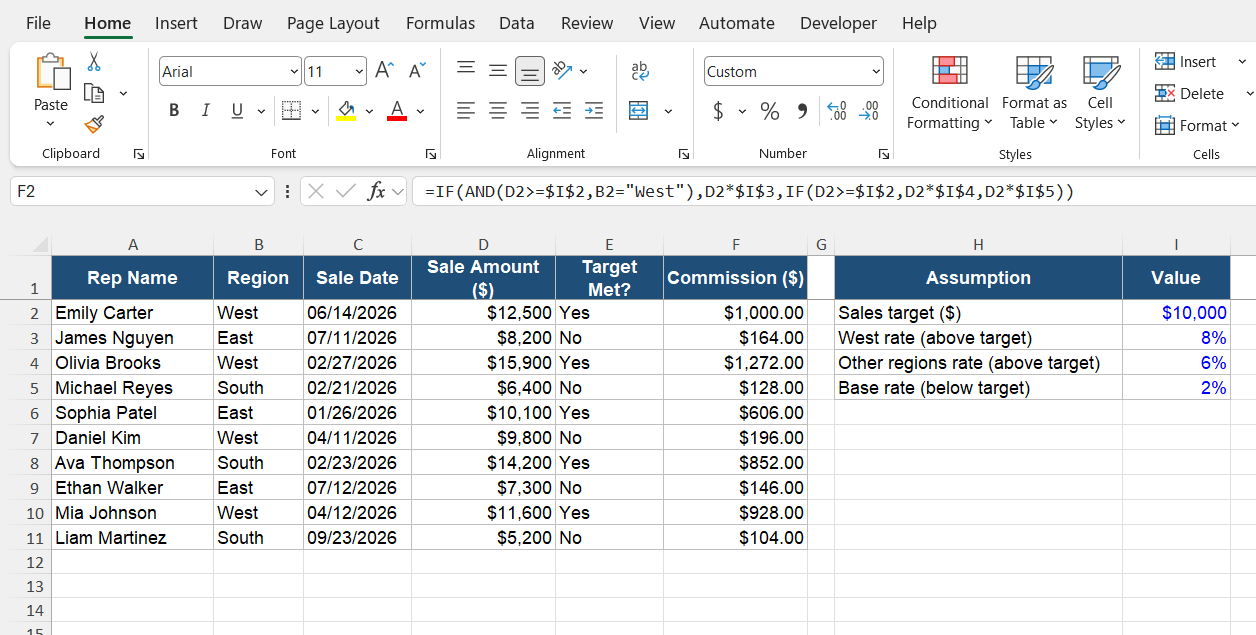
STEP 2: Go to the Home tab and select Copilot.

STEP 3: In the Copilot pane, type a simple prompt:
Break down this formula step by step.
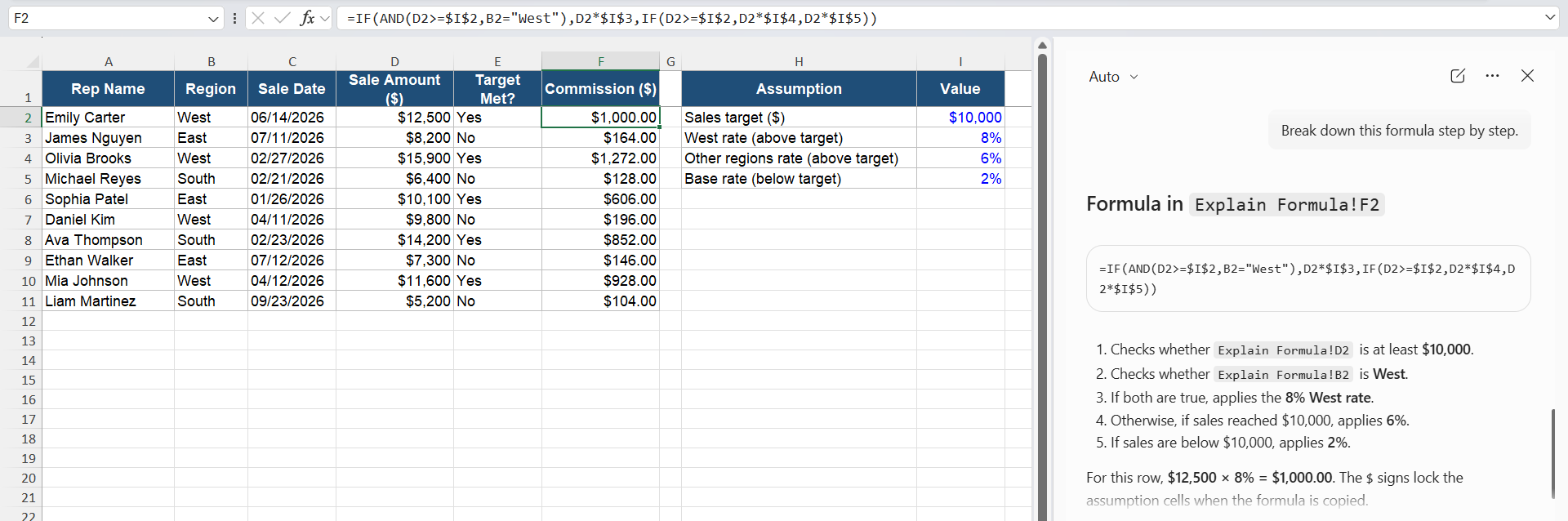
Copilot can explain the different parts of the formula and describe what the calculation is doing.
How to Fix an Excel Formula with Copilot
Fix a #VALUE! Error with Copilot
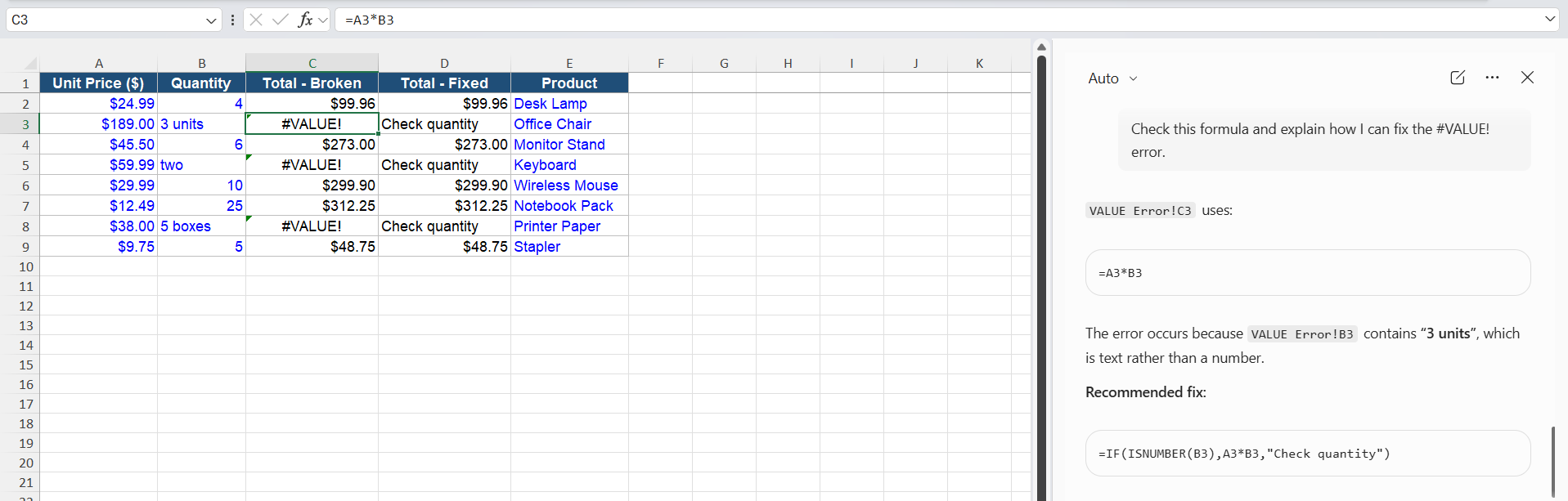
The #VALUE! error can occur when a formula uses an incorrect data type.
If you are trying to multiply data from two cells but they are of different data types, it will return a #VALUE! error. You can ask Copilot:
Check this formula and explain how I can fix the #VALUE! error.
Fix a #DIV/0! Error with Copilot
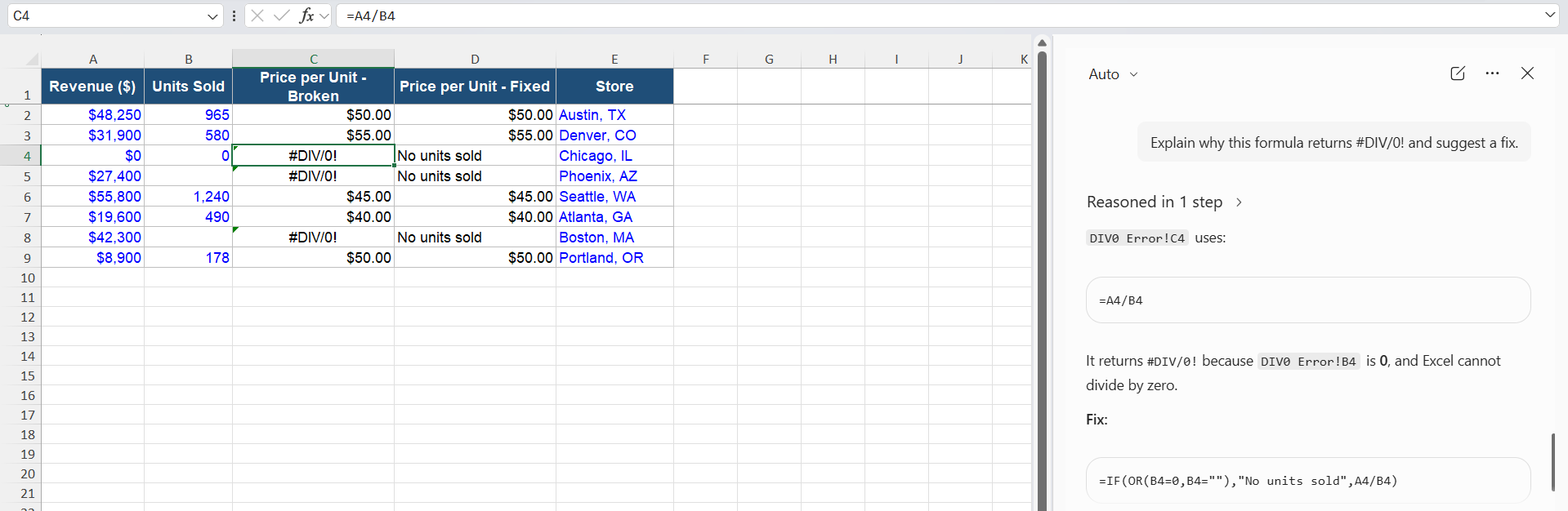
The #DIV/0! error appears when a formula tries to divide a number by zero or an empty cell. In the formula below, if B2 is zero or blank, Excel can return #DIV/0!.
You can ask Copilot:
Explain why this formula returns #DIV/0! and suggest a fix.
Fix a #N/A Error with Copilot
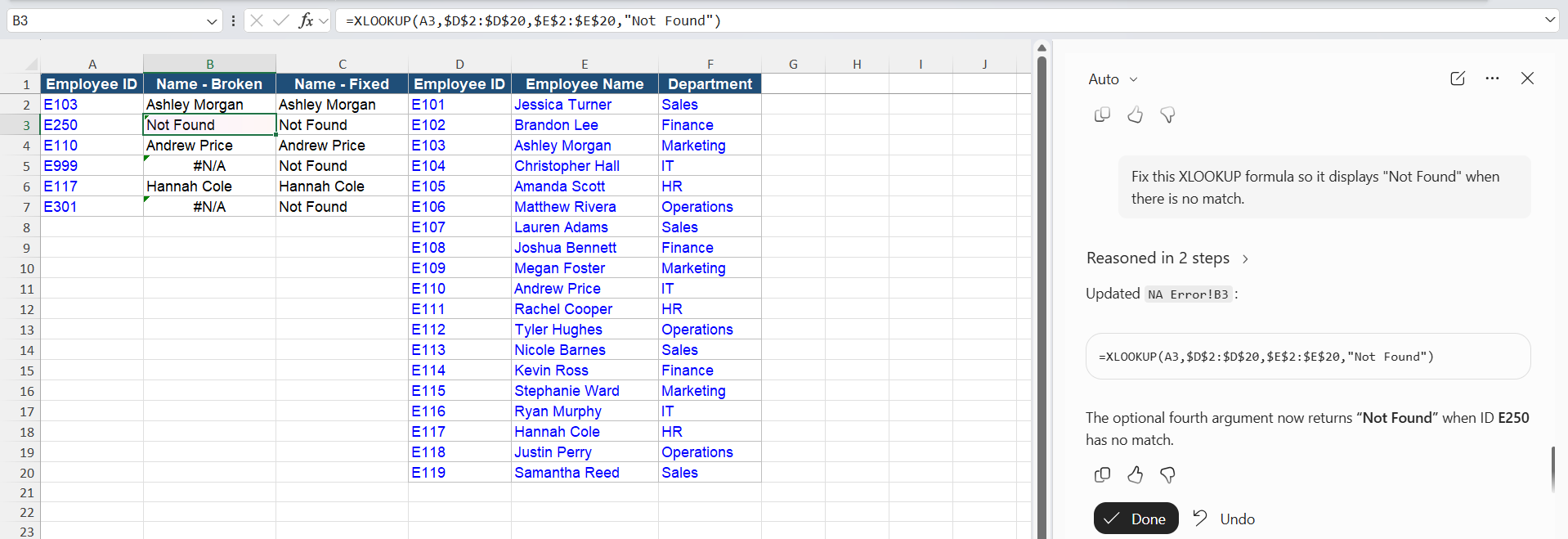
The #N/A error commonly appears with lookup formulas when Excel cannot find a matching value. If the value in A2 is not found in D2:D20, the formula may return #N/A.
You can ask Copilot:
Fix this XLOOKUP formula so it displays “Not Found” when there is no match.
Tips & Tricks
- Make sure that the cell references you are using in the formula are correct.
- Check that the ranges include the required data.
- Make sure the formula matches your intended calculation.
- Test the formula with a few known values.
- Check for errors after applying the formula.
- Always check the result with your original calculation.
FAQs
1. Can you explain Excel formulas with Copilot?
Yes, Microsoft Copilot can explain formulas and break them down into simpler steps.
2. How to fix Excel formula with Copilot?
Yes, Copilot can identify possible problems and suggest a corrected formula.
3. Can Copilot fix a #VALUE! error?
Yes, you can ask Copilot to find the cause of the #VALUE! error and suggest a fix.
4. Can Copilot fix an XLOOKUP #N/A error?
Yes, Copilot can help identify why the lookup fails and suggest a solution.
5. Should I trust Copilot’s suggested formula?
You should review and test the formula before using it in your workbook.

John Michaloudis is a former accountant and finance analyst at General Electric, a Microsoft MVP since 2020, an Amazon #1 bestselling author of 4 Microsoft Excel books and teacher of Microsoft Excel & Office over at his flagship MyExcelOnline Academy Online Course.

 30 Days - Full Access









