 Free Practice Workbook
You can organize data in Excel using sorting and filtering. Instead of manually applying filters or sorting columns, you can use Copilot in Excel to perform these tasks using simple natural language prompts. In this article, you will learn how to use sort and filter data with Copilot in Excel.
Key Takeaways:
- Copilot can filter data using simple natural language prompts.
- You can filter data based on text, numbers, dates, or multiple conditions.
- Formatting your data as an Excel Table improves Copilot’s accuracy.
- Filters temporarily hide rows without changing the original data.
- You can quickly clear filters and return to the complete dataset.
Table of Contents
Sorting and Filtering using Copilot
What is Copilot?
Copilot is Microsoft’s AI assistant that is built into Microsoft 365 applications such as Excel, Word, PowerPoint, Outlook, and Teams. It helps you complete tasks using natural language.
In Excel, Copilot can analyze data, create formulas, generate charts, summarize information, sort and filter tables, spot trends, and answer questions about your workbook. You simply describe what you want to do, and Copilot suggests or performs the required action.
Why use Copilot?
If you use Copilot to sort and filter data, you do not need to perform the tasks manually. You can type the task in simple sentences, and it will be applied to the data. This is especially useful when working with large tables that contain hundreds or thousands of records.
This makes it easier to work with large datasets and reduces the time spent navigating Excel menus.
How to Sort and Filter Data with Copilot
Sort Data
Sorting rearranges your data based on the values in one or more columns. For example, you can sort names alphabetically or sales figures from highest to lowest.
- Organize data in a tabular format.
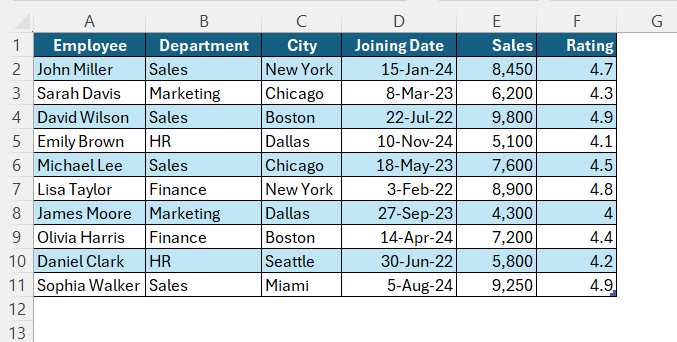
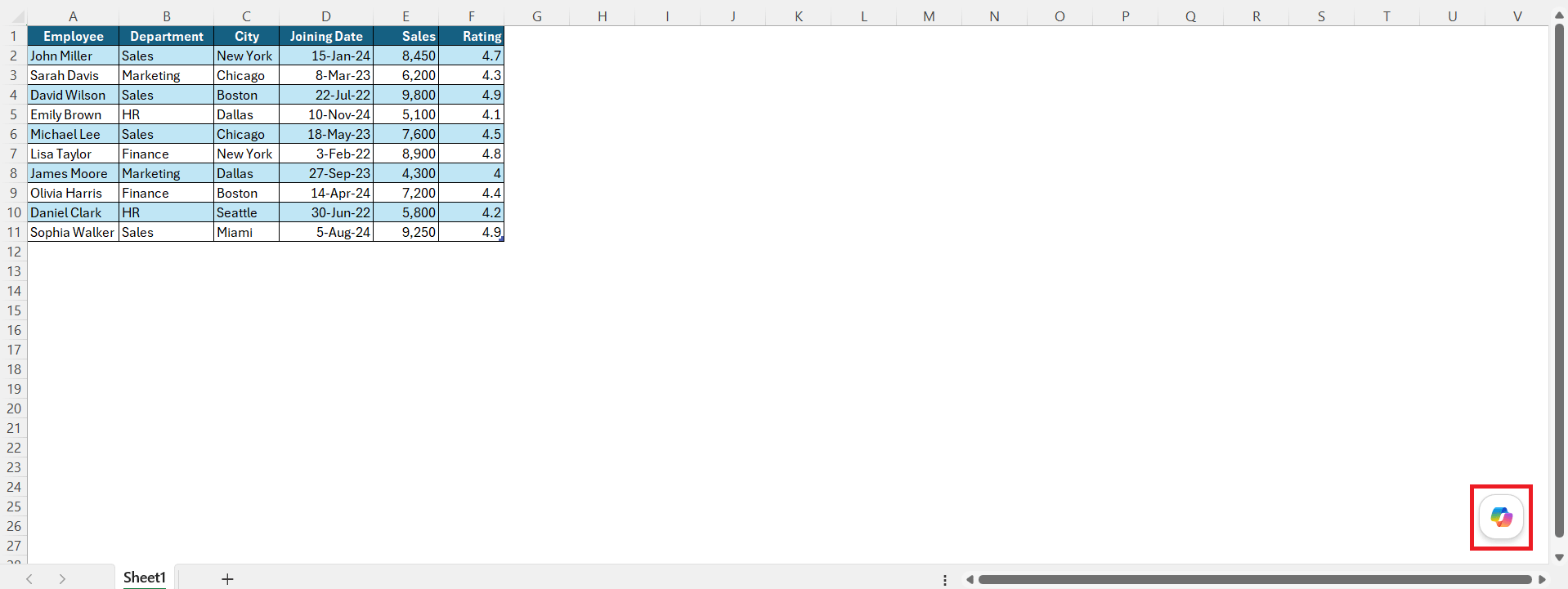
- Open Copilot by clicking the Copilot button.
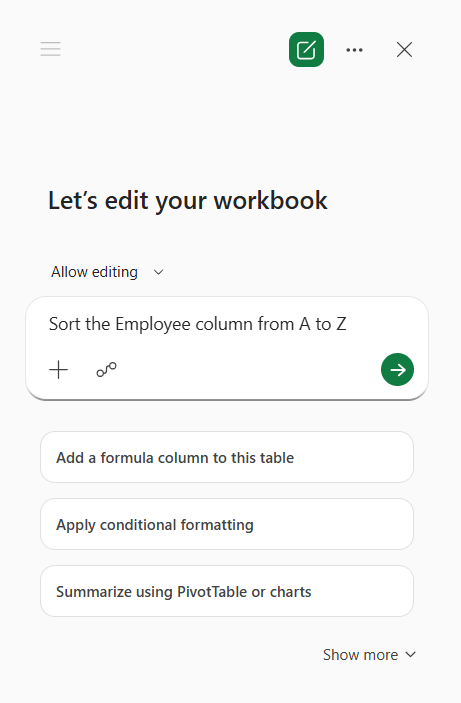
- Type the request in simple language: Sort the Employee column from A to Z.
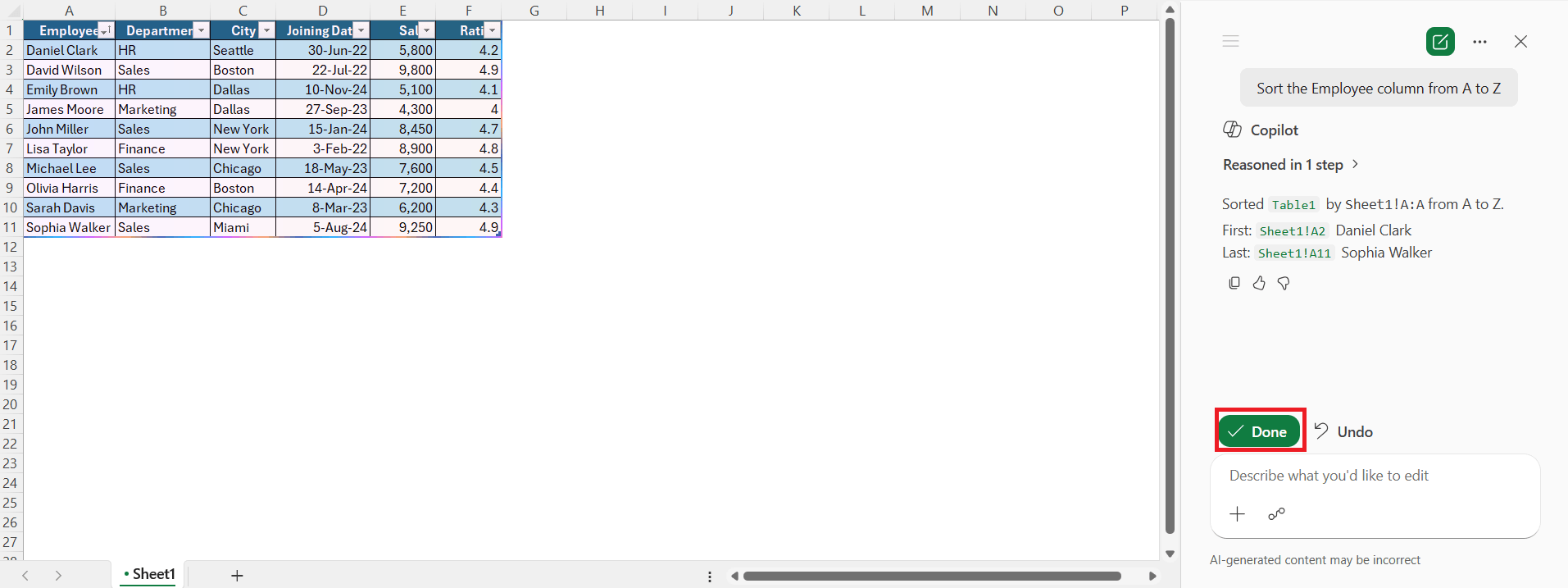
- Review the suggested action from Copilot and press Done.
Filter Data
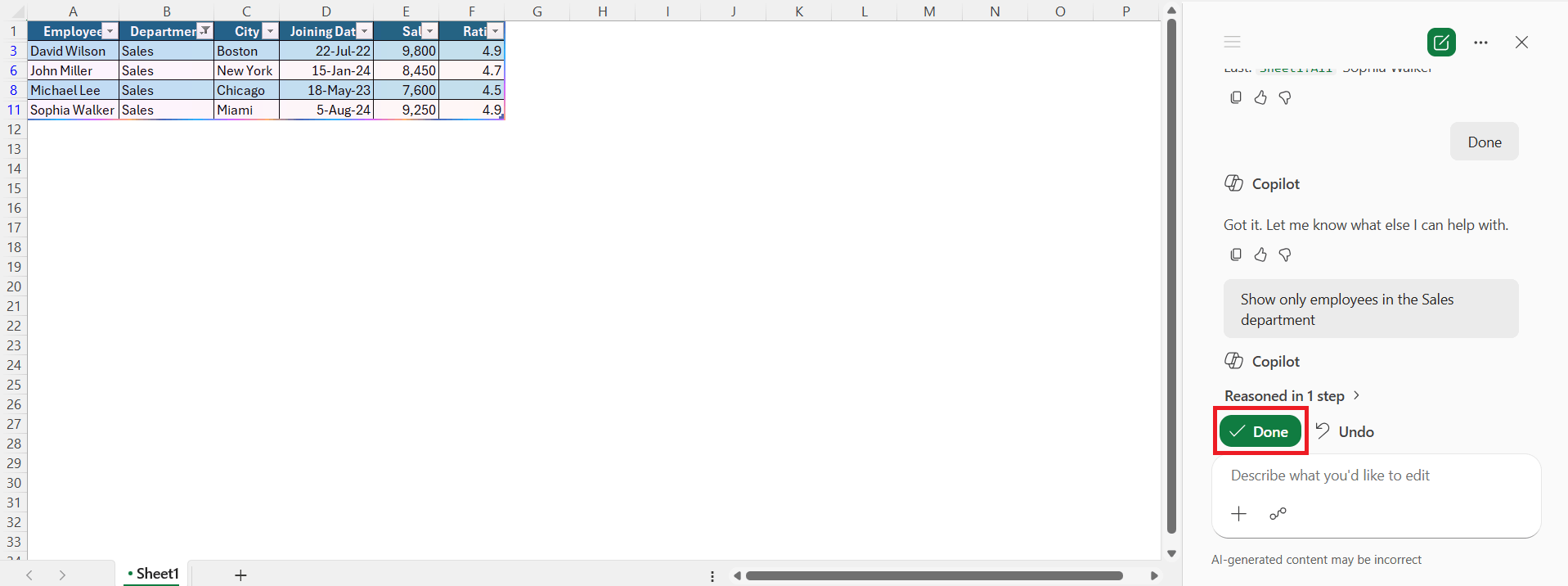
Filtering displays only the records that meet your criteria while temporarily hiding the rest. This helps you focus on specific information without modifying the original data.
- Organize your data in a tabular format.
- Open Copilot by clicking the Copilot button.
- Type your request in simple language, for example: Show only employees in the Sales department.
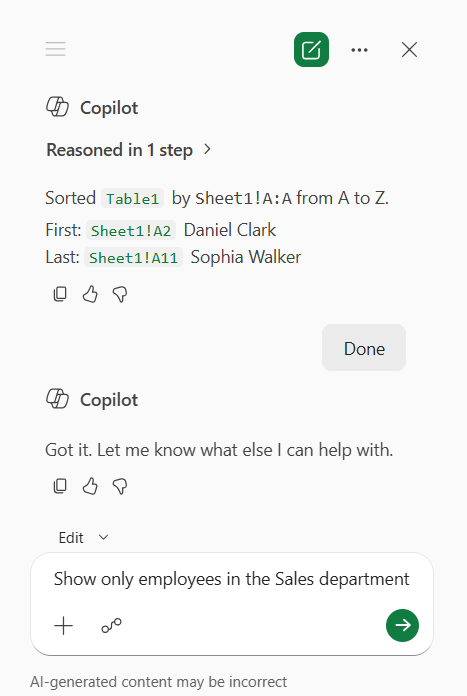
- Review the suggested action from Copilot and press Done to apply the filter.
Tips & Tricks
- Use descriptive column headers so Copilot can understand your data more accurately.
- Convert your dataset into an Excel Table before using Copilot.
- Combine multiple filter conditions to narrow down large datasets quickly.
- Clear existing filters before applying new ones to avoid unexpected results.
- Review the filtered results to ensure the correct records are displayed before continuing your analysis.
Frequently Asked Questions
Can Copilot filter data using more than one condition?
Yes. You can ask Copilot to apply multiple conditions, such as showing employees from the Sales department with sales greater than 8,000.
Can I filter dates with Copilot?
Yes, you can easily filter data using Copilot. You can type the task in simple language like “Show records from January” or “Filter orders from this month.”
Does filtering delete any data?
No. Filtering only hides rows that do not meet the selected criteria. You can remove the filter at any time to view all records again.
Can I remove filters with Copilot?
Yes. Simply ask Copilot to clear or remove all filters, and the full dataset will be displayed again.
Does my data need to be in an Excel Table?
While Copilot can work with many datasets, it performs best when the data is formatted as an Excel Table. Using a table also helps keep your data organized as it grows.

John Michaloudis is a former accountant and finance analyst at General Electric, a Microsoft MVP since 2020, an Amazon #1 bestselling author of 4 Microsoft Excel books and teacher of Microsoft Excel & Office over at his flagship MyExcelOnline Academy Online Course.

 30 Days - Full Access









