 Free Practice Workbook
It may be difficult to remember the syntax of various complex formulas in Excel. Copilot can be used to fill this gap. You can type what you want to calculate in simple language, and Copilot will create a working formula for you. In this article, you will learn how to use Copilot to write formulas in Excel.
Key Takeaways:
- Copilot can create Excel formulas from simple, natural-language prompts.
- Your workbook should be saved to OneDrive or SharePoint with AutoSave enabled.
- Converting your data into an Excel table makes it easier for Copilot to understand your data.
- Always review and test a formula before using it in important calculations.
- Specific prompts generally produce more useful formulas than vague instructions.
Table of Contents
Introduction to Copilot in Excel
What is Copilot in Excel?
Copilot is an AI assistant built into Microsoft Excel. It is like a helper that knows the syntax so that you don’t have to. Instead of writing a nested IF formula yourself, you describe the result you want. Copilot writes the formula and shows you what it did before applying it.
It can help with common calculations such as percentages, lookups, conditional calculations, counts, and date calculations. It can also explain existing formulas and suggest changes when a formula does not produce the expected result.
Prerequisites of Copilot
These are the prerequisites of using Copilot:
- Microsoft 365 subscription with a Copilot licence
- Workbook saved in OneDrive or SharePoint
- Autosave must be on
- Excel table with headers
How to Use Copilot to Write Formula
Step-by-Step Guide
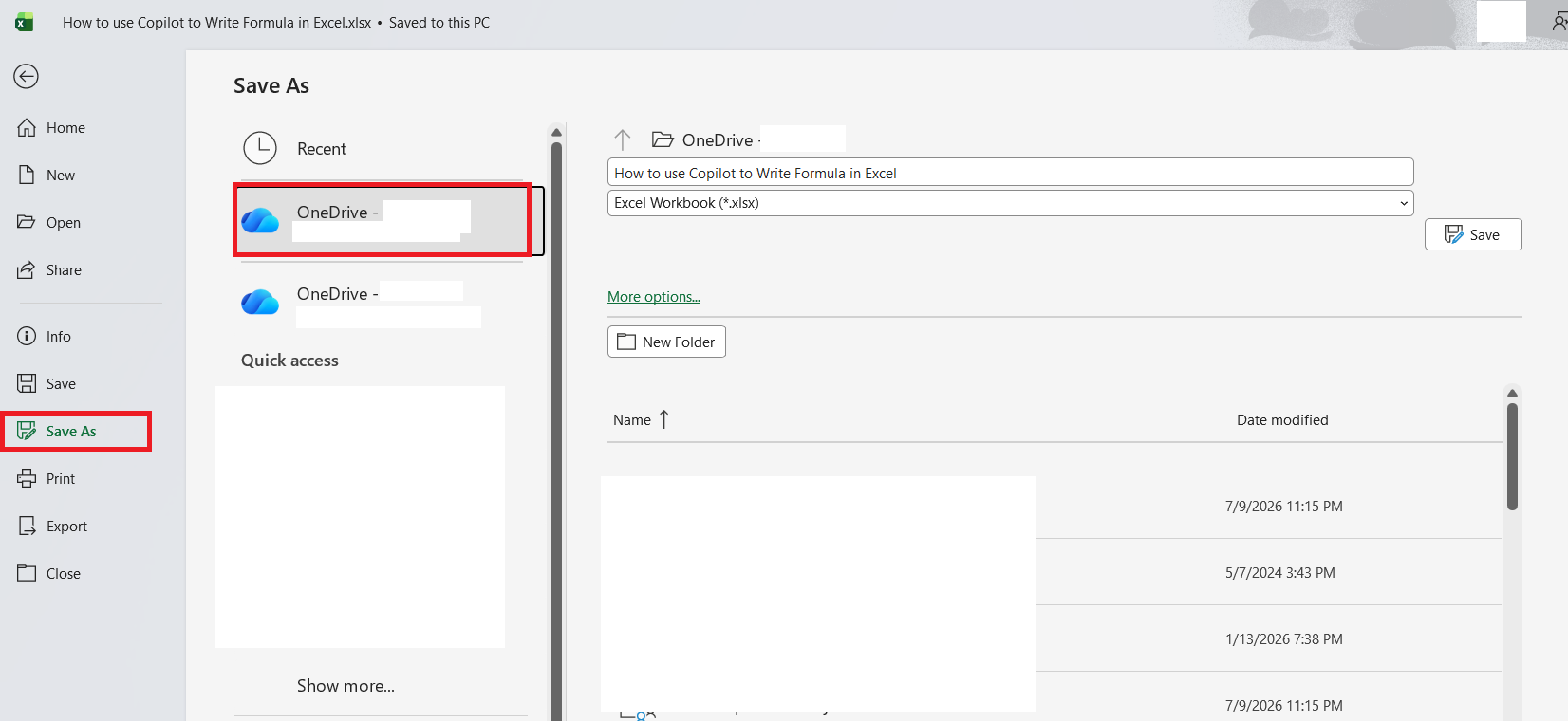
STEP 1: Go to File > Save a copy > OneDrive to save the workbook to OneDrive or SharePoint.
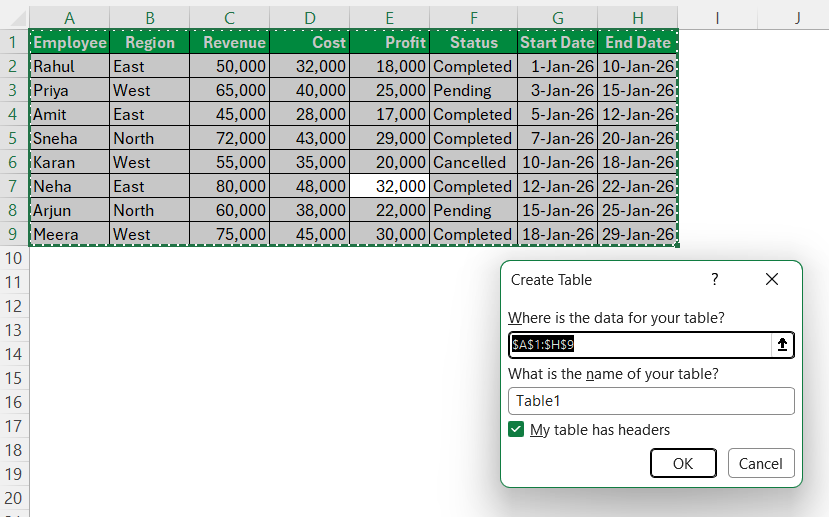
STEP 2: Click on a cell inside the data and press Ctrl + T to convert data into a table.
STEP 3: Go to the Home tab and click on the Copilot button.

STEP 4: Type a prompt in the Copilot panel. Make sure that the prompts are specific and detailed.
“Add a column called Margin % that divides Profit by Revenue and shows it as a percentage.”
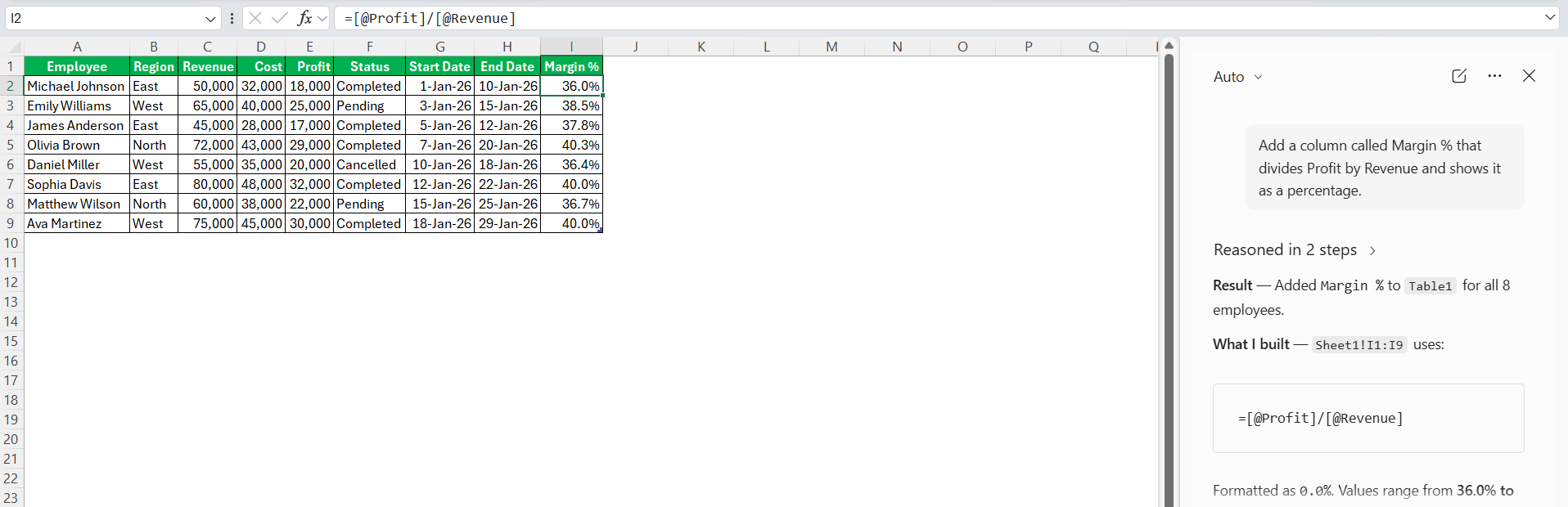
Make sure that the formula created by Copilot is correct.
Examples of Prompts for Excel Formulas
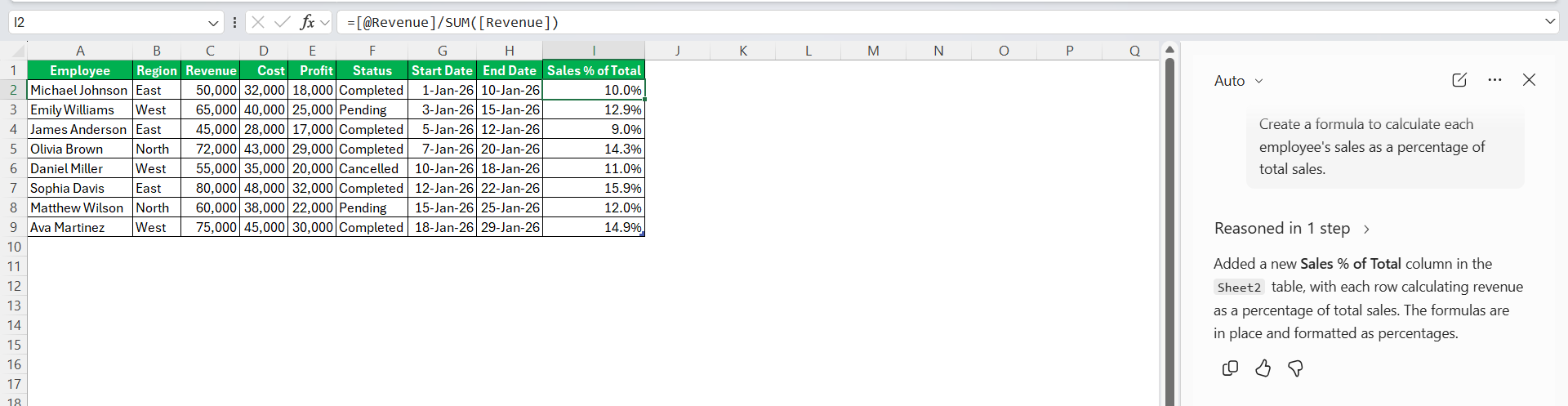
- Create a formula to calculate each employee’s sales as a percentage of total sales.
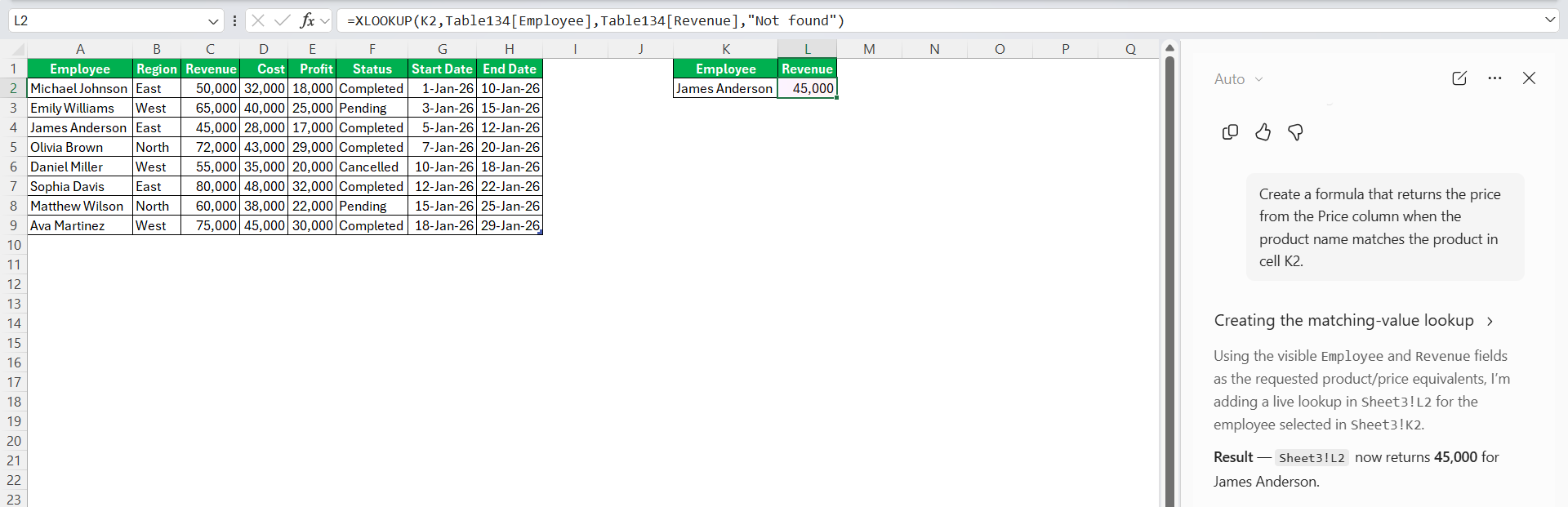
- Create a formula that returns the price from the Price column when the product name matches the product in cell K2.
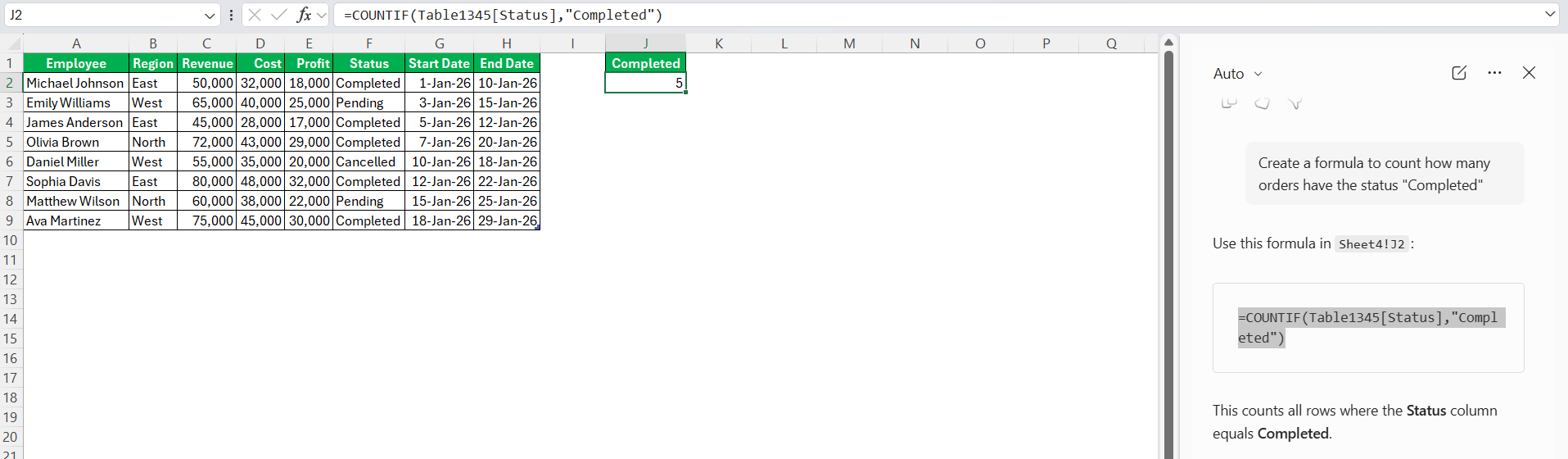
- Count how many orders have the status “Completed”.
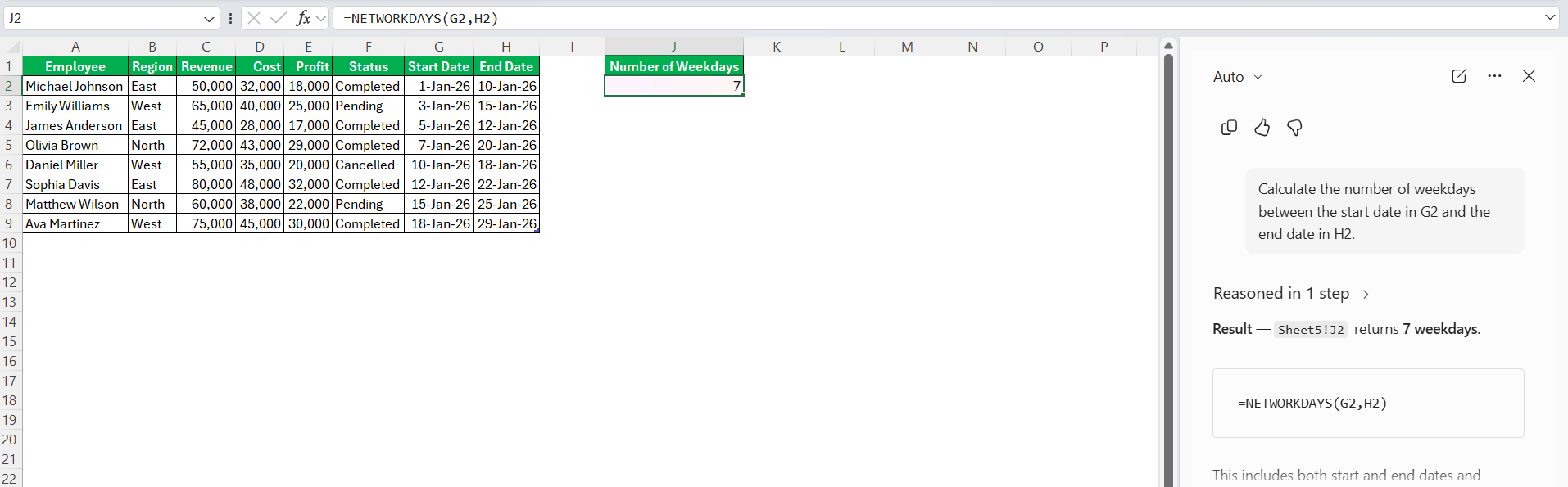
- Calculate the number of weekdays between the start date in A2 and the end date in B2.
Tips & Tricks
- Clearly describe what you want to calculate.
- Include all criteria that affect the calculation.
- Refer to your table’s actual column names.
- Include an example when the calculation is complex.
- Ask Copilot to explain unfamiliar formulas.
- Make sure the formula uses the correct cells or columns.
- Compare the output with a known result.
- Reword the prompt if the first formula is not correct.
- Ask Copilot to include error handling where needed.
- Ask Copilot to simplify complicated formulas when possible.
FAQs
Can Copilot write any Excel formula?
Microsoft Copilot can help create many types of Excel formulas, but its suggestions depend on the data, prompt, Excel version, and available Copilot features. Complex calculations may still require manual adjustments.
Do I need to know Excel formulas to use Copilot?
No. You can describe the calculation in plain language. However, having a basic understanding of Excel formulas is useful because it allows you to review and verify Copilot’s suggestions.
Can Copilot explain an existing Excel formula?
Yes. You can ask Copilot to explain what a formula does, including the purpose of individual functions and references.
Can Copilot fix Excel formula errors?
Copilot can help identify potential problems and suggest a corrected formula. You should still test the suggested formula with your data before relying on it.
Does Copilot replace Excel’s Formula Builder?
Not necessarily. Copilot is an additional way to create and understand formulas using natural language, while Excel’s existing functions and formula tools remain useful for building formulas manually.

John Michaloudis is a former accountant and finance analyst at General Electric, a Microsoft MVP since 2020, an Amazon #1 bestselling author of 4 Microsoft Excel books and teacher of Microsoft Excel & Office over at his flagship MyExcelOnline Academy Online Course.

 30 Days - Full Access









