 Free Practice Workbook
Microsoft Copilot in Excel helps you clean messy datasets and standardize text formatting using simple language instructions. It removes the need to write complex formulas or edit manually. You can use Copilot to identify duplicate records or clean inconsistent text. In this article, you will learn how to remove duplicates and standardize data with Copilot in Excel.
Key Takeaways:
- Copilot can help identify duplicate records in Excel.
- You can use Copilot to create helper columns for duplicate data.
- Copilot can help remove extra spaces from text.
- You can standardize capitalization using simple prompts.
- You can format dates and phone numbers consistently.
Table of Contents
Understand Duplicate and Inconsistent Data
Duplicate Records
Duplicate records occur when the same entry appears twice in the dataset.
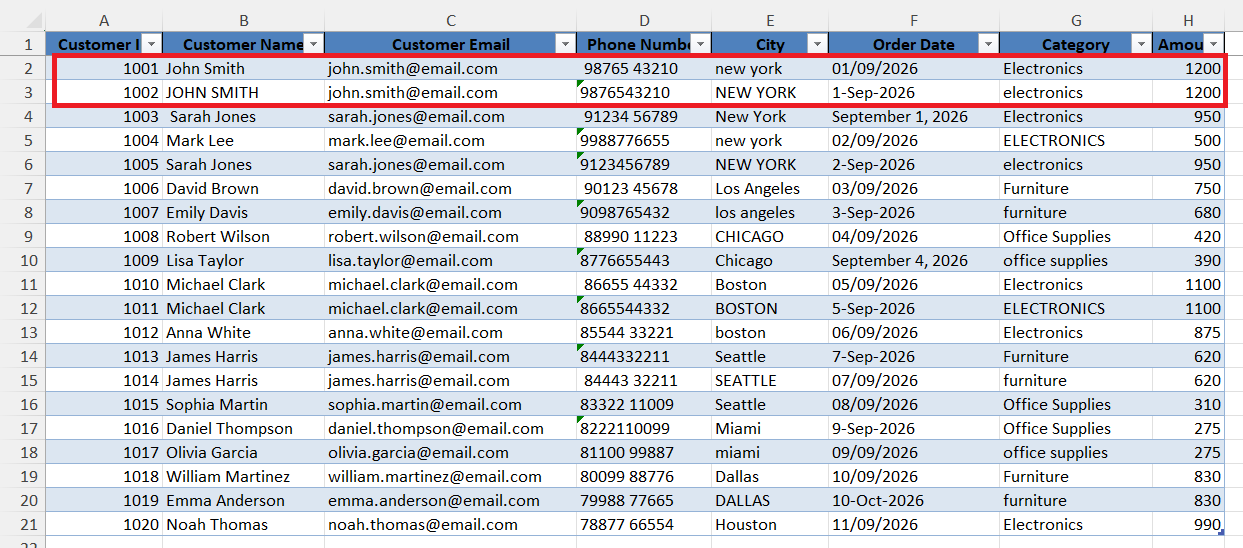
This can occur because of:
- Manual entry errors
- Data integration from different systems
- Multiple form entries, etc.
Inconsistent Records
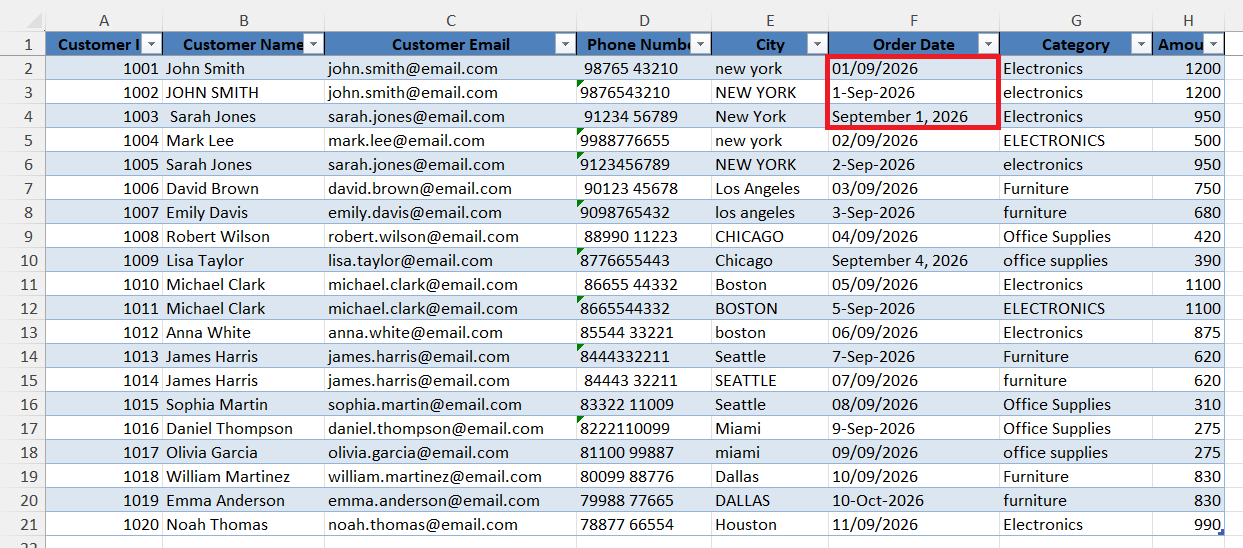
Data is said to be inconsistent when the same type of information appears in different formats. For example, the date mentioned in a column is in different formats, such as:
- 01/09/2026
- 1-Sep-2026
- September 1, 2026
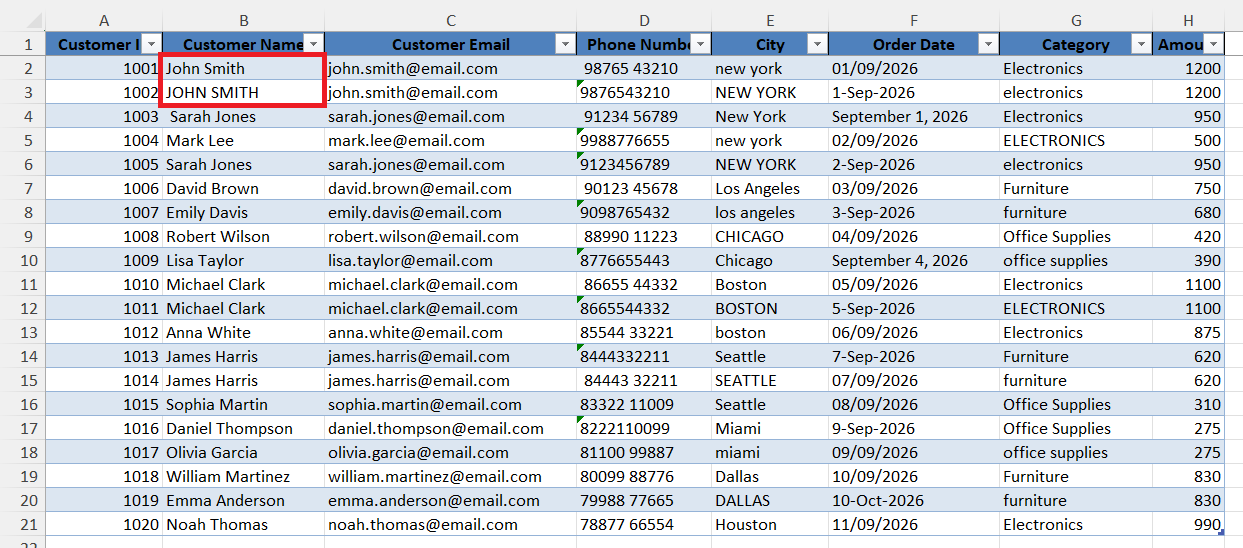
Inconsistent text can also occur when the same value has different capitalization or extra spaces. For example, “John Smith”, and “JOHN SMITH” refer to the same customer name.
How to Remove Duplicates with Copilot in Excel
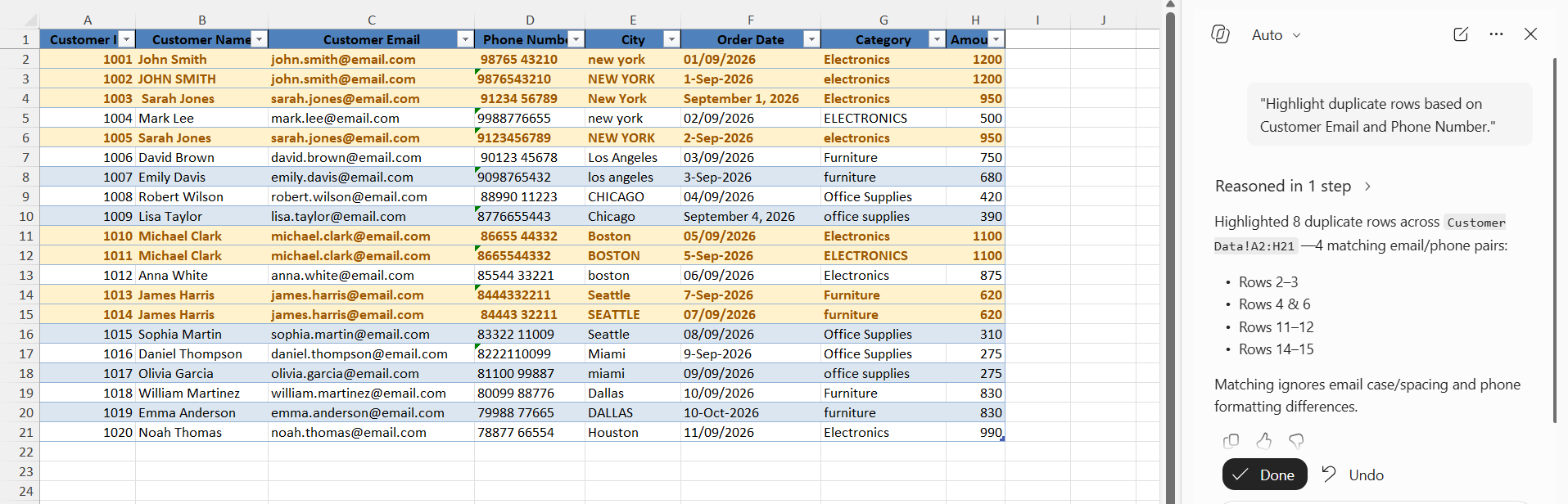
Highlight Duplicate
STEP 1: Go to the Home tab.

STEP 2: Select the Copilot button.

STEP 3: In the Copilot pane, type the prompt:
“Highlight duplicate rows based on Customer Email and Phone Number.”
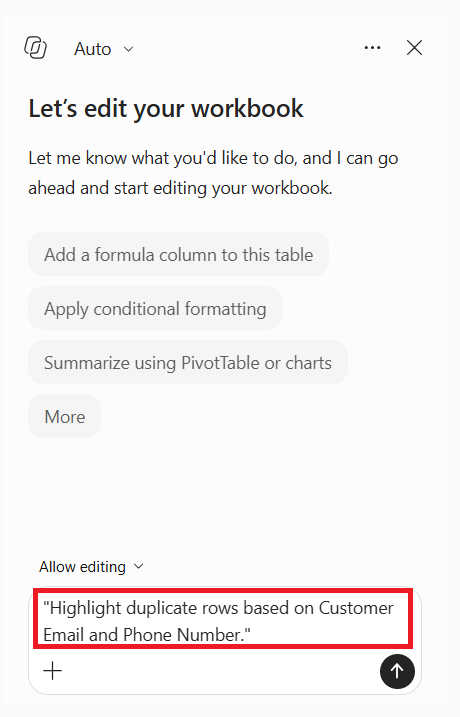
STEP 4: Review the result and press Done.
Add a Helper Column
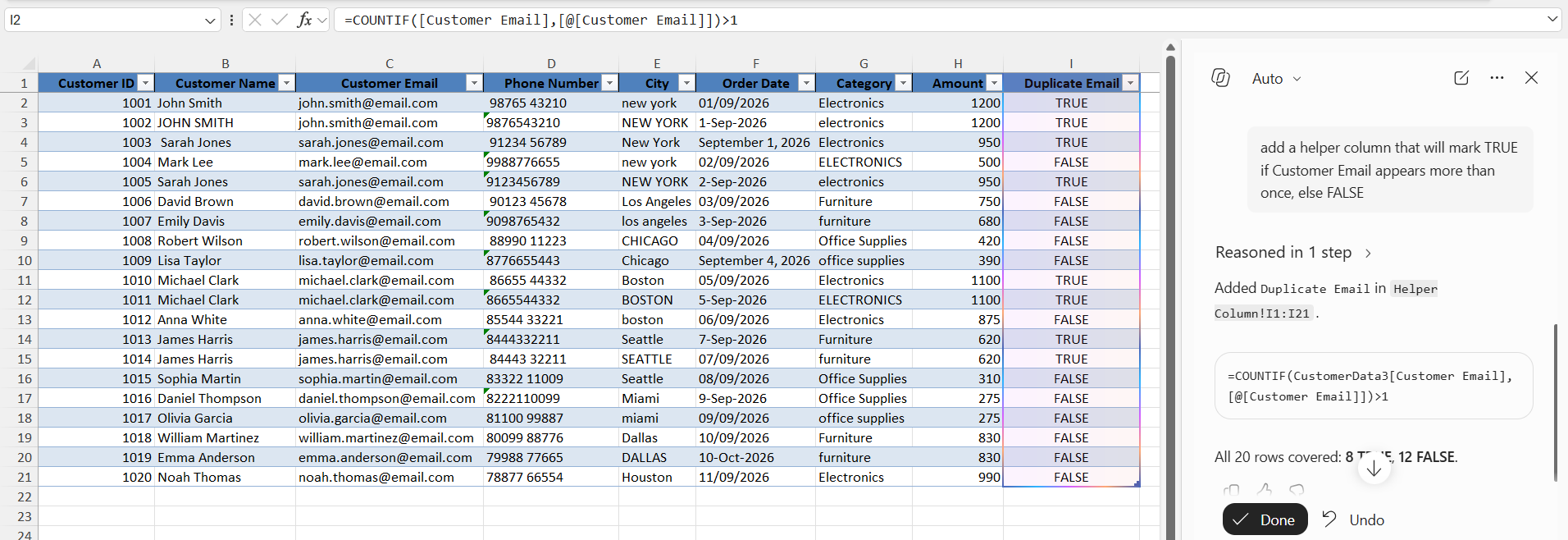
You can also use Copilot to add a helper column that will mark TRUE if Customer Email appears more than once. Use this prompt for this:
How to Standardize Data with Copilot in Excel
Fix Spacing
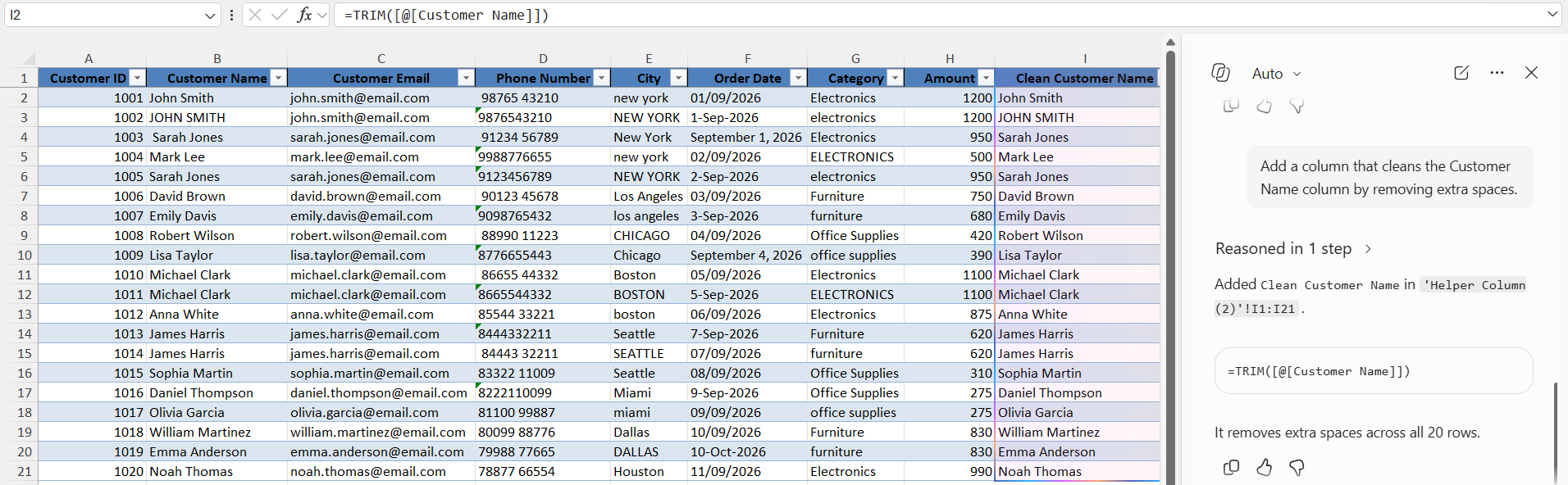
If there are extra spaces in the dataset, it can create issues when performing data analysis. You can use Copilot to generate the TRIM function to remove all the extra spaces from the data. The prompt to be used is:
“Add a column that cleans the Customer Name column by removing extra spaces.”
Fix Capitalization
If your database has multiple capitalisation formats like this:
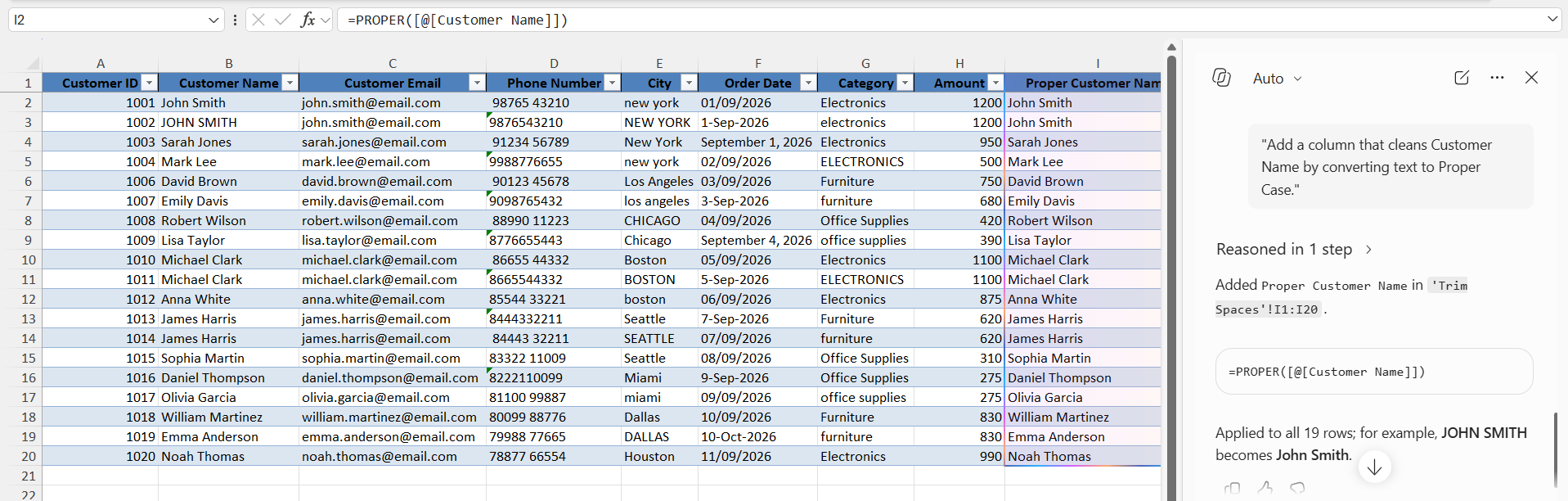
You can use Copilot to fix mismatches and set a standard capitalization by choosing either lowercase, uppercase, or proper case.
“Add a column that cleans Customer Name by converting text to Proper Case.”
Format Phone Numbers or Dates
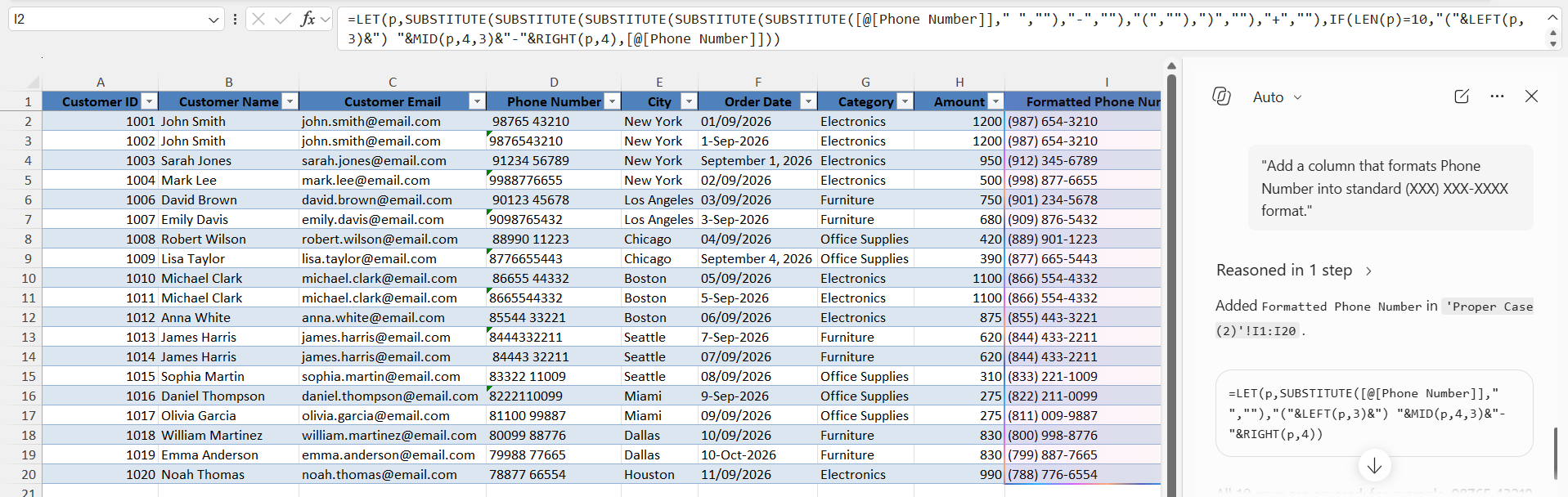
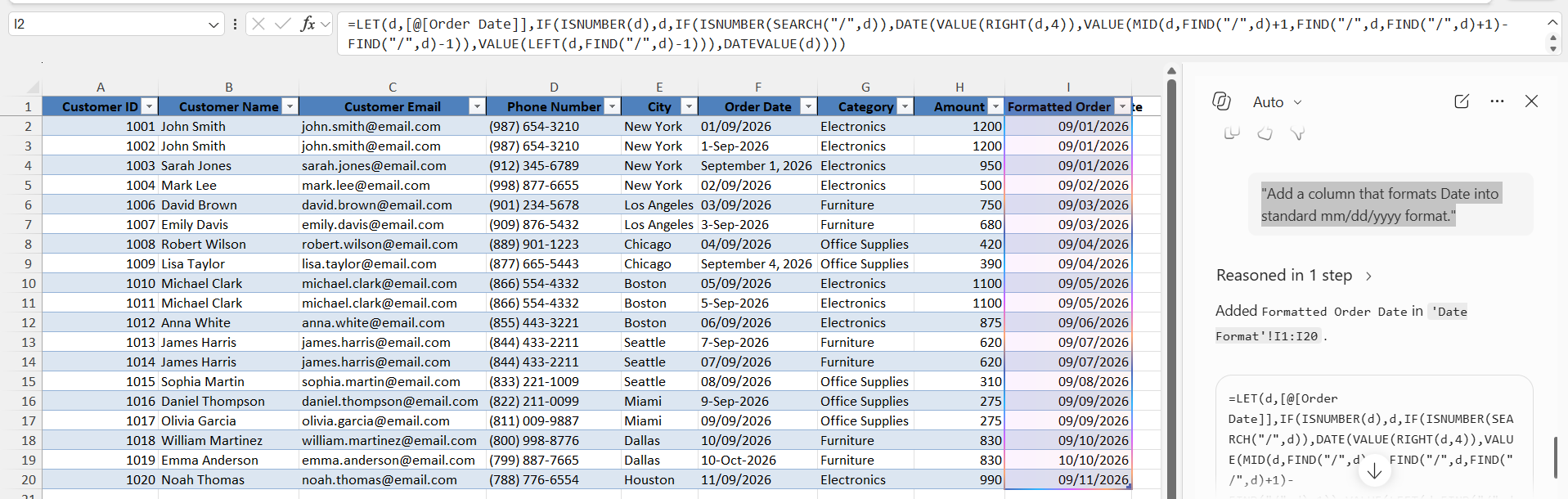
You can use this prompt to set a standard phone number or date:
“Add a column that formats Phone Number into standard (XXX) XXX-XXXX format.”
“Add a column that formats Date into standard mm/dd/yyyy format.”
Best Practices
- Always back up your original data before making any changes.
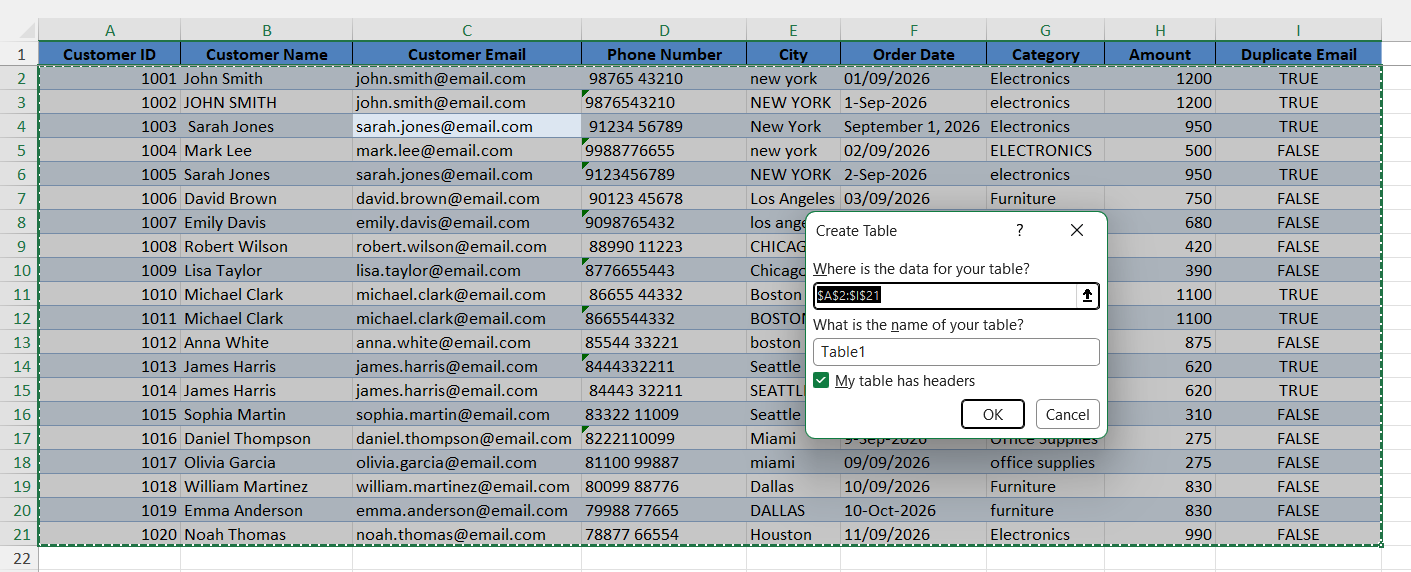
- Select your data and press Ctrl + T so Copilot can read it.
- Give each column a simple, descriptive name.
- Put exact column names in quotes when asking Copilot to clean them.
- Check Copilot’s preview column to make sure the formula is accurate.
FAQs
Can Copilot remove duplicate records in Excel?
Yes. You can ask Copilot to identify duplicate records based on one or more columns and suggest changes to remove them.
Can we standardize data with Copilot in Excel?
Yes. Copilot can help standardize capitalization, spacing, categories, and other text values using natural-language prompts.
Can Copilot remove extra spaces from Excel data?
Yes. You can ask Copilot to create a new column that removes extra spaces from text. Copilot may use functions such as TRIM for this task.
Can Copilot standardize dates?
Yes. You can ask Copilot to format dates consistently, such as using DD-MMM-YYYY or another format required for your dataset.
Should I review Copilot’s changes?
Yes. You should always review the results before accepting changes. This is especially important when removing duplicate records or changing existing data.

John Michaloudis is a former accountant and finance analyst at General Electric, a Microsoft MVP since 2020, an Amazon #1 bestselling author of 4 Microsoft Excel books and teacher of Microsoft Excel & Office over at his flagship MyExcelOnline Academy Online Course.

 30 Days - Full Access









