 Free Practice Workbook
Microsoft Copilot can help you create VBA macros in Excel. It can generate VBA code for you, but you need to add it to your workbook to use it. In this article, you will learn how Microsoft Copilot write Excel VBA macros.
Key Takeaways:
- Copilot can generate VBA code for Excel.
- VBA can automate repetitive Excel tasks.
- You need to add the code to the VBA Editor.
- You should review the code before running it.
- Test the macro before using it on important data.
Table of Contents
Introduction to VBA with Copilot
What is VBA code?
VBA code is a set of instructions that tells Excel to perform a task automatically. For example, instead of writing the code manually, you can use this code:
Sub FormatHeader()
Range(“A1:E1”).Font.Bold = True
End Sub
This code can make the text in the range A1 to E1 bold.
Can Copilot write Excel VBA code?
Yes, Microsoft Copilot can help write VBA macros based on your instructions. For example, you can ask Copilot to create a macro that formats a worksheet or removes duplicate rows. But there is a limitation: Copilot can generate the VBA code, but you generally need to copy the code and add it to the VBA Editor yourself.
How can Copilot Write Excel VBA Macro?
STEP 1: Open the Excel workbook where you want the VBA macro
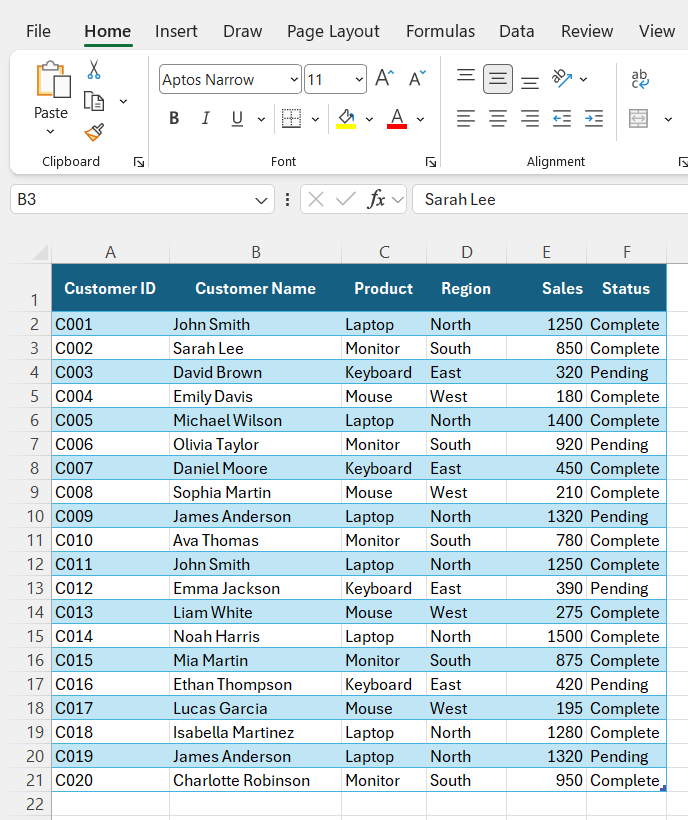
STEP 2: Go to the Home tab and select Copilot.

STEP 3: In the Copilot pane, enter this prompt:
“Write a VBA code to remove blank rows from the current worksheet”
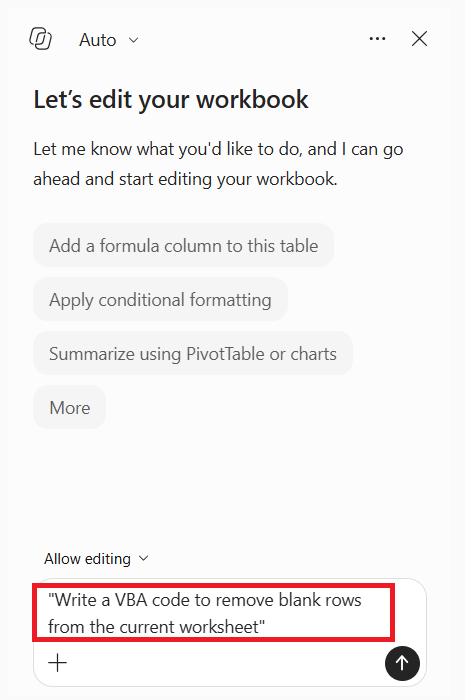
STEP 4: Review the VBA code.
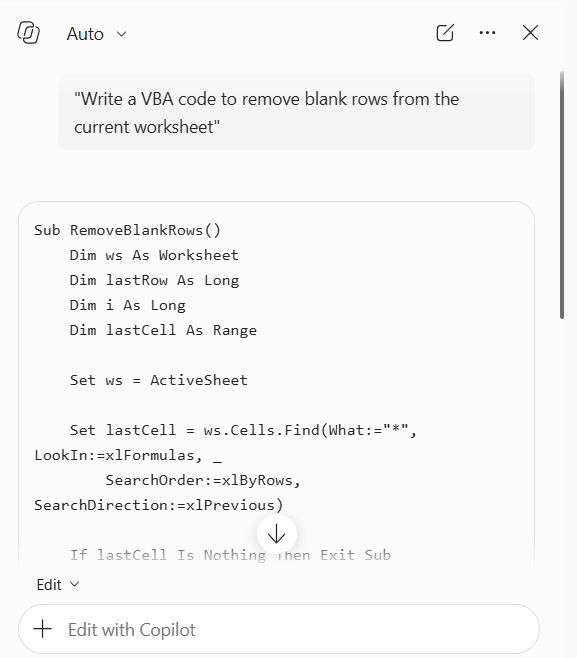
STEP 5: Press Alt + F11 in Excel to open the Visual Basic Editor.
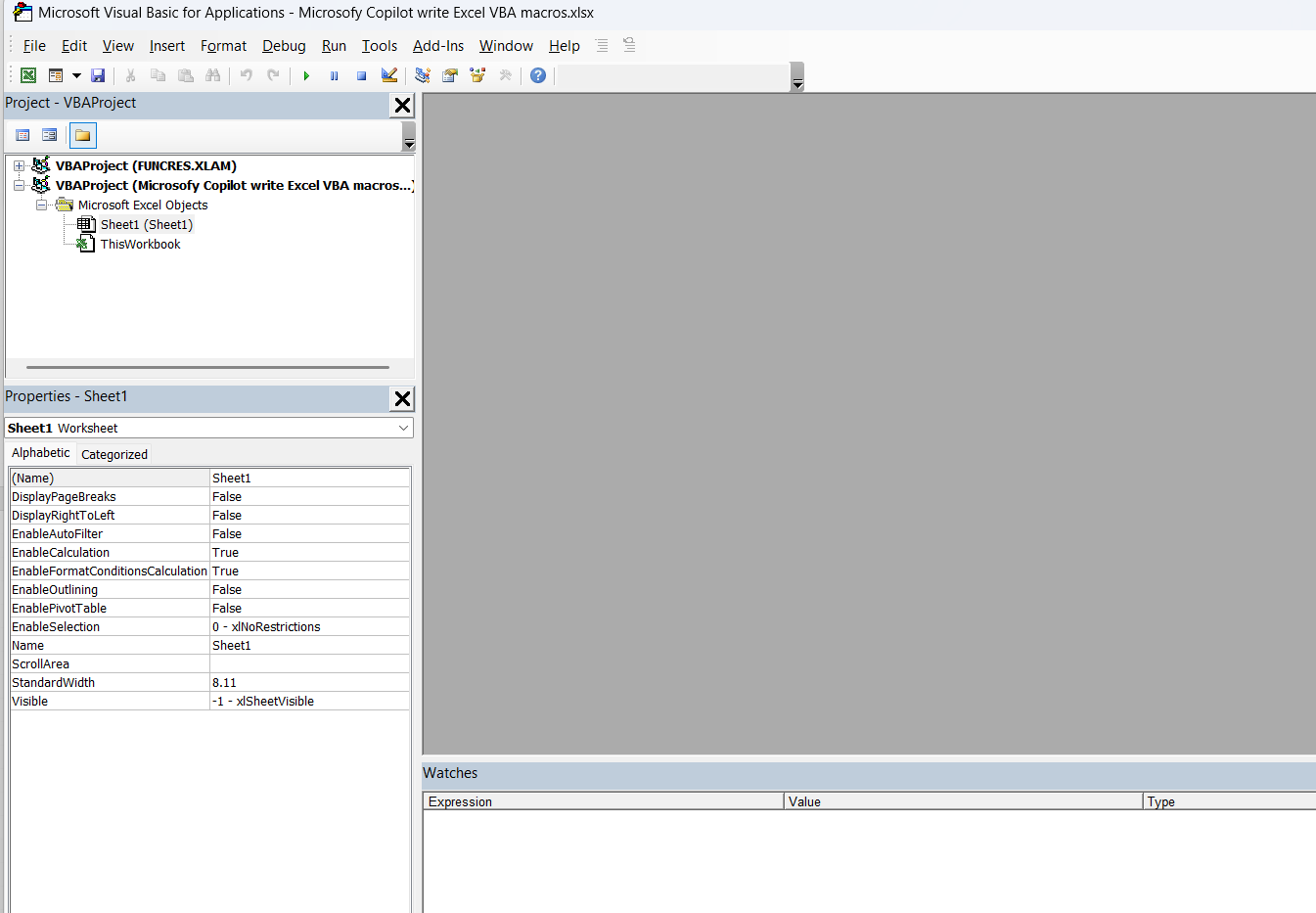
STEP 6: In the VBA Editor, select Insert > Module.
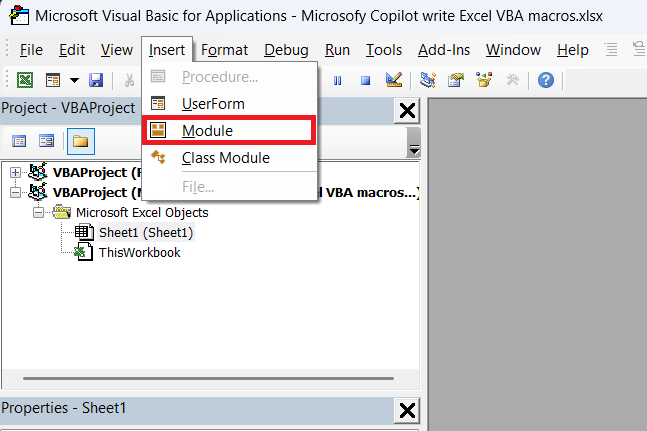
STEP 7: Copy the VBA code generated by Copilot and paste it into the module.
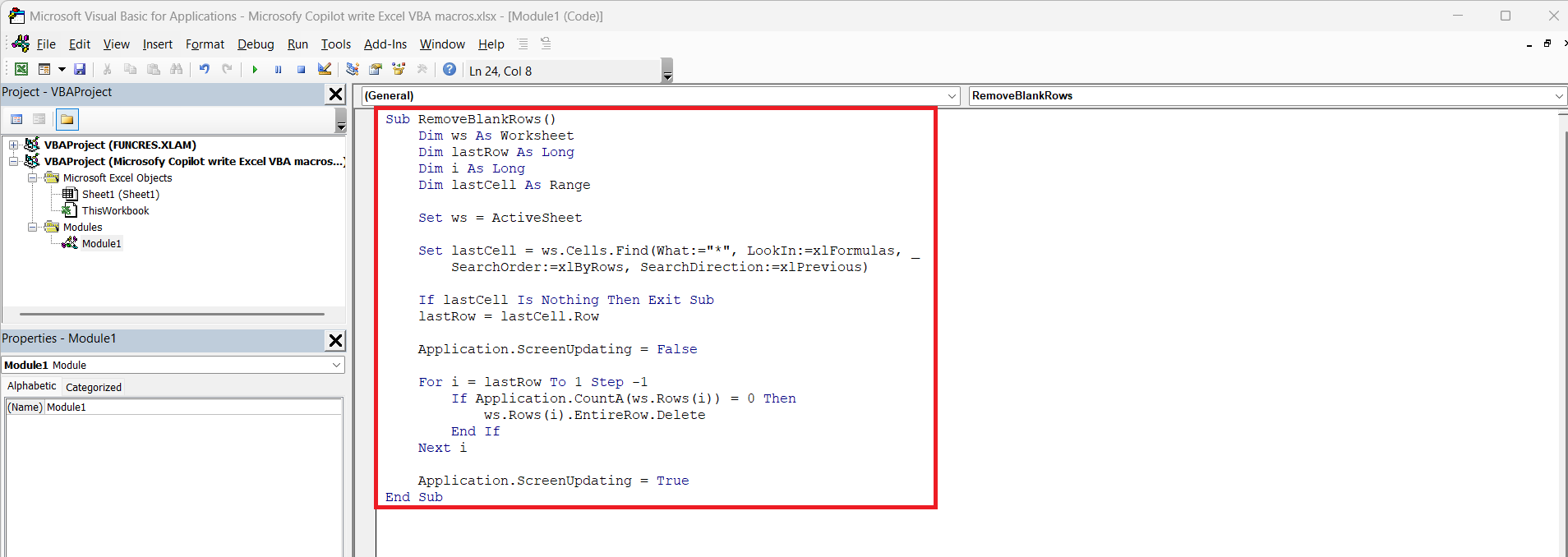
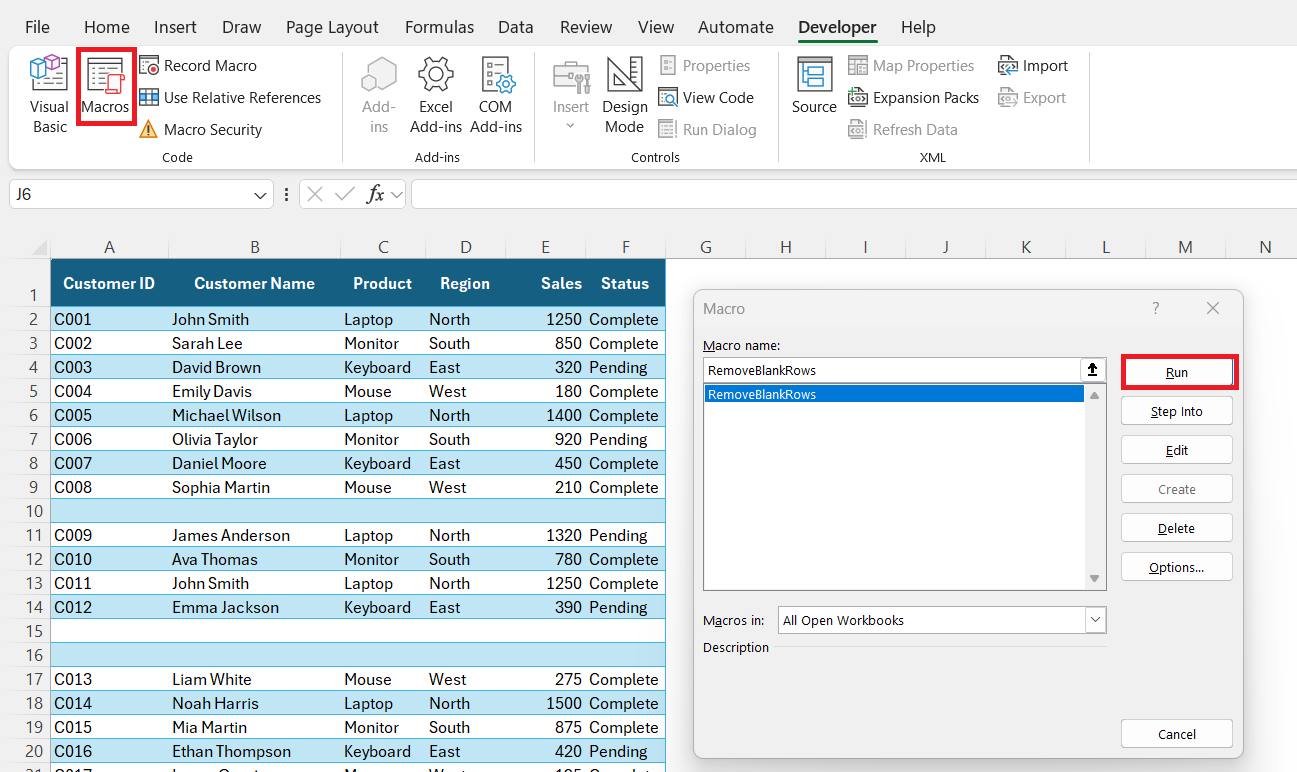
STEP 8: Return to Excel and run the macro.
Examples of VBA Prompts for Copilot
Format a Worksheet
You can ask Copilot to format a worksheet automatically.
Prompt:
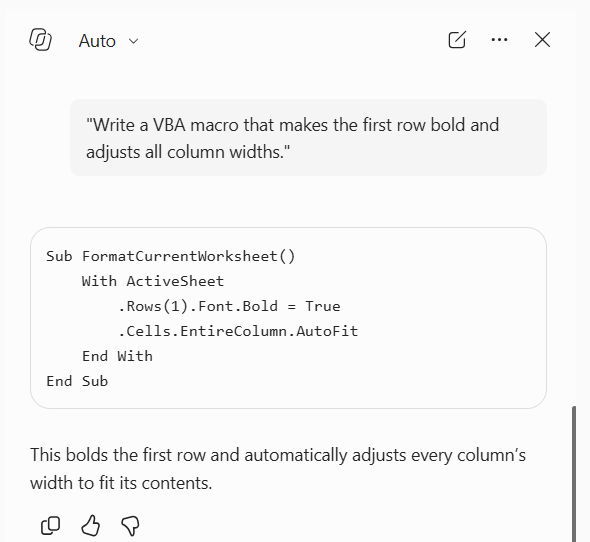
“Write a VBA macro that makes the first row bold and adjusts all column widths.”
Remove Duplicate Rows
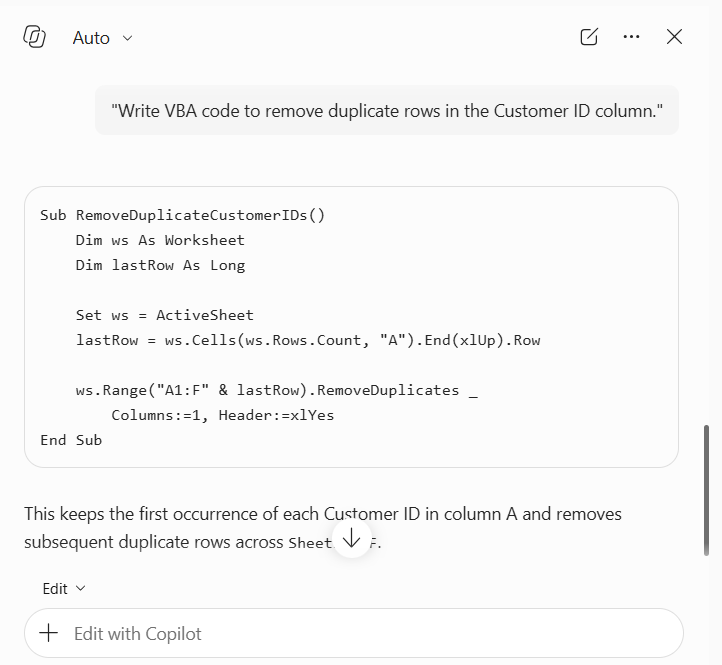
You can use VBA to remove duplicate records from your data.
Prompt:
“Write VBA code to remove duplicate rows in the Customer ID column.”
Create a New Worksheet
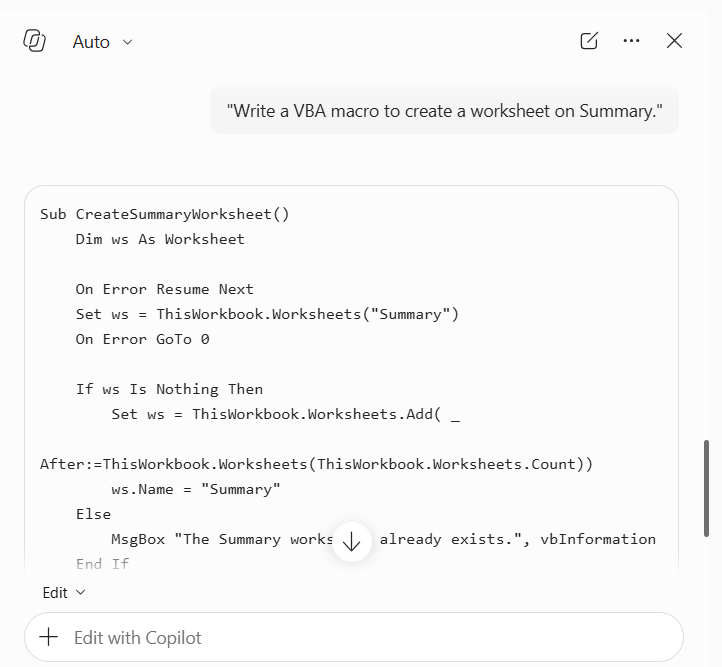
Copilot can create VBA code to add a new worksheet to your workbook.
Prompt:
“Write a VBA macro to create a worksheet on Summary.”
Combine Worksheets
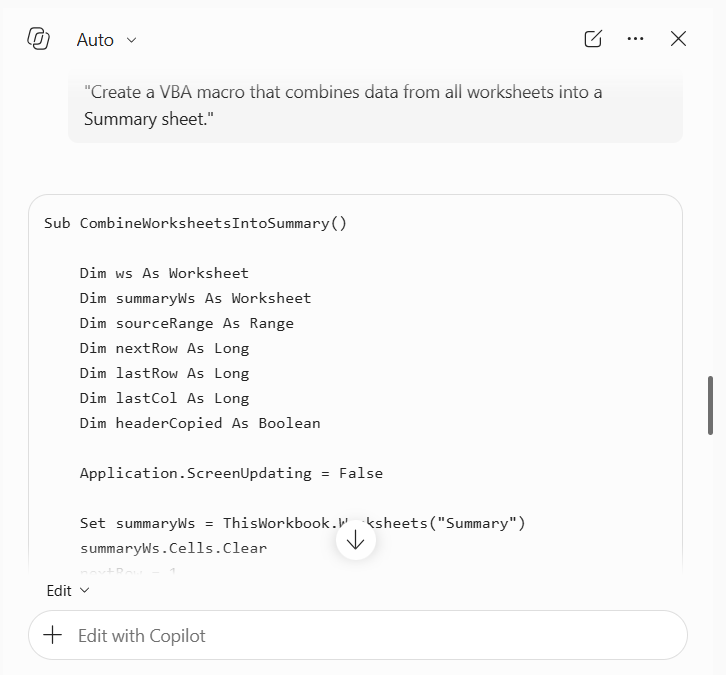
Copilot can be used to write VBA code to combine data from multiple worksheets.
Prompt:
“Create a VBA macro that combines data from all worksheets into a Summary sheet.”
Create a Sales Report
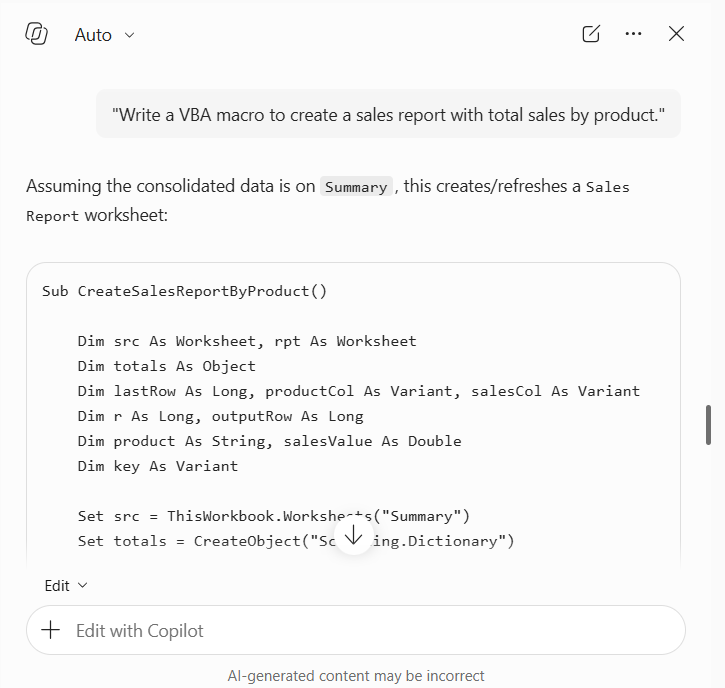
Copilot can generate VBA code for simple reports.
Prompt:
“Write a VBA macro to create a sales report with total sales by product.”
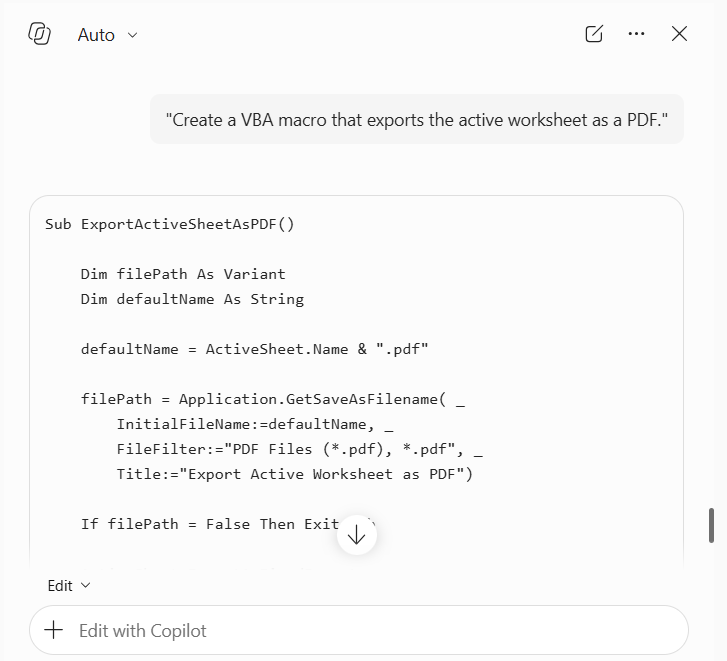
Export Worksheet as PDF
VBA macros can be used to automate the process of exporting a worksheet as PDF.
Prompt:
“Create a VBA macro that exports the active worksheet as a PDF.”
Limitations of Using Copilot for VBA
- Copilot may generate code that needs changes.
- You may need to provide more details in the prompt.
- Generated code should be reviewed before use.
- You need to add the code to the VBA Editor.
- If a macro is complex, you may need to make some edits manually.
- Make sure to test the macro with sample data.
FAQs
Can Copilot write Excel VBA code?
Yes, Copilot can generate VBA code based on your instructions.
Can Copilot create Excel macros?
Yes, Copilot can create VBA macros for different Excel tasks.
Can Copilot run VBA macros?
No, you need to add the generated code to Excel and run the macro yourself.
Where do I add VBA code in Excel?
You can add VBA code to a module in the Visual Basic Editor.
Should I review VBA code generated by Copilot?
Yes, always review and test the code before running it in your workbook.

John Michaloudis is a former accountant and finance analyst at General Electric, a Microsoft MVP since 2020, an Amazon #1 bestselling author of 4 Microsoft Excel books and teacher of Microsoft Excel & Office over at his flagship MyExcelOnline Academy Online Course.

 30 Days - Full Access









