 Free Practice Workbook
Microsoft Excel has a built-in AI assistant that can help users write formulas, find patterns, and summarise data. Instead of doing every task manually, you can write simple prompts to ask Copilot to perform the task. In this article, I will show you 10 ways to use Copilot in Excel.
Key Takeaways:
- Copilot helps you analyze Excel data faster.
- You can use simple prompts to create formulas.
- Copilot can find trends and patterns.
- You can use Copilot to create charts and summaries.
- Always review Copilot’s results before using them.
Table of Contents
Introduction to Copilot in Excel
What Is Copilot in Excel?
Copilot in Excel is Microsoft’s AI assistant built into the Excel ribbon. It can help you analyze data, create formulas, spot trends, organize information, and generate insights. You can describe what you want in normal language instead of remembering every Excel function or command.
How to Access Copilot
To use Copilot in Excel,
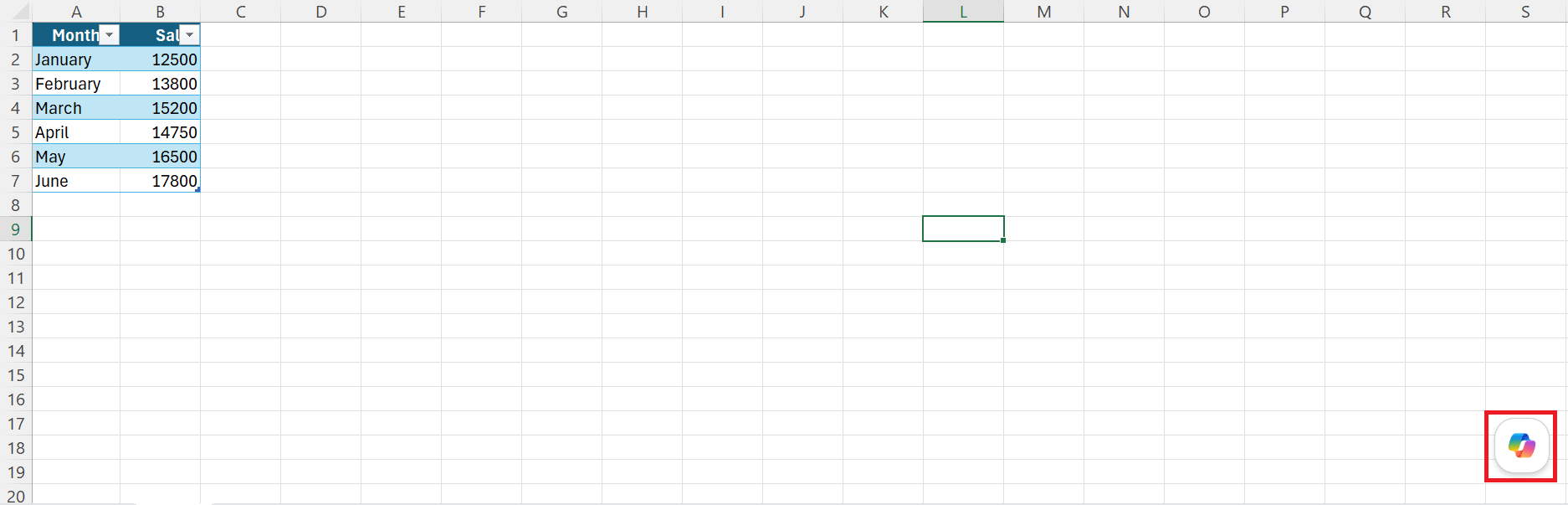
- Click on the Copilot button.
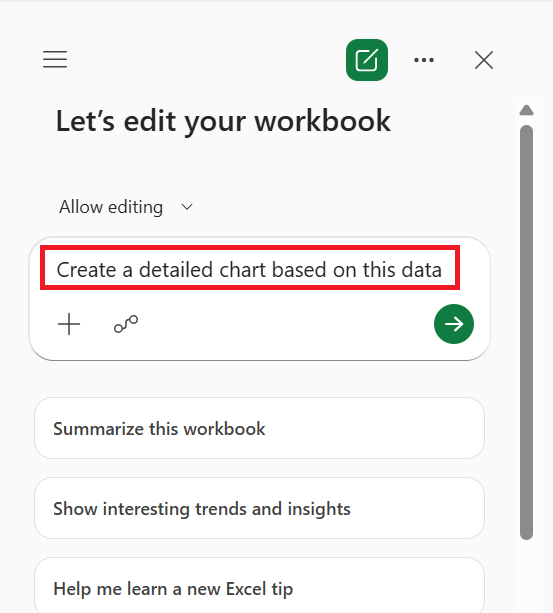
- Open a chat pane and type a request in plain English.
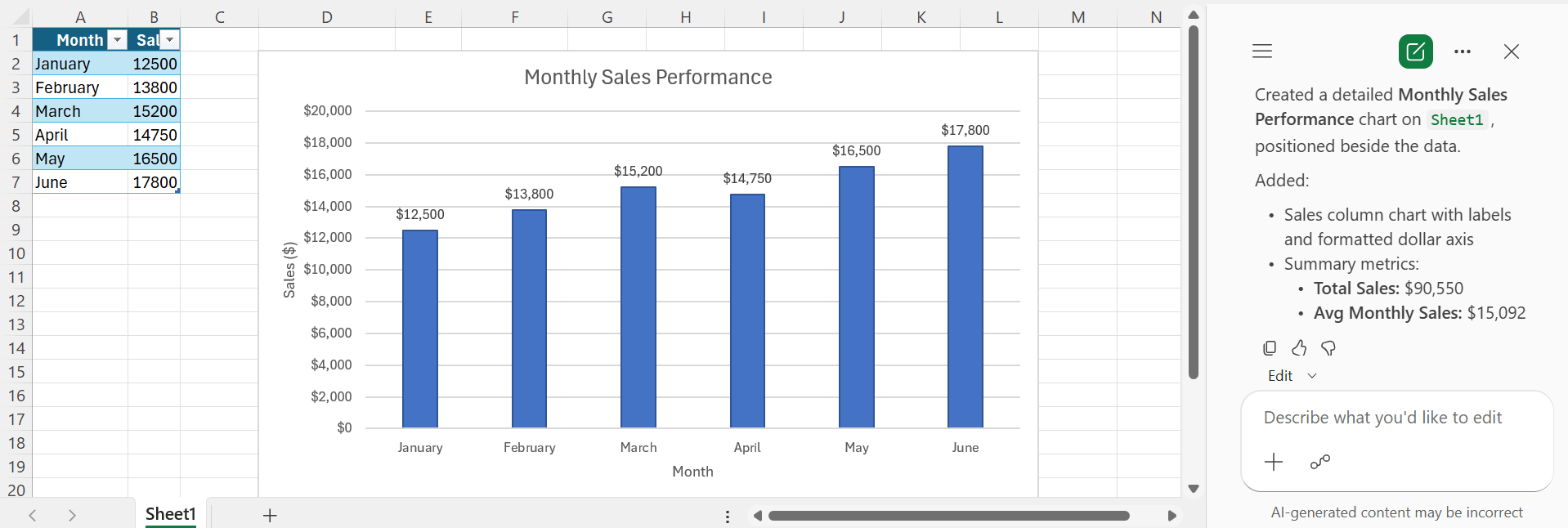
- Copilot reads your data and responds with formulas, charts, summaries, or edits as requested.
10 Ways to Use Copilot in Excel
1. Analyze Your Data
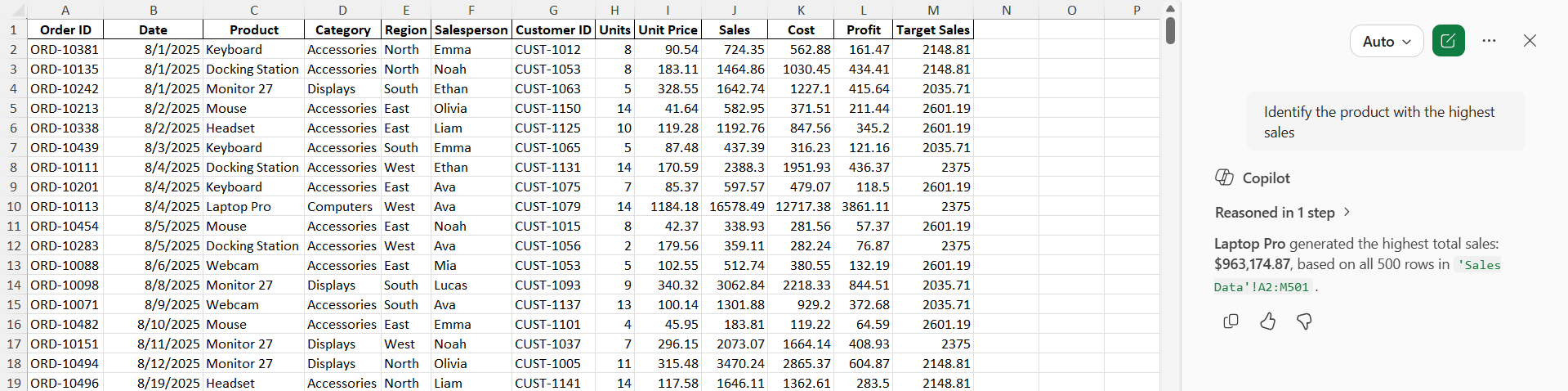
Suppose you have sales data with columns such as Date, Product, Region, Sales, and Profit. You can ask Copilot to identify the product with the highest sales.
2. Create Excel Formulas
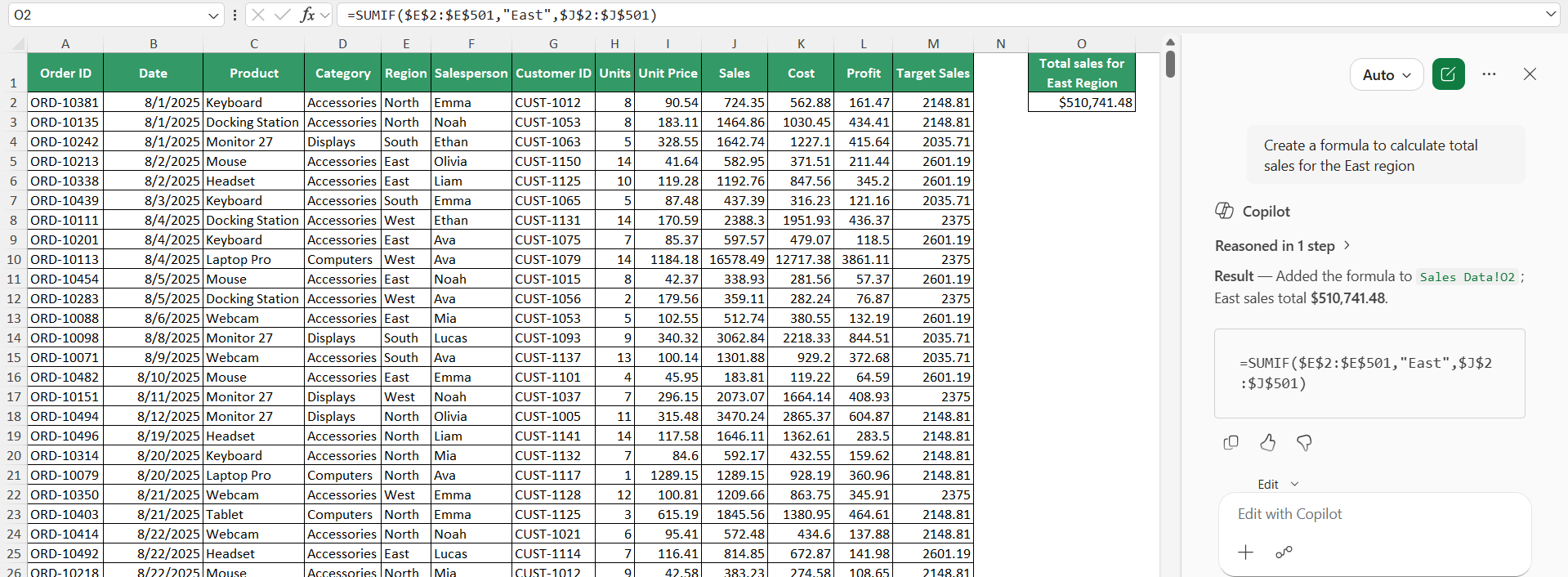
Copilot can help create formulas based on a description of what you want to calculate. You can ask Copilot to create a formula to calculate total sales for the East region. Copilot may suggest a formula using functions such as SUMIF or SUMIFS.
3. Find Trends and Patterns
Copilot can help spot trends in your data.
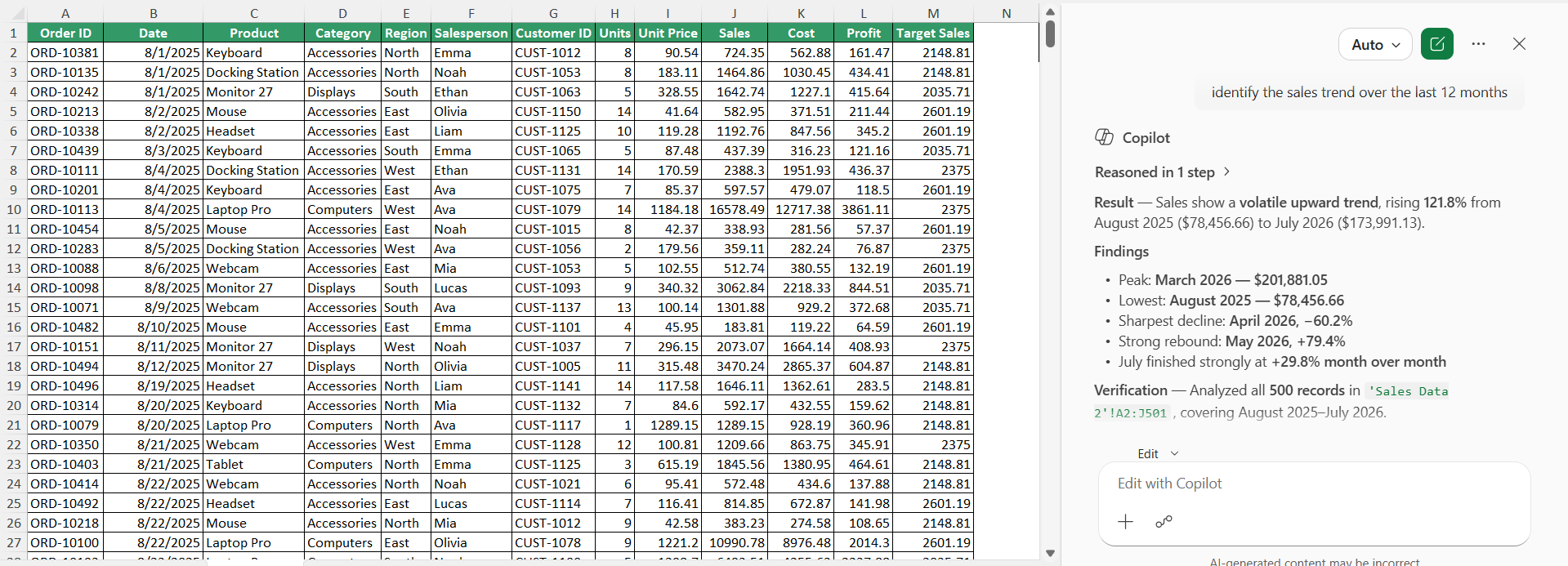
For example, if your table contains monthly sales, you can ask Copilot to identify the sales trend over the last 12 months.
4. Create Charts
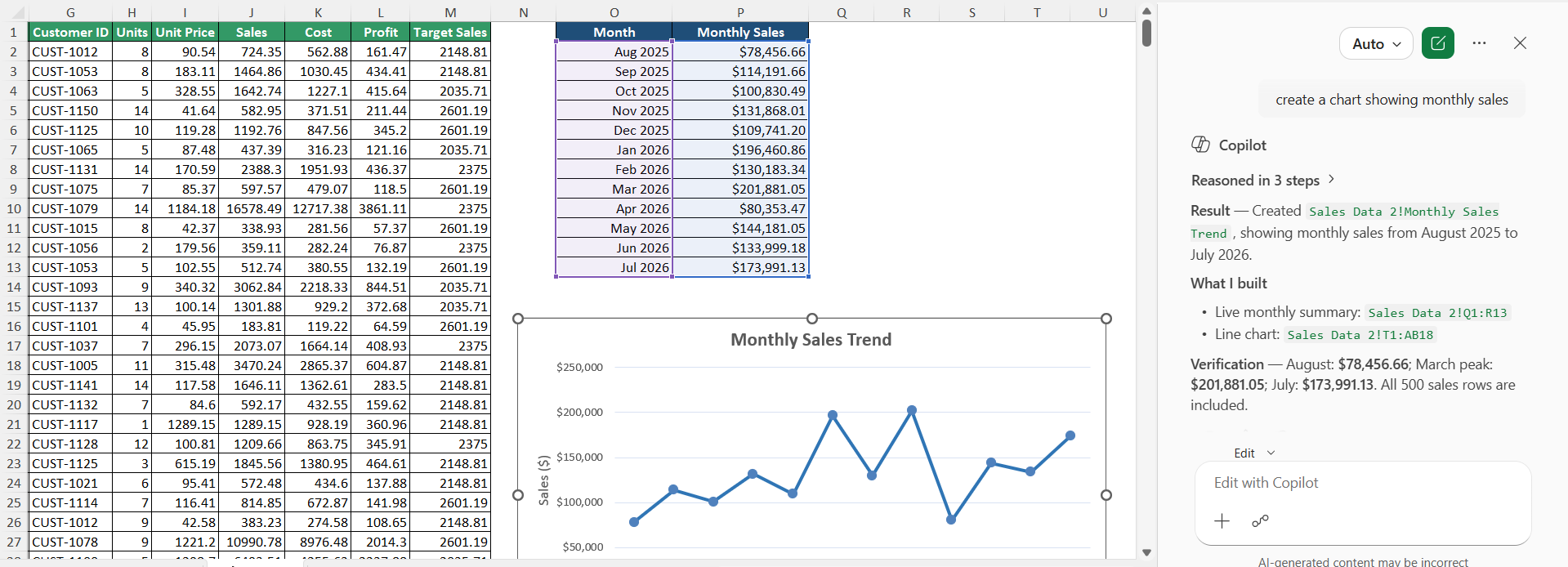
You can use Copilot to recommend or create visualizations from your data. You can ask Copilot to create a chart showing monthly sales.
5. Highlight Important Data
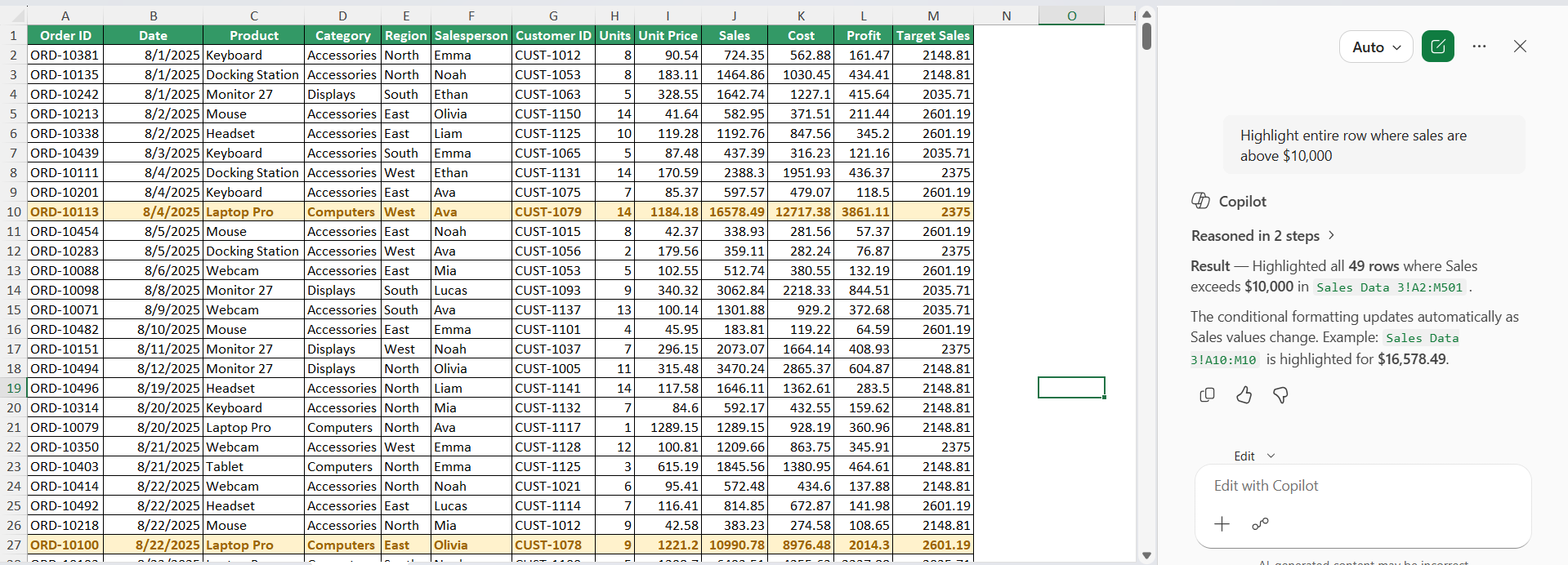
Copilot can help you find important values in a worksheet. You can ask Copilot to highlight products where sales are above $10,000.
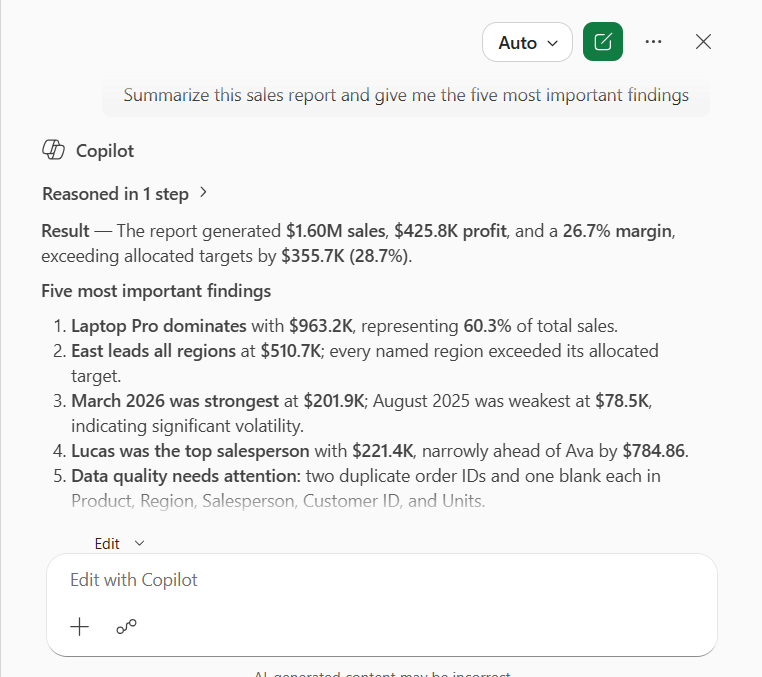
6. Summarize a Large Dataset
Copilot can provide a summary of large data within a few seconds. You can ask it to
“Summarize this sales report and give me the five most important findings.”
7. Compare Actual Results With Targets
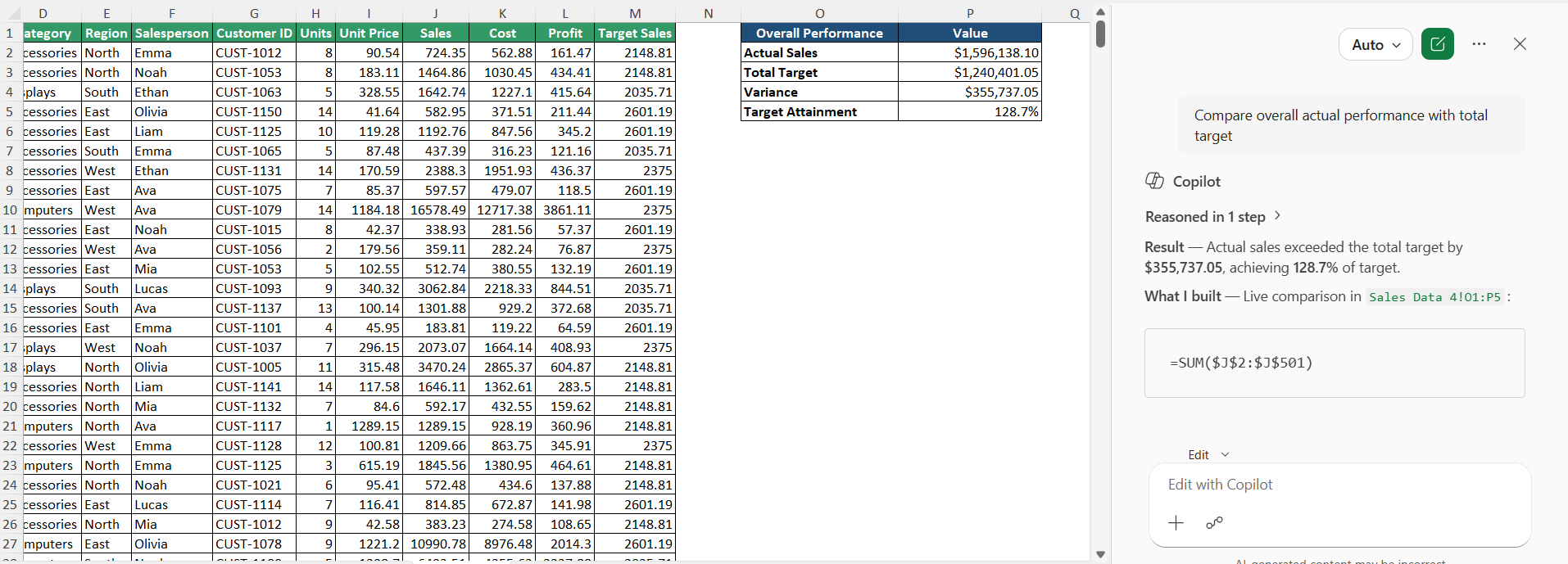
Copilot can help compare actual performance with target values.
8. Clean and Organize Data
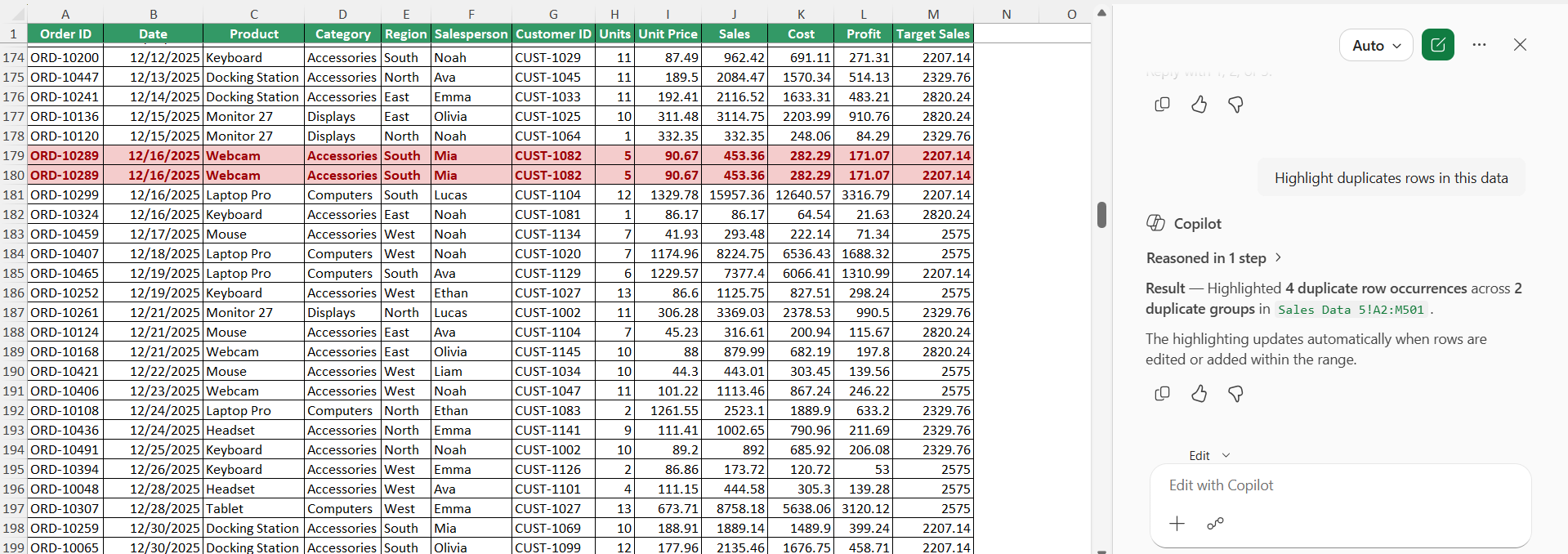
Copilot can assist with common data-cleaning tasks like finding duplicates or removing blanks.
9. Ask Questions About Your Worksheet
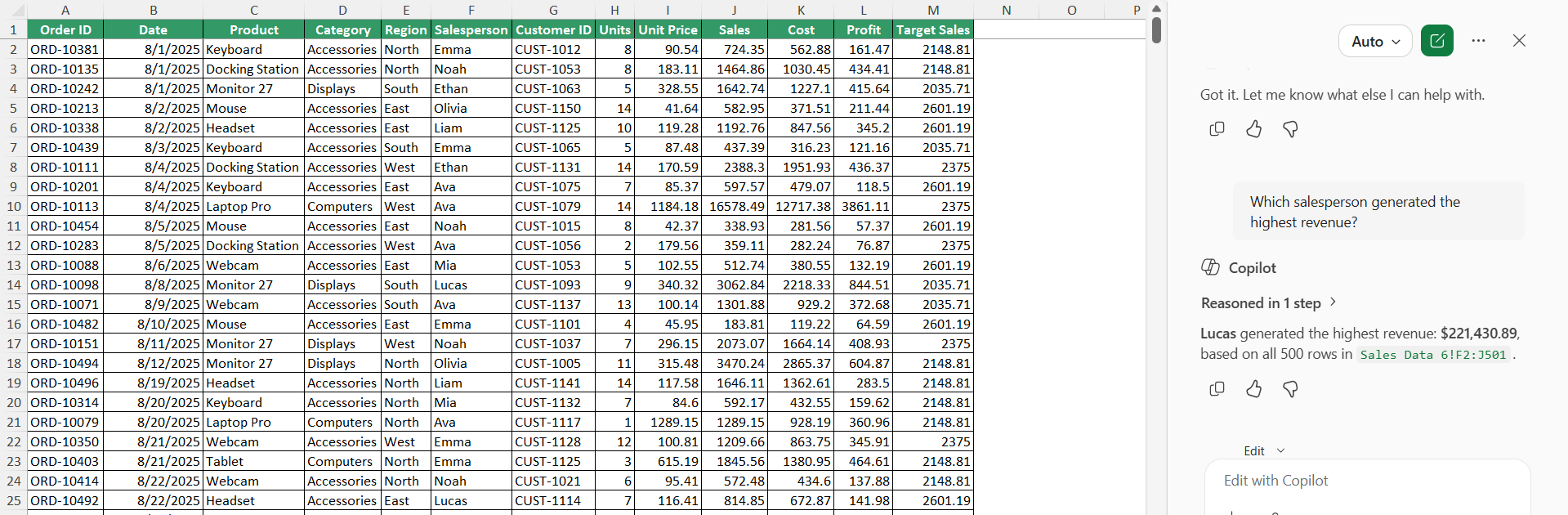
You do not always need to know which Excel function to use. Sometimes, you may need Copilot to answer a few questions.
For example: Which salesperson generated the highest revenue?
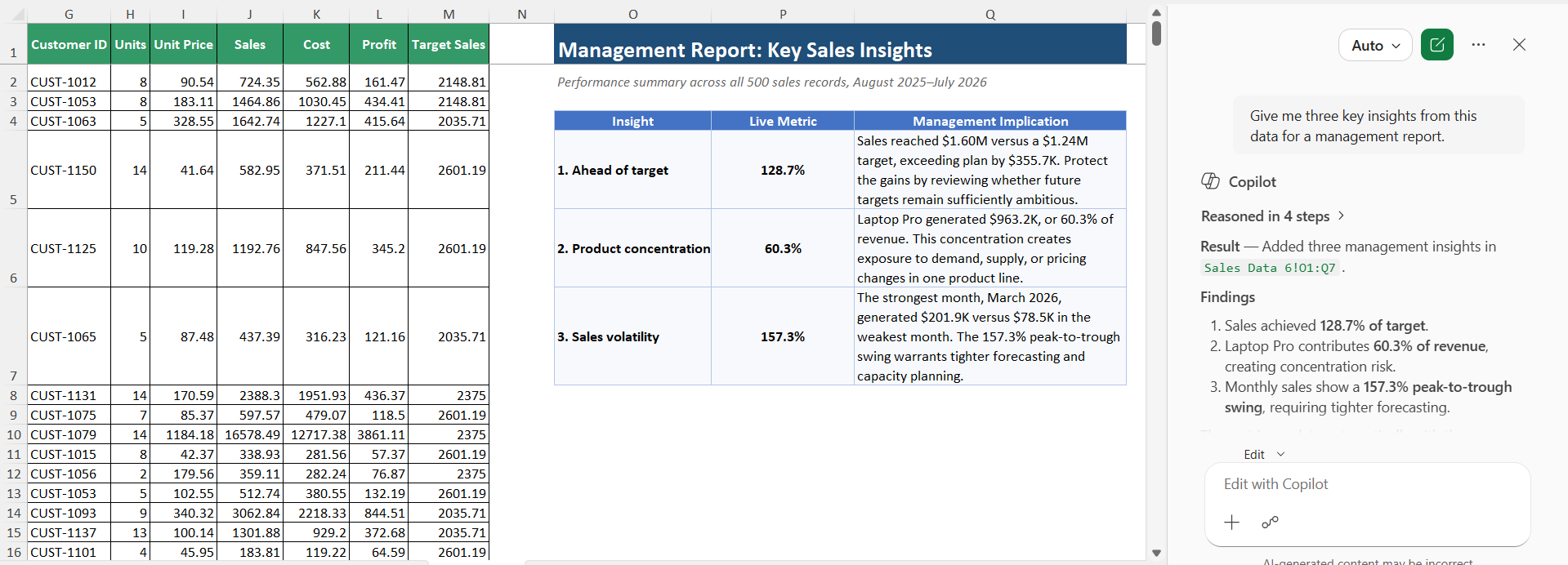
10. Generate Insights for Reports
Copilot can also help turn spreadsheet data into useful business insights. You can ask:
Give me three key insights from this data for a management report.
Tips & Tricks
- Use clear and specific prompts.
- Mention the data you want Copilot to analyze.
- Ask one question at a time.
- Give details about the result you need.
- Use simple language in your prompts.
- Review the results for errors.
- Keep your Excel data clean and organized.
- Use clear column headings.
FAQs
1. What is Copilot in Excel?
Copilot is an AI assistant built into Excel that helps you work with data, formulas, charts, and summaries.
2. Can Copilot create Excel formulas?
Yes. You can describe the calculation you need, and Copilot can suggest a formula.
3. Can Copilot analyze Excel data?
Yes. Copilot can analyze data and help find trends and patterns.
4. Can Copilot create charts in Excel?
Yes. You can ask Copilot to create charts based on your Excel data.
5. Should I check Copilot’s results?
Yes. Always review formulas, calculations, and other results before using them in important work.

John Michaloudis is a former accountant and finance analyst at General Electric, a Microsoft MVP since 2020, an Amazon #1 bestselling author of 4 Microsoft Excel books and teacher of Microsoft Excel & Office over at his flagship MyExcelOnline Academy Online Course.

 30 Days - Full Access









