 Free Practice Workbook
Your Excel data can contain a lot of text information, such as customer feedback or support comments, that may need analysis. Reviewing them manually can take up too much of your time. The COPILOT in Excel can help classify and analyze text using simple instructions. In this article, you will learn how to classify and analyze text with Excel Copilot function.
Key Takeaways:
- The COPILOT function can analyze text in Excel.
- You can classify text based on specific categories.
- Copilot can identify sentiment from text.
- You can summarize customer comments and feedback.
- Always review AI-generated results before using them.
Table of Contents
What is the COPILOT function?
The COPILOT function uses AI to execute tasks in Excel. The syntax of this function is:
=COPILOT(“prompt to explain the task”, cell_reference)
For example, if you have a column A that contains customer feedback and you want to classify it as:
- Positive
- Negative
- Neutral
You can use a formula such as:
=COPILOT(“Classify the sentiments of these comments”, A2:A100)
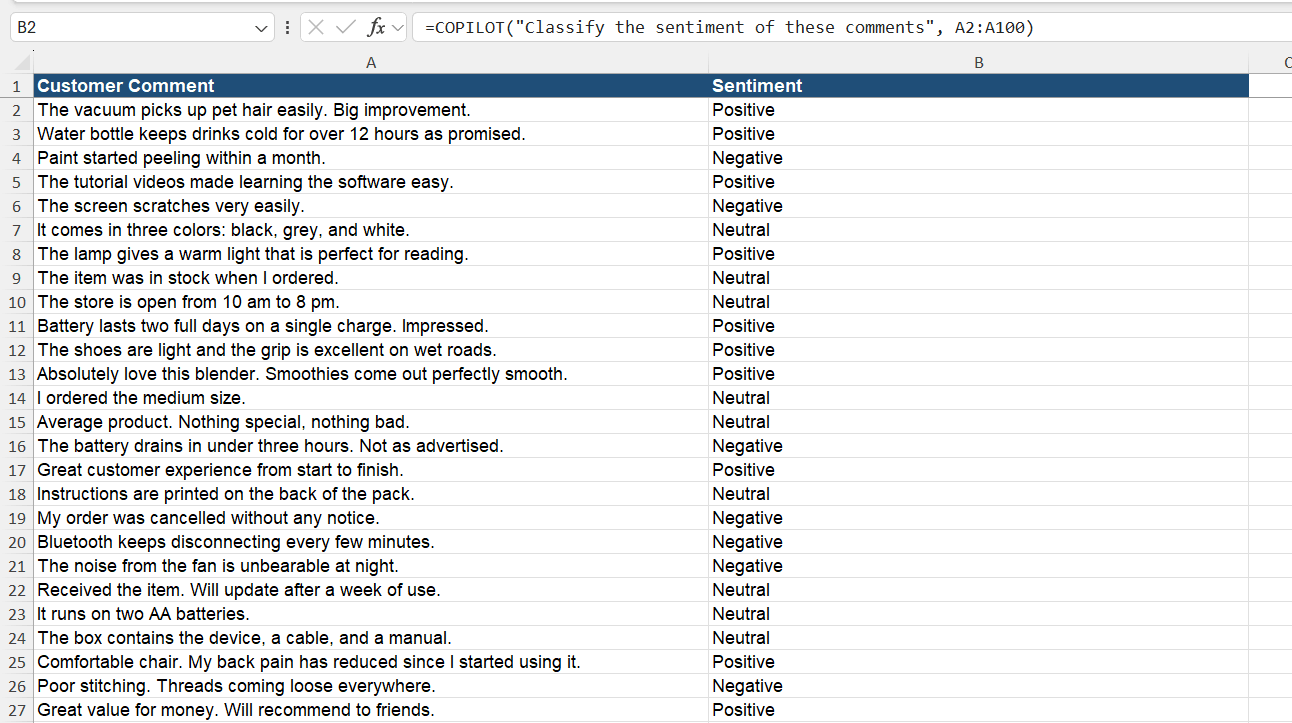
The prompt tells Copilot what you want it to do, while the cell reference provides the text that should be analyzed. You can change the prompt to perform different tasks, such as extracting information, creating categories, or summarizing comments.
How to Analyze Text with Excel COPILOT Function
Classify Text
STEP 1: Open the workbook containing the customer comments.
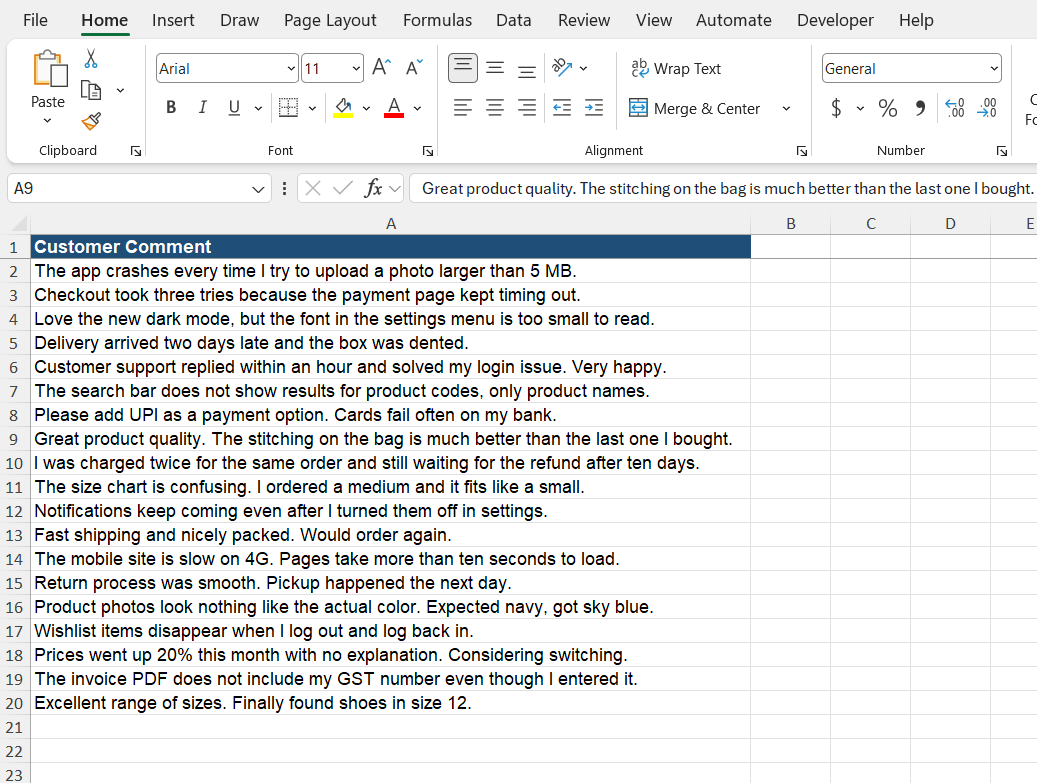
STEP 2: Enter a new column named Sentiment next to the comments column. Type the formula:
=COPILOT
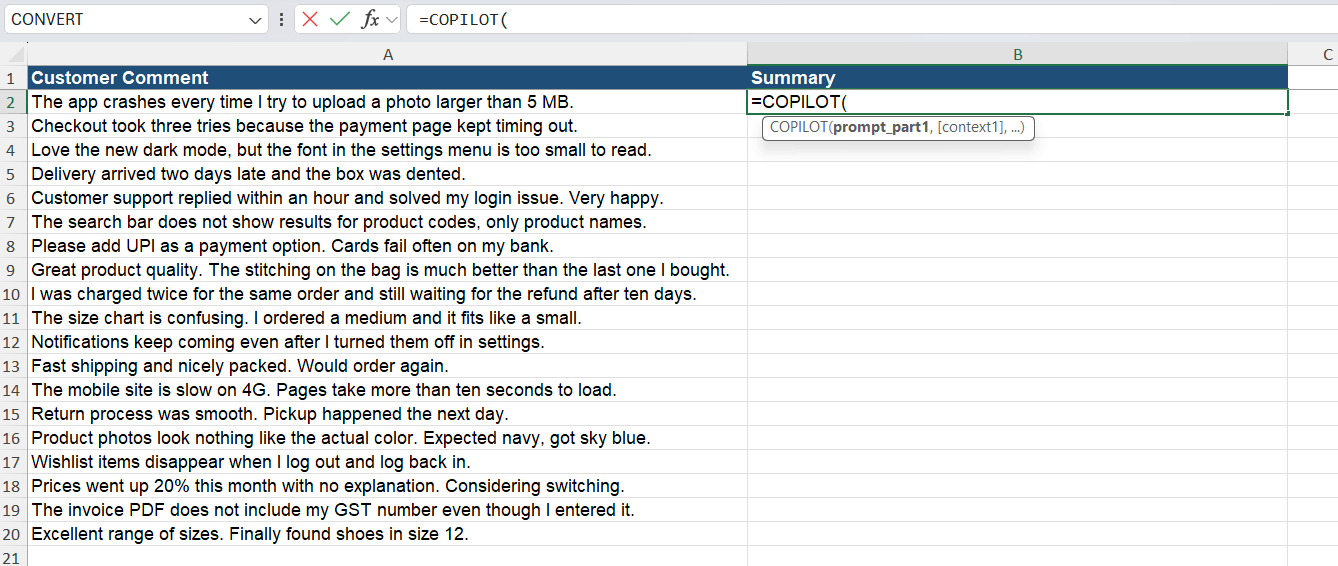
STEP 3: Enter the prompt, then type a comma and select the cell or range that contains the customer comments you want Copilot to analyze for sentiment.
=COPILOT(“Classify the sentiments of these comment”, A2:A100)
STEP 4: Copilot analyzes the text in column A and returns the sentiment for the comment.
This can help organize large amounts of unstructured text. Once the results are returned, you can use the new column to filter or review comments based on their sentiment.
Extract Important Information from Text
You can also ask Copilot to identify specific information from a text.
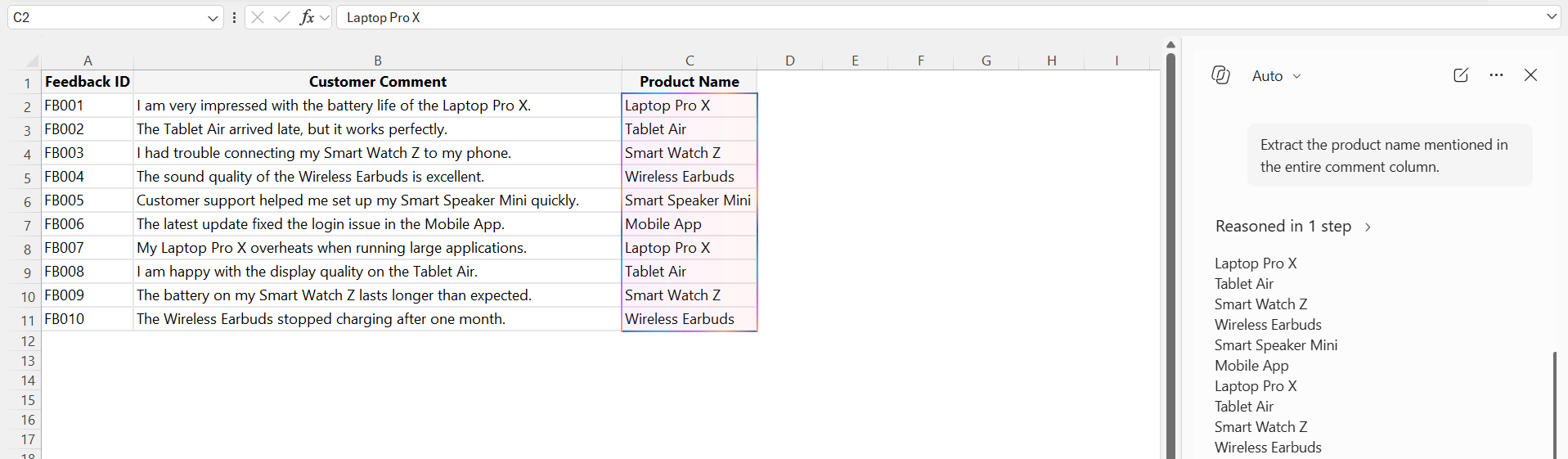
For example, if a customer comment contains a product name, you can use this prompt:
“Extract the product name mentioned in the entire comment column.”
Summarize Text with the COPILOT Function
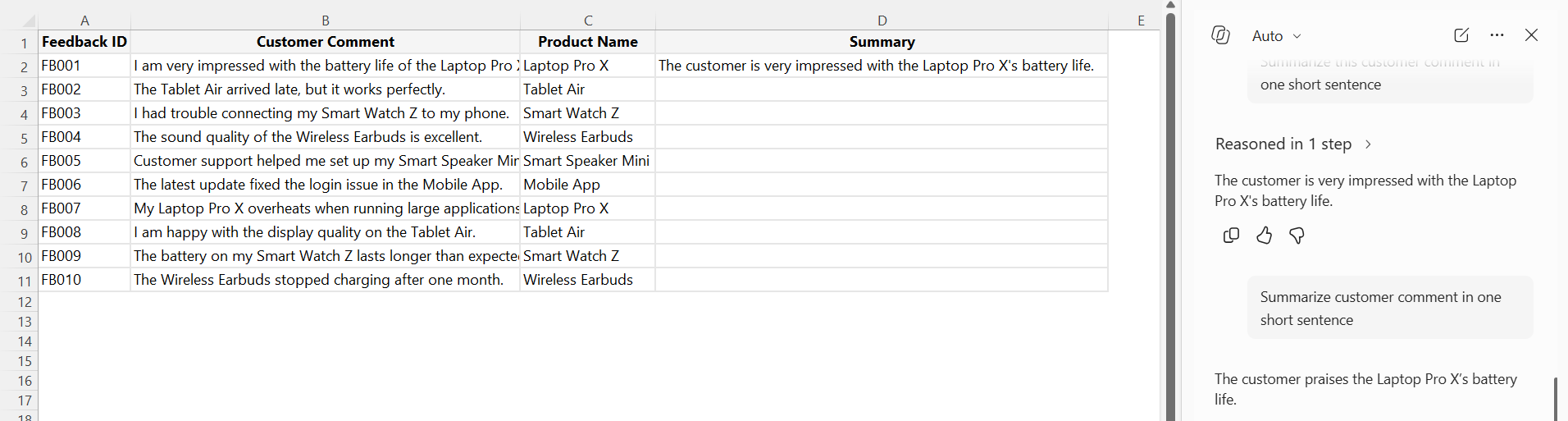
You can also summarise long comments using the COPILOT function.
For example, you can use this prompt:
“Summarize the customer comment in one short sentence.”
Analyze Multiple Text Fields
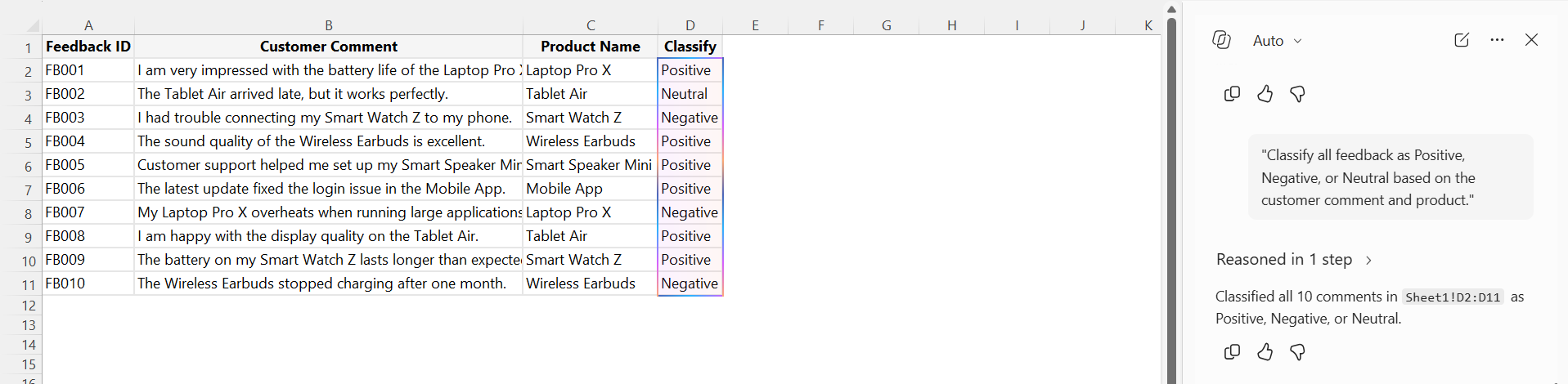
You can provide more than one cell as part of the instruction.
For example, if column B contains the customer comment and column C contains the product name, you can ask Copilot to analyze both:
“Classify the feedback as Positive, Negative, or Neutral based on the customer comment and product.”
Tips for Better Results
- Keep your instructions clear and specific.
- Define the categories you want Copilot to use.
- Ask Copilot to return only the required result when possible.
- Use consistent prompts for the same type of analysis.
- Check the results before using them in reports.
- Test the formula with several different text examples.
FAQs
1. What can the COPILOT function do with text?
Microsoft Copilot can help classify, summarize, analyze, and extract information from text based on the instruction you provide.
2. Can I use the COPILOT function for sentiment analysis?
Yes. You can ask it to classify text as Positive, Negative, or Neutral.
3. Can I create custom categories?
Yes. You can provide your own categories in the prompt, such as Delivery, Payment, Product, and Technical.
4. Can COPILOT summarize customer feedback?
Yes. You can ask it to summarize comments into a short sentence or extract the main point.
5. Should I check the results from the COPILOT function?
Yes. Review AI-generated results, especially when the classification will be used for important business decisions.

John Michaloudis is a former accountant and finance analyst at General Electric, a Microsoft MVP since 2020, an Amazon #1 bestselling author of 4 Microsoft Excel books and teacher of Microsoft Excel & Office over at his flagship MyExcelOnline Academy Online Course.

 30 Days - Full Access









