 Free Practice Workbook
Microsoft Copilot can help you create formulas without remembering the formula syntax. You can describe what you want in a simple prompt, and Copilot can suggest the right formula. You can also ask Copilot to explain or modify the formula based on your needs. In this article, I will show you how to create XLOOKUP and VLOOKUP formulas with Copilot in Excel using simple examples.
Key Takeaways:
- Copilot can create VLOOKUP and XLOOKUP formulas.
- You can create formulas using simple prompts.
- XLOOKUP is more flexible than VLOOKUP.
- Always check the formula suggested by Copilot.
- Clear prompts can help Copilot create better formulas.
Table of Contents
Introduction to the LOOKUP Functions
What is VLOOKUP?
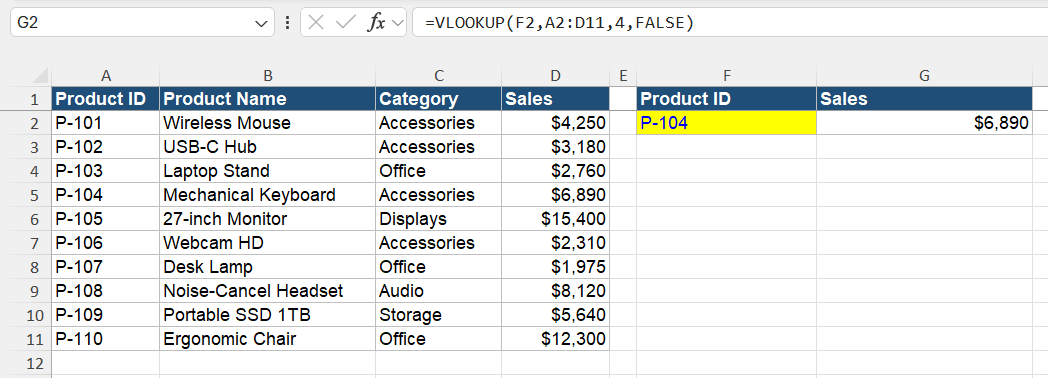
The VLOOKUP function looks for a value in the first column of a table. It then returns a value from another column in the same row. You can use VLOOKUP to find data quickly and create reports. It is useful when working with large amounts of data. For example, you can use VLOOKUP to find a product price, sales amount, or customer name using an ID.
What is XLOOKUP?
The XLOOKUP function searches for a value in one range and returns a related value from another range.
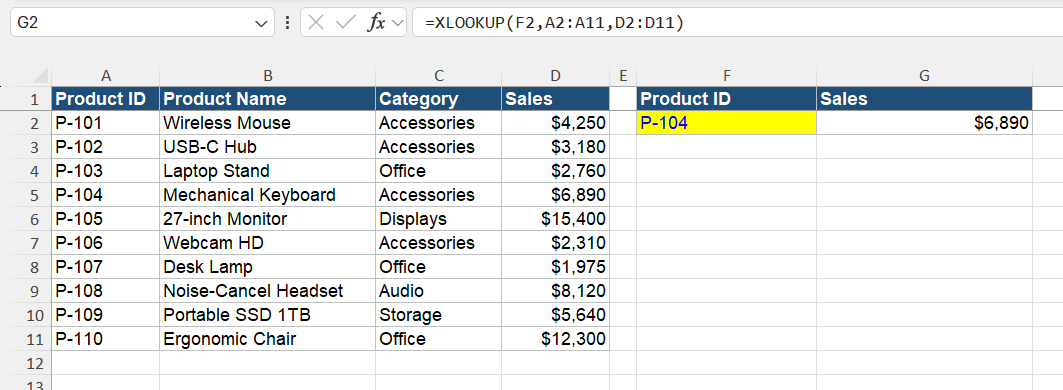
XLOOKUP has several useful features:
- It can search vertically and horizontally.
- It can find an exact or approximate match.
- It supports wildcards.
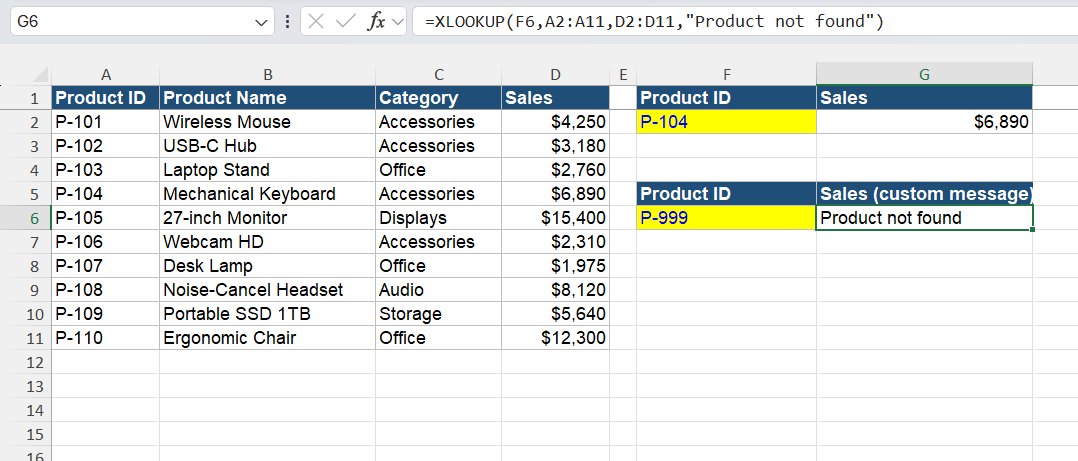
- It can show custom text when no match is found.
- The return range does not have to be to the right of the lookup range.
- It can also search from the first or last matching value.
How to Create XLOOKUP and VLOOKUP Formulas with Copilot
VLOOKUP Function
Follow the steps below to use Copilot to create the VLOOKUP function:
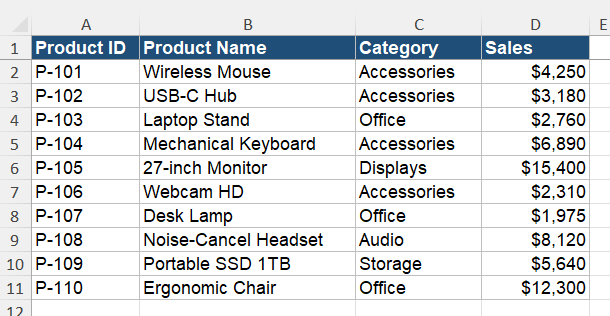
STEP 1: Create a data table with proper headers.
STEP 2: Go to the Home tab and select the Copilot button.

STEP 3: In the chat panel, type this prompt:
Create a VLOOKUP formula that looks up the Product ID in cell F2 and returns the corresponding Sales from the table.
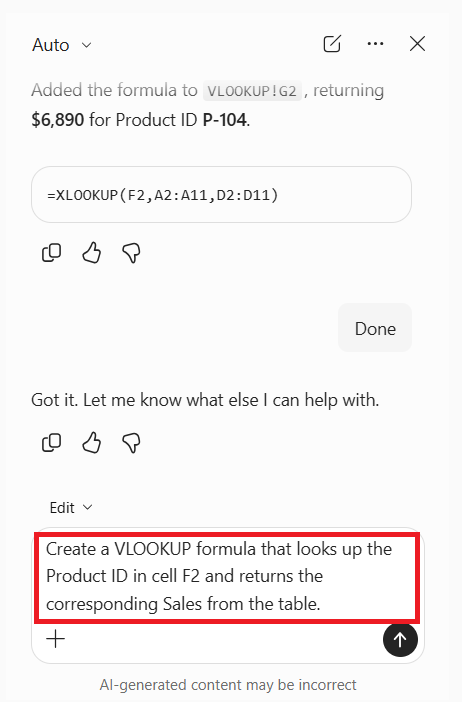
STEP 4: Review the formula to make sure the lookup and return columns are correct.
Apply the formula by pressing the Done button.
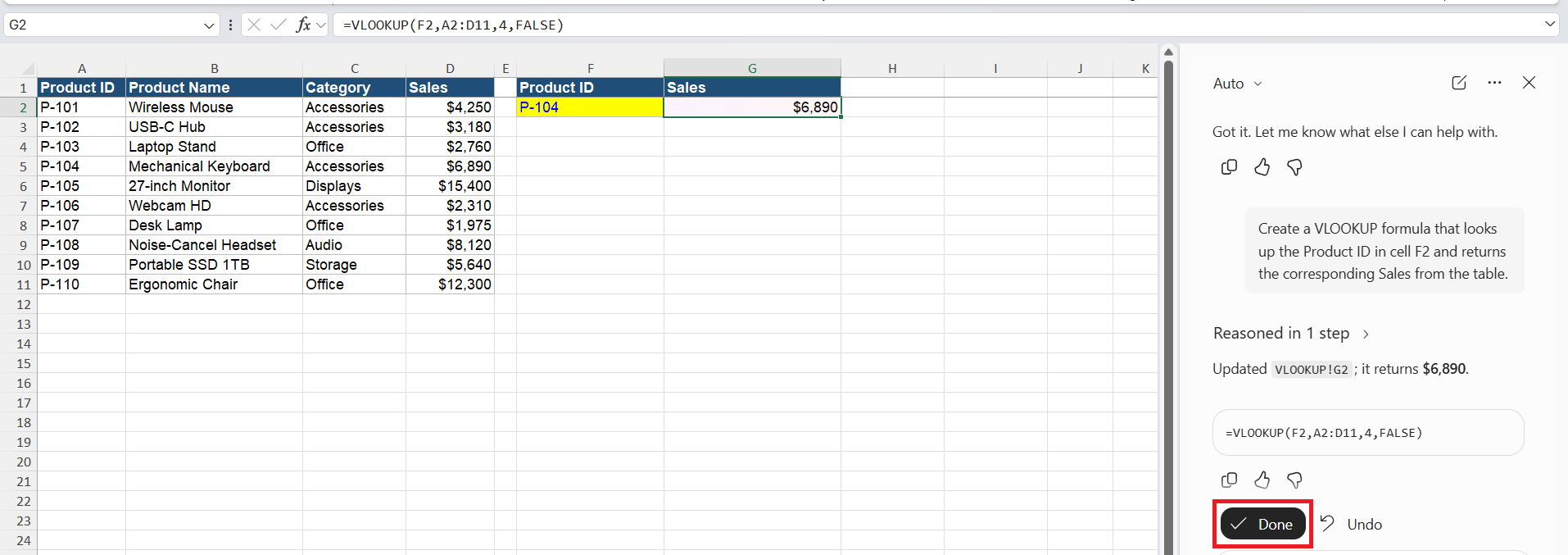
The result will show the sales amount for the Product ID entered in F2.
XLOOKUP Function
Follow the steps below to use Copilot to create an XLOOKUP formula:
STEP 1: Open the Excel workbook and make sure your data has proper headers.
STEP 2: Go to the Home tab and select Copilot.
STEP 3: In the chat panel, type a prompt such as:
Create an XLOOKUP formula that looks up the Product ID in cell F2 and returns the corresponding Sales from the table.
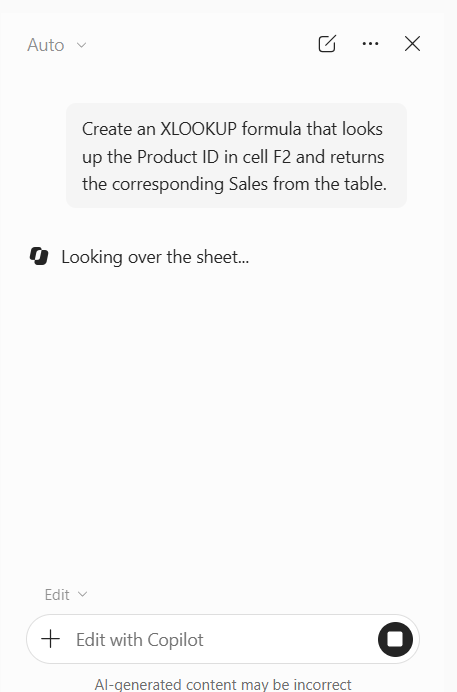
STEP 4: Review the formula Copilot suggests. Apply the formula to your worksheet.
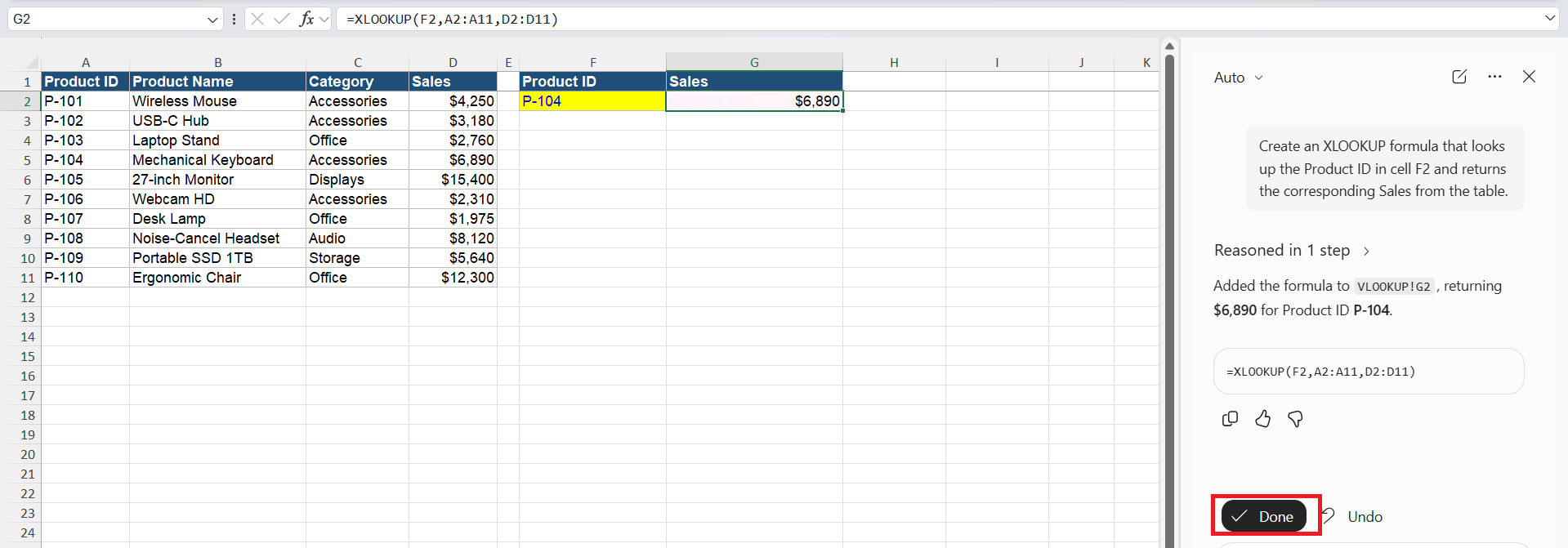
The formula will return the sales amount for the Product ID entered in F2.
VLOOKUP vs XLOOKUP
- VLOOKUP and XLOOKUP can find a value in a table and return related information.
- VLOOKUP searches the first column and returns a value from a column to the right, while XLOOKUP can return values from either side.
- VLOOKUP uses a column number, while XLOOKUP lets you select the lookup and return ranges separately.
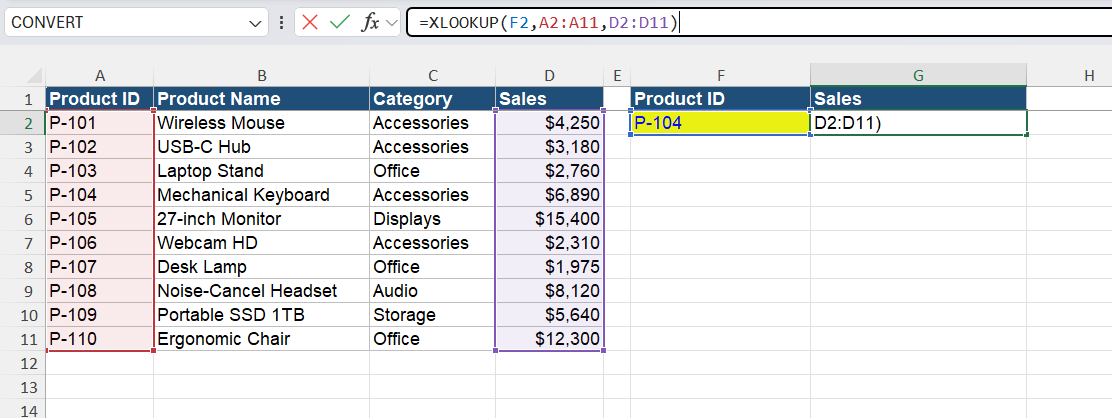
- XLOOKUP can add custom messages if there is an error in the formula.
- XLOOKUP can search both vertically and horizontally, while VLOOKUP can only search horizontally.
- XLOOKUP is easier to update as you do not need to change the column number if the structure of the table changes.
FAQs
1. Can Copilot create VLOOKUP formulas?
Yes. You can ask Copilot to create a VLOOKUP formula using a simple prompt.
2. Can Copilot create XLOOKUP formulas?
Yes. Copilot can create XLOOKUP formulas based on your instructions.
3. Is XLOOKUP better than VLOOKUP?
XLOOKUP is more flexible and has more features than VLOOKUP.
4. Can Copilot fix a lookup formula?
Yes. You can ask Copilot to review or correct a formula that is not working as expected.
5. Should I check formulas created by Copilot?
Yes. Always review and test the formula before using it in your workbook.

John Michaloudis is a former accountant and finance analyst at General Electric, a Microsoft MVP since 2020, an Amazon #1 bestselling author of 4 Microsoft Excel books and teacher of Microsoft Excel & Office over at his flagship MyExcelOnline Academy Online Course.

 30 Days - Full Access









