 Free Practice Workbook
Microsoft Copilot can help you work faster in Excel. It can be used to generate formulas, analyze data, summarize trends, and create insights with simple prompts. Copilot provides users with a choice between OpenAI GPT and Anthropic Claude models. In this article, you will learn about GPT vs Claude in Copilot for Excel.
Key Takeaways:
- GPT and Claude are available in Copilot for Excel.
- GPT can help with formulas, data analysis, and Excel tasks.
- Claude can handle detailed instructions and Excel analysis.
- You can switch between GPT and Claude using the model picker.
- Auto can choose a model based on the task.
Table of Contents
Introduction to GPT and Claude
What is GPT?
GPT models are developed by OpenAI and are available inside Copilot in Excel. Microsoft has added newer GPT models to Copilot as part of its multi-model approach.
GPT can help with tasks such as:
- Creating and explaining formulas.
- Analyzing large datasets.
- Finding trends and outliers.
- Creating charts and PivotTables.
- Cleaning and transforming data.
- Making changes to a workbook.
- Working through multi-step Excel tasks.
What is Claude?
Claude is developed by Anthropic and is available inside Copilot in Excel. Microsoft has also added Claude models to Copilot in Excel.
Claude can be used for many of the same Excel tasks as GPT.
How to Choose GPT or Claude in Excel
STEP 1: Open your Excel workbook.
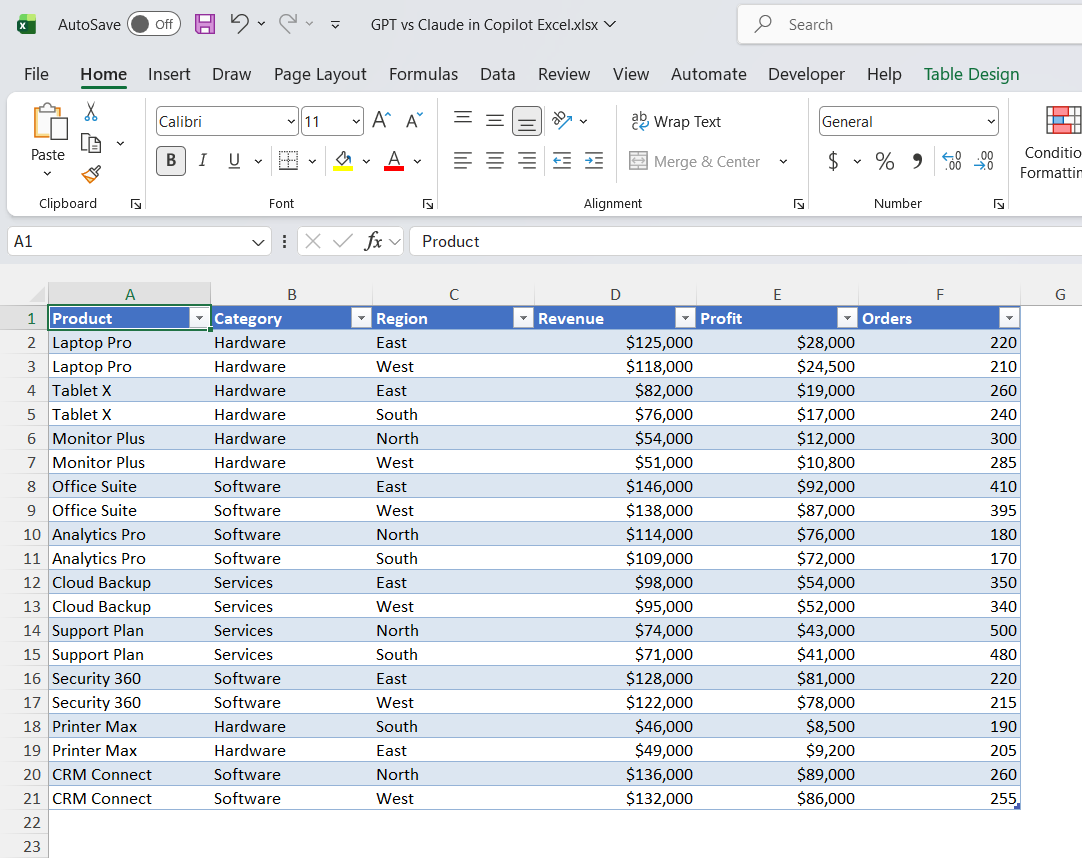
STEP 2: Go to the Home tab and select Copilot.

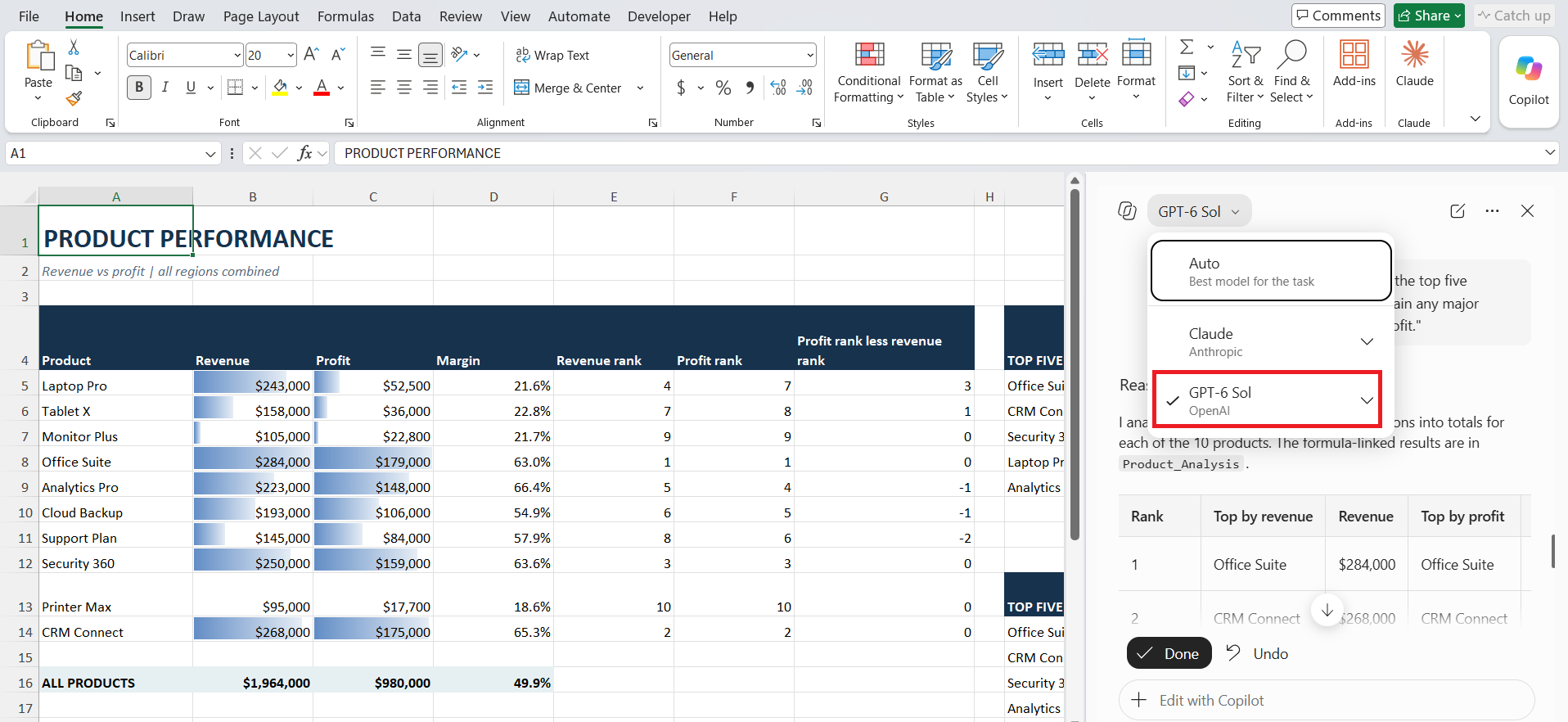
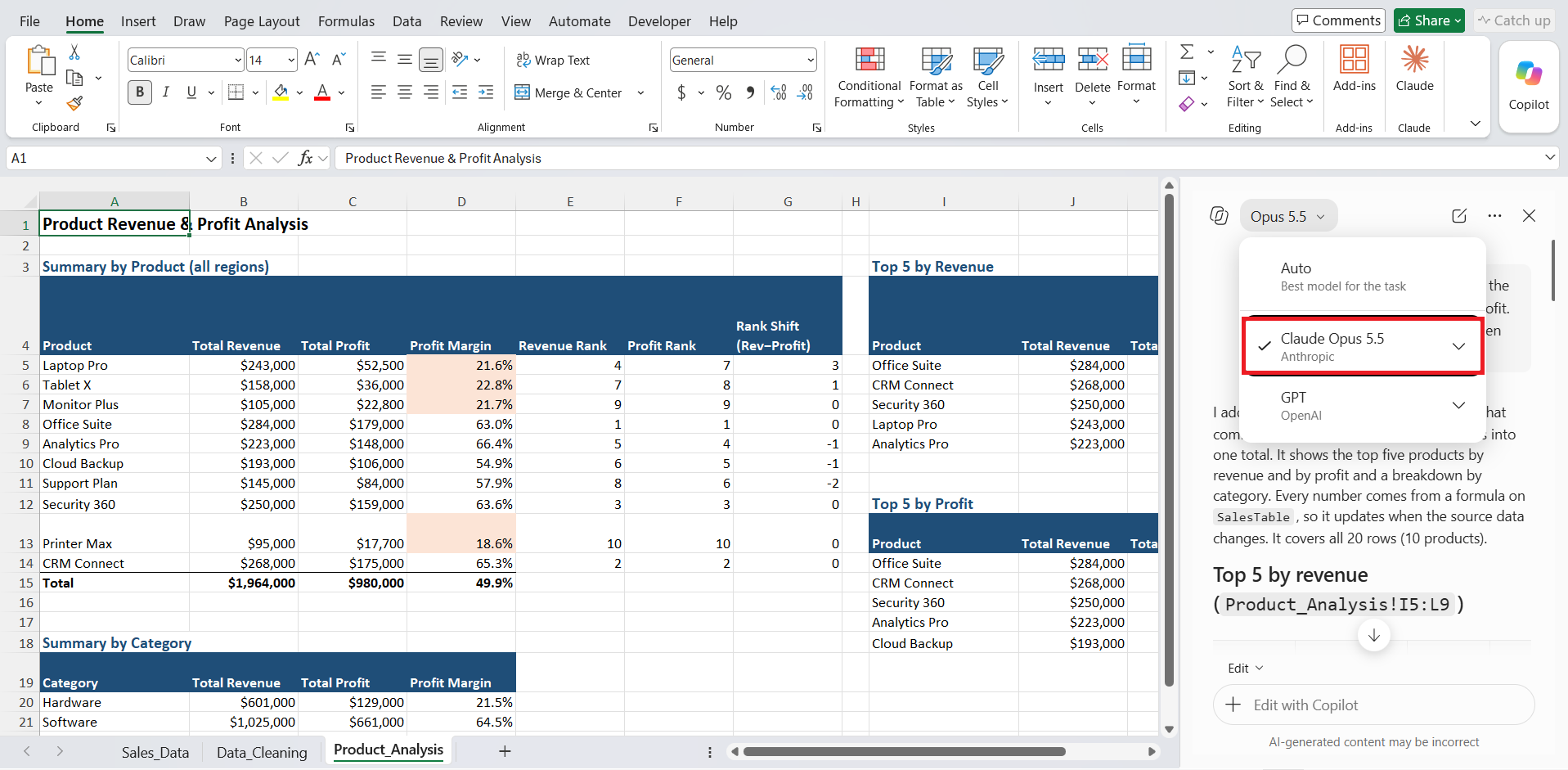
STEP 3: In the Copilot pane, look for the model picker near the top-left area.
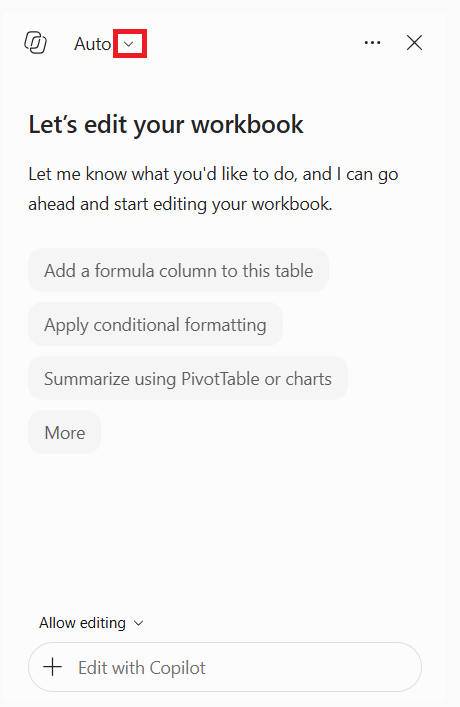
STEP 4: Choose GPT or Claude based on the task you want to perform.
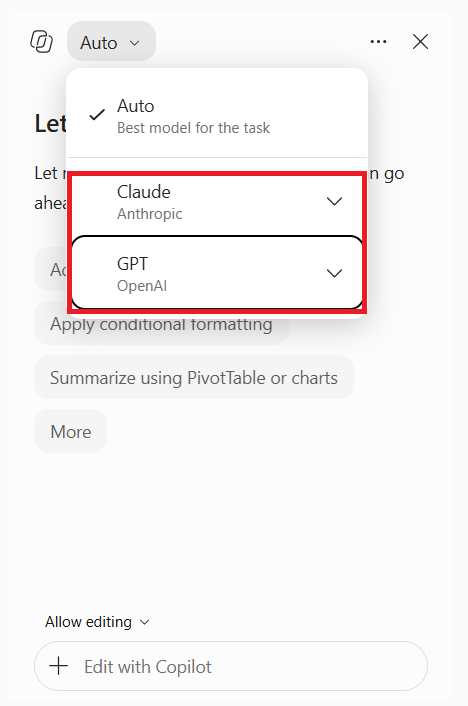
Which Model – GPT vs Claude?
There is no single model that works best for every Excel task.
A simple approach is to start with Auto. Copilot can select the model for you.
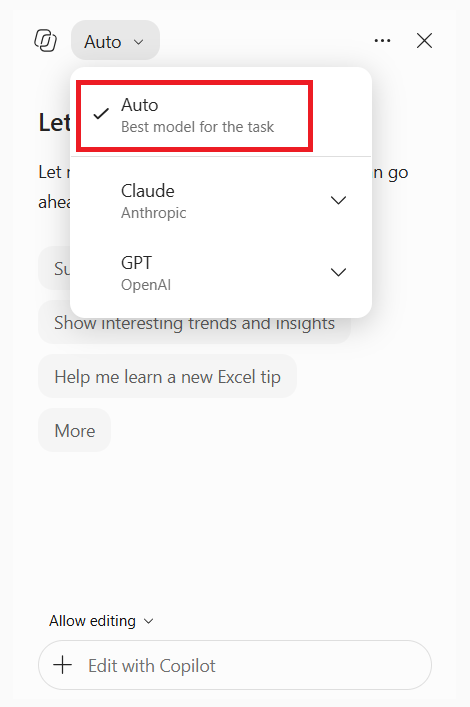
If you want more control, you should test both models with the same prompt. You can use this prompt and run it with GPT:
“Analyze this sales data and identify the top five products by revenue and profit. Explain any major differences between revenue and profit.”
Try again with Claude.
Tips & Tricks
- If you are not sure which model to choose, you can opt for Auto.
- To compare between GPT vs Claude, you should use the same prompt for both models.
- In the prompt, make sure that you mention the correct column header.
- The prompt should be precise and clear.
- If you want to refine results, ask follow-up questions.
- Check formulas before using them in your workbook.
- Make sure to review any changes Copilot makes to your data.
- Use structured Excel tables for better results.
- Test important tasks with a small dataset first.
- Choose the model based on your specific Excel task.
FAQs
1. What is the difference between GPT and Claude in Copilot for Excel?
GPT is developed by OpenAI, while Claude is developed by Anthropic. Both models can help with Excel tasks such as data analysis, formulas, etc.
2. Can I switch from GPT to Claude in Excel?
Yes. You can use the model picker in the Copilot pane to select an available GPT or Claude model.
3. Which model should I use in Copilot for Excel?
There is no clear winner between GPT vs Claude. You can either choose:
- Auto – Where Copilot will decide which model to use.
- Test both models with the same prompt.
4. Can GPT and Claude create Excel formulas?
Yes. Both models can help create or explain Excel formulas based on your instructions.
5. Can I compare GPT and Claude using the same Excel data?
Yes. Use the same workbook and prompt with both models. You can then compare their results and choose the output that requires less correction.

John Michaloudis is a former accountant and finance analyst at General Electric, a Microsoft MVP since 2020, an Amazon #1 bestselling author of 4 Microsoft Excel books and teacher of Microsoft Excel & Office over at his flagship MyExcelOnline Academy Online Course.

 30 Days - Full Access









