 Free Practice Workbook
Messy data can make a simple Excel task difficult to execute. If there are extra spaces, duplicate records, missing values, or inconsistent formatting, Excel may not be able to provide the correct result. In this article, I will show you how to clean messy data with Copilot in Excel using practical examples.
Key Takeaways:
- Copilot can find common problems in messy Excel data.
- The Clean Data button can scan your data automatically.
- You can use prompts to clean specific columns.
- Copilot can help fix spaces, text, dates, and numbers.
- Always review Copilot’s suggestions before applying them.
Table of Contents
Introduction
What is Messy Data?
Messy data is data that is inconsistent, incomplete, duplicated, or incorrectly formatted.
For example, a customer name might appear as:
- John Smith
- john smith
- JOHN SMITH
- John Smith
These values may refer to the same customer but are not consistent. If you use an Excel formula, say VLOOKUP, that searches for John Smith, it will only return the value related to this case and not other variations.
How to use Copilot?
Copilot is an AI assistant built into Microsoft Excel. It is like a helper that knows the syntax so that you don’t have to. To use Copilot, follow the steps below:
STEP 1: Open an Excel Workbook and organize your data in rows and columns with proper headers.
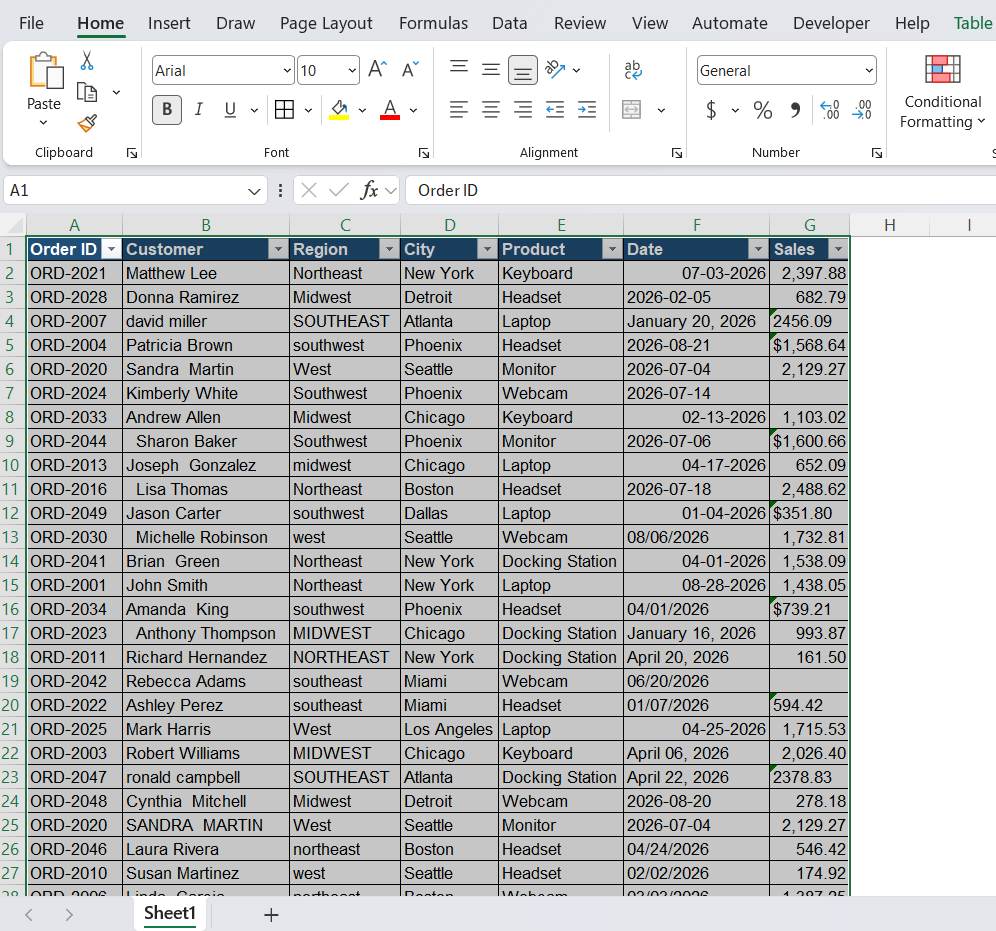
STEP 2: Go to the Home tab and click on the Copilot button.

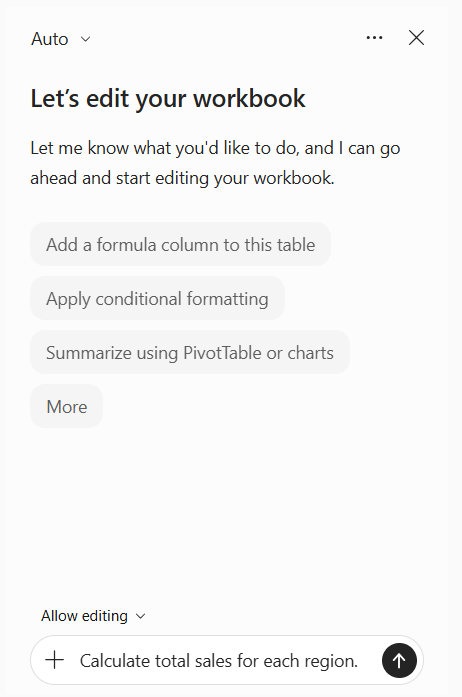
STEP 3: A chat panel will open on the right side. Type your request in plain English. Press Enter.
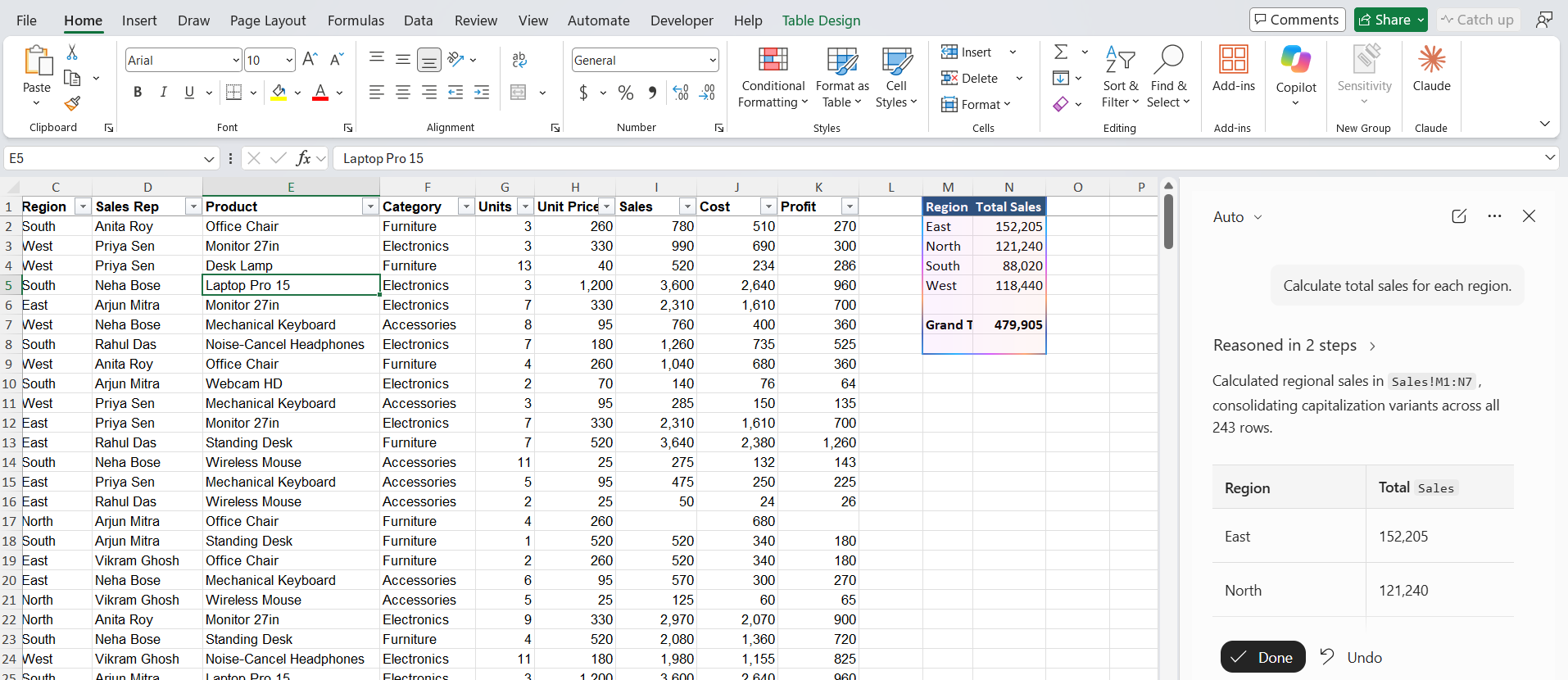
STEP 4: If the suggestion looks okay to you, press Done.
How to Clean Messy Data with Copilot
Clean Data Button
Suppose you export 1200 rows of data with names, cities, order dates, and other information. This data may have issues like duplicate records, missing values, inconsistent formatting, extra spaces, etc. You can select the Clean Data button to fix the messy data.
The Clean Data button is the fastest way to start. You don’t need to write a prompt. Copilot will:
- Scan the table on its own
- List the problems it finds
- Ask you to approve each fix
STEP 1: Turn on the Autosave option situated at the top-left corner of the Excel workbook.
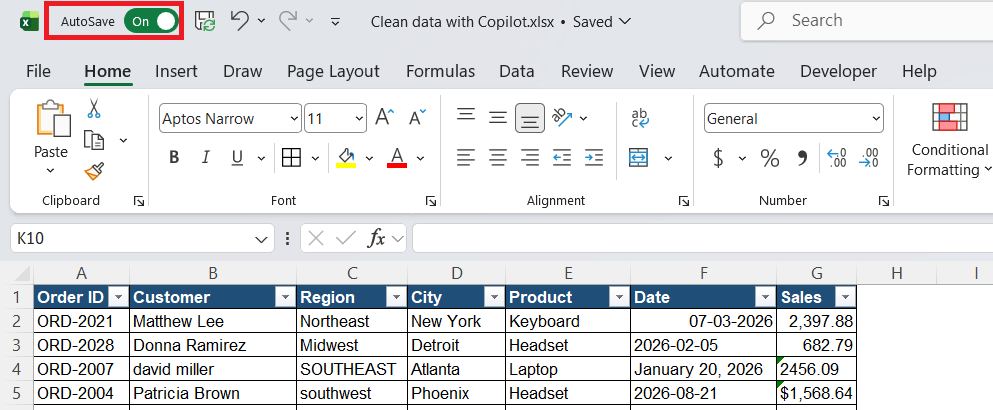
STEP 2: Go to the Data tab.

STEP 3: Select Clean Data.

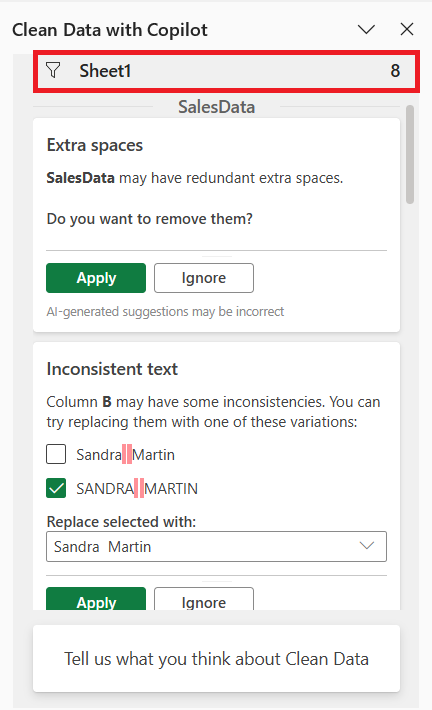
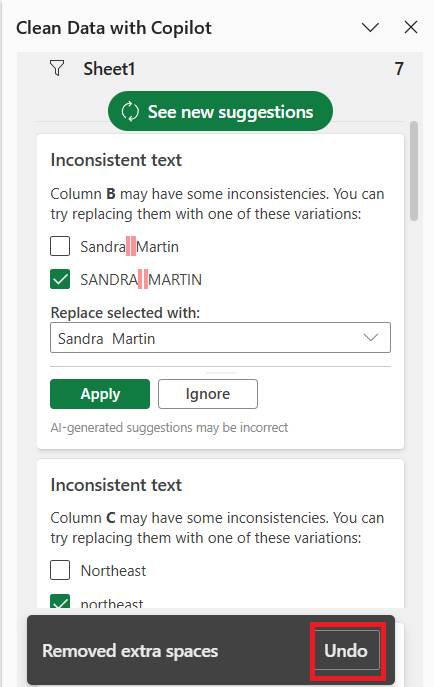
STEP 4: In the Clean Data with Copilot panel, there will be
- Sheet name and number of errors are shown at the top.
- A list of detected data issues is displayed below.
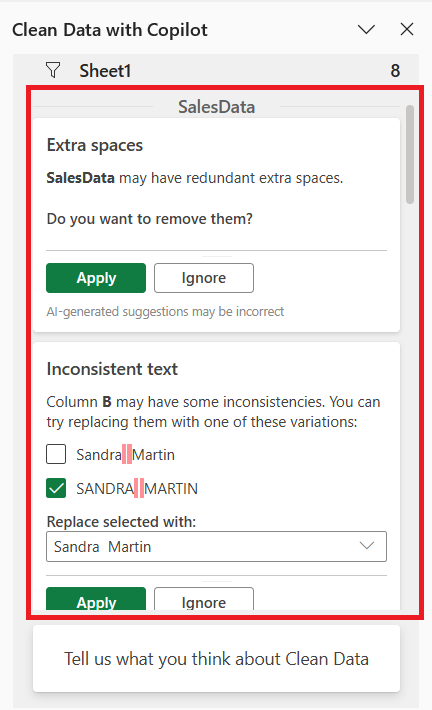
- Each issue explains the problem, such as extra spaces or inconsistent text.
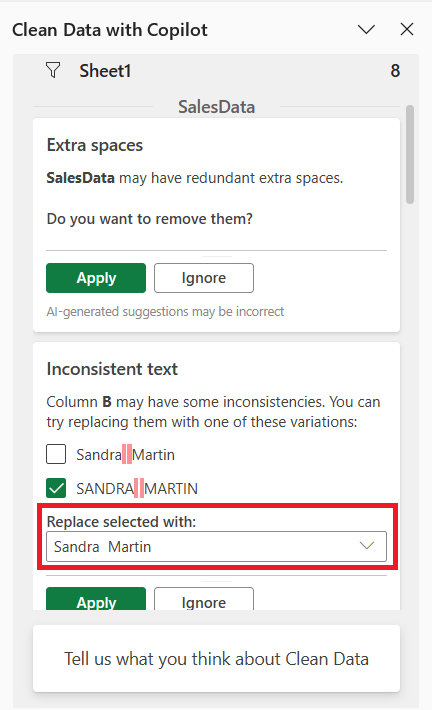
- Copilot may show suggested corrections for the detected issues.
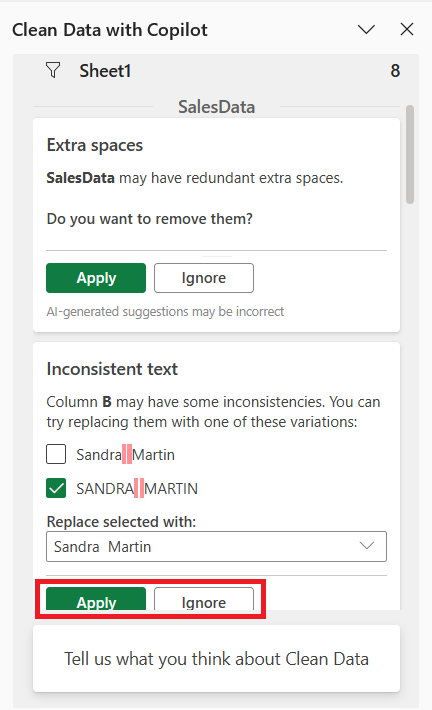
- You can click Apply to make the suggested change or Ignore if you do not want to apply it.
- If you do not want to apply the changes, press Undo.
Using Copilot Prompts
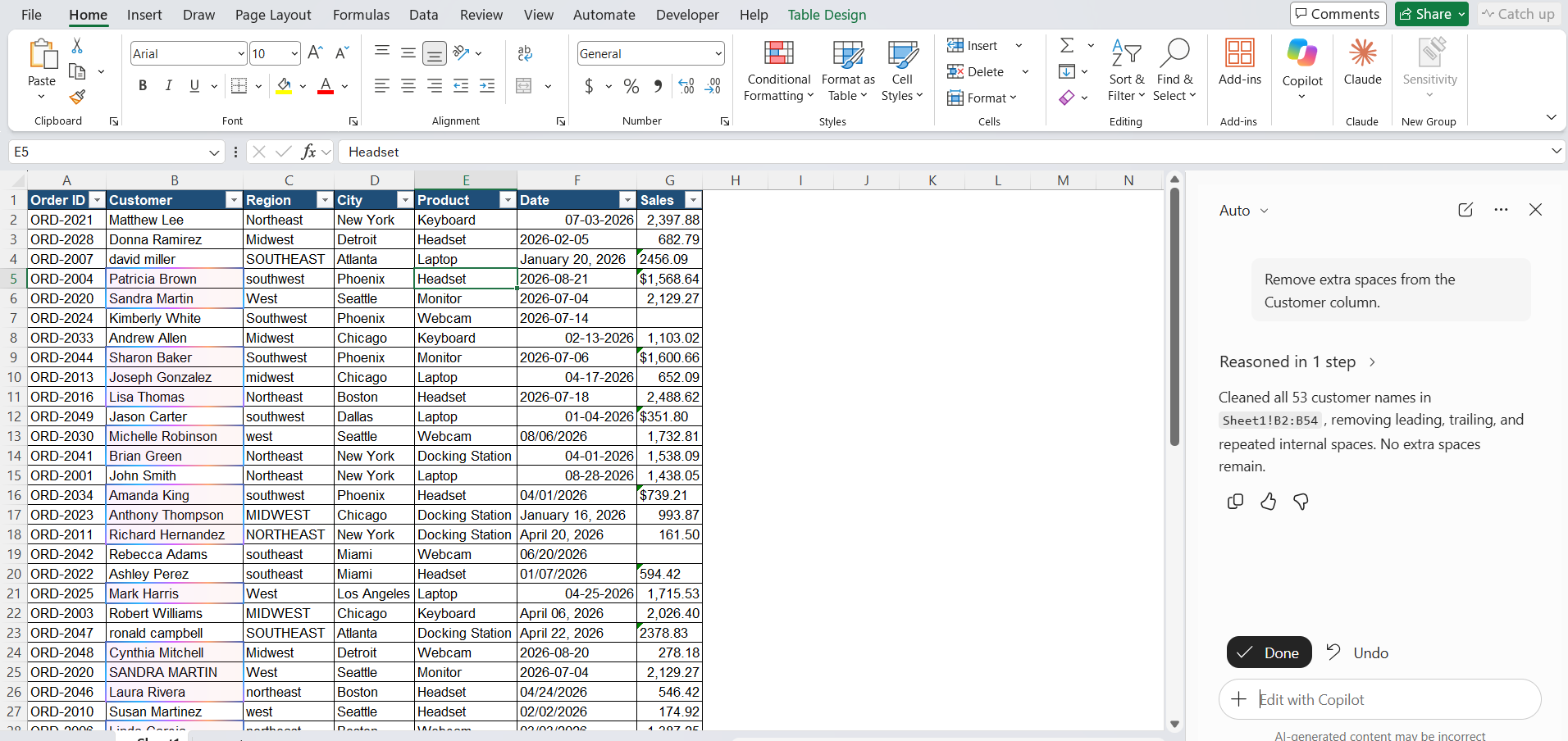
STEP 1: Remove Extra Spaces
Extra spaces are common when data is copied from another system. You can ask Copilot:
“Remove extra spaces from the Customer column.”
STEP 2: Standardize Text
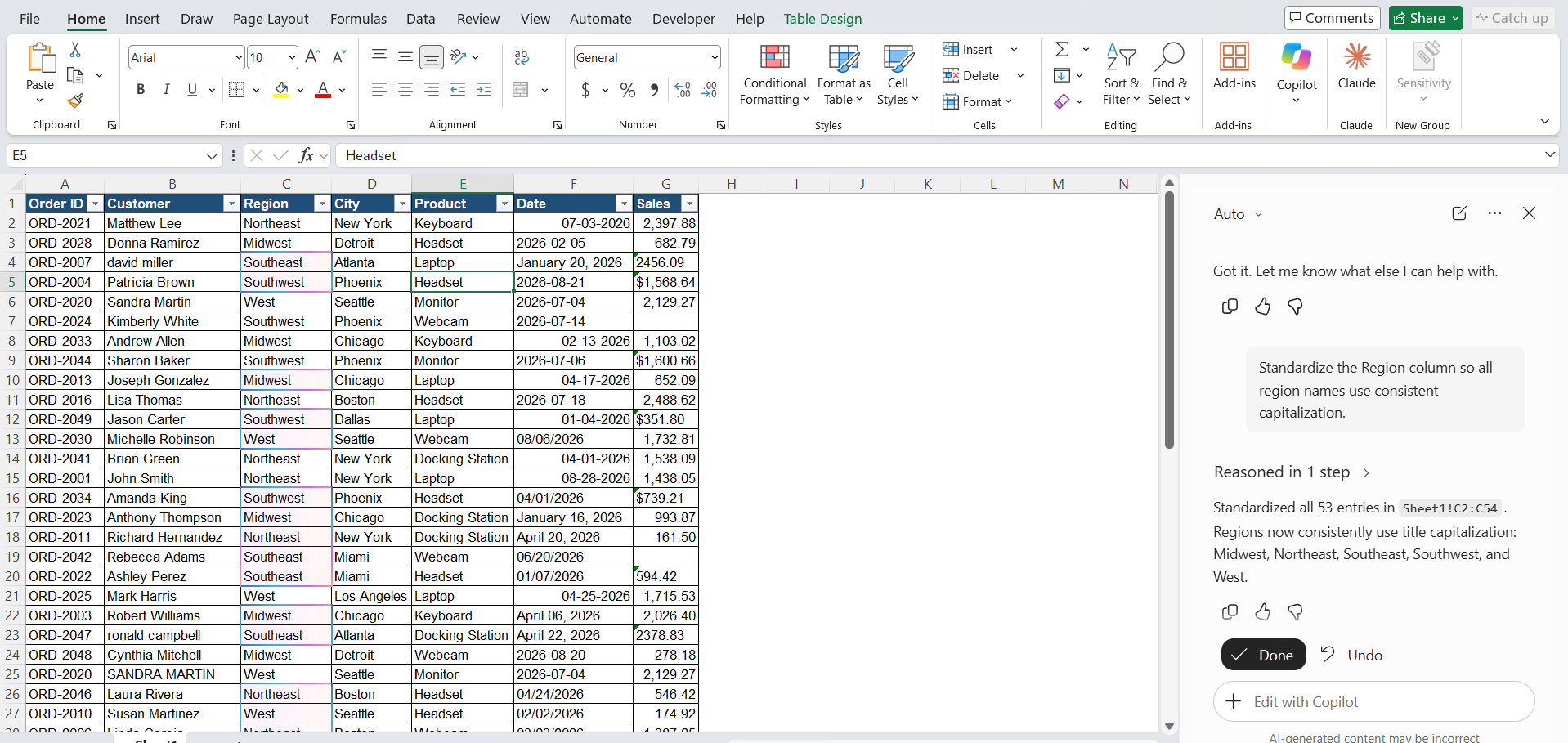
Names, regions, and product categories may use different capitalization. You can ask Copilot:
“Standardize the Region column so all region names use consistent capitalization.”
STEP 3: Find Duplicate Records
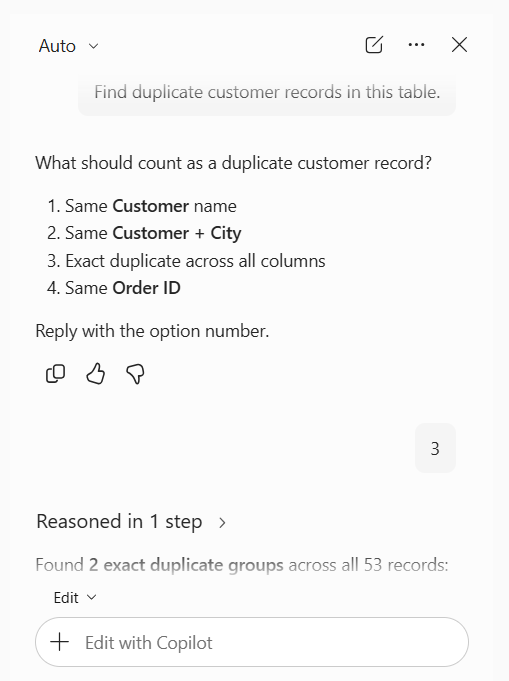
Duplicate records can cause incorrect totals and reports. You can ask Copilot:
“Find duplicate customer records in this table.”
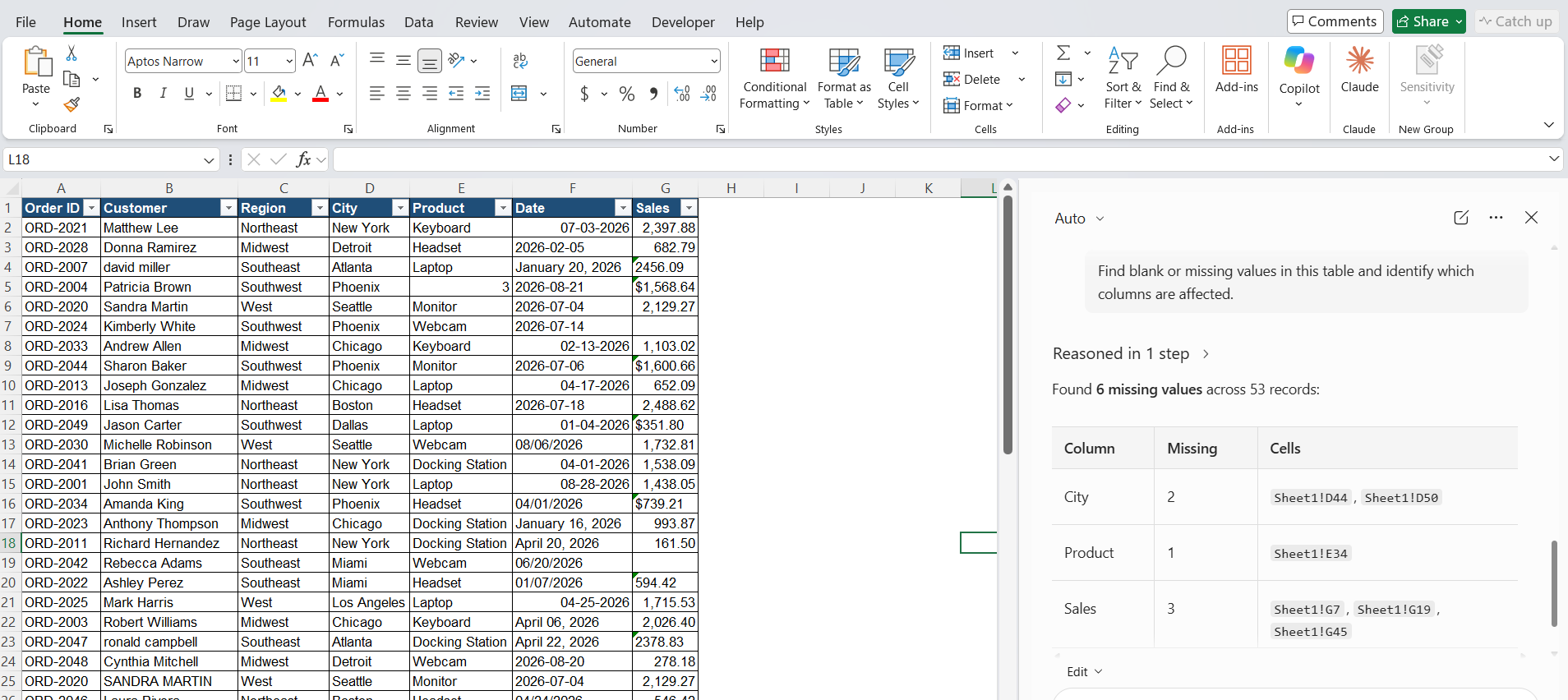
STEP 4: Find Missing Values
Missing values can make calculations and analysis unreliable. You can ask Copilot:
“Find blank or missing values in this table and identify which columns are affected.”
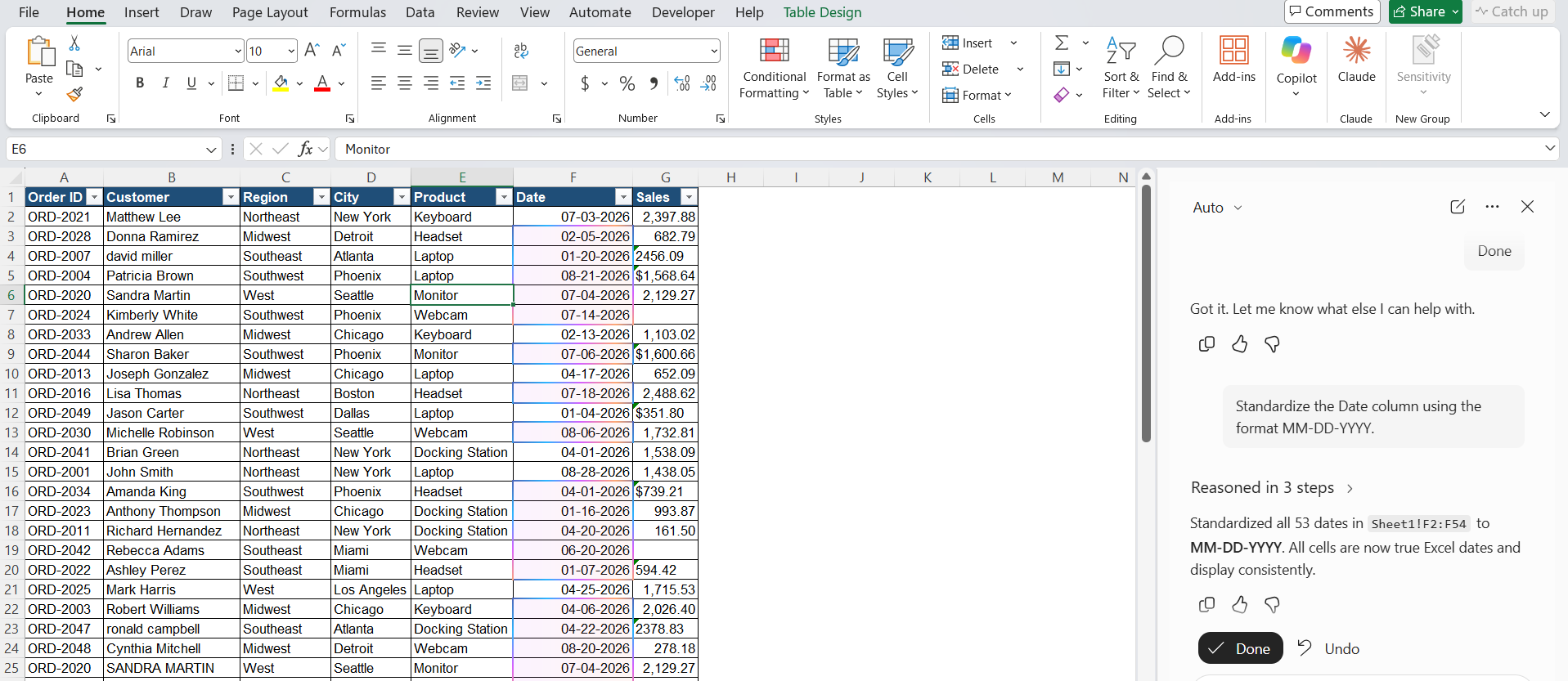
STEP 5: Fix Inconsistent Dates
Dates can also appear in different formats. You can ask Copilot:
“Standardize the Date column using the format MM-DD-YYYY.”
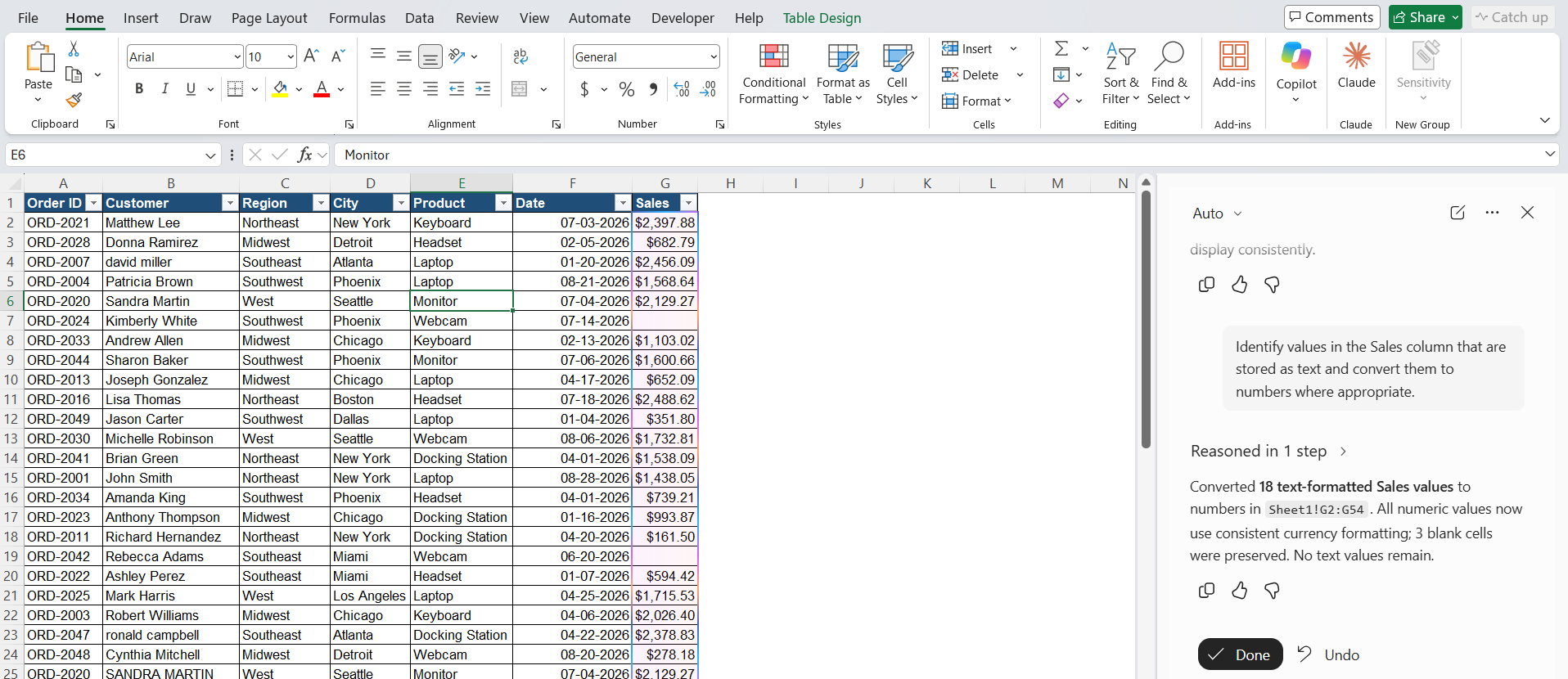
STEP 6: Correct Numbers Stored as Text
Sometimes numbers are stored as text after importing data. You can ask Copilot:
“Identify values in the Sales column that are stored as text and convert them to numbers where appropriate.”
Tips & Tricks
- Use clear prompts that mention the exact column you want to clean.
- Clean one type of data issue at a time for better results.
- Ask Copilot to identify problems before asking it to make changes.
- Check duplicate records carefully before deleting them.
- Keep a copy of the original data before making major changes.
FAQs
1. Can Copilot clean messy data in Excel?
Yes, Copilot can help identify and fix many common data-cleaning issues.
2. Can Copilot remove extra spaces from Excel data?
Yes, you can ask Copilot to remove extra spaces from a specific column.
3. Can Copilot find duplicate records?
Yes, Copilot can help identify duplicate records in your Excel table.
4. Can Copilot fix inconsistent dates?
Yes, you can ask Copilot to standardize dates into a consistent format.
5. What does the Clean Data button do?
The Clean Data button scans your data and shows the problems it finds.

John Michaloudis is a former accountant and finance analyst at General Electric, a Microsoft MVP since 2020, an Amazon #1 bestselling author of 4 Microsoft Excel books and teacher of Microsoft Excel & Office over at his flagship MyExcelOnline Academy Online Course.

 30 Days - Full Access









